How to Fix Selenium Scrolling Screenshots in Internet Explorer 11
Fix IE11 Selenium screenshots by checking driver prerequisites, separating viewport capture from full-page stitching, and choosing a reliable capture path.
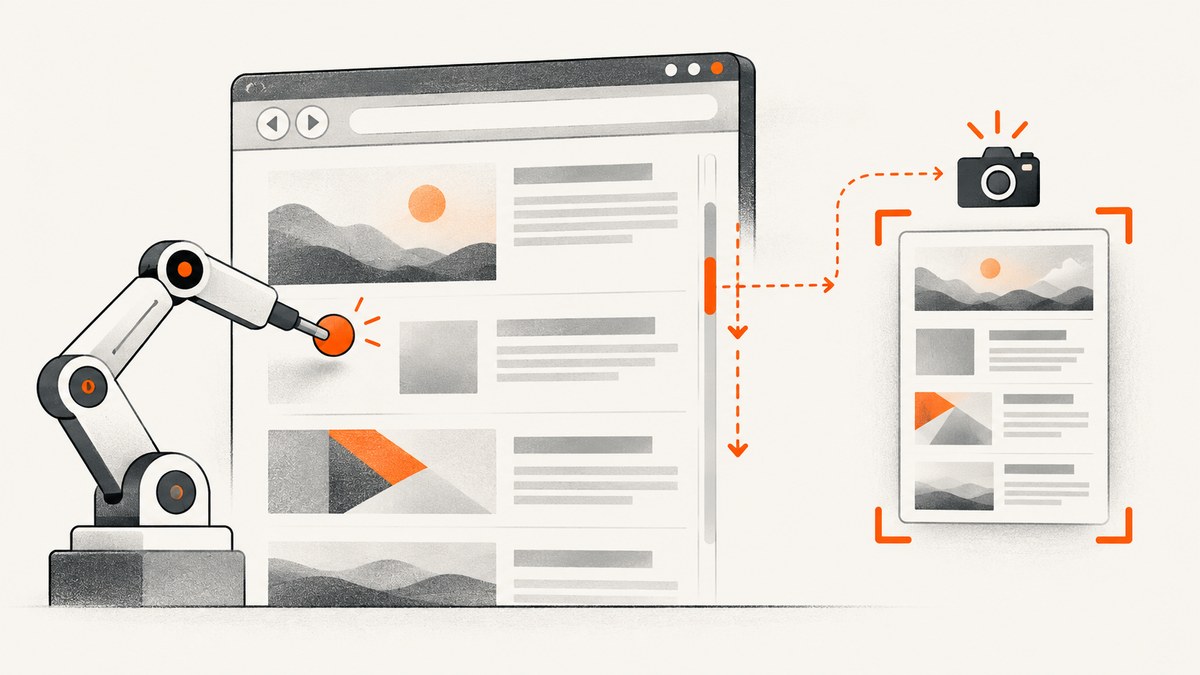
Short answer: Selenium’s IE driver captures the current browsing context. A normal GetScreenshot() call should be treated as a viewport screenshot, not as a guaranteed stitched image of the entire document. First verify the IE11 and IEDriver prerequisites, record your Selenium and driver versions, then choose one of three deliberate paths: capture the viewport, stitch screenshots while scrolling, or use Edge’s full-page Screenshot feature. For new automation, Selenium recommends moving away from standalone IE and using Microsoft Edge in IE Compatibility Mode when legacy compatibility is required.
Why IE11 scrolling screenshots fail
Several different problems are often described as “the screenshot does not scroll”:
- The driver captured only the visible viewport.
- The page was scrolled, but the screenshot was taken before the scroll completed.
- IE11 prerequisites are inconsistent, causing unreliable scrolling or driver behavior.
- A Selenium, IEDriverServer, browser, or Grid version change altered the result.
- A fixed header, lazy-loaded image, or infinite-scroll section makes a simple stitch inaccurate.
Selenium documents screenshots and fullscreen as separate window operations. Fullscreen enlarges the display area; it does not promise a full-document image. A historical Selenium issue reported a change from full-page output to viewport-only output after upgrading from Selenium 2.48.0 to 3.6.0 on Windows 10 and IE11. Treat that report as version-specific evidence, not as a universal rule. See Selenium issue #4992.
1. Verify the IE11 and IEDriver environment
Before changing screenshot code, record the exact environment:
- Selenium binding and version
- IEDriverServer version and 32-bit or 64-bit architecture
- IE version, or Edge version when using IE Compatibility Mode
- Windows version and display scaling
- Local, Selenium Grid, VM, or remote desktop execution
For standalone IE, follow Selenium’s Internet Explorer driver requirements:
- Set Protected Mode to the same value in every IE security zone.
- Set browser zoom to 100%.
- On Windows 10, set display scaling to 100%.
- For IE11, configure the
FEATURE_BFCACHEregistry value required by the driver documentation. Selenium specifies a DWORD namediexplore.exewith value0; the 32-bit and 64-bit registry paths differ, so use the path matching your installation. - Use the 32-bit IEDriverServer for standalone IE when possible. Selenium documents known limitations in the 64-bit driver.
These settings are documented in Selenium’s IE driver guide. Apply registry changes through your normal Windows administration process and restart IE sessions afterward.
2. Capture the current IE11 viewport reliably
This Python example waits for the document to load, scrolls an element into view, pauses briefly for rendering, and saves the visible browsing context. It does not claim to produce a full-page image.
from pathlib import Path
from time import sleep

from selenium import webdriver
from selenium.webdriver.ie.service import Service
from selenium.webdriver.ie.options import Options

options = Options()
# Keep the browser window size stable so image dimensions are predictable.
options.ignore_protected_mode_settings = False

service = Service(executable_path=r'C:\\tools\\IEDriverServer.exe')
driver = webdriver.Ie(service=service, options=options)

try:
    driver.set_window_size(1366, 900)
    driver.get('https://example.com')

    # Scroll the target into the viewport before taking the shot.
    driver.execute_script("document.querySelector('h1').scrollIntoView({block: 'center'});")
    sleep(0.5)

    output = Path('ie11-viewport.png')
    if not driver.save_screenshot(str(output)):
        raise RuntimeError('IEDriverServer did not save the screenshot')
    print(output.resolve())
finally:
    driver.quit()
If the image contains only what is visible, that is consistent with Selenium’s screenshot contract. Do not infer that scrolling failed until you check the scroll position separately.
3. Confirm scrolling before debugging capture
before = driver.execute_script('return window.pageYOffset;')
driver.execute_script('window.scrollTo(0, document.body.scrollHeight);')
sleep(0.5)
after = driver.execute_script('return window.pageYOffset;')
height = driver.execute_script(
    'return Math.max(document.body.scrollHeight, document.documentElement.scrollHeight);'
)
print({'before': before, 'after': after, 'document_height': height})
If after remains zero, check that the page is not inside a scrolling container. Many applications scroll a nested element instead of the top-level document:
scrolled = driver.execute_script("""
const el = document.querySelector('.scroll-container');
if (!el) return false;
el.scrollTop = el.scrollHeight;
return {top: el.scrollTop, height: el.scrollHeight, client: el.clientHeight};
""")
print(scrolled)
Wait for the scroll operation and any lazy-loaded content before capturing. A short delay is often safer than assuming that JavaScript assignment and image rendering finish in the same event loop turn.
4. Build a stitched full-page image when automation requires one
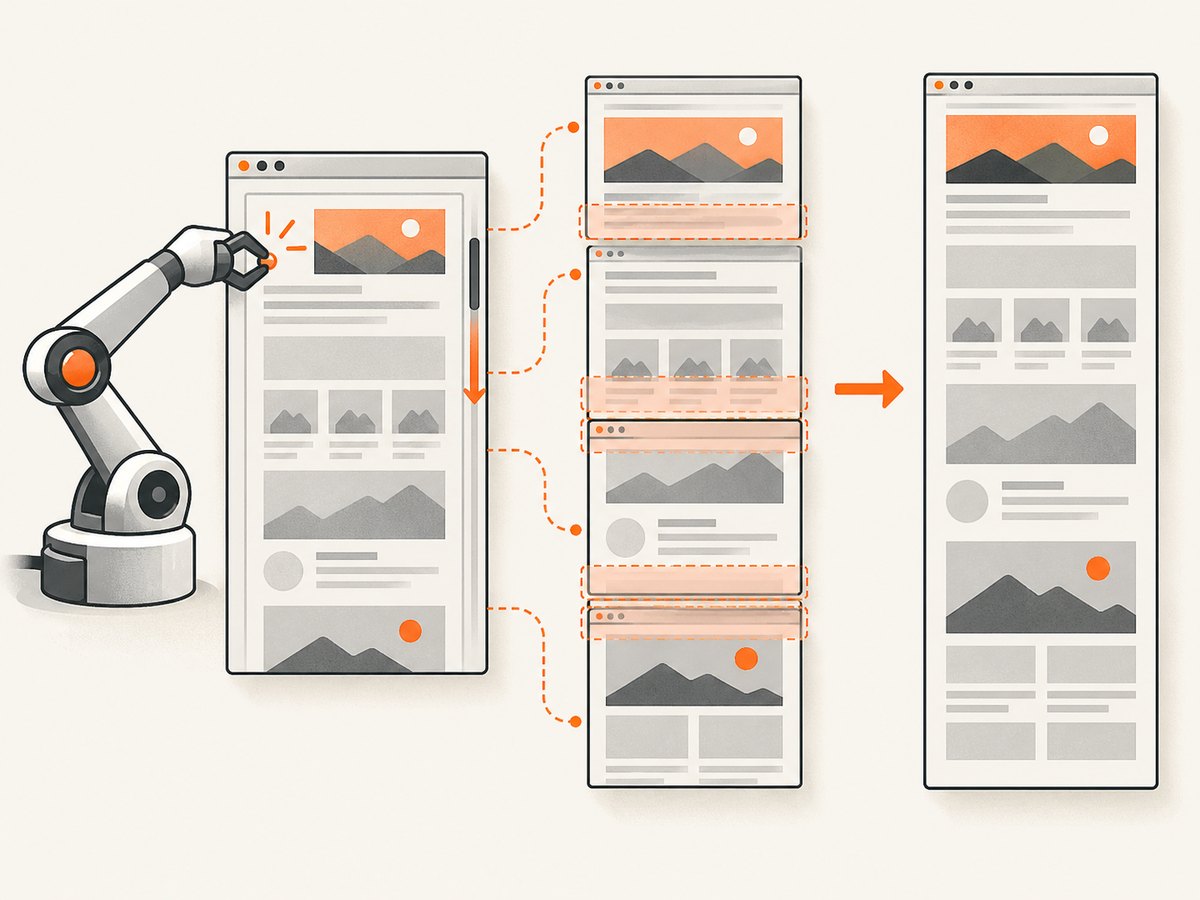
IE11 does not provide a universal WebDriver full-page screenshot operation. A practical fallback is to capture viewport-sized tiles while scrolling and join them. The following example uses Pillow and deliberately keeps an overlap between tiles.
from io import BytesIO
from time import sleep
from PIL import Image

viewport = driver.execute_script('return {w: window.innerWidth, h: window.innerHeight};')
page_height = driver.execute_script(
    'return Math.max(document.body.scrollHeight, document.documentElement.scrollHeight);'
)
step = max(1, viewport['h'] - 40)  # overlap helps hide seams
positions = list(range(0, page_height, step))

shots = []
for y in positions:
    driver.execute_script('window.scrollTo(0, arguments[0]);', y)
    sleep(0.35)
    image = Image.open(BytesIO(driver.get_screenshot_as_png())).convert('RGB')
    shots.append((y, image.copy()))

# Browser CSS pixels and screenshot pixels can differ, so use the actual tile size.
tile_w, tile_h = shots[0][1].size
scale = tile_h / max(1, viewport['h'])
canvas_h = int(page_height * scale)
stitched = Image.new('RGB', (tile_w, canvas_h), 'white')
for y, image in shots:
    destination_y = int(y * scale)
    stitched.paste(image, (0, destination_y))
stitched.save('ie11-full-page-stitched.png')
This is a best-effort document image, not a browser-native full-page capture. Fixed headers may repeat, sticky elements may cover content, animations can differ between tiles, and pages that append content while scrolling need a maximum-height or end-of-content rule. For pixel-accurate archival captures, freeze animations with injected CSS, wait for images, and test the stitch on the actual page.
5. Consider Edge IE Compatibility Mode for maintained automation
Selenium’s current guidance is to stop targeting standalone IE. The IE driver can run Microsoft Edge in IE Compatibility Mode for sites that still require legacy rendering. The exact capability names and behavior depend on your Selenium and driver versions, so follow the current Selenium IE driver documentation and verify screenshots on your installed stack.
Do not assume that switching to IE mode automatically creates a full-page screenshot. Keep the viewport-versus-document distinction and use a deliberate stitching or browser-capture path.
6. Use Edge’s built-in full-page capture for manual images
When you need a complete page image for a human review rather than a repeatable WebDriver artifact, Microsoft Edge includes a Screenshot feature. Microsoft documents that its “Capture full page” option includes content outside the visible viewport and can be copied or saved. See Microsoft Edge Screenshot.
Common errors and fixes
| Symptom | Likely cause | Fix |
|---|---|---|
| Only visible content appears | Normal viewport screenshot behavior | Use a stitch, Edge full-page capture, or a screenshot API designed for full-page output. |
| Scroll position never changes | The page uses a nested scrolling element | Find the scrolling container and set its scrollTop; confirm the value afterward. |
| IEDriver starts but behaves unpredictably | Protected Mode, zoom, scaling, or registry prerequisites differ | Apply Selenium’s IE requirements consistently and restart the session. |
| Results changed after an upgrade | Version-specific Selenium or IEDriver behavior | Record all versions, reproduce on a minimal page, and compare the old and new combinations. |
| Screenshot has repeated headers or seams | Sticky elements or insufficient tile overlap | Hide or freeze sticky elements, increase overlap, and wait for layout stability. |
| Lazy images are missing | Images load only after scrolling | Scroll each region, wait for image completion, and verify image dimensions before stitching. |
| Grid capture differs from local capture | Different display scaling, driver bitness, browser, or timing | Pin the same environment and collect node, browser, driver, and screenshot metadata. |
Performance, reliability, and cost considerations
- Performance: stitching requires one browser screenshot per viewport tile. Longer pages therefore increase capture time and memory use.
- Reliability: wait for navigation, fonts, images, and network activity that affects layout. Disable animations where possible and capture at a fixed window size.
- Repeatability: pin Selenium, IEDriverServer, browser, Windows image, display scaling, and execution location. Store these values with the artifact.
- Cost: local Selenium and Edge captures consume your own compute. A hosted screenshot API shifts browser maintenance to the service and may charge per successful capture; check its billing rules before large batches.
Or skip the browser setup
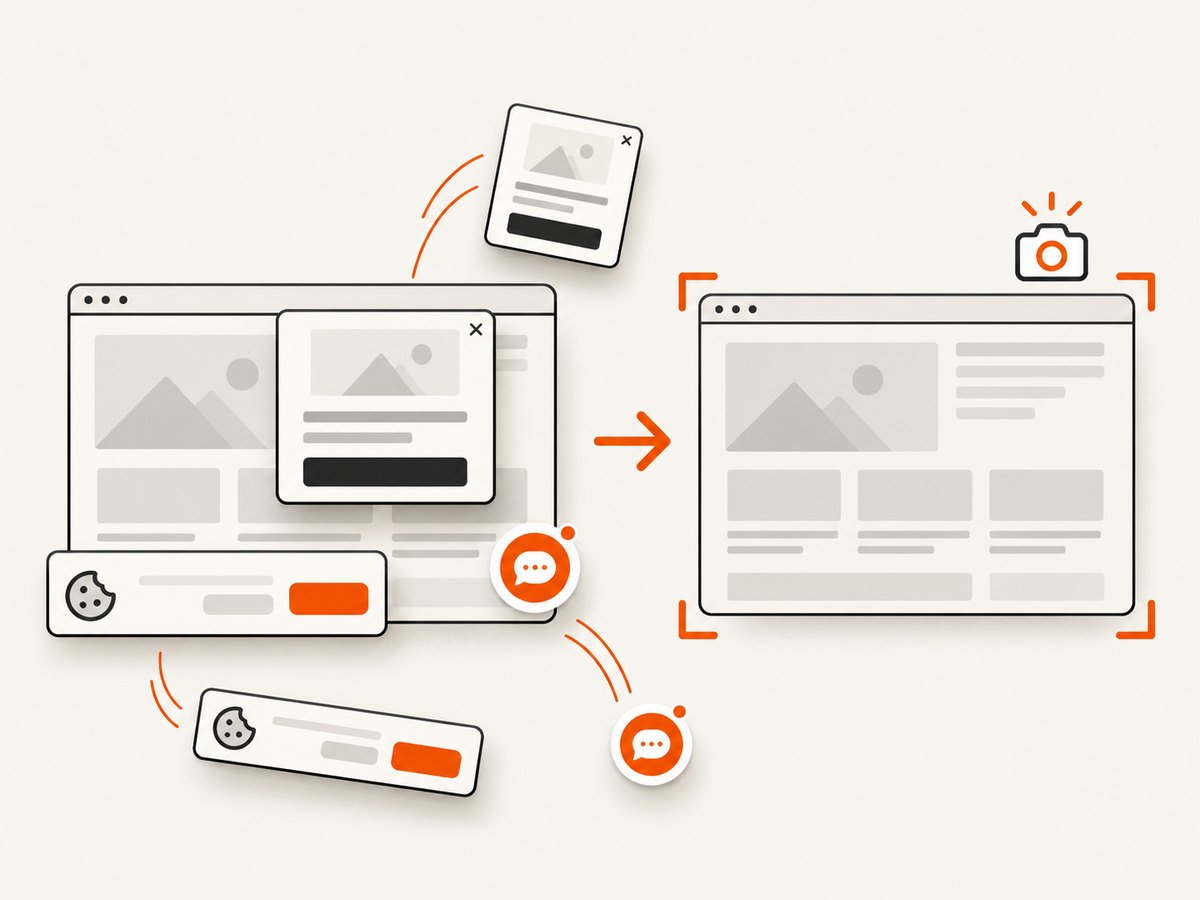
ScreenshotNeo provides a single GET request for PNG, JPEG, WebP, or PDF captures. It handles full-page lazy images, element selectors, custom JavaScript and CSS, waits, device presets, headers, cookies, user agents, geolocation, blocking rules, caching, asynchronous jobs, bulk capture, and signed links. Cookie and consent banners, newsletter popups, and chat widgets are removed before the shot. Bot checks, blank pages, timeouts, failed loads, and cache hits are not billed; the response identifies the result with X-Page-Verdict and X-Billed headers.
See the ScreenshotNeo API documentation for all options. This request captures a page without installing IE, IEDriverServer, or a Windows VM:
curl -G "https://api.screenshotneo.com/v1/shot" \
  -d access_key=YOUR_API_KEY \
  --data-urlencode url=https://example.com \
  -o shot.webp
import requests
r = requests.get(
'https://api.screenshotneo.com/v1/shot',
params={'access_key': 'YOUR_API_KEY', 'url': 'https://example.com'},
timeout=90,
)
r.raise_for_status()
open('shot.webp', 'wb').write(r.content)const q = new URLSearchParams({
access_key: 'YOUR_API_KEY',
url: 'https://example.com'
});
const res = await fetch(`https://api.screenshotneo.com/v1/shot?${q}`);
if (!res.ok) throw new Error(`HTTP ${res.status}`);
const bytes = new Uint8Array(await res.arrayBuffer());
await Bun.write('shot.webp', bytes);ScreenshotNeo also includes an MCP server with take_screenshot, get_page_info, and capture_pdf tools for Claude, Cursor, and other MCP clients. The Free plan includes 1,000 screenshots per month with no card; paid plans start at $5 for 3,000 shots. Create a free ScreenshotNeo account.
FAQ
Does Selenium’s IE11 screenshot method guarantee a full-page image?
No. Treat the standard screenshot as a capture of the current browsing context. Use stitching or a full-page browser/API capture when the document must extend beyond the viewport.
Should I use the 64-bit IEDriverServer?
Selenium recommends the 32-bit driver for standalone IE because of known 64-bit limitations.
Can fullscreen fix a clipped screenshot?
Fullscreen changes the display area. Selenium documents it separately from screenshot capture, so it is not a general full-document solution.
Is the 2017 Selenium issue proof that current IE11 always fails?
No. It records one Selenium 3.6.0, IE11, and Windows 10 combination. Reproduce on your exact binding, driver, browser, and Grid versions.


