How to Fix Selenium IEDriver Failures on Jenkins
Diagnose IEDriverServer failures on Jenkins with a practical checklist for Edge IE mode, legacy IE agents, bitness, registry settings, services, logs, and capabilities.
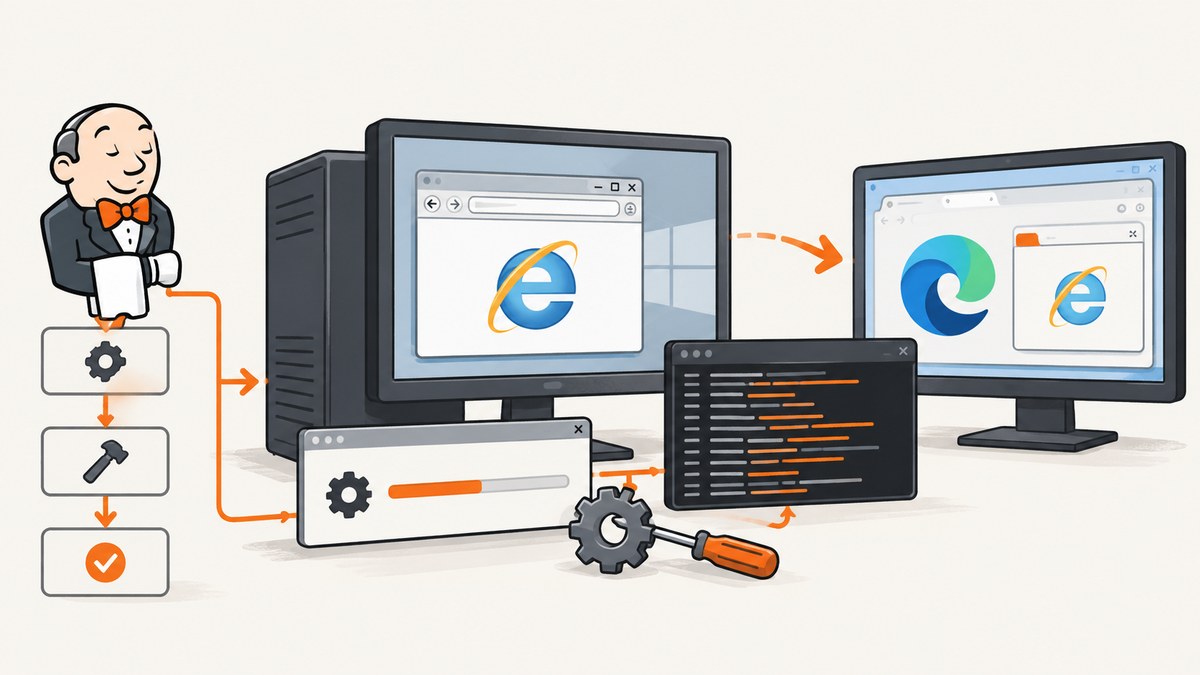
Start with the browser you are actually trying to launch. Selenium officially ended support for standalone Internet Explorer in June 2022. Its Internet Explorer driver still supports Microsoft Edge running in IE Compatibility Mode. That distinction determines whether you should repair a legacy Windows agent or move the test to Edge.
For a Jenkins failure, check these items in order:
- Confirm whether the job targets standalone IE or Edge IE Compatibility Mode.
- Verify that
IEDriverServer.exeis installed, executable, onPATH, and the correct bitness. - Run the agent in a supported interactive Windows user context; Selenium says running IEDriverServer as a Windows Service is unsupported and untested.
- For standalone IE, align Protected Mode settings across all zones, use 100% browser zoom and 100% Windows display scaling, disable Enhanced Protected Mode where required, and apply the documented IE 11
FEATURE_BFCACHEregistry setting. - Capture IEDriverServer logs and the Jenkins console output before changing capabilities.
The sections below explain each check, show Jenkins and Selenium examples, and map common errors to the smallest appropriate fix.
1. Identify the supported browser path
The most important diagnostic question is whether your test still launches standalone Internet Explorer. Selenium’s documentation states: “As of June 2022, Selenium officially no longer supports standalone Internet Explorer.” The same documentation says the IE driver supports Microsoft Edge in IE Compatibility Mode. Read the official guidance in the Selenium IE Driver Server documentation before investing more time in a retired standalone target.
Jenkins’s own browser-support page concerns the browser used to open the Jenkins controller interface. Its change history records removal of Internet Explorer support and addition of Edge in 2022. That does not prohibit a Jenkins job from launching a browser for tests. Treat the Jenkins UI policy and the test agent’s browser support as separate questions.
Choose a path
| Requirement | Recommended investigation |
|---|---|
| The application must behave as it did in standalone IE | Document the legacy requirement, then verify whether the test can be retired or moved. Selenium no longer officially supports this target. |
| The application needs IE-specific rendering or enterprise compatibility behavior | Evaluate Microsoft Edge IE Compatibility Mode with Selenium’s IE driver and the site’s enterprise Edge policy. |
| The failure is only in Jenkins | Compare the Jenkins agent’s Windows account, desktop session, driver path, bitness, registry, and browser settings with the working developer machine. |
2. Verify IEDriverServer and architecture
Selenium’s driver-server documentation requires the standalone server executable to be downloaded and placed on PATH, or supplied explicitly when the driver is constructed. Check the actual Jenkins agent, not the controller and not your workstation.
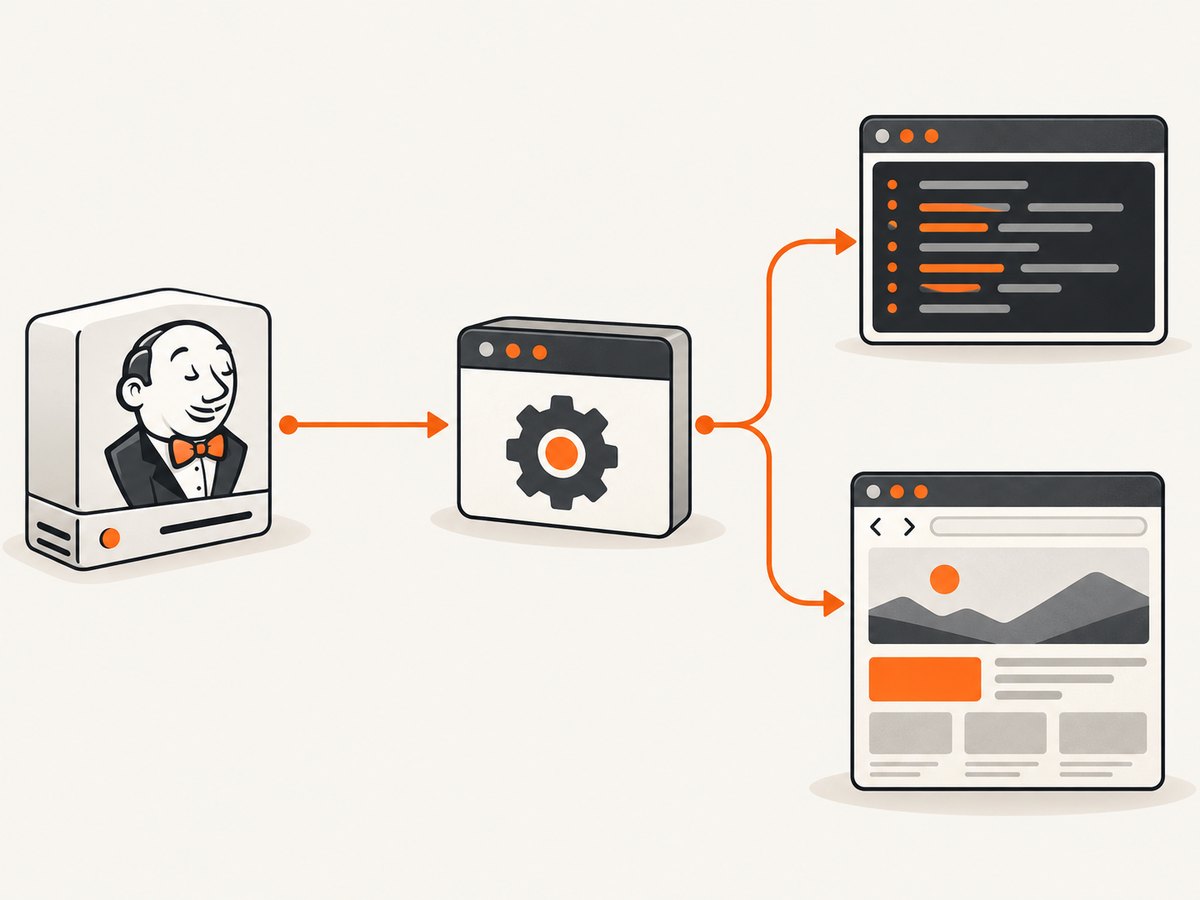
where IEDriverServer
IEDriverServer.exe --version
where msedge
where iexplore
If where returns nothing, install the driver on the agent or pass an absolute path. Make sure the Jenkins service account (if you are using one for other tasks) can read and execute the file. The browser bitness follows the IEDriverServer executable bitness. Selenium’s browser-specific documentation notes known limitations in the 64-bit driver and recommends the 32-bit driver for many standalone IE setups. Do not assume that a 64-bit Windows host requires a 64-bit driver.
Jenkins Pipeline preflight
pipeline {
  agent { label 'windows-ie' }
  stages {
    stage('Browser preflight') {
      steps {
        bat 'whoami'
        bat 'ver'
        bat 'where IEDriverServer'
        bat 'IEDriverServer.exe --version'
        bat 'where msedge'
        bat 'reg query "HKLM\\SOFTWARE\\Microsoft\\Internet Explorer\\Main\\FeatureControl\\FEATURE_BFCACHE" /v iexplore.exe'
      }
    }
    stage('Run tests') {
      steps {
        bat 'mvn -B test'
      }
    }
  }
}
Keep this preflight in a diagnostic branch or temporarily in the failing job. Save its output with the build so you know which account and executable were used.
3. Configure a supported Jenkins Windows agent
Selenium explicitly says running IEDriverServer.exe as part of a Windows Service is unsupported and untested. Jenkins agents are often installed as services, so this is a high-priority check. A service session may have a different desktop, profile, registry view, permissions, and environment variables than an interactive user session.
Reproduce the failure using a regular Windows user session that can open the target browser. If your organization requires a service-based agent, treat that arrangement as an environmental risk and compare it with Selenium’s documented RemoteWebDriver arrangement. Do not describe a service workaround as officially supported by Selenium.
Record the execution context
pipeline {
  agent { label 'windows-ie' }
  stages {
    stage('Execution context') {
      steps {
        bat 'echo USERNAME=%USERNAME%'
        bat 'echo USERPROFILE=%USERPROFILE%'
        bat 'echo WORKSPACE=%WORKSPACE%'
        bat 'set PATH'
      }
    }
  }
}
Run the same commands in the interactive session that succeeds. Differences in USERNAME, profile directories, PATH, desktop access, or policy are evidence that Jenkins is not reproducing the working setup.
4. Apply standalone IE settings only when standalone IE is required
For a legacy standalone Internet Explorer test, Selenium documents several launch prerequisites:
- Protected Mode must use the same setting in every IE security zone.
- Disable Enhanced Protected Mode for IE 10 and later when the driver requires it.
- Set browser zoom to 100%.
- Set Windows display scaling to 100%.
- For IE 11, create a DWORD named
iexplore.exewith value0under theFEATURE_BFCACHEregistry key.
Apply and verify these settings on the Jenkins agent’s actual user profile. A setting changed for your administrator account does not prove that the Jenkins account sees the same value. Use Group Policy and registry auditing according to your organization’s change process.
reg query "HKLM\\SOFTWARE\\Microsoft\\Internet Explorer\\Main\\FeatureControl\\FEATURE_BFCACHE" /v iexplore.exe
reg query "HKCU\\Software\\Microsoft\\Internet Explorer\\Main\\FeatureControl\\FEATURE_BFCACHE" /v iexplore.exe
Which registry hive is relevant depends on how the setting was applied and which account launches the browser. Verify the effective value in the failing context rather than copying a command blindly.
5. Use Edge IE Compatibility Mode when that is the target
If the application needs IE behavior but standalone IE is no longer viable, configure Microsoft Edge IE Compatibility Mode through your organization’s supported Edge policy and site list. Selenium’s example uses InternetExplorerOptions and attachToEdgeChrome(). The exact site behavior still needs to be checked in your environment; Selenium documents support for the mode, not a guarantee that every site will work without policy changes.
import org.openqa.selenium.WebDriver;
import org.openqa.selenium.ie.InternetExplorerDriver;
import org.openqa.selenium.ie.InternetExplorerOptions;

public class EdgeIeModeSmokeTest {
  public static void main(String[] args) {
    InternetExplorerOptions options = new InternetExplorerOptions();
    options.attachToEdgeChrome();

    WebDriver driver = new InternetExplorerDriver(options);
    try {
      driver.get("https://example.test/legacy-page");
      System.out.println(driver.getTitle());
    } finally {
      driver.quit();
    }
  }
}
Use the same driver executable and logging approach described below. If Edge launches normally outside Jenkins but not on the agent, compare Edge policy, the site list, the Windows account, and the desktop session.
6. Turn on IEDriverServer logging before changing capabilities
Selenium documents log levels including FATAL, ERROR, WARN, INFO, DEBUG, and TRACE. It also notes that output is ignored unless you direct it to a destination. Write the driver log into the workspace and archive it with the Jenkins build.
import org.openqa.selenium.ie.InternetExplorerDriver;
import org.openqa.selenium.ie.InternetExplorerDriverService;
import org.openqa.selenium.ie.InternetExplorerOptions;

public class LoggedIeSession {
  public static void main(String[] args) {
    InternetExplorerDriverService service = new InternetExplorerDriverService.Builder()
        .withLogFile(new java.io.File("iedriver.log"))
        .withLogLevel(InternetExplorerDriverService.IeLogLevel.TRACE)
        .build();

    InternetExplorerOptions options = new InternetExplorerOptions();
    WebDriver driver = new InternetExplorerDriver(service, options);
    try {
      driver.get("https://example.test");
    } finally {
      driver.quit();
    }
  }
}
Adjust the Java API to the Selenium version used by your project if the service-builder method names differ. The operational goal is unchanged: send IEDriverServer output to a file, then archive it.
post {
  always {
    archiveArtifacts artifacts: 'iedriver.log,**/surefire-reports/**', allowEmptyArchive: true
  }
}
Read the log by phase: executable discovery, browser process startup, session negotiation, navigation, or a later command. Fix the failing phase instead of adding unrelated flags.
7. Match capabilities to the symptom
| Capability or setting | Use it when | Trade-off |
|---|---|---|
fileUploadDialogTimeout |
The native file-upload dialog is timing out. | Changes the wait for that dialog; it does not repair browser startup. |
ensureCleanSession |
Stale cache, history, or cookies from earlier IE instances contaminate the run. | Adds launch-time work and can make startup slower. |
ignoreProtectedModeSettings=true |
Only as a narrowly scoped diagnostic for mismatched zone settings. | Selenium warns it can cause flaky or unresponsive tests and hung browsers. Align the zones manually first. |
Do not use ignoreProtectedModeSettings as a blanket Jenkins fix. If it appears to help, use the result as evidence that the agent’s zone configuration is inconsistent, then correct the configuration and remove the override.
8. Troubleshooting table
| Symptom | Likely cause | Fix |
|---|---|---|
| “IEDriverServer.exe is not recognized” or driver service cannot start | Missing executable, wrong PATH, or inaccessible workspace |
Run where IEDriverServer on the agent, use an absolute path, and verify permissions. |
| Session creation fails immediately | Unsupported standalone IE target, wrong driver/browser bitness, or incompatible launch settings | Decide whether to move to Edge IE mode; then verify bitness, zones, zoom, scaling, and logs. |
| Works locally but hangs on Jenkins | Agent runs as a Windows Service or under a different user/profile | Reproduce in an interactive eligible user context and compare environment details. |
| Browser opens but commands are flaky | Protected Mode mismatch, unsupported ignore flag, or stale profile state | Align all zones, remove broad overrides, and consider ensureCleanSession. |
| Upload test times out | Native upload dialog exceeds the default wait | Increase fileUploadDialogTimeout for that test and inspect the driver log. |
| Edge opens but the site renders incorrectly | IE Compatibility Mode policy or site-list behavior does not match the application | Check the enterprise Edge policy and site-specific compatibility requirements. |
| Jenkins UI no longer works in IE | Jenkins controller UI dropped IE support | Use a supported browser for the Jenkins UI; this does not diagnose the test job itself. |
9. A repeatable Jenkins diagnostic checklist
- Save the exact browser target and Selenium version in the build output.
- Print
whoami,PATH, browser locations, and IEDriverServer version. - Confirm 32-bit versus 64-bit driver choice.
- Determine whether the agent is a Windows Service.
- For standalone IE, verify all zone settings, Enhanced Protected Mode, zoom, display scaling, and the IE 11 registry value.
- For Edge IE mode, verify Edge policy and the site’s compatibility entry.
- Enable IEDriverServer logging and archive the file.
- Change one symptom-specific capability at a time.
- Run a minimal navigation test before the full suite.
- Remove diagnostic overrides after identifying the root cause.
10. Performance, reliability, and maintenance
ensureCleanSession improves isolation but adds work during startup. Use it when test contamination is demonstrated, not as a default performance setting. A 32-bit driver may be the more practical choice for standalone IE despite a 64-bit operating system, because Selenium documents limitations in the 64-bit driver.
Interactive-agent requirements also affect scheduling. Reserve a labeled Windows node with the expected desktop, browser policy, registry, and driver installation. Keep the preflight and driver log for every failure so intermittent startup problems can be compared across builds. If the test is being retained only for legacy coverage, record the migration decision: standalone IE has no current official Selenium support, while Edge IE Compatibility Mode remains the supported Selenium path described in the documentation.
Or skip the browser setup
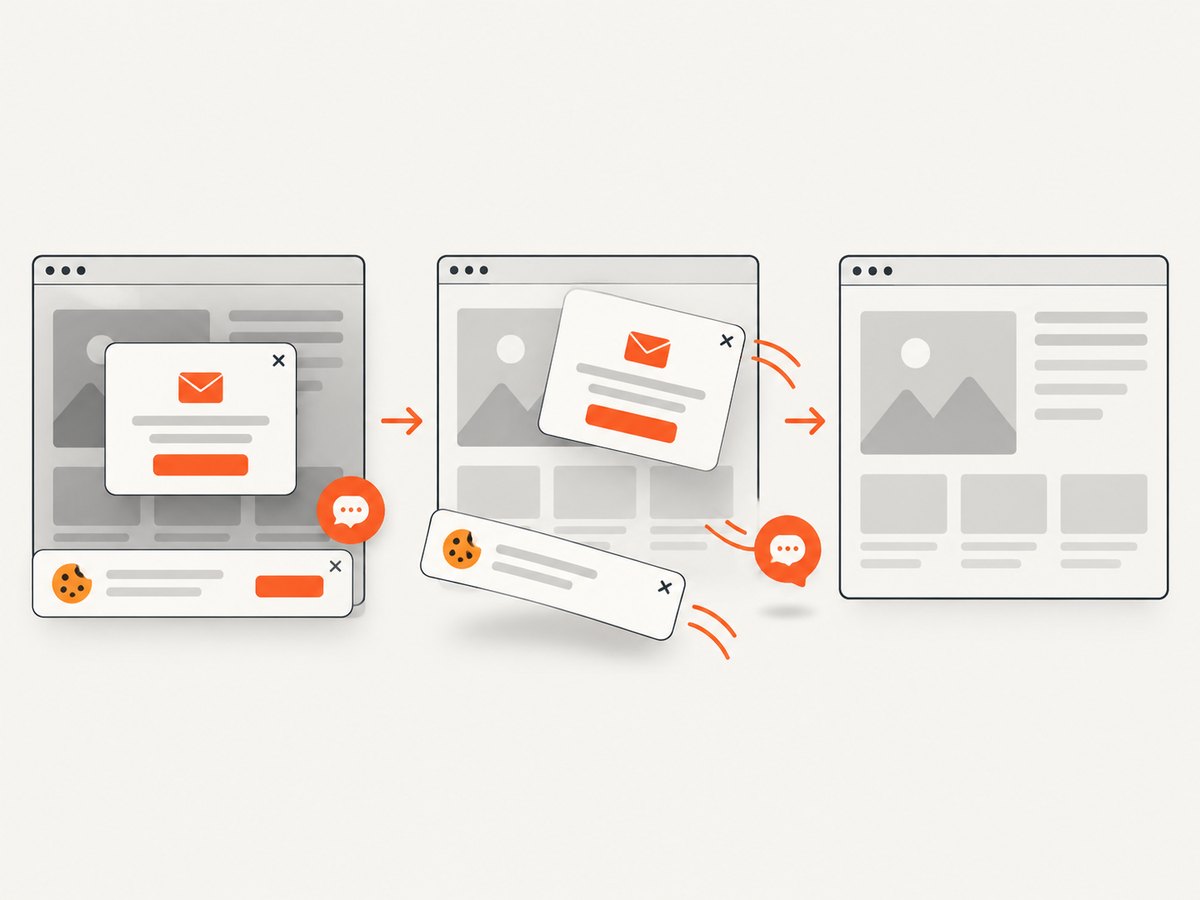
If your actual goal is to save a page image or PDF for a build artifact, a browser driver may be unnecessary. ScreenshotNeo provides a website screenshot API and MCP server. One GET request returns a PNG, JPEG, WebP, or PDF. Cookie and consent banners are accepted and removed before capture, along with more than 60 known consent platforms, newsletter popups, and chat widgets; each cleanup step can be turned off.
Only clean shots are billed. Bot checks or CAPTCHAs, blank pages, timeouts, failed loads, and cache hits cost nothing, and the response identifies the result with X-Page-Verdict and X-Billed headers. An MCP server provides take_screenshot, get_page_info, and capture_pdf tools for Claude, Cursor, and other MCP clients.
See the ScreenshotNeo API documentation for all options. The basic calls are:
cURL
curl -G "https://api.screenshotneo.com/v1/shot" -d access_key=YOUR_API_KEY --data-urlencode url=https://stripe.com -o shot.webpPython
import requests
r = requests.get("https://api.screenshotneo.com/v1/shot", params={"access_key": "YOUR_API_KEY", "url": "https://stripe.com"}, timeout=90)
open("shot.webp", "wb").write(r.content)
Node.js
const q = new URLSearchParams({ access_key: 'YOUR_API_KEY', url: 'https://stripe.com' });
const res = await fetch(`https://api.screenshotneo.com/v1/shot?${q}`);
ScreenshotNeo includes full-page capture with lazy images loaded, element capture by CSS selector, dark mode, device presets or custom viewports, retina scale, PDF paper size and margins, custom CSS and JavaScript, click and wait actions, request blocking, custom headers and cookies, timezone and geolocation, transparent backgrounds, resizing, selectable cache TTLs, signed image links, asynchronous jobs with signed webhooks, bulk capture for up to 100 URLs per call, a usage API, and an OpenAPI specification. Parameter names used by other screenshot APIs also work, which can simplify migration.
The Free plan includes 1,000 screenshots each month with no card. Paid plans start at $5 for 3,000 shots; every feature is available on every plan. Create a free ScreenshotNeo account.
FAQ
Can I keep using standalone Internet Explorer with Selenium?
Selenium no longer officially supports standalone Internet Explorer as of June 2022. Retain it only with a documented legacy risk decision and a controlled environment.
Does Jenkins forbid IE tests?
No. Jenkins’s browser-support page describes the controller interface. It is separate from whether a Windows agent can launch a browser for a test.
Should I always set ignoreProtectedModeSettings?
No. Selenium warns that it can create flaky or hung sessions. Align Protected Mode settings across zones first.
Why does a driver work on my desktop but fail in Jenkins?
The agent may use a different account, profile, desktop session, registry values, PATH, policy, or service context. Print and compare those values.
When is ScreenshotNeo a better fit?
Use it when you need a page screenshot or PDF rather than an interactive Selenium test session, especially when consent banners, popups, failed loads, or AI-agent access matter.


