How to Fix Selenium Library Import Issues in Eclipse
Fix “org.openqa.selenium cannot be resolved” in Eclipse with Maven, Gradle or manual JARs, then separate classpath errors from driver failures.

If Eclipse reports import org.openqa.selenium... cannot be resolved, the Selenium Java binding is missing from the project’s compile classpath or Eclipse has not synchronized its build configuration. Add org.seleniumhq.selenium:selenium-java with Maven (the preferred approach), refresh the project, and verify that Eclipse uses a valid JDK. A missing ChromeDriver or geckodriver is a separate runtime problem.
1. Identify the failure stage
Read the exact error before changing anything:
| Message or symptom | What it means | First action |
|---|---|---|
The import org.openqa cannot be resolved |
Selenium is not on the compile classpath. | Add the Java binding and synchronize Eclipse. |
package org.openqa.selenium does not exist |
The compiler cannot see Selenium classes. | Check Maven, Gradle or Java Build Path entries. |
| Imports compile, but session creation fails | The classpath is working; browser or driver startup failed. | Check Selenium Manager, PATH, browser installation and driver compatibility. |
This distinction prevents a driver executable problem from being “fixed” by repeatedly editing imports.
2. Fix a Maven project
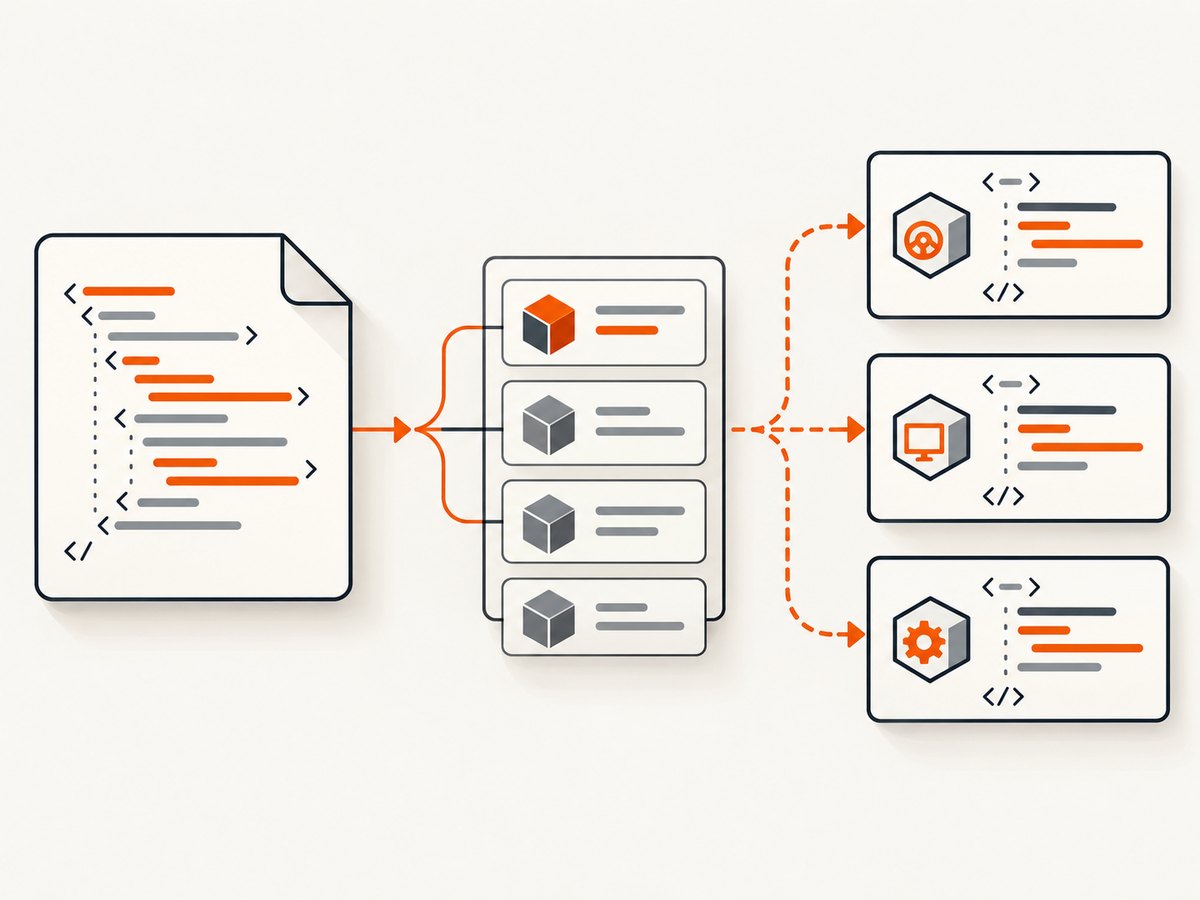
Selenium’s Java installation documentation recommends a build tool for installing the language libraries. Add the official Maven coordinate org.seleniumhq.selenium:selenium-java to pom.xml. See the Selenium installation documentation.
Minimal complete Maven project
<project xmlns="http://maven.apache.org/POM/4.0.0"
         xmlns:xsi="http://www.w3.org/2001/XMLSchema-instance"
         xsi:schemaLocation="http://maven.apache.org/POM/4.0.0 https://maven.apache.org/xsd/maven-4.0.0.xsd">
  <modelVersion>4.0.0</modelVersion>
  <groupId>example</groupId>
  <artifactId>selenium-eclipse-demo</artifactId>
  <version>1.0-SNAPSHOT</version>

  <properties>
    <maven.compiler.release>17</maven.compiler.release>
    <selenium.version>4.20.0</selenium.version>
  </properties>

  <dependencies>
    <dependency>
      <groupId>org.seleniumhq.selenium</groupId>
      <artifactId>selenium-java</artifactId>
      <version>${selenium.version}</version>
    </dependency>
  </dependencies>
</project>
The version above is an example. Choose a Selenium release compatible with your JDK and browser, and keep one consistent version across the project.
Synchronize Maven with Eclipse
- Save
pom.xml. - Right-click the project and choose Maven > Update Project; enable the option to force updates if the dependency remains absent.
- Choose Project > Clean, then rebuild.
- Expand Maven Dependencies in Project Explorer and confirm Selenium JARs are present.
- Reopen the Java file and check that the red import marker is gone.
From a terminal, these commands confirm that Maven resolved the dependency independently of Eclipse:
mvn dependency:tree
mvn test-compile
If mvn test-compile fails, inspect the repository, proxy and version settings before troubleshooting Eclipse. Apache Maven’s Eclipse guidance describes refreshing the project so its classpath matches the current dependency set.
3. Fix a Gradle project
If the project contains build.gradle or build.gradle.kts, declare Selenium there and let Eclipse Buildship resolve it.
Groovy DSL
plugins {
    id 'java'
}

repositories {
    mavenCentral()
}

def seleniumVersion = '4.20.0'

dependencies {
    testImplementation "org.seleniumhq.selenium:selenium-java:${seleniumVersion}"
}
Kotlin DSL
plugins {
    java
}

repositories {
    mavenCentral()
}

val seleniumVersion = "4.20.0"
dependencies {
    testImplementation("org.seleniumhq.selenium:selenium-java:$seleniumVersion")
}
Refresh the Gradle project from Eclipse’s Gradle tooling. If the code is application code rather than test code, use implementation instead of testImplementation.
4. Fix a plain Java project
For a project without Maven or Gradle:
- Download the Selenium Java distribution from the official Selenium site.
- In Eclipse, open Project > Properties > Java Build Path > Libraries.
- Choose Add External JARs (or create a user library).
- Add the Selenium JAR and every required dependency JAR from the distribution.
- Apply the changes, refresh the project and run Project > Clean.
Manual JAR management is easy to break: missing one transitive dependency or mixing Selenium versions can produce new compiler or runtime errors. A checked-in Maven or Gradle build file is more reproducible.
5. Verify Eclipse’s JDK and project settings
Eclipse can show dependency errors when the project has no valid Java runtime, even when the build file is correct.
- Open Window > Preferences > Java > Installed JREs and select an installed JDK.
- Open Project > Properties > Java Build Path and confirm the JRE System Library is present.
- Open Project > Properties > Java Compiler and use a language level supported by the selected JDK.
- For Maven, make sure the Maven runtime and the project JDK agree.
The Eclipse preparation guidance covers checking the installed JRE and classpath configuration.
6. Confirm imports with a small program
After synchronization, this class should compile:
package example;

import org.openqa.selenium.WebDriver;
import org.openqa.selenium.chrome.ChromeDriver;

public class SmokeTest {
    public static void main(String[] args) {
        WebDriver driver = new ChromeDriver();
        try {
            driver.get("https://example.com");
            System.out.println(driver.getTitle());
        } finally {
            driver.quit();
        }
    }
}
If Eclipse still underlines the imports, the problem remains compile-time classpath synchronization. If it compiles and fails at new ChromeDriver(), continue with the driver section.
7. Separate imports from browser-driver setup
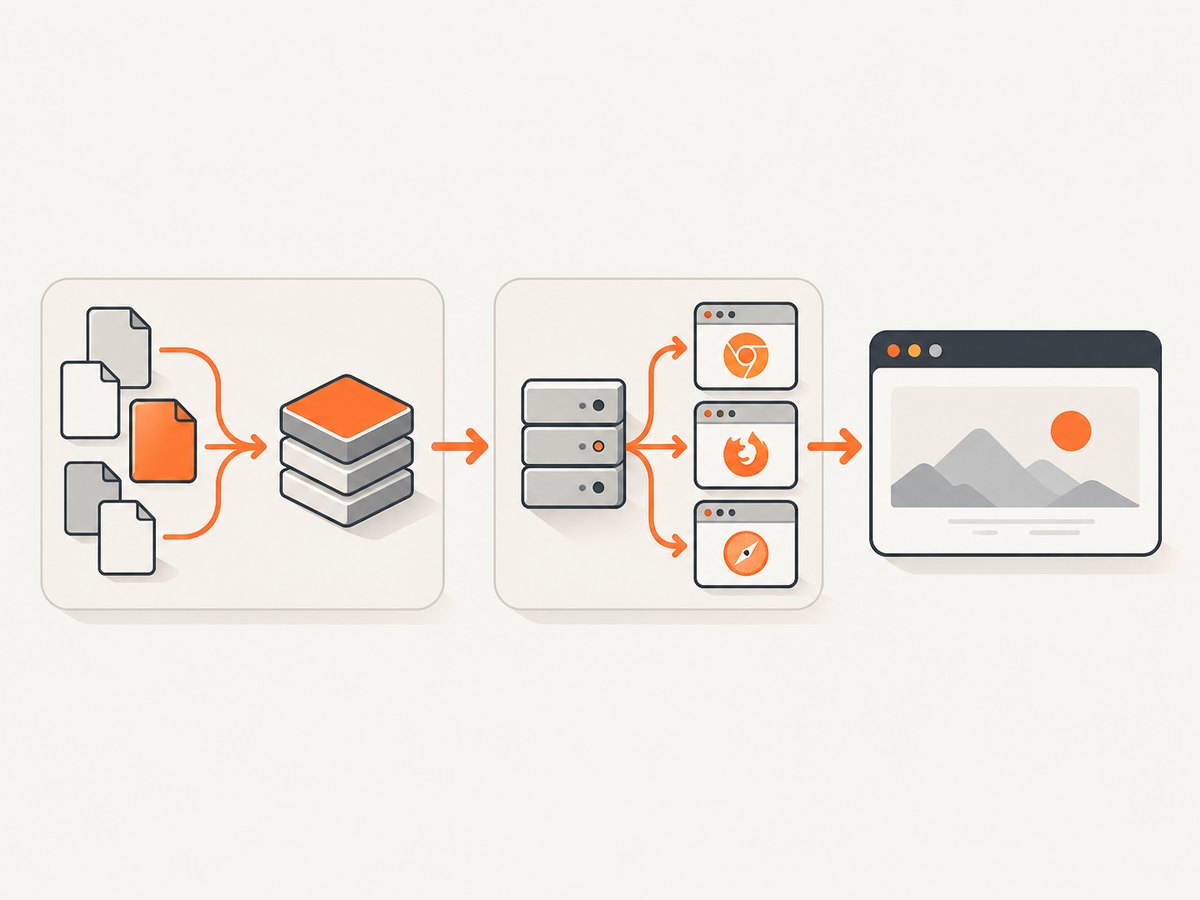
Selenium requires the language binding, a browser and a browser driver. Selenium 4.6 and later can use Selenium Manager to obtain drivers automatically. Other supported approaches are putting a manually downloaded driver on PATH or configuring its location explicitly. A missing executable means the required driver cannot be found; it does not mean the Selenium import is wrong.
Typical runtime approaches
- Selenium Manager: use a current Selenium release and allow it to manage the driver.
- PATH: install the matching driver and make its directory visible to the Eclipse process.
- Explicit location: set the browser driver service or system property to the executable path.
When execution fails after imports compile, verify the browser is installed, compare browser and driver versions, and run the class from a terminal to see the complete stack trace.
8. Troubleshooting checklist
| Error | Likely cause | Fix |
|---|---|---|
Import unresolved after editing pom.xml |
Maven classpath was not refreshed. | Run Maven Update Project, refresh, then Project Clean. |
| Maven dependency has a red marker | Repository, proxy or version resolution failure. | Run mvn dependency:tree; inspect Maven error output and proxy settings. |
| “Could not find artifact” | Invalid version or inaccessible repository. | Use a published Selenium version and confirm Maven Central/network access. |
| Gradle container is missing | Buildship has not synchronized. | Refresh the Gradle project and check the Gradle error view. |
| Classes appear in Maven Dependencies but imports remain red | Stale Eclipse indexes or a broken project build path. | Refresh, Project Clean, close and reopen the project; reimport as a Maven project if needed. |
module-info.java reports module-path errors |
JPMS configuration does not match the dependency setup. | Decide whether Selenium belongs on the module path or ordinary classpath, then update module declarations accordingly. |
ClassNotFoundException at runtime |
Dependency is available to the compiler but absent from the launch configuration. | Check the Run Configuration classpath and launch the correct project/module. |
Unable to obtain driver or driver executable missing |
Browser driver discovery failed. | Use Selenium Manager, add the driver to PATH, or configure its exact location. |
| Test starts, then hangs or times out | Poor synchronization or a browser/driver issue. | Use explicit waits while diagnosing, inspect browser-driver logs and try another browser. |
9. Dependency and project-structure choices
| Approach | Strength | Trade-off |
|---|---|---|
| Maven | Repeatable dependency graph and easy Eclipse synchronization. | Requires Maven configuration and repository access. |
| Gradle | Repeatable builds with flexible configuration. | Requires Buildship synchronization and correct source-set scope. |
| Manual JARs | Works for a small standalone project. | Transitive dependencies, upgrades and team reproduction are your responsibility. |
| Classpath project | Straightforward Selenium setup. | Does not enforce JPMS boundaries. |
| JPMS module path | Explicit module boundaries. | Requires deliberate module-path and descriptor configuration. |
10. Reliability, performance and maintenance
- Use Maven or Gradle so every developer and CI worker resolves the same Selenium version.
- Keep browser, driver and Selenium versions compatible; update them together and rerun a small smoke test.
- Resolve imports at build time in CI with
mvn test-compileor the equivalent Gradle task. - Do not add duplicate Selenium JARs manually when a build tool already supplies them.
- During runtime diagnosis, explicit waits are more reliable than arbitrary sleeps. Selenium’s troubleshooting documentation identifies poor synchronization as a common source of failures.
- Driver discovery can add startup work; caching the managed driver and using a consistent browser image in CI reduces variability.
11. Or skip the browser setup
If your goal is simply to obtain a page image rather than drive an interactive browser from Eclipse, ScreenshotNeo provides a website screenshot API. Its endpoint accepts one GET request and returns PNG, JPEG, WebP or PDF. Before capture it accepts cookie or consent banners and removes more than 60 known consent platforms, newsletter popups and chat widgets; each step can be disabled. Bot checks, blank pages, timeouts, failed loads and cache hits cost nothing, and the response reports the result in X-Page-Verdict and X-Billed headers. See the ScreenshotNeo API documentation.
cURL
curl -G "https://api.screenshotneo.com/v1/shot" -d access_key=YOUR_API_KEY --data-urlencode url=https://stripe.com -o shot.webpPython
import requests

r = requests.get(
    "https://api.screenshotneo.com/v1/shot",
    params={"access_key": "YOUR_API_KEY", "url": "https://stripe.com"},
    timeout=90,
)
r.raise_for_status()
open("shot.webp", "wb").write(r.content)
Node.js
const q = new URLSearchParams({ access_key: 'YOUR_API_KEY', url: 'https://stripe.com' });
const res = await fetch(`https://api.screenshotneo.com/v1/shot?${q}`);
if (!res.ok) throw new Error(`Screenshot failed: ${res.status}`);
const buffer = Buffer.from(await res.arrayBuffer());
require('fs').writeFileSync('shot.webp', buffer);
ScreenshotNeo also includes an MCP server with take_screenshot, get_page_info and capture_pdf tools for Claude, Cursor and other MCP clients. Free accounts include 1,000 screenshots per month with no card; paid plans start at $5 for 3,000 screenshots. Create a free ScreenshotNeo account.
FAQ
Why does Eclipse know the project exists but not WebDriver?
Project recognition and Java classpath resolution are separate. Add Selenium to the build path, then synchronize the build tool with Eclipse.
Should I add every Selenium JAR manually?
Only for a deliberately plain Java project. Maven or Gradle is safer because it resolves transitive dependencies consistently.
Do I need ChromeDriver to fix an unresolved import?
No. Drivers matter when a browser session starts. An unresolved import is a compile-time dependency issue.
Why did the error return after reopening Eclipse?
The dependency may exist only in a local Eclipse setting or the project was not reimported. Store it in Maven or Gradle and refresh the project.
What if imports compile but tests still fail?
Move to runtime diagnosis: browser installation, driver discovery, version compatibility and synchronization.


