How to Fix Selenium Java Buttons That Cannot Be Clicked
Diagnose Selenium Java click failures by exception, wait for the right state, remove obstructions, and verify the result with reliable code.
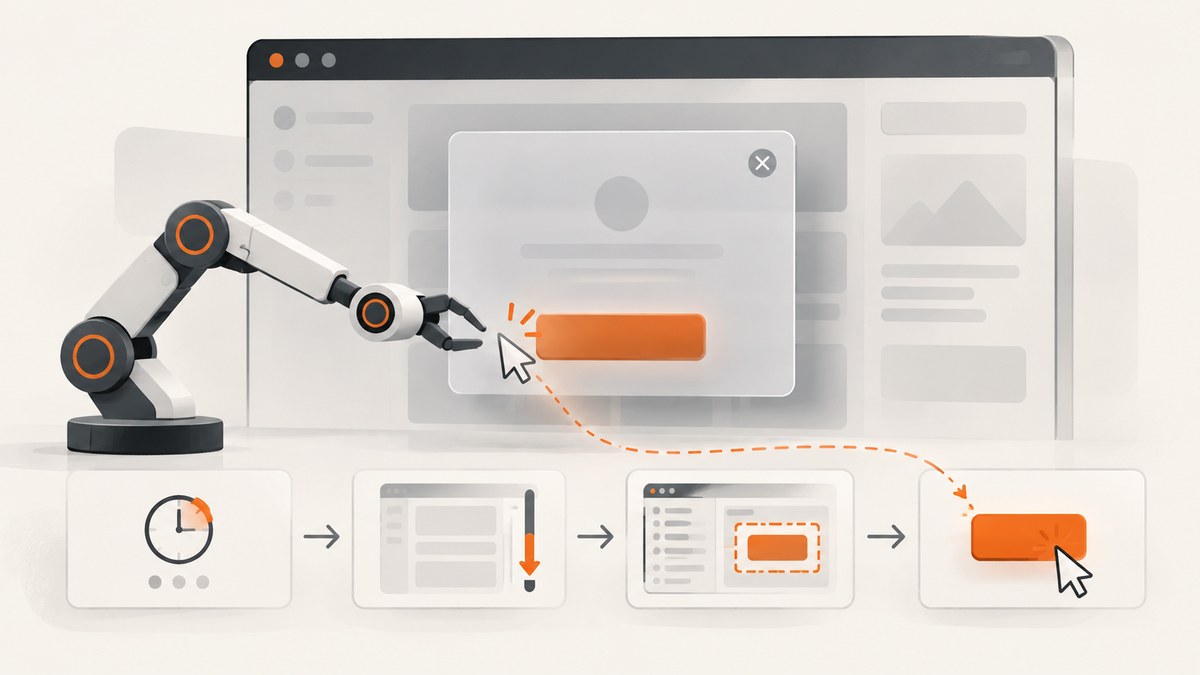
A Selenium Java button usually cannot be clicked for one of six reasons: the test is racing the page, the element is hidden or disabled, the locator found the wrong copy, an overlay covers its center, the element was replaced after you located it, or the control needs a different pointer interaction. Start with the exact exception, wait for the state your action requires, click the intended visible element, and assert the resulting state.
Selenium’s normal element click scrolls an out-of-viewport element into view and checks whether it can be interacted with. If another element obscures its center, Selenium can raise an ElementClickInterceptedException. A DOM node can also exist while remaining undisplayed or impossible to scroll into view, which produces ElementNotInteractableException. See the official element interaction documentation and the Java exception reference.
1. Record the failure before changing the test
Save the complete exception class and message, the locator, browser and driver versions, Selenium version, current URL, and a screenshot or page source from the failure. The message often identifies the next diagnostic step.
| Failure | What it usually indicates | First check |
|---|---|---|
ElementClickInterceptedException |
The button’s center is covered by another element. | Inspect modals, cookie banners, loading layers, sticky headers, and animations. |
ElementNotInteractableException |
The located node is not displayed or cannot be scrolled into view. | Check visibility, enabled state, viewport, and duplicate hidden controls. |
NoSuchElementException |
The locator did not match the current DOM. | Check URL, frame, timing, locator spelling, and whether the control is rendered later. |
StaleElementReferenceException |
The page replaced the element after you located it. | Wait for the update, then locate the element again. |
| Intermittent click failures | A race exists between the test and asynchronous application state. | Replace sleeps with a bounded wait for the required condition. |
2. Use an explicit wait for the required state
Page-load completion does not guarantee that JavaScript rendering, validation, or overlays have finished. Selenium’s waiting guidance explains why fixed sleeps can be too short or waste time. Wait for presence when the node must be added, visibility when it must be shown, enabled state when a disabled control becomes usable, and disappearance when a known blocker is removed.
WebDriverWait wait = new WebDriverWait(driver, Duration.ofSeconds(10));
WebElement button = wait.until(
    ExpectedConditions.elementToBeClickable(By.id("submit"))
);
button.click();
elementToBeClickable is a useful preliminary check, not proof that an application-specific overlay cannot still intercept the pointer. If the click remains intercepted, identify and wait for the covering element.
Wait for a known overlay to disappear
By overlay = By.cssSelector(".loading-overlay");
WebDriverWait wait = new WebDriverWait(driver, Duration.ofSeconds(15));
wait.until(ExpectedConditions.invisibilityOfElementLocated(overlay));
WebElement button = wait.until(
    ExpectedConditions.elementToBeClickable(By.cssSelector("button[type='submit']"))
);
button.click();
Wait for a button to become enabled
By submit = By.id("submit");
WebDriverWait wait = new WebDriverWait(driver, Duration.ofSeconds(10));
WebElement button = wait.until(ExpectedConditions.visibilityOfElementLocated(submit));
wait.until(driver -> button.isEnabled());
button.click();
If the application replaces the button while fields are validated, reacquire it inside the wait to avoid a stale reference:
WebElement button = wait.until(driver -> {
    WebElement candidate = driver.findElement(By.id("submit"));
    return candidate.isDisplayed() && candidate.isEnabled() ? candidate : null;
});
button.click();
3. Confirm that the locator targets the intended control
Responsive layouts and component libraries often render more than one button with the same text or selector. A locator can match a hidden mobile menu copy while the visible desktop button is elsewhere. Prefer stable IDs or test-specific attributes, scope the search to the correct form or dialog, and assert uniqueness when practical.
By submit = By.cssSelector("form#checkout button[data-testid='submit']");
List<WebElement> matches = driver.findElements(submit);
if (matches.size() != 1) {
    throw new IllegalStateException("Expected one submit button, found " + matches.size());
}
WebElement button = new WebDriverWait(driver, Duration.ofSeconds(10))
    .until(ExpectedConditions.elementToBeClickable(submit));
button.click();
Check the rendered DOM, not only the original HTML response. Confirm that the button has the expected text, type, attributes, and form context. If the control is inside an iframe, switch to that frame before locating it:
WebDriverWait wait = new WebDriverWait(driver, Duration.ofSeconds(10));
wait.until(ExpectedConditions.frameToBeAvailableAndSwitchToIt(By.cssSelector("iframe.payment")));
wait.until(ExpectedConditions.elementToBeClickable(By.id("pay"))).click();
driver.switchTo().defaultContent();
4. Scroll and inspect the obstruction
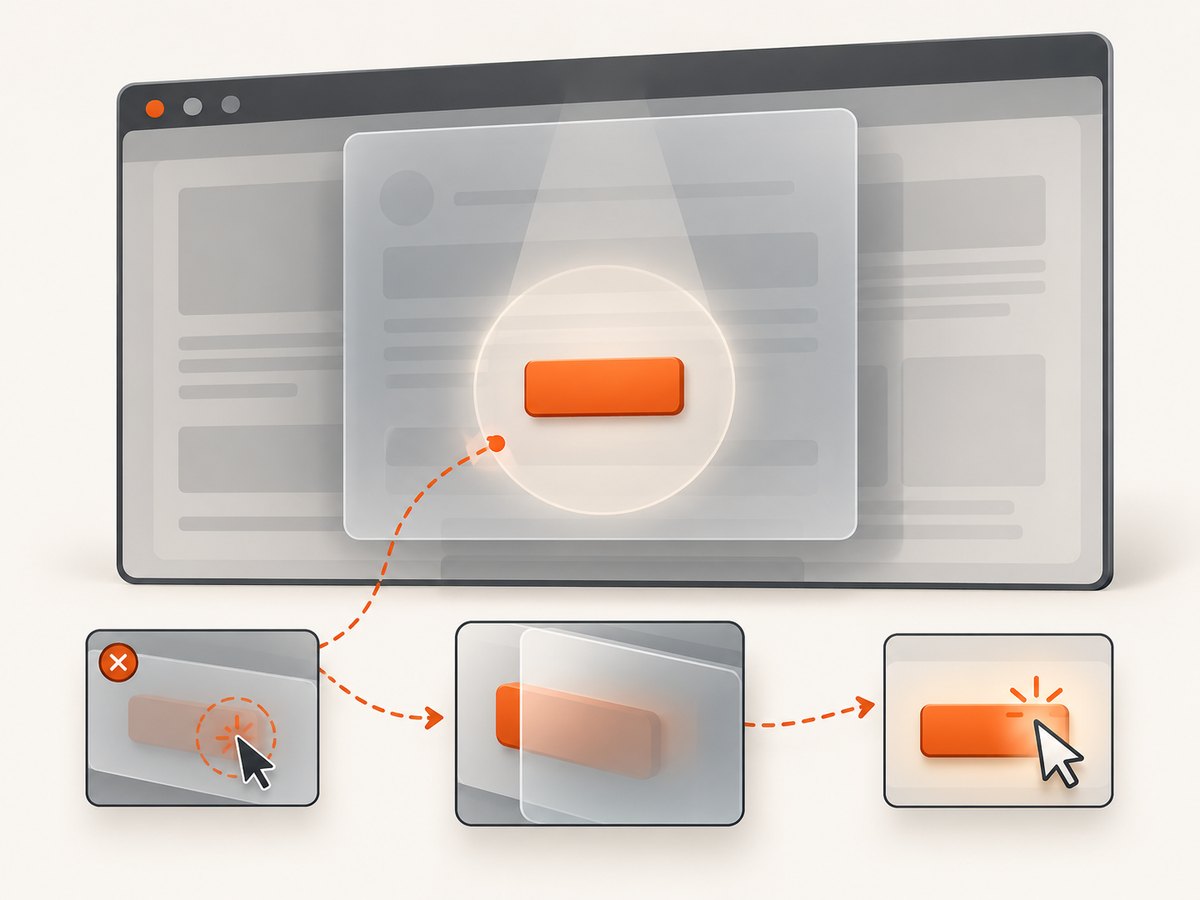
Selenium scrolls an out-of-viewport element into view as part of a normal click. An intercepted error means the center point is still covered. Capture the page and inspect the element at the button’s center to find the actual blocker.
WebElement button = wait.until(ExpectedConditions.visibilityOfElementLocated(By.id("submit")));
((JavascriptExecutor) driver).executeScript(
    "arguments[0].scrollIntoView({block:'center', inline:'center'});", button);
System.out.println("Displayed: " + button.isDisplayed());
System.out.println("Enabled: " + button.isEnabled());
System.out.println("Rect: " + button.getRect());
button.click();
Use JavaScript inspection for diagnosis, not as an automatic bypass:
WebElement button = driver.findElement(By.id("submit"));
String coveringTag = (String) ((JavascriptExecutor) driver).executeScript(
    "const r = arguments[0].getBoundingClientRect();" +
    "const e = document.elementFromPoint(r.left + r.width/2, r.top + r.height/2);" +
    "return e ? e.tagName + '.' + e.className : 'none';", button);
System.out.println("Element at button center: " + coveringTag);
Typical causes to investigate are a modal, cookie or consent banner, loading layer, sticky header, tooltip, or an animation that has not completed. These are diagnostic possibilities; the DOM from your failing run determines which one applies. Wait for the blocker to disappear or interact with the visible control that dismisses it.
5. Handle consent banners and other page state
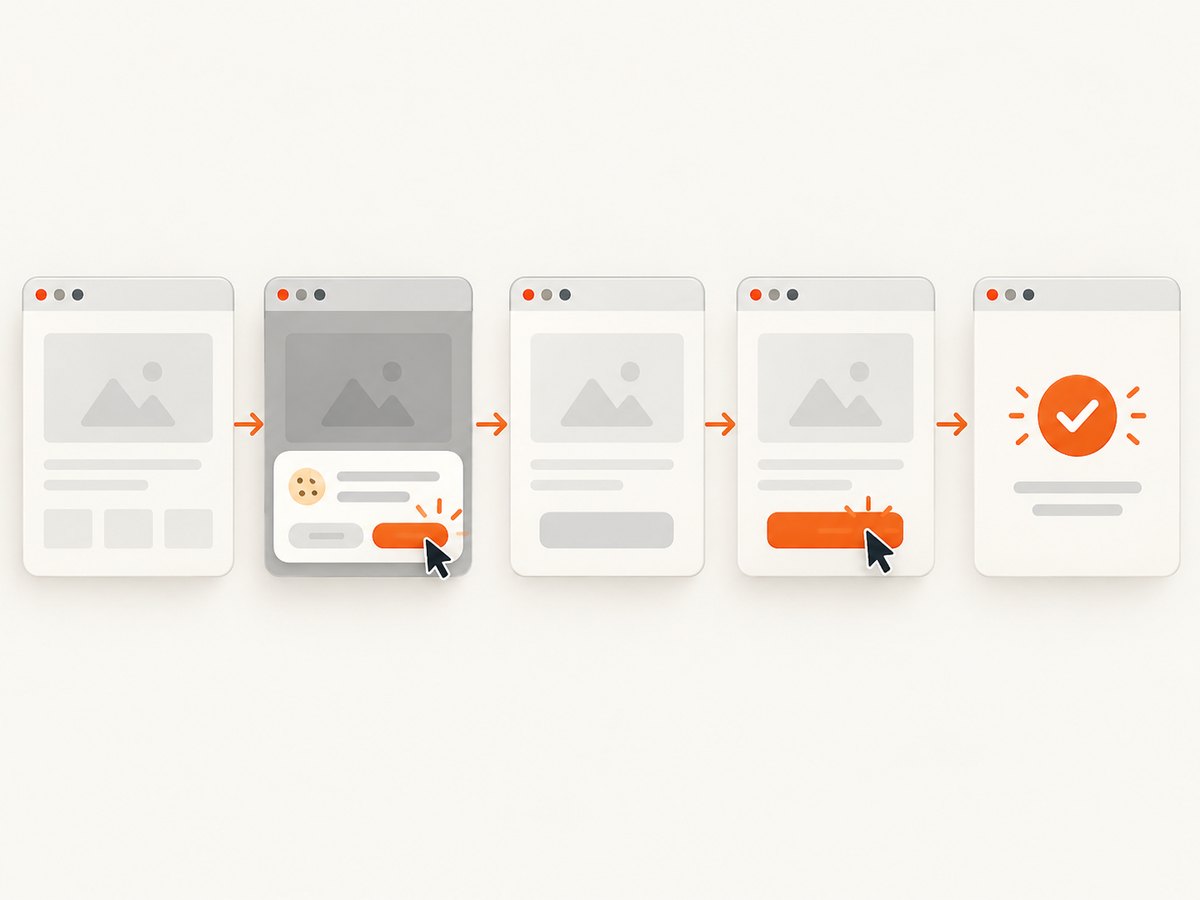
A consent banner can cover a button or change the layout after your locator was evaluated. Locate its visible accept or close control, click it normally, wait for the banner to become invisible, then reacquire the target button.
By consent = By.cssSelector("[data-testid='cookie-consent']");
By accept = By.cssSelector("[data-testid='cookie-accept']");
WebDriverWait wait = new WebDriverWait(driver, Duration.ofSeconds(10));
if (!driver.findElements(consent).isEmpty()) {
    WebElement banner = wait.until(ExpectedConditions.visibilityOfElementLocated(consent));
    if (banner.isDisplayed()) {
        wait.until(ExpectedConditions.elementToBeClickable(accept)).click();
        wait.until(ExpectedConditions.invisibilityOfElementLocated(consent));
    }
}
wait.until(ExpectedConditions.elementToBeClickable(By.id("submit"))).click();
6. Choose the interaction API deliberately
Use WebElement.click() for an ordinary button click. Use the Actions API when the intended behavior includes pointer movement, hover, or a particular user-like sequence. Selenium distinguishes these interaction paths in its official documentation.
WebElement menu = wait.until(ExpectedConditions.visibilityOfElementLocated(By.id("menu")));
new Actions(driver)
    .moveToElement(menu)
    .pause(Duration.ofMillis(100))
    .click()
    .perform();
A JavaScript click can trigger a handler while bypassing normal pointer and interactability checks. Treat it as a page-specific fallback only when your test intentionally validates handler behavior rather than a real user-operable control.
((JavascriptExecutor) driver).executeScript("arguments[0].click();", button);7. Verify the result of the click
A completed click() call does not prove that navigation or the expected state change occurred. The Java WebElement reference advises callers to verify navigation after a native click.
String oldUrl = driver.getCurrentUrl();
wait.until(ExpectedConditions.elementToBeClickable(By.id("submit"))).click();
wait.until(ExpectedConditions.not(ExpectedConditions.urlToBe(oldUrl)));
assertTrue(driver.getCurrentUrl().contains("success"));
For in-page updates, wait for a confirmation message, changed attribute, dialog, or staleness of the submitted form:
wait.until(ExpectedConditions.elementToBeClickable(By.id("submit"))).click();
wait.until(ExpectedConditions.visibilityOfElementLocated(By.cssSelector("[role='status']")));
assertEquals("Saved", driver.findElement(By.cssSelector("[role='status']")).getText());
8. Complete Java example
This example uses Selenium 4 APIs, a bounded wait, overlay handling, a stable locator, and a post-click assertion. Replace the URL and selectors with those from your application.
import static org.junit.jupiter.api.Assertions.assertTrue;

import java.time.Duration;
import org.junit.jupiter.api.Test;
import org.openqa.selenium.By;
import org.openqa.selenium.WebDriver;
import org.openqa.selenium.WebElement;
import org.openqa.selenium.chrome.ChromeDriver;
import org.openqa.selenium.support.ui.ExpectedConditions;
import org.openqa.selenium.support.ui.WebDriverWait;

class SubmitButtonTest {
    @Test
    void submitsForm() {
        WebDriver driver = new ChromeDriver();
        WebDriverWait wait = new WebDriverWait(driver, Duration.ofSeconds(15));
        try {
            driver.get("https://example.com/checkout");

            By consent = By.cssSelector("[data-testid='cookie-consent']");
            if (!driver.findElements(consent).isEmpty()) {
                wait.until(ExpectedConditions.elementToBeClickable(
                    By.cssSelector("[data-testid='cookie-accept']"))).click();
                wait.until(ExpectedConditions.invisibilityOfElementLocated(consent));
            }

            By submit = By.cssSelector("form#checkout button[data-testid='submit']");
            WebElement button = wait.until(ExpectedConditions.elementToBeClickable(submit));
            button.click();

            wait.until(ExpectedConditions.visibilityOfElementLocated(
                By.cssSelector("[role='status']")));
            assertTrue(driver.findElement(By.cssSelector("[role='status']"))
                .getText().contains("Saved"));
        } finally {
            driver.quit();
        }
    }
}
9. A practical troubleshooting checklist
- Copy the full exception and message.
- Confirm the current URL and frame.
- Check that the locator matches the intended visible element exactly once.
- Check
isDisplayed()andisEnabled(). - Wait for the required state instead of using
Thread.sleep. - Wait for known overlays or dismiss them through their visible controls.
- Reacquire elements after React, Vue, Angular, or other DOM replacement.
- Scroll to a sensible position and inspect the button’s center point.
- Use Actions only when pointer sequencing is part of the behavior.
- Use JavaScript click only for a deliberate handler-level test.
- Assert the URL, message, dialog, or other expected result.
- On failure, save a screenshot, page source, browser console output, and Selenium/browser versions.
10. Performance, reliability, and cost
Explicit waits poll until a condition succeeds or a timeout expires, so they usually finish sooner than a large fixed sleep when the page is fast and provide a bounded failure when it is slow. Keep timeouts tied to the operation: short waits for a local overlay, longer waits for navigation or remote content. Avoid mixing implicit and explicit waits because their polling behavior can make diagnosis harder.
For reliable suites, use stable test attributes, isolate one state transition per test, reacquire replaced elements, and assert outcomes. Capture diagnostics only on failure to keep normal runs fast. The correct timeout depends on your application and environment; Selenium’s documentation does not provide a universal value or success rate.
Or skip the browser setup
When the goal is a clean page image for debugging or documentation, ScreenshotNeo can capture the URL with one request. Before capture it accepts the cookie or consent banner like a visitor and removes more than 60 known consent platforms, newsletter popups, and chat widgets; each step can be turned off. Bot checks, blank pages, timeouts, failed loads, and cache hits are not billed, and the response identifies the result with X-Page-Verdict and X-Billed headers. Its MCP server provides take_screenshot, get_page_info, and capture_pdf tools for Claude, Cursor, and other MCP clients.
See the ScreenshotNeo API documentation for all options. A basic capture:
curl -G "https://api.screenshotneo.com/v1/shot" -d access_key=YOUR_API_KEY --data-urlencode url=https://example.com/checkout -o shot.webpimport requests
r = requests.get("https://api.screenshotneo.com/v1/shot", params={"access_key": "YOUR_API_KEY", "url": "https://example.com/checkout"}, timeout=90)
open("shot.webp", "wb").write(r.content)const q = new URLSearchParams({ access_key: 'YOUR_API_KEY', url: 'https://example.com/checkout' });
const res = await fetch(`https://api.screenshotneo.com/v1/shot?${q}`);You can also select an element, capture full pages with lazy images loaded, set a device or viewport, use dark mode and retina scale, add custom CSS or JavaScript, hide selectors, wait for a selector, delay, or network idle, block requests or resource types, supply headers, cookies, user agent, timezone, geolocation, and use caching, signed links, asynchronous jobs, bulk capture, PDF output, HTML/CSS input, or the usage API. Every feature is included on every plan. The Free plan includes 1,000 shots per month with no card; paid plans start at $5 for 3,000 shots.
Create a free ScreenshotNeo account and get 1,000 screenshots a month with no card.
11. FAQ
Why does Selenium find the button but still refuse to click it?
Presence in the DOM is different from interactability. The element may be hidden, disabled, outside the usable viewport, replaced, or covered at its center.
Should I add Thread.sleep?
Use a bounded explicit wait for the condition your action needs. Fixed sleeps can finish before the page is ready or delay every run.
Is JavaScript click always wrong?
No, but it bypasses normal pointer and interactability checks. Use it only when the test intentionally targets the page’s JavaScript handler rather than real user interaction.
Why does the test pass locally and fail in CI?
Different timing, viewport size, browser versions, network speed, or overlays can expose a race. Record diagnostics and wait for observable state instead of adding a larger arbitrary delay.
What should I assert after clicking?
Assert the observable outcome your application promises: a URL change, confirmation text, dialog, changed state, or a completed request indicator.


