How to Fix Selenium JavaScript Execution That Fails in Docker
Diagnose Selenium JavaScript failures in Docker by separating startup, command, and result errors, then fix timeouts, drivers, shared memory, and readiness.
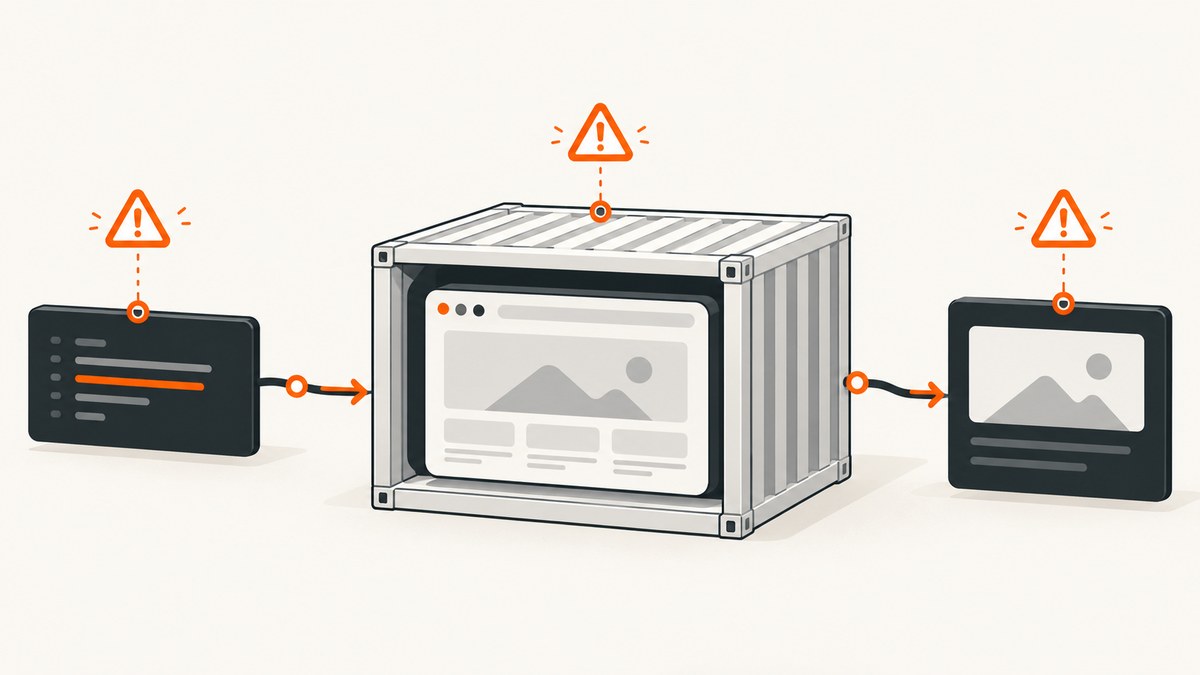
Short answer: Selenium JavaScript failures in Docker usually come from one of three layers: the browser session never started, WebDriver could not send or run the command, or the script ran but returned incorrectly. Confirm the failure stage before changing JavaScript. Then verify Chrome and ChromeDriver compatibility, container shared memory, headless or Xvfb configuration, service readiness, frame and window selection, and synchronous versus asynchronous script semantics.
This guide gives a complete diagnostic path for Java Selenium in Docker, with runnable examples, container configuration, timeout handling, reliability and performance advice, and a hosted alternative when maintaining a browser container is unnecessary.
1. Classify the failure before editing the script
Capture the complete exception and stack trace. Record whether new ChromeDriver() or RemoteWebDriver succeeds, the exact line that fails, whether the same operation works outside Docker, and the Java, Selenium, Chrome, ChromeDriver, Docker image, and CPU architecture versions.
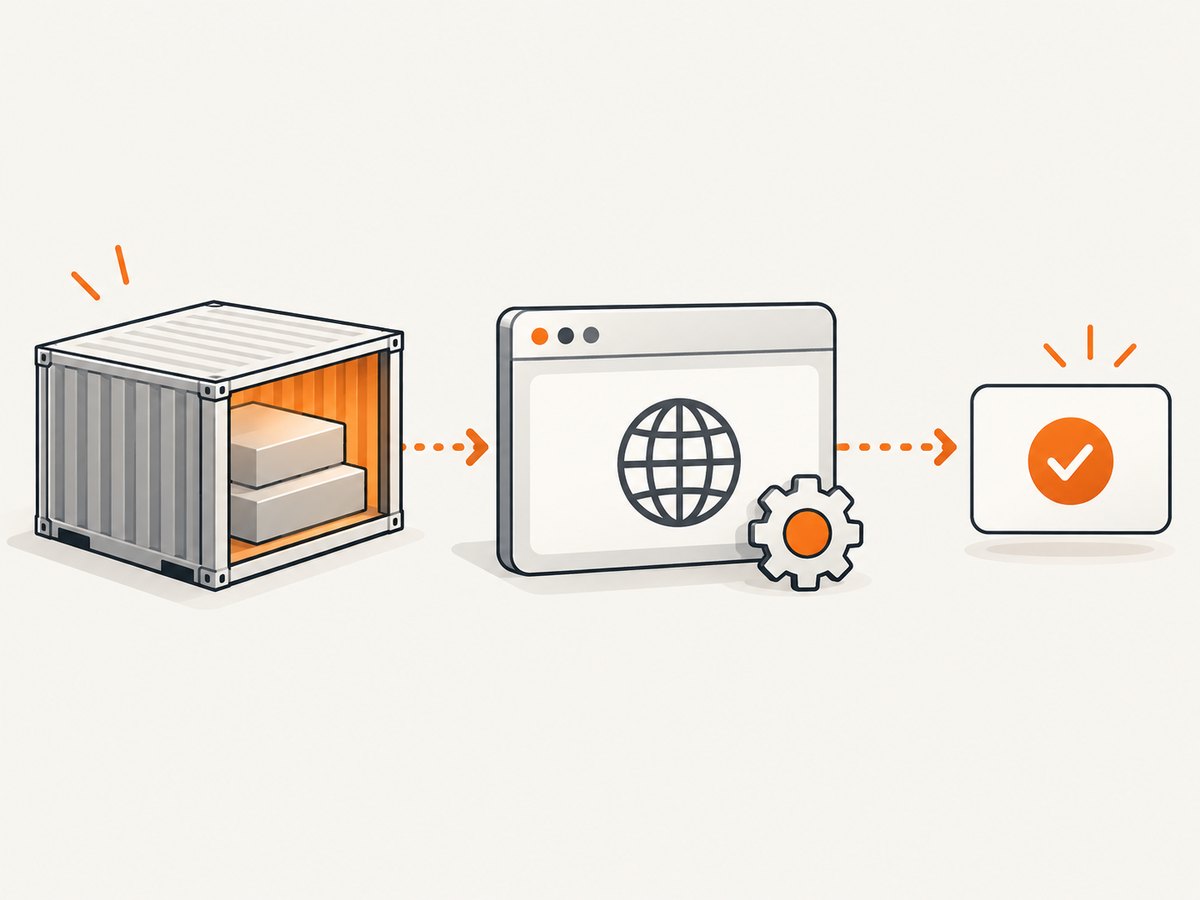
| Failure stage | Typical symptoms | First action |
|---|---|---|
| Session startup | Chrome failed to start, driver not found, session or connection errors | Check driver discovery, Chrome/ChromeDriver compatibility, image tag, and startup logs. |
| Command execution | WebDriver command errors, wrong frame, unsupported argument, security exception | Run a tiny synchronous probe and verify the selected frame or window. |
| Result or completion | Async script hangs, times out, or returns an unexpected value | Call Selenium’s completion callback and set an explicit script timeout. |
A failed Chrome launch means the JavaScript was never the problem. Treat the exact exception as evidence rather than assuming Docker itself is the root cause.
2. Verify the browser and driver inside the container
Selenium needs a driver executable to control the browser. Selenium’s installation guidance describes an unavailable executable as a cause of driver-location errors, and its Chrome documentation says Chrome and ChromeDriver versions should match. See the Chrome-specific documentation and driver installation guidance.
Check versions from the running container
docker exec -it selenium-chrome google-chrome --version
docker exec -it selenium-chrome chromedriver --version
docker inspect selenium-chrome --format '{{.Config.Image}}'
Use the exact image tag in your deployment configuration. A moving latest tag can change browser and Grid components between runs, making an intermittent problem difficult to reproduce. Pin a complete Selenium image tag and update it deliberately.
Use a minimal Java startup probe
import java.time.Duration;
import org.openqa.selenium.WebDriver;
import org.openqa.selenium.chrome.ChromeDriver;
import org.openqa.selenium.chrome.ChromeOptions;

public class StartupProbe {
    public static void main(String[] args) {
        ChromeOptions options = new ChromeOptions();
        options.addArguments("--headless=new");
        WebDriver driver = new ChromeDriver(options);
        try {
            driver.manage().timeouts().pageLoadTimeout(Duration.ofSeconds(60));
            driver.get("https://example.com");
            System.out.println(driver.getTitle());
        } finally {
            driver.quit();
        }
    }
}
If construction fails, stop debugging the application script. Fix the image, browser, driver, permissions, or service endpoint first. Chrome options such as --no-sandbox can be relevant in some container deployments, but add flags only after inspecting the actual launch error and the image’s current guidance.
3. Prove that WebDriver can execute JavaScript
Once a session exists, run a small synchronous probe:
import org.openqa.selenium.JavascriptExecutor;

JavascriptExecutor js = (JavascriptExecutor) driver;
Object state = js.executeScript("return document.readyState");
System.out.println("readyState = " + state);
Selenium executes JavaScript in the currently selected frame or window. If this probe succeeds but your application script fails, investigate the script body, frame context, arguments, and browser console rather than container startup.
Frame and window context
A script that references an element in an iframe must switch into that frame first. A script intended for a popup or a newly opened tab must run after selecting the correct window handle.
driver.switchTo().frame(driver.findElement(By.cssSelector("iframe.payment")));
Object value = ((JavascriptExecutor) driver).executeScript(
    "return document.querySelector('.total')?.textContent"
);
driver.switchTo().defaultContent();
Cross-origin frames remain subject to browser security rules. JavaScript cannot freely inspect another origin’s DOM. A Docker environment does not remove that restriction.
4. Match synchronous and asynchronous executor semantics
executeScript is synchronous: Selenium waits for the script to return. Use it for immediate DOM reads, mutations, and calculations.
Object text = ((JavascriptExecutor) driver).executeScript(
    "return document.querySelector('h1')?.textContent || null;"
);
executeAsyncScript is different. Selenium injects a completion callback as the final argument, and your script must call it. The Java API reference documents both behaviors and supported argument and return types: JavascriptExecutor.
import java.time.Duration;
import org.openqa.selenium.JavascriptExecutor;

driver.manage().timeouts().scriptTimeout(Duration.ofSeconds(30));
Object result = ((JavascriptExecutor) driver).executeAsyncScript(
    "const done = arguments[arguments.length - 1];" +
    "window.setTimeout(() => done('finished'), 500);"
);
System.out.println(result);
The zero-millisecond default for asynchronous script execution is not a useful assumption for real application work. Set a workload-appropriate timeout before calling the script. Selenium documents the timeout API in WebDriver.Timeouts.
Common async mistakes
- The callback is never called on an error branch. Call it from both success and failure paths.
- A promise is created but never connected to Selenium’s callback. Resolve the promise and pass its value to
done. - The script waits for a selector that never appears. Add an application-level deadline and return a diagnostic result.
- The returned object cannot be serialized by WebDriver. Return strings, numbers, booleans, null, arrays, maps, or WebDriver-supported element references.
driver.manage().timeouts().scriptTimeout(Duration.ofSeconds(20));
Object result = ((JavascriptExecutor) driver).executeAsyncScript(
    "const done = arguments[arguments.length - 1];" +
    "const deadline = Date.now() + 10000;" +
    "(function waitForReady() {" +
    "  const node = document.querySelector('[data-ready=\"true\"]');" +
    "  if (node) return done({ok: true, text: node.textContent});" +
    "  if (Date.now() > deadline) return done({ok: false, reason: 'deadline'});" +
    "  setTimeout(waitForReady, 100);" +
    "})();"
);
5. Stabilize Docker resources and headless display
Browser processes use shared memory heavily. The maintained docker-selenium project documents --shm-size=2g as an arbitrary, commonly working workaround and says actual requirements vary by workload.
docker run --rm -d \
  --name selenium-chrome \
  --shm-size=2g \
  -p 4444:4444 \
  selenium/standalone-chrome:4.*/
Use a real, complete version tag in production instead of the abbreviated example above. Increase shared memory only after observing crashes or renderer failures; more memory does not fix a bad script or an incompatible driver.
Headless and Xvfb
Headless behavior depends on the browser version and image configuration. The Selenium project describes changes affecting SE_START_XVFB around Chrome or Chromium 127 and 132. Check the exact image tag’s documentation before changing this variable. Do not mix assumptions from an older image with a newer browser.
docker run --rm \
  --shm-size=2g \
  -e SE_START_XVFB=true \
  selenium/standalone-chrome:4.*/
For native headless Chrome, configure the matching option in Java. If the image already manages a virtual display, avoid adding unrelated display flags until logs show a display problem.
6. Wait for Selenium service readiness
A running container is not proof that Grid is ready to accept commands. Poll the status endpoint or use a health check before creating a remote session.
curl --fail --retry 20 --retry-delay 1 \
  http://localhost:4444/status
import java.net.URI;
import java.net.http.HttpClient;
import java.net.http.HttpRequest;
import java.net.http.HttpResponse;
HttpClient client = HttpClient.newHttpClient();
HttpRequest request = HttpRequest.newBuilder()
.uri(URI.create("http://localhost:4444/status"))
.GET().build();
HttpResponse<String> response = client.send(
request, HttpResponse.BodyHandlers.ofString());
if (response.statusCode() != 200) {
throw new IllegalStateException("Selenium is not ready: " + response.body());
}In orchestration systems, make the application depend on a health check rather than a container-start event. This removes many intermittent first-command failures.
7. Inspect logs and make failures observable
Selenium’s Docker project sends container output to standard output and documents increasing Selenium log verbosity with SE_OPTS. Start with:
docker logs --tail=200 selenium-chrome
docker stats selenium-chrome
docker inspect selenium-chrome --format '{{json .State}}'
Look for Chrome crash messages, renderer exits, driver handshake failures, refused connections, out-of-memory events, and session cleanup errors. Save the browser and driver versions alongside each failure so a later image update does not erase the context.
8. A repeatable diagnostic program
- Reproduce with the smallest possible URL and script.
- Confirm that the browser session is created.
- Run
return document.readyState. - Confirm the selected window and frame.
- Run the application script synchronously if possible.
- If work is asynchronous, call the injected callback and set
scriptTimeout. - Check Chrome and ChromeDriver versions and pin the image tag.
- Check shared memory, headless or Xvfb settings, and container resource limits.
- Wait for Grid readiness and inspect logs.
- Only then change application JavaScript or browser flags.
9. Performance, reliability, and cost considerations
Keep browser sessions warm when a test suite can safely reuse them, but reset cookies, storage, frame context, and window handles between independent cases. Reusing a contaminated session can look like a JavaScript race. Limit parallel sessions to the CPU and memory available to the container; excessive concurrency causes renderer contention and makes timeouts appear random.

Use explicit page-load, script, and command timeouts. A timeout should bound a failure, not hide it: include the URL, current window, frame, browser version, and last observed state in the error. Capture logs and screenshots on failure for diagnosis. Pin image versions, update them in a controlled pipeline, and run a small smoke probe after every image change.
If your only goal is a clean website screenshot, running Chrome, a driver, shared memory, display services, readiness checks, and retries may be unnecessary operational cost.
Or skip the browser setup
ScreenshotNeo provides a website screenshot API and MCP server. Its single GET request returns PNG, JPEG, WebP, or PDF output. The same request can replace much of the browser-container plumbing:
cURL
curl -G "https://api.screenshotneo.com/v1/shot" -d access_key=YOUR_API_KEY --data-urlencode url=https://stripe.com -o shot.webpPython
import requests
r = requests.get("https://api.screenshotneo.com/v1/shot", params={"access_key": "YOUR_API_KEY", "url": "https://stripe.com"}, timeout=90)
open("shot.webp", "wb").write(r.content)
Node.js
const q = new URLSearchParams({ access_key: 'YOUR_API_KEY', url: 'https://stripe.com' });
const res = await fetch(`https://api.screenshotneo.com/v1/shot?${q}`);
See the ScreenshotNeo documentation for authentication, parameters, and response details. Cookie and consent banners are accepted and removed before capture, along with more than 60 known consent platforms, newsletter popups, and chat widgets. Each step can be disabled. Bot checks, blank pages, timeouts, failed loads, and cache hits cost nothing, and response headers identify the page verdict and whether it was billed.
The API supports full-page captures with lazy images loaded, CSS element capture, dark mode, 12 device presets or any viewport, retina scale, PDF paper size and margins, custom CSS and JavaScript, clicks, selector waits, delays, network-idle waits, blocking ads or resource types, custom headers and cookies, user agents and Authorization, timezone and geolocation, transparent backgrounds, resizing, configurable caching TTLs, signed image links, asynchronous jobs with signed webhooks, bulk capture of up to 100 URLs per call, a usage API, and an OpenAPI specification. An MCP server exposes take_screenshot, get_page_info, and capture_pdf to Claude, Cursor, and other MCP clients.
There are 1,000 free screenshots each month with no card. Paid plans start at $5 for 3,000 screenshots, and every feature is available on every plan. Create a free ScreenshotNeo account.
10. Troubleshooting checklist
| Error pattern | Likely cause | Fix |
|---|---|---|
| Unable to locate driver | Driver is absent or not on PATH | Install or expose the driver in the image and verify its version. |
| SessionNotCreatedException | Chrome and ChromeDriver mismatch or Chrome cannot start | Pin compatible versions and inspect startup logs. |
| Browser exits in Docker | Shared-memory pressure, resource limits, or display setup | Inspect logs, set an appropriate --shm-size, and verify headless/Xvfb guidance. |
| TimeoutException from async script | Callback was not called or timeout is too short | Call the final arguments callback on every path and set scriptTimeout. |
| Null element or security error | Wrong frame, window, page state, or cross-origin restriction | Switch context explicitly, wait for the page state, and inspect browser console errors. |
| Intermittent connection refusal | Grid is listening but not ready | Poll /status and add a health check dependency. |
FAQ
Does Docker change JavaScript execution semantics?
No. Selenium’s executor semantics remain the same. Docker changes browser startup, networking, resources, and display configuration around the executor.
Should I always use --no-sandbox?
No. It can be relevant in some container deployments, but add it only when the launch error and image guidance justify it.
Why does a synchronous script work while an async script hangs?
An async script must call Selenium’s injected callback. Returning a promise or reaching the end of the snippet without calling that callback does not complete the WebDriver command.
Is --shm-size=2g mandatory?
No. Selenium documents it as an arbitrary commonly working workaround. Workload, browser version, and concurrency determine the required shared memory.
When should I use a screenshot API instead of Selenium?
Use a hosted API when you need captures rather than browser automation control and want to avoid maintaining drivers, images, shared memory, display services, and readiness logic. ScreenshotNeo is the direct option described above.


