How to Fix Selenium Stalling at “Launching Firefox…”
Fix Selenium hanging at “Launching Firefox…” with trace logs, binary checks, profile permissions, Snap and Flatpak guidance, and a reliable diagnostic sequence.
Selenium usually stalls at “Launching Firefox…” for one of four reasons: geckodriver selected the wrong executable, Firefox cannot access Selenium’s temporary profile, a sandboxed Snap or Flatpak install hides the profile filesystem, or the browser and driver versions do not work together. Start by collecting geckodriver trace logs, then verify the Firefox path, geckodriver path, profile directory and package confinement before changing options.
The fastest reliable baseline is a native Firefox installation, the intended geckodriver on PATH, Selenium’s clean temporary profile, and a normal (non-headless) launch. Once that works, add headless mode, custom profiles and CI-specific settings one at a time.
1. Capture the startup evidence first
Do not begin by adding random delays or disabling security features. The final lines in a trace log identify whether the stall occurred while geckodriver was starting, while Firefox was reading its profile, or while Marionette was establishing the WebDriver session.
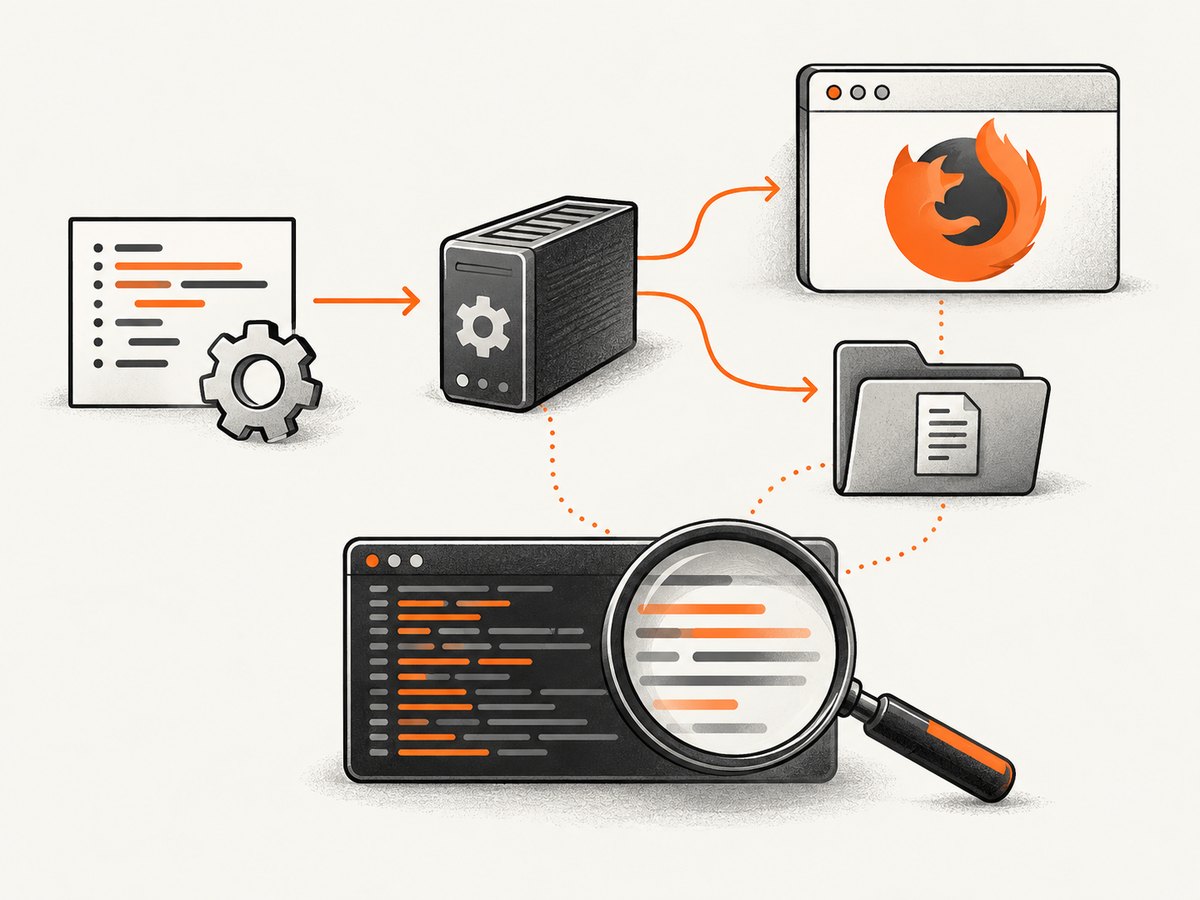
Run geckodriver directly with trace logging:
geckodriver -vv 2> geckodriver.logIn CI, preserve the file as a build artifact. Selenium’s Firefox documentation explains how to send service output to a file, while Mozilla’s geckodriver documentation says trace-level output exposes the WebDriver requests, protocol traffic and Marionette messages needed to find the last successful startup step.
With Selenium 4 and Python:
from selenium import webdriver
from selenium.webdriver.firefox.service import Service
from selenium.webdriver.firefox.options import Options

options = Options()
service = Service(log_output="geckodriver.log")
# Add this only while diagnosing:
service.service_args = ["--log", "trace"]

driver = webdriver.Firefox(service=service, options=options)
try:
    driver.get("https://example.com")
finally:
    driver.quit()
For a command-line reproduction, start geckodriver yourself and send WebDriver requests through Selenium or another client. The important part is retaining the complete log, including the final lines before the hang.
2. Verify which Firefox executable Selenium starts
Selenium can select an alternate Firefox binary. That matters on hosts with multiple Firefox installations, wrapper scripts, Snap, Flatpak or a manually extracted browser.
Find the candidates on Linux:
command -v firefox
readlink -f "$(command -v firefox)"
which geckodriver
geckodriver --version
firefox --version
A path such as /usr/bin/firefox may be a wrapper. A wrapper can work when launched interactively but fail when geckodriver needs to inspect or start the real browser executable. Use Selenium’s explicit binary setting when the default is wrong:
from selenium import webdriver
from selenium.webdriver.firefox.options import Options

options = Options()
options.binary_location = "/usr/lib/firefox/firefox"
driver = webdriver.Firefox(options=options)
try:
    driver.get("https://example.com")
finally:
    driver.quit()
Use the actual path on your system. Do not copy a path from another machine. On Ubuntu Snap, Mozilla documents that /snap/bin/firefox can produce “binary is not a Firefox executable” when supplied as the binary path. A confined Firefox must be paired with the matching confined geckodriver and the package’s documented executable path; otherwise install a non-container Firefox release for a simpler baseline.
3. Check geckodriver discovery and compatibility
Geckodriver is a separate WebDriver server. Selenium normally finds it through PATH, unless you provide a service path explicitly. Confirm that the process you tested is the process Selenium will start:
type -a geckodriver
geckodriver --version
python -c "import selenium; print(selenium.__version__)"
firefox --version
Explicit configuration removes ambiguity:
from selenium import webdriver
from selenium.webdriver.firefox.service import Service

service = Service(executable_path="/opt/tools/geckodriver", log_output="geckodriver.log")
driver = webdriver.Firefox(service=service)
try:
    driver.get("https://example.com")
finally:
    driver.quit()
Keep Selenium, Firefox and geckodriver current enough to support one another. Mozilla’s usage documentation requires Selenium 3.11 or newer for geckodriver; Selenium’s current Firefox guidance recommends the latest geckodriver and states that Selenium 4 requires Firefox 78 or newer. If logs show protocol or Marionette incompatibility, update the browser, driver and Selenium package together rather than changing timeout values.
4. Treat Snap and Flatpak as filesystem problems
A startup hang can occur because Firefox and geckodriver see different filesystems. Selenium creates a temporary profile, passes its location to Firefox, and waits for Firefox to report that it is ready. A sandboxed package may be unable to read that generated directory, so Firefox never completes startup.
Snap on Ubuntu
When Firefox is installed through Snap, Mozilla recommends using the matching confined geckodriver, commonly available as /snap/bin/geckodriver. Configure it explicitly:
from selenium import webdriver
from selenium.webdriver.firefox.service import Service

service = Service(
    executable_path="/snap/bin/geckodriver",
    log_output="geckodriver.log"
)
driver = webdriver.Firefox(service=service)
try:
    driver.get("https://example.com")
finally:
    driver.quit()
If this still hangs, compare the confinement of both processes. The practical alternatives are to install a native Firefox build and its matching geckodriver, or to choose a profile root visible to both processes.
Flatpak and other containers
Flatpak can create the same visibility mismatch. Keep the browser and driver in compatible confinement, or provide a shared temporary directory. For a diagnostic run:
mkdir -p "$PWD/firefox-tmp"
chmod 700 "$PWD/firefox-tmp"
TMPDIR="$PWD/firefox-tmp" python launch_firefox.py
If your Selenium or geckodriver version supports an explicit profile root, set --profile-root to a directory both processes can access. The directory must exist, be writable by the account running the job, and be visible inside the browser sandbox. Avoid world-writable temporary directories in shared machines.
5. Reduce profile variables
Selenium normally creates an anonymous temporary profile. Use that clean profile while diagnosing. A custom profile can be large, locked by another Firefox process, owned by another user or located outside a sandbox’s visible filesystem. Selenium may copy a supplied profile into a new temporary directory, which can hide the original cause.
Start with the smallest possible script:
from selenium import webdriver

driver = webdriver.Firefox()
try:
    print(driver.capabilities)
    driver.get("about:blank")
finally:
    driver.quit()
If this launches, add your custom profile, preferences and extensions one at a time. Never reuse a profile currently open in a normal Firefox process. In CI, ensure the workspace and temporary directories are writable and that cleanup from a previous job did not leave stale lock files.
6. Add headless mode after a normal launch works
Headless mode removes the need for a display server, so it is useful in CI and Docker. It does not fix a bad binary path, an inaccessible profile or an incompatible driver. First prove that Firefox can start normally when possible, then add the headless argument:
from selenium import webdriver
from selenium.webdriver.firefox.options import Options

options = Options()
options.add_argument("-headless")
driver = webdriver.Firefox(options=options)
try:
    driver.get("https://example.com")
    print(driver.title)
finally:
    driver.quit()
If normal mode works but headless mode stalls, compare environment variables, sandbox permissions, font packages and the temporary directory used by the CI runner. Keep trace logging enabled while making that comparison.
7. A complete diagnostic script
This script records capabilities, uses an explicit log file and makes the browser path and headless setting easy to change:
import os
from selenium import webdriver
from selenium.webdriver.firefox.options import Options
from selenium.webdriver.firefox.service import Service

options = Options()
# Uncomment only after a normal launch succeeds.
# options.add_argument("-headless")
# Set this only when verified on the current host.
# options.binary_location = "/usr/lib/firefox/firefox"

service = Service(
    # Set this when PATH is ambiguous, especially with Snap.
    # executable_path="/snap/bin/geckodriver",
    log_output=os.path.abspath("geckodriver.log")
)
service.service_args = ["--log", "trace"]

driver = webdriver.Firefox(service=service, options=options)
try:
    print(driver.capabilities)
    driver.get("https://example.com")
    print(driver.title)
finally:
    driver.quit()
8. Troubleshooting table
| Symptom or log clue | Likely cause | Fix |
|---|---|---|
| “binary is not a Firefox executable” | Wrapper path, often /snap/bin/firefox |
Use the real executable path with the matching confined driver, or install native Firefox. |
| Firefox process exists but never becomes ready | Profile directory is invisible, unwritable or locked | Use a clean profile and a shared writable profile root; remove stale locks. |
| Works locally, hangs in CI | Different PATH, sandbox, TMPDIR or display environment | Print executable paths, preserve trace logs, set a shared temporary directory and add headless mode only after baseline success. |
| Immediate protocol or Marionette error | Browser, geckodriver and Selenium mismatch | Update the three components together and verify Firefox’s supported version. |
| Only custom profiles fail | Profile is large, locked, copied incorrectly or contains an extension problem | Return to Selenium’s anonymous profile, then restore settings incrementally. |
| Headless fails while normal mode works | Headless-specific environment, fonts or sandbox restriction | Compare environment and filesystem access; retain trace logging. |
9. Reliability and performance practices
- Keep the baseline small. One browser, one clean profile and one target page make failures reproducible.
- Preserve logs. Redirect trace output to a per-job file and upload it when a build fails.
- Use explicit paths in automation. PATH differs between shells, containers and CI workers.
- Isolate profiles. Give parallel jobs separate temporary directories; never share a live Firefox profile.
- Update deliberately. Pin compatible versions in a build image, then upgrade Selenium, Firefox and geckodriver together.
- Measure startup separately from page loading. A page timeout can look like a launch problem unless the trace shows whether Marionette became ready first.
- Clean up drivers. Always call
quit()so orphaned Firefox processes do not lock profiles or consume memory on later runs.
10. Or skip the browser setup
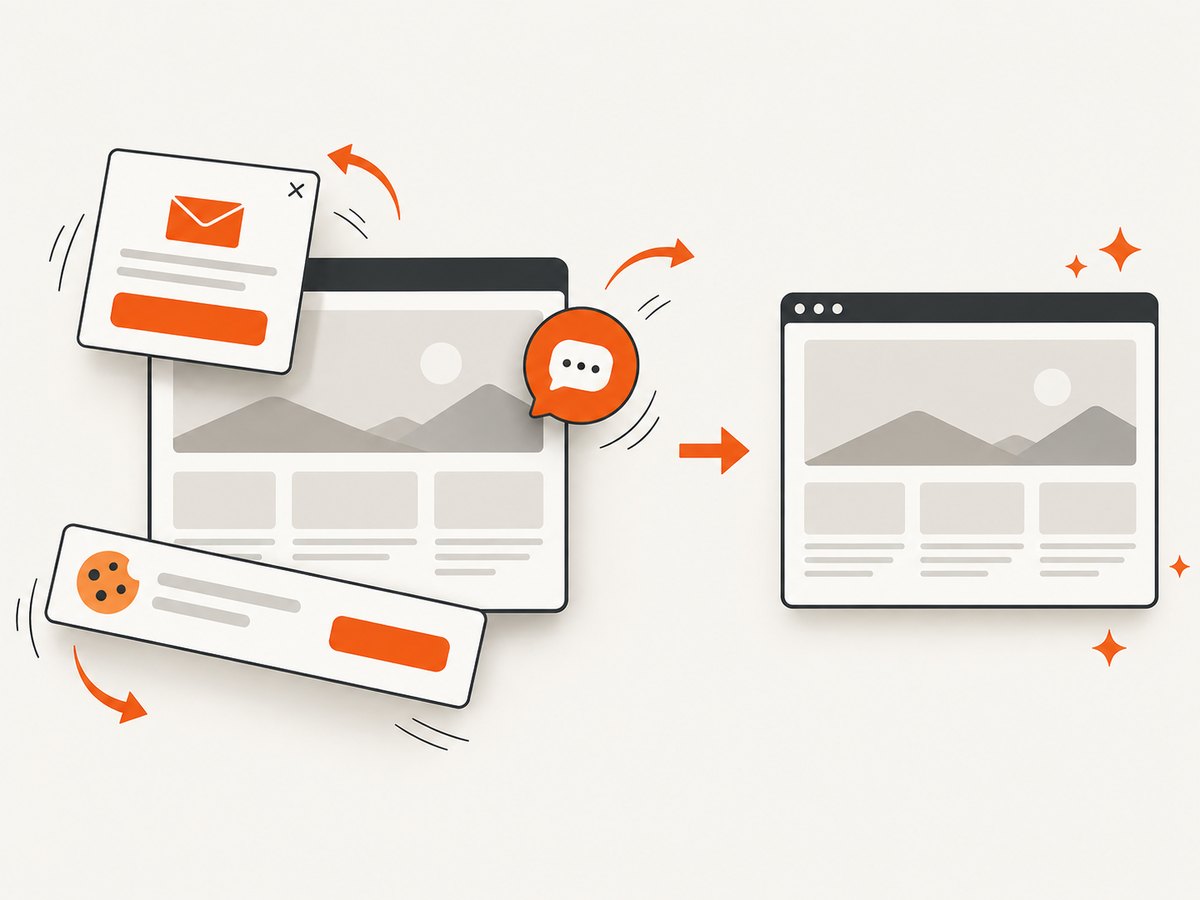
If your goal is a clean image or PDF rather than browser automation itself, ScreenshotNeo provides a single GET request for a website screenshot. Its capture pipeline accepts consent banners and removes more than 60 known consent platforms, newsletter popups and chat widgets before the shot; each step can be disabled. Bot checks, blank pages, timeouts, failed loads and cache hits are not billed, and the response identifies the result with X-Page-Verdict and X-Billed headers. It also provides an MCP server for Claude, Cursor and other MCP clients, with take_screenshot, get_page_info and capture_pdf tools.
See the ScreenshotNeo API documentation for all options.
cURL
curl -G "https://api.screenshotneo.com/v1/shot" -d access_key=YOUR_API_KEY --data-urlencode url=https://stripe.com -o shot.webpPython
import requests
r = requests.get("https://api.screenshotneo.com/v1/shot", params={"access_key": "YOUR_API_KEY", "url": "https://stripe.com"}, timeout=90)
open("shot.webp", "wb").write(r.content)
Node.js
const q = new URLSearchParams({ access_key: 'YOUR_API_KEY', url: 'https://stripe.com' }); const res = await fetch(`https://api.screenshotneo.com/v1/shot?${q}`);ScreenshotNeo supports full-page captures with lazy images loaded, CSS element capture, dark mode, device presets, arbitrary viewports, retina scale, PDF paper and margin settings, custom CSS and JavaScript, clicks, selector waits, delays, network-idle waits, request blocking, headers, cookies, user agents, authorization, timezone, geolocation, transparent backgrounds, resizing, configurable caching, signed links, asynchronous jobs with signed webhooks, bulk capture of up to 100 URLs per call, usage reporting and an OpenAPI specification. Parameter names used by other screenshot APIs also work, which simplifies migration.
The Free plan includes 1,000 screenshots each month with no card. Paid plans start at $5 for 3,000 shots; yearly billing gives two months free. Create a free ScreenshotNeo account to start.
11. FAQ
Does increasing Selenium’s page-load timeout fix this stall?
Usually no. A launch stall happens before normal page navigation. Trace logs first establish whether Firefox reached a ready Marionette session.
Should I always use headless Firefox in Docker?
Use it when no display server is available, but prove a clean normal launch first when possible. Headless mode cannot repair profile or executable visibility.
Why does Snap matter if Firefox runs from the shell?
The shell and geckodriver may run under different confinement rules. Firefox can start interactively yet fail to read the profile directory geckodriver generated.
Can I share one Firefox profile between parallel tests?
No. Give each process its own temporary profile and writable directory to avoid locks and cross-test state.
When should I replace Selenium with an API?
Use an API when you need repeatable screenshots or PDFs and do not need to drive a browser session interactively. ScreenshotNeo removes common overlays before capture and reports whether a result was billable.


