How to Fix Selenium NoSuchElement Errors with CSS Selectors
Diagnose Selenium NoSuchElementException errors, repair CSS locators, and use explicit waits that match the page state you need.
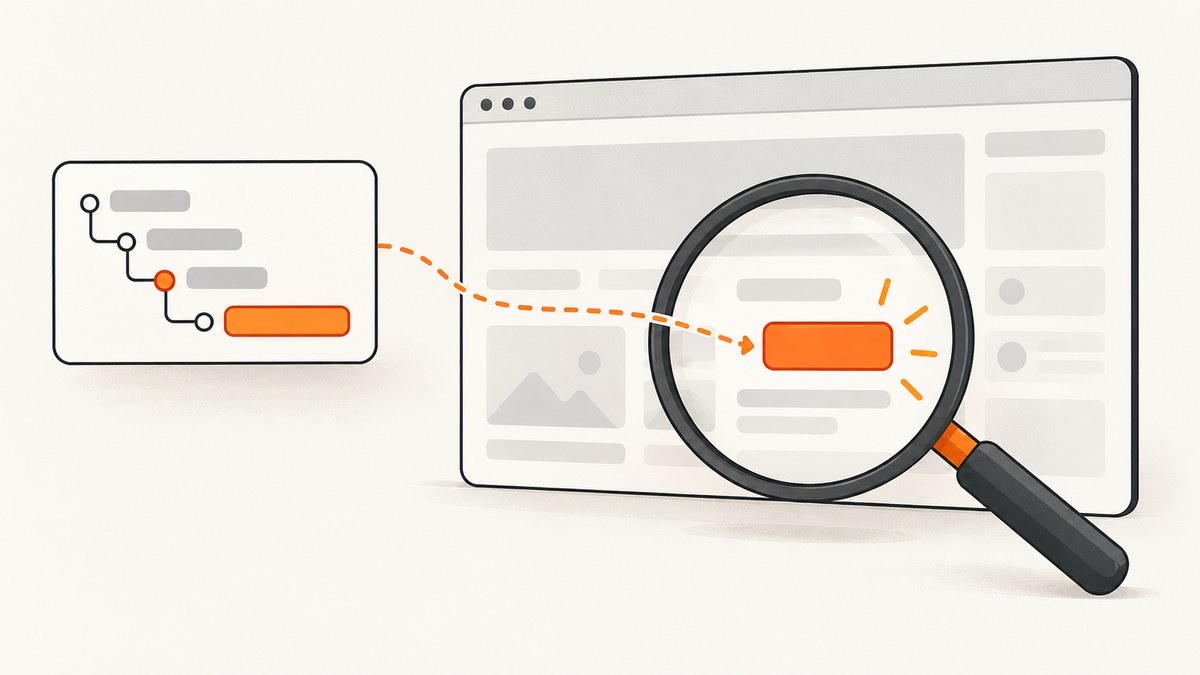
Short answer: Selenium raises NoSuchElementException when your lookup finds no matching element at that moment. The usual causes are that the browser is on the wrong page, a previous action did not complete, JavaScript has not added the element yet, or the locator no longer matches the current DOM. Check the page state and current DOM first, then verify that you are using CSS syntax with Selenium’s CSS locator strategy, and finally wait for the exact state your next action needs.
A malformed CSS selector is a different failure. Selenium reports InvalidSelectorException when selector syntax is invalid or when CSS is passed to an XPath strategy (or the reverse). Increasing a timeout cannot repair invalid syntax.
1. Reproduce the failure with a small test
Start with the smallest script that demonstrates the problem. Printing the current URL and page title makes it obvious when navigation or an earlier click left the driver somewhere unexpected.
from selenium import webdriver
from selenium.common.exceptions import NoSuchElementException
from selenium.webdriver.common.by import By


driver = webdriver.Chrome()
try:
    driver.get("https://example.com")
    print("URL:", driver.current_url)
    print("Title:", driver.title)

    try:
        element = driver.find_element(By.CSS_SELECTOR, "[data-test='save']")
        element.click()
    except NoSuchElementException:
        print("No matching element at lookup time")
        print("Current URL:", driver.current_url)
finally:
    driver.quit()
The exception tells you the lookup had no match; it does not tell you whether the selector is wrong, the page is wrong, or the element is late. Keep those diagnoses separate.
2. Follow a reliable diagnostic sequence
Confirm the browser and preceding action
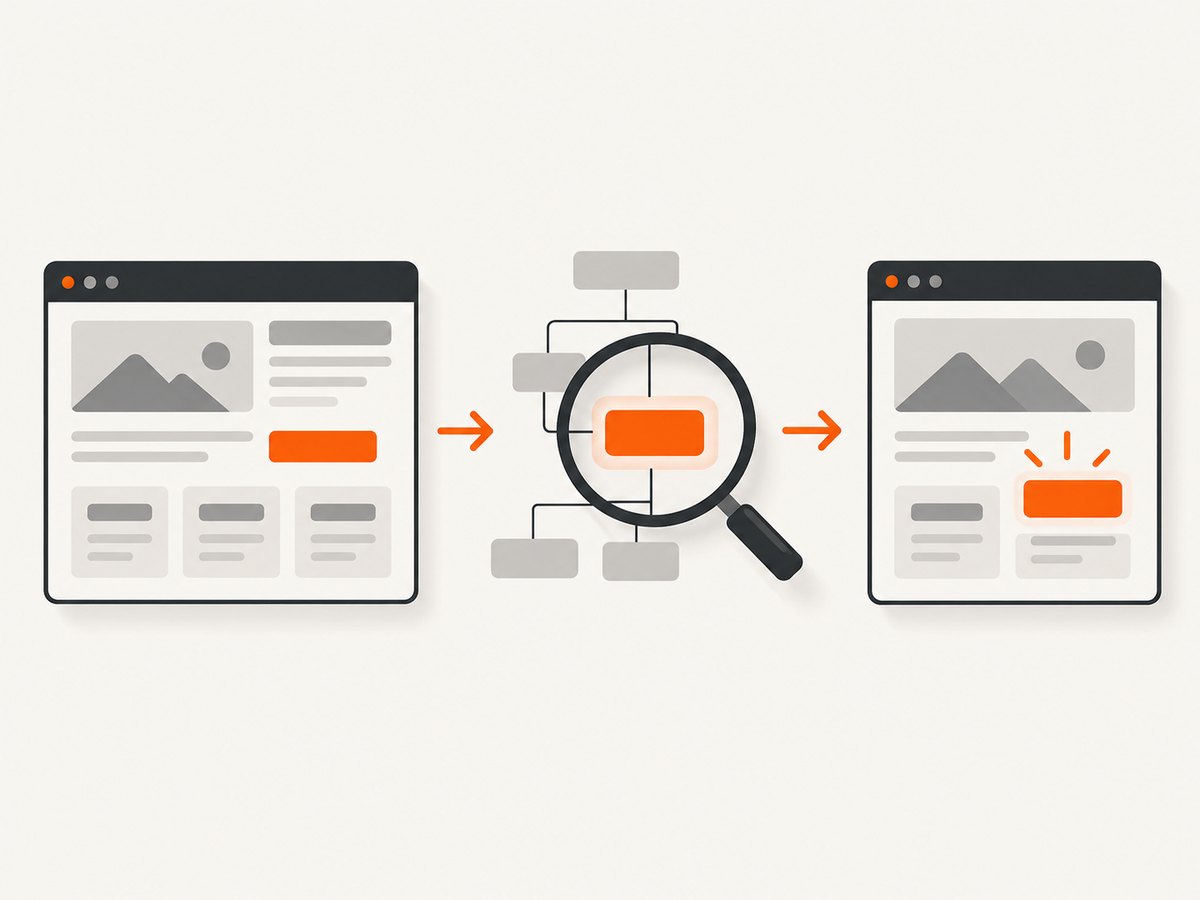
Selenium’s error guidance lists a wrong location and an unsuccessful earlier action as common causes. Verify the URL after each important navigation and after actions that should change the page. If a click is supposed to open a form, confirm that the click actually happened before searching for a field in that form.
driver.get("https://example.com/account")
assert "/account" in driver.current_url

# Verify the action that should reveal the form.
driver.find_element(By.CSS_SELECTOR, "button[data-test='open-form']").click()
print(driver.current_url, driver.title)
Inspect the live DOM
Use browser developer tools while the failing page is open. Search for the element and copy a selector only after confirming the element exists in the current DOM. Pages change: a class or ID that worked when the test was written may have been renamed, removed, or generated differently.
Test the selector in the console with document.querySelector(). A null result means there is no match in that document at that instant. If the console reports a syntax error, fix the selector before changing waits.
const node = document.querySelector("[data-test='save']");
console.log(node);
Check the locator strategy
CSS must be supplied to By.CSS_SELECTOR. Do not pass CSS to By.XPATH or an ID strategy. Conversely, an XPath expression belongs in By.XPATH. Selenium documents invalid syntax and strategy mismatches as InvalidSelectorException.
# CSS attribute selector
save = driver.find_element(By.CSS_SELECTOR, "button[data-test='save']")

# XPath is valid only with the XPath strategy
save = driver.find_element(By.XPATH, "//button[@data-test='save']")
Prefer a durable locator
Selenium recommends a unique, predictable ID when one exists. If there is no suitable ID, use a compact CSS selector built from a stable attribute such as data-test. Avoid selectors based on generated class names or deeply nested structure that changes whenever the layout changes.
| Locator | Use it when | Check before keeping it |
|---|---|---|
| Unique ID | The page exposes an ID that is unique and predictable. | Confirm it is actually unique and remains stable between runs. |
| CSS on a stable attribute | No suitable ID exists. | Prefer attributes such as data-test; keep the selector short. |
| XPath or another strategy | The test has a real need for it. | Use the matching Selenium strategy and valid syntax. |
3. Wait for the state your next step needs
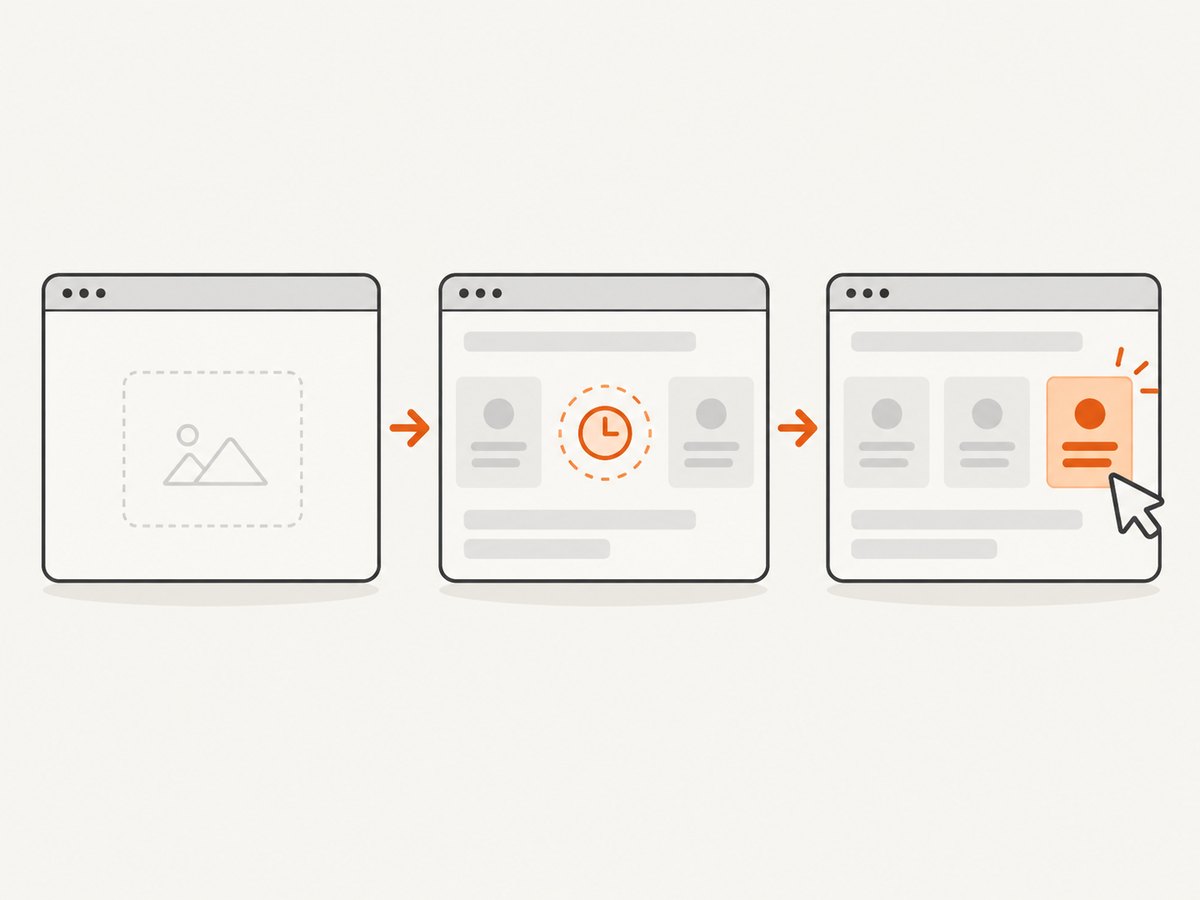
Navigation waits for a readyState according to the selected page-load strategy, but that does not guarantee that JavaScript updates have finished. A single-page application can add or reveal an element after navigation returns. Use an explicit wait for the condition required by the next operation.
Wait for presence
Presence means the element exists in the DOM. It is appropriate when you need to read it or when a later operation will handle visibility separately.
from selenium.webdriver.support.ui import WebDriverWait
from selenium.webdriver.support import expected_conditions as EC

wait = WebDriverWait(driver, 15)
save = wait.until(
    EC.presence_of_element_located(
        (By.CSS_SELECTOR, "button[data-test='save']")
    )
)
Wait for visibility or clickability
If the next action requires a visible control, wait for visibility. If it must be ready to click, use the clickability condition.
button = wait.until(
    EC.element_to_be_clickable(
        (By.CSS_SELECTOR, "button[data-test='save']")
    )
)
button.click()
Choose the condition that matches the operation. A successful location does not automatically mean the element is visible or ready for interaction.
Avoid fixed sleeps as the design
time.sleep(5) may hide a race on a fast run and still fail on a slow run. Selenium’s current guidance is to wait on the actual condition instead of repeatedly increasing a timeout. A short delay can be useful while investigating, but replace it with a condition-based wait in the final test.
Do not mix implicit and explicit waits
An implicit wait is a session-wide setting for element-location calls. Its default is zero, so a missing element returns immediately. Selenium warns that combining implicit and explicit waits produces unpredictable timing; its documentation illustrates how a nominal 10-second implicit wait and 15-second explicit wait can take 20 seconds. Use explicit waits for local, understandable synchronization and leave the implicit wait at its default unless you have a deliberate reason to configure it.
# Recommended pattern for condition-based synchronization
# Do not configure an implicit wait in the same session.
wait = WebDriverWait(driver, 15)
field = wait.until(
    EC.visibility_of_element_located(
        (By.CSS_SELECTOR, "input[data-test='email']")
    )
)
field.send_keys("dev@example.com")
4. Make CSS selectors precise without making them fragile
Use attributes and boundaries
# Exact attribute value
By.CSS_SELECTOR, "button[data-test='save']"

# Element plus class
By.CSS_SELECTOR, "form.checkout button.primary"

# Attribute beginning with a value
By.CSS_SELECTOR, "input[name^='billing-']"

# Attribute containing a value
By.CSS_SELECTOR, "[aria-label*='Search']"
Keep the final selector readable. If several elements match, add one stable parent or a second stable attribute rather than copying the entire DOM path. If no stable attribute exists, ask the application team for a test hook instead of depending on generated values.
Check uniqueness in the browser
document.querySelectorAll("button[data-test='save']").lengthA count of zero means the element is absent at that moment; a count greater than one means the selector needs a more specific boundary. Selenium’s locator guidance favors unique, predictable targets because they are easier to maintain and debug.
5. A complete Python example
This example verifies navigation, waits for a dynamic control, reports the two main exception types separately, and always closes the browser.
from selenium import webdriver
from selenium.common.exceptions import (
    InvalidSelectorException,
    NoSuchElementException,
    TimeoutException,
)
from selenium.webdriver.common.by import By
from selenium.webdriver.support.ui import WebDriverWait
from selenium.webdriver.support import expected_conditions as EC

URL = "https://example.com/account"
LOCATOR = (By.CSS_SELECTOR, "button[data-test='save']")

driver = webdriver.Chrome()
try:
    driver.get(URL)
    print("Loaded:", driver.current_url)

    wait = WebDriverWait(driver, 15)
    try:
        save = wait.until(EC.element_to_be_clickable(LOCATOR))
        save.click()
    except TimeoutException as exc:
        raise RuntimeError(
            f"Element was not clickable at {driver.current_url}. "
            "Inspect the live DOM and preceding action."
        ) from exc
    except NoSuchElementException as exc:
        raise RuntimeError(
            "No element matched the CSS selector at lookup time."
        ) from exc
    except InvalidSelectorException as exc:
        raise RuntimeError(
            "The CSS selector is invalid or was passed to the wrong strategy."
        ) from exc
finally:
    driver.quit()
With an explicit wait, a missing dynamic element normally surfaces as TimeoutException after the condition remains false. A direct find_element call with no wait raises NoSuchElementException immediately.
6. Common failure patterns and fixes
| Symptom | Likely cause | Fix |
|---|---|---|
NoSuchElementException immediately |
Wrong page, failed previous action, changed locator, or element not present yet. | Print URL/title, inspect the live DOM, verify the preceding action, then add a condition-based wait if the element is dynamic. |
InvalidSelectorException |
Malformed CSS, XPath passed as CSS, or wrong locator strategy. | Validate the selector in document.querySelector() and use By.CSS_SELECTOR for CSS. |
| Wait always times out | The selector never matches the current DOM or the page is still in the wrong state. | Capture the URL, title, and selector match count at timeout; revisit navigation and locator stability. |
| Works locally, fails in another browser | Environment or browser-driver difference. | Compare behavior across browsers and check the driver and browser versions as part of troubleshooting. |
| Element appears after a click | The click or JavaScript update has not completed when the lookup runs. | Wait for the post-click element or state, not an arbitrary sleep. |
7. Logging that makes the next failure actionable
Record the locator, URL, title, and a short DOM diagnostic when a wait expires. Do not dump an entire page into every test log; the goal is to identify whether the failure is state, timing, or selector syntax.
from selenium.common.exceptions import TimeoutException

try:
    wait.until(EC.visibility_of_element_located(LOCATOR))
except TimeoutException:
    print("URL:", driver.current_url)
    print("Title:", driver.title)
    print("Selector:", LOCATOR[1])
    print("Matches:", driver.execute_script(
        "return document.querySelectorAll(arguments[0]).length",
        LOCATOR[1],
    ))
    raise
8. Performance, reliability, and maintenance
- Performance: A local explicit wait polls until its condition succeeds or the timeout expires. Keep the timeout aligned with the slowest legitimate page state instead of applying a large session-wide implicit wait.
- Reliability: Stable IDs and test attributes survive layout refactors better than generated classes or long descendant chains. Verify the preceding action before blaming synchronization.
- Maintenance: Put locators in one place, give them descriptive names, and update them when the application’s DOM changes. Keep each selector short enough that a failure message explains what it was trying to find.
- Version details: Selenium 4 examples use the current binding APIs. In Java, for example,
WebDriverWaitis configured withDuration.ofSeconds(...); match examples to the Selenium version and language binding in your project.
9. Or skip the browser setup
If your goal is a rendered image rather than an interactive test, ScreenshotNeo captures a page with one HTTP request. It accepts consent banners as a visitor and removes more than 60 known consent platforms, newsletter popups, and chat widgets before capture. Bot checks, blank pages, timeouts, failed loads, and cache hits are not billed, and the response identifies the result with X-Page-Verdict and X-Billed headers. An MCP server provides take_screenshot, get_page_info, and capture_pdf for Claude, Cursor, and other MCP clients.
See the ScreenshotNeo API documentation for all options. The same endpoint supports full-page or element capture, dark mode, device presets, custom viewports, retina scale, waits, custom CSS and JavaScript, request blocking, headers, cookies, user agents, authorization, timezone, geolocation, transparent backgrounds, resizing, caching, signed links, asynchronous jobs, bulk capture, usage data, PDFs, and HTML/CSS rendering.
cURL
curl -G "https://api.screenshotneo.com/v1/shot" \
  -d access_key=YOUR_API_KEY \
  --data-urlencode url=https://stripe.com \
  -o shot.webp
Python
import requests

r = requests.get(
    "https://api.screenshotneo.com/v1/shot",
    params={"access_key": "YOUR_API_KEY", "url": "https://stripe.com"},
    timeout=90,
)
r.raise_for_status()
open("shot.webp", "wb").write(r.content)
Node.js
const q = new URLSearchParams({
  access_key: 'YOUR_API_KEY',
  url: 'https://stripe.com'
});
const res = await fetch(`https://api.screenshotneo.com/v1/shot?${q}`);
if (!res.ok) throw new Error(`HTTP ${res.status}`);
const fs = await import('node:fs/promises');
await fs.writeFile('shot.webp', Buffer.from(await res.arrayBuffer()));
There is a free plan with 1,000 screenshots per month and no card. Paid plans start at $5 for 3,000 shots; every feature is available on every plan. Create a free ScreenshotNeo account.
10. FAQ
Does NoSuchElementException prove my CSS is wrong?
No. It means no match was found at lookup time. Check page state, timing, and locator changes before changing syntax.
Should I raise the implicit wait?
Usually use an explicit wait for the specific condition instead. Selenium warns that mixing implicit and explicit waits can make total timing unpredictable.
When should I use an ID instead of CSS?
Use a unique, predictable ID when the page provides one. Otherwise use a compact CSS selector based on a stable attribute such as data-test.
Why does the page look loaded while the element is missing?
Navigation readiness does not guarantee that JavaScript-driven updates have completed. Wait for the element state your next operation requires.
What should I check after a browser upgrade?
Recheck the Selenium binding, browser driver, and behavior across browsers. Version-specific APIs and driver behavior can affect troubleshooting.


