How to Fix Selenium NoSuchElementException When Elements Appear in Firebug
Firebug can show an element that Selenium cannot find. Learn how to diagnose page state, locators, frames, timing, and dynamic DOM changes.
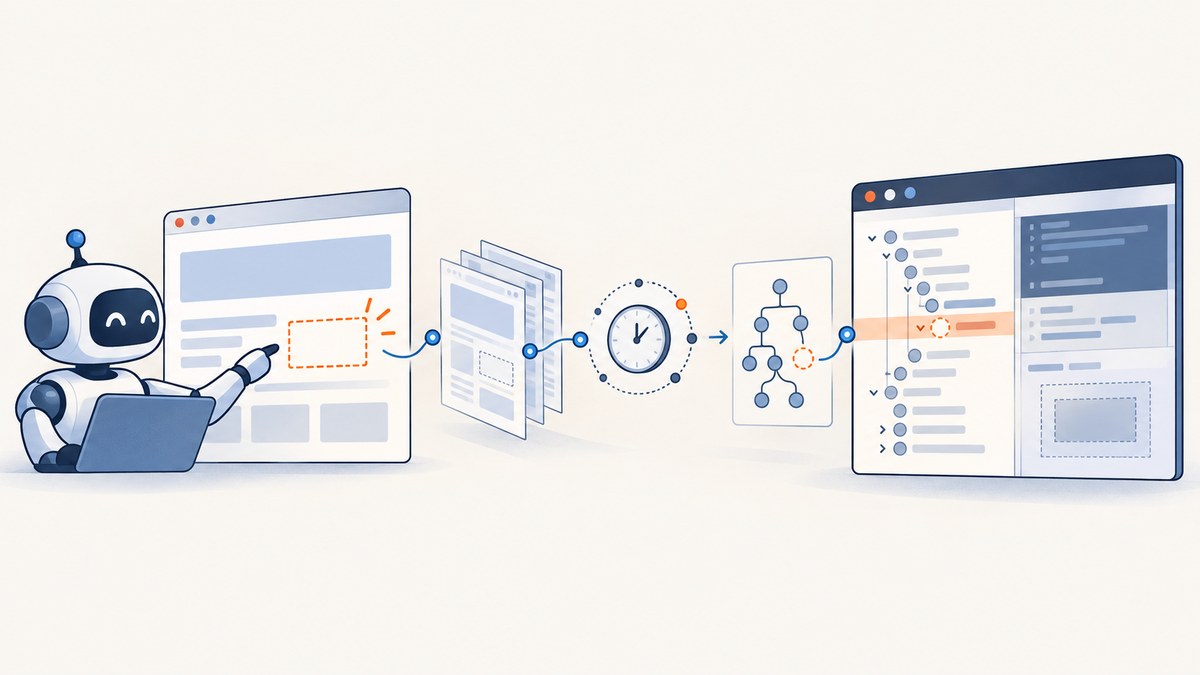
Seeing an element in Firebug does not prove Selenium can find it. Selenium raises NoSuchElementException when its lookup finds no matching element in the current page, browsing context, and DOM state at the instant the command runs. The inspector may be showing a different frame, a different window, a later DOM state, or markup that does not match your locator.
Fix the problem in this order:
- Confirm Selenium is on the expected URL and that the previous navigation or click succeeded.
- Confirm the test is in the correct window and frame.
- Compare the locator with the live DOM, including case, attributes, and shadow boundaries.
- Wait for the exact condition your next action requires.
- Capture browser, driver, locator, and DOM details if the failure remains.
Selenium’s official troubleshooting guidance identifies wrong page or state, wrong timing, and changed locators as common causes. The exception means the element was not found at the moment of lookup; it does not identify which of those causes applies. See the No Such Element Exception guidance, wait documentation, and locator reference.
1. What Firebug proves—and what it does not
An inspector is an observation tool. It lets you inspect a browser’s current rendered page, but Selenium may be searching another state. Common differences include:
- Different moment: JavaScript inserted the element after Selenium searched, or removed it before the inspector was opened.
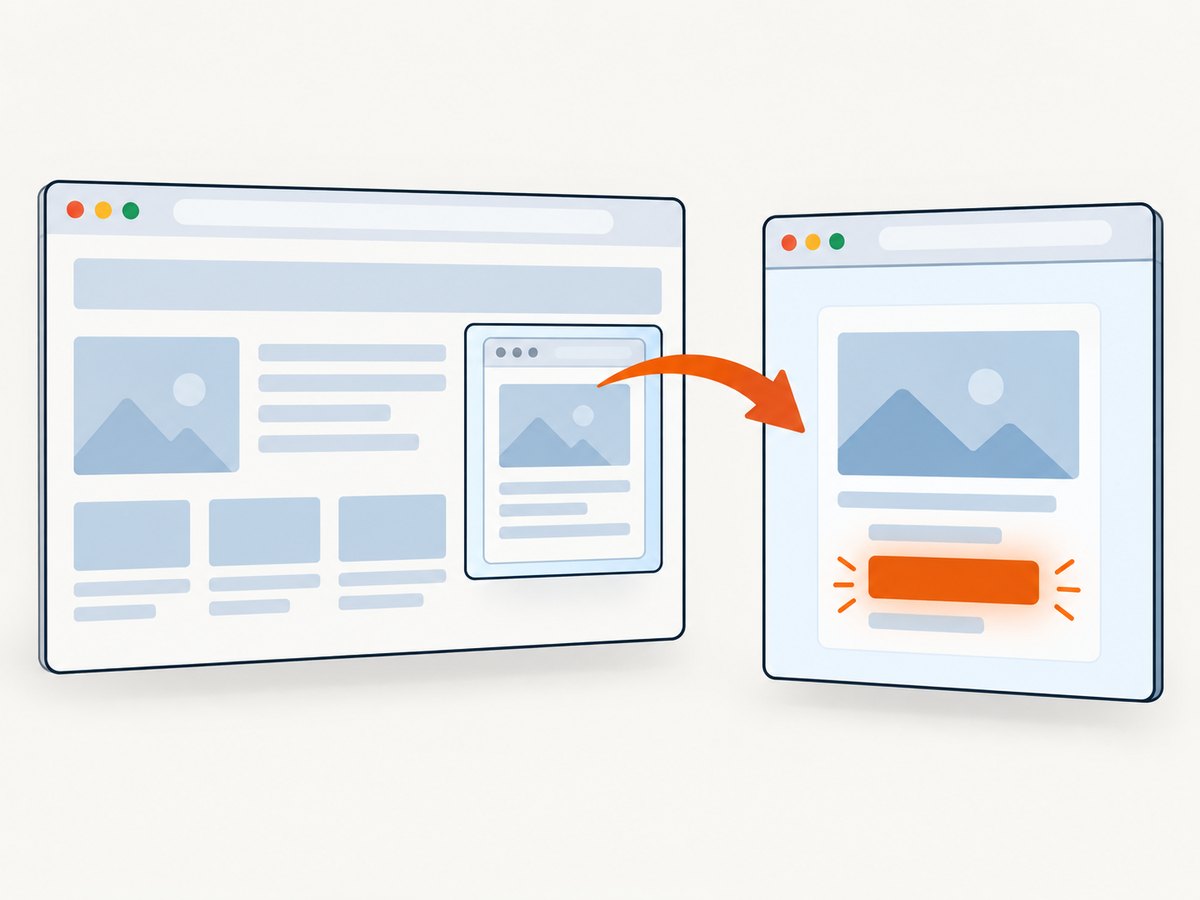
- Different document: the element is inside an iframe, while WebDriver is still attached to the top-level document.
- Different window or tab: a click opened a new browsing context that the test never selected.
- Different locator: the selector contains a typo, uses a changed class, or matches a different node than intended.
- Different DOM boundary: the target is inside a shadow root and is not reachable with a normal document-level search.
- Different page state: a redirect, failed login, validation error, or unsuccessful earlier click left the test somewhere else.
Firebug itself is not evidence of a Selenium defect. The safe diagnosis is to compare the exact document and context inspected with the one WebDriver is using. Selenium’s documented checks remain page state, locator correctness, and synchronization.
2. Confirm the page and preceding action
Check the URL immediately before the failing lookup. Also record the page title and a small portion of the source. This catches redirects, failed form submissions, authentication expiry, and clicks that never triggered navigation.
from selenium import webdriver
from selenium.webdriver.common.by import By

 driver = webdriver.Chrome()
 driver.get("https://example.test/login")

 # Perform the action that should reveal the target.
 driver.find_element(By.ID, "sign-in").click()

 print("URL:", driver.current_url)
 print("Title:", driver.title)
 print("Source prefix:", driver.page_source[:500])

 target = driver.find_element(By.ID, "account-menu")
Remove diagnostic prints after isolating the failure, or send them to your test logger. If current_url is unexpected, fix the navigation or prior action first. Changing the final selector cannot repair a test that never reached the intended page.
Check windows and tabs
When a link opens a new tab, Selenium does not automatically switch to it. Compare the available handles and select the expected one.
original = driver.current_window_handle
before = set(driver.window_handles)

driver.find_element(By.CSS_SELECTOR, "a[target='_blank']").click()

# In production, wait for the new handle rather than sleeping blindly.
from selenium.webdriver.support.ui import WebDriverWait
WebDriverWait(driver, 10).until(
    lambda d: len(d.window_handles) > len(before)
)
new_handle = (set(driver.window_handles) - before).pop()
driver.switch_to.window(new_handle)
print(driver.current_url)
Check frames and iframes
An iframe has its own document. Locate the frame from the top-level document, switch into it, and only then search for the target. Return to the default document before interacting with elements outside the frame.
from selenium.webdriver.common.by import By
from selenium.webdriver.support.ui import WebDriverWait
from selenium.webdriver.support import expected_conditions as EC

frame = WebDriverWait(driver, 10).until(
    EC.presence_of_element_located((By.CSS_SELECTOR, "iframe.payment"))
)
driver.switch_to.frame(frame)

card_number = WebDriverWait(driver, 10).until(
    EC.visibility_of_element_located((By.NAME, "cardnumber"))
)
card_number.send_keys("4111111111111111")

driver.switch_to.default_content()
If the inspector shows the target nested under an iframe, this context switch is required. A selector copied from the frame will fail while WebDriver remains in the parent document.
3. Verify the locator against the live DOM
Use a selector that describes the intended element and remains stable when presentation classes change. Selenium supports ID, name, class name, CSS selector, link text, partial link text, and XPath strategies. Prefer a unique ID or a short CSS selector when the application provides stable attributes.
| Strategy | Example | Use when |
|---|---|---|
| ID | By.ID, "checkout" |
The ID is unique and application-owned. |
| Name | By.NAME, "email" |
A form control has a stable name. |
| CSS | By.CSS_SELECTOR, "button[data-test='save']" |
You can express a precise attribute or structure. |
| Class name | By.CLASS_NAME, "submit" |
A single, stable class identifies the element. |
| Link text | By.LINK_TEXT, "Continue" |
The visible link text is stable and unique. |
| XPath | By.XPATH, "//button[@aria-label='Save']" |
You need relationships or attributes CSS cannot express. |
Inspect the live element and compare every assumption: spelling, capitalization, attribute values, nesting, and whether the element is actually an input, button, link, or container. A copied selector can become invalid after a frontend deployment. Avoid selectors based on generated class names or positional indexes such as div:nth-child(4) unless the structure is contractual.
# Prefer an application test attribute when available.
locator = (By.CSS_SELECTOR, "[data-testid='account-menu']")
element = WebDriverWait(driver, 10).until(
    EC.presence_of_element_located(locator)
)
Presence versus visibility versus interactability
These conditions answer different questions:
- Presence: a matching node exists in the DOM.
- Visibility: the node exists and is displayed with a usable size.
- Clickability: the node is visible and enabled for a click.
Choose the condition required by the next operation. Waiting for visibility does not help if your locator is wrong; waiting for presence does not make a hidden control clickable.
4. Synchronize with dynamic pages
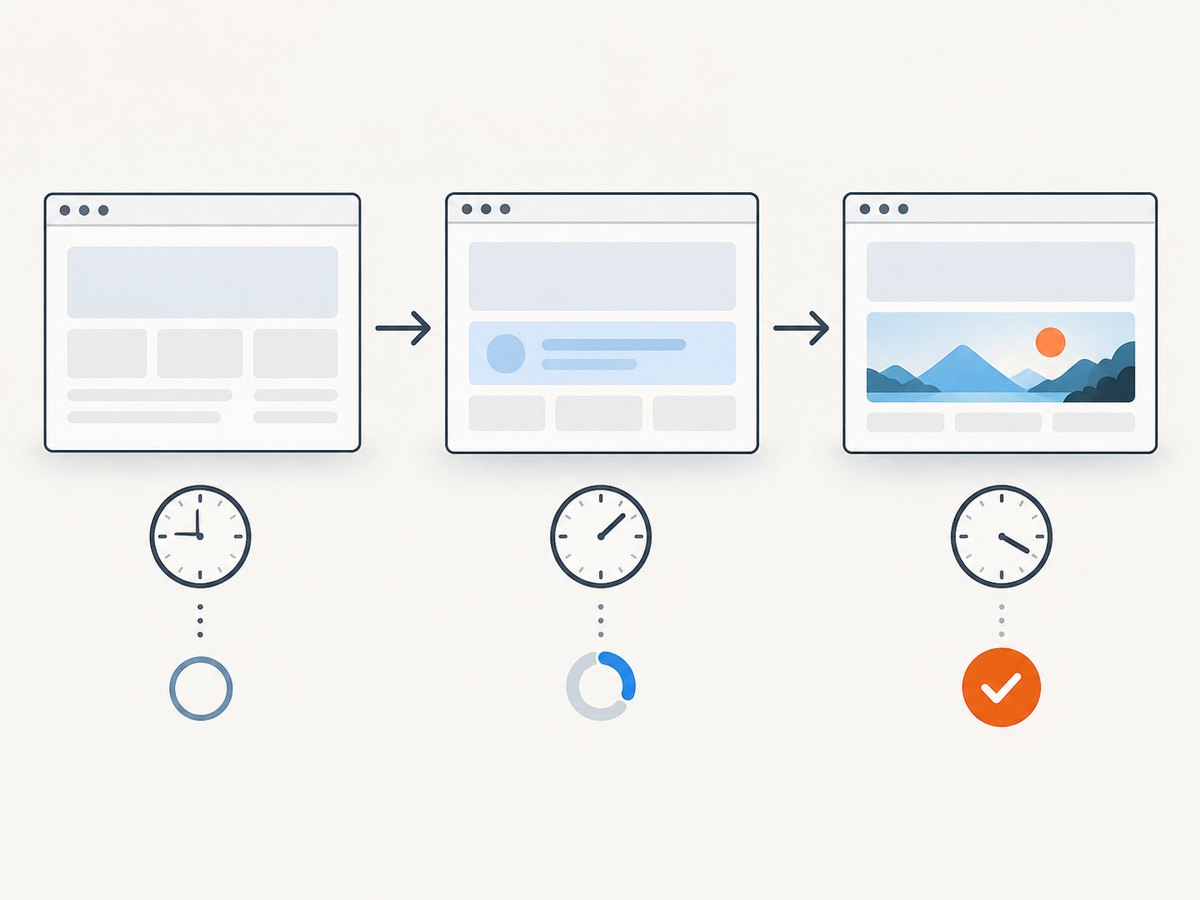
Document readiness does not mean an application has finished rendering. JavaScript may fetch data, replace a loading shell, open a menu, or reveal a modal after the initial page load. Selenium recommends waiting for a specific expected condition.
from selenium.webdriver.common.by import By
from selenium.webdriver.support import expected_conditions as EC
from selenium.webdriver.support.wait import WebDriverWait

locator = (By.ID, "target")
element = WebDriverWait(driver, 10).until(
    EC.visibility_of_element_located(locator)
)
element.click()
Other useful conditions include:
# Node inserted, even if hidden
WebDriverWait(driver, 10).until(
    EC.presence_of_element_located((By.CSS_SELECTOR, "#results"))
)

# A button is ready for interaction
WebDriverWait(driver, 10).until(
    EC.element_to_be_clickable((By.CSS_SELECTOR, "button.submit"))
)

# A redirect completed
WebDriverWait(driver, 10).until(EC.url_contains("/dashboard"))

# A loading marker disappeared
WebDriverWait(driver, 10).until(
    EC.invisibility_of_element_located((By.CSS_SELECTOR, ".loading"))
)
A fixed sleep waits the same amount whether the page is ready immediately or still loading. A long sleep can be useful briefly to prove that timing is involved, but it is a poor final synchronization strategy because it increases runtime and remains flaky under variable load.
Implicit and explicit waits
An implicit wait applies to every element lookup. An explicit wait targets one condition at one point in the test. Selenium warns that mixing the two can produce unpredictable total durations. Keep wait policy understandable: use explicit waits for known state transitions, and avoid setting a large implicit wait as a blanket fix.
# If you use an implicit wait, keep it small and consistent.
driver.implicitly_wait(2)

# Prefer a local explicit wait for an asynchronous component.
menu = WebDriverWait(driver, 10).until(
    EC.visibility_of_element_located((By.ID, "account-menu"))
)
5. A complete diagnostic example
The following script demonstrates a maintainable sequence: navigate, verify URL, switch into a frame if required, wait for a precise condition, and report useful failure context.
from selenium import webdriver
from selenium.common.exceptions import TimeoutException, NoSuchElementException
from selenium.webdriver.common.by import By
from selenium.webdriver.support import expected_conditions as EC
from selenium.webdriver.support.ui import WebDriverWait

URL = "https://example.test/account"
TARGET = (By.CSS_SELECTOR, "[data-testid='account-menu']")

driver = webdriver.Chrome()
try:
    driver.get(URL)
    wait = WebDriverWait(driver, 15)

    wait.until(EC.url_contains("/account"))
    print("Current URL:", driver.current_url)

    # Uncomment only if the target is inside this frame.
    # frame = wait.until(EC.presence_of_element_located((By.ID, "app-frame")))
    # driver.switch_to.frame(frame)

    target = wait.until(EC.visibility_of_element_located(TARGET))
    print("Target text:", target.text)
    target.click()

except (TimeoutException, NoSuchElementException) as error:
    print("Failure:", type(error).__name__, str(error))
    print("URL:", driver.current_url)
    print("Title:", driver.title)
    print("Window handles:", driver.window_handles)
    driver.save_screenshot("selenium-failure.png")
    raise
finally:
    driver.quit()
6. Edge cases that look like NoSuchElementException
Shadow DOM
Elements inside an open shadow root require entering that root before locating descendants. Selenium versions and bindings expose shadow-root APIs; otherwise, execute JavaScript only when the application’s component contract permits it. A normal find_element on the document will not cross the boundary automatically.
Element replaced after lookup
A framework can replace a node between locating it and using it. That usually produces a stale-element error, but the remedy is related: wait for the application state, then locate the element immediately before the operation instead of caching it across rerenders.
Hidden duplicate nodes
Responsive layouts often render desktop and mobile controls together while hiding one. A broad selector may find an unusable duplicate or no matching visible node. Narrow the selector to the active container and wait for visibility.
Authentication and consent flows
A login timeout, cookie banner, or consent modal can prevent the expected application shell from appearing. Verify that the test account is authenticated and that the preceding consent or login step completed before looking for application elements.
7. Troubleshooting checklist
| Symptom | Likely cause | Fix |
|---|---|---|
| Inspector shows the node, Selenium finds nothing | Wrong frame, window, or DOM moment | Print URL and handles; switch context; wait for insertion. |
| Failure occurs immediately after navigation | Asynchronous rendering | Wait for presence, visibility, or a page-specific state. |
| Selector worked yesterday | Markup or attribute changed | Compare the live DOM and use a stable test attribute. |
| Only CI fails | Timing, viewport, browser, or driver difference | Record versions, viewport, URL, screenshot, and page source. |
| Element is visible but click fails | Overlay, disabled state, or wrong duplicate | Wait for clickability and remove the blocking application state. |
| Waits take far longer than expected | Implicit and explicit waits combined | Use one clear strategy and reduce global implicit timeout. |
For a reproducible bug report, collect the exact locator, current URL, window and frame context, relevant DOM fragment, browser and driver versions, Selenium version, viewport, preceding actions, and whether the issue reproduces in another browser. Selenium notes that some reported errors originate in browser drivers, so version comparison matters.
8. Performance, reliability, and cost considerations
Reliable synchronization improves speed as well as correctness. Condition-based waits return as soon as the state is ready, while fixed sleeps add their full duration to every run. Keep timeouts long enough for the slowest expected environment, but fail with a useful diagnostic when the condition is not met.
Use stable locators and page-specific readiness signals. Avoid repeatedly searching the DOM in polling callbacks with expensive XPath expressions when a simple ID or CSS attribute works. Capture screenshots and source only on failure to keep test artifacts manageable.
Do not treat retries as a substitute for diagnosis. A retry can hide a race condition, duplicate a purchase, or make a broken locator appear intermittently healthy. If you retry, limit it to operations that are safe to repeat and preserve the first failure’s evidence.
9. Or skip the browser setup
If your goal is a clean image of a page rather than an interactive Selenium test, ScreenshotNeo provides a single screenshot API request. It accepts consent banners before capture and removes more than 60 known consent platforms, newsletter popups, and chat widgets; each step can be turned off. Bot checks or CAPTCHAs, blank pages, timeouts, failed loads, and cache hits cost nothing, and the response identifies the result with X-Page-Verdict and X-Billed headers.
See the ScreenshotNeo API documentation for all options.
cURL
curl -G "https://api.screenshotneo.com/v1/shot" -d access_key=YOUR_API_KEY --data-urlencode url=https://stripe.com -o shot.webpPython
import requests
r = requests.get("https://api.screenshotneo.com/v1/shot", params={"access_key": "YOUR_API_KEY", "url": "https://stripe.com"}, timeout=90)
open("shot.webp", "wb").write(r.content)
Node.js
const q = new URLSearchParams({ access_key: 'YOUR_API_KEY', url: 'https://stripe.com' });
const res = await fetch(`https://api.screenshotneo.com/v1/shot?${q}`);
The API also supports full-page captures with lazy images loaded, CSS element capture, dark mode, device presets and custom viewports, retina scale, PDF output, custom CSS and JavaScript, clicks, selector hiding, selector or network-idle waits, blocked ads and requests, custom headers and cookies, user agent, authorization, timezone, geolocation, transparent backgrounds, resizing, TTL caching, signed links, asynchronous jobs with signed webhooks, bulk capture of up to 100 URLs per call, usage reporting, and an OpenAPI specification. Parameter names used by other screenshot APIs also work, which can simplify migration.
ScreenshotNeo includes an MCP server with take_screenshot, get_page_info, and capture_pdf tools for Claude, Cursor, and other MCP clients. The Free plan includes 1,000 screenshots each month with no card; paid plans start at $5 for 3,000. Create a free ScreenshotNeo account.
10. FAQ
Does Firebug need to be removed?
No conclusion about Firebug is required. Treat the inspector as evidence of one observed browser state and verify Selenium’s URL, context, locator, and timing.
Should I use XPath instead of CSS?
Neither is universally better. Choose the shortest stable locator that uniquely identifies the intended element. CSS is often easier to read; XPath is useful for relationships and text-based conditions.
What timeout should I choose?
Choose a limit based on the slowest legitimate application response in your environment, then fail with URL, source, screenshot, and context details. A larger timeout cannot fix a wrong locator or frame.
Why does a long sleep make the error disappear?
It suggests a timing race: the element appears after the lookup. Replace the sleep with an explicit wait for the required condition.
Can a screenshot API replace Selenium?
It can replace browser automation for static capture workflows. It does not replace Selenium when you need to interact with controls, assert application behavior, or test a user journey.


