How to Fix Selenium’s NoSuchElementException
Fix Selenium's NoSuchElementException by checking page state, locators, frames, windows, and explicit waits with runnable Python examples.
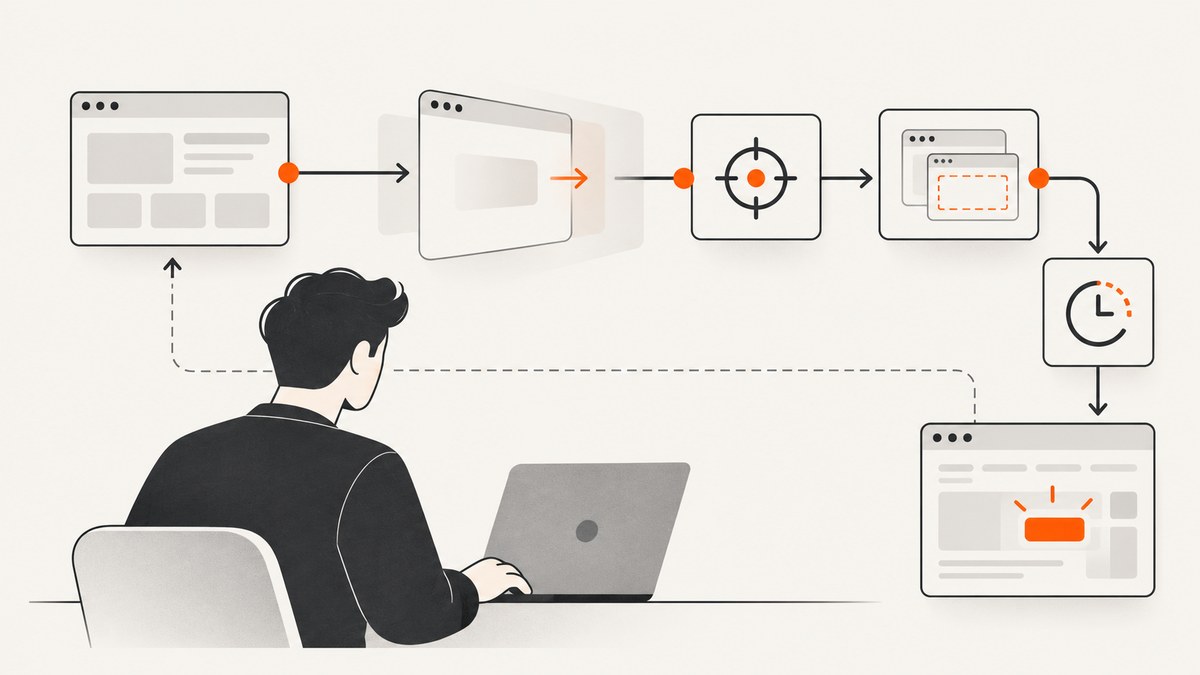
Short answer: Selenium raises NoSuchElementException when it cannot find the requested element in the current page, browsing context, and instant. The element may exist later, on a different page, inside an iframe, in another window, or under a changed locator. Fix the state, context, locator, or synchronization problem instead of adding a random long sleep.
Selenium’s troubleshooting documentation describes this as a failure to find the element “at the exact moment you attempted to locate it.” The Python API describes the exception as one thrown when an element could not be found. Read Selenium’s troubleshooting guidance and the Python exception reference.
1. Use this diagnostic sequence
- Confirm the page. Print
driver.current_urland the page title. Verify that the preceding navigation, click, redirect, or login completed. - Inspect the live DOM. Open developer tools on the page Selenium actually reached. Check that the selector matches the intended element and still matches after JavaScript rendering.
- Confirm the browsing context. Switch to the correct window or iframe. Return to default content before looking for an element outside the frame.
- Wait for the right state. Use an explicit wait for presence, visibility, or clickability instead of an immediate lookup.
- Capture evidence on failure. Save the URL, page source, screenshot, selector, and current window or frame assumptions before retrying.
2. A complete Python fix
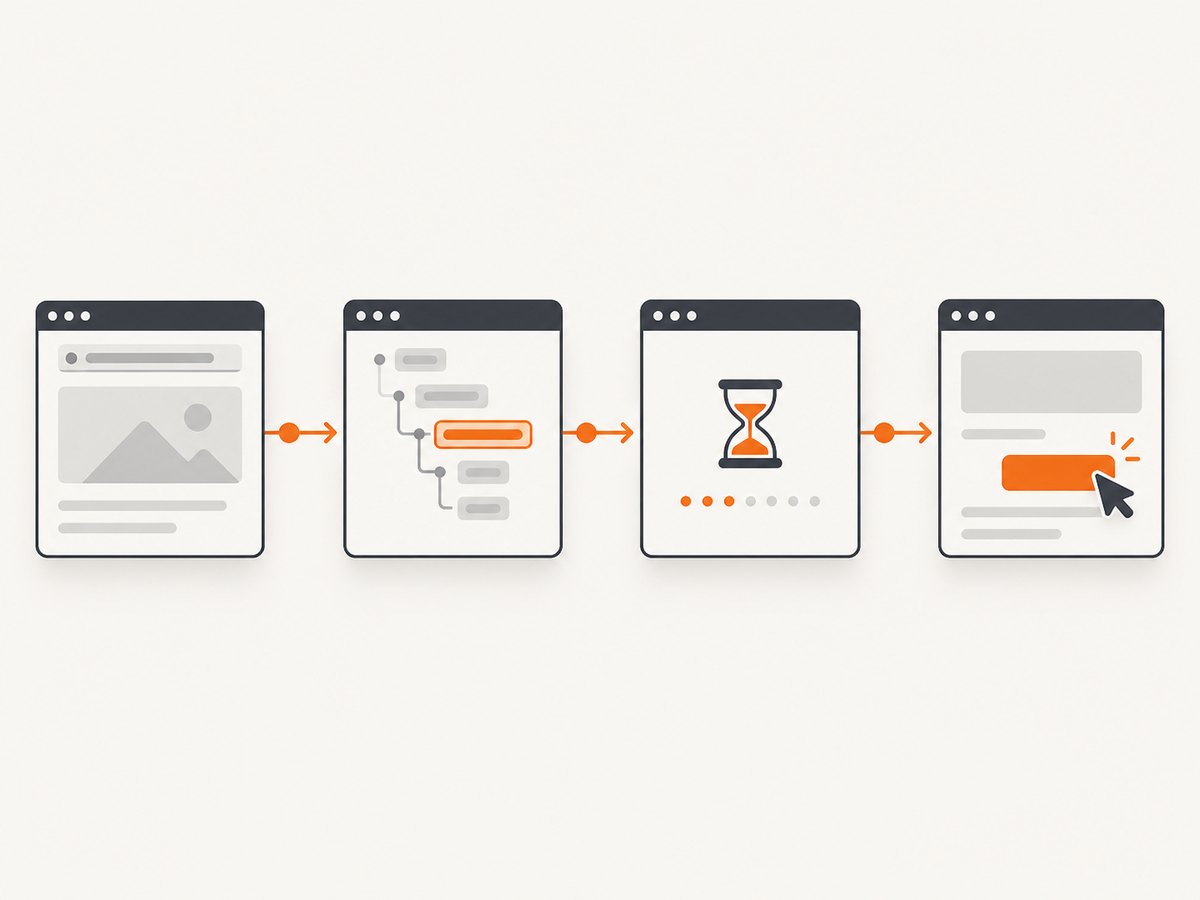
This example checks the URL, waits for a stable data attribute, and reports useful diagnostics if the element never becomes clickable.
from pathlib import Path
from selenium import webdriver
from selenium.common.exceptions import TimeoutException
from selenium.webdriver.common.by import By
from selenium.webdriver.support import expected_conditions as EC
from selenium.webdriver.support.ui import WebDriverWait

URL = "https://example.com/login"
SELECTOR = "button[data-testid='submit']"

driver = webdriver.Chrome()
wait = WebDriverWait(driver, 15, poll_frequency=0.5)

try:
    driver.get(URL)
    print("url:", driver.current_url)
    print("title:", driver.title)

    button = wait.until(
        EC.element_to_be_clickable((By.CSS_SELECTOR, SELECTOR))
    )
    button.click()
finally:
    driver.quit()
For a read-only lookup, use presence:
element = wait.until(
    EC.presence_of_element_located((By.CSS_SELECTOR, "[data-testid='result']"))
)
print(element.text)
Use visibility when the node must be displayed:
panel = wait.until(
    EC.visibility_of_element_located((By.ID, "results-panel"))
)
Use clickability when the next operation is a click. It checks that the element is visible and enabled:
save = wait.until(
    EC.element_to_be_clickable((By.CSS_SELECTOR, "button.save"))
)
save.click()
3. Why the exception happens
The script is on the wrong page
A failed login, rejected redirect, unexpected consent page, or navigation race can leave the driver somewhere other than the page you expected. Always inspect the URL and title immediately before the lookup.
print(driver.current_url)
print(driver.title)
print(driver.page_source[:1000])
If a preceding action is asynchronous, wait for its result rather than assuming the click completed:
driver.find_element(By.ID, "login").click()
wait.until(EC.url_contains("/dashboard"))
wait.until(EC.presence_of_element_located((By.ID, "account-menu")))
The locator no longer matches
Class names generated by a framework, positional XPath such as (//button)[3], and selectors tied to layout are brittle. Prefer a unique ID, a documented data-testid, an accessible role or label, or a stable semantic attribute.
| Locator | Typical stability | Example |
|---|---|---|
| Unique ID | High when intentionally assigned | (By.ID, "checkout") |
| Data attribute | High when reserved for tests | (By.CSS_SELECTOR, "[data-testid='checkout']") |
| Accessible label | Good when the UI contract is stable | (By.CSS_SELECTOR, "button[aria-label='Close']") |
| Long XPath or position | Low | (By.XPATH, "(//div[3]/button)[2]") |
The element appears after JavaScript runs
Modern applications often create nodes after the initial document response. An immediate find_element can run before that work finishes. Explicit waits poll a condition until it succeeds or times out. Selenium’s Python WebDriverWait polls every 0.5 seconds by default and ignores NoSuchElementException while polling. See the WebDriverWait API.
The element is inside an iframe
Frames have their own document context. Locate the frame, switch into it, then find the element:
frame = wait.until(
    EC.presence_of_element_located((By.CSS_SELECTOR, "iframe[data-testid='payment']"))
)
driver.switch_to.frame(frame)
card_number = wait.until(
    EC.visibility_of_element_located((By.NAME, "cardnumber"))
)
card_number.send_keys("4242424242424242")
driver.switch_to.default_content()
If the frame is nested, switch through each parent frame in order. If you search for a top-level element while still inside a frame, Selenium cannot see it.
The element is in another tab or window
After an action opens a new window, switch to its handle before searching:
original = driver.current_window_handle
before = set(driver.window_handles)
driver.find_element(By.LINK_TEXT, "Open report").click()
wait.until(lambda d: len(d.window_handles) > len(before))
new_handle = next(h for h in driver.window_handles if h not in before)
driver.switch_to.window(new_handle)
report = wait.until(EC.presence_of_element_located((By.ID, "report")))
driver.close()
driver.switch_to.window(original)
The element is in shadow DOM
For an open shadow root, retrieve the host and search through its shadow root:
host = wait.until(EC.presence_of_element_located((By.CSS_SELECTOR, "checkout-widget")))
shadow = host.shadow_root
pay_button = shadow.find_element(By.CSS_SELECTOR, "button.pay")
pay_button.click()
Closed shadow roots cannot be queried through normal WebDriver selectors. Use a supported component interface or test hook exposed by the application.
4. Choose waits by intent
| Need | Condition | Use when |
|---|---|---|
| Node exists | presence_of_element_located |
You need to read attributes or text after insertion. |
| Node is displayed | visibility_of_element_located |
The next operation requires it to be visible. |
| Can click | element_to_be_clickable |
You will click an enabled, visible control. |
| URL changed | url_contains or url_to_be |
A navigation or redirect must finish first. |
| Text changed | text_to_be_present_in_element |
JavaScript updates an existing node. |
| Custom state | Callable or lambda | You need a business-specific readiness check. |
wait.until(lambda d: d.find_element(By.ID, "status").text == "Complete")
5. Implicit versus explicit waits
Implicit waits are global and apply to every element lookup. They default to zero. Explicit waits target one condition and one point in the flow. Selenium warns that mixing implicit and explicit waits can produce unpredictable timeout behavior, so choose one synchronization strategy; explicit waits are usually easier to reason about.
# Prefer an explicit wait strategy for predictable timing.
wait = WebDriverWait(driver, 10)
result = wait.until(
    EC.visibility_of_element_located((By.CSS_SELECTOR, "[data-testid='result']"))
)
A fixed time.sleep(10) does not express what “ready” means. It can still be too short on a slow run and wastes time on a fast run.
6. Diagnostics that make failures actionable
from pathlib import Path

try:
    element = wait.until(EC.element_to_be_clickable((By.CSS_SELECTOR, SELECTOR)))
except TimeoutException:
    Path("failure.html").write_text(driver.page_source, encoding="utf-8")
    driver.save_screenshot("failure.png")
    print({
        "url": driver.current_url,
        "title": driver.title,
        "selector": SELECTOR,
        "windows": driver.window_handles,
    })
    raise
- Record the selector and expected state in the error message.
- Save page source after the timeout, not only after navigation.
- Capture a screenshot for overlays, redirects, and blank pages.
- Log frame and window switches so a later lookup can be tied to its context.
- Keep a short timeout in fast tests and a larger, explicit timeout only where the application genuinely needs it.
7. Common errors and fixes
| Symptom | Likely cause | Fix |
|---|---|---|
Fails immediately after get() |
Client-side rendering has not inserted the node. | Wait for presence or visibility. |
| Works locally, fails in CI | Different speed, viewport, URL, or authentication state. | Log URL and source; use state-based waits and deterministic test data. |
| Selector works in DevTools but not Selenium | Selenium is in another frame or window, or the DOM changed. | Switch context and inspect page source from the driver. |
| Click raises an interception error after lookup succeeds | An overlay covers the element. | Wait for the overlay to disappear, then wait for clickability. |
| Element exists but text is empty | Text is populated later or is in a child/shadow document. | Wait for expected text or query the correct context. |
| Repeated XPath edits never help | The page state or context is wrong. | Verify URL, frame, window, and live DOM before changing the selector again. |
Broad except NoSuchElementException: pass |
The real failure is being hidden. | Raise a diagnostic error or wait for the intended condition. |
8. Reliability, performance, and cost
- Reliability: Stable test hooks, explicit state waits, and context checks reduce flaky runs more effectively than longer sleeps.
- Performance: Use the smallest condition and timeout that match the operation. A global long implicit wait makes unrelated failures slow.
- Parallel runs: Give each browser session isolated data, cookies, and windows. Never rely on whichever tab happens to be active.
- Retries: Retry only after collecting evidence. A retry can hide a deterministic locator or application defect.
- Cost: Browser sessions consume CI time and infrastructure. Waiting on a precise condition avoids paying for idle sleep time, while a too-short timeout creates noisy reruns.
9. Or skip the browser setup
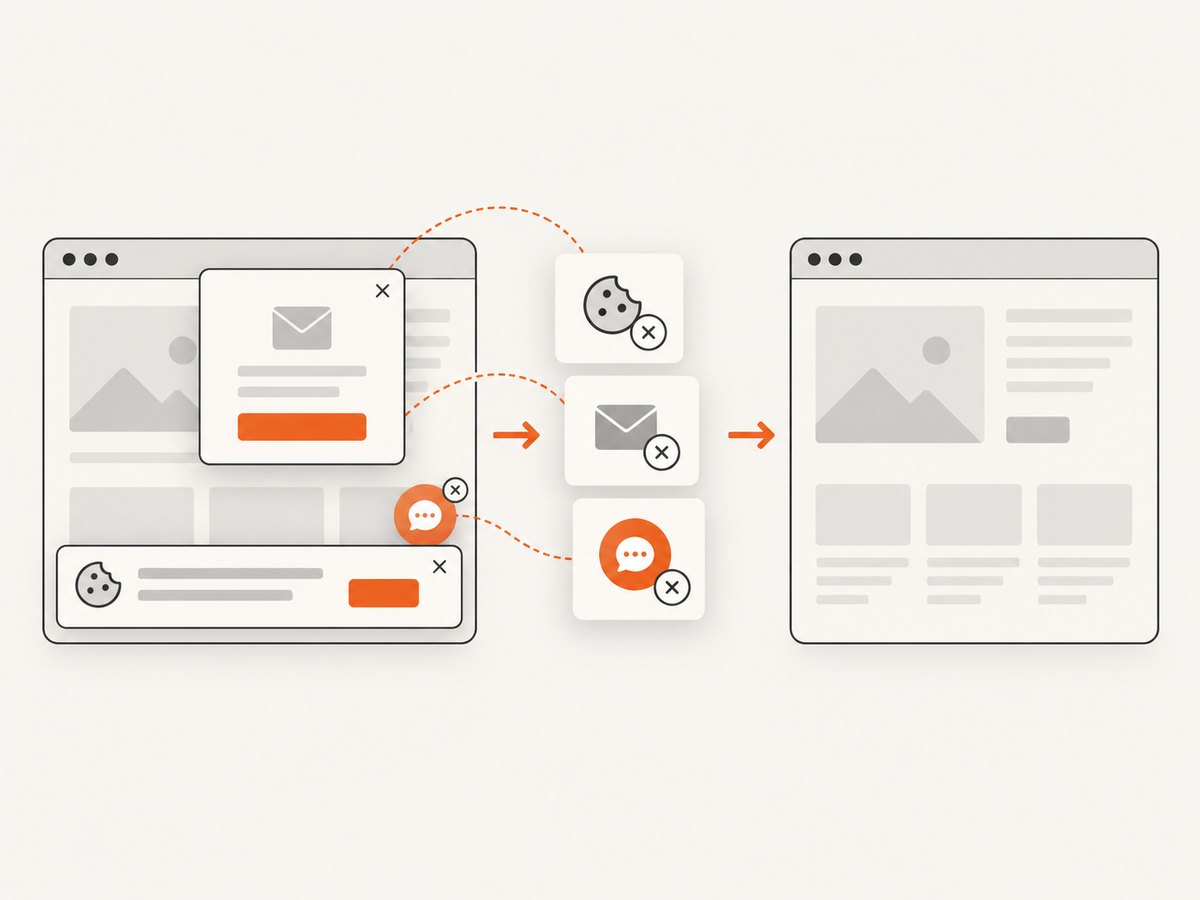
If your goal is a clean screenshot rather than browser interaction, ScreenshotNeo returns an image or PDF with one GET request. Before capture it accepts cookie and consent banners and removes more than 60 known consent platforms, newsletter popups, and chat widgets; each step can be turned off. Bot checks, blank pages, timeouts, failed loads, and cache hits are not billed, and response headers identify the page verdict and billing status.
See the ScreenshotNeo API documentation for all options.
curl -G "https://api.screenshotneo.com/v1/shot" -d access_key=YOUR_API_KEY --data-urlencode url=https://stripe.com -o shot.webpimport requests
r = requests.get("https://api.screenshotneo.com/v1/shot", params={"access_key": "YOUR_API_KEY", "url": "https://stripe.com"}, timeout=90)
open("shot.webp", "wb").write(r.content)
const q = new URLSearchParams({ access_key: 'YOUR_API_KEY', url: 'https://stripe.com' });
const res = await fetch(`https://api.screenshotneo.com/v1/shot?${q}`);
ScreenshotNeo also provides an MCP server with take_screenshot, get_page_info, and capture_pdf for Claude, Cursor, and other MCP clients. One thousand screenshots per month are free with no card; paid plans start at $5 for 3,000 shots. Create a free ScreenshotNeo account.
10. FAQ
Does NoSuchElementException mean the element does not exist?
No. It means the element was not findable in the current page and context at that moment.
Should I increase the timeout to 60 seconds?
Only when the application can legitimately take that long. First verify the URL, locator, frame, window, and readiness condition.
Can I use XPath?
Yes, but prefer a short, stable XPath tied to an intentional attribute. Avoid positional paths that change with layout.
Why does Selenium find an element but fail to click it?
Finding and clicking are different states. Wait for visibility and enabled state, then check for overlays or a frame mismatch.
What should I log in a bug report?
Include the URL, title, selector, timeout, page source, screenshot, window handle, frame path, and the preceding action.


