How to Fix Selenium NoSuchWindowException in Internet Explorer
Fix Selenium’s NoSuchWindowException by switching to a live window handle, checking IE driver prerequisites, and moving legacy tests to Edge IE mode.
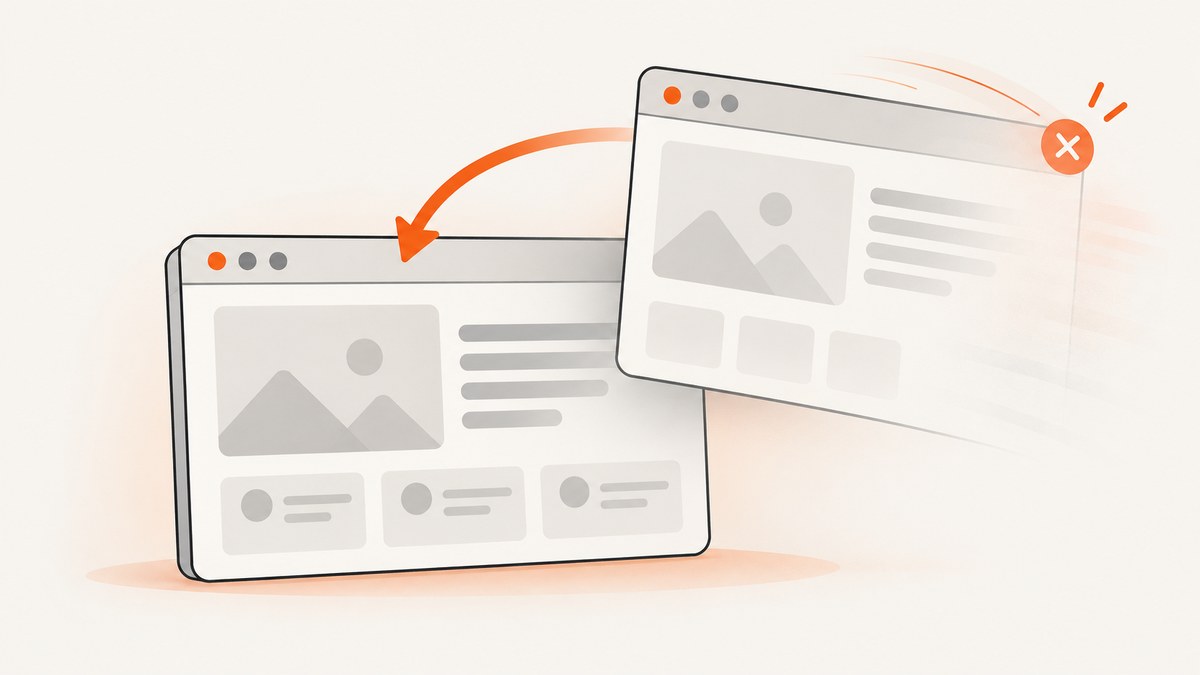
NoSuchWindowException means Selenium is trying to use a browser window or tab that is no longer open. The most common cause is closing a popup and then sending another command before switching back to a remaining window. Save the original window handle, wait for the popup to appear, switch to it, close it when finished, and immediately switch back to the original handle.
There is a second issue specific to Internet Explorer: Selenium ended official support for standalone IE in June 2022. For legacy sites that still require IE behavior, use Microsoft Edge’s IE Compatibility Mode where your environment permits it. Selenium’s IE driver documentation also calls out prerequisites such as matching Protected Mode settings across zones and 100% browser zoom. Selenium’s window and tab guide and its IE driver documentation are the primary references.
1. What the exception means
WebDriver keeps a selected browsing context: the window or tab to which commands such as finding an element, reading the title, or clicking are sent. A window handle identifies one such context during a browser session. If the selected context is closed, or otherwise ceases to exist, a later command can raise NoSuchWindowException.
A typical failure sequence looks like this:
- Your test opens a popup or a new tab.
- The test switches to that new context and performs an action.
- The test calls
close()on the selected context. - The next command runs without switching to an open context.
Selenium’s window guide specifically warns that forgetting to switch back after closing a window leaves WebDriver on the closed page and triggers this exception. Closing a window does not automatically select the window you meant to return to.
Do not treat every instance as a window-handle bug. If the driver fails during startup, check IE’s required configuration first. If the exception follows a popup close, inspect the handle lifecycle first. Those are separate failure points and have different fixes.
2. Fix popup and tab handling with explicit handles
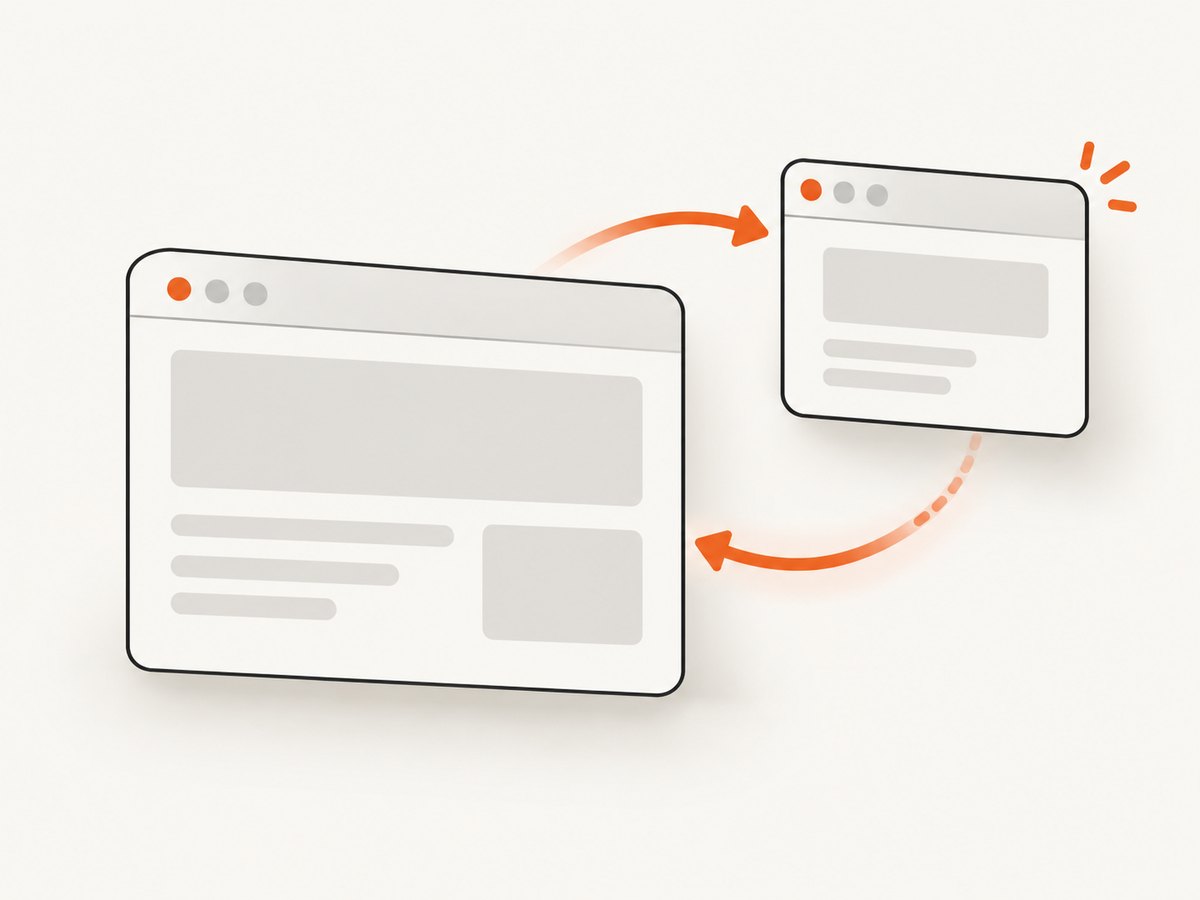
Use the handle of the original window as a stable reference. Wait for the expected number of windows rather than assuming a popup opens immediately or that the new handle will occupy a particular array position.
Java example
This example uses Selenium’s Java API and an explicit wait. It assumes the click that opens the popup is already performed. Replace the comment with your application interaction. The code records the original handle, waits for a second window, selects the handle that differs from the original, closes the child, and returns to the original.
import java.time.Duration;
import java.util.Set;

import org.openqa.selenium.WebDriver;
import org.openqa.selenium.support.ui.WebDriverWait;

public class PopupExample {
    public static void handlePopup(WebDriver driver) {
        String original = driver.getWindowHandle();

        // Perform the action that opens the popup or tab here.

        WebDriverWait wait = new WebDriverWait(driver, Duration.ofSeconds(10));
        wait.until(d -> d.getWindowHandles().size() == 2);

        Set<String> handles = driver.getWindowHandles();
        String child = handles.stream()
            .filter(handle -> !handle.equals(original))
            .findFirst()
            .orElseThrow(() -> new IllegalStateException("Popup did not open"));

        driver.switchTo().window(child);
        try {
            // Interact with the popup while its handle is selected.
        } finally {
            driver.close();
            driver.switchTo().window(original);
        }
    }

    public static void endSession(WebDriver driver) {
        driver.quit();
    }
}
If the action may open more than one window, wait for the count you expect and identify the child by comparing the current handle set to a set captured before the action. Do not select handles.toArray()[1] based on an assumed order. Handle ordering is not a reliable way to identify which window is new.
Python example
The same lifecycle applies with Selenium’s Python bindings. Keep the original handle, wait for the new one, and return after closing the child.
from selenium.webdriver.support.ui import WebDriverWait

original = driver.current_window_handle
before = set(driver.window_handles)

# Perform the action that opens the popup or tab here.

wait = WebDriverWait(driver, 10)
wait.until(lambda d: len(set(d.window_handles) - before) == 1)
child = (set(driver.window_handles) - before).pop()

driver.switch_to.window(child)
try:
    # Interact with the popup.
    pass
finally:
    driver.close()
    driver.switch_to.window(original)

# At the end of the test session:
driver.quit()
JavaScript example
With Selenium’s JavaScript bindings, use the same comparison instead of relying on a handle’s position. The methods below return promises, so await each lifecycle step before sending the next command.
const original = await driver.getWindowHandle();
const before = new Set(await driver.getAllWindowHandles());

// Perform the action that opens the popup or tab here.

await driver.wait(async () => {
  const current = await driver.getAllWindowHandles();
  return current.filter(handle => !before.has(handle)).length === 1;
}, 10000);

const handles = await driver.getAllWindowHandles();
const child = handles.find(handle => !before.has(handle));
if (!child) throw new Error('Popup did not open');

await driver.switchTo().window(child);
try {
  // Interact with the popup.
} finally {
  await driver.close();
  await driver.switchTo().window(original);
}

// At the end of the test session:
await driver.quit();
Use the right close operation
| Operation | Effect | Use it when |
|---|---|---|
driver.close() |
Closes the currently selected window or tab. | You are done with one popup or child tab and will continue the session elsewhere. Switch to a live handle immediately afterward. |
driver.quit() |
Closes all windows and tabs and ends the browser and driver processes for the session. | The test session is over, usually in teardown or a finally block. |
Calling close() on the only window leaves no live context to switch to. If the whole session should end, use quit(). If a test continues after closing a child, make sure the original handle is still open before switching back.
3. Make waits and cleanup resilient
Popup creation is asynchronous. A click returning does not guarantee that the browser has opened the new context or that WebDriver has registered its handle. A fixed sleep can make a test slow when the popup opens quickly and flaky when it opens slowly. Prefer a condition-based wait for a handle-set change or expected window count.
For one popup, the smallest useful condition is usually “the number of handles increased.” If the page can open other windows during the same step, compare the handle set from before the action with the set after it and select the new member. If the application can open multiple popups, wait for the expected count and identify each window using application-specific information after switching into it, such as its URL or title.
- Capture the original handle before triggering the popup. If you record it afterward, the selected context may already be the popup.
- Keep window work inside a clear lifecycle. Switch in, do the work, close only if appropriate, and switch back.
- Use
finallyfor cleanup when possible. A failed assertion or element lookup should not leave the test pointed at a child window. - Check that the intended return handle remains open. If application behavior closes the original window too, choose another live handle or end the session; do not blindly switch to a stale value.
- Use
quit()once per session. It is the session-level cleanup operation, not a replacement for switching contexts while a test is still running.
A safe close-and-return operation can also be expressed as a small helper in your test framework. Keep that helper narrow: it should close the current child only when the current handle is known to be a child, then select an explicitly supplied, still-open parent handle. That makes accidental closure of the main application window less likely.
4. Check Internet Explorer driver prerequisites
If the exception occurs before the popup logic runs, or if IE behaves inconsistently even with valid handles, check the driver setup. Selenium’s documentation describes standalone IE as no longer officially supported as of June 2022. The remaining IE driver use case documented by Selenium is Microsoft Edge in IE Compatibility Mode.
| Setting | What to check | Why it matters |
|---|---|---|
| Protected Mode | Set it to the same state, on or off, for every IE security zone. | Selenium documents mismatched zone settings as a cause of driver startup exceptions. |
| Enhanced Protected Mode | Disable it for IE 10 and later, following the IE driver guidance. | It is among the documented IE driver prerequisites. |
| Zoom | Set IE zoom to 100%. | The driver expects this for native mouse coordinates. |
| IE 11 back/forward cache | Check the documented FEATURE_BFCACHE registry location and set the iexplore.exe DWORD to 0. |
The IE driver documentation says this setting allows the driver to maintain its connection. |
| Driver architecture | Prefer the 32-bit IEDriverServer unless you have a tested requirement for another choice. | Selenium documents known limitations with the 64-bit driver. |
For the registry setting, follow Selenium’s IE driver documentation for the correct registry path for your Windows installation. It describes the 32-bit path and the Wow6432Node path. Confirm the path and value in your environment rather than creating a similarly named key elsewhere.
Do not make ignoreProtectedModeSettings the routine fix. Selenium advises changing the zone settings manually first and warns that ignoring the check can make tests flaky or unresponsive, or cause browser hangs. The JavaScript API also describes this option as potentially significantly unstable and best effort. Disabling a prerequisite check does not correct an underlying mismatch.
If you run multiple IE driver instances, account for the documented cookie, focus, and other limitations. Selenium suggests RemoteWebDriver with virtual machines when those limitations affect the workload. For a single test, first get one instance stable before adding parallel sessions.
5. Move legacy IE tests to Edge IE Compatibility Mode
Microsoft documents using the Internet Explorer Driver to automate IE mode in Microsoft Edge. This is the practical migration path to evaluate for a legacy site that still requires IE compatibility behavior. Check that your organization allows the site to run in IE mode and that the relevant Edge and driver versions are compatible with your environment.
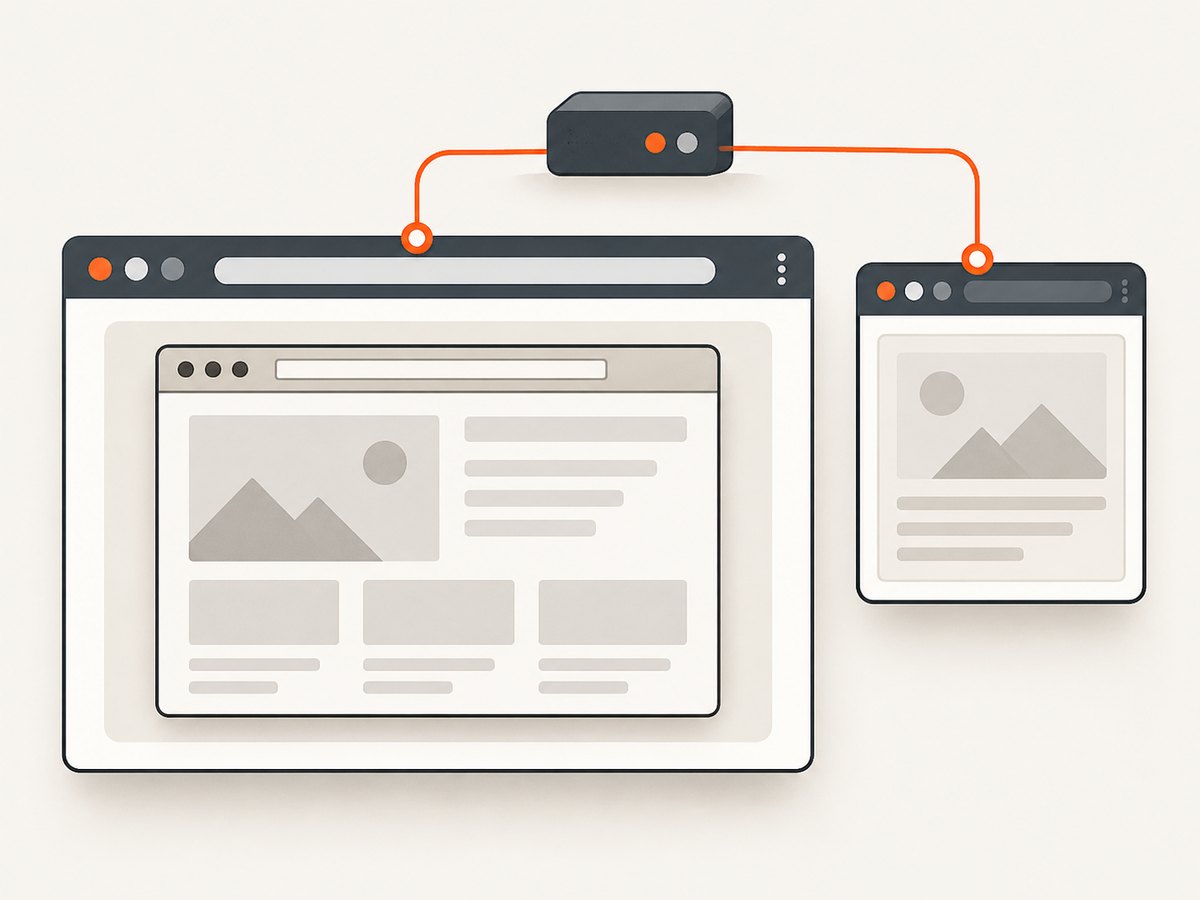
Migration does not remove the need for correct window handling. Continue saving handles, waiting for new contexts, selecting a live handle, and returning to a valid window after closing a popup. The migration changes the browser environment and support path; it does not make stale handles valid.
- Identify which pages and workflows truly require IE compatibility behavior.
- Confirm the application is allowed to run in Edge’s IE Compatibility Mode.
- Configure Edge and the IE driver according to Microsoft’s documented setup.
- Run a focused test covering popup creation, tab switching, child close, and return to the parent.
- Retain the same explicit handle and wait discipline in the migrated tests.
6. Troubleshooting common failures
| Symptom | Likely cause | Fix |
|---|---|---|
Exception happens on the command after close(). |
WebDriver remains selected on the closed child window. | Immediately switch to a known live handle, typically the saved original handle. |
| Switching to the popup fails intermittently. | The test switches before the popup handle exists or uses a stale handle list. | Wait for the handle count or handle-set difference, then find the new handle by comparing with the pre-action set. |
| Test startup fails before any window opens. | IE zone Protected Mode settings may differ, Enhanced Protected Mode may be enabled, or another IE prerequisite may be unmet. | Check the IE driver requirements, including matching Protected Mode across zones and 100% zoom. |
| IE 11 starts but the driver loses its connection. | The required FEATURE_BFCACHE setting may be missing or incorrect. |
Use Selenium’s documented registry path and configure the iexplore.exe DWORD as specified. |
| Mouse interactions target the wrong position. | IE zoom is not at the expected level. | Set zoom to 100% as the driver documentation specifies. |
Tests hang after enabling ignoreProtectedModeSettings. |
The option bypasses a check while leaving the browser configuration unsuitable; Selenium warns of instability and hangs. | Restore the setting and align Protected Mode across zones. |
| A test tries to switch back but no window is available. | The original window was also closed, or the session has ended. | Inspect the current handle set. Switch to a remaining live handle, or end the session with quit() if no window should remain. |
| Parallel IE tests interfere with one another. | Multiple IE instances have documented cookie, focus, and other limitations. | Reduce concurrency while diagnosing, or evaluate RemoteWebDriver with virtual machines as Selenium suggests. |
| New standalone IE setup is unreliable or unsupported. | Standalone IE support ended in Selenium in June 2022. | Evaluate Edge IE Compatibility Mode for the legacy workflow, subject to your application and environment requirements. |
7. Performance, reliability, and cost considerations
For a test suite, the main performance improvement is to wait on the event you need instead of sleeping for a generous fixed interval. A condition-based wait can proceed as soon as the expected handle appears while still allowing for slower startup. Keep timeouts long enough for the slowest supported environment, but diagnose repeated timeouts rather than indefinitely increasing them.
Reliability depends on lifecycle discipline and environment stability. A saved handle is useful only while its window remains open. A driver prerequisite mismatch can cause failures before the test reaches its own logic. Record the observed handles and current URL around a failure when diagnosing, and distinguish driver startup errors from a command sent to a closed context.
For infrastructure cost, account for the full browser session: machine time, browser and driver setup, and the time spent maintaining legacy IE configuration. Selenium’s documentation does not provide a cost benchmark for this workflow, so compare your own run times and environment costs. If the task is simply obtaining a static screenshot and does not require browser interaction, a screenshot API may avoid maintaining a local browser driver. It will not replace Selenium for interactive testing, authenticated workflows that require your test session, or behavior that depends on your controlled browser state.
8. Or skip the browser setup
If you only need a screenshot of a page rather than an interactive Selenium test, ScreenshotNeo is a website screenshot API and MCP server. One GET request returns a PNG, JPEG, WebP, or PDF. Its consent handling accepts cookie banners like a visitor and removes known consent platforms, newsletter popups, and chat widgets before capture; each step can be turned off. Bot checks, blank pages, timeouts, failed loads, and cache hits are not billed, and the response identifies the page verdict and billing status in headers. Its MCP server offers take_screenshot, get_page_info, and capture_pdf for Claude, Cursor, or another MCP client.
See the ScreenshotNeo API documentation for request options and setup. This cURL example saves a WebP capture:
curl -G "https://api.screenshotneo.com/v1/shot" \
  -d access_key=YOUR_API_KEY \
  --data-urlencode url=https://stripe.com \
  -o shot.webp
The same request in Python:
import requests

r = requests.get(
    "https://api.screenshotneo.com/v1/shot",
    params={"access_key": "YOUR_API_KEY", "url": "https://stripe.com"},
    timeout=90,
)
open("shot.webp", "wb").write(r.content)
And in Node.js:
const q = new URLSearchParams({
  access_key: 'YOUR_API_KEY',
  url: 'https://stripe.com'
});
const res = await fetch(`https://api.screenshotneo.com/v1/shot?${q}`);
if (!res.ok) throw new Error(`Screenshot request failed: ${res.status}`);
const bytes = new Uint8Array(await res.arrayBuffer());
await import('node:fs/promises').then(fs => fs.writeFile('shot.webp', bytes));
ScreenshotNeo also supports full-page captures with lazy images loaded, CSS selector element capture, dark mode, device presets and custom viewports, retina scale, PDF settings, custom CSS and JavaScript, clicks, selector and network-idle waits, request blocking, headers, cookies, user agents, authorization, timezone, geolocation, transparent backgrounds, resizing, configurable cache TTL, signed image links, async jobs with signed webhooks, bulk requests up to 100 URLs, a usage API, and an OpenAPI spec. Its parameter names also work with those used by other screenshot APIs to make switching easier.
There is a free plan with 1,000 screenshots per month and no card. Paid plans start at $5 for 3,000; higher listed plans are Growth at $15 for 15,000, Pro at $39 for 60,000, Scale at $99 for 250,000, and Business at $249 for 1,000,000. Yearly billing gives two months free, and every feature is on every plan. Create a free account for 1,000 screenshots a month, with no card required.
9. Frequently asked questions
Does NoSuchWindowException always mean the popup was closed?
No. It means the selected window context does not exist. A closed popup is a common cause, but a stale handle or a session whose windows have all closed can produce the same underlying problem.
Can I keep using Selenium with Internet Explorer?
Selenium says standalone Internet Explorer is no longer officially supported as of June 2022. For legacy sites, Selenium and Microsoft document the IE driver with Edge IE Compatibility Mode as the path to evaluate.
Should I restart the driver whenever this happens?
Usually, first correct the handle lifecycle. If the session still has a live window, switch to it. Restarting can hide a deterministic context-management bug and adds setup time.
Does ScreenshotNeo replace Selenium?
No. It can capture a page as an image or PDF. Selenium remains appropriate when you need to interact with a live browser, validate application behavior, or run a controlled browser test.


