How to Fix Selenium and PhantomJS Errors in Python
Replace PhantomJS, fix driver and session errors, and stabilize Selenium tests in Python with explicit waits and practical diagnostics.
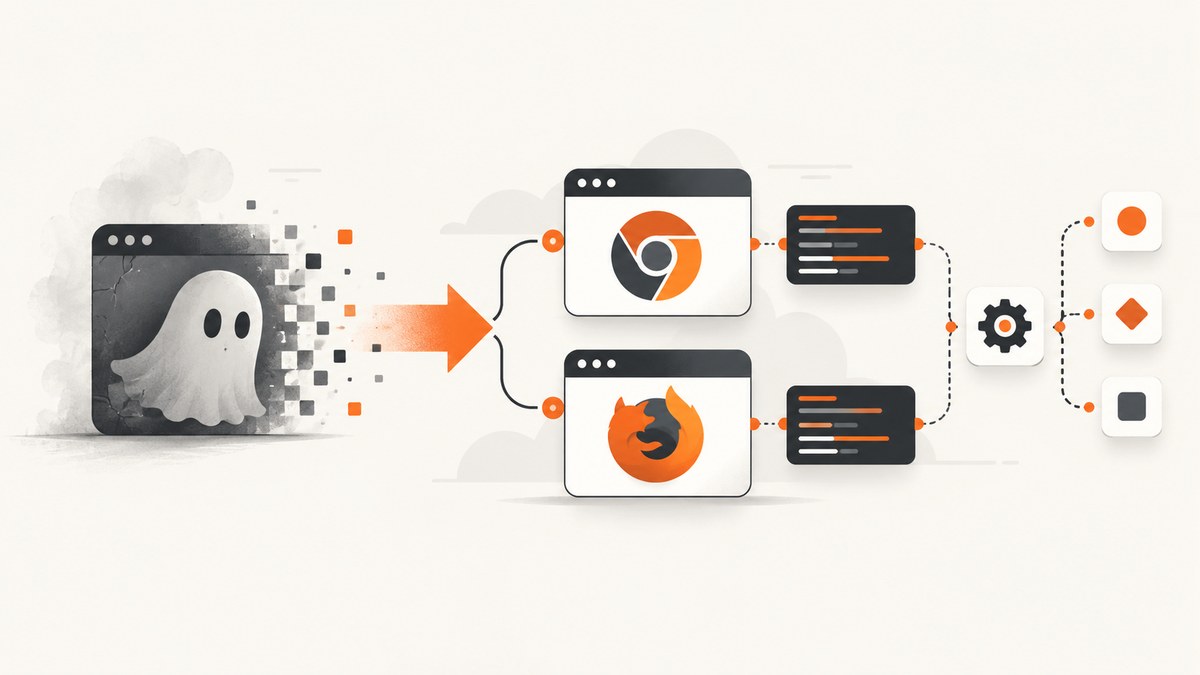
PhantomJS is no longer a supported Selenium path. Selenium deprecated its integration and recommends headless Chrome or Firefox instead. PhantomJS development is also suspended. To fix most Selenium and PhantomJS errors in Python, remove webdriver.PhantomJS(), upgrade Selenium, let Selenium Manager locate the browser driver, and replace fixed sleeps with explicit waits.
This guide covers migration, driver discovery, session startup, missing elements, stale elements, iframes, CI environments, logging, performance, and a practical diagnostic checklist.
1. The direct fix
- Create an isolated Python environment and upgrade Selenium.
- Install Chrome or Firefox on the machine that runs the script.
- Use
webdriver.Chrome(options=options)orwebdriver.Firefox(options=options). - Use
WebDriverWaitfor dynamic content. - Remove hard-coded PhantomJS executables and old desired capabilities.
Selenium’s 3.8.1 change log states: “PhantomJS is now deprecated, please use either Chrome or Firefox in headless mode.” The PhantomJS project separately says that development is suspended until further notice. See the Selenium release notes and PhantomJS project page.
2. Install a current Selenium setup
python -m venv .venv
# macOS/Linux
source .venv/bin/activate
# Windows PowerShell: .venv\\Scripts\\Activate.ps1
python -m pip install --upgrade pip selenium
Current Selenium Python releases can use Selenium Manager when a WebDriver is created. It discovers or obtains the matching driver for supported browsers. Old tutorials that download a driver by hand may leave you with a stale or incompatible executable. Read the Selenium Manager documentation.
Minimal headless Chrome example
from selenium import webdriver
from selenium.webdriver.chrome.options import Options

options = Options()
options.add_argument('--headless=new')
options.add_argument('--window-size=1440,1000')

driver = webdriver.Chrome(options=options)
try:
    driver.get('https://example.com')
    print(driver.title)
finally:
    driver.quit()
Minimal headless Firefox example
from selenium import webdriver
from selenium.webdriver.firefox.options import Options

options = Options()
options.add_argument('-headless')
options.add_argument('--width=1440')
options.add_argument('--height=1000')

driver = webdriver.Firefox(options=options)
try:
    driver.get('https://example.com')
    print(driver.title)
finally:
    driver.quit()
3. Replace PhantomJS code
Legacy code commonly looks like this:
from selenium import webdriver
driver = webdriver.PhantomJS('/path/to/phantomjs')
Replace it with a supported browser:
from selenium import webdriver
from selenium.webdriver.chrome.options import Options

options = Options()
options.add_argument('--headless=new')
driver = webdriver.Chrome(options=options)
Delete PhantomJS-specific capabilities such as phantomjs.page.settings.userAgent. Browser options are browser-specific; do not copy Chrome flags into Firefox or vice versa.
When you must provide a driver path
Prefer Selenium Manager first. If your organization manages drivers centrally, use an explicit Service:
from selenium import webdriver
from selenium.webdriver.chrome.service import Service
from selenium.webdriver.chrome.options import Options

options = Options()
options.add_argument('--headless=new')
service = Service('/opt/webdrivers/chromedriver')
driver = webdriver.Chrome(service=service, options=options)
Check that the file exists, is executable, matches the browser family, and is available inside the CI container. An explicit path overrides automatic discovery, so a stale path can cause failures even after Selenium is upgraded.
4. Diagnose the error class before changing code
| Error | Usually means | First fix |
|---|---|---|
NoSuchDriverException |
Selenium cannot locate the required driver executable. | Confirm the browser is installed, upgrade Selenium, inspect Selenium Manager output, and remove stale paths. |
SessionNotCreatedException |
The browser session could not start, often because of browser-driver mismatch or invalid startup flags. | Compare browser and driver versions, simplify options, and read the driver log. |
NoSuchElementException |
The locator is wrong, the element is not ready, or the element is inside another context. | Verify the locator and use an explicit wait. |
TimeoutException |
The expected condition did not become true before the timeout. | Check the URL, selector, iframe, overlay, and application logs. |
StaleElementReferenceException |
The page replaced the DOM node after you located it. | Locate the element again after the update. |
ElementClickInterceptedException |
An overlay or another element receives the click. | Wait for the overlay to disappear and wait for clickability. |
Selenium’s official error reference describes these failure classes. Record Python, Selenium, browser, driver, operating system, execution environment, URL, and the complete stack trace before debugging.
5. Fix missing elements with explicit waits
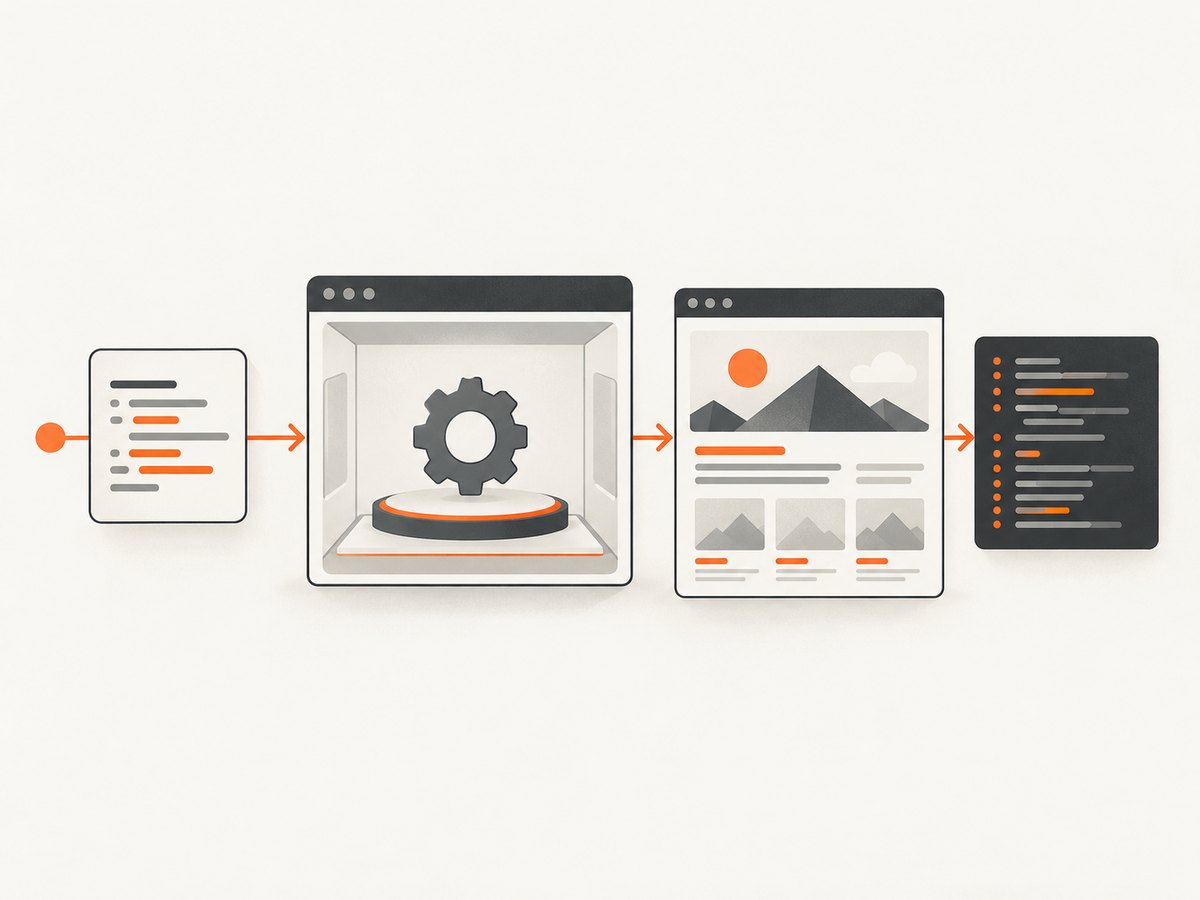
Selenium identifies poor synchronization as its most common reported error. A successful HTTP request does not mean that JavaScript-rendered content is ready. Use an explicit wait for the state you need instead of a fixed time.sleep().
from selenium import webdriver
from selenium.webdriver.chrome.options import Options
from selenium.webdriver.common.by import By
from selenium.webdriver.support.ui import WebDriverWait
from selenium.webdriver.support import expected_conditions as EC

options = Options()
options.add_argument('--headless=new')
driver = webdriver.Chrome(options=options)
wait = WebDriverWait(driver, 20)

try:
    driver.get('https://example.com/app')
    button = wait.until(EC.element_to_be_clickable((By.CSS_SELECTOR, 'button.submit')))
    button.click()
    result = wait.until(EC.visibility_of_element_located((By.ID, 'result')))
    print(result.text)
finally:
    driver.quit()
Choose the condition that matches the operation:
presence_of_element_located: the node exists in the DOM.visibility_of_element_located: the node exists and is visible.element_to_be_clickable: the node is visible and enabled.text_to_be_present_in_element: a particular result has appeared.url_containsorurl_matches: navigation reached the expected destination.invisibility_of_element_located: an overlay or spinner has gone away.
Use stable selectors such as IDs, data attributes, or semantic attributes. Avoid long XPath expressions tied to incidental layout.
6. Handle iframes, windows, stale nodes, and overlays
Switch into an iframe
frame = wait.until(EC.frame_to_be_available_and_switch_to_it((By.CSS_SELECTOR, 'iframe.payment')))
wait.until(EC.visibility_of_element_located((By.NAME, 'cardnumber'))).send_keys('4111111111111111')
driver.switch_to.default_content()
An element inside an iframe cannot be found from the top-level document. Switch back with default_content() before interacting with the main page.
Switch to a new window
original = driver.current_window_handle
driver.find_element(By.LINK_TEXT, 'Open report').click()
wait.until(lambda d: len(d.window_handles) == 2)
new_window = next(handle for handle in driver.window_handles if handle != original)
driver.switch_to.window(new_window)
print(driver.title)
driver.close()
driver.switch_to.window(original)
Re-find stale elements
def click_after_refresh(driver, locator):
    wait = WebDriverWait(driver, 20)
    wait.until(EC.staleness_of(driver.find_element(*locator)))
    wait.until(EC.element_to_be_clickable(locator)).click()

locator = (By.CSS_SELECTOR, 'button.refresh')
wait.until(EC.element_to_be_clickable(locator)).click()
click_after_refresh(driver, (By.CSS_SELECTOR, 'button.item'))
If a cookie banner, chat widget, or modal intercepts a click, wait for it to disappear or close it through the application’s supported control. Scrolling an element into view can help, but JavaScript clicks should be a last resort because they can bypass the browser behavior your test is meant to verify.
7. Make headless Selenium work in CI
CI failures often come from the execution image rather than the test itself. Confirm that the image contains the browser, required system libraries, fonts, and a writable temporary directory.
from selenium.webdriver.chrome.options import Options

options = Options()
options.add_argument('--headless=new')
options.add_argument('--no-sandbox')
options.add_argument('--disable-dev-shm-usage')
options.add_argument('--window-size=1440,1000')
--no-sandbox is commonly required in containers running as a restricted user; use it only when the image requires it. --disable-dev-shm-usage avoids small shared-memory mounts in some containers. Do not assume either flag fixes every session error.
For useful diagnostics, enable driver logs with the browser’s Service object, save screenshots when a test fails, and print the current URL and page source around the failing operation. Reproduce the operation in both Chrome and Firefox: if it fails in both, inspect your locator and application state; if it fails in one, inspect that browser’s driver and rendering behavior.
8. Performance, reliability, and cost considerations
- Reuse one driver for related steps, but create a fresh driver between independent tests when isolation matters.
- Set page-load and script timeouts deliberately; an unlimited wait can consume CI workers indefinitely.
- Use explicit waits with a reasonable upper bound and fail with the selector, URL, and state that was expected.
- Keep browser windows at a fixed size so responsive layouts do not change your selectors or screenshots.
- Reduce unnecessary navigation, disable extensions, and avoid loading unrelated test data.
- Do not claim a universal Chrome-versus-Firefox speed winner. Startup time and resource use depend on the browser version, operating system, CI image, page, and options.
- Driver management is operational work: browser updates, driver compatibility, container rebuilds, fonts, and security patches all affect reliability.
9. Migration checklist
- PhantomJS calls and PhantomJS capabilities are removed.
- Selenium is upgraded inside the project’s virtual environment.
- Chrome or Firefox is installed in local and CI environments.
- Selenium Manager is allowed to resolve the driver, or the explicit
Servicepath is verified. - Headless options match the selected browser.
- Dynamic elements use explicit waits.
- Iframes and windows are switched explicitly.
- Stale elements are located again after DOM updates.
- Driver logs and browser versions are captured for session failures.
- The same critical flow is checked in a second browser when isolating an application defect.
10. Or skip the browser setup
If your goal is a clean screenshot rather than browser automation, ScreenshotNeo provides a single HTTP request for PNG, JPEG, WebP, or PDF output. Its capture flow accepts cookie and consent banners before the shot, then removes more than 60 known consent platforms, newsletter popups, and chat widgets. Each step can be turned off.
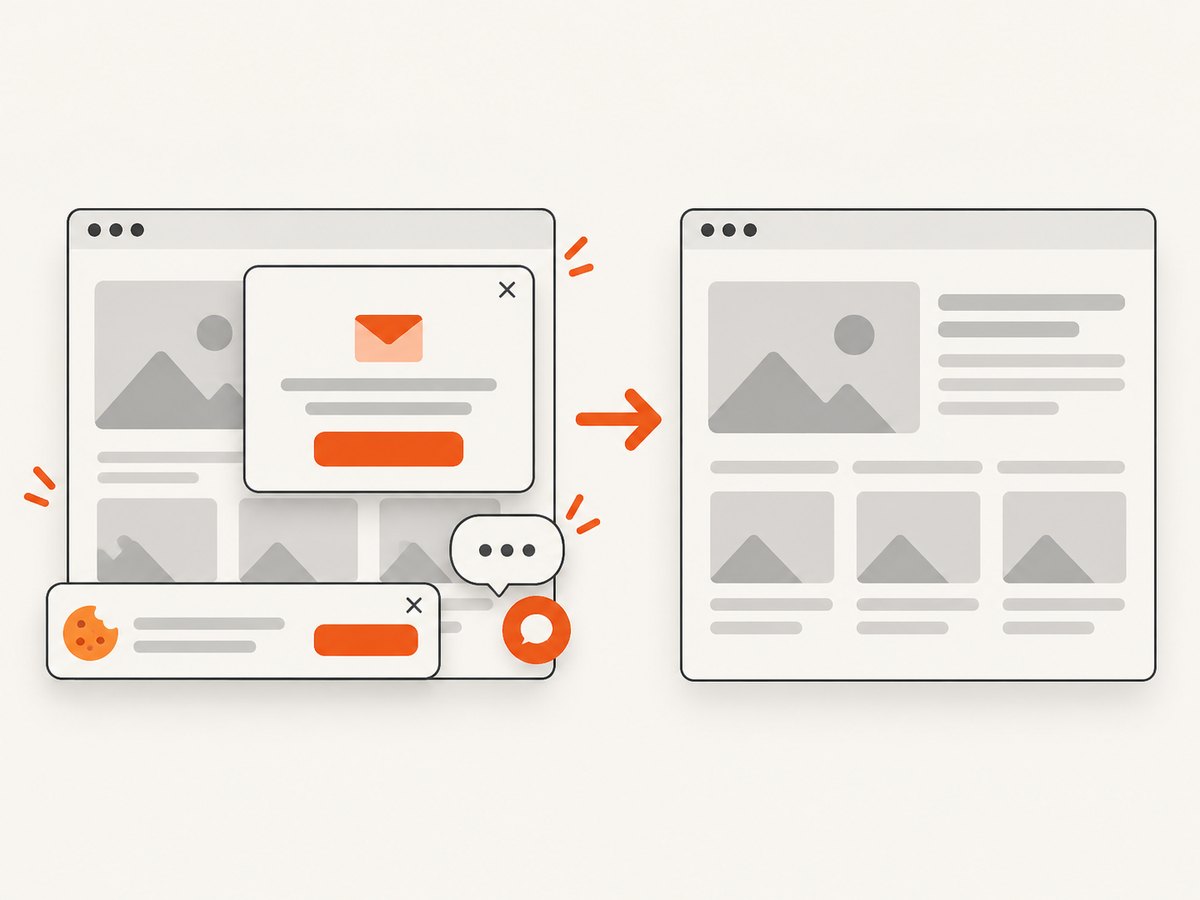
Only clean shots are billed. Bot checks and CAPTCHAs, blank pages, timeouts, failed loads, and cache hits cost nothing, and the response identifies the result with X-Page-Verdict and X-Billed headers. ScreenshotNeo also includes an MCP server with take_screenshot, get_page_info, and capture_pdf for Claude, Cursor, and other MCP clients.
See the ScreenshotNeo API documentation for all options.
cURL
curl -G 'https://api.screenshotneo.com/v1/shot' -d access_key=YOUR_API_KEY --data-urlencode url=https://stripe.com -o shot.webpPython
import requests

r = requests.get(
    'https://api.screenshotneo.com/v1/shot',
    params={'access_key': 'YOUR_API_KEY', 'url': 'https://stripe.com'},
    timeout=90,
)
r.raise_for_status()
open('shot.webp', 'wb').write(r.content)
Node.js
const q = new URLSearchParams({ access_key: 'YOUR_API_KEY', url: 'https://stripe.com' });
const res = await fetch(`https://api.screenshotneo.com/v1/shot?${q}`);
if (!res.ok) throw new Error(`HTTP ${res.status}`);
const fs = await import('node:fs/promises');
await fs.writeFile('shot.webp', Buffer.from(await res.arrayBuffer()));
ScreenshotNeo supports full-page capture with lazy images loaded, CSS-element capture, dark mode, 12 device presets and custom viewports, retina scale, PDF paper sizes and page ranges, custom CSS and JavaScript, clicks, selector waits, delays, network-idle waits, request blocking, custom headers and cookies, user agents, Authorization, timezone, geolocation, transparent backgrounds, resizing, configurable caching, signed image links, asynchronous jobs with signed webhooks, bulk capture of up to 100 URLs per call, a usage API, and an OpenAPI specification.
There is a free plan with 1,000 screenshots per month and no card. Paid plans start at $5 for 3,000 screenshots; yearly billing gives two months free. Create a free ScreenshotNeo account and start with 1,000 screenshots a month at no charge.
11. FAQ
What replaced PhantomJS?
Selenium recommends headless Chrome or Firefox. Choose based on the target site’s rendering behavior, CI image, operating system, debugging tools, and operational constraints.
Can I keep using PhantomJS 2.1.1?
It may still run in an old environment, but development is suspended and Selenium integration is deprecated. Migrating removes an unsupported dependency and avoids increasingly fragile driver and browser assumptions.
Why does Selenium say it cannot find my driver?
NoSuchDriverException means driver discovery failed. Check browser installation, Selenium Manager diagnostics, PATH, explicit service paths, executable permissions, and the contents of the CI image.
Why does the browser start locally but fail in CI?
Compare browser and Selenium versions, user permissions, shared memory, sandbox restrictions, fonts, display requirements, and startup flags. Capture the driver log from the CI run.
Why does the selector work manually but fail in Selenium?
The element may be rendered later, inside an iframe, replaced after a refresh, covered by an overlay, or located with a selector that changes between sessions. Verify the current URL and context, then use an explicit wait.


