How to Fix Selenium and PhantomJS Login Scripts in Python
PhantomJS is deprecated. Replace it with headless Chrome or Firefox, synchronize login on real page state, and diagnose browser, network, and auth failures.
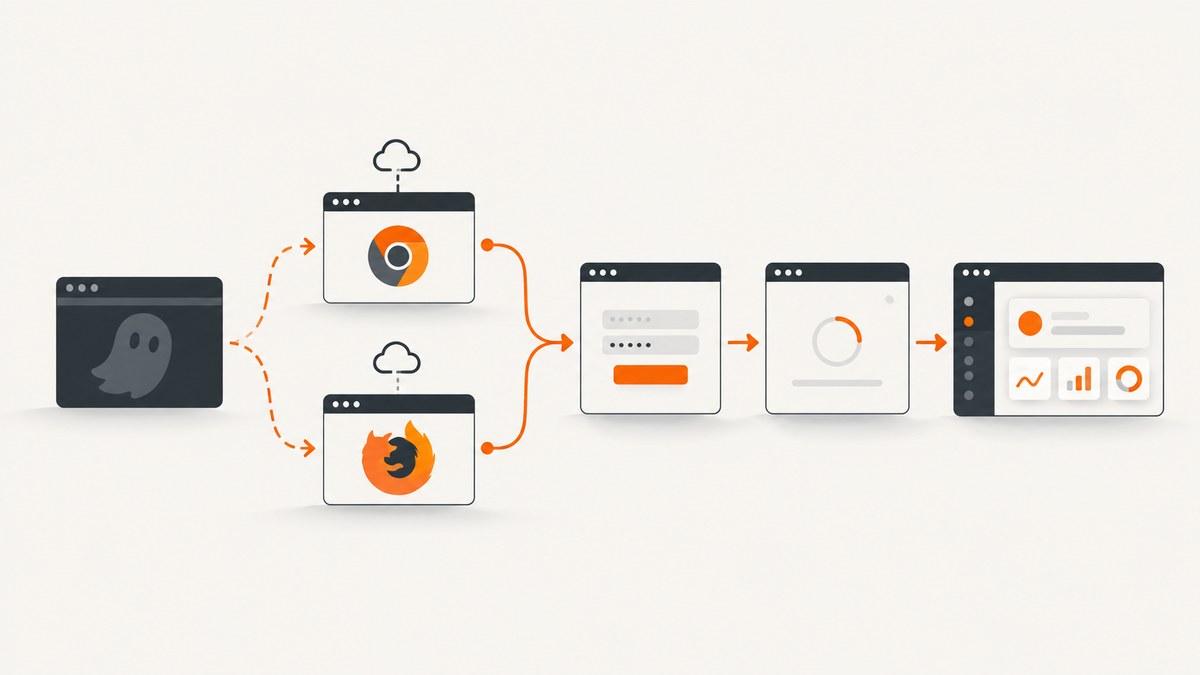
Short answer: PhantomJS is deprecated in Selenium. Replace it with headless Chrome or Firefox, use Selenium’s current browser options, and wait for a meaningful post-login condition instead of sleeping for a fixed number of seconds. Selenium’s Python changelog says: “PhantomJS is now deprecated, please use either Chrome or Firefox in headless mode.” Selenium changelog
The examples below show a complete Chrome migration, a Firefox variant, explicit waits, diagnostics, and an API-and-cookie alternative for tests where the login screen itself is not under test.
1. Why a PhantomJS login script stops working
Typical failures have two separate causes:
- Driver obsolescence: PhantomJS is no longer the supported Selenium path. Old constructors, binaries, and JavaScript behavior can fail before your page code runs.
- Timing assumptions: navigation reaching its configured readiness state does not mean the application has finished rendering, redirecting, loading data, or establishing the authenticated UI. Selenium documents this as a source of race conditions. See Waiting Strategies.
Do not spend time making PhantomJS your long-term fix. Migrate the driver first, then repair selectors and synchronization against the target site’s current behavior.
2. Record the failing environment before changing code
Capture the complete exception and record:
- Python and Selenium versions (
python --versionandpython -m pip show selenium) - Browser name and version
- Operating system and CI image
- Proxy, VPN, container, and display settings
- The URL at failure and the last successful step
A browser startup error points to driver, permissions, sandbox, or display configuration. A missing element, redirect loop, or rejected credential points to the application flow. Keep those categories separate while debugging.
3. Migrate to headless Chrome
Install Selenium
python -m pip install --upgrade seleniumCurrent Selenium releases can use Selenium Manager to locate a compatible driver. In locked-down CI, install and manage a compatible browser and driver through your image tooling instead.
Complete login example
Replace the URL and locators with values from the site you are authorized to test. The selectors below are deliberately placeholders; no universal login selector exists.
from selenium import webdriver
from selenium.common.exceptions import TimeoutException
from selenium.webdriver.chrome.options import Options
from selenium.webdriver.common.by import By
from selenium.webdriver.support import expected_conditions as EC
from selenium.webdriver.support.ui import WebDriverWait

LOGIN_URL = "https://example.test/login"
USERNAME = "user@example.test"
PASSWORD = "replace-me"

options = Options()
options.add_argument("--headless=new")
options.add_argument("--window-size=1440,1000")
# Add this only when your container requires it; understand the security trade-off.
# options.add_argument("--no-sandbox")
# options.add_argument("--disable-dev-shm-usage")

# Selenium Manager supplies a driver when the environment permits it.
driver = webdriver.Chrome(options=options)
wait = WebDriverWait(driver, 20)

try:
    driver.get(LOGIN_URL)

    username = wait.until(EC.visibility_of_element_located((By.NAME, "username")))
    password = wait.until(EC.visibility_of_element_located((By.NAME, "password")))
    username.clear()
    username.send_keys(USERNAME)
    password.clear()
    password.send_keys(PASSWORD)

    wait.until(EC.element_to_be_clickable((By.CSS_SELECTOR, "button[type='submit']"))).click()

    # Use a real post-login signal: URL, dashboard heading, account menu, etc.
    wait.until(EC.visibility_of_element_located((By.CSS_SELECTOR, "[data-testid='dashboard']")))
    print("Logged in:", driver.current_url)
finally:
    driver.quit()
For browser configuration details, consult Selenium’s browser options documentation.
4. Use headless Firefox when it matches your coverage
from selenium import webdriver
from selenium.webdriver.firefox.options import Options

options = Options()
options.add_argument("-headless")
driver = webdriver.Firefox(options=options)
try:
    driver.get("https://example.test/login")
    print(driver.title)
finally:
    driver.quit()
Choose Chrome or Firefox based on the production browser behavior you need to cover and what your CI image supports. The available sources do not establish a universal winner.
5. Synchronize login on application state
Use explicit waits tied to the next state your test needs:
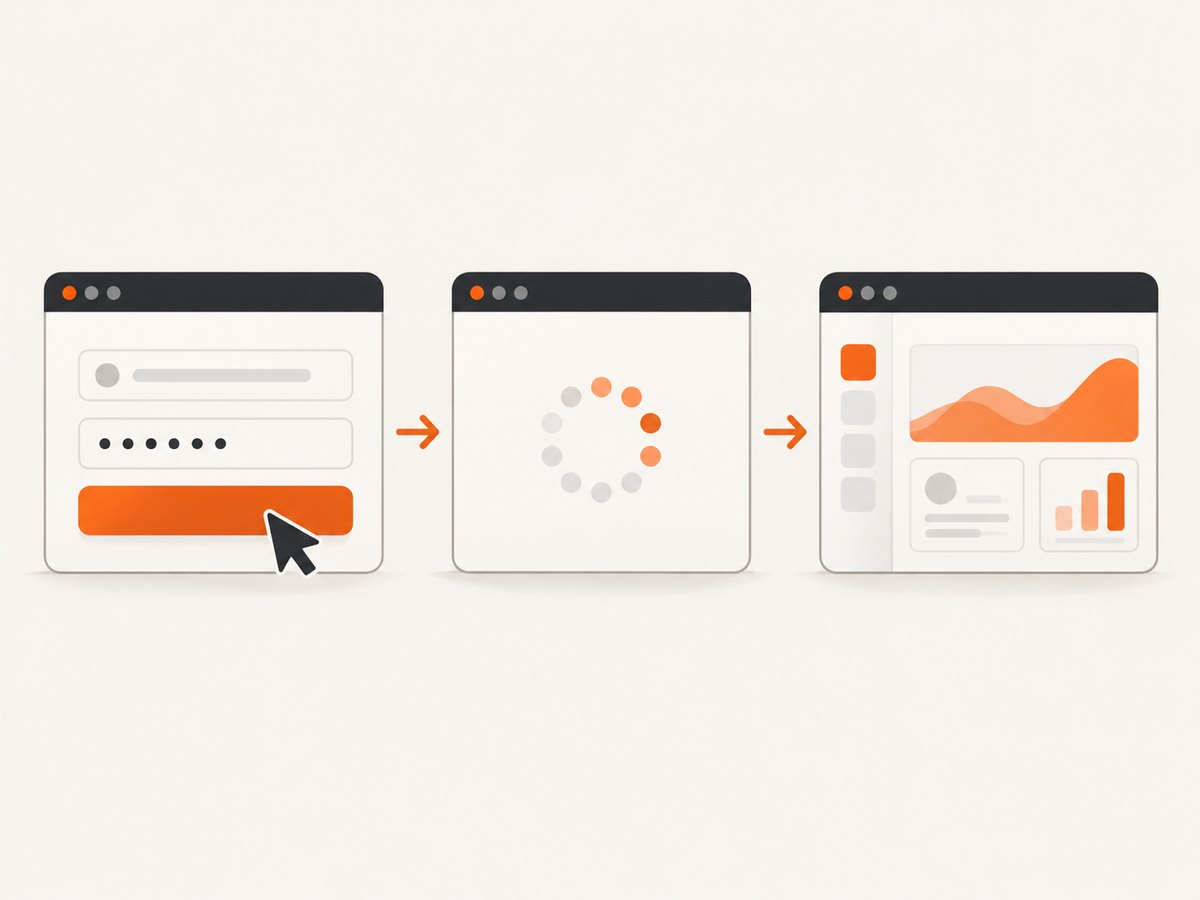
| Need | Condition | Example |
|---|---|---|
| Field can be used | Visible or present | visibility_of_element_located |
| Button can be pressed | Clickable | element_to_be_clickable |
| Redirect completed | URL contains expected path | url_contains("/dashboard") |
| Authenticated shell rendered | Meaningful element visible | visibility_of_element_located |
| Loading overlay disappeared | Element gone | invisibility_of_element_located |
wait.until(EC.url_contains("/dashboard"))
wait.until(EC.visibility_of_element_located((By.CSS_SELECTOR, "nav [aria-label='Account']")))
Avoid arbitrary time.sleep() as the main synchronization method. Keep Selenium’s implicit wait at its default when using explicit waits; Selenium warns, “Do not mix implicit and explicit waits,” because combined timing can become unpredictable.
6. Decide whether the test should drive the login form
If the login experience is the behavior under test, keep the browser-driven flow and assert validation, redirects, MFA handoffs, consent behavior, and the authenticated result.
If login only prepares state for another test, Selenium recommends gaining access another way, such as logging in through an application API and setting a cookie. This avoids repeating UI timing in every test, but it does not validate the login interface. See Generating application state.
import requests
from selenium import webdriver
from selenium.webdriver.chrome.options import Options

session = requests.Session()
response = session.post(
    "https://example.test/api/login",
    json={"username": "user@example.test", "password": "replace-me"},
    timeout=20,
)
response.raise_for_status()
auth_cookie = response.cookies.get("session")

options = Options()
options.add_argument("--headless=new")
driver = webdriver.Chrome(options=options)
try:
    driver.get("https://example.test/")  # establish the domain before adding a cookie
    driver.add_cookie({"name": "session", "value": auth_cookie, "path": "/"})
    driver.get("https://example.test/account")
finally:
    driver.quit()
7. Handle MFA, consent, CAPTCHA, and redirects
- MFA: use a test account and a documented test mechanism. Do not attempt to defeat a real user’s second factor.
- CAPTCHA or bot checks: treat them as an environment or policy boundary. Use an authorized test configuration or stop and investigate.
- Consent banners: identify whether acceptance is required for the test and select a stable, site-specific locator.
- External identity providers: wait for the provider URL and the callback URL, and allow the redirect domains through your proxy.
- Multiple windows: wait for the new handle, switch to it, and close it when finished.
These behaviors are site-specific. Never assume a selector or a single redirect pattern applies everywhere.
8. Troubleshoot by failure category
| Symptom | Likely cause | Fix |
|---|---|---|
SessionNotCreatedException |
Browser and driver mismatch, missing binary, or unsupported options | Record versions, update Selenium/browser/driver together, and verify the CI image. |
| Chrome starts locally but not in CI | No display, sandbox or shared-memory limits, permissions | Use headless mode; inspect container settings. Add container flags only when required by that environment. |
NoSuchElementException |
Wrong locator, iframe, shadow DOM, or element not rendered yet | Inspect the live DOM, switch to the correct frame, use an explicit wait, and prefer stable attributes. |
| Click does nothing | Overlay, disabled control, stale element, or wrong window | Wait for clickability, dismiss an authorized overlay, reacquire the element, and verify the active window. |
| Timeout after submit | Wrong success condition, validation error, slow API, redirect, or MFA | Capture URL, screenshot, page source, console/network logs, and visible validation text; then wait for the actual required state. |
| Authentication rejected | Bad credentials, locked account, CSRF token, expired test data, or policy restriction | Verify the account manually in the same environment and inspect the request/response flow. |
| TLS or proxy errors | CA bundle, intercepting proxy, DNS, firewall, or hostname policy | Check the proxy and certificate chain; do not disable certificate verification as a permanent fix. |
| Blank page or JavaScript error | Blocked resource, browser incompatibility, script exception, or failed API call | Run visibly once, collect browser logs, inspect failed requests, and compare with a normal browser session. |
PhantomJS’s legacy troubleshooting material lists network requests, TLS/SSL, proxies, JavaScript errors, and resource logging as diagnostic areas; those checks remain useful for identifying the category of an old failure, even after you migrate away from PhantomJS. See the PhantomJS troubleshooting guide.
9. Make the script reliable in CI
- Pin or deliberately update Python, Selenium, browser, and OS images together.
- Use stable test data and isolate accounts per parallel worker.
- Keep waits condition-based and set a bounded timeout.
- On failure, save the current URL, page source, screenshot, browser logs, and exception traceback.
- Run the flow visibly during diagnosis, then return to headless mode for CI.
- Do not retry authentication blindly; repeated attempts can lock accounts or hide deterministic failures.
10. Performance and cost considerations
Browser-driven login includes browser startup, page JavaScript, network requests, redirects, and waits. Reusing a driver within a controlled test session can reduce startup overhead, while isolated sessions provide cleaner state. API-and-cookie setup is usually a better fit when login is not the feature being tested, because it removes UI timing from the preparation step.
Keep secrets out of source control and logs. Use environment variables or your CI secret store, and redact credentials, cookies, and authorization headers in captured diagnostics.
11. Or skip the browser setup
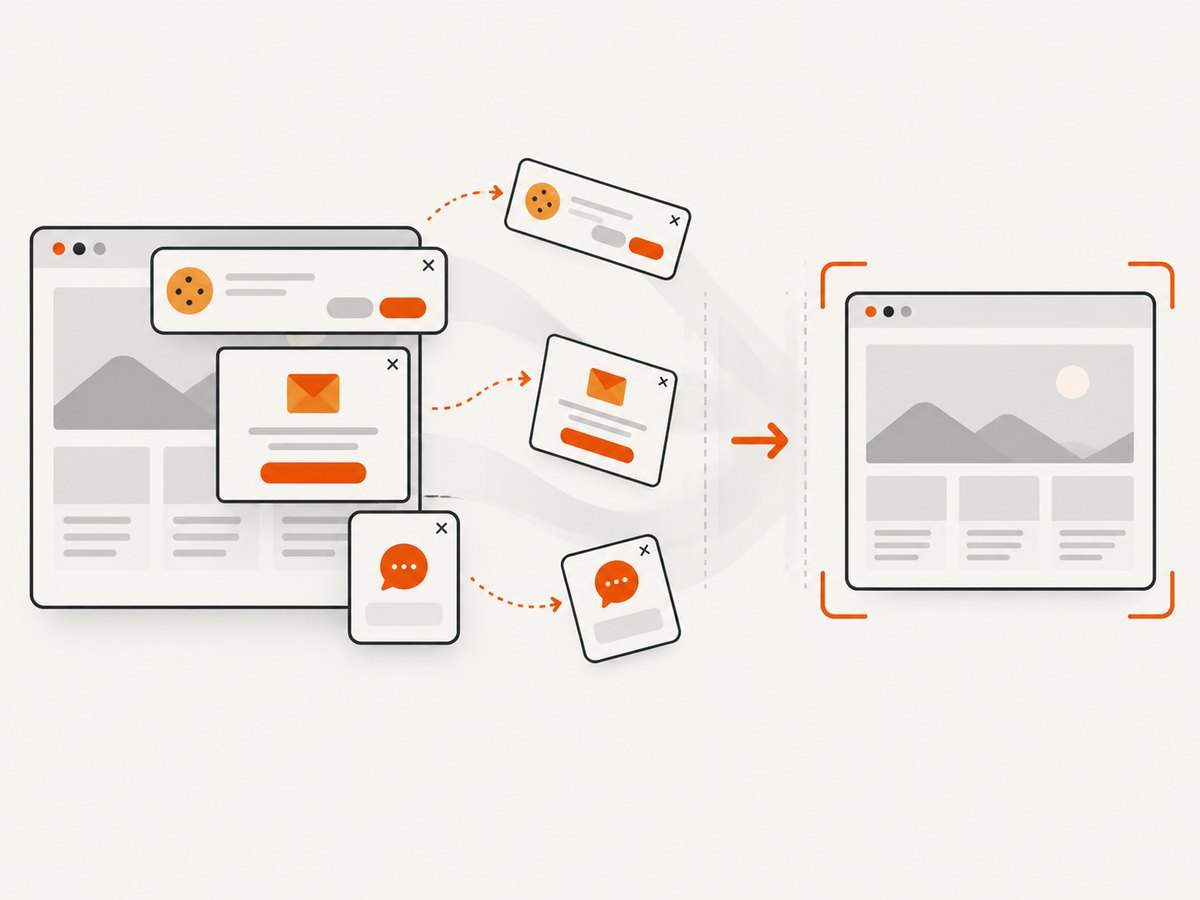
If your goal is to capture a page after fixing or reviewing the flow, ScreenshotNeo provides a single screenshot request without maintaining Selenium or PhantomJS. Its cleanup step accepts cookie/consent banners and removes 60+ known consent platforms, newsletter popups, and chat widgets before capture; each step can be turned off. Bot checks/CAPTCHAs, blank pages, timeouts, failed loads, and cache hits are not billed, and the response reports the result in X-Page-Verdict and X-Billed headers. It also provides an MCP server for AI agents with take_screenshot, get_page_info, and capture_pdf.
See the ScreenshotNeo API docs for all options, including custom headers, cookies, authorization, JavaScript, waits, device presets, full-page capture, element selectors, PDFs, caching, signed links, async jobs, and bulk capture.
curl -G "https://api.screenshotneo.com/v1/shot" -d access_key=YOUR_API_KEY --data-urlencode url=https://stripe.com -o shot.webpimport requests
r = requests.get("https://api.screenshotneo.com/v1/shot", params={"access_key": "YOUR_API_KEY", "url": "https://stripe.com"}, timeout=90)
r.raise_for_status()
open("shot.webp", "wb").write(r.content)const q = new URLSearchParams({ access_key: 'YOUR_API_KEY', url: 'https://stripe.com' });
const res = await fetch(`https://api.screenshotneo.com/v1/shot?${q}`);
if (!res.ok) throw new Error(`Screenshot failed: ${res.status}`);
const image = Buffer.from(await res.arrayBuffer());
require('fs').writeFileSync('shot.webp', image);There are 1,000 screenshots a month free with no card. Paid plans start at $5 for 3,000 shots, and every feature is on every plan. Create a free ScreenshotNeo account.
12. Quick migration checklist
- Remove the PhantomJS constructor and binary.
- Start Chrome or Firefox with current Selenium options.
- Run once visibly and verify fields, redirects, MFA, and consent behavior.
- Replace sleeps with explicit waits for the required state.
- Keep implicit waits at the default when using explicit waits.
- Choose browser login or API-and-cookie setup based on what the test covers.
- Capture logs and classify remaining failures as startup, network/TLS, JavaScript, locator, or authentication issues.
FAQ
Can I keep PhantomJS by using an older Selenium version?
You may find legacy combinations, but PhantomJS is deprecated in Selenium. Migrating to headless Chrome or Firefox is the supported direction and avoids preserving obsolete browser behavior.
Should I use a fixed five-second sleep after clicking Login?
No. Wait for the URL, dashboard element, account control, or other state that proves the application is ready.
Why does headless mode fail while headed mode works?
Compare viewport, browser flags, permissions, proxy settings, resource loading, and page JavaScript. Run visibly to observe the real failure, then fix the environment or flow before returning to headless mode.
Can API login replace testing the login page?
Only when login is setup for another test. API-and-cookie state preparation does not cover the login form, validation, redirects, or MFA experience.


