How to Fix Selenium Python Element Screenshots That Do Not Work
Fix Selenium element screenshots by checking for stale elements, handling file-write failures, and choosing the right screenshot method for your target.

If a Selenium Python element screenshot does not work, first identify whether Selenium cannot capture the element or cannot save the captured PNG. A StaleElementReferenceException means the element handle no longer points to an element in the current DOM. If element.screenshot(path) returns False, Selenium reports a file I/O problem. Use a fresh element after page changes, save to an absolute path whose directory exists, and check the Boolean return value. Selenium documents WebElement.screenshot(), screenshot_as_png, and screenshot_as_base64 for element-level screenshots. Selenium Python WebElement API.
1. Identify which screenshot operation is failing
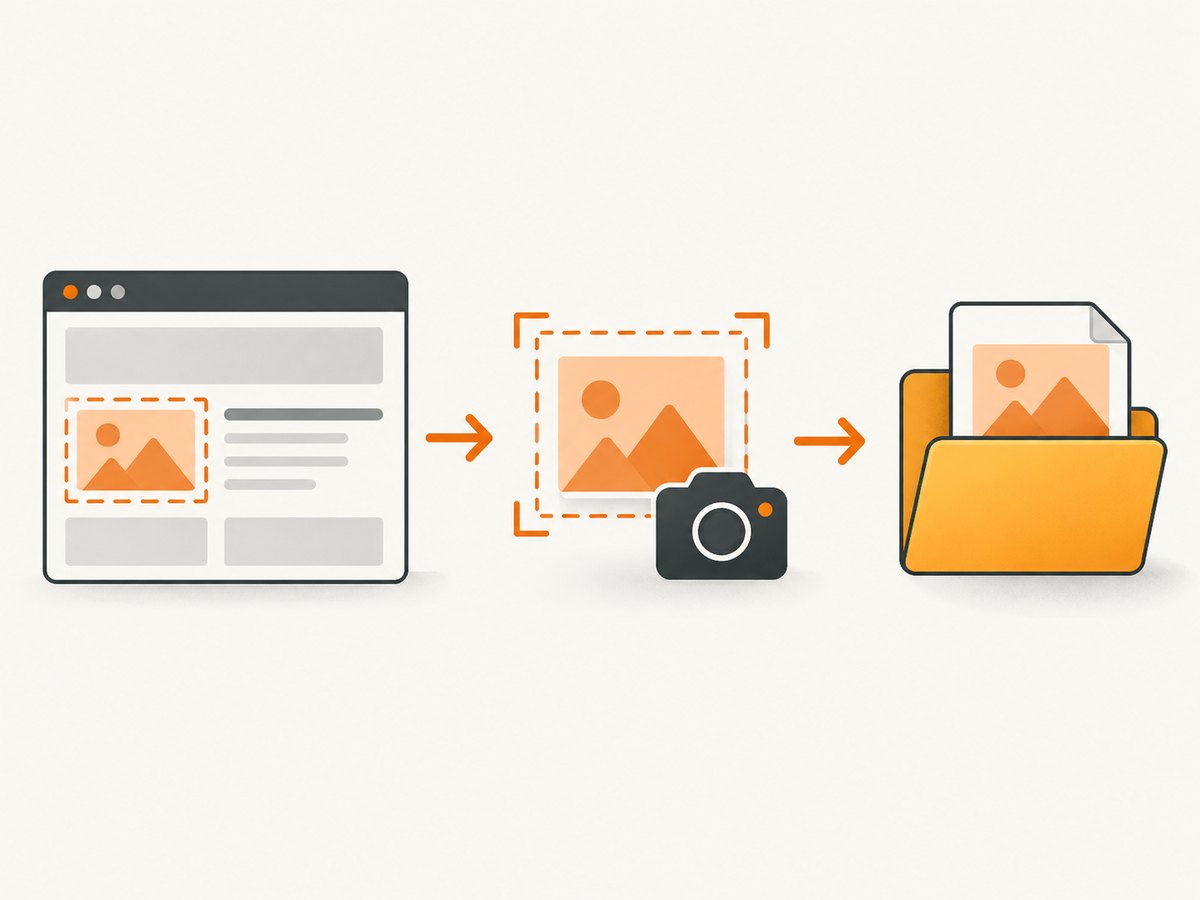
There are two separate operations in a typical element screenshot: WebDriver captures the element, then Python writes the returned PNG data to a file. The direct screenshot() method combines them. If it fails, the exception or return value helps tell you where to investigate.
| Symptom | Likely area | First check |
|---|---|---|
StaleElementReferenceException |
The element reference is no longer valid in the current page DOM. | Re-find the element after navigation, refresh, or a DOM update. |
Method returns False, no PNG appears |
File output reported an I/O error. | Use an absolute path, create the parent directory, and check write access. |
| Bytes are returned, but your file is absent or wrong | Your Python file-writing step. | Write screenshot_as_png bytes yourself and verify the destination. |
| A whole-window image is saved instead of a crop | The driver-level API was used. | Call screenshot() on the target WebElement. |
Selenium documents that the element method saves a PNG, recommends a full path, and returns False for an I/O error. A stale element is a different failure: the saved WebElement handle no longer refers to an element present in the page. Browser, driver, operating-system, and application details can affect other errors, so avoid assuming every failure has the same cause.
2. Save an element screenshot to a reliable path
This standalone example opens a page, finds an element, creates the output directory, and saves a PNG. Install Selenium with python -m pip install selenium and use a browser and driver setup supported by your environment. The example relies on Selenium’s current driver management behavior; if your setup supplies a driver explicitly, configure it as required by that setup.
from pathlib import Path
from selenium import webdriver
from selenium.webdriver.common.by import By
from selenium.webdriver.support.ui import WebDriverWait
from selenium.webdriver.support import expected_conditions as EC

output = Path("screenshots/element.png").resolve()
output.parent.mkdir(parents=True, exist_ok=True)

driver = webdriver.Chrome()
try:
    driver.get("https://example.com")
    element = WebDriverWait(driver, 10).until(
        EC.visibility_of_element_located((By.CSS_SELECTOR, "h1"))
    )

    saved = element.screenshot(str(output))
    if not saved:
        raise OSError(f"Selenium could not save screenshot to {output}")

    print(f"Saved element screenshot to {output}")
finally:
    driver.quit()
The target selector is an example for the standard example page. Replace it with a selector for your page and wait for the state you actually need. Using a full path makes the destination unambiguous; creating the directory prevents a missing-parent-directory error. Keep the .png extension because this API method saves PNG data.
What the element method captures
element.screenshot(filename) captures the current element and writes its PNG. Selenium also exposes element.screenshot_as_png, which returns bytes, and element.screenshot_as_base64, which returns a base64 string. The driver-level driver.get_screenshot_as_file(filename) captures the current window, not just the selected element. Choose based on the image scope you need.
3. Separate capture from writing the file
If the direct save returns False or you want to isolate the I/O step, obtain PNG bytes first and write them with Python. This way the capture call and filesystem write are separate operations.
from pathlib import Path

output = Path("screenshots/element.png").resolve()
output.parent.mkdir(parents=True, exist_ok=True)

png_bytes = element.screenshot_as_png
if not png_bytes:
    raise RuntimeError("Selenium returned no screenshot bytes")

output.write_bytes(png_bytes)
if not output.is_file() or output.stat().st_size == 0:
    raise OSError(f"Screenshot was not written correctly: {output}")
If reading screenshot_as_png raises an exception, investigate the element reference, browser session, and WebDriver response. If it returns bytes but write_bytes() fails, inspect the path and process permissions. Selenium’s direct file method catches an OSError during its write and returns False; checking the return matters because a false result is not a successful save.
Save base64 data when an integration needs text
Base64 can be useful when passing screenshot data through a text-only interface, but ordinary file output is simpler with PNG bytes. To decode the base64 value to a PNG:
import base64
from pathlib import Path

output = Path("screenshots/element.png").resolve()
output.parent.mkdir(parents=True, exist_ok=True)
encoded = element.screenshot_as_base64
output.write_bytes(base64.b64decode(encoded))
4. Re-find stale elements after page changes
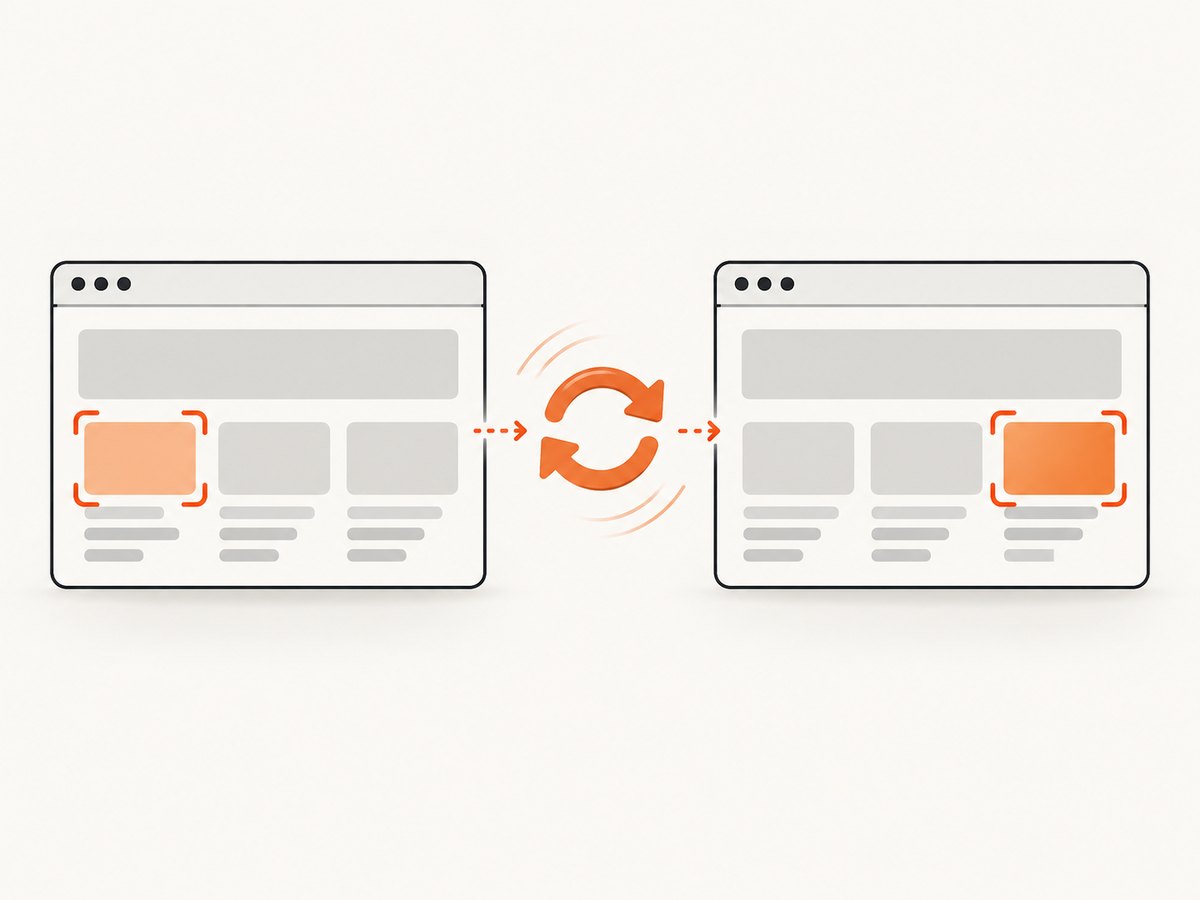
A WebElement is a reference to a particular DOM node. Navigation, a refresh, a JavaScript framework replacing a node, or a refreshed frame can make the old reference stale. Finding the element before such a change and trying to screenshot it afterward uses the old reference. Locate it again once the page reaches the state you want to capture.
from selenium.webdriver.common.by import By
from selenium.webdriver.support.ui import WebDriverWait
from selenium.webdriver.support import expected_conditions as EC

# Perform the action or navigation that changes the page first.
driver.refresh()

# Wait for the current page's element, producing a fresh WebElement reference.
element = WebDriverWait(driver, 10).until(
    EC.visibility_of_element_located((By.CSS_SELECTOR, "#result-card"))
)

if not element.screenshot("screenshots/result-card.png"):
    raise OSError("Could not save the result card screenshot")
Do not keep and reuse a WebElement across a navigation or a change that replaces its DOM node. If a page updates asynchronously, wait for the replacement content or other page condition that establishes the desired state, then locate the element. A longer timeout cannot make an already stale reference valid; the locator must run again.
5. Pick the right screenshot scope and timing
Element versus current window
Use element.screenshot() for a crop of one element. Use a driver screenshot when you need the current browser window. These are different scopes; switching to a driver-level call may make an image appear, but it does not solve a requirement for a tightly cropped element.
from pathlib import Path

output = Path("screenshots/window.png").resolve()
output.parent.mkdir(parents=True, exist_ok=True)
saved = driver.get_screenshot_as_file(str(output))
if not saved:
    raise OSError(f"Could not save window screenshot to {output}")
Wait for the state to capture
Finding an element and capturing it immediately can be too early if the page is still loading or the element is not yet visible. Use an explicit wait for a meaningful condition, such as visibility, then take the screenshot. Avoid arbitrary sleeps as the only synchronization method: they can waste time on fast pages and still be too short on slow ones.
If the element is inside an iframe, switch to that frame before locating it. If it is inside a shadow root, use Selenium’s supported shadow-root APIs to find it. These are lookup-context issues; a screenshot call cannot capture a WebElement that was not found in the active context. Browser-specific behavior for unusual or transformed elements is not settled by the generic API documentation, so reproduce such cases with the exact browser and driver versions before applying a workaround.
6. Troubleshooting common failures
| Error or result | Cause to check | Fix |
|---|---|---|
StaleElementReferenceException |
Page navigation or a DOM update replaced or removed the referenced node. | Wait for the new page state and locate the element again. |
False from element.screenshot(path) |
Selenium encountered an I/O error while saving. | Use an absolute .png path, make its parent directory, and confirm the process can write there. |
FileNotFoundError while writing bytes |
The destination’s parent directory may not exist. | Call output.parent.mkdir(parents=True, exist_ok=True) before writing. |
PermissionError |
The process cannot write to the chosen directory or file. | Choose a directory owned or writable by the process; check whether an existing file is protected. |
| Screenshot file exists but is empty | The write may not have completed as expected, or another code path may have created the file. | Check the API result, write PNG bytes directly, and inspect file size. |
| Image shows the full browser window | A driver screenshot method was called. | Call the element method on the intended WebElement. |
| Element is missing or cannot be found | Wrong selector, wrong frame, or page not yet at the required state. | Verify the selector, switch to the correct frame, and wait for the target condition. |
| Call fails after a framework re-render | The old node reference may have been replaced. | Wait for the updated state and run the locator again immediately before capture. |
The API documentation establishes the stale-reference and file I/O behaviors. The remaining checks are practical diagnostics, not a claim that the listed cause is certain in every environment. For an unresolved error, record the exact exception, Selenium version, browser and version, driver and version, operating system, whether the call returned bytes or a Boolean, and whether the element had changed after lookup.
7. Reliability, performance, and cost considerations
For reliable automation, make the page state explicit: wait for the element you intend to capture, locate it after navigation or re-render, and check the save result. Use deterministic file names or include a run identifier when repeated jobs would otherwise overwrite the same PNG. Ensure output directories exist before a batch begins, and decide how the job should handle a single capture failure rather than silently treating it as success.
A screenshot requires browser work and image data transfer, so capture only the elements and states you need. Reuse a live browser session for related captures when appropriate instead of starting a new browser for every image; always close the driver in a finally block so failures do not leave the session running. There is no benchmark in the cited Selenium documentation that supports a specific speed claim, and actual cost depends on your browser execution environment, infrastructure, and workload. Selenium itself is browser automation software; budget for the machines or hosted browser service used to run it, storage, and any downstream image processing.
For failure analysis, keep a small log with the URL or test case identifier, selector, capture timestamp, output path, exception or return value, and relevant browser/driver versions. Avoid logging credentials or sensitive page data. Retries are useful for transient page readiness or infrastructure errors, but do not retry a stale WebElement unchanged: reacquire the element after the page reaches the target state.
8. Or skip the browser setup
For a screenshot of a URL rather than a Selenium-specific element in an active test session, ScreenshotNeo provides a website screenshot API and MCP server. The API can return a screenshot or PDF from one GET request. See the ScreenshotNeo API docs for parameters and configuration.
curl -G "https://api.screenshotneo.com/v1/shot" \
  -d access_key=YOUR_API_KEY \
  --data-urlencode url=https://example.com \
  -o shot.webp
import requests
r = requests.get(
"https://api.screenshotneo.com/v1/shot",
params={"access_key": "YOUR_API_KEY", "url": "https://example.com"},
timeout=90,
)
r.raise_for_status()
open("shot.webp", "wb").write(r.content)const q = new URLSearchParams({
access_key: 'YOUR_API_KEY',
url: 'https://example.com'
});
const res = await fetch(`https://api.screenshotneo.com/v1/shot?${q}`);
if (!res.ok) throw new Error(`Screenshot request failed: ${res.status}`);
const fs = await import('node:fs/promises');
await fs.writeFile('shot.webp', Buffer.from(await res.arrayBuffer()));Cookie banners are accepted and removed before capture, along with 60+ known consent platforms, newsletter popups, and chat widgets; each step can be turned off. Bot checks/CAPTCHAs, blank pages, timeouts, failed loads, and cache hits are not billed, and response headers identify the page verdict and billing status. Its MCP server offers take_screenshot, get_page_info, and capture_pdf for Claude, Cursor, and other MCP clients. The free plan includes 1,000 shots per month with no card; paid plans start at $5 for 3,000. A URL screenshot is useful when the job is to capture a page, while Selenium remains appropriate when the capture must happen inside an existing browser automation flow or target a live WebElement. Start free with 1,000 screenshots a month and no card.
9. FAQ
Why does element.screenshot() return False?
Selenium documents False for an I/O error while saving. Check the destination path, parent directory, and write permissions.
Can I save the element screenshot without Selenium writing the file?
Yes. Read element.screenshot_as_png and write those bytes with Python’s file APIs.
Does driver.get_screenshot_as_file() crop to my element?
No. The driver API captures the current window. Use the WebElement screenshot method for an element capture.
Why did the screenshot work before a page refresh but fail after it?
The old WebElement may be stale because it refers to a node from the previous page state. Locate the element again after the refresh and wait for it to be ready.
What details help diagnose a failure that persists?
Share the exact exception or Boolean result, the relevant capture code, Selenium/browser/driver versions, operating system, and whether the page or element changed between lookup and capture.


