How to Fix Selenium Python Element Screenshots That Capture Incorrectly
Fix Selenium Python element screenshots with a systematic guide to CSS zoom, scaling, browser drivers, viewport metrics, and reliable crop fallbacks.
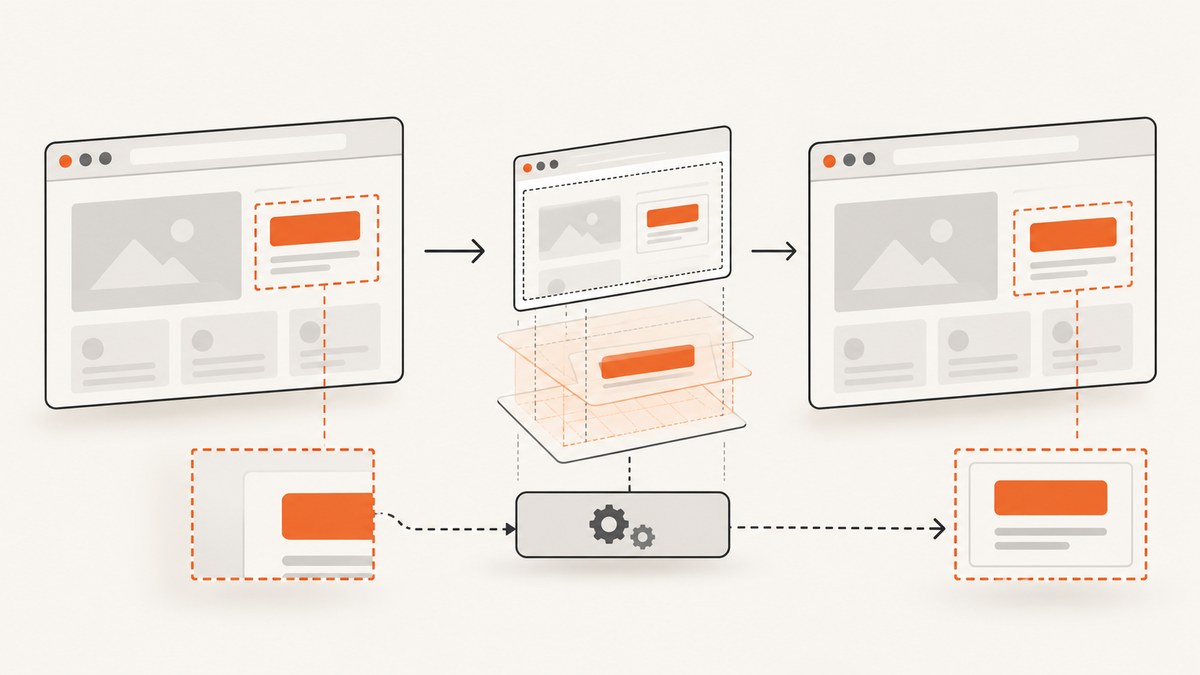
Selenium’s WebElement.screenshot() captures one element, while driver.save_screenshot() captures the current browser window. When the element image contains the wrong region, is offset, or has the wrong scale, compare those two paths first. The usual causes are CSS zoom or transforms, a mismatch between CSS pixels and PNG pixels, unsupported element-screenshot behavior in the browser driver, or a page that changed between locating the element and capturing it.
The most reliable diagnosis is to save a full-window image and an element image from the same page state, print the element rectangle and viewport metrics, and record Selenium, browser, driver, operating system, headless mode, and device scale settings. Then remove CSS zoom temporarily, verify browser-driver support, and use a measured full-window crop only as a fallback.
What Selenium Python actually captures
The Python API exposes three element methods:
element.screenshot(filename)writes a PNG file and returns a Boolean indicating whether the file was saved.element.screenshot_as_pngreturns PNG bytes.element.screenshot_as_base64returns a Base64 encoded PNG.
Selenium documents the file method as saving the current element to a PNG image. The Boolean describes file-writing success, so a True result does not by itself prove that the crop is correct. Inspect the image as well as the return value. See the Selenium Python WebElement API.
A window screenshot follows a different path:
window_ok = driver.save_screenshot("window.png")
element_ok = element.screenshot("element.png")
print(window_ok, element_ok, element.rect)
If the window image is correct but the element image is wrong, rendering and page state are probably fine; investigate element-capture support, zoom, transforms, and coordinate scaling. If both are wrong, wait for the page to settle and inspect the page itself first.
A repeatable diagnostic workflow
1. Capture both images at the same moment
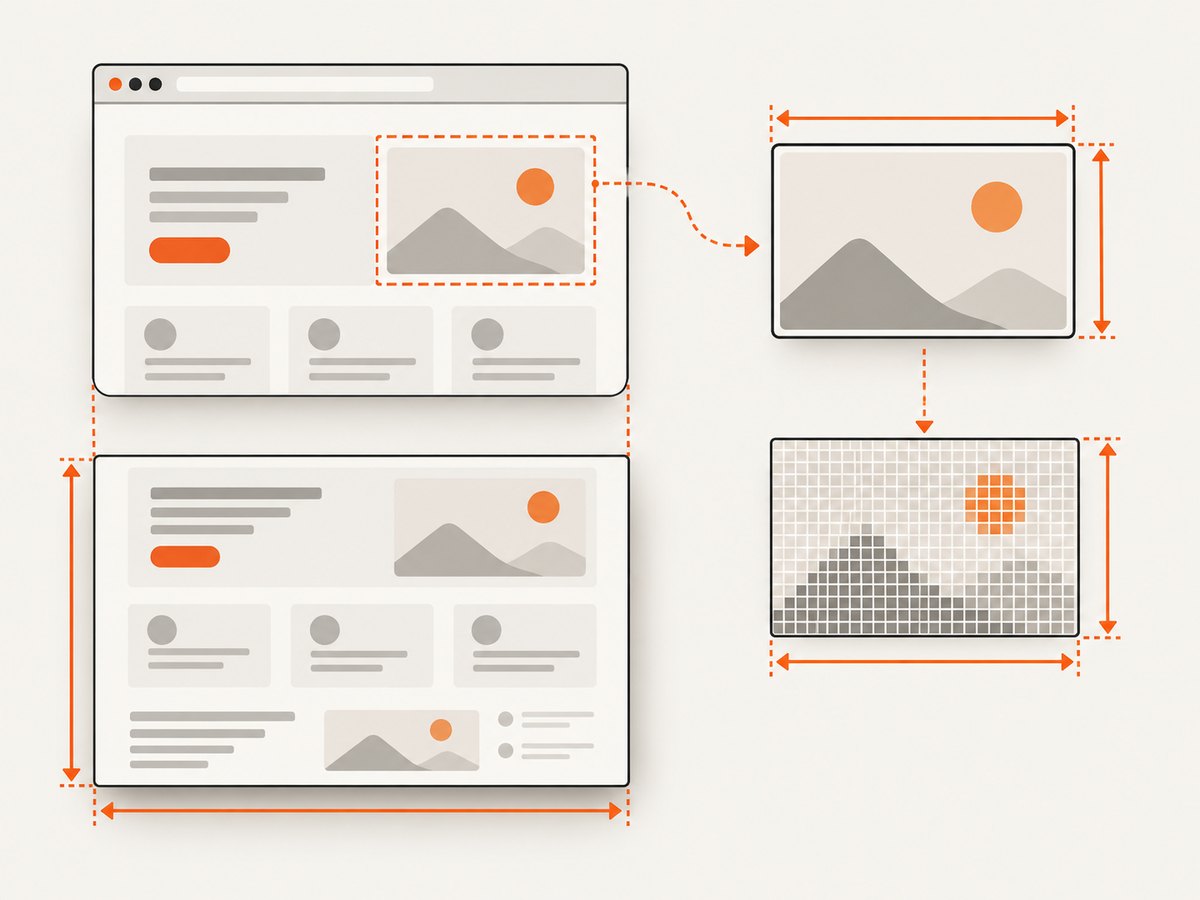
Locate the element once, wait for it to be visible, and immediately save both images. Avoid clicking, scrolling, or running JavaScript between the captures.
from selenium import webdriver
from selenium.webdriver.common.by import By
from selenium.webdriver.support.ui import WebDriverWait
from selenium.webdriver.support import expected_conditions as EC

options = webdriver.ChromeOptions()
options.add_argument("--headless=new")
options.add_argument("--window-size=1440,1000")
driver = webdriver.Chrome(options=options)

try:
    driver.get("https://example.com")
    wait = WebDriverWait(driver, 20)
    element = wait.until(EC.visibility_of_element_located((By.CSS_SELECTOR, "main")))

    window_ok = driver.save_screenshot("window.png")
    element_ok = element.screenshot("element.png")

    print("window saved:", window_ok)
    print("element saved:", element_ok)
    print("rect:", element.rect)
finally:
    driver.quit()
Use a real selector for your page. This example is a diagnostic shape, not a guarantee that every site exposes a main element.
2. Record the rendered rectangle and viewport
element.rect reports the element’s location and size in CSS pixels. Collect browser viewport values and device-pixel-ratio values from the same page.
metrics = driver.execute_script("""
const r = arguments[0].getBoundingClientRect();
return {
  rect: {x: r.x, y: r.y, width: r.width, height: r.height},
  innerWidth: window.innerWidth,
  innerHeight: window.innerHeight,
  outerWidth: window.outerWidth,
  outerHeight: window.outerHeight,
  devicePixelRatio: window.devicePixelRatio,
  scrollX: window.scrollX,
  scrollY: window.scrollY,
  bodyZoom: getComputedStyle(document.body).zoom
};
""", element)
print(metrics)
Compare these numbers with the PNG’s actual dimensions using an image library or an image viewer. Do not assume that CSS pixels equal output pixels. Retina scale, browser flags, remote desktop settings, and headless configuration can change that relationship.
3. Check CSS zoom and transforms
A SeleniumHQ issue reported a wrong element region after setting document.body.style.zoom = 1.5. In that report, a full-window screenshot looked correct while the element screenshot selected the wrong screen region. The reported environment was Selenium 4.8.0, Chrome 110.0.5481.96, ChromeDriver 110.0.5481.77, Debian GNU/Linux 10, and headless mode. This is evidence of a failure on that older setup, not proof that every current Selenium release mishandles CSS zoom. Read the Selenium issue report and test your current versions.
Inspect the element and its ancestors:
zoom_state = driver.execute_script("""
let node = arguments[0];
const result = [];
while (node && node.nodeType === 1) {
  const style = getComputedStyle(node);
  result.push({
    tag: node.tagName,
    id: node.id,
    className: node.className,
    zoom: style.zoom,
    transform: style.transform
  });
  node = node.parentElement;
}
return result;
""", element)
for item in zoom_state:
    print(item)
For a controlled comparison, remove page zoom if the application allows it, capture again, then restore it:
original_zoom = driver.execute_script("return document.body.style.zoom")
driver.execute_script("document.body.style.zoom = '1'")
try:
    element.screenshot("element-without-zoom.png")
finally:
    driver.execute_script("document.body.style.zoom = arguments[0]", original_zoom)
Also look for CSS transforms such as scale(), transformed ancestors, fixed-position overlays, and responsive layout changes triggered by the viewport.
4. Verify browser and driver support
Element screenshots are not implemented uniformly by all browser vendors. SeleniumLibrary’s screenshot implementation describes support as limited among vendors. Confirm that your browser, driver, and Selenium versions support element capture together. Record:
- Selenium package version:
python -m pip show selenium - Browser version and driver version
- Operating system and architecture
- Headless or headed mode
- Window size, device scale factor, and page zoom
If the combination does not provide dependable element screenshots, use a full-window screenshot and crop it using measurements validated against the actual PNG.
Correct element screenshots in common page states
Wait for layout, fonts, images, and animations
An element can be located before its final size is known. Wait for visibility, then wait for images and fonts where those affect geometry.
wait.until(EC.visibility_of(element))
driver.execute_async_script("""
const done = arguments[arguments.length - 1];
const images = Array.from(document.images);
Promise.all(images.map(img => img.complete
  ? Promise.resolve()
  : new Promise(resolve => {
      img.addEventListener('load', resolve, {once: true});
      img.addEventListener('error', resolve, {once: true});
    })
)).then(() => document.fonts ? document.fonts.ready : null)
  .then(() => done());
""")
Disable transitions and animations for deterministic captures when you control the page:
driver.execute_script("""
const style = document.createElement('style');
style.textContent = `*, *::before, *::after {
  animation: none !important;
  transition: none !important;
  caret-color: transparent !important;
}`;
document.head.appendChild(style);
""")
Sticky headers, scrolling, and lazy content
Scroll the element into view before capture, but understand that scrolling can trigger lazy loading or change sticky header behavior.
driver.execute_script("arguments[0].scrollIntoView({block: 'center', inline: 'nearest'});", element)
# Re-read the rectangle after scrolling; do not reuse stale coordinates.
print(driver.execute_script("""
const r = arguments[0].getBoundingClientRect();
return {x:r.x, y:r.y, width:r.width, height:r.height};
""", element))
If a fixed header overlaps the target, hide it temporarily with a test-only style or scroll with enough margin. If the element becomes stale after a navigation or rerender, locate it again rather than reusing the old WebElement.
Measured full-window crop fallback
When element capture is unsupported or unreliable, capture the window and crop using the element’s rectangle. The critical step is measuring the scale between CSS viewport coordinates and image pixels from the actual output.
from io import BytesIO
from PIL import Image

png_bytes = driver.get_screenshot_as_png()
image = Image.open(BytesIO(png_bytes))
rect = driver.execute_script("""
const r = arguments[0].getBoundingClientRect();
return {x:r.x, y:r.y, width:r.width, height:r.height};
""", element)
viewport = driver.execute_script("return {width: innerWidth, height: innerHeight}")

scale_x = image.width / viewport["width"]
scale_y = image.height / viewport["height"]
left = round(rect["x"] * scale_x)
top = round(rect["y"] * scale_y)
right = round((rect["x"] + rect["width"]) * scale_x)
bottom = round((rect["y"] + rect["height"]) * scale_y)

crop = image.crop((left, top, right, bottom))
crop.save("element-crop.png")
This is a diagnostic fallback, not a universal correction formula. Validate the scale independently because browser screenshots can include device-pixel-ratio effects, browser chrome differences, or output-specific behavior. If the element is outside the visible viewport, scroll it into view and recalculate the rectangle before taking the window screenshot.
Common errors and fixes
| Symptom | Likely cause | Fix |
|---|---|---|
| Correct window image, wrong element region | CSS zoom, transform, or driver element-capture bug | Compare with zoom removed; update and match browser and driver; use a measured crop fallback. |
| Element image is shifted by a constant amount | CSS coordinates and PNG pixels are being mixed | Compare actual PNG dimensions with innerWidth/innerHeight; calculate measured scale. |
| Wrong size after responsive layout | Viewport changed or the element resized after locating it | Set window size before navigation, wait for layout, and read getBoundingClientRect() immediately before capture. |
| Blank or partially loaded element | Images, fonts, lazy content, or animations were still pending | Wait for image completion and fonts; disable motion; wait for a stable selector. |
StaleElementReferenceException |
Framework rerendered the node | Locate the element again after the rerender and capture the new reference. |
Method returns False |
PNG could not be written to the requested path | Check directory permissions, path existence, and disk space; separately inspect image content. |
| Element screenshot unsupported | Browser vendor or driver has limited support | Use window capture plus validated cropping or a screenshot API. |
Performance, reliability, and cost considerations
Element screenshots are usually cheaper in memory than full-page images, but the browser still has to render the page. Reuse one driver for related captures, avoid unnecessary navigation, and wait on a precise condition instead of a long fixed sleep. Disable animations and stabilize data sources when repeatability matters. For parallel jobs, give each browser session an isolated profile and bounded timeout; a stuck page should not block the whole queue.
For a fallback crop, keep the original window PNG until validation is complete. It lets you distinguish a bad crop from a bad render. Log the URL, selector, rectangle, viewport, output dimensions, versions, and headless mode alongside failures. Never apply a guessed multiplier such as 1.25 or 2.0 across machines.
Or skip the browser setup
ScreenshotNeo provides a website screenshot API and MCP server. One GET request returns a PNG, JPEG, WebP, or PDF, with options for full-page capture, a CSS-selector element capture, custom viewport and device presets, retina scale, waits, JavaScript, custom CSS, headers, cookies, user agents, geolocation, request blocking, caching, and more. See the ScreenshotNeo documentation for the complete parameter list.
cURL
curl -G "https://api.screenshotneo.com/v1/shot" -d access_key=YOUR_API_KEY --data-urlencode url=https://stripe.com -o shot.webpPython
import requests
r = requests.get("https://api.screenshotneo.com/v1/shot", params={"access_key": "YOUR_API_KEY", "url": "https://stripe.com"}, timeout=90)
open("shot.webp", "wb").write(r.content)
Node.js
const q = new URLSearchParams({ access_key: 'YOUR_API_KEY', url: 'https://stripe.com' });
const res = await fetch(`https://api.screenshotneo.com/v1/shot?${q}`);
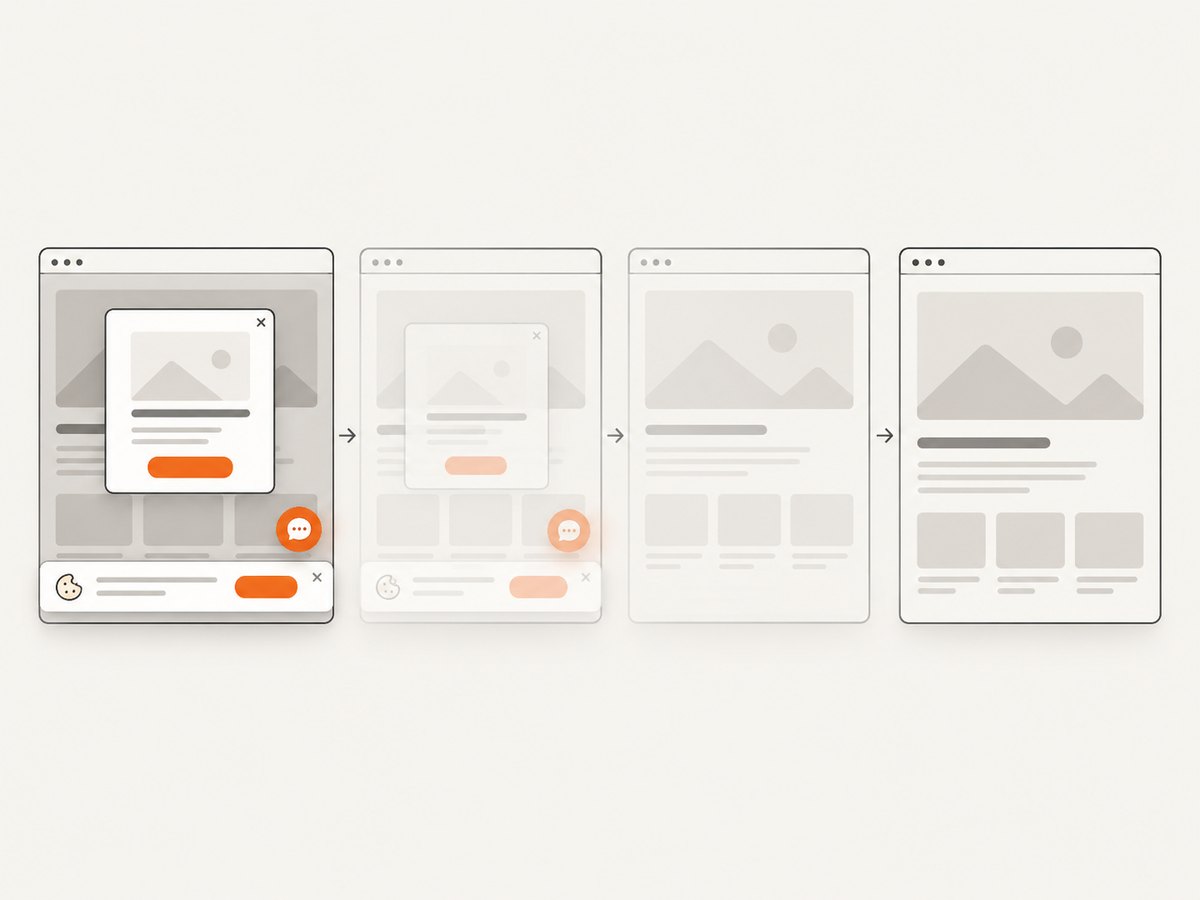
Cookie and consent banners, newsletter popups, and chat widgets are removed before the shot. Bot checks, blank pages, failed loads, timeouts, and cache hits are not billed, and response headers identify the page verdict and billing result. An MCP server lets Claude, Cursor, and other MCP clients call take_screenshot, get_page_info, and capture_pdf. The free plan includes 1,000 screenshots per month with no card; paid plans start at $5 for 3,000 shots.
Create a free ScreenshotNeo account and start with the 1,000 monthly screenshots.
FAQ
Does element.screenshot() capture the full page?
No. It targets the current WebElement. Use a window or full-page method when you need the entire document.
Should I always remove CSS zoom?
No. Remove it as a controlled diagnostic comparison. The documented wrong-region report concerns a specific older setup, so verify your own versions before changing production CSS.
Why do my rectangle values look right but the PNG is wrong?
Rectangle values are CSS pixels; PNG dimensions are image pixels. Compare both and measure the scale in the same runtime.
Can a successful Boolean still mean a bad screenshot?
Yes. The Boolean mainly reports whether Selenium saved the file. Open the image and compare its contents with the window capture.
What should I record for a bug report?
Include Selenium, browser, driver, operating system, headless mode, window and viewport sizes, device scale factor, page zoom or transforms, selector, rectangle, PNG dimensions, and both output images.


