How to Fix Selenium RasterFormatException When Taking Element Screenshots in Java
Fix Selenium RasterFormatException in Java by checking crop bounds, coordinate spaces, scaling, and using WebElement screenshots safely.
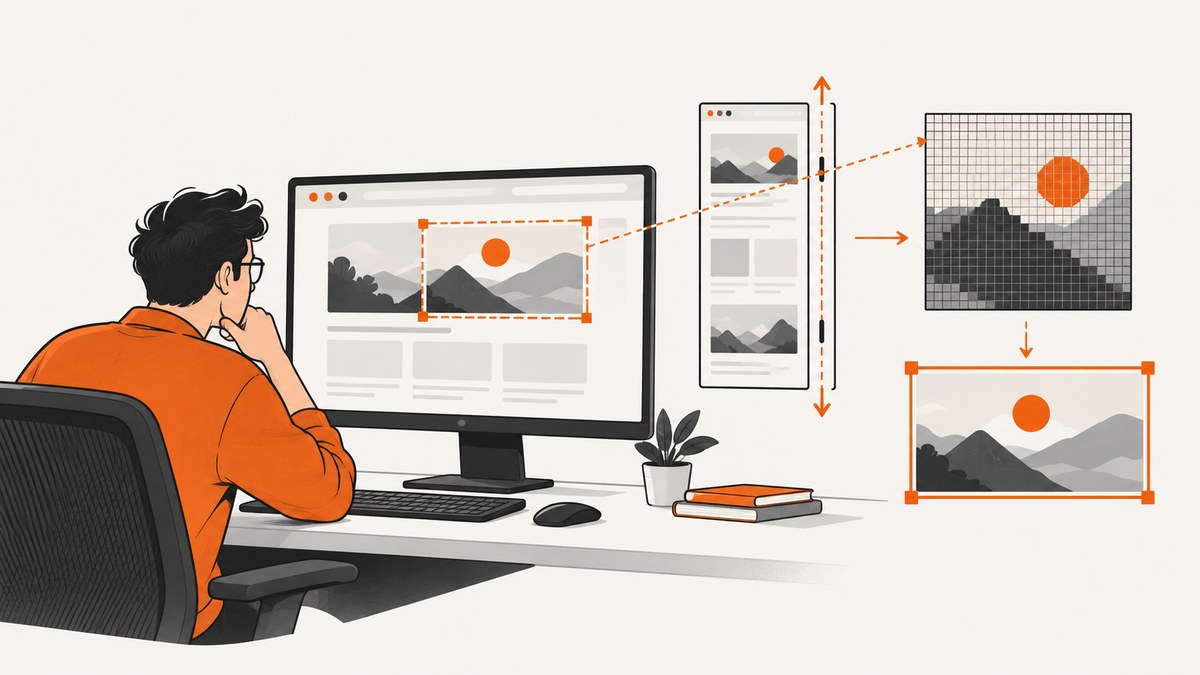
Short answer: find the line named in the stack trace. If it is BufferedImage.getSubimage or another crop operation, the rectangle is outside the decoded screenshot raster, or its dimensions do not match the image’s color model. The most common Selenium mistake is taking a driver or viewport screenshot and applying an element’s document coordinates to it. Prefer Selenium’s element screenshot API when your browser-driver implementation supports it:
File screenshot = element.getScreenshotAs(OutputType.FILE);Selenium describes TakesScreenshot as something a driver or HTML element can use to capture a screenshot in different formats. Element capture avoids a second, error-prone coordinate conversion. If you must crop manually, scroll and recalculate the element position, decode the image, measure its actual width and height, and reject any rectangle that is not fully contained by that image.
What RasterFormatException means
Java’s java.awt.image.RasterFormatException is thrown when an image operation requests an area that the raster cannot contain. An out-of-bounds crop is the usual explanation when the stack trace points to getSubimage. The API also documents a second class of failure: the raster’s bands can be incompatible with the bands required by the image’s color model. Do not change Selenium or the browser version until you know which operation failed.
For example, this code fails when x + width is greater than the decoded image width, or when y + height exceeds its height:
BufferedImage full = ImageIO.read(driver.getScreenshotAs(OutputType.FILE));
Point location = element.getLocation();
Dimension size = element.getSize();
BufferedImage part = full.getSubimage(
    location.x, location.y, size.width, size.height);
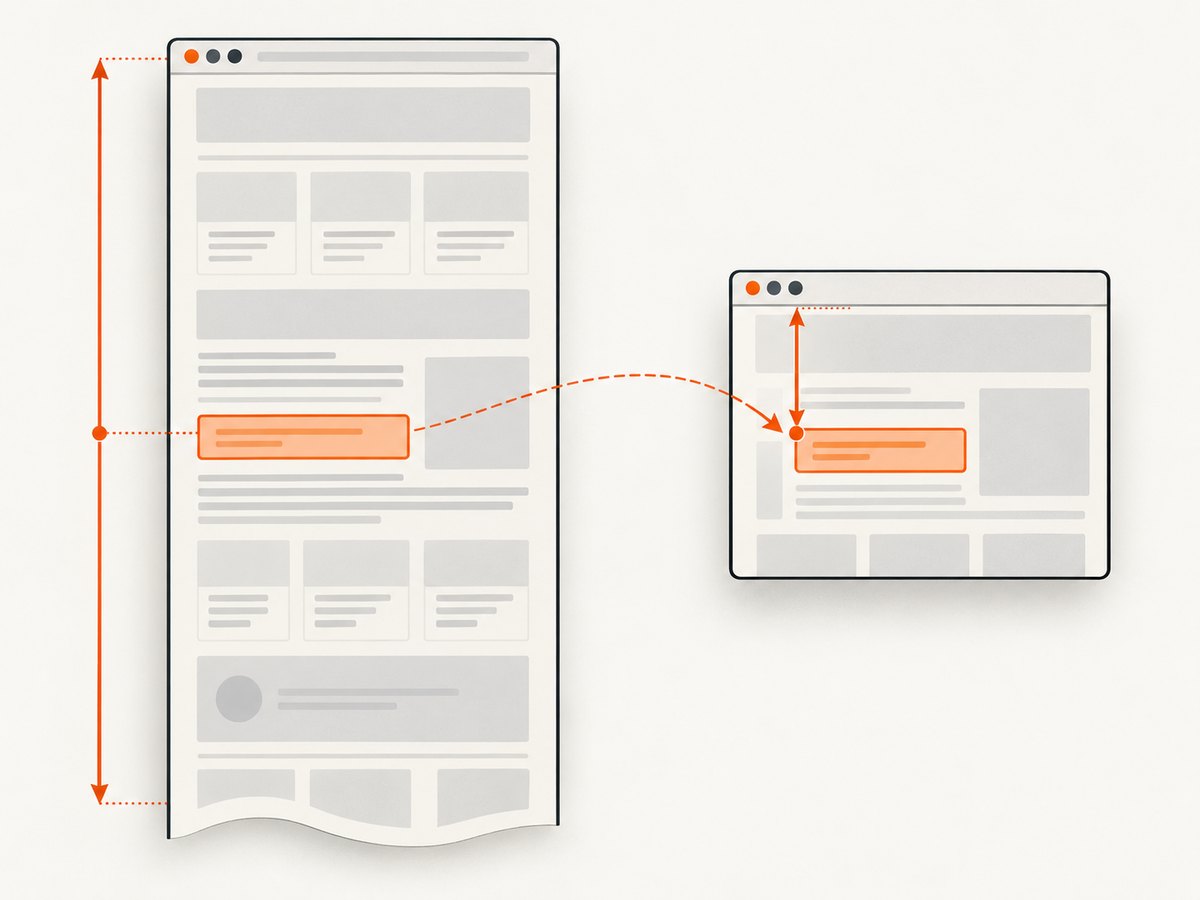
The element location is generally expressed in document or page coordinates. A normal WebDriver screenshot is usually a viewport raster. An element below the fold can therefore have a page y value larger than the screenshot’s pixel height. Device scale factors can create another mismatch: CSS pixels from WebDriver geometry are not necessarily one screenshot pixel.
Primary references: Oracle’s RasterFormatException API and Selenium’s TakesScreenshot API.
Recommended fix: capture the WebElement directly
Use WebElement.getScreenshotAs for an element-only image. This lets the driver perform the element capture instead of making your code translate page coordinates into screenshot coordinates.
import java.io.File;
import java.nio.file.Files;
import java.nio.file.Path;
import java.nio.file.StandardCopyOption;

import org.openqa.selenium.By;
import org.openqa.selenium.OutputType;
import org.openqa.selenium.WebDriver;
import org.openqa.selenium.WebElement;
import org.openqa.selenium.chrome.ChromeDriver;

public class ElementScreenshot {
    public static void main(String[] args) throws Exception {
        WebDriver driver = new ChromeDriver();
        try {
            driver.get("https://example.com");

            WebElement element = driver.findElement(By.cssSelector("h1"));
            File temporary = element.getScreenshotAs(OutputType.FILE);

            Path destination = Path.of("element.png");
            Files.copy(temporary.toPath(), destination,
                    StandardCopyOption.REPLACE_EXISTING);
            System.out.println("Saved " + destination.toAbsolutePath());
        } finally {
            driver.quit();
        }
    }
}
OutputType.FILE creates a temporary file. Selenium documents that temporary screenshot files are removed when the JVM exits, so copy the file to a durable location immediately if another process needs it. You can instead request raw bytes or a Base64 string:
byte[] bytes = element.getScreenshotAs(OutputType.BYTES);
String base64 = element.getScreenshotAs(OutputType.BASE64);
Element screenshots are implementation dependent. An unsupported driver can throw UnsupportedOperationException; capture failures can appear as WebDriverException or a screenshot-specific exception. Record the browser, driver, Selenium, Java, operating-system versions and the complete stack trace when support is missing.
Complete manual-crop solution when element capture is unavailable
Manual cropping is still useful when you need a custom image pipeline or a driver does not implement element screenshots. The safe order is:
- Scroll the element into the viewport.
- Wait for layout and images that affect its size.
- Take a fresh driver screenshot.
- Read the screenshot and obtain geometry appropriate to the current viewport.
- Measure any CSS-to-pixel scale from the actual screenshot setup.
- Validate the rectangle before calling
getSubimage.
import java.awt.Rectangle;
import java.awt.image.BufferedImage;
import java.io.File;
import javax.imageio.ImageIO;

import org.openqa.selenium.JavascriptExecutor;
import org.openqa.selenium.OutputType;
import org.openqa.selenium.Point;
import org.openqa.selenium.WebDriver;
import org.openqa.selenium.WebElement;
import org.openqa.selenium.Dimension;

public final class SafeCrop {
    public static BufferedImage capture(WebDriver driver,
                                        WebElement element) throws Exception {
        ((JavascriptExecutor) driver).executeScript(
            "arguments[0].scrollIntoView({block:'center', inline:'nearest'});",
            element);

        // Force a fresh layout measurement after scrolling.
        Thread.sleep(100);
        File file = ((org.openqa.selenium.TakesScreenshot) driver)
                .getScreenshotAs(OutputType.FILE);
        BufferedImage image = ImageIO.read(file);
        if (image == null) {
            throw new IllegalStateException("Screenshot could not be decoded");
        }

        Point p = element.getLocation();
        Dimension d = element.getSize();

        // This is valid only if p is in the screenshot's coordinate space.
        int x = p.getX();
        int y = p.getY();
        int width = d.getWidth();
        int height = d.getHeight();

        Rectangle requested = new Rectangle(x, y, width, height);
        Rectangle bounds = new Rectangle(0, 0,
                image.getWidth(), image.getHeight());
        if (width <= 0 || height <= 0 || !bounds.contains(requested)) {
            throw new IllegalArgumentException(
                "Element rectangle " + requested +
                " is outside screenshot bounds " + bounds);
        }
        return image.getSubimage(x, y, width, height);
    }
}
The bounds check prevents the exception; it does not prove that the crop is semantically correct. If the rectangle is outside the image after scrolling, the coordinates and pixels are in different spaces. In that case, inspect the screenshot dimensions, browser window size, device scale factor and scroll offsets rather than clamping the rectangle. Clamping silently produces a partial element image.
Coordinate systems, scrolling and scaling
Page coordinates versus viewport coordinates
getLocation() describes where an element is positioned in the page layout. A viewport screenshot starts at the current scroll position. If an element begins at page coordinate 2,000 and the viewport is 900 pixels high, using y = 2,000 against that image cannot work. Scroll first, then obtain a measurement that represents the visible viewport. JavaScript can return a viewport-relative rectangle:
@SuppressWarnings("unchecked")
Map<String, Number> rect = (Map<String, Number>)
    ((JavascriptExecutor) driver).executeScript(
        "const r = arguments[0].getBoundingClientRect();" +
        "return {x:r.x, y:r.y, width:r.width, height:r.height};",
        element);
Convert the returned values carefully. Browser rectangles are floating-point CSS pixels, while image crops require integer pixel coordinates. A scale of two is common on a retina display, but do not assume it: compare a known viewport dimension with the decoded screenshot dimension for the same axis and browser configuration.
Negative and zero dimensions
Animations, collapsed elements, CSS transforms and layout changes can produce a zero-sized rectangle. An element partially outside the viewport can have a negative viewport coordinate. Wait for the final state and decide whether to scroll it fully into view or intentionally capture only the visible portion. Never pass negative coordinates, zero width or zero height to getSubimage.
Sticky headers and transforms
A sticky header can overlap an element after scrolling. CSS transforms can also make the visual pixels differ from layout dimensions. If exact visual bounds matter, use the browser’s element screenshot implementation or obtain a fresh screenshot after the final scroll and compare the crop against the rendered page.
Output choices and file handling
| Output type | Use it when | Important detail |
|---|---|---|
FILE |
Writing an image to disk or passing it to an image library | Copy the temporary file before JVM shutdown |
BYTES |
Uploading to storage, hashing, or processing in memory | Avoids temporary-file cleanup |
BASE64 |
Embedding in JSON or a report | Decode before using an image API |
Use PNG when you need lossless pixels or transparency. JPEG is smaller for photographic content but can introduce compression artifacts around text. Keep screenshots in memory only for short pipelines; large full-page images can increase heap pressure.
Debugging checklist
- Read the exact failing line. A Selenium command failure and a Java crop failure have different fixes.
- Log image dimensions. Print
image.getWidth()andimage.getHeight(). - Log the requested rectangle. Include x, y, width and height before cropping.
- Log scroll position and device scale. Capture them at the same time as the screenshot.
- Check layout stability. Wait for fonts, images, transitions and lazy content that change dimensions.
- Try direct element capture. If it works, remove the custom crop path unless you need it for a documented reason.
- Reduce to a minimal page. Keep the URL, selector and one screenshot call so driver-specific issues are reproducible.
Common errors, causes and fixes
| Error or symptom | Likely cause | Fix |
|---|---|---|
RasterFormatException: (x + width) is outside raster |
Crop extends past decoded image | Validate all four bounds against the image, then fix coordinate conversion |
| Crop works above the fold but fails lower down | Page y-coordinate used for viewport screenshot | Scroll, recalculate viewport geometry, and take a fresh screenshot |
| Crop is shifted or too small | CSS pixels and screenshot pixels use different scales | Measure scale from the actual screenshot and browser setup |
| Negative or zero crop dimensions | Element is hidden, collapsed or partly outside viewport | Wait for layout, scroll into view, and reject invalid dimensions |
UnsupportedOperationException |
Driver implementation lacks element screenshots | Use manual cropping with validated coordinates or a supporting implementation |
WebDriverException during capture |
Browser, driver, page load or screenshot command failure | Save the complete exception, versions and a minimal reproducer |
| Saved file disappears | FILE result is temporary |
Copy it to a permanent path immediately |
| Image decoder returns null | Response is not a supported image or is incomplete | Check the file bytes and use an appropriate ImageIO reader |
Performance and reliability considerations
Direct element screenshots usually avoid a full-page image decode and a second crop, so they simplify the pipeline and can reduce memory use. The exact time depends on browser startup, navigation, page JavaScript and image loading; the research sources provide no universal benchmark. Reuse a driver session when safe, wait only for conditions that affect the target element, and avoid arbitrary long sleeps. A short explicit wait for visibility or a stable size is easier to diagnose than a fixed delay.
For repeatable captures, fix the viewport, browser zoom, device scale, timezone and user agent. Disable animations through test CSS when the page allows it. Capture after the target’s fonts and lazy images have loaded. If a page is protected by a bot check or requires authentication, Selenium may receive a different document than a normal visitor; save the HTML title and URL along with the screenshot for diagnosis.
Do not retry a deterministic out-of-bounds crop. Correct the coordinate space first. Retries are useful for transient browser or navigation failures, with a limit and a fresh screenshot after each attempt. Keep the original screenshot when debugging so you can inspect the raster that caused the failure.
Or skip the browser setup
When you need a clean element or page image without maintaining WebDriver, ScreenshotNeo provides a GET screenshot API. See the ScreenshotNeo documentation for all parameters. A basic request is:
curl -G "https://api.screenshotneo.com/v1/shot" -d access_key=YOUR_API_KEY --data-urlencode url=https://stripe.com -o shot.webpimport requests
r = requests.get(
"https://api.screenshotneo.com/v1/shot",
params={"access_key": "YOUR_API_KEY", "url": "https://stripe.com"},
timeout=90,
)
r.raise_for_status()
open("shot.webp", "wb").write(r.content)const q = new URLSearchParams({ access_key: 'YOUR_API_KEY', url: 'https://stripe.com' });
const res = await fetch(`https://api.screenshotneo.com/v1/shot?${q}`);
if (!res.ok) throw new Error(`Screenshot failed: ${res.status}`);
const fs = await import('node:fs/promises');
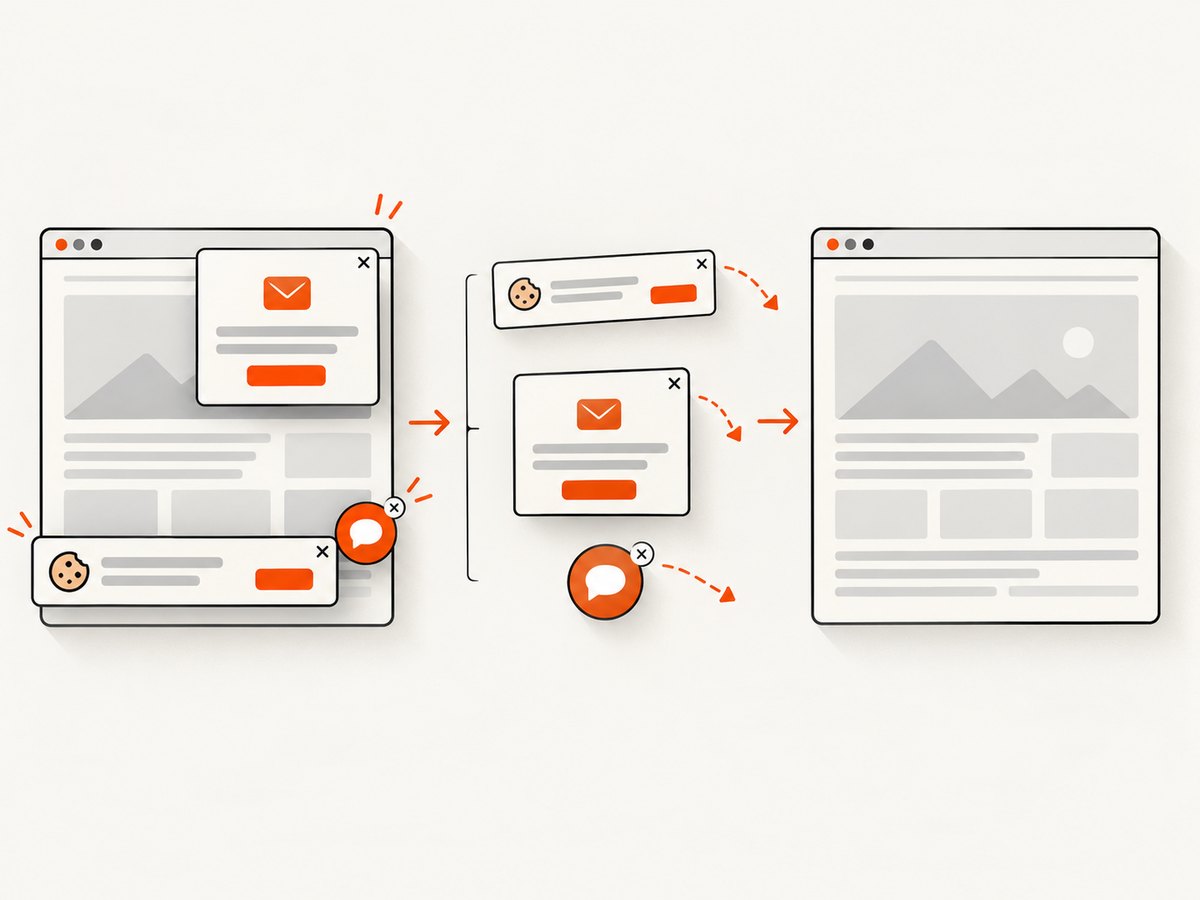
await fs.writeFile('shot.webp', Buffer.from(await res.arrayBuffer()));ScreenshotNeo can accept cookie and consent banners like a visitor and remove more than 60 known consent platforms, newsletter popups and chat widgets before capture. Each step can be turned off. Bot checks, blank pages, timeouts, failed loads and cache hits are not billed, and the response identifies the result with X-Page-Verdict and X-Billed headers. Its MCP server provides take_screenshot, get_page_info and capture_pdf tools for Claude, Cursor and other MCP clients.
You can capture a CSS-selected element, full pages with lazy images loaded, dark mode, custom viewports and retina scale, and use custom CSS or JavaScript, clicks, waits, blocked resources, headers, cookies, user agents, authorization, timezone and geolocation. Other options include PDF paper sizes and page ranges, transparent backgrounds, resizing, selectable cache TTLs, signed links, asynchronous jobs with signed webhooks, bulk capture for up to 100 URLs per call, a usage API and an OpenAPI specification.
Plans include 1,000 screenshots per month free with no card. Paid plans start at $5 for 3,000 screenshots; yearly billing gives two months free, and every feature is available on every plan. Create a free ScreenshotNeo account to get started.
FAQ
Is RasterFormatException always caused by Selenium?
No. It is a Java image-raster exception. The stack trace can point to your crop code, an image construction operation or Selenium’s screenshot command. Inspect the exact line and message.
Should I clamp an out-of-range rectangle?
Usually no. Clamping hides the coordinate-space error and returns a partial image. Fix scrolling, viewport coordinates or pixel scaling, then validate the complete rectangle.
Does full-page capture eliminate the problem?
It can remove the viewport-versus-page mismatch, but only if the resulting raster really contains the element and its dimensions use the same scale. Validate the decoded image anyway.
Which Selenium output type is best for an upload?
BYTES avoids temporary-file lifecycle issues. Use FILE when an existing library requires a path and copy it immediately.
What should I include in a bug report?
Include the complete stack trace, failing line, Selenium and Java versions, browser and driver versions, operating system, viewport and device scale settings, target URL, selector and a minimal reproducer.


