How to Fix Selenium RC XPath Problems in HTML Tables
Repair Selenium RC table locators by inspecting the rendered DOM, using stable XPath relationships, handling legacy engine quirks, and planning a WebDriver migration.
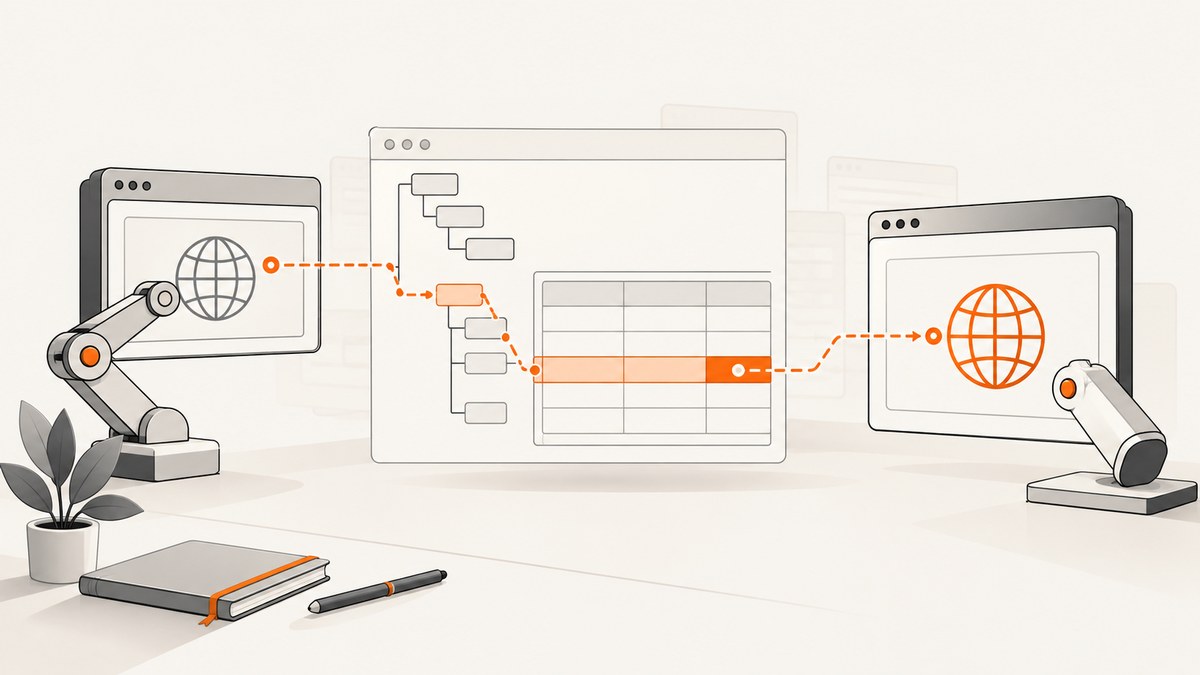
Selenium RC table failures usually come from one of four causes: the XPath describes a different DOM than the browser rendered, row or cell positions changed, the table is not ready when the command runs, or an expression depended on Selenium 1’s XPath engine and no longer works after a WebDriver migration. The practical fix is to inspect the rendered DOM at the moment of failure, identify a stable table, and express the relationship as table → row → cell.
Selenium RC means Selenium 1. The Selenium Project’s legacy documentation says that Selenium 1 is no longer supported, so the techniques here are maintenance guidance for an existing suite. For new automation, migrate toward WebDriver while keeping a small, verified RC compatibility layer only as long as your release process requires it. Selenium RC documentation
1. Confirm what Selenium is actually locating
Before changing an XPath, inspect the live DOM in the browser used by the test. “View source” shows the original response; developer tools’ Elements panel shows the parsed and mutated DOM after scripts, templates, redirects, and browser normalization have run. A table that appears in the source can be replaced, nested, or populated later.
- Pause the test immediately before the failing command, or add a temporary breakpoint.
- In developer tools, search for the table, row text, column heading, or a distinctive attribute.
- Check whether the target is inside an iframe, shadow root, modal, or virtualized component.
- Expand the table and count actual
tr,th, andtdelements. Header rows, hidden rows, nested tables, and generated rows alter positions. - Run the candidate XPath in the browser console with
$x("...")where supported. Confirm the returned node is the same element a user sees.
If the table is inside an iframe, switch to that frame before using the locator. If it is in a shadow DOM, an XPath evaluated from the document will not cross the shadow boundary; use the component’s supported JavaScript or WebDriver shadow-root APIs during migration.
2. Build the locator from table to row to cell
Start with the narrowest stable table identity. An id is usually preferable, followed by a meaningful class or a relationship to a unique heading. The Selenium RC Java API reference gives this positional shape:
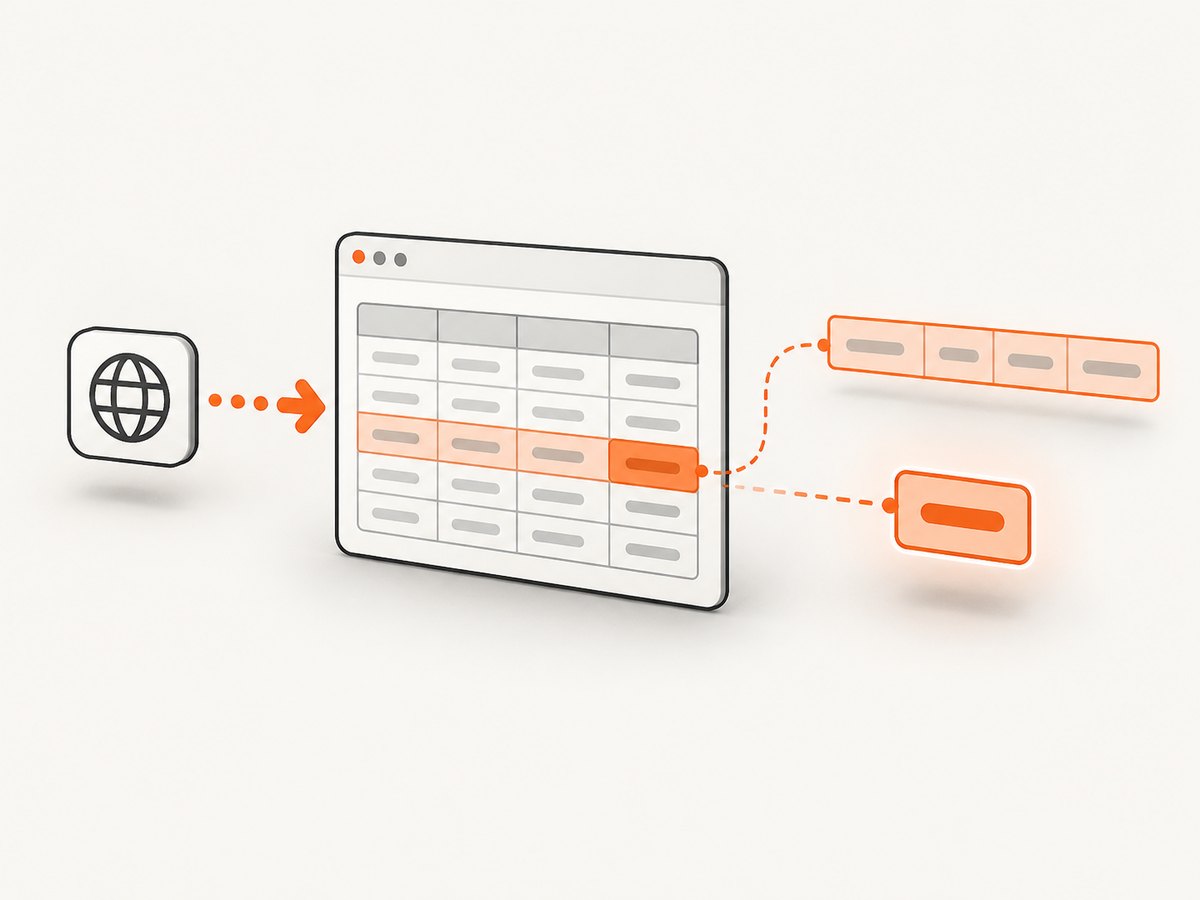
xpath=//table[@id='table1']//tr[4]/td[2]This means the fourth matching row under table1, then its second td. It is correct only when the row and column order is stable. A header row, sorting operation, pagination control, nested table, or inserted status row can make the same expression select a different cell.
Prefer semantic predicates over naked positions
When a row has a stable key, identify it by text or an attribute, then select a cell relative to that row:
//table[@id='orders']//tr[td[normalize-space()='ORD-1042']]/td[@data-column='status']If the markup has no useful data attribute, use a cell position inside the identified row:
//table[@id='orders']//tr[td[normalize-space()='ORD-1042']]/td[4]Use normalize-space() when indentation or line breaks may surround the text. Use contains() only when partial text is genuinely stable; broad partial matches can select the wrong row.
Relate a data row to a heading
The RC API reference describes the concept of locating a header by its text, moving to its containing row, and then selecting a data cell. Adapt the exact expression to the page’s markup:
//table[contains(concat(' ', normalize-space(@class), ' '), ' results ')]//tr[th[normalize-space()='Email']]/td[1]This example assumes the target row itself contains a th. If the heading is a separate header row, determine the column index first and then use that index for the data row. Do not assume that a visual column is always the same DOM index: a row-spanning cell can change the count.
Useful XPath relationships for tables
| Need | Example | Caution |
|---|---|---|
| Stable table ID | //table[@id='table1'] |
IDs must be unique in the rendered DOM. |
| Exact cell text | //td[normalize-space()='Paid'] |
May match several tables; scope it to a table. |
| Row containing a key | //tr[td[normalize-space()='ORD-1042']] |
Duplicate keys produce multiple rows. |
| Cell in a known row | //tr[td[normalize-space()='ORD-1042']]/td[4] |
Column order must be stable. |
| Attribute token | contains(concat(' ',normalize-space(@class),' '),' results ') |
Avoid matching a substring of another class. |
| Descendant rows | //table[@id='t']//tr |
Nested tables can add unwanted rows. |
Use a direct child path such as /tbody/tr only when the markup is known and consistent. Browsers may insert a tbody element into a table even when the source omitted it; //tr is often more tolerant, but it can include nested tables. Choose the narrowest expression that matches the actual DOM.
3. Complete Selenium RC examples
The following Java example uses the legacy RC client style. Keep the table ID and row key aligned with your application, and close the session in a finally block.
import com.thoughtworks.selenium.DefaultSelenium;
import com.thoughtworks.selenium.Selenium;

public class LegacyTableCheck {
  public static void main(String[] args) {
    Selenium selenium = new DefaultSelenium("localhost", 4444, "*firefox", "https://example.test");
    try {
      selenium.start();
      selenium.open("/orders");
      selenium.waitForPageToLoad("15000");

      String row = "//table[@id='orders']//tr[td[normalize-space()='ORD-1042']]";
      String statusCell = row + "/td[@data-column='status']";

      selenium.waitForElementPresent("xpath=" + statusCell);
      String status = selenium.getText("xpath=" + statusCell).trim();
      if (!"Paid".equals(status)) {
        throw new AssertionError("Expected Paid, got: " + status);
      }
    } finally {
      selenium.stop();
    }
  }
}
For a stable positional table, the corresponding RC command is:
String value = selenium.getText("xpath=//table[@id='table1']//tr[4]/td[2]");Use waitForElementPresent for the specific cell or row that proves the table is ready. A generic page-load wait does not guarantee that an AJAX request has inserted the rows.
4. Distinguish a bad XPath from an RC-to-WebDriver incompatibility
The Selenium migration guide explains that Selenium 1 commonly used a bundled XPath library, while WebDriver generally delegates XPath evaluation to native browser methods. Consequently, a complex expression that worked in Selenium 1 can fail after migration on some browsers. This does not prove that the original XPath was valid for every runtime; it means the engine and DOM implementation changed. Read the official migration guide.
Use this diagnostic split:
- Zero matches in both RC and WebDriver: inspect the rendered DOM, frame context, namespaces, timing, and table identity.
- RC matches but WebDriver fails: simplify the expression, remove unsupported or unnecessarily complex functions, and validate it in the target browser. Check whether the DOM changed during migration.
- Both match but the value is wrong: examine header rows, nested tables, duplicate keys, hidden rows, sorting, and pagination.
- Intermittent matches: wait for the row or a business condition, not an arbitrary sleep. Capture the DOM or a screenshot on failure.
The migration documentation recommends a piecemeal transition. In Java, a team can initially wrap a WebDriver instance with WebDriverBackedSelenium, then replace RC calls as each test is edited. This keeps the suite runnable while you validate browser behavior and locator changes incrementally.
5. Timing, dynamic tables, and state
Wait for the next useful condition
For server-rendered tables, wait for the table or target row. For client-rendered tables, wait for a row key, a non-loading marker to disappear, or a cell’s expected value. Selenium RC’s fixed timeout commands are coarse; where possible, poll for the exact element.
// RC-style sequence
selenium.waitForElementPresent("xpath=//table[@id='orders']");
selenium.waitForElementPresent("xpath=//table[@id='orders']//tr[td[normalize-space()='ORD-1042']]");
A delay can be a last resort for an unobservable legacy widget, but it increases runtime and still fails under load. Prefer an application state signal such as a “loaded” class, row count, or a request-complete condition.
Pagination and virtualized rows
If the target row is on another page, locate and click the pagination control, wait for the old row to disappear or the new page marker to change, then locate the row again. Virtualized grids may only create rows near the scroll position; scroll the container and wait for the row to enter the DOM. A locator cannot find a row the application has not rendered.
Frames, overlays, and duplicate tables
Switch into the correct iframe before evaluating XPath. Close or wait for overlays that intercept clicks. Scope the XPath to a dialog or panel when the page contains both a hidden template table and a visible table with similar IDs or classes.
6. Legacy browser and markup quirks
The Selenium RC documentation records an Internet Explorer style-attribute case where uppercase property spelling is needed for the illustrated locator, such as BACKGROUND-COLOR. Treat this as a narrow historical workaround for that browser and expression, not a universal XPath rule. First confirm that the failing locator actually depends on a style attribute, then test the spelling in the exact RC and IE combination you still support. See the RC legacy notes.
Other brittle patterns include matching generated class names, relying on browser-specific serialization of attributes, and using absolute paths such as /html/body/table[2]/tr[7]/td[3]. Replace them with stable IDs, data attributes, visible keys, and scoped relationships whenever the application can be changed.
7. Troubleshooting checklist
| Symptom | Likely cause | Fix |
|---|---|---|
| “Element not found” immediately | Wrong table, frame, or DOM state | Inspect Elements, switch frame, and test the XPath with $x(). |
| Works manually, fails in RC | Rows load after the command | Wait for the target row or a table-ready condition. |
| Fourth row changed | Header, sorting, pagination, or inserted row | Identify the row by a stable cell value or attribute. |
| Wrong cell returned | Nested table or colspan/rowspan | Scope descendants, inspect the actual cell structure, and avoid visual assumptions. |
| RC works, WebDriver fails | XPath engine changed | Simplify the XPath and validate it in each target browser. |
| Click intercepted | Overlay or consent dialog | Wait for the overlay to close or dismiss it before locating the cell/control. |
| Text comparison fails | Whitespace, nonbreaking spaces, or formatting nodes | Use normalize-space(), inspect the raw text, and compare normalized values. |
| IE-only failure | Legacy attribute or style behavior | Check the RC IE-specific documentation and keep the workaround narrowly scoped. |
8. Capture evidence when a locator fails
A failure artifact should include the URL, browser, test data, XPath, current frame, and a screenshot or DOM snapshot. Record whether the table existed, how many rows matched, and which text was observed. This distinguishes a locator defect from a timing or environment defect and makes intermittent failures actionable.
9. Or skip the browser setup
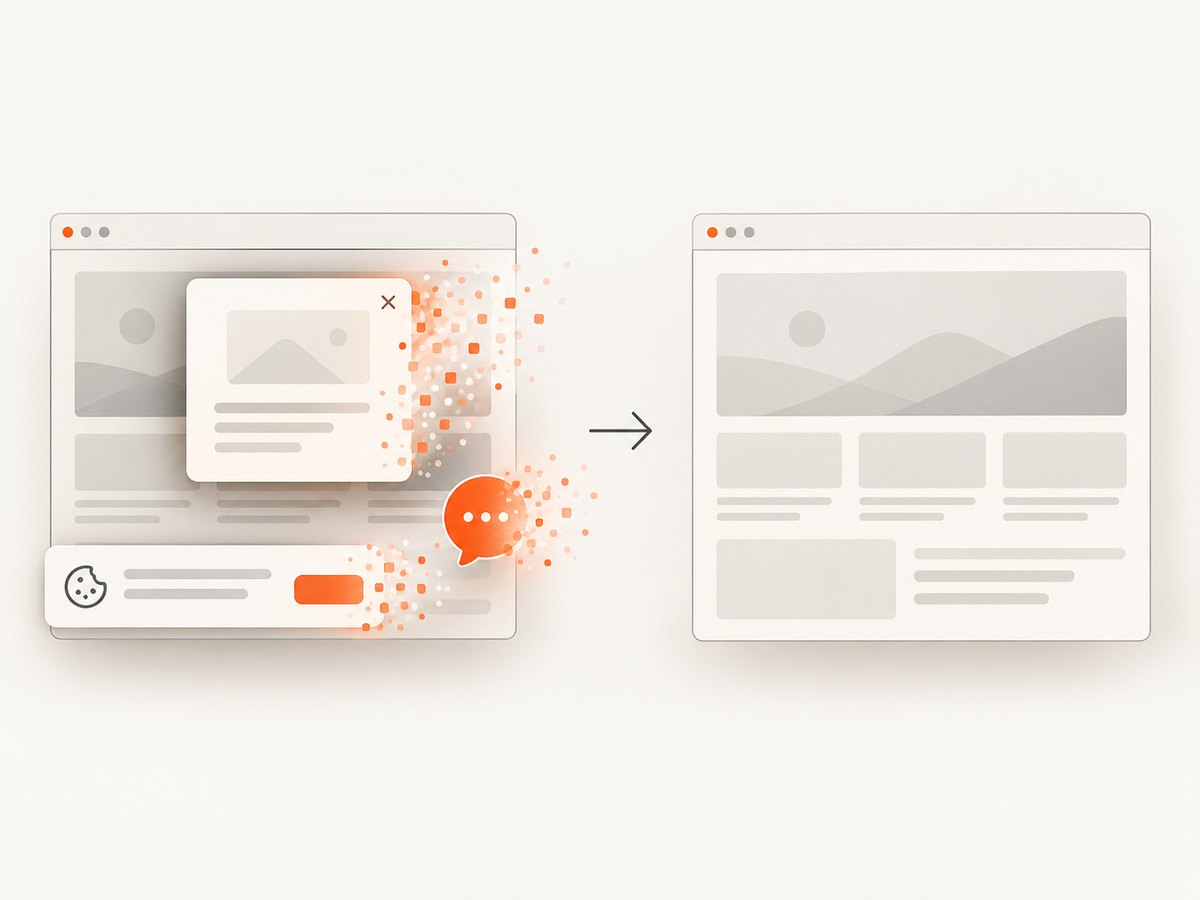
If your goal is to document a table, compare rendered states, or capture evidence from a URL rather than drive a legacy browser session, ScreenshotNeo provides a website screenshot API. It accepts one GET request and returns PNG, JPEG, WebP, or PDF. Cookie and consent banners are accepted and 60+ known consent platforms, newsletter popups, and chat widgets are removed before capture; each step can be turned off. Bot checks, CAPTCHAs, blank pages, timeouts, failed loads, and cache hits are not billed, and the response reports the result with X-Page-Verdict and X-Billed headers.
See the ScreenshotNeo documentation for the full option set. The API supports full-page captures with lazy images loaded, CSS-selector element captures, dark mode, device presets or custom viewports, retina scale, PDF paper size and margins, custom CSS and JavaScript, clicks, selector or network-idle waits, request and resource blocking, headers, cookies, user agents, authorization, timezone, geolocation, transparent backgrounds, resizing, configurable-TTL caching, signed image links, asynchronous jobs with signed webhooks, bulk capture of up to 100 URLs per call, a usage API, and an OpenAPI specification. Its parameter names are compatible with names used by other screenshot APIs, which helps when switching.
curl -G "https://api.screenshotneo.com/v1/shot" -d access_key=YOUR_API_KEY --data-urlencode url=https://stripe.com -o shot.webpimport requests
r = requests.get("https://api.screenshotneo.com/v1/shot", params={"access_key": "YOUR_API_KEY", "url": "https://stripe.com"}, timeout=90)
open("shot.webp", "wb").write(r.content)const q = new URLSearchParams({ access_key: 'YOUR_API_KEY', url: 'https://stripe.com' });
const res = await fetch(`https://api.screenshotneo.com/v1/shot?${q}`);ScreenshotNeo also includes an MCP server with take_screenshot, get_page_info, and capture_pdf tools for Claude, Cursor, and other MCP clients. The Free plan includes 1,000 shots per month with no card; paid plans start at $5 for 3,000 shots. Create an account at ScreenshotNeo’s free sign-up.
10. Performance, reliability, and cost considerations
- Locator performance: scope XPath to a unique table before applying text predicates. Broad
//searches across a large DOM are slower and more likely to match duplicates. - Suite reliability: replace row numbers with business keys, wait on observable state, and keep browser-specific workarounds isolated.
- Migration cost: a piecemeal WebDriver transition reduces the risk of rewriting every test at once, but each migrated locator must be checked against the browsers you support.
- Capture cost: ScreenshotNeo bills only clean shots; failed loads, bot checks, blank pages, timeouts, and cache hits are free. Choose caching TTLs and asynchronous jobs when repeated or long-running captures are involved.
- Evidence volume: capture screenshots only on failure or at important state transitions to keep artifacts manageable. Bulk capture can process up to 100 URLs per call when a review requires many pages.
FAQ
Is Selenium RC still supported?
No. Selenium’s legacy documentation states that Selenium 1 is no longer supported. Keep RC-specific fixes for maintaining an existing suite and plan a WebDriver migration.
Should I always use //table//tr[4]/td[2]?
No. It is suitable only when row and column order are stable. Prefer a table identity and a row predicate based on a stable key.
Why did the same XPath stop working after migration?
Selenium 1 commonly used a bundled XPath library, while WebDriver generally uses browser-native methods. Complex expressions can therefore behave differently on some browsers.
Can XPath find rows that are not rendered yet?
No. Wait for the application to create the row, switch into the correct frame, or scroll a virtualized grid so the row enters the DOM.
When is a screenshot useful for this problem?
Use one when the failure may involve timing, overlays, consent dialogs, or browser-specific rendering. Pair it with the URL, XPath, frame, and observed row count so the artifact explains the failure.


