How to Fix Python Selenium Repeating the Same Element Screenshot in a Loop
Fix repeated Selenium screenshots by changing browser state, waiting for the transition, re-locating elements, and saving unique filenames.
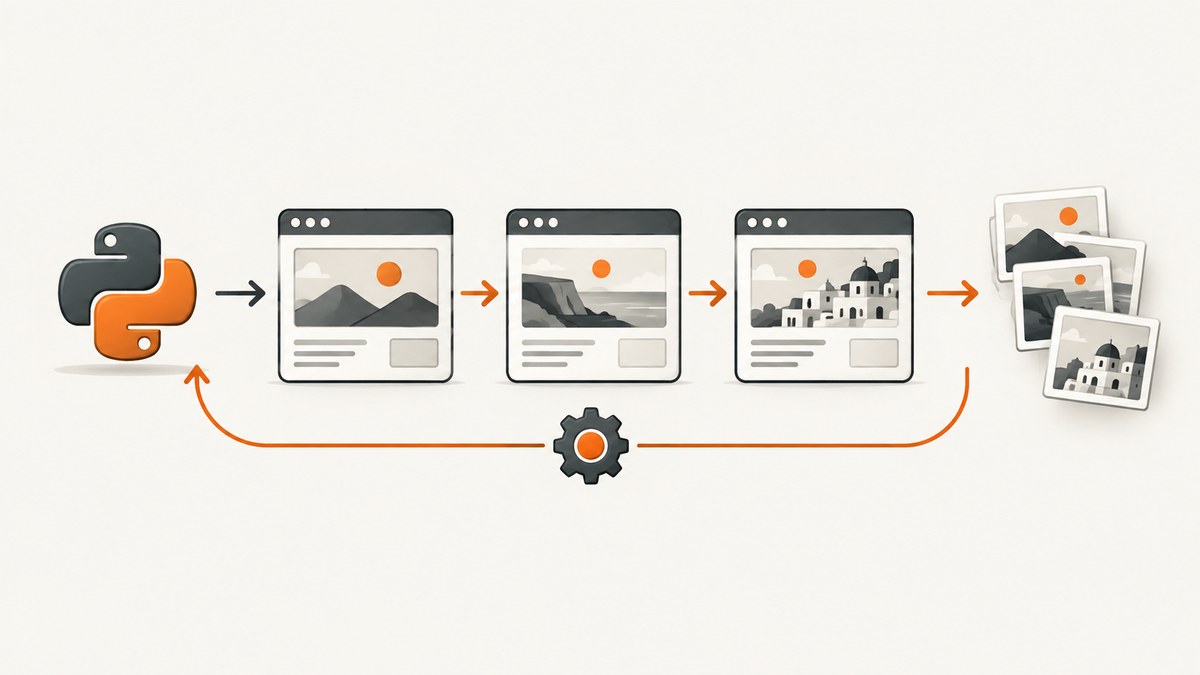
Direct fix: a loop counter alone does not change what Selenium sees. Each iteration must perform the state change that selects the next item, wait for that change to finish, locate the current element again, and write to a filename that cannot be reused.
from pathlib import Path

from selenium import webdriver
from selenium.webdriver.common.by import By
from selenium.webdriver.support.ui import WebDriverWait
from selenium.webdriver.support import expected_conditions as EC


driver = webdriver.Chrome()
wait = WebDriverWait(driver, 10)
out = Path("screenshots")
out.mkdir(exist_ok=True)

try:
    driver.get("https://example.com/products")

    # Keep the locator, not WebElement objects, for reuse after DOM updates.
    item_locator = (By.CSS_SELECTOR, ".item")
    items = driver.find_elements(*item_locator)

    for index in range(len(items)):
        # Locate the current node after any navigation, click, refresh, or update.
        current = wait.until(
            EC.visibility_of_element_located(
                (By.CSS_SELECTOR, f".item:nth-of-type({index + 1})")
            )
        )

        driver.execute_script(
            "arguments[0].scrollIntoView({block: 'center'});", current
        )
        current.screenshot(str(out / f"item-{index:03d}.png"))
finally:
    driver.quit()
1. Understand why the same image is saved
Selenium captures the current browser window or the element represented by the current WebElement. It does not infer that index means “show the next item.” Repeated output usually comes from one of six causes:
- Browser state never changes. The URL, selected tab, modal, pagination page, or component remains the same.
- An element was cached too early. A refresh or JavaScript framework replacement makes the old reference stale, or leaves you operating on an object from an earlier state.
- The selector always finds the first match.
find_elementreturns one match. A changing loop variable has no effect unless it appears in the locator or the interaction. - Rendering is asynchronous. The screenshot runs before the new content, image, or selected state appears.
- The output path is reused. Every capture overwrites the same file.
- The capture scope is wrong.
driver.save_screenshot()captures the window, whileelement.screenshot()captures the located element.
Before each capture, log the loop index, target text or identifier, current URL, and output path. If those values do not change when expected, the screenshot code is only exposing an earlier state problem.
2. Choose the correct loop pattern
Capture every element without navigation
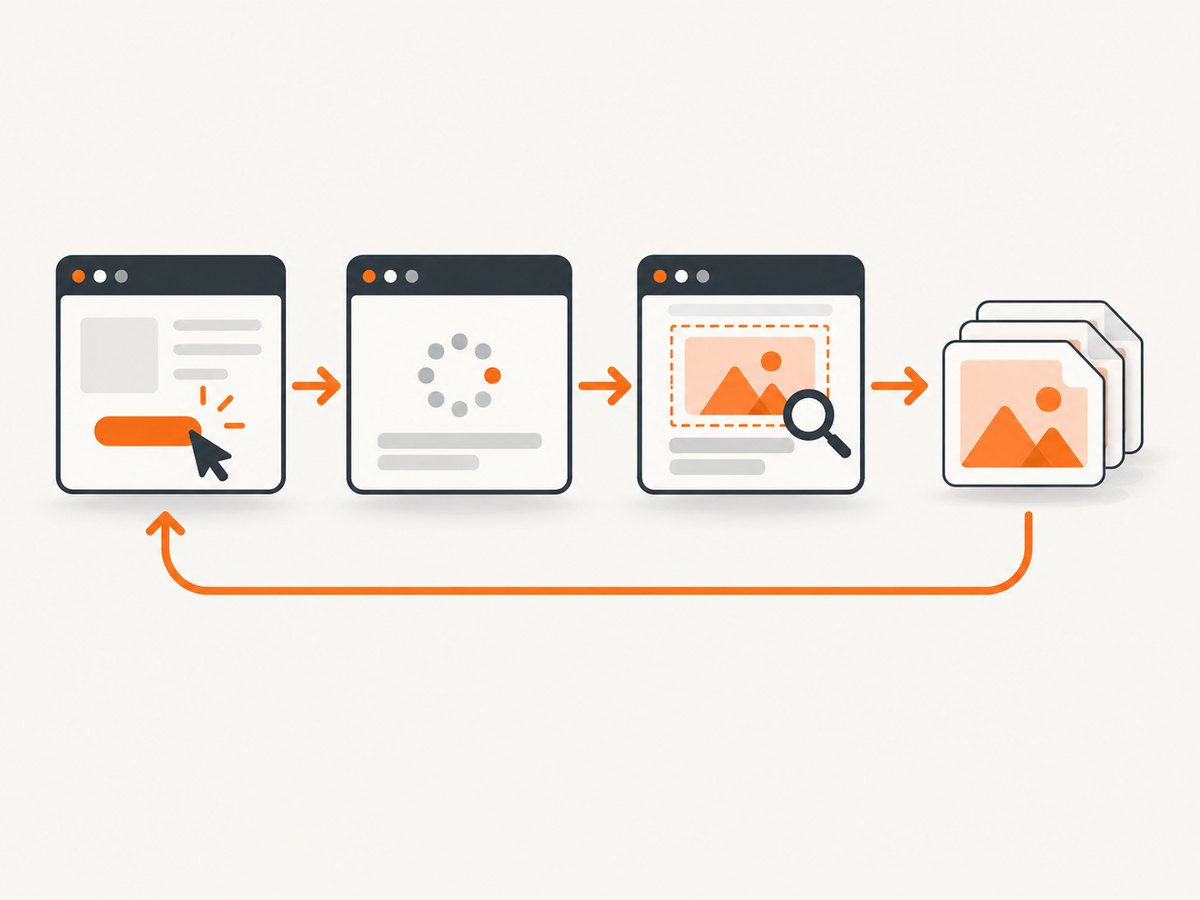
Use a stable attribute when possible. Positional selectors such as :nth-of-type() can change when advertisements, headers, or other nodes are inserted.
from pathlib import Path
from selenium.webdriver.common.by import By
from selenium.webdriver.support.ui import WebDriverWait
from selenium.webdriver.support import expected_conditions as EC

wait = WebDriverWait(driver, 10)
out = Path("screenshots")
out.mkdir(exist_ok=True)

# Read stable identifiers first, then locate each item by identifier.
ids = [
    element.get_attribute("data-id")
    for element in driver.find_elements(By.CSS_SELECTOR, ".item[data-id]")
]

for index, item_id in enumerate(ids):
    locator = (By.CSS_SELECTOR, f'.item[data-id="{item_id}"]')
    element = wait.until(EC.visibility_of_element_located(locator))
    element.screenshot(str(out / f"item-{item_id}-{index:03d}.png"))
Click each item, wait for a detail view, then capture
Perform the action before locating the detail element. Wait on a signal that proves the transition completed: a URL change, a heading, a spinner disappearing, or the old node becoming stale.
from pathlib import Path
from selenium.webdriver.common.by import By
from selenium.webdriver.support.ui import WebDriverWait
from selenium.webdriver.support import expected_conditions as EC

wait = WebDriverWait(driver, 15)
out = Path("details")
out.mkdir(exist_ok=True)

cards = driver.find_elements(By.CSS_SELECTOR, ".product-card")
for index in range(len(cards)):
    # Re-find the card because the previous iteration may have changed the DOM.
    card = wait.until(EC.element_to_be_clickable(
        (By.CSS_SELECTOR, f".product-card:nth-of-type({index + 1})")
    ))
    name = card.get_attribute("data-name") or f"product-{index:03d}"
    old_heading = driver.find_element(By.CSS_SELECTOR, "h1")
    card.click()

    wait.until(EC.staleness_of(old_heading))
    heading = wait.until(EC.visibility_of_element_located((By.CSS_SELECTOR, "h1")))
    safe_name = "".join(c if c.isalnum() or c in "-_" else "_" for c in name)
    heading.screenshot(str(out / f"{index:03d}-{safe_name}.png"))

    driver.back()
    wait.until(EC.visibility_of_element_located(
        (By.CSS_SELECTOR, ".product-card")
    ))
Paginate or select a tab
When the next item is on another page or tab, wait for the old state to disappear and the new state to appear. Do not assume that a click has finished because the command returned.
from selenium.webdriver.common.by import By
from selenium.webdriver.support import expected_conditions as EC

for page_number in range(1, 4):
    old_marker = wait.until(EC.visibility_of_element_located(
        (By.CSS_SELECTOR, ".results[data-page]")
    ))
    old_page = old_marker.get_attribute("data-page")

    page_items = wait.until(EC.visibility_of_all_elements_located(
        (By.CSS_SELECTOR, ".result-card")
    ))
    for item_index in range(len(page_items)):
        item = wait.until(EC.visibility_of_element_located(
            (By.CSS_SELECTOR, f".result-card:nth-of-type({item_index + 1})")
        ))
        item.screenshot(f"screenshots/page-{page_number:02d}-item-{item_index:03d}.png")

    if page_number < 3:
        driver.find_element(By.CSS_SELECTOR, "button.next").click()
        wait.until(lambda d: d.find_element(
            By.CSS_SELECTOR, ".results[data-page]"
        ).get_attribute("data-page") != old_page)
3. Synchronize with explicit waits
Selenium describes explicit waits as polling for a specific condition before continuing. Select a condition tied to the transition you need:
| Situation | Condition |
|---|---|
| Element was inserted and can be seen | visibility_of_element_located |
| Button can be used | element_to_be_clickable |
| New text identifies the selected item | text_to_be_present_in_element |
| Navigation finished | url_contains or url_to_be |
| Old framework node was replaced | staleness_of(old_element) |
| Loading indicator finished | invisibility_of_element_located |
Prefer a condition over time.sleep(). A fixed sleep may be too short on a slow run and wastes time on a fast run. Avoid mixing implicit and explicit waits because their polling delays can interact unpredictably.
# Wait for a selected identifier, not an arbitrary delay.
wait.until(EC.text_to_be_present_in_element(
    (By.CSS_SELECTOR, ".selected-item"),
    expected_label,
))

# Wait until a loading overlay no longer blocks the target.
wait.until(EC.invisibility_of_element_located(
    (By.CSS_SELECTOR, ".loading-overlay")
))
4. Handle stale elements correctly
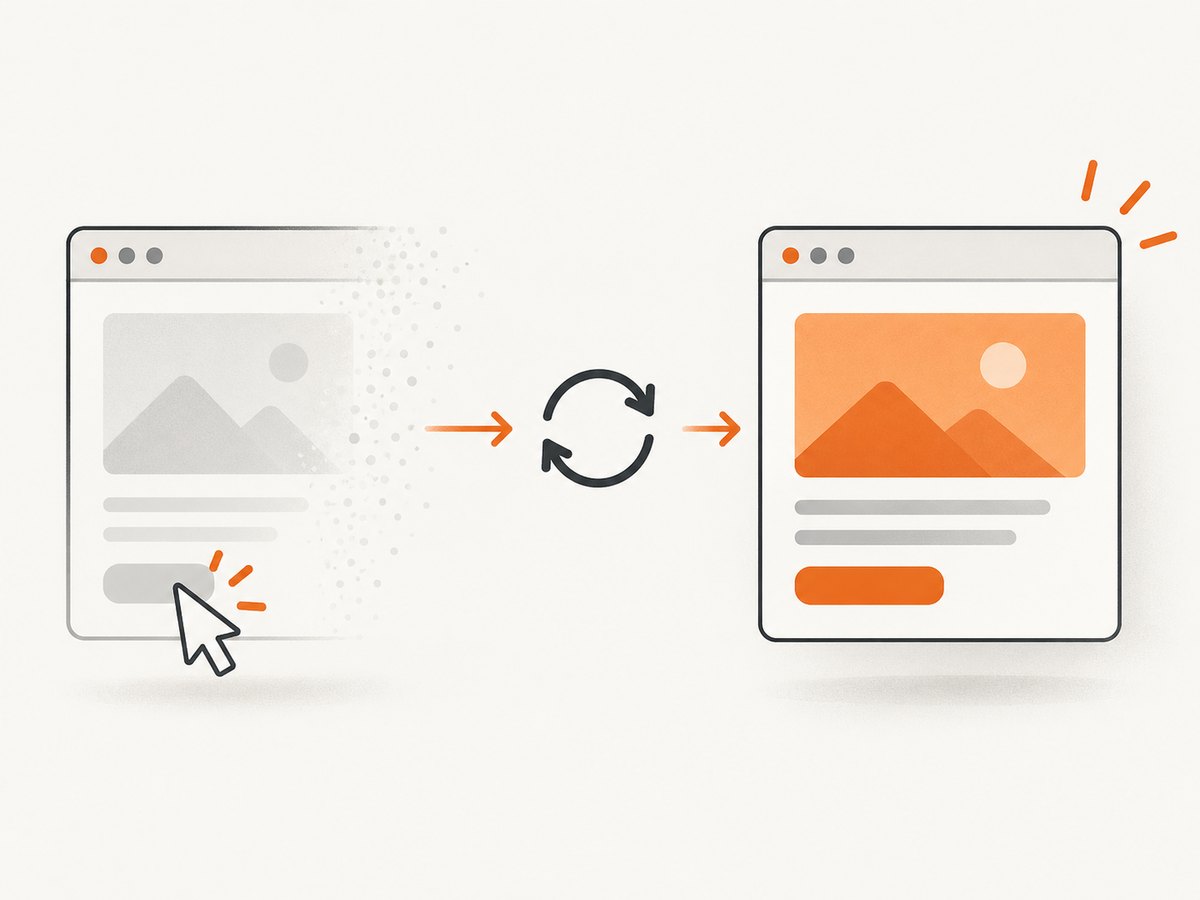
StaleElementReferenceException means the element is no longer attached to the DOM. Refreshes and JavaScript frameworks that remove and re-add nodes commonly cause it. Keep locator tuples and call find_element inside the loop.
from selenium.common.exceptions import StaleElementReferenceException

locator = (By.CSS_SELECTOR, ".item[data-id='42']")
for attempt in range(3):
    try:
        element = wait.until(EC.visibility_of_element_located(locator))
        element.screenshot("screenshots/item-42.png")
        break
    except StaleElementReferenceException:
        if attempt == 2:
            raise
        # The next iteration re-locates the replacement node.
        continue
Use staleness_of when the old node's disappearance is the proof that replacement has happened. Do not catch stale exceptions broadly and continue forever; a bounded retry exposes a real page or locator problem.
5. Capture the intended scope
driver.save_screenshot(path)captures the current browser viewport.element.screenshot(path)captures the located element.- For a full page, scroll or use the browser's full-page capability deliberately; an element loop does not create full-page images automatically.
# Window screenshot
Path("screenshots").mkdir(exist_ok=True)
driver.save_screenshot("screenshots/window.png")

# Element screenshot
card = wait.until(EC.visibility_of_element_located((By.CSS_SELECTOR, ".card")))
card.screenshot("screenshots/card.png")
6. Make filenames unique and verifiable
Include an index plus a stable business identifier when available. Check that the path changes and that a file exists after each write.
from pathlib import Path

path = Path("screenshots") / f"item-{index:03d}-{item_id}.png"
element.screenshot(str(path))
if not path.is_file() or path.stat().st_size == 0:
    raise RuntimeError(f"Screenshot was not written: {path}")
Sanitize identifiers before putting them in filenames. Also check that the output directory is writable and that different normalized names are not collapsing to the same path.
7. Debug a loop that still repeats
def describe(element):
    return {
        "text": element.text[:100],
        "data_id": element.get_attribute("data-id"),
        "url": driver.current_url,
    }

for index in range(expected_count):
    element = wait.until(EC.visibility_of_element_located(
        (By.CSS_SELECTOR, f".item:nth-of-type({index + 1})")
    ))
    path = Path("screenshots") / f"item-{index:03d}.png"
    print({"index": index, "target": describe(element), "path": str(path)})
    element.screenshot(str(path))
Compare the printed values:
- If the text, identifier, and URL never change, add the missing click, navigation, selection, or pagination action.
- If the identifier changes but the image does not, wait for the content inside the element to render or confirm that you are using the correct scope.
- If the path repeats, fix the filename construction before investigating Selenium.
- If locating fails after a frame change, switch into the correct iframe and return to default content before the next unrelated page.
8. Common errors and fixes
| Error or symptom | Likely cause | Fix |
|---|---|---|
| Every file looks identical | No browser state change or selector always targets the first node | Log target identity; use indexed or stable-attribute locators and perform the transition before capture |
StaleElementReferenceException |
Refresh or framework replacement detached the node | Wait for staleness, then locate again from a locator tuple |
NoSuchElementException |
Element is not yet present, wrong frame, or wrong selector | Use an explicit wait, inspect the selector, and switch to the correct iframe |
ElementClickInterceptedException |
Overlay, popup, or animation blocks the click | Wait for the overlay to disappear, then wait for clickability |
| Timeout waiting for a new page | Condition does not describe the actual transition | Wait for URL, heading, text, spinner disappearance, or staleness that really changes |
| Only the viewport is captured | Window screenshot used when an element or full-page capture was intended | Choose element.screenshot or an intentional full-page method |
| Files overwrite each other | Constant or sanitized-collision filename | Use an index and stable identifier, then verify paths |
9. Performance, reliability, and cost
Re-locating elements is usually cheaper than debugging corrupted output. Keep waits scoped to the transition, avoid repeated full-page screenshots when an element shot is enough, and capture only after the target is stable. Stable data attributes are generally more reliable than positional selectors when the DOM can reorder.
For large batches, record failures with the URL, item identifier, exception, and output path. Retry bounded transient failures, but preserve the original error after the retry limit. Keep browser and driver versions compatible, and close the driver in a finally block so a failed iteration does not leak a process.
Local Selenium uses your browser and machine resources. A hosted screenshot API can remove browser setup and provide a usage-based cost model. ScreenshotNeo has a free plan for 1,000 shots per month; paid plans start at $5 for 3,000 shots, with every feature on every plan.
10. Or skip the browser setup
ScreenshotNeo provides a GET-based website screenshot API. The request below returns an image for a URL; see the ScreenshotNeo API documentation for options such as element selectors, full-page capture, waits, custom JavaScript, headers, cookies, device presets, PDFs, caching, async jobs, and bulk capture.
cURL
curl -G "https://api.screenshotneo.com/v1/shot" \
  -d access_key=YOUR_API_KEY \
  --data-urlencode url=https://stripe.com \
  -o shot.webp
Python
import requests

r = requests.get(
    "https://api.screenshotneo.com/v1/shot",
    params={"access_key": "YOUR_API_KEY", "url": "https://stripe.com"},
    timeout=90,
)
r.raise_for_status()
open("shot.webp", "wb").write(r.content)
Node.js
const q = new URLSearchParams({ access_key: 'YOUR_API_KEY', url: 'https://stripe.com' });
const res = await fetch(`https://api.screenshotneo.com/v1/shot?${q}`);
if (!res.ok) throw new Error(`Screenshot failed: ${res.status}`);
const fs = await import('node:fs/promises');
await fs.writeFile('shot.webp', Buffer.from(await res.arrayBuffer()));
ScreenshotNeo removes cookie and consent banners, newsletter popups, and chat widgets before capture. Bot checks, blank pages, failed loads, timeouts, and cache hits are not billed, and response headers report the page verdict and billing result. Its MCP server lets Claude, Cursor, and other MCP clients call take_screenshot, get_page_info, and capture_pdf. Create a free account for 1,000 screenshots each month with no card; paid plans start at $5 for 3,000.
11. Practical checklist
- Does each iteration perform the action that selects a different item?
- Is the element located after navigation, refresh, click, or DOM replacement?
- Does the wait prove the specific transition completed?
- Are you using a stable attribute instead of an accidental first match?
- Are you in the correct iframe or window?
- Are you intentionally capturing the window or the element?
- Does every output path include a unique index or identifier?
- Do logs show a changing target, URL, and path?
- Are retries bounded and the driver always closed?
12. FAQ
Why does changing the Python index not change the screenshot?
Because Python variables do not alter browser state. Use the index in a locator, click the indexed item, navigate to the indexed URL, or select the indexed tab before waiting and capturing.
Should I store all WebElement objects before the loop?
Only when the DOM is guaranteed not to change. After navigation, refreshes, clicks, or framework updates, store locators and re-find the current element.
Is time.sleep(2) enough?
It can hide a race temporarily but does not prove that the required state exists. Wait for visibility, text, URL, clickability, staleness, or loading completion.
How do I capture an element inside an iframe?
Wait for and switch to the frame, locate and capture the element inside it, then call driver.switch_to.default_content() before working with the outer page.
Why is a detail screenshot still the old card?
The click may not have completed, the old node may still be present, or the code may be capturing a cached reference. Wait for a URL or heading change, old-node staleness, and a newly located detail element.


