How to Fix Selenium 3.0.1 SafariDriver waitForElementVisible Failures
Fix Selenium 3.0.1 SafariDriver visibility waits by checking native-driver compatibility, locator timing, frames, overlays, stale elements, and real interactability.
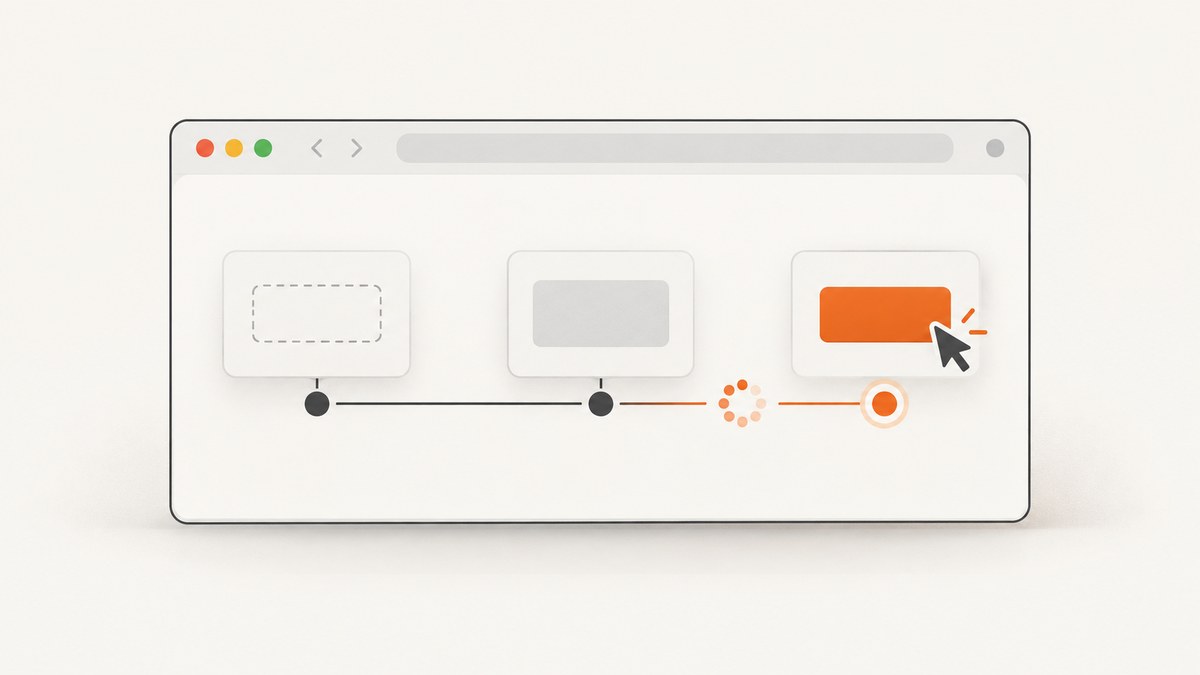
Short answer: Selenium 3.0.1 replaced the old SafariDriver browser extension with Apple’s native safaridriver. A waitForElementVisible() failure therefore needs two checks: first confirm that the test is using the supported native driver path, then verify that the element is actually visible and interactable at the moment Selenium polls it. An element can appear in a screenshot while still having zero dimensions, being covered by an overlay, living in another frame, or having been replaced in the DOM.
The most reliable repair is a locator-based explicit wait that re-finds the element on every poll. Keep implicit waits disabled while diagnosing the problem, switch into the correct frame before locating the element, and wait for the application state that makes the control usable rather than relying on a fixed sleep.
What changed in Selenium 3.0.1
Selenium’s JavaScript 3.0 release notes document the removal of the legacy SafariDriver browser extension and its replacement by Apple’s safaridriver, which is included with Safari 10. Safari 9 and older require an older Selenium version. Apple describes safaridriver as Safari’s WebDriver implementation. Read the Selenium 3.0 release information and Apple’s Safari WebDriver documentation when checking a legacy environment.
| Check | Failure pattern | What to do |
|---|---|---|
| Driver path | Session starts with an old extension configuration or does not start consistently | Use Apple’s native safaridriver path supported by your Safari and macOS versions; remove legacy extension assumptions. |
| Locator timing | Element is found before rendering finishes | Use an explicit wait with a locator, not a cached element or a sleep. |
| Visibility | Element exists but is hidden or has zero width/height | Wait for visibility, then check the state needed for the next action. |
| Obstruction | Screenshot shows the control but clicks fail | Wait for a consent banner, spinner, modal, or other overlay to disappear. |
| Document context | Locator works in one page but times out in another | Switch to the correct iframe and verify the current window or tab. |
| DOM replacement | Intermittent stale-element errors | Re-locate inside the wait and immediately before interaction. |
How Selenium decides that an element is visible
Presence means that a matching node exists in the current DOM. Visibility is stricter: Selenium’s expected condition checks that the element is displayed and has a non-zero size. That still does not guarantee that a user can click it. A transparent layer may cover it, CSS transitions may still be moving it, the control may be disabled, or the browser may be scrolled to a position where another element intercepts the pointer.
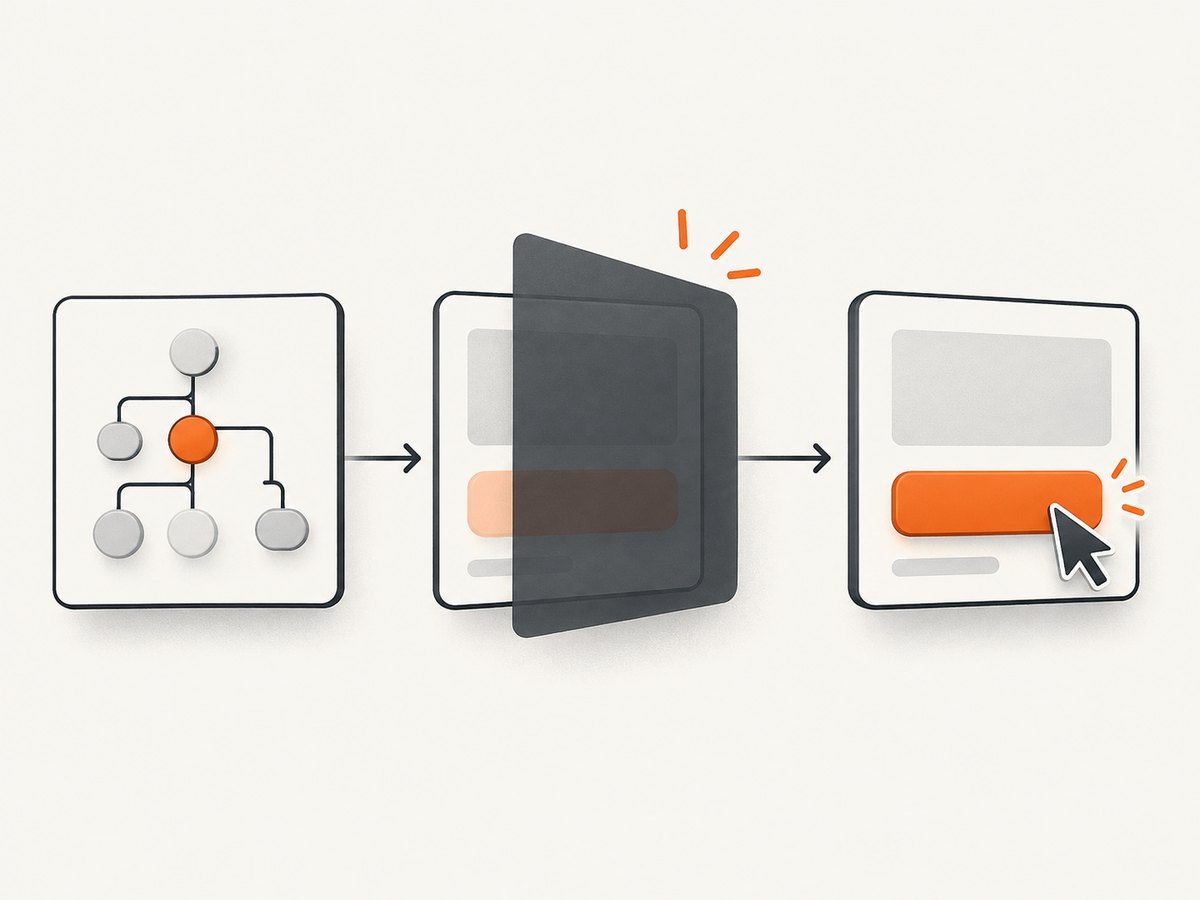
This explains the historical report in which a screenshot showed the element while SafariDriver still failed waitForElementVisible(). The image proves that pixels were eventually painted; it does not prove that the exact poll saw a visible element in the same frame, with usable dimensions and no obstruction. Treat that report as a timing and semantics clue rather than a universal Safari bug.
A repair sequence that works for most cases
- Record the environment. Write down Safari, macOS, Selenium binding and version, the locator, the full exception, and whether the test passes in another browser.
- Confirm the native driver. Selenium 3.0.1 is designed for Apple’s native
safaridriverpath. Do not configure the retired Safari extension for this release. - Simplify the locator. Prefer a stable ID, data attribute, or short CSS selector. Verify that it matches exactly one element in the current document.
- Check frame and window context. If the element is inside an iframe, switch into that frame before locating it. If a new tab opened, switch to its window handle.
- Use a locator-based explicit wait. Re-finding by locator on each poll avoids stale references created during rendering.
- Wait for the real readiness state. If a spinner or consent layer blocks the control, wait for that obstruction to disappear or for the control to become clickable.
- Keep waits predictable. Disable implicit waits during diagnosis. Selenium’s waiting guidance warns that mixing implicit and explicit waits can produce unpredictable total durations; see the Waiting Strategies documentation.
Complete Java example for Selenium 3.0.1
The following example uses the native Safari driver, a stable CSS locator, and Selenium’s documented visibilityOfElementLocated pattern. It locates the element again on every poll.
import java.time.Duration;
import org.openqa.selenium.By;
import org.openqa.selenium.WebDriver;
import org.openqa.selenium.WebElement;
import org.openqa.selenium.safari.SafariDriver;
import org.openqa.selenium.support.ui.ExpectedConditions;
import org.openqa.selenium.support.ui.WebDriverWait;

public class SafariVisibilityCheck {
    public static void main(String[] args) {
        WebDriver driver = new SafariDriver();
        try {
            driver.get("https://example.com/account");

            By submit = By.cssSelector("button[data-test='submit']");
            WebDriverWait wait = new WebDriverWait(driver, 10);
            WebElement button = wait.until(
                ExpectedConditions.visibilityOfElementLocated(submit));

            // Visibility is not the same as clickability.
            wait.until(ExpectedConditions.elementToBeClickable(submit)).click();
        } finally {
            driver.quit();
        }
    }
}
If your Selenium 3.0.1 binding does not expose Java’s newer duration constructor, use the binding’s compatible timeout constructor, for example new WebDriverWait(driver, 10). Keep the expected condition locator-based.
Python equivalent
from selenium import webdriver
from selenium.webdriver.common.by import By
from selenium.webdriver.support.ui import WebDriverWait
from selenium.webdriver.support import expected_conditions as EC

 driver = webdriver.Safari()
try:
    driver.get("https://example.com/account")
    locator = (By.CSS_SELECTOR, "button[data-test='submit']")
    wait = WebDriverWait(driver, 10)
    wait.until(EC.visibility_of_element_located(locator))
    wait.until(EC.element_to_be_clickable(locator)).click()
finally:
    driver.quit()
For Python, avoid storing element = driver.find_element(...) before the page finishes rendering. A framework rerender can invalidate that object and produce a stale-element exception.
Presence, visibility, and interactability diagnostics
Use the weakest condition that matches your next action, then add the missing condition when the test demonstrates it needs one.
| Need | Condition | Typical reason |
|---|---|---|
| Node exists | presenceOfElementLocated |
Useful for reading attributes from an element that may not be painted yet. |
| Visible pixels | visibilityOfElementLocated |
Requires displayed state and non-zero dimensions. |
| Usable click | elementToBeClickable |
Checks visibility and enabled state, but an overlay can still intercept a pointer. |
| Application ready | Custom condition | Wait for a loading flag, overlay removal, completed transition, or a specific attribute. |
When a control is covered, wait for the covering selector to become invisible before waiting for the control:
By overlay = By.cssSelector(".loading-overlay");
By action = By.cssSelector("button[data-test='submit']");
wait.until(ExpectedConditions.invisibilityOfElementLocated(overlay));
wait.until(ExpectedConditions.elementToBeClickable(action)).click();
Frames, windows, and DOM replacement
Frames
A locator searches the current document only. If the target is inside an iframe, wait for the frame and switch into it first:
By frameLocator = By.cssSelector("iframe[data-test='payment']");
wait.until(ExpectedConditions.frameToBeAvailableAndSwitchToIt(frameLocator));
By cardNumber = By.name("cardnumber");
wait.until(ExpectedConditions.visibilityOfElementLocated(cardNumber));
Switch back with driver.switchTo().defaultContent() before looking for an element in the parent document.
Windows and tabs
After an action opens a tab, wait until the number of window handles increases, select the new handle, and then locate the element. A correct selector in the wrong tab behaves exactly like a missing element.
DOM replacement
Modern applications often replace a whole component after data arrives. A cached WebElement then points to a detached node. Pass the locator to the expected condition and retrieve the returned element immediately before using it. If replacement can happen between the wait and click, perform the click inside a short retry that catches a stale-element reference and re-locates.
Common errors and fixes
| Error or symptom | Likely cause | Fix |
|---|---|---|
| Timeout despite a visible screenshot | Screenshot was taken after the polling window, or the element was in another frame | Log timestamps, verify frame/window, and use a locator-based wait. |
| Session cannot start | Legacy Safari extension setup is being used with Selenium 3.0.1 | Remove extension configuration and verify Safari’s native driver compatibility. |
NoSuchElementException |
Wrong document, window, or an unstable locator | Check context and simplify the selector. |
ElementNotVisibleException |
Node exists but is hidden or has zero dimensions | Wait for visibility and inspect computed state or application readiness. |
ElementClickInterceptedException or an equivalent click failure |
Overlay, cookie prompt, or animation covers the target | Wait for the obstruction to disappear, then wait for clickability. |
StaleElementReferenceException |
Framework replaced the node after it was found | Do not cache the element; re-locate on each poll and before action. |
| Very long or inconsistent timeouts | Implicit and explicit waits are combined | Set implicit wait to zero while diagnosing and use explicit waits deliberately. |
| Passes in Chrome but fails in Safari | Different rendering timing, frame behavior, or native-driver capability | Capture exact Safari/macOS versions and compare DOM state and timing, not only screenshots. |
Instrumentation that makes Safari failures explainable
- Log the URL, window handle, frame path, locator, and elapsed time before and after each wait.
- On timeout, save the page source, a screenshot, and the browser console output if your harness exposes it.
- Record whether the node is present, displayed, enabled, and sized; also record the selector of any known overlay.
- Run the same minimal test against a static page and then the application page. This separates driver startup problems from application timing.
- Keep one test with no implicit wait so the explicit timeout is the only timing variable.
Performance, reliability, and maintenance
Explicit waits poll until a condition is true, so they usually finish sooner than a conservative fixed sleep and make failures occur near the real cause. Keep timeouts short for local UI transitions and longer for known network operations, but choose values from observed application behavior rather than increasing them until the suite turns green. A longer timeout cannot fix a wrong frame, an obsolete locator, or a permanently displayed overlay.
Use page objects or small locator functions so selectors are defined once. Prefer attributes intended for testing, avoid positional XPath, and keep a separate readiness condition for each asynchronous component. When upgrading Safari, macOS, or Selenium, run the minimal visibility test first and retain the environment record with the result.
Or skip the browser setup
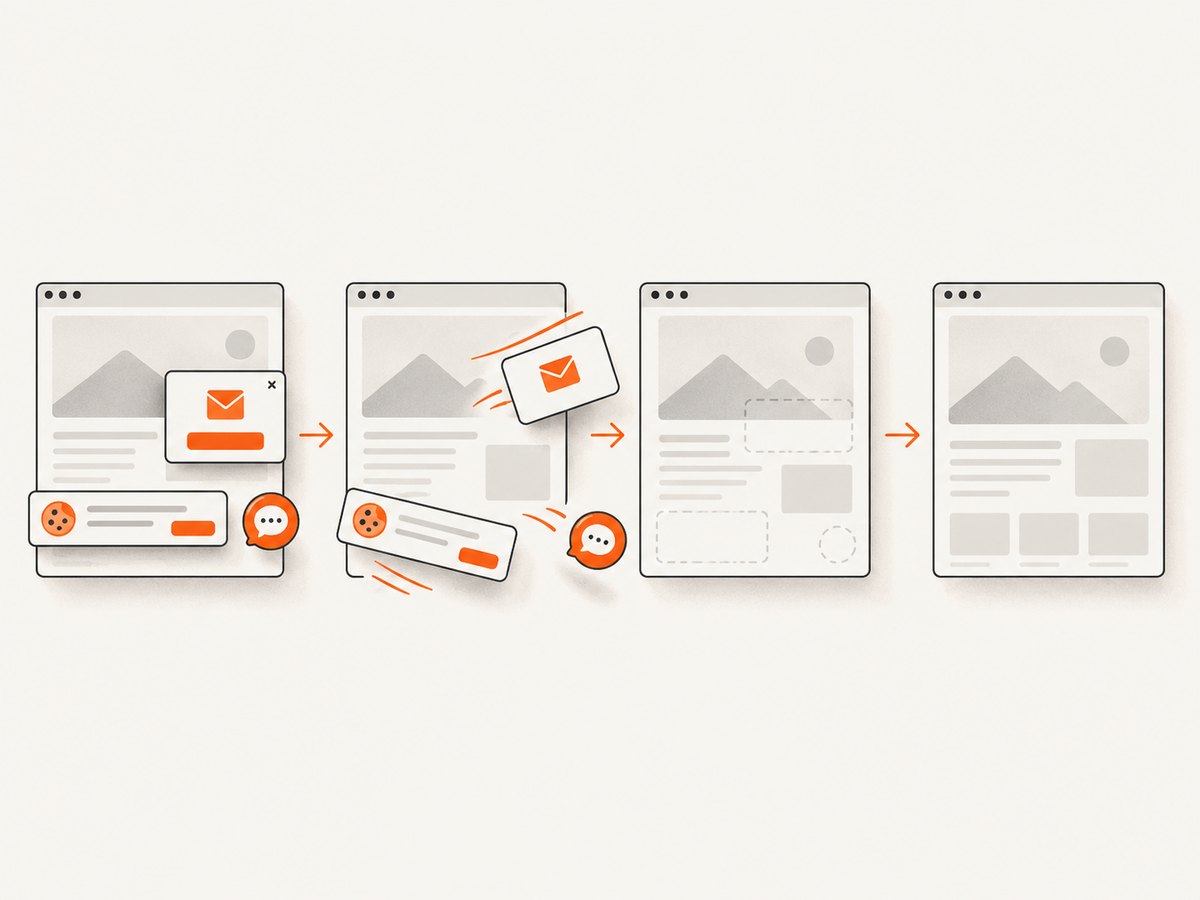
If your goal is a reliable page image rather than interactive Safari automation, ScreenshotNeo provides a single HTTP request for a PNG, JPEG, WebP, or PDF. Its capture flow accepts cookie and consent banners as a visitor and removes more than 60 known consent platforms, newsletter popups, and chat widgets before the shot; each step can be disabled. Bot checks, blank pages, failed loads, timeouts, and cache hits are not billed, and response headers identify the page verdict and billing status.
See the ScreenshotNeo API documentation for all options.
curl -G "https://api.screenshotneo.com/v1/shot" -d access_key=YOUR_API_KEY --data-urlencode url=https://stripe.com -o shot.webpimport requests
r = requests.get("https://api.screenshotneo.com/v1/shot", params={"access_key": "YOUR_API_KEY", "url": "https://stripe.com"}, timeout=90)
open("shot.webp", "wb").write(r.content)const q = new URLSearchParams({ access_key: 'YOUR_API_KEY', url: 'https://stripe.com' });
const res = await fetch(`https://api.screenshotneo.com/v1/shot?${q}`);For automated workflows, ScreenshotNeo also supports full-page captures with lazy images, element selectors, device presets, custom viewports, dark mode, custom CSS and JavaScript, waits, request blocking, headers and cookies, timezone and geolocation, resizing, chosen cache TTLs, signed links, asynchronous jobs with signed webhooks, bulk capture of up to 100 URLs per call, a usage API, and an OpenAPI specification. An MCP server exposes take_screenshot, get_page_info, and capture_pdf to Claude, Cursor, and other MCP clients.
The Free plan includes 1,000 shots per month without a card. Paid plans start at $5 for 3,000 shots; yearly billing gives two months free. Create a free ScreenshotNeo account and try the capture before maintaining a Safari browser stack.
FAQ
Does a screenshot prove that Selenium saw the element as visible?
No. It shows pixels at one point in time. The element may have been hidden during the wait, in another frame, covered, or replaced before the screenshot was taken.
Should I increase the timeout first?
Only after verifying the native driver, locator, frame, and readiness condition. A larger timeout does not correct a wrong context or permanently hidden element.
Are implicit waits always wrong?
No, but mixing them with explicit waits makes total durations difficult to predict. Disable them while diagnosing this failure, then adopt one deliberate waiting strategy.
Why does clickability still fail after visibility succeeds?
Visibility does not remove overlays or guarantee that an element is enabled. Wait for the obstruction to disappear and for the control to be clickable.
When is ScreenshotNeo a better fit?
Use it when you need rendered screenshots or PDFs and do not need to drive an interactive Safari session. It removes common consent and popup clutter, identifies non-billable failed captures, and can be called directly or through MCP.


