How to Fix Selenium Screen Capture Image Unavailable Errors
Diagnose Selenium screenshot failures by separating browser capture problems from file-writing errors, then fix context, output path, element, and page-scope issues.
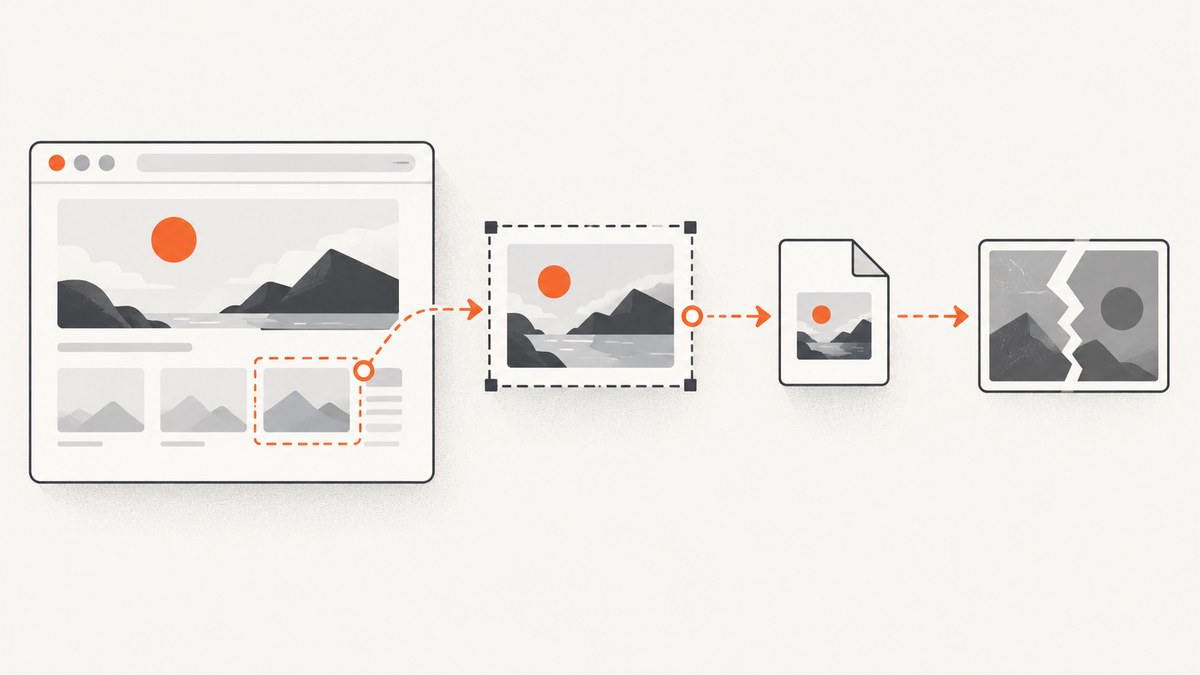
Selenium screenshot failures usually come from one of two places: the browser session did not produce the expected capture, or the image could not be written to the destination. In Python, save_screenshot() returns False when its file operation encounters an IOError. Start by capturing PNG bytes in memory, then test the filesystem separately. Also confirm the intended tab is active, navigation has completed, and you are using viewport, element, or full-page capture as required.
This guide uses documented Selenium APIs and focuses on diagnosing the failure layer before changing browser configuration.
1. Identify what “image unavailable” means
“Image unavailable” is not enough by itself to identify the cause. The relevant evidence is the exact exception, method return value, whether any bytes were produced, and whether an output file exists and can be decoded. Selenium’s screenshot command operates on the current browsing context. A stale session, wrong tab, incomplete navigation, or a capture request that does not match the desired page scope can therefore produce an exception or an unexpected image. [Selenium window and tab documentation]
Use this decision table before changing code:
| Observation | Likely layer | Next check |
|---|---|---|
save_screenshot() returns False |
File writing | Absolute path, writable directory, PNG extension, available disk space |
| PNG bytes can be retrieved but file is missing | Your destination or write code | Write those bytes to a known-writable path |
| In-memory screenshot call raises a WebDriver error | Browser, driver, or session | Session state, current window, navigation, browser/driver logs |
| Image opens but is blank, clipped, or shows another page | Page state or capture scope | Selected tab, render completion, viewport size, target element, full-page requirement |
The table is a diagnostic workflow, not a claim that every failure has exactly one cause. Capture can fail for more than one reason at once.
2. Run a minimal Python diagnostic
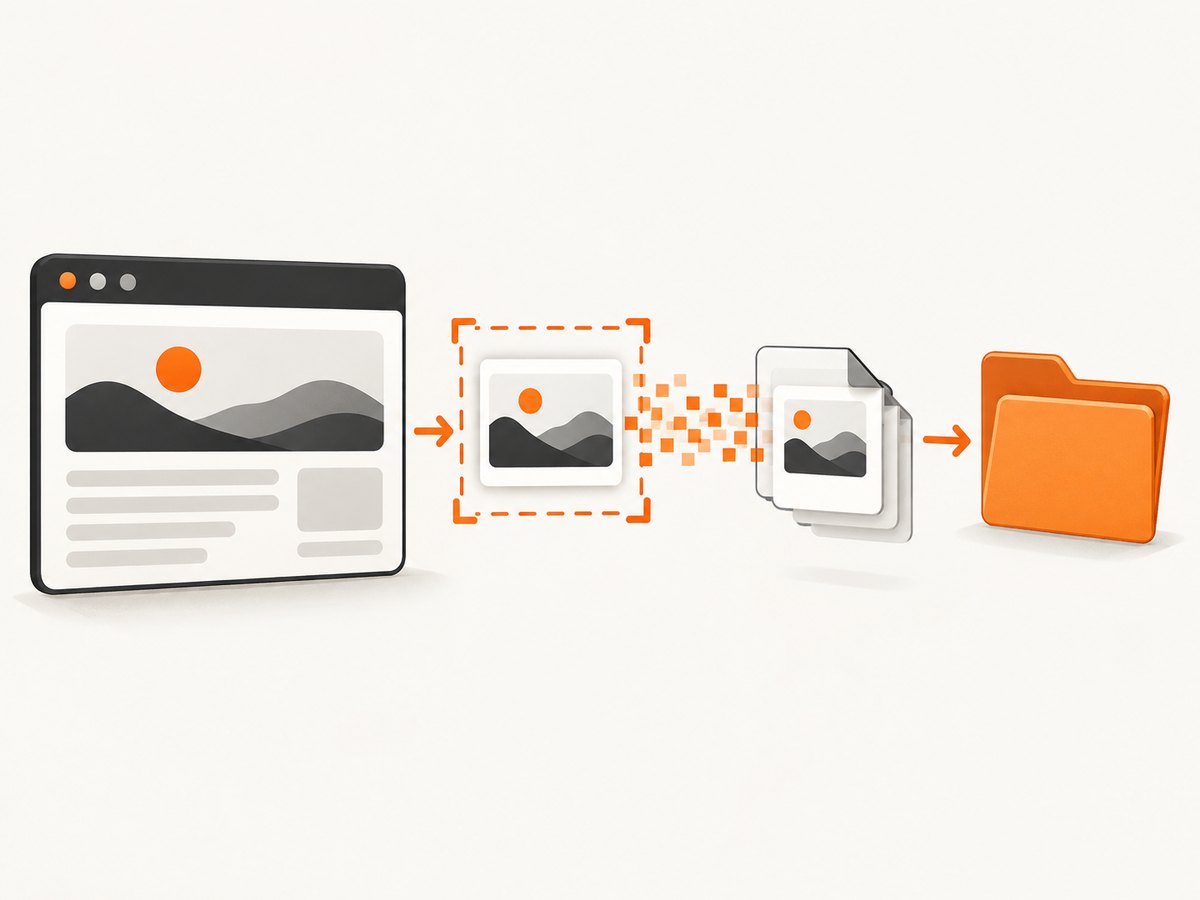
This example tests the browser’s in-memory capture first, then tests Selenium’s file writer. Use an absolute path ending in .png. The documented Python file methods return False on an IOError; check that result rather than assuming a file was created. [Selenium Python WebDriver API]
from pathlib import Path
from selenium import webdriver

out = Path("/tmp/selenium-shot.png").resolve()
driver = webdriver.Chrome()
try:
    driver.set_window_size(1280, 900)
    driver.get("https://example.com")

    # Separate browser capture from filesystem output.
    png_bytes = driver.get_screenshot_as_png()
    if not png_bytes:
        raise RuntimeError("Driver returned no PNG bytes")

    if not driver.save_screenshot(str(out)):
        raise RuntimeError(f"Screenshot write failed: {out}")
    print(f"Saved {len(png_bytes)} bytes to {out}")
finally:
    driver.quit()
Install Selenium in the Python environment running the script with python -m pip install selenium. Selenium Manager can manage drivers in supported setups; if session creation fails before the screenshot call, investigate browser/driver setup separately from screenshot output. This script’s key diagnostic is that it calls both in-memory capture and file saving in the same known session.
To inspect the in-memory PNG yourself, write it directly:
from pathlib import Path

Path("/tmp/from-bytes.png").write_bytes(png_bytes)
If this succeeds while save_screenshot() fails, focus on the path passed to Selenium or the file operation. If both file writes fail, check directory permissions, available storage, container mounts, and whether the path exists as a directory. If the in-memory method fails too, continue with the browser/session checks below.
3. Check the session and browsing context
- Confirm the driver is still running. Do not call screenshot methods after
driver.quit()or after the browser session has otherwise ended. Keep the capture inside the lifetime of the driver. - Select the intended window or tab. Screenshots target the current browsing context. When a link opens a new tab, switch to its handle before capturing.
- Wait for the page state you need.
get()returning does not prove that every image, animation, or client-rendered component has reached its final visual state. Wait for a meaningful element or application condition before capture. - Set a deterministic window size. Screen resolution affects rendering. A known size makes responsive layout and clipping easier to reproduce. Selenium documents window sizing and screenshots as WebDriver operations. [Selenium window documentation]
For example, this explicit wait checks that a main heading is present before capture:
from selenium import webdriver
from selenium.webdriver.common.by import By
from selenium.webdriver.support import expected_conditions as EC
from selenium.webdriver.support.ui import WebDriverWait

driver = webdriver.Chrome()
try:
    driver.set_window_size(1440, 1000)
    driver.get("https://example.com")
    WebDriverWait(driver, 15).until(
        EC.visibility_of_element_located((By.TAG_NAME, "h1"))
    )
    driver.save_screenshot("/tmp/ready.png")
finally:
    driver.quit()
Choose a condition that signals the content relevant to your application. A heading appearing does not necessarily mean every asynchronous image is ready; if those images matter, wait for their own loaded state as well.
4. Verify the output path and file
Python’s save_screenshot() and get_screenshot_as_file() save PNG files and report failure with a False return value when an IOError occurs. Pass a full path ending in .png, and ensure the parent directory is writable. [Selenium Python screenshot methods]
- Prefer an absolute path while diagnosing, such as
/tmp/selenium-shot.pngon Unix-like systems or a known writable directory on Windows. - Create the parent directory before saving if your script expects a new directory.
- Check the Boolean result; a call that returned does not necessarily mean the output was saved.
- After saving, verify file size and open the PNG with an image decoder. A zero-byte or invalid file is different from a valid but blank capture.
- In containers and CI, confirm that the path is writable by the process user and that the output location is not an unavailable host path.
Write bytes yourself to isolate Selenium’s file writer
from pathlib import Path

png = driver.get_screenshot_as_png()
if not png:
    raise RuntimeError("No screenshot bytes returned")
out = Path("/tmp/manual-write.png")
out.write_bytes(png)
if not out.is_file() or out.stat().st_size == 0:
    raise RuntimeError("PNG file was not written")
Chromium drivers expose file, PNG-byte, and Base64 screenshot methods, which can help distinguish capture problems from filesystem problems. [Selenium Chromium WebDriver API]
5. Capture an element or the entire document
Element screenshot
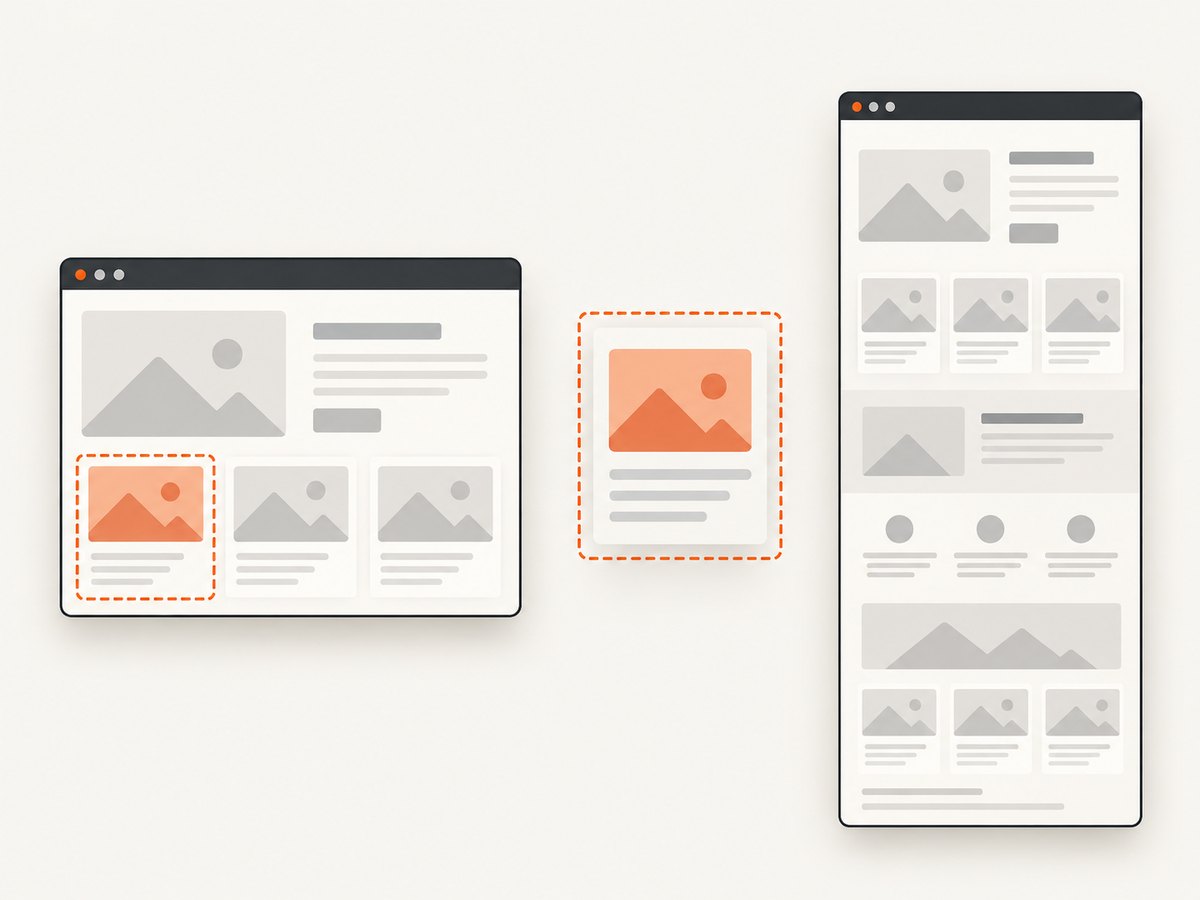
Locate the element after it appears, then capture the element itself. Selenium documents element screenshots as best-effort capture of the element’s full content or visible portion, depending on the driver and browser. [Selenium WebDriver interactions documentation]
from selenium import webdriver
from selenium.webdriver.common.by import By
from selenium.webdriver.support import expected_conditions as EC
from selenium.webdriver.support.ui import WebDriverWait

driver = webdriver.Chrome()
try:
    driver.get("https://example.com")
    card = WebDriverWait(driver, 15).until(
        EC.visibility_of_element_located((By.CSS_SELECTOR, "main"))
    )
    if not card.screenshot("/tmp/main.png"):
        raise RuntimeError("Element screenshot could not be saved")
finally:
    driver.quit()
If the element is off-screen, has zero dimensions, has been replaced by a rerender, or has not finished rendering, correct the page state and locate it again before capture. This is a diagnostic inference from the API’s element scope and best-effort behavior. Use a stable CSS selector and wait for visibility; if the element is inside an iframe, switch into that frame before locating it.
Full-page screenshot
A normal driver screenshot is generally a screenshot of the current window or viewport. If you need the whole document, use a browser-supported full-page method. Firefox’s Python API documents get_full_page_screenshot_as_file(). [Selenium Firefox WebDriver API]
from selenium import webdriver

driver = webdriver.Firefox()
try:
    driver.get("https://example.com")
    if not driver.get_full_page_screenshot_as_file("/tmp/full-page.png"):
        raise RuntimeError("Full-page screenshot could not be saved")
finally:
    driver.quit()
Do not assume every browser binding implements full-document capture the same way. Check the API for the specific browser and language version in use. A viewport screenshot may be correct behavior when the requested method does not promise a full-page image.
6. Other language bindings
Use the binding’s screenshot API and check its documented error behavior. Selenium’s official examples cover driver and element screenshots across multiple languages. [Selenium take screenshots guide]
Java
import java.io.File;
import org.apache.commons.io.FileUtils;
import org.openqa.selenium.OutputType;
import org.openqa.selenium.TakesScreenshot;
import org.openqa.selenium.WebDriver;
import org.openqa.selenium.chrome.ChromeDriver;

WebDriver driver = new ChromeDriver();
try {
    driver.get("https://example.com");
    File captured = ((TakesScreenshot) driver).getScreenshotAs(OutputType.FILE);
    FileUtils.copyFile(captured, new File("/tmp/selenium-shot.png"));
} finally {
    driver.quit();
}
The Java TakesScreenshot contract permits a WebDriverException on failure and describes capture as best effort for drivers and elements. Handle the exception at the capture boundary and inspect the file-copy destination separately. [Selenium Java TakesScreenshot API]
JavaScript with Selenium WebDriver
const { Builder } = require('selenium-webdriver');
const fs = require('node:fs/promises');

(async () => {
  const driver = await new Builder().forBrowser('chrome').build();
  try {
    await driver.get('https://example.com');
    const base64 = await driver.takeScreenshot();
    if (!base64) throw new Error('Driver returned no screenshot data');
    await fs.writeFile('/tmp/selenium-shot.png', Buffer.from(base64, 'base64'));
  } finally {
    await driver.quit();
  }
})();
Use your installed Selenium binding’s documented return type and error handling. In JavaScript, this example separates WebDriver’s Base64 result from Node’s filesystem write so the two steps can be diagnosed independently.
7. Troubleshooting common errors
| Symptom | Cause to investigate | Fix |
|---|---|---|
save_screenshot() returns False |
Invalid path, non-writable directory, file-system error, or path without the required PNG form | Use an absolute writable path ending in .png; check the parent and inspect the return value |
WebDriverException during capture |
Ended session, browser/driver problem, or invalid current context | Capture before quitting, verify the active window, and inspect browser and driver logs |
| Screenshot shows the wrong page | Another tab or window is selected | Switch to the intended window handle before capturing |
| Screenshot is blank or partly rendered | Capture occurred before relevant content rendered, or the page is in an unexpected state | Wait for the application-specific element or image state; reproduce at a fixed window size |
| Element screenshot fails or misses content | Element is absent, detached, hidden, zero-size, or scoped to a frame | Wait, relocate with a stable selector, switch into the frame, and confirm the element is visible |
| Only the top of a long page appears | Viewport capture was used where a full-document image was required | Use a documented full-page method supported by the selected browser and binding |
| File exists but cannot be opened | Incomplete write, wrong bytes/encoding, or the file is not actually a PNG | Use the PNG-byte API and write bytes in binary mode; verify size and decode the result |
For a repeatable diagnosis, record the browser name and version, Selenium binding version, exact exception or Boolean result, current URL, window size, and output path. Avoid logging credentials or sensitive page content. These details help distinguish session, rendering, and filesystem failures without treating the error text as a diagnosis.
8. Performance, reliability, and cost considerations
A screenshot is an additional browser operation and can add work to a test run, especially when the workflow starts a browser solely to capture pages. Keep browser sessions scoped sensibly, set explicit waits around the state you actually need, and avoid capturing repeatedly while a page is still changing. A deterministic window size and stable page condition improve reproducibility; waiting for every network request can also hang on pages with long-lived connections, so choose a condition that reflects the content needed.
For reliability, ensure cleanup happens in a finally block, preserve the original exception when capture fails, and write output to a known location. In CI, make artifact retention and container filesystem permissions explicit. Selenium is a browser automation framework, so the cost profile includes browser and driver runtime plus the infrastructure running them; there is no Selenium screenshot API charge described in the cited API documentation.
For one-off or scheduled website captures where you do not need a browser automation setup, ScreenshotNeo offers a screenshot API and MCP server. One GET request can return PNG, JPEG, WebP, or PDF. Its clean-capture behavior accepts cookie/consent banners as a visitor and removes more than 60 known consent platforms, newsletter popups, and chat widgets before capture, with each step configurable. It bills clean shots only: bot checks/CAPTCHAs, blank pages, timeouts, failed loads, and cache hits cost nothing, and responses identify the page verdict and billing state in headers. See ScreenshotNeo and its API documentation.
Or skip the browser setup
Use the API when a browser-managed capture is enough for the task. This runnable cURL call saves a WebP screenshot; replace the access key with one from your account.
curl -G "https://api.screenshotneo.com/v1/shot" -d access_key=YOUR_API_KEY --data-urlencode url=https://example.com -o shot.webpEquivalent Python and Node.js requests:
import requests

r = requests.get(
    "https://api.screenshotneo.com/v1/shot",
    params={"access_key": "YOUR_API_KEY", "url": "https://example.com"},
    timeout=90,
)
r.raise_for_status()
open("shot.webp", "wb").write(r.content)
const q = new URLSearchParams({ access_key: 'YOUR_API_KEY', url: 'https://example.com' });
const res = await fetch(`https://api.screenshotneo.com/v1/shot?${q}`);
if (!res.ok) throw new Error(`Screenshot request failed: ${res.status}`);
await import('node:fs/promises').then(fs => fs.writeFile('shot.webp', Buffer.from(await res.arrayBuffer())));Cookie banners, popups, and chat widgets are removed before the shot. Bot checks, blank pages, and failed loads are never billed. An MCP server lets AI agents use take_screenshot, get_page_info, and capture_pdf. The Free plan includes 1,000 screenshots a month with no card; paid plans start at $5 for 3,000. Create a free account at ScreenshotNeo sign-up.
Frequently asked questions
Does a normal Selenium screenshot include content below the fold?
Do not assume so. A normal screenshot targets the current window or viewport. For a full document, use a full-page API supported by the browser binding; Firefox documents one in its Python API.
Can I return screenshot bytes instead of saving a file?
Yes. Python provides PNG-byte and Base64 screenshot methods, and Chromium driver APIs expose equivalent forms. In-memory capture is useful for separating capture from filesystem errors.
Why does the screenshot work locally but fail in CI?
Compare the exact output path, process permissions, browser session lifecycle, selected window, and configured window size. These often differ between a developer workstation and a CI container.
Does Selenium provide a frequency statistic for unavailable screenshots?
No such statistic is provided by the research sources for this specific error. Diagnose the actual return value, exception, bytes, and output file instead of assuming a prevalence or single cause.


