How to Fix Selenium Screenshot Capture Failures
Fix Selenium screenshot failures by checking return values, paths, permissions, driver state, timing, and full-page requirements.
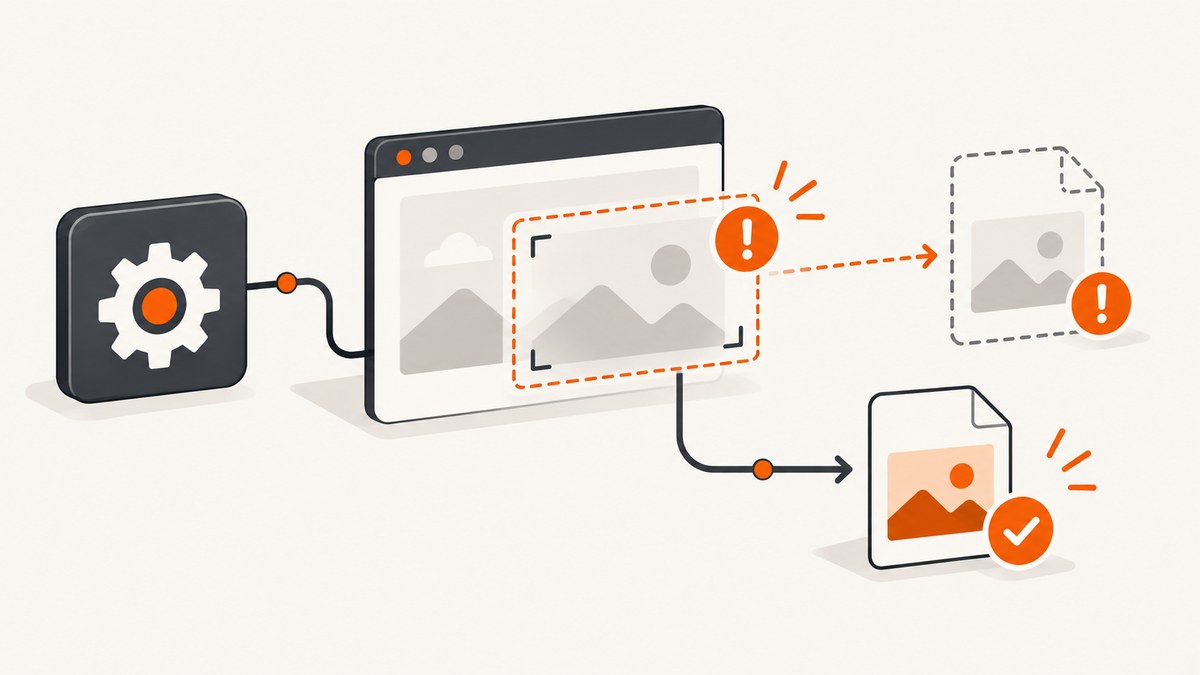
Selenium screenshot failures usually come from one of four places: the output path cannot be written, the WebDriver session or window is invalid, the page is captured before it is ready, or the request asks for a full document while the API captures only the viewport. Start by checking the method’s return value and then separate browser capture from filesystem writing.
Selenium’s save_screenshot(filename) and get_screenshot_as_file(filename) save the current window as a PNG. The filename should be an absolute path ending in .png; these methods return False when file I/O fails. get_screenshot_as_png() returns PNG bytes, and get_screenshot_as_base64() returns an embeddable Base64 string. See the official Selenium Python API.
1. Run this minimal diagnostic first
This script checks the directory, captures bytes independently of disk output, writes an absolute path, and reports the browser and filesystem stages separately.
from pathlib import Path
from selenium import webdriver
from selenium.webdriver.chrome.options import Options

options = Options()
options.add_argument("--headless=new")
options.add_argument("--window-size=1440,1000")

driver = webdriver.Chrome(options=options)
try:
    driver.get("https://example.com")

    out = (Path.cwd() / "artifacts" / "example.png").resolve()
    out.parent.mkdir(parents=True, exist_ok=True)

    png = driver.get_screenshot_as_png()
    if not png:
        raise RuntimeError("WebDriver returned empty screenshot bytes")

    out.write_bytes(png)
    print(f"Saved {len(png)} bytes to {out}")
finally:
    driver.quit()
If this succeeds, WebDriver capture works and the original problem is probably the destination path, permissions, or file handling. If it fails before bytes are returned, inspect the session, window handle, browser process, and page navigation.
2. Check the boolean result from file-saving methods
from pathlib import Path

out = (Path.cwd() / "artifacts" / "page.png").resolve()
out.parent.mkdir(parents=True, exist_ok=True)

ok = driver.save_screenshot(str(out))
if not ok:
    raise IOError(f"Selenium could not write screenshot to {out}")

print(out, out.stat().st_size)
A False result means Selenium encountered an I/O error while writing the file. It does not prove that the page failed to render. Log the resolved path and check that the process user can write to its parent directory. Keep the .png extension.
Use an absolute, writable destination
- Build the path with
pathlib.Pathor the equivalent utility in your language. - Create missing parent directories before calling Selenium.
- Check container mounts, read-only volumes, and temporary-directory cleanup.
- Use a filename rather than a directory path, and finish it with
.png. - When running as a service, verify the service account’s permissions rather than your interactive user’s permissions.
3. Separate capture from writing
Use the in-memory methods when you need to determine which layer failed.
png = driver.get_screenshot_as_png()
print("capture bytes:", len(png))

# Write only after capture has succeeded.
with open("/absolute/path/page.png", "wb") as image_file:
    image_file.write(png)

# Or obtain Base64 for an HTML response or JSON payload.
encoded = driver.get_screenshot_as_base64()
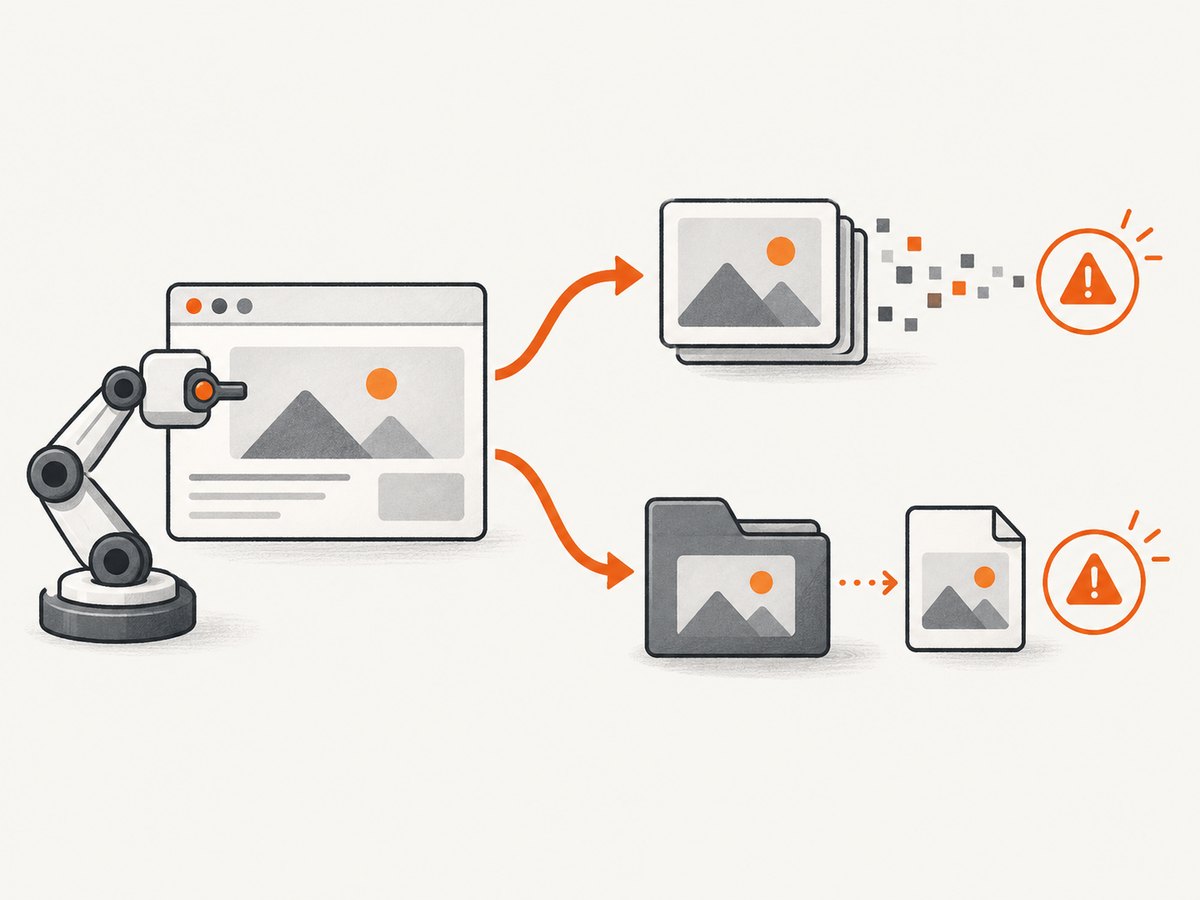
Non-empty bytes identify a successful WebDriver capture. An exception or empty result before the write points to browser, driver, session, window, or rendering state. A write exception points to the path, permissions, mount, quota, or file lifecycle.
4. Verify the WebDriver session and window
Capture while the session is still alive and attached to the intended tab. A closed driver, crashed browser, invalid window handle, or premature quit() can fail before file output.
print("session:", driver.session_id)
print("handles:", driver.window_handles)
print("current:", driver.current_window_handle)
print("URL:", driver.current_url)
print("title:", driver.title)

# Switch explicitly when your test opened another tab.
driver.switch_to.window(driver.window_handles[-1])
Preserve the original Selenium exception and stack trace. Do not replace it with a generic “screenshot failed” message. If the browser process exits, inspect the driver and browser logs, resource limits, and the exact browser/driver versions.
5. Wait for the page before capturing
A file can be created successfully and still be blank or incomplete. That is a page-readiness problem, not a save-path problem. Wait for navigation, a meaningful element, or the application's loading condition.
from selenium.webdriver.common.by import By
from selenium.webdriver.support.ui import WebDriverWait
from selenium.webdriver.support import expected_conditions as EC

wait = WebDriverWait(driver, 30)
driver.get("https://example.com/dashboard")
wait.until(EC.presence_of_element_located((By.CSS_SELECTOR, "main")))
wait.until(lambda d: d.execute_script("return document.readyState") == "complete")
driver.save_screenshot(str(out))
For single-page applications, document.readyState may become complete before the application fetches data. Wait for a stable selector, a loading overlay to disappear, or an application-specific condition. A fixed sleep can be useful for a known animation, but an explicit condition is usually more reliable.
6. Viewport screenshots versus full-page screenshots
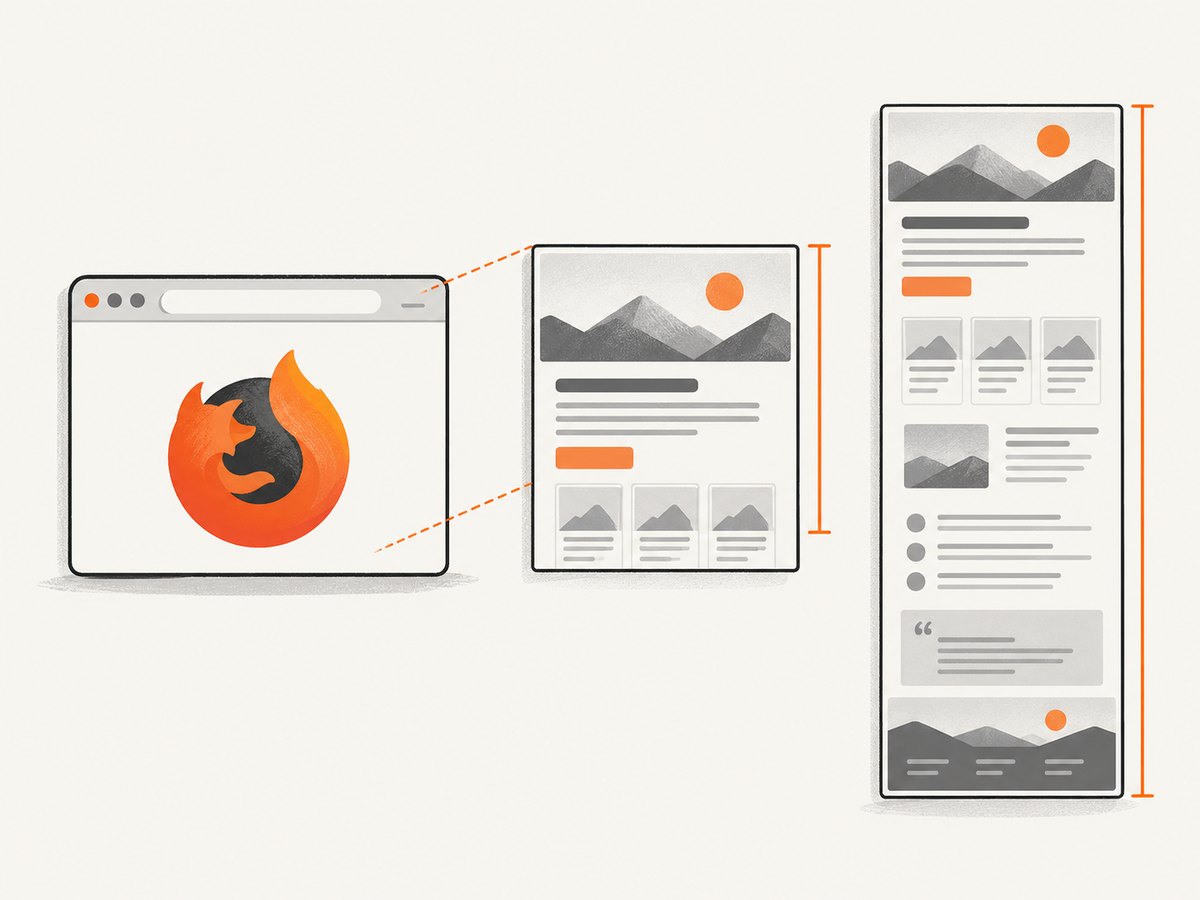
save_screenshot captures the current window viewport. It does not promise a screenshot of the entire document. Firefox exposes dedicated full-page methods, including get_full_page_screenshot_as_file() and save_full_page_screenshot(), documented in the Selenium API.
# Firefox full-document capture
from selenium import webdriver
from selenium.webdriver.firefox.options import Options

options = Options()
options.add_argument("-headless")
driver = webdriver.Firefox(options=options)
driver.get("https://example.com/long-page")
driver.save_full_page_screenshot("/absolute/path/full-page.png")
driver.quit()
For other browsers, a full-page strategy may involve browser-specific support, resizing the viewport, or stitching multiple viewport captures. Each approach has limits around fixed elements, lazy loading, sticky headers, animations, and very tall documents. Decide whether you need the visible viewport or the complete document before debugging the file.
7. Common errors and fixes
| Symptom | Likely cause | Fix |
|---|---|---|
save_screenshot returns False |
Destination cannot be opened or written | Use an absolute .png path, create its parent, and check permissions and mounts. |
| “No such file or directory” | Parent directory does not exist | Call Path(path).parent.mkdir(parents=True, exist_ok=True). |
| Permission denied | Service user lacks write access | Choose an application-writable directory or correct ownership and permissions. |
| Bytes capture fails with a WebDriver exception | Session, browser, or window is invalid | Check session_id, window handles, browser logs, and driver lifetime. |
| PNG exists but is blank | Capture occurred before content rendered, or the page is blocked | Wait for a content selector, inspect the current URL/title, and check navigation errors. |
| Only the top of a long page appears | Viewport capture was used for a full-document requirement | Use Firefox full-page methods or a browser-appropriate full-page strategy. |
| Screenshot shows a loading spinner | Application data or animations were not finished | Wait for the spinner to disappear or for the required data selector to appear. |
| Intermittent failures in CI | Resource pressure, unstable browser startup, or timing races | Record browser/driver versions, add explicit waits, use a fixed viewport, and retain logs and artifacts. |
| File disappears after the test | Temporary workspace cleanup | Write to a retained artifact directory and verify the file before teardown. |
8. A production-oriented capture checklist
- Start the browser with a known viewport and the intended headless mode.
- Navigate and confirm the expected URL, title, and main selector.
- Wait for application-specific readiness, not only
document.readyState. - Capture to bytes first when diagnosing failures.
- Write to an absolute, pre-created path ending in
.png. - Check the boolean return value when using direct file methods.
- Record the path, byte count, browser, driver, URL, and original exception.
- Quit the driver only after the file has been flushed and verified.
9. Performance, reliability, and cost considerations
Browser startup and page loading usually dominate screenshot time. Reuse a driver for a controlled batch of pages when isolation allows it, but reset cookies, tabs, and application state between captures. Keep the viewport fixed so layout changes do not create false differences. For reliable output, wait on stable selectors, disable or account for animations, and save diagnostic HTML or browser logs when a capture fails.
Disk writes are avoidable when a downstream service accepts PNG bytes or Base64. They also make the failure boundary explicit: capture errors remain WebDriver errors, while write errors remain ordinary filesystem errors. Selenium itself does not provide a hosted screenshot quota or per-capture billing model; your costs come from the browser workers, compute, storage, and operational time you run.
10. Or skip the browser setup
ScreenshotNeo provides a website screenshot API and MCP server. One GET request returns PNG, JPEG, WebP, or PDF, so you do not need to install and operate a browser driver for routine captures. The API documentation lists the options and configuration.
cURL
curl -G "https://api.screenshotneo.com/v1/shot" -d access_key=YOUR_API_KEY --data-urlencode url=https://stripe.com -o shot.webpPython
import requests
r = requests.get("https://api.screenshotneo.com/v1/shot", params={"access_key": "YOUR_API_KEY", "url": "https://stripe.com"}, timeout=90)
open("shot.webp", "wb").write(r.content)
Node.js
const q = new URLSearchParams({ access_key: 'YOUR_API_KEY', url: 'https://stripe.com' });
const res = await fetch(`https://api.screenshotneo.com/v1/shot?${q}`);
ScreenshotNeo removes cookie and consent banners, newsletter popups, and chat widgets before capture. Bot checks, blank pages, timeouts, failed loads, and cache hits cost nothing, and each response identifies the result with X-Page-Verdict and X-Billed headers. Its MCP server includes take_screenshot, get_page_info, and capture_pdf tools for Claude, Cursor, and other MCP clients. The Free plan includes 1,000 screenshots a month with no card; paid plans start at $5 for 3,000 shots. Create a free ScreenshotNeo account.
11. FAQ
Why does Selenium say the screenshot succeeded but no file appears?
Check the resolved absolute path, parent directory, process permissions, container mounts, and whether cleanup removed the file after the test. Also verify the boolean return value and file size.
Can I embed a Selenium screenshot without saving it?
Yes. Use get_screenshot_as_png() for binary responses or get_screenshot_as_base64() for a data URL or HTML embedding.
Does save_screenshot capture the whole page?
It captures the current window viewport. Full-document capture is a separate requirement; Firefox provides dedicated full-page methods.
What should I log for a flaky screenshot test?
Log the URL, title, window handle, session state, browser and driver versions, resolved output path, byte count, readiness condition, and the original exception or browser log.


