How to Fix Selenium WebDriver Screenshot Failures
Diagnose Selenium screenshot failures by checking the session, browser context, synchronization, driver support, and file output layer by layer.
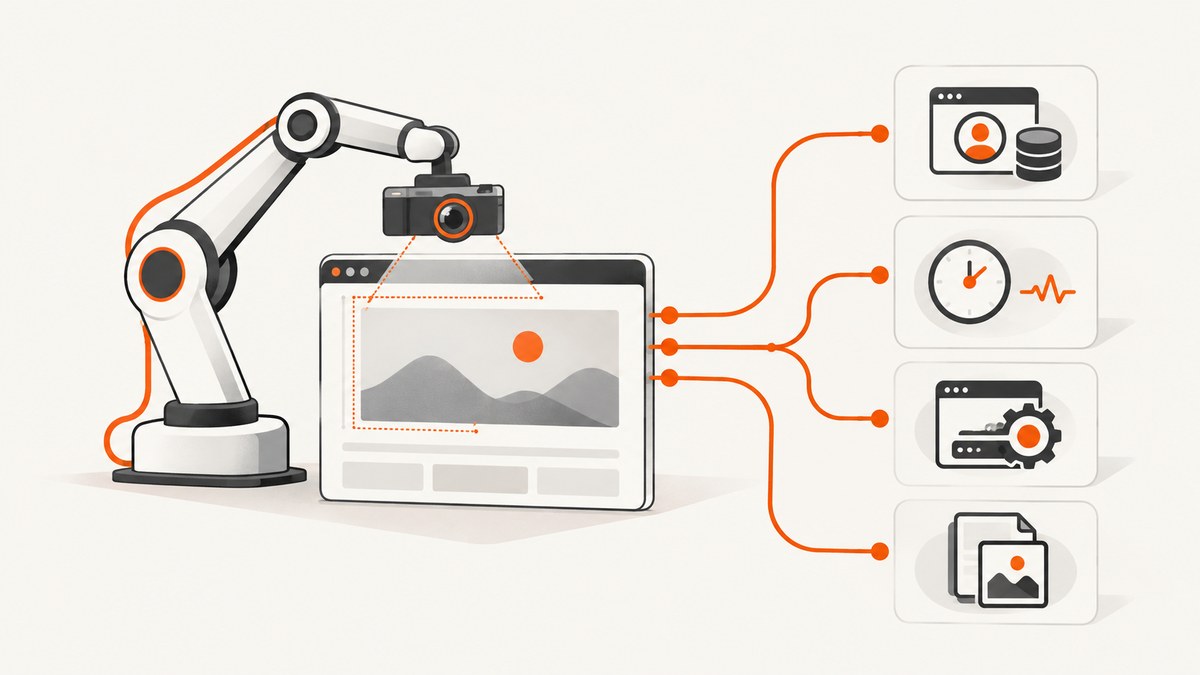
Selenium screenshot failures are usually a symptom of a problem in one layer of the workflow: the WebDriver session, the active tab or frame, page synchronization, browser-driver support, or file output. Start by recording the exact exception and checking those layers in order.
Quick diagnosis
- Record the exception class, message, method, Selenium binding and version, browser and version, driver and version, operating system, and whether the result is missing, empty, or taken from the wrong context.
- Confirm that the driver is still alive, the intended tab is active, and the browser has not been quit.
- Wait for the page state you need before capturing. Selenium documents poor synchronization as its most common Selenium-related error. Read the Selenium troubleshooting guidance.
- Separate screenshot capture from writing the file. A successful capture can still be saved to a nonexistent directory or an unwritable path.
- Try a second supported browser and driver combination. Selenium notes that errors reported to the project can originate in underlying drivers.
| Symptom | Likely layer | First check |
|---|---|---|
InvalidSessionIdException or a closed-browser error |
Session | Look for an earlier quit(), crash, or closed tab. |
SessionNotCreatedException |
Startup | Match browser and driver versions; verify the driver binary is accessible. |
Screenshot command raises WebDriverException |
Driver or browser support | Check the binding contract and reproduce in another browser. |
| File is absent or empty | Output handling | Use an absolute path, create the directory, and inspect the return value. |
| Wrong page or old state appears | Synchronization or context | Wait for a specific condition and verify the active window or frame. |
| Element screenshot fails while full-window capture works | Element reference or element support | Relocate the element after DOM updates and check for stale references. |
Capture a screenshot with Selenium Python
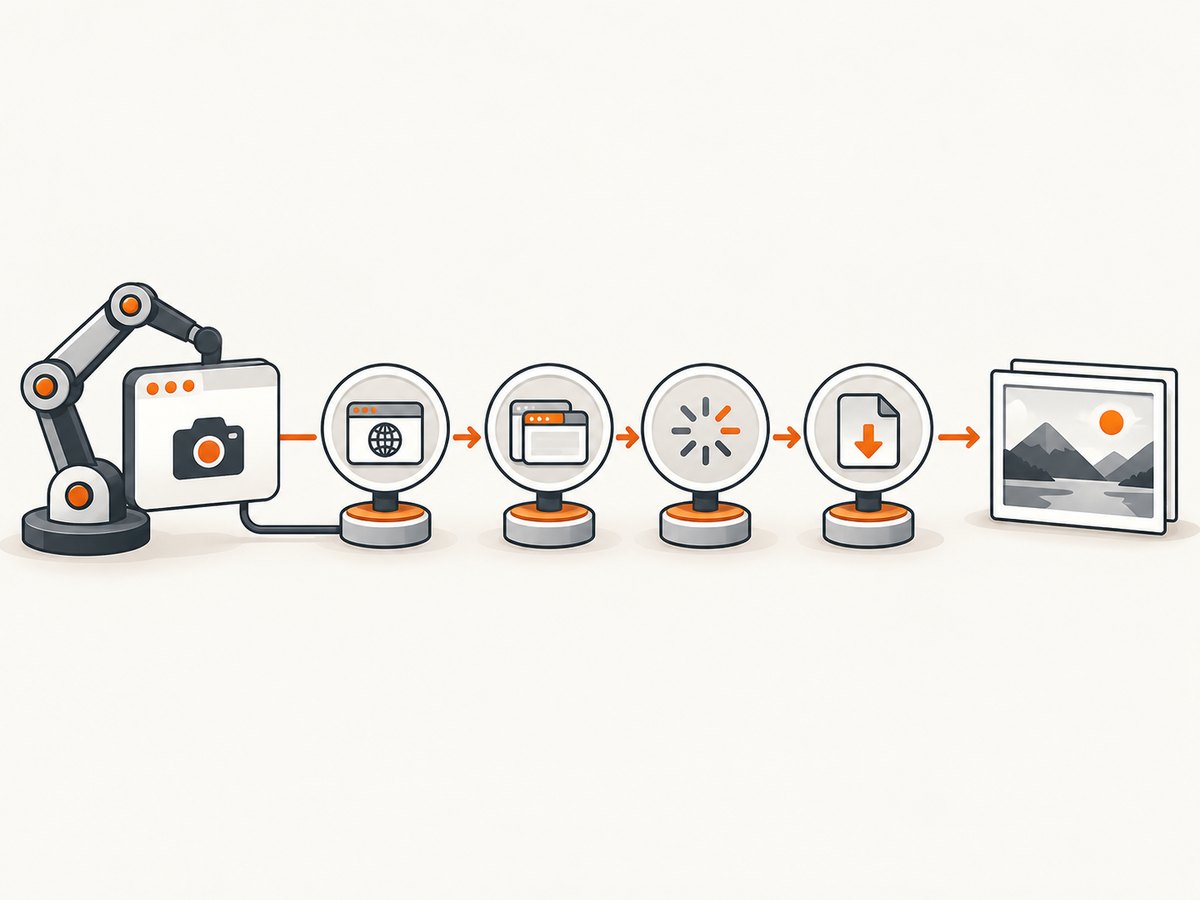
The Python binding saves the current window as a PNG. Selenium’s API documents that save_screenshot(filename) returns False on an IOError; use a full writable path ending in .png.
from pathlib import Path
from selenium import webdriver
from selenium.webdriver.chrome.options import Options
from selenium.webdriver.support.ui import WebDriverWait
from selenium.webdriver.support import expected_conditions as EC
from selenium.webdriver.common.by import By

output = Path('/tmp/selenium-shot.png')
output.parent.mkdir(parents=True, exist_ok=True)

options = Options()
options.add_argument('--headless=new')
options.add_argument('--window-size=1440,1000')

driver = webdriver.Chrome(options=options)
try:
    driver.get('https://example.com')
    WebDriverWait(driver, 20).until(
        EC.presence_of_element_located((By.TAG_NAME, 'body'))
    )
    ok = driver.save_screenshot(str(output))
    if not ok or not output.exists() or output.stat().st_size == 0:
        raise RuntimeError(f'Screenshot was not written: {output.resolve()}')
    print(output.resolve())
finally:
    driver.quit()
Use get_screenshot_as_png() when you want bytes and want to control the write yourself:
png = driver.get_screenshot_as_png()
Path('/tmp/shot.png').write_bytes(png)
Capture with Selenium Java
import java.io.File;
import java.nio.file.Files;
import java.nio.file.Path;
import java.time.Duration;
import org.openqa.selenium.OutputType;
import org.openqa.selenium.WebDriver;
import org.openqa.selenium.chrome.ChromeDriver;
import org.openqa.selenium.support.ui.WebDriverWait;

WebDriver driver = new ChromeDriver();
try {
    driver.manage().timeouts().implicitlyWait(Duration.ZERO);
    driver.get("https://example.com");
    new WebDriverWait(driver, Duration.ofSeconds(20))
        .until(d -> !d.getTitle().isBlank());
    File source = ((org.openqa.selenium.TakesScreenshot) driver)
        .getScreenshotAs(OutputType.FILE);
    Files.copy(source.toPath(), Path.of("/tmp/selenium-shot.png"));
} finally {
    driver.quit();
}
The Java API documents WebDriverException for capture failures and UnsupportedOperationException when screenshot capture is unsupported. For W3C-conformant drivers, the method follows the WebDriver specification. See the Java TakesScreenshot API.
Capture with Selenium JavaScript
const { Builder } = require('selenium-webdriver');
const fs = require('node:fs/promises');

(async () => {
  const driver = await new Builder().forBrowser('chrome').build();
  try {
    await driver.get('https://example.com');
    const title = await driver.getTitle();
    if (!title) throw new Error('Page title was not ready');
    const png = await driver.takeScreenshot();
    await fs.writeFile('/tmp/selenium-shot.png', png, 'base64');
  } finally {
    await driver.quit();
  }
})();
Capture with Selenium C# and Ruby
// C#
automatedDriver.Navigate().GoToUrl("https://example.com");
var screenshot = ((OpenQA.Selenium.ITakesScreenshot)automatedDriver).GetScreenshot();
screenshot.SaveAsFile("/tmp/selenium-shot.png");
# Ruby
driver.navigate.to 'https://example.com'
driver.save_screenshot('/tmp/selenium-shot.png')
driver.quitSelenium’s official examples cover these binding-specific forms, including Python save_screenshot, Java getScreenshotAs, C# GetScreenshot, Ruby save_screenshot, and JavaScript takeScreenshot. The WebDriver screenshot endpoint returns Base64-encoded image data.
Check the WebDriver session and browsing context
Confirm the session is alive
A session becomes unusable after quit(), a browser crash, or some closed-tab conditions. Run a harmless command before capture and log its result:
try:
    print(driver.current_url)
    print(driver.window_handles)
except Exception as exc:
    raise RuntimeError('The WebDriver session is no longer usable') from exc
If there are no window handles, reopen the browser or fix the code that closes a tab. Do not reuse a driver object after calling quit().
Activate the intended window
original = driver.current_window_handle
for handle in driver.window_handles:
    driver.switch_to.window(handle)
    if 'checkout' in driver.current_url:
        break
else:
    driver.switch_to.window(original)
Switch to the correct frame
An iframe has its own browsing context. Switch into it before locating an element, and return to the top-level document when needed:
driver.switch_to.default_content()
driver.switch_to.frame(driver.find_element(By.CSS_SELECTOR, 'iframe.payment'))
# locate or capture the frame content
driver.switch_to.default_content()
Fix timing and synchronization problems
Capturing immediately after navigation, a click, or an asynchronous render often produces an old or incomplete page. Prefer an explicit wait for the condition that defines readiness instead of a fixed sleep.
from selenium.webdriver.support import expected_conditions as EC

wait = WebDriverWait(driver, 30)
wait.until(EC.visibility_of_element_located((By.CSS_SELECTOR, '[data-page-ready]')))
wait.until(lambda d: d.execute_script('return document.readyState') == 'complete')
driver.save_screenshot('/tmp/ready.png')
Use a short delay only when the page has a known animation or delayed visual transition that cannot be expressed as a DOM condition. For network-heavy applications, wait for a stable application marker, not merely document.readyState; that state does not guarantee that client-rendered content has finished.
Element screenshots and stale references
Element capture adds another failure point. A reference becomes stale when the DOM replaces that node. Locate the element after the update and wait for visibility:
wait = WebDriverWait(driver, 20)
card = wait.until(EC.visibility_of_element_located((By.CSS_SELECTOR, '.result-card')))
card.screenshot('/tmp/card.png')
If this fails while full-window capture works, inspect element support in the selected driver, overlays that cover the element, zero dimensions, and DOM replacement. Re-find the element after actions that trigger a rerender.
Separate capture errors from file errors
- Capture in memory or call the binding method and retain its return value.
- Resolve the destination to an absolute path.
- Create the parent directory.
- Check process permissions, available disk space, and container mounts.
- Verify that the file exists and has a nonzero size.
from pathlib import Path
path = Path('/var/tmp/run-42/shot.png').resolve()
path.parent.mkdir(parents=True, exist_ok=True)
if not driver.save_screenshot(str(path)):
    raise IOError(f'Selenium could not write {path}')
print(path, path.stat().st_size)
Never diagnose a successful browser capture as a driver failure solely because a relative path points somewhere unexpected.
Browser and driver compatibility
SessionNotCreatedException commonly indicates a browser-driver version mismatch, system restrictions, or a missing, inaccessible, or non-executable driver binary. Fix startup first; screenshot debugging cannot proceed without a valid session.
- Print the browser version and driver version from the environment.
- Use a compatible driver for that browser channel.
- Confirm the driver binary is on
PATHor configured explicitly and is executable. - Check container permissions, sandbox flags, display requirements, and architecture.
- Reproduce the same capture in another supported browser.
If one browser works and another fails with the same session and output code, the comparison points toward driver or browser implementation behavior. Selenium's troubleshooting documentation recommends this kind of cross-browser check.
Headless, display, and container issues
In CI, a browser may start without a display server, lack shared memory, or be killed by a container policy. Use the headless mode supported by your browser, allocate enough shared memory, and preserve the browser and driver logs. A browser that never reaches a live session is a startup problem, even if the first visible symptom is a missing screenshot.
When a headed run works locally but headless capture fails, compare viewport size, GPU flags, fonts, installed language packs, and page behavior under headless mode. Avoid adding flags blindly; add one change at a time and keep the final configuration in the CI job definition.
Unsupported screenshot operations
The WebDriver screenshot command is implemented by the driver. A conformant implementation should follow the specification, but a binding can still report UnsupportedOperationException or WebDriverException. Check the API contract for your binding and driver, then test a basic top-level screenshot before debugging full-page or element-specific behavior.
Full-page screenshots, element screenshots, and browser-window screenshots are separate capabilities in practice. If only one form fails, reduce the reproduction to that operation and verify driver support rather than changing unrelated waits.
Full-page and viewport expectations
A standard screenshot usually represents the current viewport. Full-page behavior varies by browser, driver, and binding. If you need a consistent full-page image, check whether your selected driver supports it, or capture viewport segments and stitch them in your application. Fixed headers, lazy-loaded images, sticky elements, and animations can create seams or repeated content.
Before a long-page capture, scroll through the document to trigger lazy loading, wait for images to finish, disable animations when appropriate, and record the viewport dimensions. These steps improve repeatability but cannot make an unsupported driver feature available.
Logging and a minimal reproduction
Log enough information to distinguish layers:
- exception class and complete message
- capture method and target path
- Selenium binding and version
- browser, browser version, driver version, and operating system
- current URL, window handles, viewport size, and active frame
- whether a full-window capture works
- directory permissions and resulting file size
Reduce the case to one URL, one browser, one driver, one wait, and one capture call. If it still fails, include that reproduction when using Selenium's support or bug-reporting channels.
Troubleshooting checklist
- Did the browser session remain open until after the screenshot?
- Is the intended tab active?
- Are you in the correct frame?
- Did you wait for the actual content or state marker?
- Does a full-window screenshot work when an element screenshot fails?
- Is the destination an absolute path with an existing writable directory?
- Did you inspect the return value and exception details?
- Do browser and driver versions match?
- Does the same code work in another supported browser?
- Are headless, container, display, and shared-memory settings valid?
Or skip the browser setup
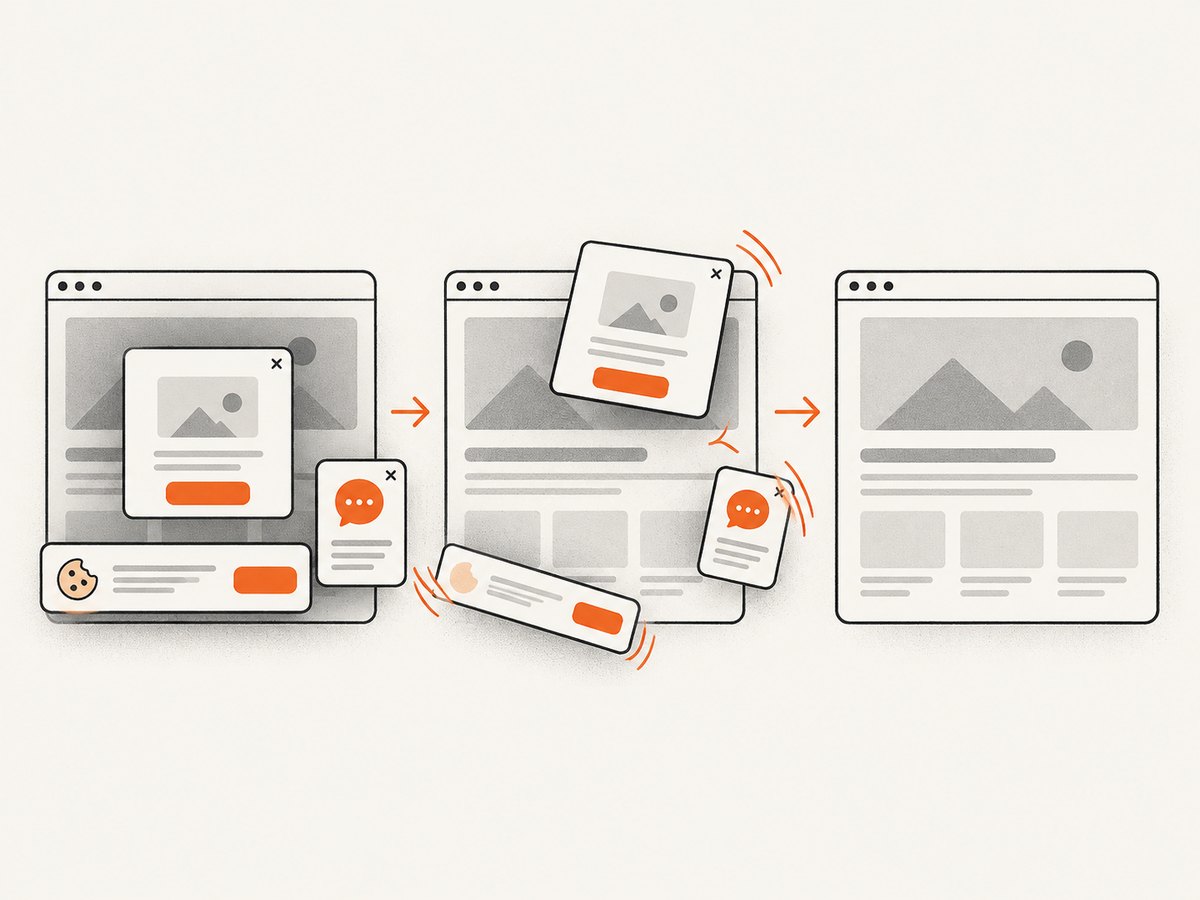
If you need a clean image of a URL rather than a browser test assertion, ScreenshotNeo provides a single GET request. It removes cookie and consent banners, newsletter popups, and chat widgets before capture. Bot checks, blank pages, timeouts, failed loads, and cache hits are not billed, and the response reports the page verdict and billing status in X-Page-Verdict and X-Billed headers.
See the ScreenshotNeo API documentation for all options.
cURL
curl -G 'https://api.screenshotneo.com/v1/shot' \
  -d access_key=YOUR_API_KEY \
  --data-urlencode url=https://example.com \
  -o shot.webp
Python
import requests

r = requests.get(
    'https://api.screenshotneo.com/v1/shot',
    params={'access_key': 'YOUR_API_KEY', 'url': 'https://example.com'},
    timeout=90,
)
r.raise_for_status()
open('shot.webp', 'wb').write(r.content)
Node.js
const q = new URLSearchParams({ access_key: 'YOUR_API_KEY', url: 'https://example.com' });
const res = await fetch(`https://api.screenshotneo.com/v1/shot?${q}`);
if (!res.ok) throw new Error(`Screenshot failed: ${res.status}`);
require('node:fs').writeFileSync('shot.webp', Buffer.from(await res.arrayBuffer()));
ScreenshotNeo also supports full-page capture with lazy images, CSS-selector element capture, dark mode, device presets, custom viewports, retina scale, PDF output, custom CSS and JavaScript, click actions, hidden selectors, selector or network-idle waits, request blocking, headers, cookies, user agents, authorization, timezone, geolocation, transparent backgrounds, resizing, configurable caching, signed links, asynchronous jobs with signed webhooks, bulk capture of up to 100 URLs per call, a usage API, and an OpenAPI specification. An MCP server lets Claude, Cursor, and other MCP clients use take_screenshot, get_page_info, and capture_pdf.
There is a free plan with 1,000 screenshots per month and no card. Paid plans start at $5 for 3,000 screenshots. Create a free ScreenshotNeo account.
Performance, reliability, and cost notes
Selenium
- Reuse a healthy driver for related captures when isolation permits; browser startup is usually more expensive than another command.
- Use explicit waits targeted to page state. Long fixed sleeps increase runtime without proving readiness.
- Keep screenshot files local to the job workspace and upload only the artifacts you need.
- For flaky pages, capture diagnostics such as the URL, HTML, console logs, and a screenshot together so a failure can be reproduced.
- Pin browser and driver versions in CI and update them as a deliberate change.
ScreenshotNeo
- Use caching with a TTL when repeated captures can share an image.
- Use asynchronous jobs and signed webhooks for slow or high-volume work.
- Use bulk capture for up to 100 URLs per call.
- Inspect
X-Page-VerdictandX-Billedso failed loads and clean captures are handled differently.
FAQ
Why does Selenium say screenshot failed when the browser is open?
An open-looking browser does not prove that the WebDriver session, active window, driver implementation, and output path are valid. Check each layer and retain the complete exception.
Should I add a longer sleep?
Usually use an explicit wait for a meaningful condition. A longer sleep can hide a race and make every test slower.
Why is my PNG missing but no exception was raised?
The write path may be relative, the directory may not exist, or the binding may return a failure value. Resolve the path, create the directory, check permissions, and verify file size.
Can I fix a driver mismatch in screenshot code?
No. A mismatched or inaccessible driver must be fixed at session startup before capture code can work reliably.
When should I use an API instead of Selenium?
Use Selenium when the screenshot is part of an end-to-end browser test or needs browser interactions. Use an API when you need repeatable URL capture without maintaining browser and driver infrastructure.


