How to Fix End-of-Line String Literal Errors in Selenium Screenshot Paths
Fix Python end-of-line string errors in Selenium screenshot paths, with Windows-safe examples, troubleshooting, and a no-browser API option.
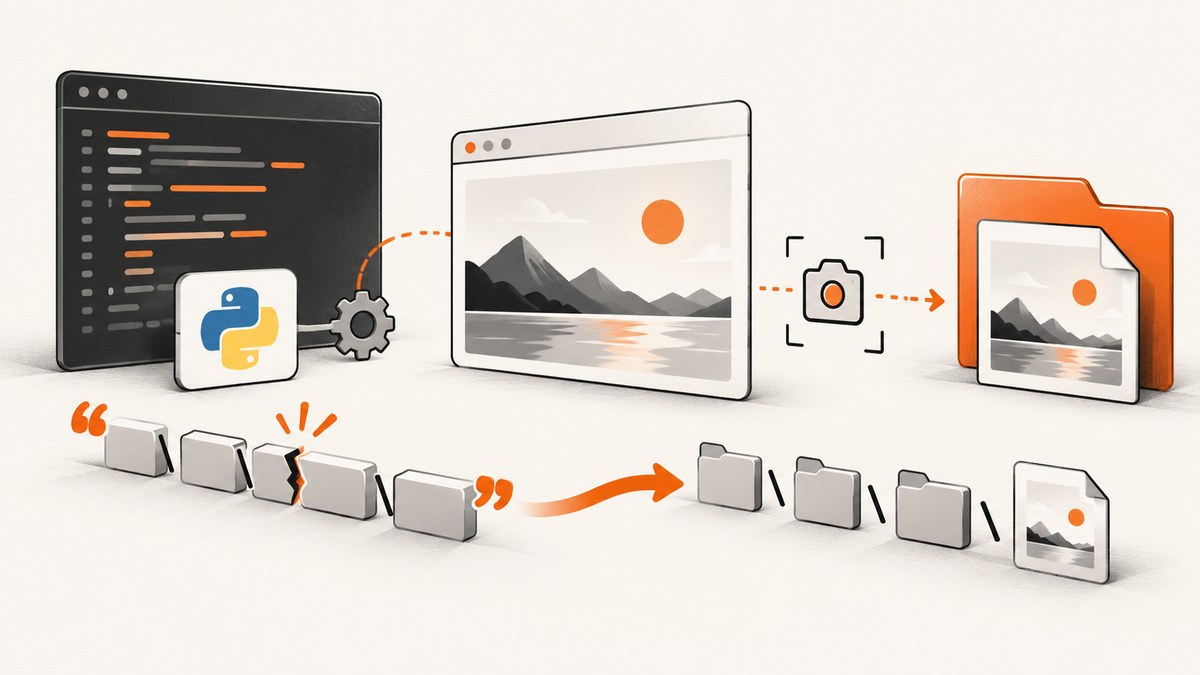
Python reports an unterminated string literal or EOL while scanning string literal before Selenium starts. The interpreter cannot parse the source line, so WebDriver has not received your screenshot filename yet. Fix the quotes and backslashes first, then troubleshoot file-system or Selenium errors separately.
For a Windows screenshot path, use one of these working forms:
from selenium import webdriver

# Raw string: backslashes remain literal.
screenshot_path = r'C:\\Users\\me\\shots\\page.png'

# Ordinary string with escaped backslashes.
screenshot_path = 'C:\\\\Users\\me\\shots\\page.png'

# Forward slashes also work on Windows.
screenshot_path = 'C:/Users/me/shots/page.png'

driver = webdriver.Chrome()
driver.get('https://example.com')
ok = driver.save_screenshot(screenshot_path)
print(ok)
driver.quit()
A Python string starts and ends with matching quote characters. In a normal string, a backslash begins an escape sequence, so a Windows path such as 'C:\\Users\\me\\shots\\page.png' can be misread. Python documents these lexical rules in its string literal reference. Selenium’s save_screenshot(filename) method saves the current window to a PNG and returns a Boolean result; see the Python WebDriver API.
1. What the error means
An end-of-line string error means Python reached the newline while still inside a quoted string. Typical messages include:
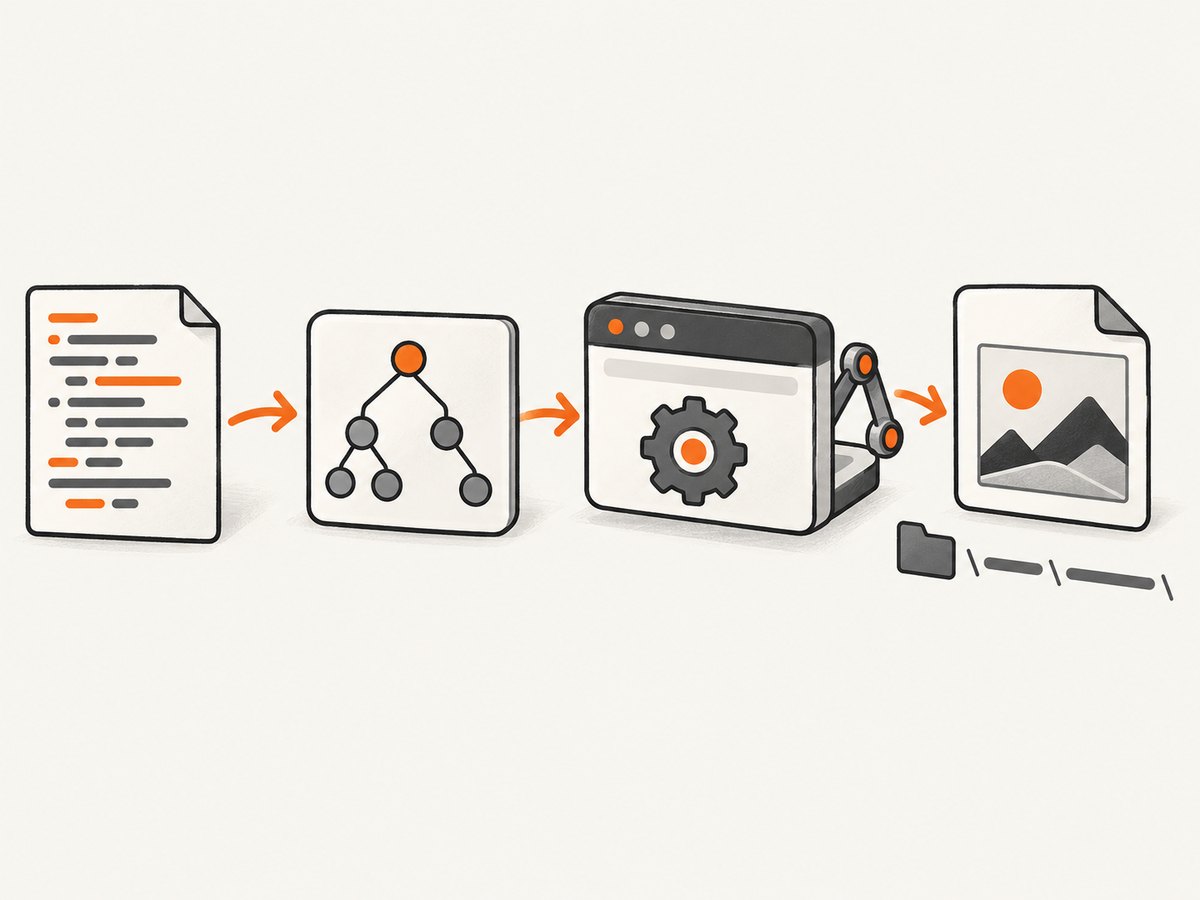
SyntaxError: unterminated string literal (detected at line ...)SyntaxError: EOL while scanning string literalSyntaxError: unterminated triple-quoted string literal
The parser fails before imports, browser startup, navigation, or driver.save_screenshot(). This distinction matters: changing Selenium options cannot repair a source file that Python cannot compile.
Common path lines that fail
# Missing the closing quote:
screenshot_path = 'C:/Users/me/shots/page.png

# A backslash can escape the quote or create an unintended escape:
screenshot_path = 'C:\Users\me\shots\page.png'

# A raw string cannot finish with one backslash:
screenshot_path = r'C:\Users\me\shots\'
The final example is invalid because the last backslash escapes the closing quote. Raw strings preserve backslashes, but they still cannot end in an odd number of backslashes. Use a directory builder when a trailing separator is needed.
2. Correct Windows paths safely
Option A: raw strings
screenshot_path = r'C:\Users\me\shots\page.png'Prefixing with r prevents ordinary backslash escape processing. Do not put a single backslash immediately before the closing quote.
Option B: escaped backslashes
screenshot_path = 'C:\\\\Users\\me\\shots\\page.png'Each intended backslash is written as \\. This is explicit and works in every regular Python string.
Option C: forward slashes
screenshot_path = 'C:/Users/me/shots/page.png'Python and Windows APIs accept forward slashes for ordinary file paths, avoiding backslash escaping entirely.
Option D: pathlib (recommended for assembled paths)
from pathlib import Path
from selenium import webdriver

output_dir = Path.home() / 'shots'
output_dir.mkdir(parents=True, exist_ok=True)
screenshot_path = output_dir / 'page.png'

driver = webdriver.Chrome()
try:
    driver.get('https://example.com')
    saved = driver.save_screenshot(str(screenshot_path))
    if not saved:
        raise OSError(f'Selenium did not save {screenshot_path}')
finally:
    driver.quit()
Path handles separators for Windows, macOS and Linux and avoids the raw-string trailing-backslash trap. Convert it to str for Selenium versions that expect a string filename.
3. A complete Selenium example
The following script creates its output directory, opens a page, saves a PNG, checks Selenium’s return value, and always closes the browser:
from pathlib import Path
from selenium import webdriver
from selenium.webdriver.chrome.options import Options

URL = 'https://example.com'
OUTPUT = Path('screenshots') / 'example.png'
OUTPUT.parent.mkdir(parents=True, exist_ok=True)

options = Options()
options.add_argument('--headless=new')
options.add_argument('--window-size=1440,900')

driver = webdriver.Chrome(options=options)
try:
    driver.get(URL)
    if not driver.save_screenshot(str(OUTPUT)):
        raise RuntimeError('save_screenshot returned False')
    print(f'Saved {OUTPUT.resolve()}')
finally:
    driver.quit()
Selenium’s guide shows the same basic interface with driver.save_screenshot('./image.png'); the official browser-window guide has that example. Selenium’s method saves the current window as PNG, so use a .png filename when calling it.
4. Debug the next layer after syntax is fixed
Once Python parses, errors can come from the path, permissions, browser session or page timing. Work through these checks in order:
- Print the resolved path. With
Path, useprint(OUTPUT.resolve())and confirm the directory is where you expect. - Create the parent directory.
mkdir(parents=True, exist_ok=True)prevents a missing-folder failure. - Check the Boolean return. Selenium returns
Trueon success andFalseon an I/O error. TreatFalseas a save failure, not a syntax problem. - Check write permissions and disk space. Try a known writable temporary directory if the destination is protected.
- Confirm the driver is alive. A closed or crashed browser causes WebDriver exceptions before a file can be written.
- Wait for page state when needed. Navigation can finish before late content appears; use an explicit wait for a meaningful element.
5. Troubleshooting common errors
| Symptom | Cause | Fix |
|---|---|---|
unterminated string literal |
Opening quote has no matching closing quote, or a line break appears inside a normal string. | Close the quote on the same logical line; use triple quotes only for intentional multiline text. |
| Path contains unexpected characters | Backslash escapes such as \n, \t or \U were interpreted. |
Use a raw string, double every backslash, or use forward slashes. |
| Raw string syntax error at the end | The raw path ends with one backslash. | Append the filename, add another backslash, or use Path joining. |
save_screenshot returns False |
Destination cannot be written or the filename is invalid. | Create the directory, verify permissions and disk space, and log the resolved path. |
FileNotFoundError |
Parent directory does not exist. | Call mkdir(parents=True, exist_ok=True) before saving. |
PermissionError |
The process cannot write to the selected directory. | Choose a writable workspace or change directory permissions according to your operating system policy. |
| Screenshot is blank or incomplete | Page content loads after navigation or requires scrolling. | Wait for a specific element, increase the viewport, or capture after the page reaches the required state. |
WebDriverException |
Browser, driver or session startup failed. | Check browser and driver installation, then run a minimal example.com script. |
6. Waiting, full-page images and reliable output
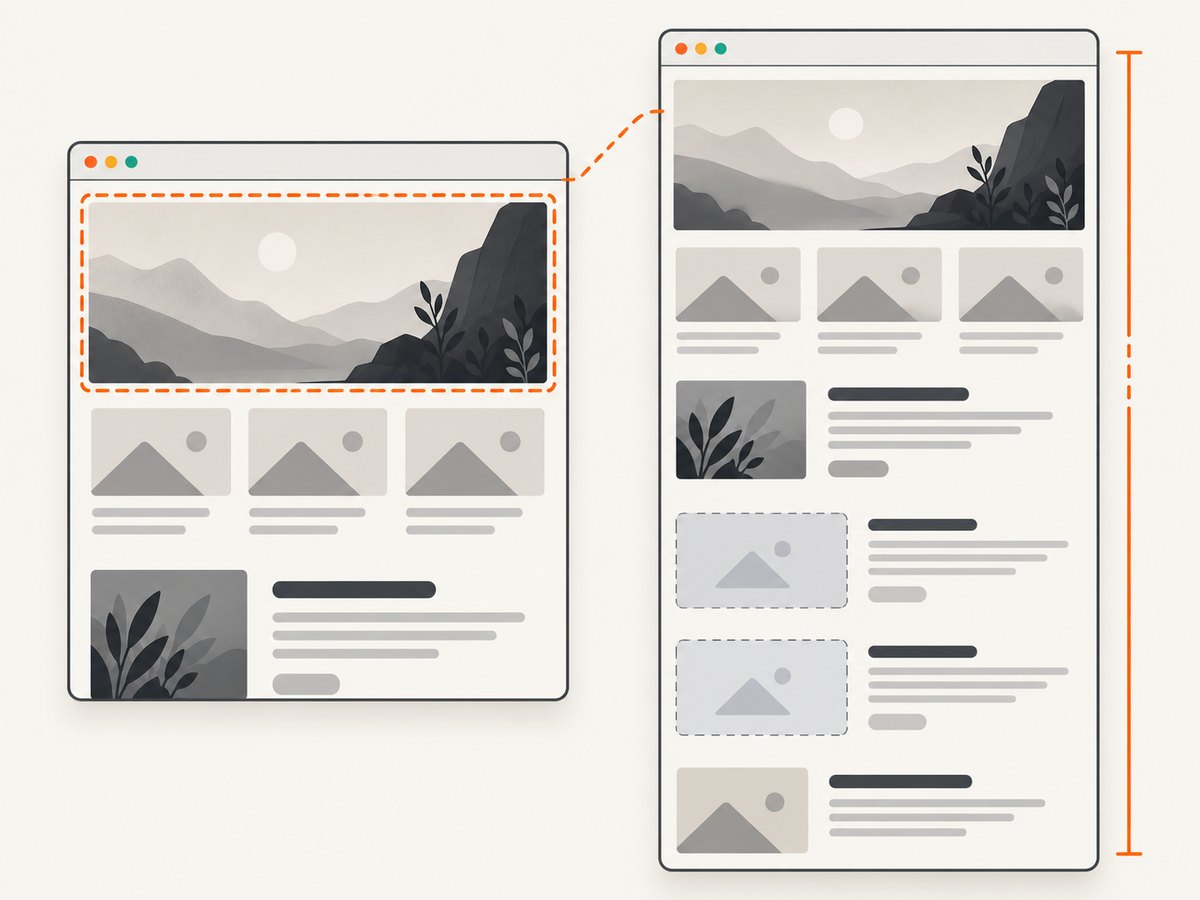
save_screenshot captures the current browser window. It does not automatically guarantee that every lazy image, animation or asynchronous request has completed. For deterministic jobs:
- Use an explicit wait for a stable CSS selector instead of a long arbitrary sleep.
- Disable or accommodate animations when visual consistency matters.
- Set a deliberate window size before navigation.
- Write unique filenames for parallel runs to avoid overwriting.
- Keep the browser cleanup in a
finallyblock. - Record the URL, resolved filename, timestamp and Selenium return value in logs.
For very tall pages, Selenium’s ordinary screenshot is viewport-oriented. A full-page result may require browser-specific DevTools commands or stitching multiple viewport captures. Those approaches add complexity around fixed headers, lazy loading and device scale factors. Decide whether a viewport image is sufficient before building a stitching pipeline.
7. Performance, reliability and cost considerations
Launching a browser is usually more expensive than writing a PNG. Reuse one driver for several pages when isolation rules allow it, but reset cookies, local storage and viewport state between jobs. In parallel workers, give each worker its own browser session and output directory.
Use explicit waits tied to page conditions so fast pages do not pay an unnecessary fixed delay while slow pages do not produce incomplete images. Limit concurrent sessions to the CPU and memory available to the host. Save to local storage first, then upload or move the file after the save succeeds.
Selenium itself has no per-screenshot service charge, but your infrastructure still pays for browser CPU, memory, storage and network traffic. A hosted screenshot API can shift those operational costs to a request-based plan, which is useful when you do not want to maintain browser binaries, drivers and retry logic.
8. Or skip the browser setup
ScreenshotNeo provides a website screenshot API and MCP server. One GET request returns PNG, JPEG, WebP or PDF. Cookie and consent banners, newsletter popups and chat widgets are removed before capture; each step can be turned off. Bot checks, blank pages, timeouts, failed loads and cache hits cost nothing, and response headers identify the page verdict and whether it was billed.
See the ScreenshotNeo API documentation for all options, including full-page capture, element selectors, device presets, custom CSS and JavaScript, waits, request blocking, headers, cookies, user agents, geolocation, caching, signed links, asynchronous jobs, bulk capture and PDF settings.
cURL
curl -G 'https://api.screenshotneo.com/v1/shot' \
  -d access_key=YOUR_API_KEY \
  --data-urlencode url=https://stripe.com \
  -o shot.webp
Python
import requests

r = requests.get(
    'https://api.screenshotneo.com/v1/shot',
    params={'access_key': 'YOUR_API_KEY', 'url': 'https://stripe.com'},
    timeout=90,
)
r.raise_for_status()
open('shot.webp', 'wb').write(r.content)
Node.js
const q = new URLSearchParams({
  access_key: 'YOUR_API_KEY',
  url: 'https://stripe.com'
});
const res = await fetch(`https://api.screenshotneo.com/v1/shot?${q}`);
if (!res.ok) throw new Error(`Screenshot failed: ${res.status}`);
const buffer = Buffer.from(await res.arrayBuffer());
await import('node:fs/promises').then(fs => fs.writeFile('shot.webp', buffer));
ScreenshotNeo also includes an MCP server with take_screenshot, get_page_info and capture_pdf tools for Claude, Cursor and other MCP clients. The Free plan includes 1,000 screenshots per month with no card; paid plans start at $5 for 3,000 shots, and every feature is available on every plan.
Create a free ScreenshotNeo account and use the API when maintaining a local Selenium browser is more work than the screenshot itself.
9. FAQ
Does Selenium cause the end-of-line error?
No. Python raises the syntax error while parsing your file, before Selenium is imported or called.
Can I use a raw string for every path?
Usually, but not when the literal ends with a single backslash. Use pathlib.Path for directory paths assembled at runtime.
Why is my path valid but no image appears?
Check the Boolean result from save_screenshot, then inspect the resolved path, parent directory, permissions and available disk space.
What file format does Selenium save?
The documented Python method saves a PNG image. Use a .png filename unless you are converting the result separately.
Should I use an absolute path?
An absolute path makes the destination unambiguous in scheduled jobs and CI. A relative path is fine when you deliberately control the process working directory.


