How to Fix Selenium Screenshot Exceptions in TestNG Teardown
Fix Selenium screenshot errors in TestNG teardown by checking lifecycle order, exception stage, driver support, and file storage.
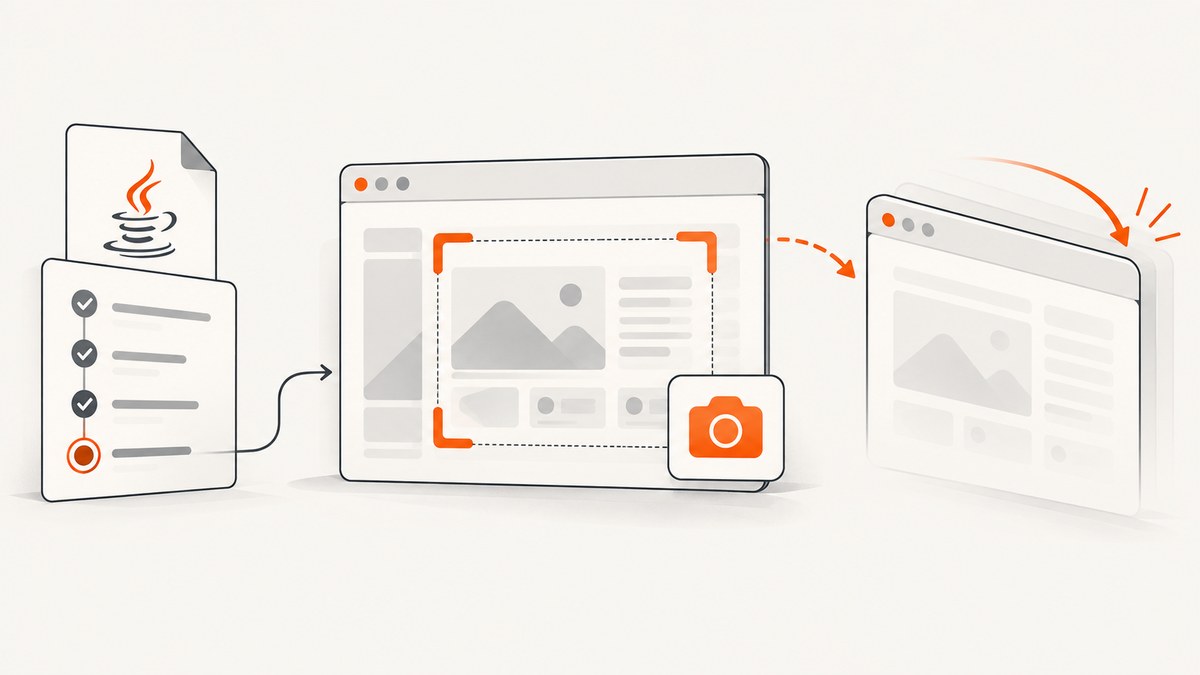
Selenium screenshot exceptions in TestNG teardown usually become understandable once you separate three stages: capturing the image, saving or copying it, and closing the browser. Capture must happen while the WebDriver session is still active. Then inspect the exact exception class and message, verify that the active driver supports screenshots, and diagnose storage independently.
For a failure-only policy, put the capture in @AfterMethod(alwaysRun = true), accept ITestResult, capture when the result is a failure, save to a unique writable path, and call driver.quit() in finally. TestNG’s alwaysRun controls whether the configuration method is invoked; it cannot make a closed or invalid WebDriver session usable.
1. Identify which teardown stage failed
Do not treat every message that mentions a screenshot as a Selenium capture problem. Record the exception class, complete message, and stack trace, then locate the first failing line.
| Where it fails | What it means | First check |
|---|---|---|
getScreenshotAs(...) |
The browser command failed or the implementation does not support capture. | Session state, teardown order, driver type, and exception class. |
| File copy or write | Selenium returned a file, but your destination operation failed. | Directory existence, write permission, filename collisions, and path handling. |
quit() or another hook |
Teardown ordering or a second cleanup path is failing. | Listeners, superclass teardown, and hooks that may close the driver first. |
| No teardown output | TestNG may not have invoked the configuration method as expected. | @AfterMethod rules, alwaysRun, and configuration listeners. |
Selenium documents WebDriverException as a capture failure category and UnsupportedOperationException when an implementation does not support screenshots. Neither class alone identifies the root cause, so preserve the full message and stack trace. See the Selenium TakesScreenshot API.
2. Put capture before driver shutdown
A screenshot is a browser command. Once another hook has called quit(), a later call to getScreenshotAs cannot work. Selenium’s example captures and saves the screenshot before quitting the driver; use the same order in TestNG teardown.
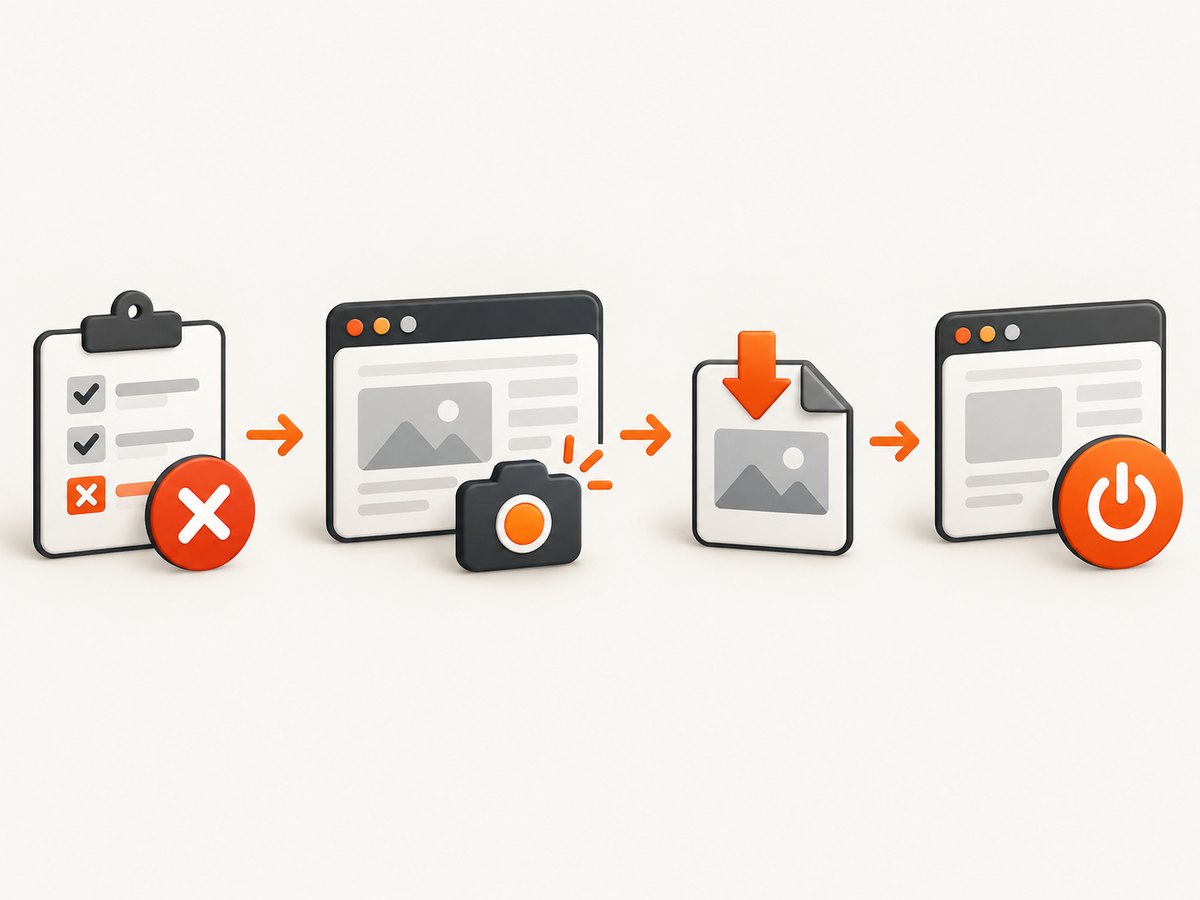
capture screenshot
save or copy screenshot
quit driver
Search the complete test class, base class, listeners, and configuration methods for every call to quit() and close(). Consolidate cleanup when possible. If a superclass or listener closes the session before your @AfterMethod, reorder those callbacks or move capture into the lifecycle point that still owns the active driver.
3. A robust TestNG teardown pattern in Java
The following pattern captures only failed tests, keeps screenshot errors visible in logs, and always attempts browser cleanup. Adapt driver creation and the destination directory to your project.
import java.io.File;
import java.io.IOException;
import java.nio.file.Files;
import java.nio.file.Path;
import java.nio.file.Paths;
import java.nio.file.StandardCopyOption;

import org.openqa.selenium.OutputType;
import org.openqa.selenium.TakesScreenshot;
import org.openqa.selenium.WebDriver;
import org.openqa.selenium.WebDriverException;
import org.testng.ITestResult;
import org.testng.annotations.AfterMethod;

public class UiTestBase {
    protected WebDriver driver;

    @AfterMethod(alwaysRun = true)
    public void tearDown(ITestResult result) {
        try {
            if (driver != null && result.getStatus() == ITestResult.FAILURE) {
                if (!(driver instanceof TakesScreenshot)) {
                    throw new UnsupportedOperationException(
                        "Active driver does not implement TakesScreenshot");
                }

                File source = ((TakesScreenshot) driver)
                    .getScreenshotAs(OutputType.FILE);

                Path directory = Paths.get("build", "screenshots");
                Files.createDirectories(directory);

                String method = result.getMethod().getMethodName();
                String test = result.getTestClass().getName()
                    .replace('.', '_');
                String fileName = test + "-" + method + "-"
                    + System.nanoTime() + ".png";
                Path destination = directory.resolve(fileName);

                Files.copy(source.toPath(), destination,
                    StandardCopyOption.REPLACE_EXISTING);
                System.out.println("Screenshot saved to " + destination);
            }
        } catch (WebDriverException | UnsupportedOperationException e) {
            // Keep the original test failure and log the screenshot failure.
            System.err.println("Screenshot capture failed: " + e);
            e.printStackTrace(System.err);
        } catch (IOException e) {
            // Capture may have succeeded; storage failed separately.
            System.err.println("Screenshot storage failed: " + e);
            e.printStackTrace(System.err);
        } finally {
            if (driver != null) {
                driver.quit();
                driver = null;
            }
        }
    }
}
OutputType.FILE returns a file result that you then copy to your chosen destination. If your project consumes another supported output type, keep the capture and storage steps separate so the exception location remains clear. The code deliberately does not replace the original test result with a secondary screenshot exception.
Failure-only versus every-test screenshots
ITestResult.FAILURE is appropriate when screenshots are diagnostic artifacts. Remove the status condition if you need an image for every test, or branch on your own policy for skipped and passed tests. TestNG’s @AfterMethod receives the result for the method that just ran, so use that object rather than inferring status from a log message.
Why use alwaysRun = true?
TestNG documents alwaysRun=true for after methods that must run even when an earlier method failed or was skipped. It improves the chance that cleanup and reporting execute, but it does not revive a session already terminated by another hook. Keep the null check and preserve the original exception.
4. Verify screenshot support and the active session
The object passed to capture must support TakesScreenshot. Check the actual object in use, especially when a wrapper, proxy, remote driver, or custom implementation is involved. Selenium’s API lists WebDriverException for capture failure and UnsupportedOperationException for unsupported implementations.
- Confirm
driveris non-null at the capture line. - Confirm no earlier hook called
quit()or otherwise ended the session. - Check that the active driver object implements
TakesScreenshot. - Read the complete message for evidence of session, browser, or transport state.
- Do not catch
Exceptionand silently continue; that hides whether capture, storage, or shutdown failed.
An element can also be the screenshot target where the implementation supports it. If an element-specific capture fails, first try a driver-level capture to determine whether the problem is target support or the browser session itself.
5. Diagnose file and directory failures separately
Successful getScreenshotAs(OutputType.FILE) does not guarantee that your final artifact was written where you expect. Check the destination independently:
- Create the parent directory before copying.
- Use an absolute path temporarily while diagnosing path confusion.
- Verify the test process has write permission.
- Generate unique names for parallel or repeated runs.
- Log both the source returned by Selenium and the final destination.
- Check available disk space and cleanup rules if files disappear after the run.
In parallel execution, method names alone can collide. Include a unique suffix, class name, or per-test directory. If a report system moves or deletes artifacts, verify that behavior after the copy succeeds.
6. Make TestNG lifecycle behavior observable
If the report suggests that teardown never ran, investigate TestNG invocation before changing Selenium code. Add temporary logging at the start and end of @AfterMethod, print the result status, and log whether the driver is null. TestNG’s configuration and annotation documentation describes after-method behavior and alwaysRun.
For larger suites, an IConfigurationListener can report configuration-method invocation and outcomes. This helps distinguish “the after method was not invoked” from “the after method ran and Selenium capture failed.” Remove noisy diagnostics after the lifecycle is understood, or keep concise structured logging in CI.
7. Troubleshooting decision table
| Symptom | Likely stage | Action |
|---|---|---|
UnsupportedOperationException on capture |
Driver capability | Confirm the active implementation supports screenshots and use a supported driver object. |
WebDriverException on capture |
Browser command or session | Read the message, verify the session is active, and move capture before shutdown. |
| Capture returns, copy fails | Storage | Create the directory, check permissions, and use unique destination names. |
| Only the original test error appears | Teardown did not run or logging is missing | Add entry logging, check alwaysRun, and inspect configuration callbacks. |
| Screenshot fails after another cleanup method | Ordering | Find every quit()/close() call and make capture the first cleanup action. |
| Failure occurs only in parallel or remote runs | Environment-specific lifecycle or storage | Collect the full exception, session details, parallel settings, and destination behavior before changing code. |
8. Edge cases to check before changing versions
Skipped tests and setup failures
A setup failure may leave driver null or partially initialized. Keep the null check and decide whether a screenshot is meaningful when no page was created. alwaysRun can invoke teardown in these cases, but it cannot create a browser session.
Superclass and listener cleanup
Base classes often own the driver while subclasses add teardown. Listeners can also perform cleanup. Trace the complete invocation order rather than assuming the method shown in one class is first.
Remote and parallel execution
Do not assign a specific remote-grid or parallel root cause without evidence. Gather the browser and driver versions, Selenium and TestNG versions, local versus remote mode, parallel settings, complete teardown code, and the exact stack trace. Then compare the failing stage with the table above.
9. Performance, reliability, and cost considerations
Screenshot capture adds browser and file I/O to teardown. Capture only failures when artifacts are for diagnosis, and avoid repeatedly capturing the same page in multiple listeners. Use per-test directories or unique names in parallel runs. Keep cleanup in finally so a storage error does not leave sessions open.
For reliable diagnosis, preserve both the original test exception and any screenshot exception. A screenshot failure should be reported as secondary evidence; otherwise the teardown error can obscure the assertion that actually failed. If storage is unavailable, log the capture stage and destination details so the failure remains actionable.
10. Or skip the browser setup
If your goal is an image or PDF of a URL rather than an in-process Selenium session, ScreenshotNeo provides a single HTTP request. Its capture service handles cookie and consent banners, newsletter popups, and chat widgets before the shot. Bot checks, blank pages, timeouts, failed loads, and cache hits are not billed, and the response identifies the result with X-Page-Verdict and X-Billed headers. An MCP server provides take_screenshot, get_page_info, and capture_pdf tools for Claude, Cursor, and other MCP clients.

See the ScreenshotNeo API documentation for parameters and response handling.
cURL
curl -G "https://api.screenshotneo.com/v1/shot" \
  -d access_key=YOUR_API_KEY \
  --data-urlencode url=https://stripe.com \
  -o shot.webp
Python
import requests

r = requests.get(
    "https://api.screenshotneo.com/v1/shot",
    params={"access_key": "YOUR_API_KEY", "url": "https://stripe.com"},
    timeout=90,
)
r.raise_for_status()
open("shot.webp", "wb").write(r.content)
Node.js
const q = new URLSearchParams({
  access_key: 'YOUR_API_KEY',
  url: 'https://stripe.com'
});
const res = await fetch(`https://api.screenshotneo.com/v1/shot?${q}`);
if (!res.ok) throw new Error(`Screenshot failed: ${res.status}`);
const bytes = Buffer.from(await res.arrayBuffer());
await import('node:fs/promises').then(fs => fs.writeFile('shot.webp', bytes));
ScreenshotNeo supports full-page captures with lazy images loaded, CSS-selector element capture, dark mode, device presets and custom viewports, retina scale, PDF paper and margin settings, custom CSS and JavaScript, clicks before capture, selector waits, delays, network-idle waits, request blocking, headers, cookies, user agents, authorization, timezone, geolocation, transparent backgrounds, resizing, selectable cache TTLs, signed image links, asynchronous jobs with signed webhooks, bulk capture for up to 100 URLs per call, a usage API, and an OpenAPI specification. Existing parameter names used by other screenshot APIs also work, which can simplify migration.
The Free plan includes 1,000 screenshots each month with no card. Paid plans start at $5 for 3,000 screenshots; yearly billing provides two months free, and every feature is included on every plan. Create a free ScreenshotNeo account to get started.
11. What information to include when requesting help
A reproducible report should include:
- The exact exception class, message, and complete stack trace.
- Selenium, TestNG, browser, and driver versions.
- Whether execution is local or remote.
- Parallel configuration and number of workers.
- The complete
@AfterMethod, listeners, and superclass teardown. - Where
quit()occurs. - The output type and destination path.
- Whether capture succeeds when run immediately inside the test method.
12. FAQ
Should I call quit() before taking the screenshot?
No. Capture and save the image while the session is active, then quit in finally.
Does alwaysRun=true guarantee a screenshot?
No. It controls TestNG invocation. A null, closed, or unsupported driver can still make capture fail.
Why does the report show a screenshot error instead of my assertion?
A teardown exception may mask the original failure. Log screenshot errors separately and preserve the original test result.
Can a successful capture still produce no file?
Yes. The later copy or write can fail because the directory, permissions, path, or filename handling is wrong.
What is the fastest way to distinguish capture from storage?
Log immediately after getScreenshotAs. If that line completes, investigate only the destination operation.


