How to Fix Selenium WebDriver TimeoutException When Capturing Screenshots
Find which Selenium operation timed out, synchronize on the right page state, separate capture from saving, and fix screenshot failures reliably.
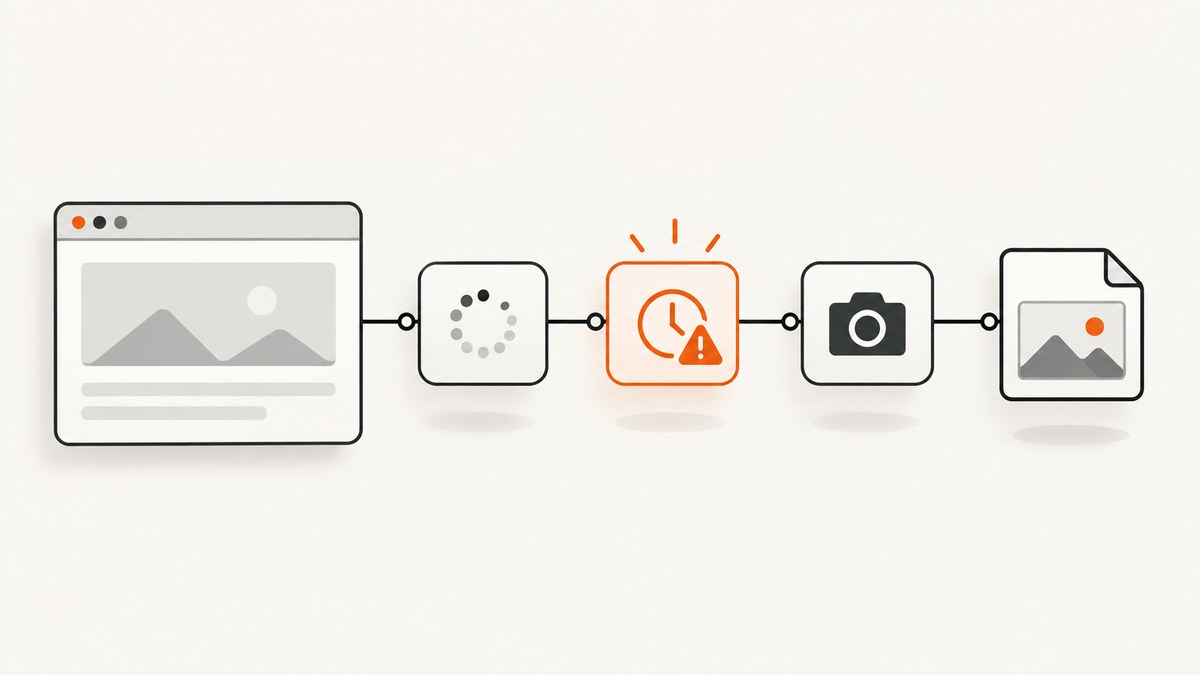
A selenium.common.exceptions.TimeoutException near screenshot code does not prove that the screenshot command timed out. The failing operation may be navigation, an explicit wait, an asynchronous script, screenshot capture, or the file write that follows it. Read the traceback, identify the exact line, and change only the timeout or synchronization mechanism that controls that operation.
The reliable workflow is:
- Locate the failing command in the traceback.
- Wait for the application state your image requires.
- Capture bytes separately from writing them to disk.
- Verify the browser, driver, session, window, frame, and screenshot method.
- Reduce the case to a small viewport capture before changing more settings.
Selenium navigation waits for a page-load-strategy readyState (normally complete), but that does not mean a JavaScript application has finished rendering. The Selenium project documents this distinction in its Waiting Strategies guide.
1. Identify what actually timed out
| Traceback location | What it means | Correct response |
|---|---|---|
WebDriverWait(...).until(...) |
The condition did not become true before the explicit wait ended. | Fix the locator or condition, and choose a timeout based on the application. |
driver.get() or navigation |
Page loading did not meet the configured page-load timeout. | Inspect slow resources, redirects, certificates, network access, and page-load strategy. |
execute_async_script() |
The asynchronous JavaScript callback did not complete before the script timeout. | Ensure the callback always runs and set the script timeout only for that script. |
get_screenshot_as_png(), save_screenshot(), or an element screenshot |
The driver or browser failed while serving the screenshot command, or the implementation does not support the requested capture. | Check session health, context, browser/driver versions, capture type, and remote execution. |
open(), write(), or an image-processing call |
The screenshot may have succeeded; storage or post-processing failed. | Use an absolute writable path, inspect permissions and disk space, and log the original exception. |
Do not treat implicitly_wait, set_page_load_timeout, and set_script_timeout as interchangeable global screenshot timeouts. Selenium describes implicit waits as a session-wide wait for element-location calls; page-load and asynchronous-script timeouts govern different operations.

2. Wait for the state the screenshot depends on
A page can reach readyState == "complete" while a single-page application is still fetching data, inserting components, removing a skeleton, or loading images. Wait for a concrete condition: an element is visible, a loading indicator is gone, a known text value appears, or a custom JavaScript readiness flag is true.
Python: explicit wait, capture bytes, then save
from pathlib import Path

from selenium import webdriver
from selenium.common.exceptions import TimeoutException, WebDriverException
from selenium.webdriver.common.by import By
from selenium.webdriver.support import expected_conditions as EC
from selenium.webdriver.support.ui import WebDriverWait

url = "https://example.com"
out = Path("/tmp/example.png").resolve()

options = webdriver.ChromeOptions()
options.add_argument("--headless=new")
options.add_argument("--window-size=1440,1000")

driver = webdriver.Chrome(options=options)
driver.set_page_load_timeout(45)
# Keep implicit wait at its default (0) when using explicit waits.

try:
    driver.get(url)
    wait = WebDriverWait(driver, 30, poll_frequency=0.25)

    # Replace this with the element that proves your page is ready.
    wait.until(EC.visibility_of_element_located((By.CSS_SELECTOR, "body")))
    wait.until(lambda d: d.execute_script("return document.readyState") == "complete")

    # Capture is separate from storage, so a write error cannot be mistaken
    # for a WebDriver screenshot timeout.
    png_bytes = driver.get_screenshot_as_png()
    out.parent.mkdir(parents=True, exist_ok=True)
    out.write_bytes(png_bytes)
    print(f"saved {out} ({len(png_bytes)} bytes)")
except TimeoutException as exc:
    print("A wait, navigation, or script timed out:", exc)
    raise
except WebDriverException as exc:
    print("The WebDriver command failed:", exc)
    raise
finally:
    driver.quit()
The Python WebDriver API documents PNG screenshot methods and notes that file methods return False on an IOError. Requesting bytes first makes the boundary explicit.
Python: save directly, but check the return value
from pathlib import Path
from selenium import webdriver

path = str(Path("/tmp/screenshot.png").resolve())
driver = webdriver.Chrome()
try:
    driver.get("https://example.com")
    ok = driver.save_screenshot(path)
    if not ok:
        raise RuntimeError(f"WebDriver could not save {path}")
finally:
    driver.quit()
Use a full path. A relative path can point to a different working directory in CI, a container, or a remote runner.
Java: distinguish capture failure from file handling
import java.io.File;
import org.openqa.selenium.OutputType;
import org.openqa.selenium.TakesScreenshot;
import org.openqa.selenium.WebDriver;
import org.openqa.selenium.WebDriverException;
import org.openqa.selenium.chrome.ChromeDriver;

WebDriver driver = new ChromeDriver();
try {
    driver.get("https://example.com");
    byte[] png = ((TakesScreenshot) driver).getScreenshotAs(OutputType.BYTES);
    java.nio.file.Files.write(java.nio.file.Path.of("/tmp/example.png"), png);
} catch (WebDriverException e) {
    // The driver/browser failed to provide the screenshot, or capture is unsupported.
    throw e;
} finally {
    driver.quit();
}
The Selenium Java TakesScreenshot API documents driver and element capture, WebDriverException on failure, and UnsupportedOperationException when an implementation does not support screenshots.
3. Choose the timeout that matches the operation
Page-load timeout
driver.set_page_load_timeout(45)
driver.get("https://example.com")
This controls navigation completion. It does not make save_screenshot() reliable by itself. If nonessential assets are slow, Selenium browser options support normal, eager, and none page-load strategies. A faster strategy requires a stronger application-specific wait afterward.
Explicit wait timeout
wait = WebDriverWait(driver, 30, poll_frequency=0.25)
wait.until(EC.invisibility_of_element_located((By.CSS_SELECTOR, ".loading")))
wait.until(EC.visibility_of_element_located((By.CSS_SELECTOR, "main article")))
Prefer this over a fixed sleep. A sleep can be too short on a busy run and unnecessarily long on a fast run.
Asynchronous script timeout
driver.set_script_timeout(10)
result = driver.execute_async_script("""
const done = arguments[arguments.length - 1];
requestAnimationFrame(() => done({ready: true}));
""")
Set this only when an asynchronous script is the failing line. It does not govern screenshot capture.
4. Check browser context and implementation
- Confirm the WebDriver session has not been quit or disconnected.
- Switch to the intended window or tab before capturing.
- Switch into the correct iframe if the target element is inside one.
- For element screenshots, verify the element exists, is displayed, and is not stale.
- Record Selenium binding version, browser version, driver version, operating system, headless/headed mode, local versus remote execution, and the exact screenshot method.
- Try a simple viewport screenshot on a minimal page. Then add full-page, element, scrolling, or remote complexity one variable at a time.
- Compare a second supported browser when the failure appears driver-specific.
WebDriver screenshot behavior depends on the implementation. A conforming implementation follows the WebDriver specification; non-conforming implementations may provide a best-effort image. Selenium’s Java API lists both failure and unsupported-operation cases.
5. Element, viewport, and full-page screenshots
Element screenshot
card = wait.until(EC.visibility_of_element_located((By.CSS_SELECTOR, "[data-testid='card']")))
card.screenshot("/tmp/card.png")
An element capture can fail when the locator is wrong, the element is in another frame, it is detached and replaced by JavaScript, or the browser/driver cannot implement the requested endpoint. Re-find a stale element after the page update and wait for visibility.
Viewport screenshot
driver.set_window_size(1440, 1000)
driver.save_screenshot("/tmp/viewport.png")
This is usually the smallest reproducible capture. Start here before diagnosing full-page behavior.
Full-page capture
Full-page support varies by browser and driver. A very tall document can expose browser, memory, stitching, or remote transport limits. Capture the viewport first; then test the same page with the browser’s documented full-page capability or a controlled scroll-and-stitch approach.
6. Separate screenshot bytes from storage and post-processing
Use a known writable directory and log the byte count. Check the boolean result of save_screenshot. In containers and CI, verify the user has write permission, the directory exists, and the disk is not full. If bytes are returned successfully but the image cannot be opened, inspect the file path and image decoder rather than increasing WebDriver timeouts.
7. Common errors and fixes
| Symptom | Likely cause | Fix |
|---|---|---|
Timeout at until |
Wrong selector or application state never appears. | Save page source, verify the selector manually, and wait for the actual visible/hidden/text condition. |
Timeout at get |
Slow resource, redirect loop, TLS issue, or unreachable host. | Test the URL from the same environment, inspect network logs, and adjust only page-load timeout or strategy. |
Timeout at execute_async_script |
Callback is not called on every branch. | Call the callback on success and failure; set the script timeout for that script. |
save_screenshot returns False |
File path or filesystem error. | Use an absolute path, create the parent directory, and check permissions and disk space. |
WebDriverException during capture |
Dead session, incompatible browser/driver, unsupported endpoint, wrong context, or remote failure. | Reproduce with a viewport capture, record versions, restart the session, and compare browsers/environments. |
| Element screenshot is blank or clipped | Element is hidden, moving, outside the intended frame, or not fully rendered. | Wait for visibility and stable dimensions; switch to the frame; capture after animations settle. |
| Works headed, fails headless | Different viewport, timing, GPU, font, or sandbox environment. | Set an explicit window size, compare logs, and isolate headless-specific options. |
| Works locally, fails remotely | Different browser/driver versions, network, permissions, or session transport. | Collect the remote versions and logs and reproduce the smallest command remotely. |
8. A diagnostic checklist for CI and bug reports
- Keep the complete traceback, including the command line that failed.
- State whether navigation, an explicit wait, an async script, capture, or saving failed.
- Include Selenium language binding and version.
- Include browser and driver versions and operating system.
- Include headless/headed mode and local/remote execution.
- Include the active window, frame, URL, selector, and screenshot method.
- Report whether
get_screenshot_as_png()succeeds when file writing is bypassed. - Attach browser/driver logs and a minimal reproducible page when possible.
9. Performance, reliability, and cost considerations
Explicit waits polling a precise condition reduce wasted time compared with large fixed sleeps. Smaller viewport captures use less memory and transfer time than very tall full-page images. Reusing a healthy browser session can reduce startup overhead, but isolate tests when state leakage causes flakiness. In remote environments, screenshot bytes must cross the WebDriver connection, so avoid unnecessary captures and compress or resize only after confirming the capture itself works.
Timeout increases improve reliability only when the underlying operation legitimately needs more time. They cannot repair a missing selector, a dead session, an unsupported screenshot endpoint, or an unwritable path. Capture failures should be retried only when the session is known to be healthy and the operation is safe to repeat; otherwise restart the session and preserve diagnostics.
10. Or skip the browser setup
If your goal is a clean image rather than browser-driver debugging, ScreenshotNeo provides a GET API that returns PNG, JPEG, WebP, or PDF. See the ScreenshotNeo API documentation.
curl -G "https://api.screenshotneo.com/v1/shot" -d access_key=YOUR_API_KEY --data-urlencode url=https://stripe.com -o shot.webpimport requests
r = requests.get("https://api.screenshotneo.com/v1/shot", params={"access_key": "YOUR_API_KEY", "url": "https://stripe.com"}, timeout=90)
open("shot.webp", "wb").write(r.content)const q = new URLSearchParams({ access_key: 'YOUR_API_KEY', url: 'https://stripe.com' });
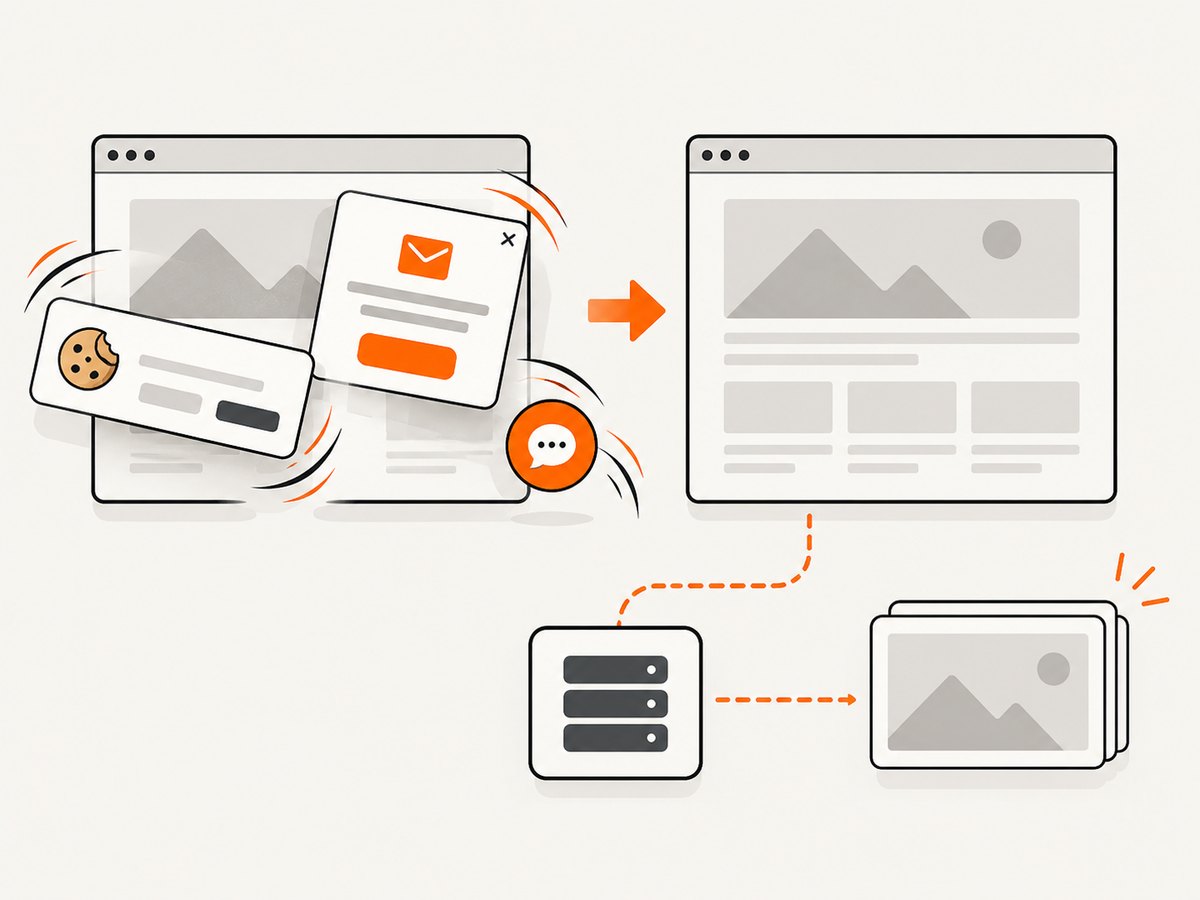
const res = await fetch(`https://api.screenshotneo.com/v1/shot?${q}`);Cookie and consent banners are accepted and removed before capture, along with more than 60 known consent platforms, newsletter popups, and chat widgets. Bot checks, blank pages, failed loads, timeouts, and cache hits are not billed, and response headers report the page verdict and billing status. ScreenshotNeo also offers an MCP server with take_screenshot, get_page_info, and capture_pdf tools for Claude, Cursor, and other MCP clients. The free plan includes 1,000 screenshots per month with no card; paid plans start at $5 for 3,000 shots.
Create a free ScreenshotNeo account and start with 1,000 screenshots a month at no charge.
11. FAQ
Does increasing the screenshot timeout fix TimeoutException?
Usually there is no separate screenshot timeout to increase. First identify whether navigation, an explicit wait, an async script, capture, or saving raised the exception.
Is document.readyState == "complete" enough?
No. It describes document loading, not necessarily data and components rendered later by JavaScript. Wait for the concrete state your image needs.
Should I use implicit and explicit waits together?
Selenium warns that mixing them can create unpredictable wait times. Prefer explicit, condition-based waits for screenshot workflows.
Why does Selenium save a zero-byte or missing file?
Separate capture from storage, use an absolute path, check the method’s return value, and verify filesystem permissions and disk space.
Can an element screenshot work when a full-page screenshot fails?
Yes. They exercise different endpoints and rendering paths. Test the smallest capture that meets your requirement, then expand the scope.
What information should I include when asking for help?
Include the traceback line, binding and Selenium version, browser/driver versions, execution mode, exact screenshot method, page context, and whether capture succeeds when writing is bypassed.


