How to Fix Selenium Screenshots Failing in Jenkins
Find whether Selenium, the file path, permissions, or Jenkins rendering is breaking screenshots, with fixes and pipeline code.
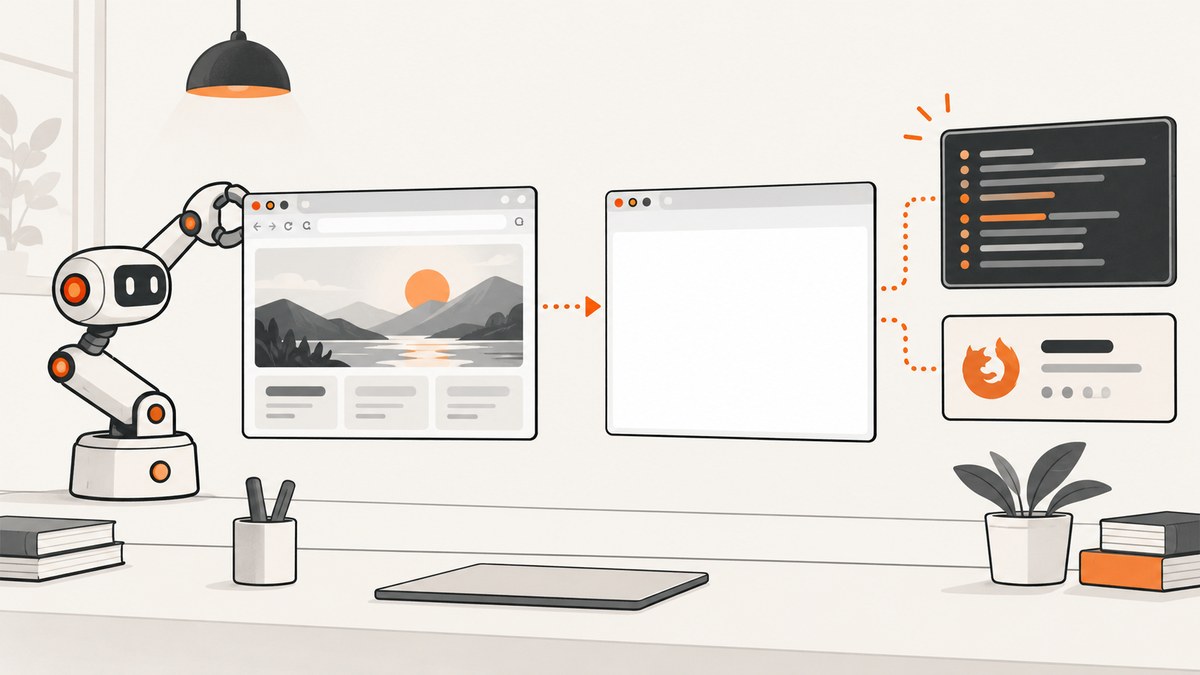
Direct answer: debug Jenkins screenshots in four stages: Selenium creates a valid image, the test writes it to the expected workspace path, Jenkins can read and archive it, and the report renders the archived file. Prove each stage on the build agent before changing browser flags or plugins.
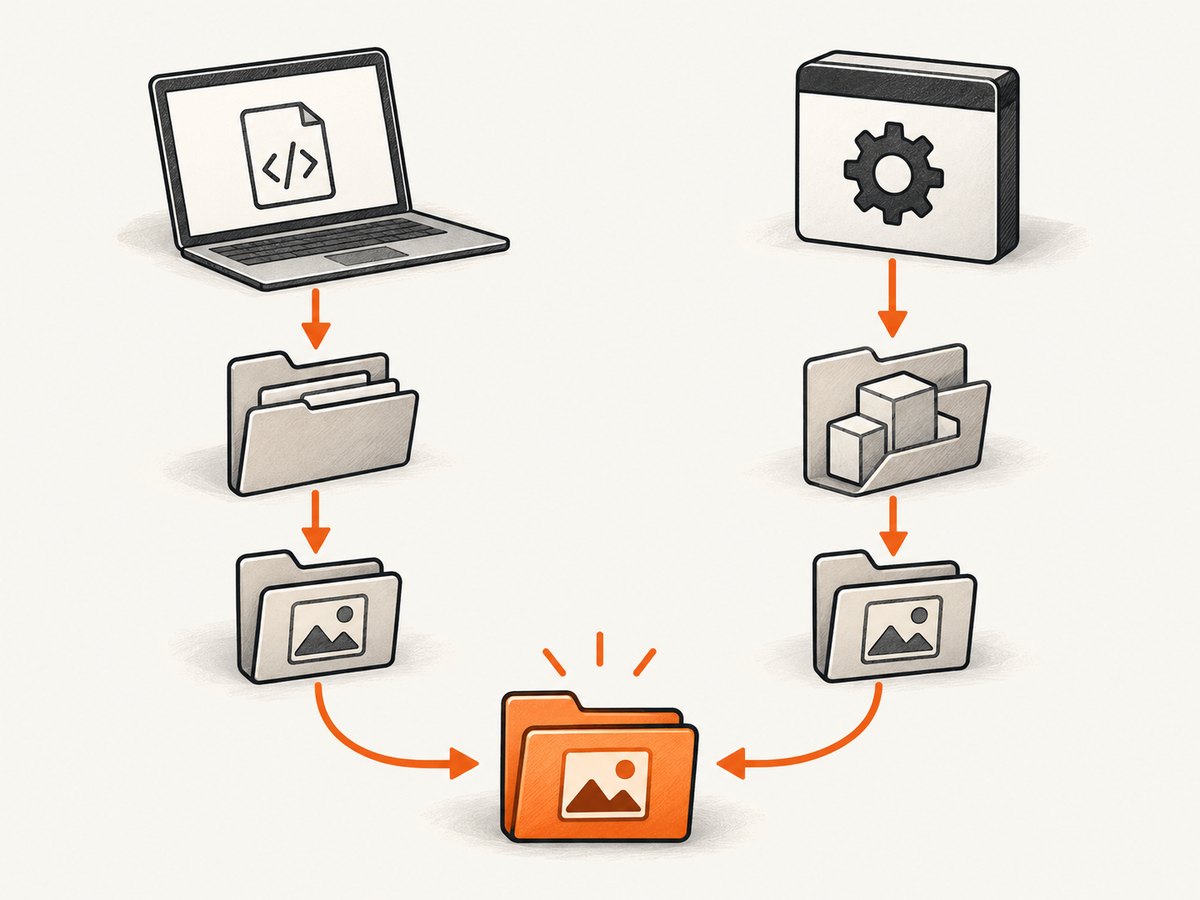
1. Verify Selenium capture
Call WebDriver’s screenshot operation while the session is alive, save into the workspace, and check existence and size immediately. See Selenium’s official screenshot documentation.
Java
import org.openqa.selenium.*;
import java.nio.file.*;

static Path save(WebDriver driver, Path out) throws Exception {
  Files.createDirectories(out.getParent());
  Path tmp = ((TakesScreenshot)driver).getScreenshotAs(OutputType.FILE).toPath();
  Files.copy(tmp, out, StandardCopyOption.REPLACE_EXISTING);
  long bytes = Files.size(out);
  System.out.printf("screenshot=%s exists=%s bytes=%d%n", out.toAbsolutePath(), Files.exists(out), bytes);
  if (bytes == 0) throw new IllegalStateException("empty screenshot");
  return out;
}
Python
from pathlib import Path
from selenium import webdriver

out = Path("target/screenshots/home.png")
out.parent.mkdir(parents=True, exist_ok=True)
driver = webdriver.Chrome()
try:
    driver.get("https://example.com")
    if not driver.save_screenshot(str(out)):
        raise RuntimeError("WebDriver did not save the screenshot")
    print(out.resolve(), out.exists(), out.stat().st_size)
finally:
driver.quit()- Capture before
driver.quit(); keep screenshot errors separate from the original test exception. - Record browser, driver, Selenium, and OS versions plus browser logs.
- Open the file on the agent. A report thumbnail cannot prove the PNG is valid.
- For blank images, verify page readiness with an explicit condition; a screenshot call does not know when your app is ready.
2. Verify path and workspace
Write below the checked-out workspace, then archive that exact relative path. Log the directory in the same step that creates the image:
sh 'pwd; mkdir -p target/screenshots; find target/screenshots -maxdepth 2 -type f -ls || true'If the listing is empty, Jenkins is not the first problem. Check working-directory changes, runner configuration, filename characters, and parallel tests overwriting one another. Avoid developer home-folder paths and container-only paths.
3. Collect artifacts after failures
Jenkins documents post conditions and archiveArtifacts. Declarative Pipeline:
pipeline {
  agent any
  stages {
    stage('Test') { steps { sh './gradlew test' } }
  }
  post {
    always {
      archiveArtifacts artifacts: 'target/screenshots/**/*.png',
                       allowEmptyArchive: true
    }
  }
}
Use the real path printed by the test. Verify allowEmptyArchive in your installed Pipeline step reference; an empty archive should still fail your evidence check. Scripted Pipeline uses finally:
node {
  try { sh './gradlew test' }
  finally { archiveArtifacts artifacts: 'target/screenshots/**/*.png', allowEmptyArchive: true }
}
4. Check permissions and containers
If the file exists but Jenkins cannot read it, inspect every parent directory and compare identities:
id
ls -ld . target target/screenshots
find target/screenshots -type f -exec ls -l {} \;
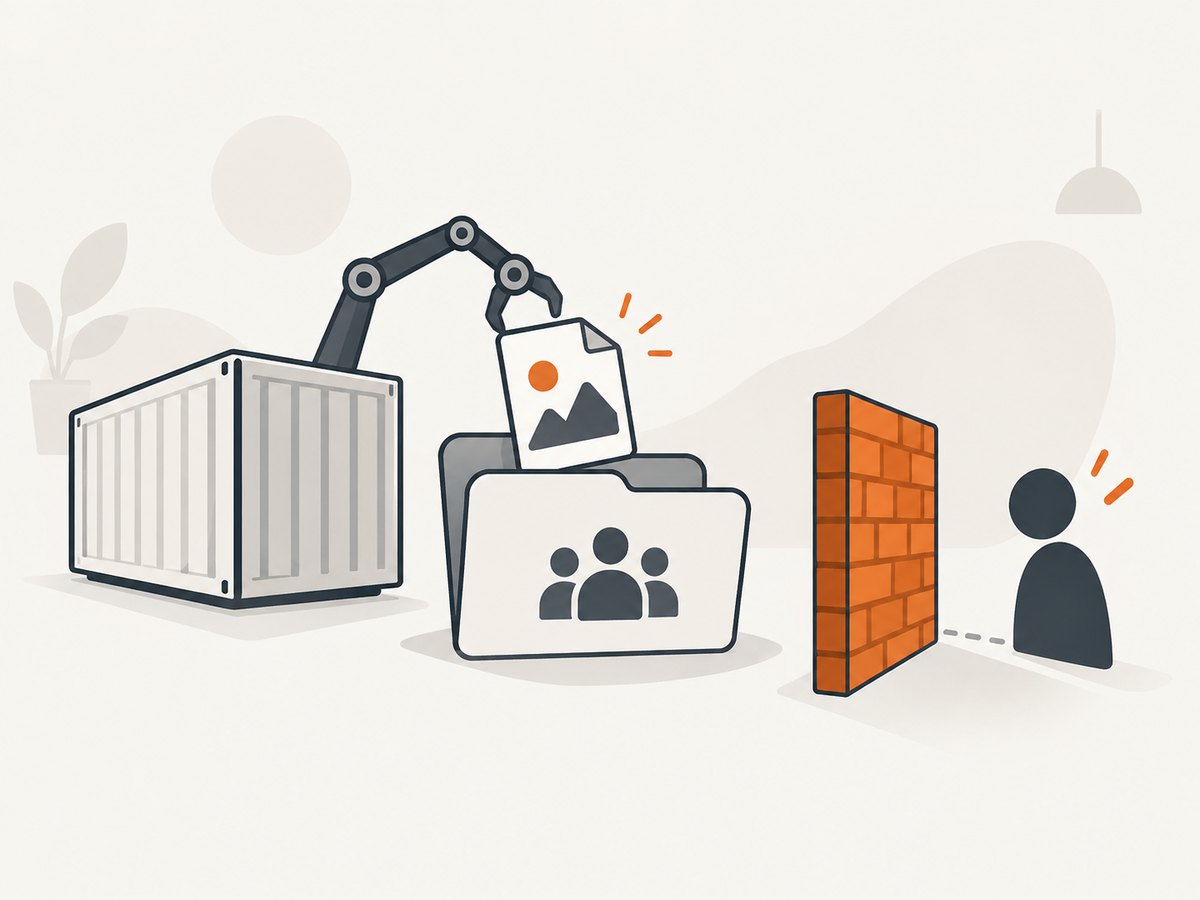
A browser container may create a root-owned PNG on a mounted workspace while Jenkins runs as an unprivileged user. Katalon’s July 2026 report describes this specific Selenium 4 Docker case and recommends running the Katalon container with Jenkins’ user ID. Treat that as a scoped ownership diagnosis, not a universal Selenium defect. Correct UID/GID or group policy at the container boundary and retain directory execute permissions.
5. Separate storage from report rendering
Download the archived PNG. If it opens, capture and storage worked. A report can still use a wrong relative URL, a case-sensitive filename, or be blocked by Jenkins’ user-content Content-Security-Policy. Jenkins explains this policy and its security trade-off in its security handbook.
- Open the archived file directly.
- Inspect report HTML for the image URL.
- Use browser developer tools to distinguish 404 from CSP refusal.
- Fix report paths or publish the image as an artifact; relax CSP only after security review.
6. Diagnostic checklist
- Capture: Selenium returns success and bytes are non-zero.
- Path: absolute and workspace-relative paths are logged.
- Collection: glob matches and runs in
post { always }orfinally. - Access: Jenkins UID can traverse and read.
- Rendering: archived file opens; then inspect report URL and CSP.
7. Symptoms, causes, fixes
| Symptom | Boundary | Fix |
|---|---|---|
| No file on agent | Capture/lifecycle | Check session state, logs, and call timing before quit. |
| Archive empty | Path/glob | Print pwd, list files, align glob. |
| Permission denied | UID/GID | Compare container and Jenkins identities; correct ownership. |
| PNG downloads but report blank | Rendering | Check HTML path, 404/CSP errors. |
| Zero-byte image | Write interruption | Check disk space and process termination; reject empty files. |
| Only parallel jobs fail | Name collision | Include test/worker ID in filenames. |
8. Reliability and performance
- Keep files on the agent until archiving completes; every copy adds a failure boundary.
- Capture on failure when build time and storage matter, but always archive failure evidence.
- Prefer deterministic readiness conditions to long sleeps.
- Clean stale workspace files or include a build ID in names.
- Set artifact retention appropriate to your evidence needs.
Or skip the browser setup
ScreenshotNeo returns PNG, JPEG, WebP, or PDF from one request. Before capture it accepts consent banners and removes 60+ known consent platforms, newsletter popups, and chat widgets; each step can be disabled. Bot checks, blank pages, timeouts, failed loads, and cache hits are not billed, and headers report the page verdict and billing status. Its MCP server lets Claude, Cursor, and other MCP clients call take_screenshot, get_page_info, and capture_pdf.
See the ScreenshotNeo docs for all options.
cURL
curl -G "https://api.screenshotneo.com/v1/shot" -d access_key=YOUR_API_KEY --data-urlencode url=https://stripe.com -o shot.webpPython
import requests
r = requests.get("https://api.screenshotneo.com/v1/shot", params={"access_key": "YOUR_API_KEY", "url": "https://stripe.com"}, timeout=90)
r.raise_for_status()
open("shot.webp", "wb").write(r.content)
Node.js
const q = new URLSearchParams({ access_key: 'YOUR_API_KEY', url: 'https://stripe.com' });
const res = await fetch(`https://api.screenshotneo.com/v1/shot?${q}`);
if (!res.ok) throw new Error(`HTTP ${res.status}`);
const fs = await import('node:fs/promises');
await fs.writeFile('shot.webp', Buffer.from(await res.arrayBuffer()));
Options cover full-page capture with lazy images, CSS-selector elements, dark mode, 12 device presets or any viewport, retina scale, PDF paper/margins/landscape/page ranges, custom CSS and JavaScript, clicks, selector/delay/network-idle waits, blocking ads/trackers/requests/resource types, headers/cookies/user agent/Authorization, timezone/geolocation, transparent backgrounds, resizing, TTL caching, signed links, async jobs with signed webhooks, bulk capture for 100 URLs, usage API, and OpenAPI. Other screenshot APIs’ parameter names also work. 1,000 shots/month are free with no card; paid plans start at $5 for 3,000 and yearly billing gives two months free. Create your free account.
FAQ
Should I install UI Test Capture?
Check its current maintenance and compatibility first. Its plugin page documents an older workflow; built-in artifact archiving is the documented baseline.
Does archiving prove the image is correct?
No. It proves Jenkins stored bytes. Open the image and verify page state and dimensions.
Why does it pass locally?
Compare paths, versions, headless/display settings, timing, container UIDs, and permissions.
Will a longer wait fix every blank image?
No. Waits address page readiness only, not closed sessions, wrong paths, permissions, or CSP.


