How to Fix Selenium SendKeys Typing into the Wrong Input Field
Find why Selenium types into the wrong field and fix locators, waits, stale elements, hidden controls, frames, windows, and focus issues.
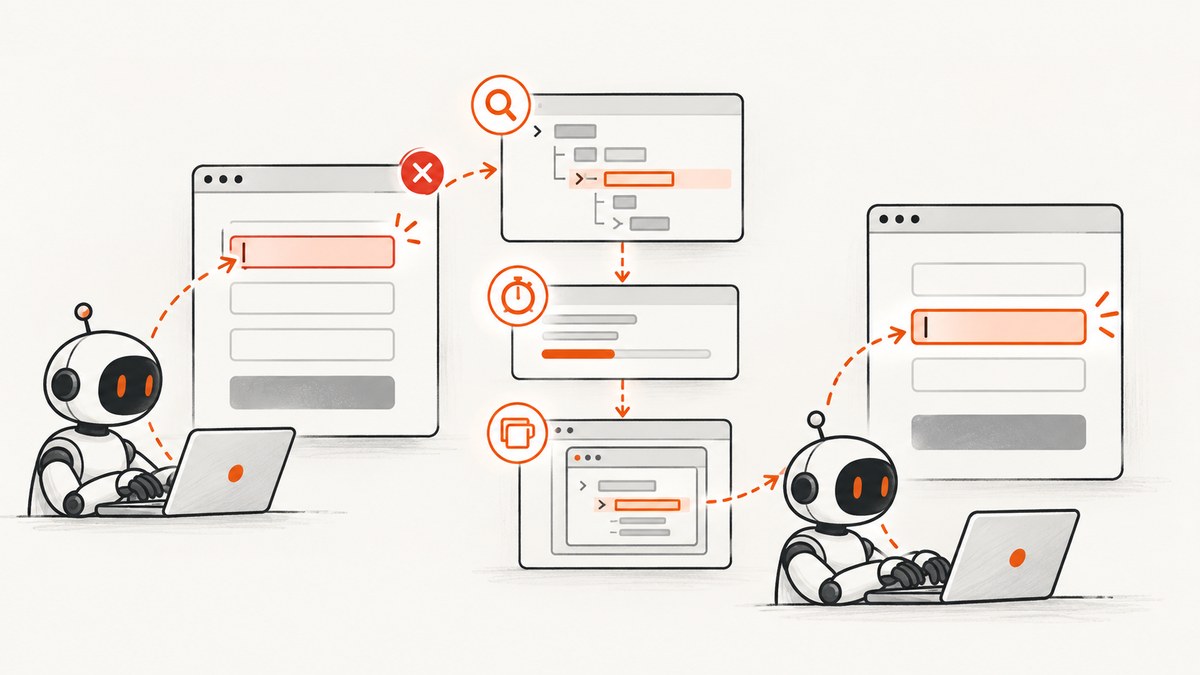
Selenium usually types into the wrong input for one of five reasons: the locator matches a different element, the page has not finished revealing the intended control, the matched node is hidden or not keyboard-interactable, the element became stale after a rerender, or the driver is in the wrong frame or window. The fix is to inspect the actual match, establish the correct browsing context, wait for the condition needed to interact, reacquire the element after DOM changes, and verify the value after typing.
Selenium’s own troubleshooting guidance says to ensure that locators uniquely identify the intended element. Its interaction documentation defines send_keys for keyboard-interactable elements, typically text inputs and contenteditable elements. A page’s readyState also does not prove that a JavaScript-created field is visible or ready. See the Selenium error guide, element interaction guide, and waits guide.
1. Use a unique locator and verify the match
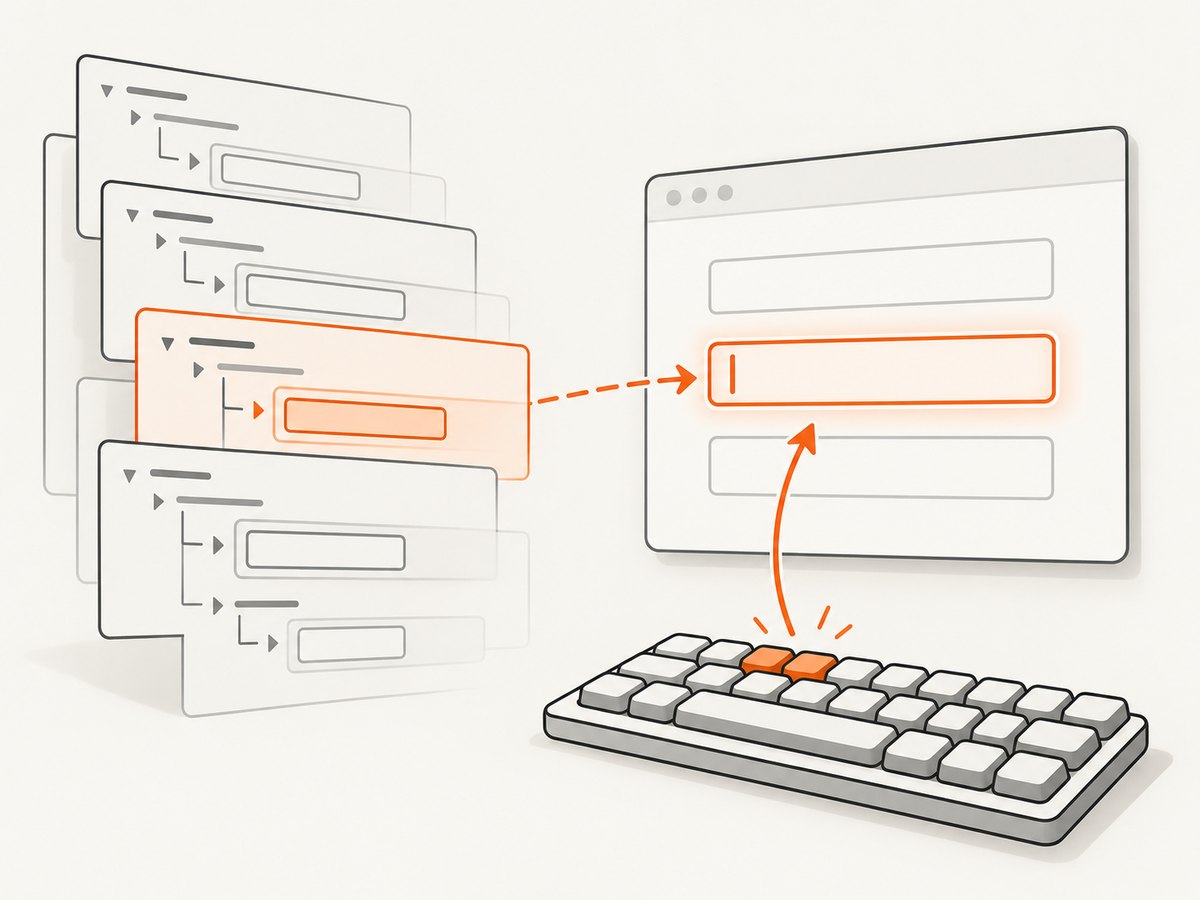
Start by proving which node Selenium found. In browser developer tools, inspect the intended input and identify a stable attribute. A unique ID is usually clear when the application owns it. Otherwise, scope a CSS or XPath selector to the correct form, dialog, or section. Repeated names, generic classes, and selectors copied from a component library often match hidden mobile fields, templates, search boxes, or duplicate modal content.
from selenium.webdriver.common.by import By

matches = driver.find_elements(By.CSS_SELECTOR, 'form#checkout input[name=email]')
print('matches:', len(matches))
for index, element in enumerate(matches):
    print(index, element.tag_name, element.get_attribute('type'),
          element.is_displayed(), element.is_enabled(),
          element.get_attribute('outerHTML')[:300])
A useful locator has one intended match at the moment you use it. If several elements match, do not fix the problem by selecting the first item in the list unless the page contract explicitly guarantees that order. Narrow the selector by form, dialog, label relationship, data attribute, or another stable boundary. Avoid selecting by presentation-only classes that are likely to change when the design changes.
Check the element semantics
send_keys is not a general command for any page element. The target should normally be an enabled, visible input or textarea, or an element with contenteditable='true'. A label, wrapper, form, icon, hidden duplicate, or custom component container may be the node returned by an overly broad selector. For a custom widget, inspect which element actually receives keyboard events and where the application stores its value.
2. Wait for the state you need
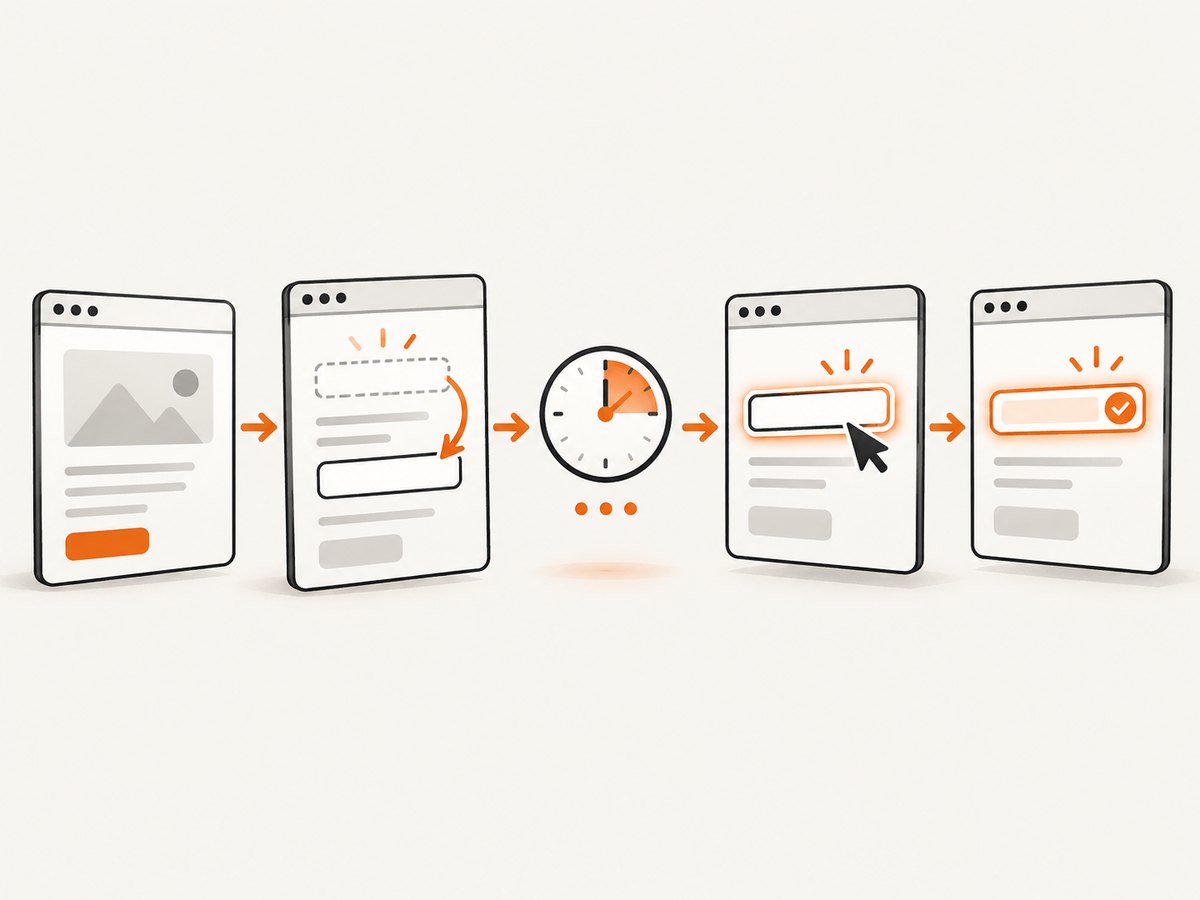
Navigation returning does not mean a JavaScript application has finished rendering the field. Selenium’s waits documentation explains that readyState covers assets declared in HTML, while later JavaScript can add or change the elements your next command needs. Wait for the intended condition, such as visibility or clickability, instead of relying on a fixed sleep.
from selenium.webdriver.common.by import By
from selenium.webdriver.support.ui import WebDriverWait
from selenium.webdriver.support import expected_conditions as EC

wait = WebDriverWait(driver, 10)
field = wait.until(
    EC.element_to_be_clickable((By.ID, 'unique-field-id'))
)
field.clear()
field.send_keys('text to enter')
assert field.get_attribute('value') == 'text to enter'
Replace the example ID and assertion with values from the actual DOM. If the field appears only after opening a dialog, perform the click first, then wait for the dialog’s field. If an application displays a loading skeleton before replacing it with a real input, wait for the real selector rather than the skeleton.
Implicit versus explicit waits
| Approach | Scope | Best use | Trade-off |
|---|---|---|---|
| Implicit wait | Global element-location calls | A simple project-wide baseline | It does not express whether an element is visible, enabled, or otherwise ready. |
| Explicit wait | One chosen condition | Dynamic controls and a clear interaction precondition | Requires selecting the right condition and locator. |
Selenium warns that mixing implicit and explicit waits can make total timing unpredictable. Choose a consistent policy for the project. For a field that must be visible and interactable, an explicit condition communicates the requirement most directly.
3. Reacquire elements after rerenders
A WebElement represents a particular DOM node. Frameworks such as React, Vue, and Angular may replace that node after validation, a route change, a modal transition, or an asynchronous response. A reference obtained before the replacement does not follow the new node. Selenium reports this as StaleElementReferenceException, but a replacement can also leave you interacting with an unexpected state if your code keeps old references.
from selenium.common.exceptions import StaleElementReferenceException

locator = (By.CSS_SELECTOR, 'form#profile input[name=display_name]')

for attempt in range(3):
    try:
        field = WebDriverWait(driver, 10).until(
            EC.element_to_be_clickable(locator)
        )
        field.clear()
        field.send_keys('Ada Lovelace')
        if field.get_attribute('value') == 'Ada Lovelace':
            break
    except StaleElementReferenceException:
        if attempt == 2:
            raise
else:
    raise AssertionError('The field value was not applied')
The important part is the order: wait and locate after the action that can replace the node. A retry should reacquire the element, not repeatedly call methods on the stale object. Keep retries bounded so a real application defect does not become an infinite loop.
4. Confirm the frame and window context
Selenium searches the current browsing context. An input inside an iframe is invisible to locators issued against the top document until you switch into that frame. A new tab or popup also requires switching to its window handle. An unsuccessful preceding action can leave the driver in a different frame or window than the one your next step assumes.
from selenium.webdriver.common.by import By
from selenium.webdriver.support.ui import WebDriverWait
from selenium.webdriver.support import expected_conditions as EC

# Switch to a frame by a stable element, name, or index.
frame = WebDriverWait(driver, 10).until(
    EC.presence_of_element_located((By.CSS_SELECTOR, 'iframe[data-payment]'))
)
driver.switch_to.frame(frame)

field = WebDriverWait(driver, 10).until(
    EC.element_to_be_clickable((By.CSS_SELECTOR, 'input[name=cardholder]'))
)
field.send_keys('Ada Lovelace')

# Return to the top document before locating top-level content.
driver.switch_to.default_content()
For a popup, save the original handle, wait until the number of windows increases, select the new handle, and switch back when finished. Log driver.current_url, the window handles, and the expected frame path while diagnosing context errors.
5. Check focus and application state
If no exception occurs but text appears in another control, treat locator and context as the first hypotheses. Inspect the matched element’s outer HTML, displayed and enabled state, and the browser’s active element. You can ask the page which element currently owns focus:
active = driver.execute_script('return document.activeElement')
print(active.get_attribute('outerHTML')[:500])
print('url:', driver.current_url)
Focus can move when a page opens a menu, validates a field, displays an error, or handles a keyboard shortcut. Clicking the intended field before typing can help with a custom widget, but it does not repair an ambiguous locator. Locate the correct node first, then use a condition-based wait and verify the resulting value or application state.
6. A complete diagnostic example
This example loads a page, waits for a unique field, prints useful evidence, types, and verifies the value. It is intentionally explicit so you can adapt each selector to the page under test.
from selenium import webdriver
from selenium.webdriver.common.by import By
from selenium.webdriver.support.ui import WebDriverWait
from selenium.webdriver.support import expected_conditions as EC

URL = 'https://example.com/account'
LOCATOR = (By.CSS_SELECTOR, 'form#account-settings input[name=email]')

driver = webdriver.Chrome()
try:
    driver.get(URL)
    wait = WebDriverWait(driver, 15)

    matches = driver.find_elements(*LOCATOR)
    print('initial matches:', len(matches))

    field = wait.until(EC.element_to_be_clickable(LOCATOR))
    print('tag:', field.tag_name)
    print('type:', field.get_attribute('type'))
    print('displayed:', field.is_displayed())
    print('enabled:', field.is_enabled())

    field.clear()
    expected = 'developer@example.com'
    field.send_keys(expected)

    actual = field.get_attribute('value')
    if actual != expected:
        raise AssertionError(f'Expected {expected!r}, got {actual!r}')
finally:
    driver.quit()
The URL and selector are placeholders. Use a test page you control or the page under investigation. For contenteditable, verify the relevant text or DOM property instead of assuming an input value exists.
7. Error clues and fixes
| Error or symptom | Likely cause | Fix |
|---|---|---|
NoSuchElementException |
Wrong page or frame, changed locator, or action performed too early. | Log the URL and context, confirm the preceding action, then wait for the intended selector. |
StaleElementReferenceException |
Navigation or a DOM update replaced the node. | Locate the element again after the state change and retry with a bounded limit. |
ElementNotInteractableException |
Hidden duplicate, disabled control, wrong element type, or a field not yet revealed. | Inspect every match, use a unique locator, and wait for interactability. |
| No exception, wrong field receives text | Ambiguous locator, wrong frame/window, or focus moved. | Print match count and outer HTML, inspect the active element, confirm context, and verify the target value. |
| Text disappears after typing | Client-side validation or rerender replaced the value. | Wait for the final field state, reacquire after the triggering action, and assert the application state. |
| Only headless runs fail | Different viewport, responsive markup, timing, or an overlay. | Set an explicit window size, capture diagnostics, and use selectors valid for that layout. |
8. Reliability and performance practices
- Prefer stable, unique selectors and keep them near the page object or component that owns them.
- Wait for a meaningful condition rather than adding arbitrary sleeps. This reduces wasted time when the page is fast and race conditions when it is slow.
- Use one wait strategy consistently. If your framework uses an implicit wait globally, understand how it affects every lookup before adding explicit waits.
- Keep diagnostic logging on failure: URL, title, frame path, window handle, locator, match count, displayed/enabled state, and a short outer HTML sample.
- Use bounded retries only for known rerender races. Repeatedly retrying a broken selector hides the defect and increases test duration.
- Verify outcomes, not just the absence of an exception. A successful command can still target the wrong node.
Browser setup itself also affects runtime. Driver startup, page navigation, third-party resources, and JavaScript rendering usually cost more than the send_keys call. Reuse a driver where test isolation permits, avoid unnecessary full navigations, and wait on the narrowest condition that represents readiness.
9. Or skip the browser setup
If your goal is to capture a page for a test artifact, visual regression record, documentation image, or debugging report, ScreenshotNeo can return a screenshot with one GET request. It accepts the cookie or consent banner like a visitor, removes more than 60 known consent platforms, newsletter popups, and chat widgets before capture, and lets you turn each cleanup step off. Bot checks or CAPTCHAs, blank pages, timeouts, failed loads, and cache hits are not billed; response headers identify the page verdict and whether the shot was billed. Its MCP server provides take_screenshot, get_page_info, and capture_pdf for Claude, Cursor, and other MCP clients.
See the ScreenshotNeo API documentation for all options. The basic request is:
cURL
curl -G 'https://api.screenshotneo.com/v1/shot' \
  -d access_key=YOUR_API_KEY \
  --data-urlencode url=https://stripe.com \
  -o shot.webp
Python
import requests

r = requests.get(
    'https://api.screenshotneo.com/v1/shot',
    params={'access_key': 'YOUR_API_KEY', 'url': 'https://stripe.com'},
    timeout=90,
)
r.raise_for_status()
open('shot.webp', 'wb').write(r.content)
Node.js
const q = new URLSearchParams({
  access_key: 'YOUR_API_KEY',
  url: 'https://stripe.com'
});
const res = await fetch(`https://api.screenshotneo.com/v1/shot?${q}`);
if (!res.ok) throw new Error(`HTTP ${res.status}`);
const data = Buffer.from(await res.arrayBuffer());
require('fs').writeFileSync('shot.webp', data);
For automation that needs more control, ScreenshotNeo supports full-page capture with lazy images loaded, CSS selector element capture, dark mode, 12 device presets or custom viewports, retina scale, PDF paper size and margins, custom CSS and JavaScript, click actions, selector waits, delays, network-idle waits, ad and tracker blocking, custom headers, cookies, user agents, Authorization, timezone, geolocation, transparent backgrounds, resizing, cache TTLs, signed links, asynchronous jobs with signed webhooks, bulk capture for up to 100 URLs per call, a usage API, and an OpenAPI specification. Every feature is available on every plan.
Pricing starts with 1,000 shots per month free with no card. Paid plans are Starter $5 for 3,000 shots, Growth $15 for 15,000, Pro $39 for 60,000, Scale $99 for 250,000, and Business $249 for 1,000,000; yearly billing gives two months free. Because only clean shots are billed, inspect X-Page-Verdict and X-Billed when reconciling usage. Create a free ScreenshotNeo account to get 1,000 screenshots a month with no card.
10. FAQ
Should I use XPath or CSS?
Use the selector that uniquely identifies the intended control and remains understandable to your team. CSS is often concise; XPath can express relationships such as a field associated with a particular label. The DOM determines the best choice.
Does element_to_be_clickable guarantee the correct field?
No. It helps establish visibility and enabled state for the element returned by your locator. If the locator matches the wrong duplicate, the condition can succeed on the wrong node.
Why does adding a sleep sometimes appear to fix it?
The delay may give JavaScript time to replace or reveal the field, but it does not state what condition you need and can still be too short or unnecessarily long. Wait for the relevant element state instead.
Can JavaScript set the value instead?
It can bypass normal keyboard behavior and framework event handling, so it may not reproduce what a user does. Use it only when the application contract and test purpose support that approach; otherwise fix the locator, context, readiness, and verification path.
What should I save when opening a bug?
Include the locator, match count, URL, frame and window context, element HTML, displayed/enabled state, exception text, and the value or application state observed after typing. That evidence usually separates a selector problem from a timing or context problem.


