How to Fix Selenium StaleElementReferenceException in Python
Fix Selenium’s StaleElementReferenceException by waiting for the right page state and locating the current element again. Includes safe retries, troubleshooting, and runnable Python examples.
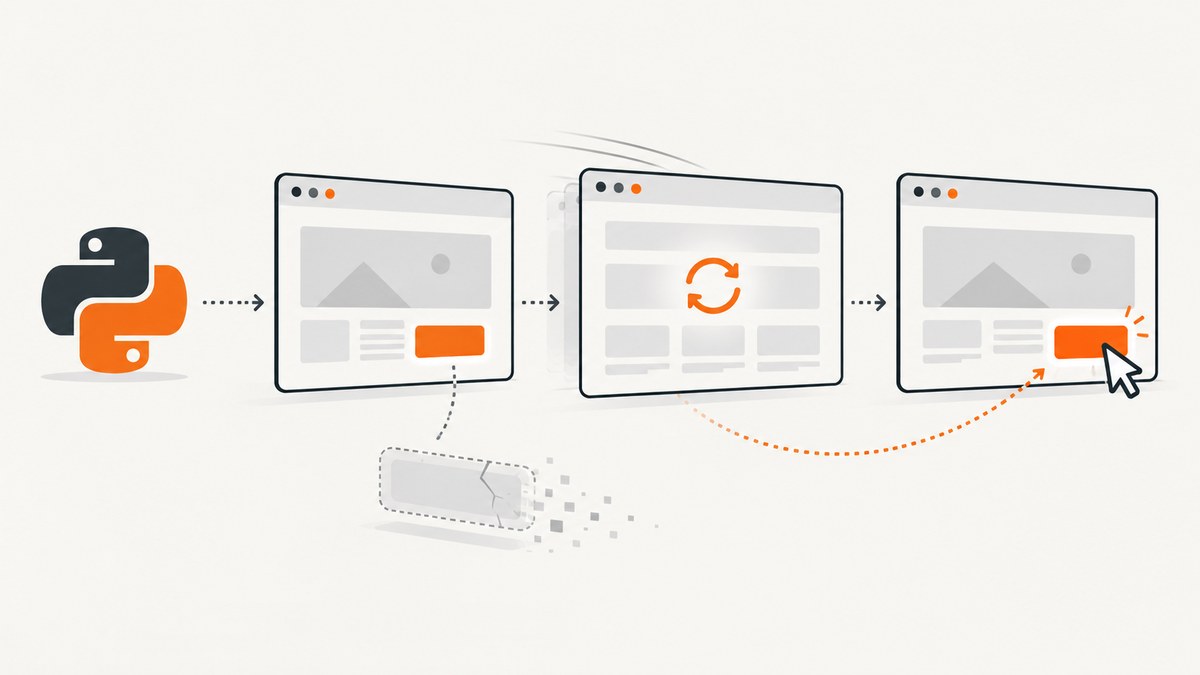
Short answer: A Selenium WebElement is a reference to one particular DOM node in one page context. If navigation, a refresh, a JavaScript update, or a frame refresh detaches that node, Selenium raises StaleElementReferenceException when you try to use the old reference. Keep the locator, wait for the page state you need, and locate the current element again immediately before acting. If replacement is the expected event, wait for the old element to become stale, then find its replacement.
This guide shows how to diagnose the cause and choose a safe recovery pattern in Python. It covers explicit waits, replacement-aware waits, narrow retries, frames, page transitions, common errors, and practical reliability and performance concerns. Selenium’s official guides explain the stale-reference behavior and the wait conditions used below: stale element reference troubleshooting and explicit waits and expected conditions.
1. What the exception means
Selenium identifies a page element with a remote reference. That reference remains useful only while the corresponding node is attached to the active document in the current browsing context. If the page removes the node and creates another one that looks identical, the old Python object does not automatically point to the replacement. It is stale.
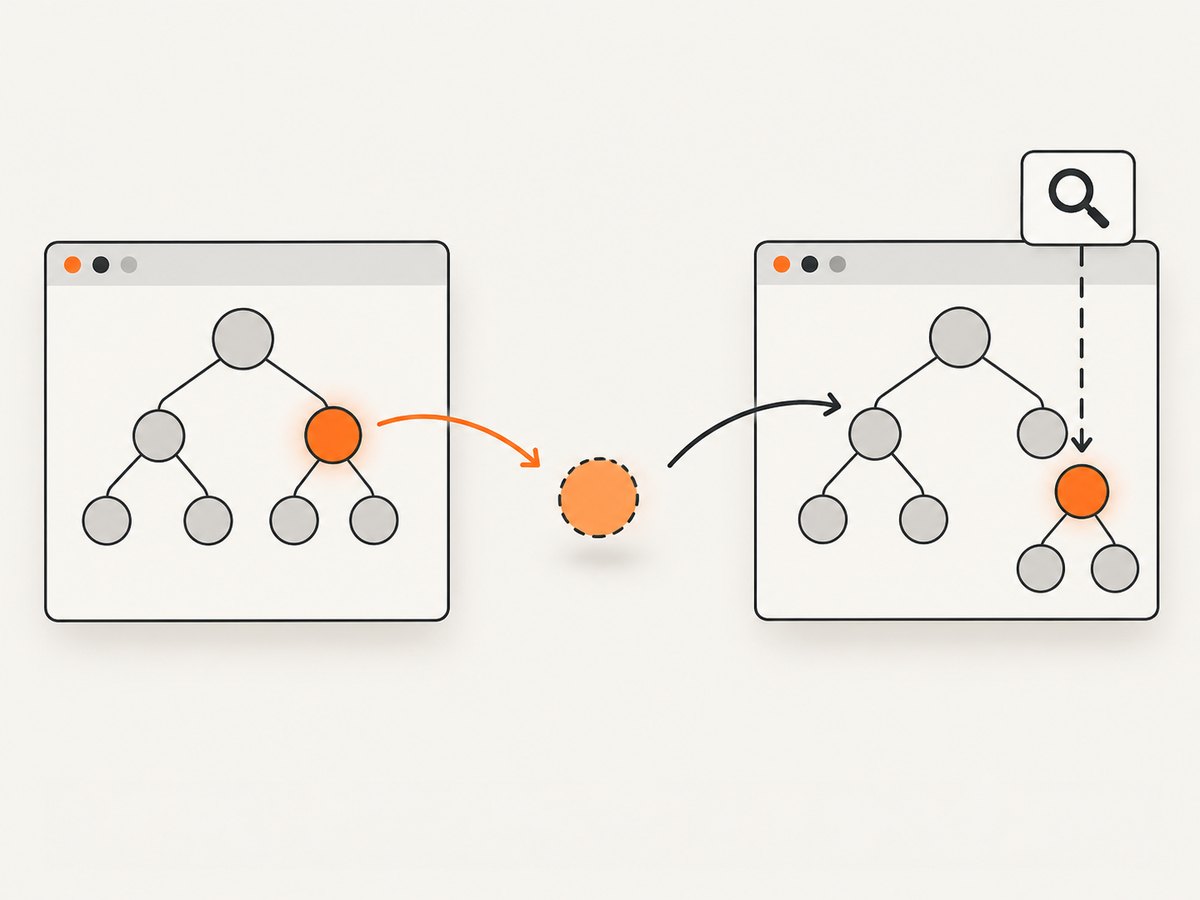
Common causes include:
- Navigation or refresh: the old document is replaced, invalidating its elements.
- Dynamic rendering: a framework replaces a row, button, form, or whole component after a state change.
- Frame changes: an iframe reloads or the driver is no longer in the frame where the element was found.
- Delayed interactions: code stores an element, waits or performs other work, and the page changes before the eventual action.
The exception does not necessarily mean your selector is wrong. It means that the particular element object you already obtained is no longer usable. Adding a fixed sleep may appear to help by changing timing, but it does not make a stale reference fresh. The fix is to identify the transition and reacquire the element in the right context.
2. Minimal runnable Python example
Install Selenium with python -m pip install selenium. Selenium 4 can manage a compatible browser driver for common local setups. The following example opens a page, waits for a button using its locator, and clicks the current matching element. Replace the example URL and locator with the target page’s values.
from selenium import webdriver
from selenium.webdriver.common.by import By
from selenium.webdriver.support import expected_conditions as EC
from selenium.webdriver.support.ui import WebDriverWait

URL = "https://example.com"
SUBMIT_LOCATOR = (By.ID, "submit")

driver = webdriver.Chrome()
try:
    driver.get(URL)
    wait = WebDriverWait(driver, 10)

    submit = wait.until(EC.element_to_be_clickable(SUBMIT_LOCATOR))
    submit.click()
finally:
    driver.quit()
The important detail is that element_to_be_clickable receives the locator tuple, not a previously cached WebElement. As the wait polls, Selenium checks for the current element matching that locator and waits until it is visible and enabled. Keep the successful wait and the action close together, because the page can still change after the condition succeeds.
3. Fix the common case with a locator-based explicit wait
Prefer storing a locator such as (By.CSS_SELECTOR, "button.save") over storing a WebElement across page updates. Use an explicit wait for the specific state required by the next operation.
Wait for visibility, presence, or clickability
from selenium.webdriver.common.by import By
from selenium.webdriver.support import expected_conditions as EC
from selenium.webdriver.support.ui import WebDriverWait

wait = WebDriverWait(driver, 12)
result_locator = (By.CSS_SELECTOR, "#results .result")

# The element exists in the DOM. It may not be visible yet.
result = wait.until(EC.presence_of_element_located(result_locator))

# For interaction, wait for visible and enabled state instead.
continue_locator = (By.CSS_SELECTOR, "button.continue")
continue_button = wait.until(EC.element_to_be_clickable(continue_locator))
continue_button.click()
Choose the condition that matches the operation: presence for DOM access, visibility when the element must be displayed, and clickability for a button that must be visible and enabled. A condition cannot ensure that an application will not rerender one millisecond later. If rerenders are expected, make the interaction short and handle a transient stale reference only when retrying is safe.
Do not cache elements across transitions
This pattern is fragile if the list updates between finding the elements and reading them:
# Fragile across updates: these objects refer to the nodes found now.
rows = driver.find_elements(By.CSS_SELECTOR, "tr.result")
# Other work or a page update happens here.
for row in rows:
    print(row.text)
Instead, re-query after the update, or locate each row immediately before using it. For a read-only extraction, a fresh query can look like this:
rows_locator = (By.CSS_SELECTOR, "tr.result")
wait.until(EC.presence_of_all_elements_located(rows_locator))

# Reacquire after the page reaches the desired state.
rows = driver.find_elements(*rows_locator)
values = [row.text for row in rows]
When a page may replace rows while you iterate, even this collection can become stale mid-loop. In that case, wait for the application’s completion signal, use stable row identifiers to locate one row at a time, or handle the specific stale read with a bounded retry.
4. Wait for an expected replacement
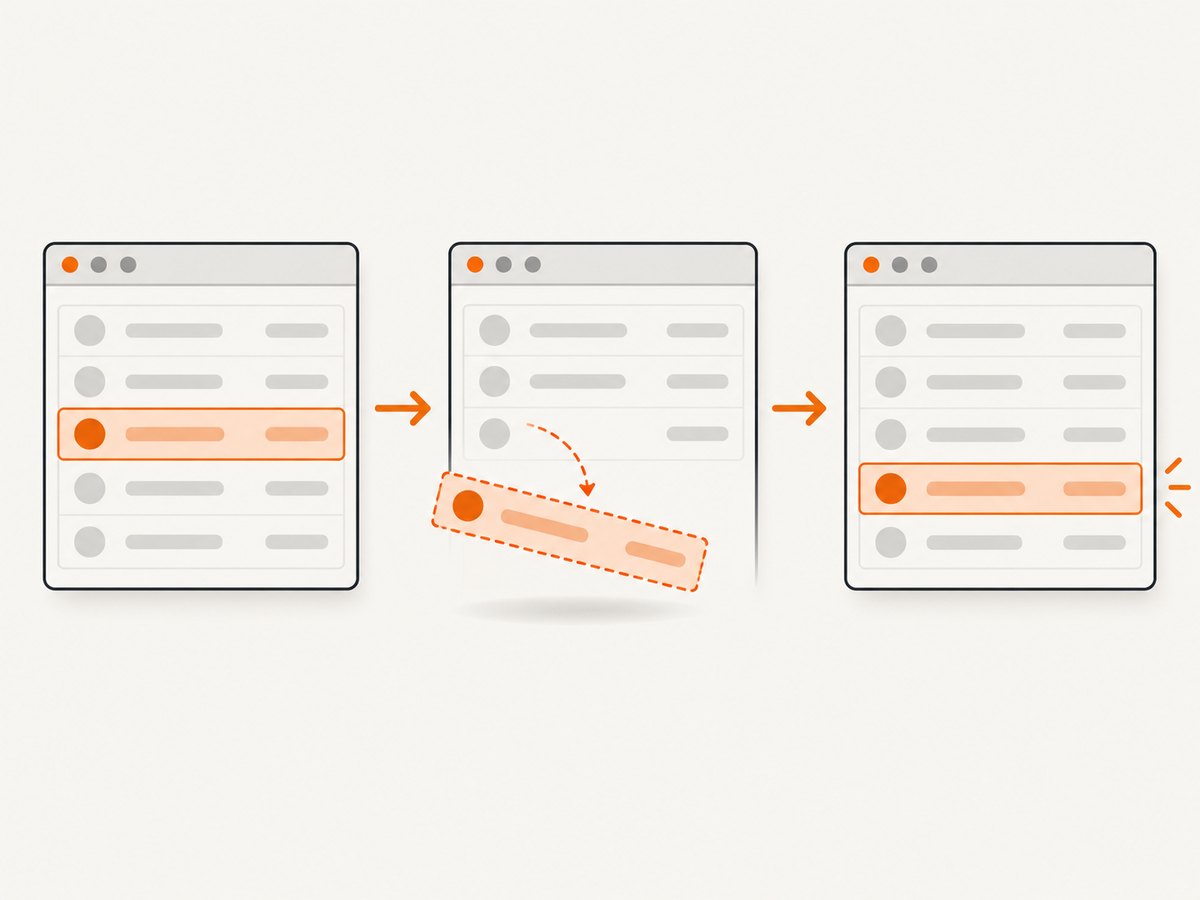
Sometimes the old element becoming detached is exactly the transition you are waiting for. Selenium’s EC.staleness_of condition waits until an existing element is no longer attached to the DOM. Then locate the new element with its locator; the old object never becomes valid again.
from selenium.webdriver.common.by import By
from selenium.webdriver.support import expected_conditions as EC
from selenium.webdriver.support.ui import WebDriverWait

wait = WebDriverWait(driver, 10)
row_locator = (By.CSS_SELECTOR, "tr.selected")
old_row = driver.find_element(*row_locator)

# Trigger the action that causes the application to replace the row.
driver.find_element(By.ID, "refresh-row").click()

# Wait for the old node to be detached.
wait.until(EC.staleness_of(old_row))

# Find the replacement node using the retained locator.
new_row = wait.until(EC.presence_of_element_located(row_locator))
print(new_row.text)
Use this when you know the old node should disappear or be replaced. If the application updates the old node in place, staleness may never occur; wait instead for a meaningful changed value, status, or other application-specific condition.
5. Retry only a safe, narrow operation
Selenium’s troubleshooting guidance describes catching the stale exception, relocating the element with its stored locator, and retrying the method. This can be appropriate for a transient read or idempotent action. It is dangerous to wrap arbitrary browser work in a catch-and-repeat loop: a submit may already have succeeded, a click may have triggered a purchase, or the true problem may be a wrong frame or page.
A bounded helper can make the retry policy explicit:
from selenium.common.exceptions import StaleElementReferenceException
from selenium.webdriver.support import expected_conditions as EC
from selenium.webdriver.support.ui import WebDriverWait

def click_fresh(driver, locator, timeout=10, attempts=2):
    """Retry a click only when repeating this click is safe for the app."""
    wait = WebDriverWait(driver, timeout)
    last_error = None

    for _ in range(attempts):
        element = wait.until(EC.element_to_be_clickable(locator))
        try:
            element.click()
            return
        except StaleElementReferenceException as exc:
            last_error = exc

    raise last_error

save_locator = (By.CSS_SELECTOR, "button.save-draft")
click_fresh(driver, save_locator)
This helper waits for a fresh clickable match on each attempt and stops after a small, known number of retries. Use it only where repeating the action cannot cause duplicate side effects. For a form submission, first determine whether the first click might have reached the server; wait for a confirmation or inspect application state before deciding whether another submission is safe.
6. Diagnose page, frame, and window context
When reacquiring still fails, check that the driver is in the expected page and browsing context. An element found inside an iframe can only be found while switched into that frame. After a frame reload, switch into the frame again and locate the element afresh.
from selenium.webdriver.common.by import By
from selenium.webdriver.support import expected_conditions as EC
from selenium.webdriver.support.ui import WebDriverWait

frame_locator = (By.CSS_SELECTOR, "iframe#checkout")
button_locator = (By.CSS_SELECTOR, "button.confirm")
wait = WebDriverWait(driver, 10)

# Ensure a fresh frame is available, then switch into it.
wait.until(EC.frame_to_be_available_and_switch_to_it(frame_locator))
button = wait.until(EC.element_to_be_clickable(button_locator))
button.click()

# Return to the top-level document before locating outside the frame.
driver.switch_to.default_content()
If the site opened a new window or tab, confirm the active handle before locating page elements. If navigation occurred, wait for the relevant URL or page marker, then find the element again. Do not assume that a locator finding nothing and a stale reference are the same failure: a missing element can indicate an incorrect selector or the wrong page state.
7. Choose the recovery pattern
| Situation | Best next step | Reason |
|---|---|---|
| Dynamic content may rerender | Wait by locator, then reacquire immediately | The wait can evaluate a current match instead of relying on an old object. |
| An action should replace a node | Wait for staleness_of(old), then locate replacement |
Detachment is the transition being observed. |
| Navigation or refresh occurred | Wait for URL or page-ready marker, then re-find | All references from the old document are invalid. |
| Element lives in an iframe | Switch to the current frame, then re-find | Each frame has its own document context. |
| Transient stale failure during safe read | Small bounded retry using the locator | Retry can recover a race without hiding persistent faults. |
| Repeated side-effecting action | Check application outcome before retry | The first action may already have been processed. |
8. Troubleshooting common errors
| Symptom | Likely cause | Fix |
|---|---|---|
stale element reference: element is not attached to the page document |
The node was removed or replaced after it was located. | Use the saved locator to wait for and find the current node again. |
The same stale error returns after adding sleep |
The delay did not identify the state transition, or another rerender occurred later. | Replace fixed timing with an explicit condition; wait for staleness only if replacement is expected. |
TimeoutException after switching to locator waits |
The locator does not match the current page, the state never occurs, or the driver is in the wrong frame. | Inspect the current URL and frame, validate the selector, and wait for the correct state. |
NoSuchElementException on reacquisition |
The replacement is not present yet, the selector changed, or the old page is still active. | Use a wait with the correct locator and verify the page transition before locating. |
| Retry causes duplicate submissions or actions | A side effect may have completed before the stale exception was surfaced. | Do not automatically repeat; check for a success marker or server-visible outcome first. |
| Element works in top-level page but not after iframe refresh | The driver is outside the frame or the frame document was replaced. | Wait for and switch into the current iframe, then find the element again. |
9. Performance, reliability, and cost notes
Explicit waits poll for a condition until it succeeds or times out. They usually avoid paying the full duration of a fixed sleep when a page becomes ready early, while a sleep may still be too short or unnecessarily long. Pick timeouts based on the application’s expected behavior and make timeouts visible in logs. A wait does not remove the race between condition success and the next command, so keep dependent operations adjacent.
Repeatedly finding elements has a small WebDriver command cost, but stale references create failed commands and brittle automation. Prefer a fresh locator lookup where the page can rerender; avoid excessive polling with very short intervals unless there is a clear need. Selenium wait conditions use a polling loop and can be paired with application-specific readiness checks.
Reliability improves when selectors identify stable attributes, such as IDs or dedicated test attributes, and when waits observe meaningful application state instead of arbitrary elapsed time. Keep retries bounded, log the locator and current URL when a retry occurs, and distinguish expected transient replacement from persistent context or selector bugs.
The exception itself has no special Selenium charge. Runtime and infrastructure costs depend on how long the browser session runs and where it runs. Eliminating blind sleeps, failed loops, and unnecessary browser setup can reduce wasted execution time, but the amount depends on the workload and environment; no fixed performance or cost saving can be promised.
10. Frequently asked questions
Does catching the exception make the old element usable again?
No. The old reference remains stale. Catching the error only gives your code a chance to locate a new element and decide whether a retry is safe.
Should I use implicit waits to fix stale elements?
An implicit wait affects element lookup when no match is immediately available. It does not refresh an already obtained WebElement. Use explicit waits for the state or transition your next step requires.
Can I wait until an element is stale before clicking it?
Wait for staleness when another action is expected to detach that element. Once it is stale, do not click it; locate the replacement and act on that new reference if appropriate.
Is JavaScript click a good workaround?
It does not repair a stale reference. JavaScript executed against an old or detached node can fail or bypass normal interaction behavior. First establish the correct document context and reacquire the element.
Or skip the browser setup
If your task is to capture a page image rather than interact with it through Selenium, ScreenshotNeo is a website screenshot API and MCP server. One GET request returns a PNG, JPEG, WebP, or PDF. Its clean-shot flow accepts cookie and consent banners like a visitor and removes more than 60 known consent platforms, newsletter popups, and chat widgets before capture; each step can be turned off. Bot checks or CAPTCHAs, blank pages, timeouts, failed loads, and cache hits cost nothing, and response headers report the page verdict and billing status. Its MCP server gives Claude, Cursor, and other MCP clients the take_screenshot, get_page_info, and capture_pdf tools.
For a Python request, see the ScreenshotNeo API documentation. Replace YOUR_API_KEY with your key:
import requests

r = requests.get(
    "https://api.screenshotneo.com/v1/shot",
    params={"access_key": "YOUR_API_KEY", "url": "https://stripe.com"},
    timeout=90,
)
r.raise_for_status()
open("shot.webp", "wb").write(r.content)
The API also supports full-page captures with lazy images loaded, selector-based element captures, viewport and device presets, dark mode, custom CSS and JavaScript, waits, headers and cookies, PDF settings, caching, async jobs, bulk capture, and more. One thousand screenshots per month are free with no card; paid plans start at $5 for 3,000. See all options in the docs, then sign up free for 1,000 screenshots a month, with no card.


