How to Fix Selenium Standalone Server TimeoutException in Docker
Diagnose Selenium TimeoutException in Docker by failure phase, then fix readiness, shared memory, headless mode, waits, page loads, and capacity.
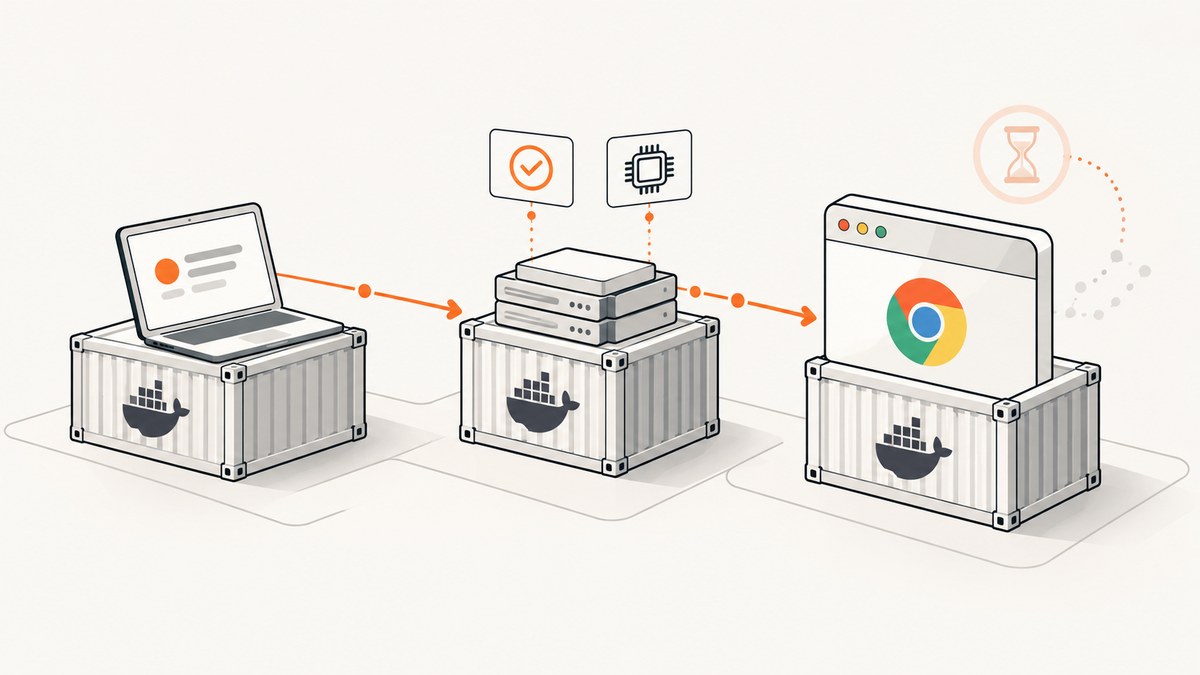
Short answer: Selenium Standalone Server TimeoutException in Docker is a symptom, not one specific failure. Identify where the timeout occurs: session creation, dynamic-grid child startup, page navigation, an element wait, or host resource contention. Then fix that layer. The most common Docker causes are connecting before Selenium is ready, too little /dev/shm, an incorrect Xvfb/headless configuration, slow browser image startup, and synchronization code that waits for the wrong condition.
This guide gives a repeatable diagnostic process, runnable Docker and Python examples, timeout guidance, and production notes.
1. Identify the timeout phase
Start with the stack trace and the command that was running when the exception appeared. These cases look similar in logs but require different fixes.
| Where it fails | Likely layer | First check |
|---|---|---|
| New session or driver-service startup | Chrome process, Xvfb, shared memory, browser/driver compatibility | Container logs and browser stderr |
| Dynamic-grid child container never becomes ready | Docker daemon, network, image pull, startup budget | --docker-server-start-timeout and daemon reachability |
driver.get() or navigation |
Remote site latency, page-load timeout, page-load strategy | Navigation timeout and strategy |
wait.until(...) |
Locator or application state | Condition, DOM, and screenshot at failure |
| Intermittent failures under parallel load | CPU, memory, OOM kills, queueing | Host metrics and concurrent sessions |
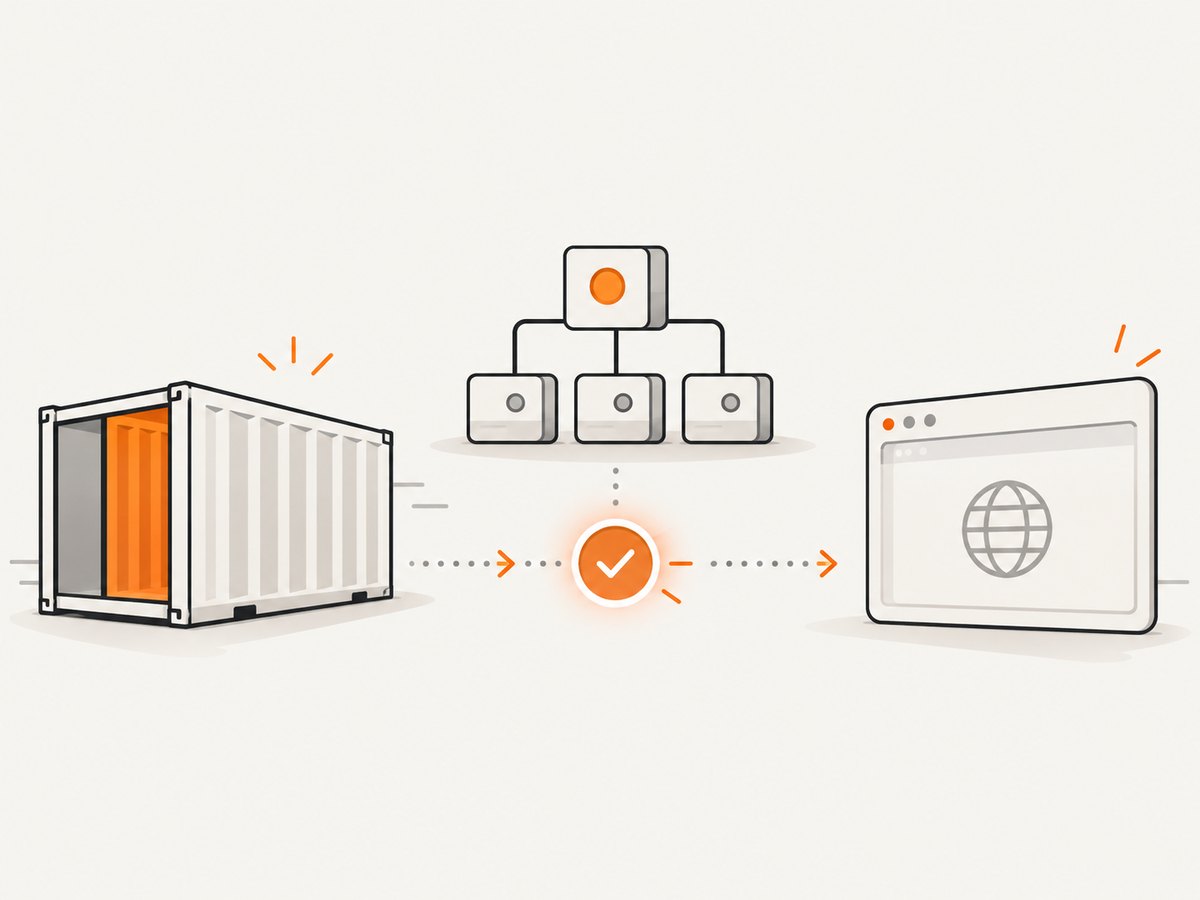
Selenium’s Docker project warns that a running container does not always mean the application inside it is ready. Treat container health and Selenium readiness as separate states. The [docker-selenium troubleshooting documentation](https://github.com/SeleniumHQ/docker-selenium) covers this distinction and the driver-service startup failure.
2. Verify the endpoint and wait for readiness
Use the correct hostname for the network path:
- From another container on the same Docker network, use the Selenium service or container name, such as
http://selenium:4444. - From the Docker host, use the published port, such as
http://localhost:4444. - From a remote machine, use the host address that is routable from that machine.
A common mistake is publishing port 4444 and then using localhost from a test container. In that container, localhost refers to the test container itself.
Check readiness before creating a session. The Grid status endpoint is useful for a manual check:
curl -fsS http://localhost:4444/status
For test code, use bounded retries with increasing delays. Do not retry forever, because a permanently broken container should fail visibly.
import time
import requests

STATUS_URL = "http://localhost:4444/status"

for attempt in range(8):
    try:
        response = requests.get(STATUS_URL, timeout=3)
        response.raise_for_status()
        payload = response.json()
        if payload.get("value", {}).get("ready") is True:
            break
    except (requests.RequestException, ValueError):
        pass
    time.sleep(min(2 ** attempt, 10))
else:
    raise RuntimeError("Selenium did not become ready within the startup window")
Record the exact remote URL used by the client. This makes host-versus-container routing errors obvious in CI logs.
3. Start the official image with enough shared memory
Chrome uses shared memory for browser processes. Docker’s default /dev/shm allocation is often too small for real pages and can produce browser crashes that surface later as a driver-service timeout. The docker-selenium project documents 2g as a useful starting point and says the right value depends on workload.
docker run -d --name selenium \
  -p 4444:4444 \
  --shm-size="2g" \
  selenium/standalone-chrome:<pinned-tag>
Pin a tested image tag in CI. Avoid relying on latest, because browser, driver, and base-image changes can alter startup behavior. If failures continue, inspect for OOM kills and increase memory only after confirming the host has capacity.
4. Fix Xvfb and headless settings
The official standalone images normally use Xvfb to provide a virtual display. If you set SE_START_XVFB=false, the browser must be started with a supported headless argument. Otherwise Chrome can fail before the session is created, and Selenium reports a timeout while stopping the driver service.
Choose one consistent mode:
- Xvfb mode: leave Xvfb enabled and use the image’s normal browser configuration.
- Headless mode: disable Xvfb only when your browser options explicitly include the supported headless flag.
For Python, a headless Chrome configuration looks like this:
from selenium import webdriver
from selenium.webdriver.chrome.options import Options

options = Options()
options.add_argument("--headless=new")
options.add_argument("--no-sandbox")
options.add_argument("--disable-dev-shm-usage")

driver = webdriver.Remote(
    command_executor="http://localhost:4444",
    options=options,
)
try:
    driver.get("https://example.com")
    print(driver.title)
finally:
    driver.quit()
--disable-dev-shm-usage can reduce pressure on Docker shared memory by using the filesystem, but increasing --shm-size is usually the better baseline for browser stability. Do not add flags blindly: verify that each option matches the browser and image you have pinned.
5. Inspect logs before increasing timeouts
The final TimeoutException is often downstream of the first browser error. Stream logs while reproducing the failure:
docker logs -f selenium
For more detail, pass a higher Selenium log level:
docker run -d --name selenium \
  -p 4444:4444 \
  --shm-size="2g" \
  -e SE_OPTS="--log-level FINE" \
  selenium/standalone-chrome:<pinned-tag>
Look for the first Chrome startup error, driver version mismatch, display error, permission failure, image-pull failure, or OOM message. Fix that event before changing client wait values.
6. Set the dynamic-grid startup timeout deliberately
Selenium Grid’s Docker integration has a --docker-server-start-timeout option. Its documented default is 55 seconds, which is the maximum wait for a browser server to start before the request is cancelled. A cold image pull or slow host may legitimately need more time.
java -jar selenium-server.jar hub \
  --docker \
  --docker-server-start-timeout 120
Increase this value only after checking that the Docker daemon is reachable and the browser eventually starts. A larger budget cannot repair a container that crashes immediately, a missing Docker socket, or a network configuration that prevents the child container from reaching Grid.
Older standalone server configurations also expose timeout and browserTimeout. These reclaim disconnected sessions or hung browsers on the server. They are not replacements for client-side readiness checks, page-load settings, or explicit waits.
7. Use explicit waits for application state
Selenium defines an explicit wait as a polling loop that continues until a condition is true or the timeout expires. Wait for the state your next action requires: visibility, clickability, text, title, URL, or disappearance.
from selenium.webdriver.common.by import By
from selenium.webdriver.support.ui import WebDriverWait
from selenium.webdriver.support import expected_conditions as EC

wait = WebDriverWait(driver, 20, poll_frequency=0.5)
login = wait.until(
    EC.visibility_of_element_located((By.ID, "login"))
)
login.click()
WebDriverWait raises TimeoutException when the condition never becomes truthy. Its default polling interval is 0.5 seconds. When it fails, capture the current URL, page source, a screenshot, and browser console logs if available; these artifacts usually reveal whether the locator is wrong or the application is still loading.
Do not combine implicit and explicit waits. Selenium documents that their timing can interact unpredictably: a nominal 10-second implicit wait plus a 15-second explicit wait may take about 20 seconds. Set the implicit wait to zero and use specific explicit conditions when diagnosing synchronization.
8. Distinguish page-load timeout from element timeout
If the exception is raised by driver.get(), inspect page-load behavior rather than element synchronization:
from selenium.webdriver.chrome.options import Options

options = Options()
options.page_load_strategy = "eager"

driver = webdriver.Remote(
    command_executor="http://localhost:4444",
    options=options,
)
driver.set_page_load_timeout(45)
Selenium supports three page-load strategies:
| Strategy | Navigation returns when | Use when |
|---|---|---|
normal |
The load event and dependent resources finish | The page must be fully loaded before the next command |
eager |
DOMContentLoaded fires | Application code can finish loading after the initial DOM |
none |
The initial download begins | Your test has its own precise readiness condition |
Choose the fastest strategy that still matches the application’s contract. A shorter page-load timeout is not a fix for a slow origin, blocked third-party resource, or page that never completes.
9. Check Docker host capacity and concurrency
Selenium’s getting-started guidance uses one CPU and 1 GB of RAM per browser as a starting sizing reference, while noting that real workloads vary. Measure your pages under the concurrency you intend to run.
- Check CPU throttling and run queue pressure.
- Check memory pressure, OOM events, and container limits.
- Check Docker daemon latency and image-pull time.
- Reduce parallel sessions temporarily. If timeout frequency drops, the issue is likely capacity or queueing.
- Keep browser sessions short and always call
quit()in afinallyblock.
For reliability, record session start time, container ID, browser version, page URL, timeout phase, and the first relevant log error. This separates reproducible configuration failures from intermittent capacity failures.
10. A complete diagnostic checklist
- Classify the failure as startup, child-container startup, navigation, element wait, or capacity.
- Confirm the client URL is routable from its own container or host.
- Poll
/statusand create a session only after Selenium reports ready. - Inspect
docker logsat higher verbosity and find the first browser error. - Run the official image with
--shm-size="2g"as a baseline. - Keep Xvfb enabled, or configure browser headless mode explicitly.
- Pin image versions and verify browser/driver compatibility.
- Increase Grid’s 55-second Docker startup budget only for legitimately slow startup.
- Use targeted explicit waits and avoid mixing implicit and explicit waits.
- Set page-load strategy and timeout according to the site’s loading model.
- Reduce concurrency and inspect CPU, RAM, OOM, and daemon metrics.
11. Common errors and targeted fixes
“Stopping driver service: java.util.concurrent.TimeoutException”
Usually the browser never started correctly. Check Xvfb/headless settings, shared memory, browser stderr, and image compatibility.
Session request fails immediately after docker run
The process is running but Grid is not ready. Poll /status, use the correct network hostname, and add bounded startup retries.
Dynamic child container times out at roughly 55 seconds
The documented default startup budget expired. Check Docker daemon access and image-pull time; then raise --docker-server-start-timeout if startup is valid but slow.
driver.get() times out
Inspect origin latency, blocked resources, page-load strategy, and set_page_load_timeout. Use an explicit post-navigation condition instead of waiting for every resource when the application does not require it.
wait.until times out while the page looks loaded
Verify the locator, frame, shadow DOM boundary, visibility state, and whether the element is replaced after rendering. Save page source and a screenshot at the failure point.
Failures appear only with several parallel sessions
Reduce concurrency, increase CPU/RAM, inspect OOM events, and ensure every test closes its session. A longer wait can hide queueing without increasing throughput.
12. Or skip the browser setup
If your goal is a clean image or PDF rather than browser automation, ScreenshotNeo provides a single HTTP request to capture a URL. It handles consent banners before capture and removes more than 60 known consent platforms, newsletter popups, and chat widgets; each step can be disabled. Bot checks, blank pages, timeouts, failed loads, and cache hits are not billed, and response headers identify the page verdict and billing result.
See the ScreenshotNeo API documentation for all options, including full-page lazy-image loading, CSS selector element capture, dark mode, device presets, custom viewport and retina scale, PDF paper sizes and ranges, custom CSS and JavaScript, clicks, waits, request blocking, headers, cookies, user agent, authorization, timezone, geolocation, transparent backgrounds, resizing, caching, signed links, asynchronous jobs, webhooks, bulk capture, usage data, and the OpenAPI specification.
cURL
curl -G "https://api.screenshotneo.com/v1/shot" \
  -d access_key=YOUR_API_KEY \
  --data-urlencode url=https://stripe.com \
  -o shot.webp
Python
import requests

r = requests.get(
    "https://api.screenshotneo.com/v1/shot",
    params={"access_key": "YOUR_API_KEY", "url": "https://stripe.com"},
    timeout=90,
)
r.raise_for_status()
open("shot.webp", "wb").write(r.content)
Node.js
const q = new URLSearchParams({
  access_key: 'YOUR_API_KEY',
  url: 'https://stripe.com'
});
const res = await fetch(`https://api.screenshotneo.com/v1/shot?${q}`);
if (!res.ok) throw new Error(`Screenshot failed: ${res.status}`);
const data = Buffer.from(await res.arrayBuffer());
require('fs').writeFileSync('shot.webp', data);
ScreenshotNeo also has an MCP server with take_screenshot, get_page_info, and capture_pdf tools for Claude, Cursor, and other MCP clients. The Free plan includes 1,000 shots per month without a card; paid plans start at $5 for 3,000 shots. Create a free ScreenshotNeo account.
FAQ
Does increasing every timeout solve Docker TimeoutException?
No. First identify the phase. A browser crash, wrong hostname, or missing display will still fail with a longer timeout.
Should I always use --headless=new?
Use it when you intentionally run without Xvfb and the browser version supports it. Otherwise leave the image’s Xvfb setup enabled.
Is --shm-size="2g" mandatory?
No. It is a documented starting point. Tune it to page complexity, browser count, and the memory available on the host.
When should I use eager page loading?
Use it when DOMContentLoaded is sufficient and your test waits explicitly for application state that loads afterward.
Can a healthy Docker container still reject sessions?
Yes. Container process health and Selenium server readiness are different. Poll the status endpoint before creating a session.