How to Fix Selenium WebDriver Unable to Locate Element in C#
Fix Selenium’s NoSuchElementException in C# by checking page state, validating locators, and waiting for the condition your test actually needs.
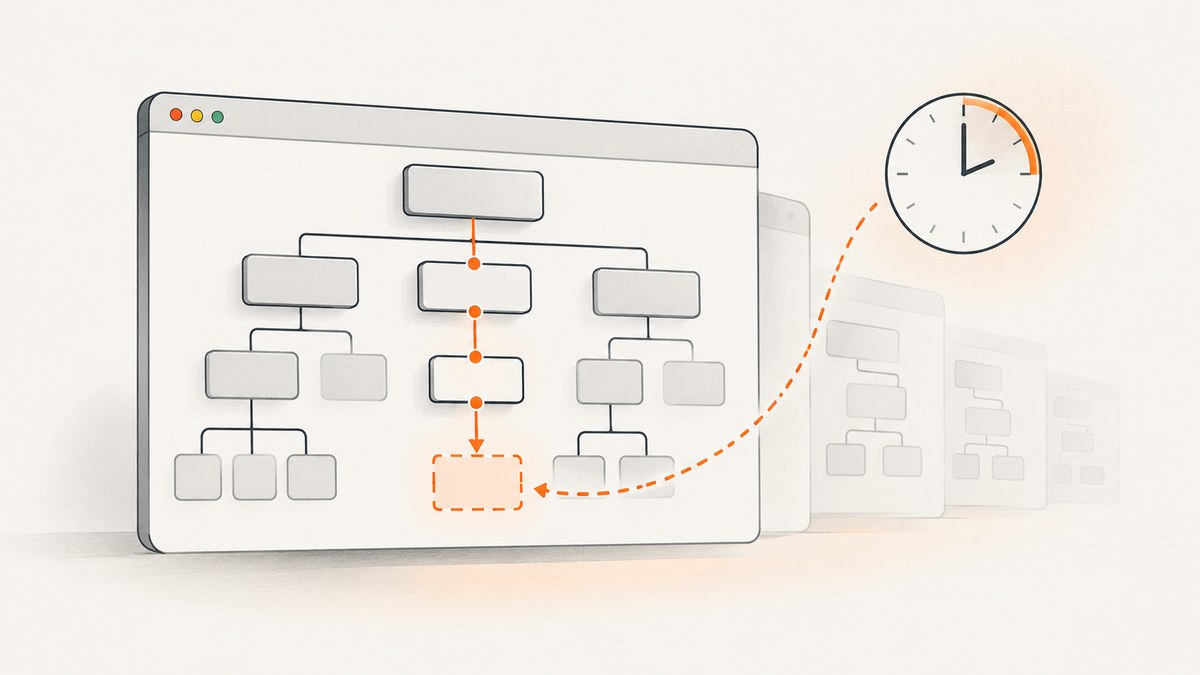
NoSuchElementException means Selenium could not find an element matching your locator in the current lookup context at the moment FindElement ran. In C#, first confirm that the browser is on the expected page and that the preceding action succeeded; then inspect the live DOM and locator. If the application inserts the element asynchronously, use an explicit wait for the required condition instead of adding a fixed delay.
The exception is not proof that the element never exists. It may be on another page, inside a different browsing context, rendered later, or absent because the locator no longer matches the current markup. Diagnose which case applies before changing a timeout. Selenium’s troubleshooting guide describes these as common causes.
1. Confirm page state and the preceding action
Before changing the selector, check what page Selenium actually reached. A failed navigation, redirect, dismissed dialog, unsuccessful click, or earlier action that did not complete can leave the test searching the wrong document. Log the current URL and title immediately before the failing lookup:
Console.WriteLine($"URL: {driver.Url}");
Console.WriteLine($"Title: {driver.Title}");

IWebElement submit = driver.FindElement(By.Id("submit-button"));
Compare those values with the expected route and title for that test step. If they are wrong, fix the navigation or preceding interaction first. A longer wait on the wrong page cannot make the intended element appear.
Also check whether an earlier action was supposed to cause a state change. If clicking a menu should reveal a form, confirm that the click targeted the intended control and that the menu opened. When useful, inspect the browser’s current page source or use developer tools to examine the live DOM. The live DOM is more useful than an old selector copied from documentation or a saved fixture.
2. Validate the locator against the current DOM
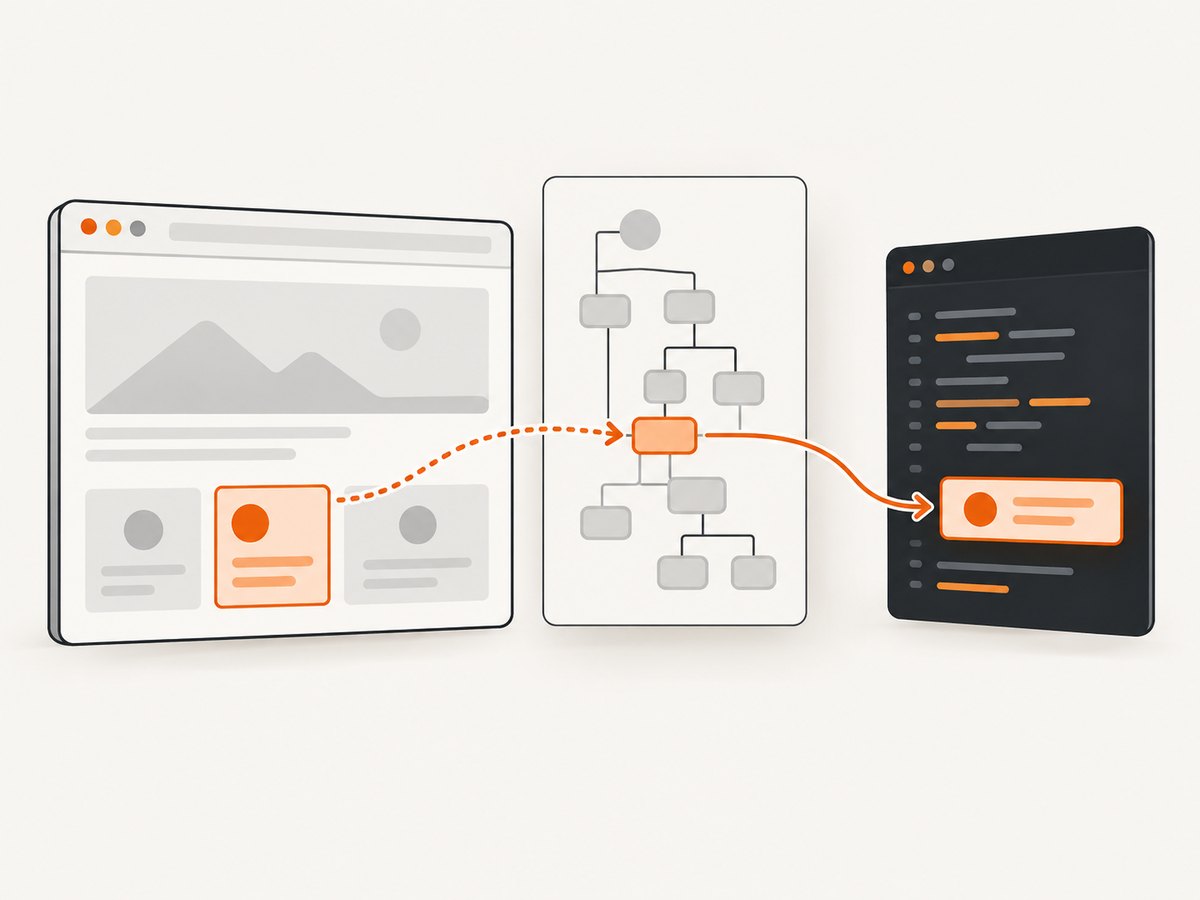
Open developer tools on the page under test and inspect the target. Verify the attribute values, nesting, and whether the element is currently present. Then make the locator specific enough to identify that control, but avoid depending on incidental layout details.
| Locator | When it fits | What to check |
|---|---|---|
By.Id("...") |
A unique, stable ID exists. | Confirm the ID is present in the current DOM and unique for the intended element. |
By.Name("...") |
A form control has a stable name. | Confirm the name matches exactly and the lookup is in the correct form/page. |
By.CssSelector("...") |
A stable attribute or relationship identifies the target. | Check CSS syntax and that the selector matches the intended element, not several controls. |
By.XPath("...") |
The target needs a relationship or text-aware path. | Check XPath syntax and avoid brittle absolute paths tied to every wrapper node. |
Selenium recommends IDs when they are available, unique, and consistently predictable; see its locator tips and locator strategies. If there is no stable ID, a CSS selector based on a meaningful attribute can be clearer than a long positional XPath.
// Prefer a stable, unique identifier when the markup provides one.
IWebElement email = driver.FindElement(By.Id("email"));

// A stable attribute can be a useful alternative.
IWebElement save = driver.FindElement(By.CssSelector("button[data-testid='save']"));
For diagnosis, count matches before interacting. A count of zero means the selector does not match in the current context right now; more than one suggests the selector may be ambiguous:
var matches = driver.FindElements(By.CssSelector("button[data-testid='save']"));
Console.WriteLine($"Matches: {matches.Count}");
FindElements returns an empty collection when nothing matches, while FindElement throws when it cannot find a match. This makes FindElements convenient for a quick diagnostic or optional element check, but it does not synchronize an asynchronous page by itself.
3. Check the lookup context
A correct selector still returns no match if Selenium is searching the wrong document context. Check these cases when the element is visible to you but not found by the driver:
- Iframe: switch into the frame containing the target before locating it. Selenium searches the current browsing context, not every frame automatically.
- New tab or window: verify the current window handle and switch to the expected handle after the action that opened it.
- Shadow DOM: ordinary document-level locators do not automatically traverse a shadow root. Locate the host and use the shadow-root APIs supported by the Selenium version in the project.
- Different page or route: check the URL and wait for the navigation or client-side route transition your application performs.
For an iframe, the general pattern is to locate the frame, switch, search within it, then return to the top-level document when the next step needs it:
IWebElement frame = driver.FindElement(By.Id("checkout-frame"));
driver.SwitchTo().Frame(frame);
IWebElement cardNumber = driver.FindElement(By.Name("cardnumber"));

// After work inside the frame, return to the main document.
driver.SwitchTo().DefaultContent();
Use the actual frame selector from the live page. If locating the frame itself fails, verify the page state and frame markup before investigating the nested control.
4. Wait for the required condition in C#
Modern pages often insert or reveal controls after navigation through JavaScript. Page navigation reaching its configured ready state does not guarantee the application has finished rendering the specific control your test needs. Selenium’s waiting strategies guide explains why synchronization should target the condition the next step depends on.
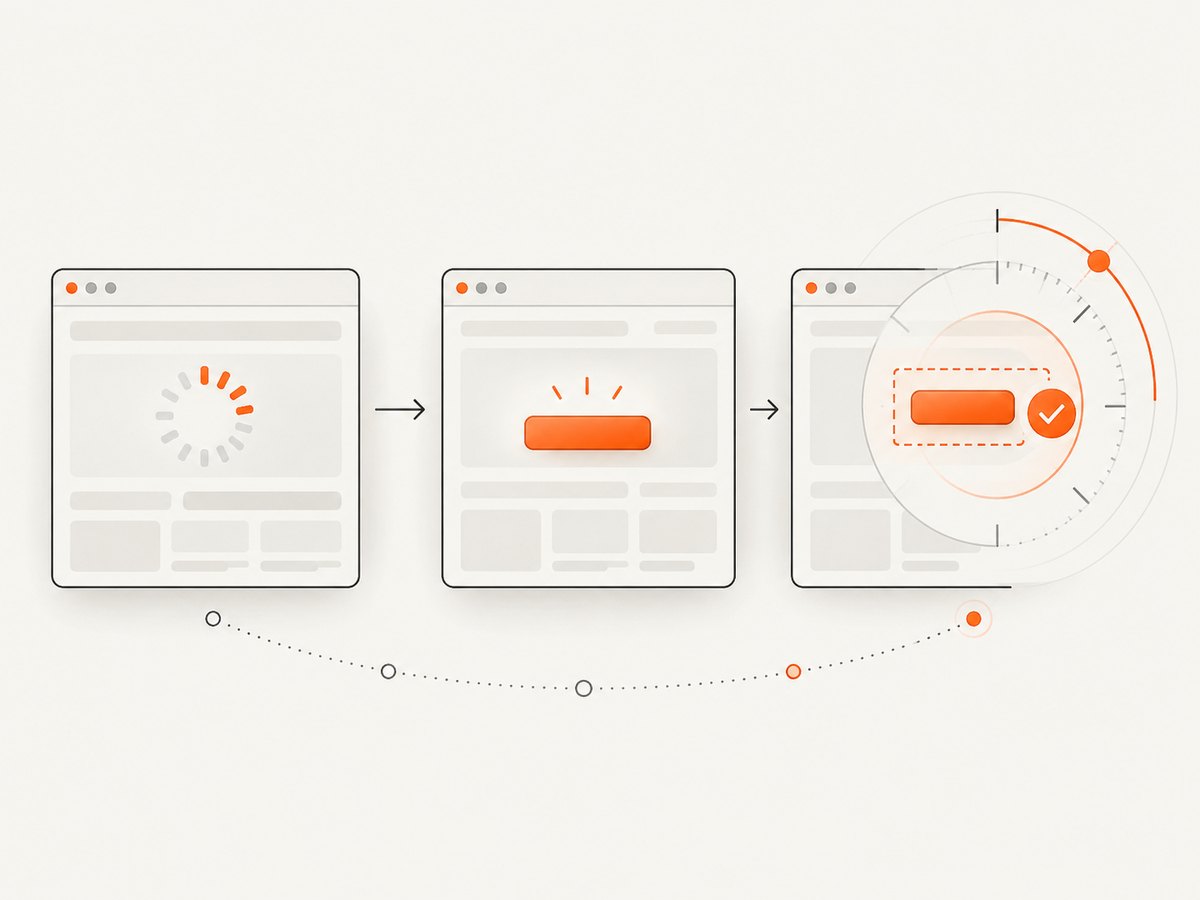
Install the Selenium .NET support package used by your project if it is not already referenced, then use WebDriverWait to poll for the element. The API pattern below follows Selenium’s .NET WebDriverWait implementation:
using System;
using OpenQA.Selenium;
using OpenQA.Selenium.Support.UI;

// driver is an already initialized IWebDriver.
var wait = new WebDriverWait(driver, TimeSpan.FromSeconds(10));
IWebElement submit = wait.Until(d => d.FindElement(By.Id("submit-button")));
submit.Click();
This waits up to ten seconds for FindElement to succeed, then returns the element. Change the selector and timeout to fit the application and test. This condition establishes presence; it does not independently prove that the element is visible, enabled, unobstructed, or ready to click. If the next operation fails with an interaction exception, wait for the state that operation requires using APIs available in the project’s installed Selenium support version.
A wait can also express an application-specific state. For example, wait until a loading indicator disappears or a route-specific marker appears, then locate the control. Such a condition often gives a more meaningful failure than waiting for an arbitrary duration.
5. Choose one wait strategy
An implicit wait applies globally to element lookups. Selenium documents its default as zero and cautions against mixing implicit and explicit waits because the combined wait duration can become unpredictable. For a particular dynamic element, an explicit wait usually makes the dependency and timeout visible at the point of use.
| Strategy | Scope | Use it for | Tradeoff |
|---|---|---|---|
| Immediate lookup | One call | Static content known to be present | Fails immediately if rendering has not finished. |
| Explicit wait | A named condition | A dynamic element or application state | Requires choosing a meaningful condition and maximum wait. |
| Implicit wait | All element lookups | A project-wide baseline when deliberately selected | Can make timing less obvious, especially when combined with explicit waits. |
| Fixed sleep | One thread for a fixed duration | Rare cases where a fixed pause is itself part of the requirement | May be too short on a slow run and waste time on a fast one. |
Avoid repeatedly increasing a global timeout or stacking sleeps until a flaky test passes. First identify whether the test needs element presence, visibility, a completed route transition, or another concrete signal. Then wait for that signal once and keep the timeout bounded.
6. Separate “not found” from other Selenium failures
The exception type narrows the diagnosis. Increasing a timeout is not the right fix for every browser automation error:
NoSuchElementException: no matching element was found in the active context at lookup time. Check page/action state, locator, context, and timing.ElementNotInteractableExceptionor a hidden control: the element may exist but cannot be used in its current state. Check visibility, whether it is enabled, overlays, and whether the locator selected the intended control.StaleElementReferenceException: a saved element reference no longer points to the current DOM after navigation or a dynamic update. Locate it again after the page changes.InvalidSelectorException: the locator syntax or strategy is invalid. Check CSS/XPath syntax and ensure the selector string matches the selected strategy.
For stale references, avoid keeping an element object across a navigation or re-render. Keep the locator and look up a fresh element after the state transition. For interaction failures, confirm the exception first and wait for the needed visible or enabled state instead of treating it as a missing element.
7. A short diagnostic checklist
- Print or log
driver.Urlanddriver.Titleat the failing step. - Verify the preceding click, navigation, or form action actually completed.
- Inspect the live DOM and test the locator against the current markup.
- Check for iframe, window, or shadow-root context requirements.
- Use
FindElementsto see whether the locator matches zero, one, or multiple elements. - If rendering is asynchronous, wait explicitly for the required state.
- Read the exception type and fix the condition it describes.
- Remove stacked sleeps and avoid mixing implicit and explicit waits.
8. Troubleshooting common cases
| Symptom | Likely cause | Fix |
|---|---|---|
| Works locally, fails intermittently in CI | Rendering or navigation timing differs between runs. | Wait for a specific element or application state; keep the wait bounded and log the URL on failure. |
| Selector matches in DevTools but not Selenium | DevTools is inspecting a different frame/page state, or the app changed between inspection and lookup. | Confirm current context and inspect the live DOM at the failing step. |
| Wait times out despite a long timeout | Wrong route, failed prior action, changed selector, or wrong frame. | Log URL/title, verify prior action, count matches, and check browsing context before raising the limit. |
| Element is found but click fails | It is hidden, disabled, covered, or not the intended matching control. | Use the correct exception diagnosis and wait for the required interaction state. |
| CSS or XPath lookup fails immediately | Malformed selector or locator strategy mismatch. | Validate the selector syntax and use the matching By method. |
| Previously found element fails after a page update | The stored reference is stale. | Locate the element again from the current DOM after the update. |
9. Performance, reliability, and cost
For test reliability, synchronization should reflect the application’s behavior. A single explicit condition avoids both the wasted time of a long fixed pause on fast runs and the fragility of a pause that expires before a slow render finishes. Keep the locator narrow, keep waits bounded, and produce diagnostics that reveal the page state at failure.
For runtime, every wait introduces a maximum potential delay when its condition never becomes true. A reasonable timeout is an upper bound based on the operation and environment; it should not conceal a wrong page or selector. Do not wrap each lookup in a separate generous wait without considering how repeated timeouts accumulate across a test suite.
Selenium WebDriver and its .NET packages are the direct tools for browser automation. There is no need to buy a service to resolve a locator error. Check NuGet for the current Selenium.WebDriver package version when setting up or updating a project; the dossier’s version snapshot is dated 2026-09-30 and should not be treated as timeless package guidance.
10. Or skip the browser setup
If your goal is to capture a page image or PDF rather than interact with the page in a browser test, ScreenshotNeo provides a one-request screenshot API. It is separate from Selenium and does not fix a Selenium test’s locator or interaction behavior. The API options and setup are in the ScreenshotNeo documentation.
curl -G "https://api.screenshotneo.com/v1/shot" \
  -d access_key=YOUR_API_KEY \
  --data-urlencode url=https://stripe.com \
  -o shot.webp
import requests
r = requests.get(
"https://api.screenshotneo.com/v1/shot",
params={"access_key": "YOUR_API_KEY", "url": "https://stripe.com"},
timeout=90,
)
open("shot.webp", "wb").write(r.content)const q = new URLSearchParams({
access_key: 'YOUR_API_KEY',
url: 'https://stripe.com'
});
const res = await fetch(`https://api.screenshotneo.com/v1/shot?${q}`);
if (!res.ok) throw new Error(`Screenshot request failed: ${res.status}`);
const fs = await import('node:fs/promises');
await fs.writeFile('shot.webp', Buffer.from(await res.arrayBuffer()));ScreenshotNeo removes cookie and consent banners, newsletter popups, and chat widgets before capture. Bot checks, blank pages, failed loads, timeouts, and cache hits are not billed, and response headers report the page verdict and billing status. Its MCP server lets AI agents, including Claude and Cursor, take screenshots. The free plan includes 1,000 screenshots per month with no card; paid plans start at $5 for 3,000 shots. Sign up for 1,000 free screenshots a month, with no card.
FAQ
Does a longer timeout fix every NoSuchElementException?
No. It helps only when the correct element appears after a delay. A wrong page, outdated locator, invalid selector, or incorrect frame context needs a different fix.
Should I use XPath or CSS in C#?
Use the locator that expresses a stable, unique way to identify the target. Prefer a predictable unique ID when the page provides one; otherwise use a clear CSS or XPath locator tied to stable markup.
Why does FindElement fail while FindElements does not?
FindElement throws when there is no match. FindElements returns an empty collection, which is useful for checking whether a match exists but does not wait for asynchronous rendering.
Does WebDriverWait prove the element is clickable?
No. Waiting for FindElement proves the element can be located. Visibility, enabled state, overlays, and other interaction conditions may still prevent a click.
Does a browser page-load completion mean JavaScript content is ready?
Not necessarily. A page can reach its configured ready state before an application inserts or reveals a particular control. Wait for the application state your next step needs.


