How to Fix Selenium Unable to Locate Elements in Headless Chrome with Python
Solve Selenium NoSuchElementException in headless Chrome by checking page state, selectors, waits, frames, shadow DOM, and dynamic rendering.
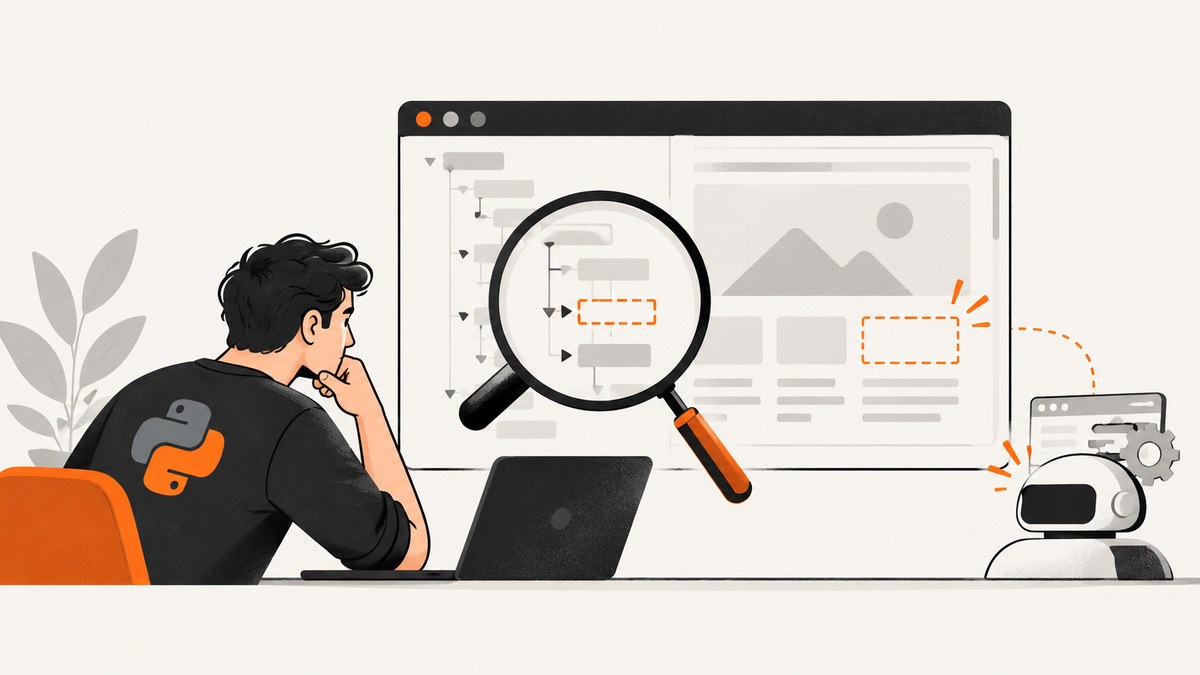
Short answer: Selenium’s NoSuchElementException means that no matching element existed in the current page and browsing context when the lookup ran. Headless Chrome is not automatically the cause. Verify the URL and DOM, use a locator that matches the live markup, wait for the state your next action requires, and switch into the correct iframe or shadow root when necessary.
This guide gives you a repeatable diagnostic process for “Selenium unable to locate elements in headless Chrome with Python.” It includes a complete script, selector and wait patterns, iframe and shadow DOM handling, dynamic-page advice, troubleshooting, and operational notes for reliable screenshot workflows.
1. Start with a condition-based wait
Navigation can finish while JavaScript is still rendering the component you need. Selenium’s page-load wait reaches a document readyState; it does not guarantee that an application has completed its API calls or inserted every element. Use WebDriverWait with the condition that matches your next action:
- Presence: the node only needs to exist in the DOM.
- Visibility: you need to read it or inspect what a user can see.
- Clickability: you intend to click and the element must be visible and enabled.
from selenium import webdriver
from selenium.webdriver.common.by import By
from selenium.webdriver.support.ui import WebDriverWait
from selenium.webdriver.support import expected_conditions as EC

options = webdriver.ChromeOptions()
options.add_argument("--headless")
options.add_argument("--window-size=1440,1000")

driver = webdriver.Chrome(options=options)
try:
    driver.get("https://example.com")
    locator = (By.CSS_SELECTOR, "main .target")
    element = WebDriverWait(driver, 15).until(
        EC.visibility_of_element_located(locator)
    )
    print(element.text)
finally:
    driver.quit()
Replace the example URL and selector with values from your page. The timeout is an example, not a universal setting. Selenium’s Python wait polls every 0.5 seconds by default and ignores NoSuchElementException while polling. See the official Selenium waits documentation and the Python exception API.
2. Confirm what headless Chrome actually loaded
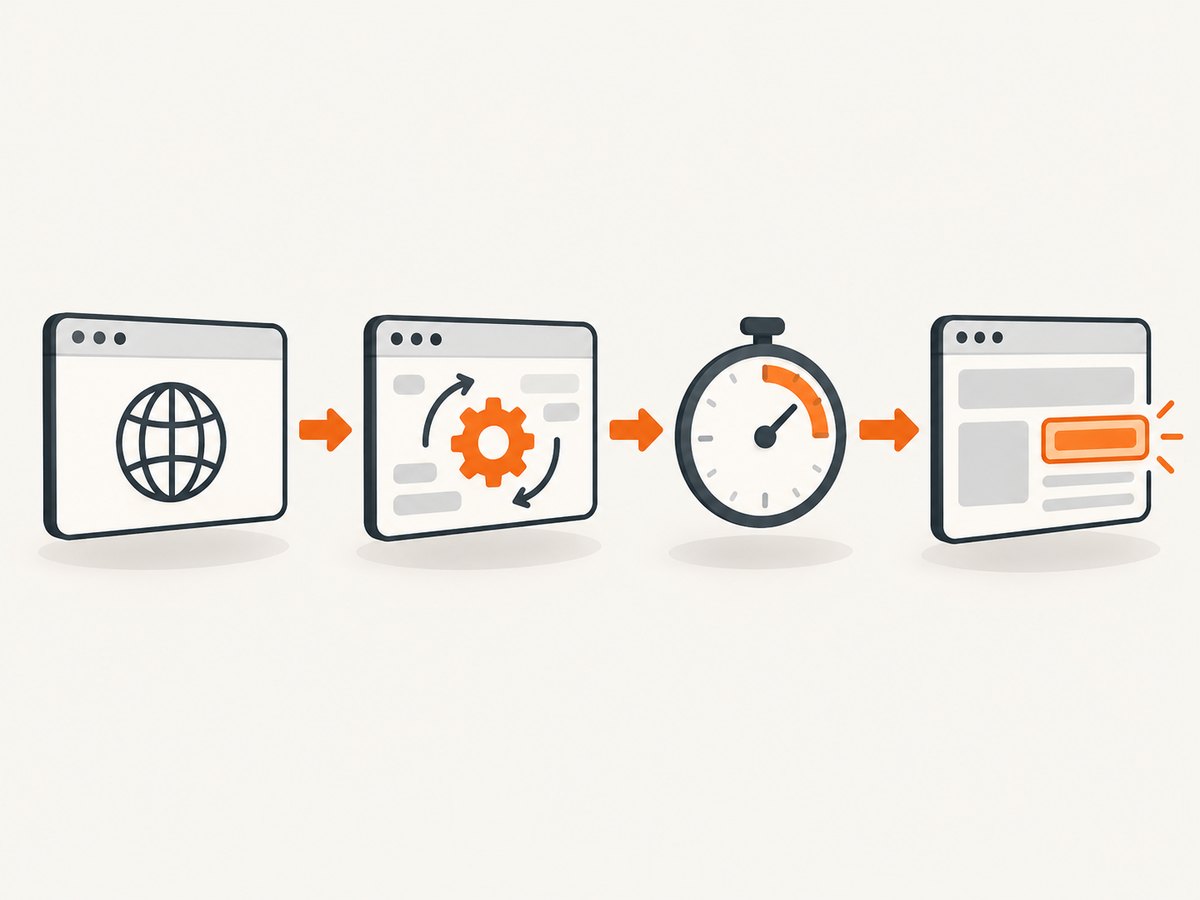
Before changing Chrome flags, prove that the failing run reached the page you expect. Redirects, authentication, consent screens, bot checks, and responsive layouts can all produce a different DOM.
print("URL:", driver.current_url)
print("Title:", driver.title)
print("Ready state:", driver.execute_script("return document.readyState"))

with open("debug-page.html", "w", encoding="utf-8") as f:
    f.write(driver.page_source)

driver.save_screenshot("debug-page.png")
Capture these values immediately after get(), after each redirect, and after important clicks. Compare the screenshot and saved source with a headed run. If the title is a login page or an error page, the selector is not the first problem to solve.
Check the previous action
A failed click, rejected form submission, or unhandled alert can prevent the navigation that your next lookup assumes. Put waits around state changes and log the URL after them:
submit = WebDriverWait(driver, 10).until(
    EC.element_to_be_clickable((By.CSS_SELECTOR, "button[type='submit']"))
)
submit.click()
WebDriverWait(driver, 15).until(EC.url_contains("/dashboard"))
print(driver.current_url)
3. Validate the locator against the live DOM
Inspect the DOM produced by the failing run, not only the original HTML source. Frameworks can add, remove, or rename nodes after hydration. Prefer stable IDs, names, data attributes, or short CSS selectors. Absolute XPath expressions that depend on every wrapper are fragile.
| Symptom | Likely issue | Better check |
|---|---|---|
| Zero matches | Wrong selector or page state | Test the selector in DevTools and driver.page_source |
| Element exists but text is empty | Content is rendered later | Wait for visibility or a text condition |
| Click raises interception | Overlay covers the target | Wait for clickability and inspect overlays |
| Selector works headed only | Different viewport, URL, session, or timing | Log all environment details in both modes |
Use the locator strategy that matches the syntax. A CSS selector passed to By.XPATH will never work, and XPath text matching is sensitive to whitespace and localization.
# Stable attribute
(By.CSS_SELECTOR, "[data-testid='checkout-button']")

# ID
(By.ID, "checkout-button")

# XPath, when a relationship is required
(By.XPATH, "//button[normalize-space()='Continue']")
Selenium’s locator documentation describes the supported strategies and their lookup behavior.
4. Match the wait to the operation
Presence versus visibility
presence_of_element_located succeeds when a node is in the DOM, even if CSS hides it. Use it for attributes or nonvisual DOM work. visibility_of_element_located also requires a displayed element with a usable size.
locator = (By.CSS_SELECTOR, "section.results")
container = WebDriverWait(driver, 20).until(
    EC.presence_of_element_located(locator)
)

first_card = WebDriverWait(driver, 20).until(
    EC.visibility_of_element_located((By.CSS_SELECTOR, "section.results article"))
)
print(first_card.text)
Clickability and custom conditions
Visibility does not mean that an element is enabled or unobstructed. For a click, use element_to_be_clickable. For application-specific readiness, write a small predicate:
def results_have_rows(driver):
    rows = driver.find_elements(By.CSS_SELECTOR, "table tbody tr")
    return rows if rows else False

rows = WebDriverWait(driver, 20).until(results_have_rows)
print(len(rows))
A fixed time.sleep() can hide a race on a fast machine and still fail on a slow one. Use a short sleep only when a site has a known animation or debounce delay, and keep the condition-based wait as the correctness check.
5. Handle iframes and browsing contexts
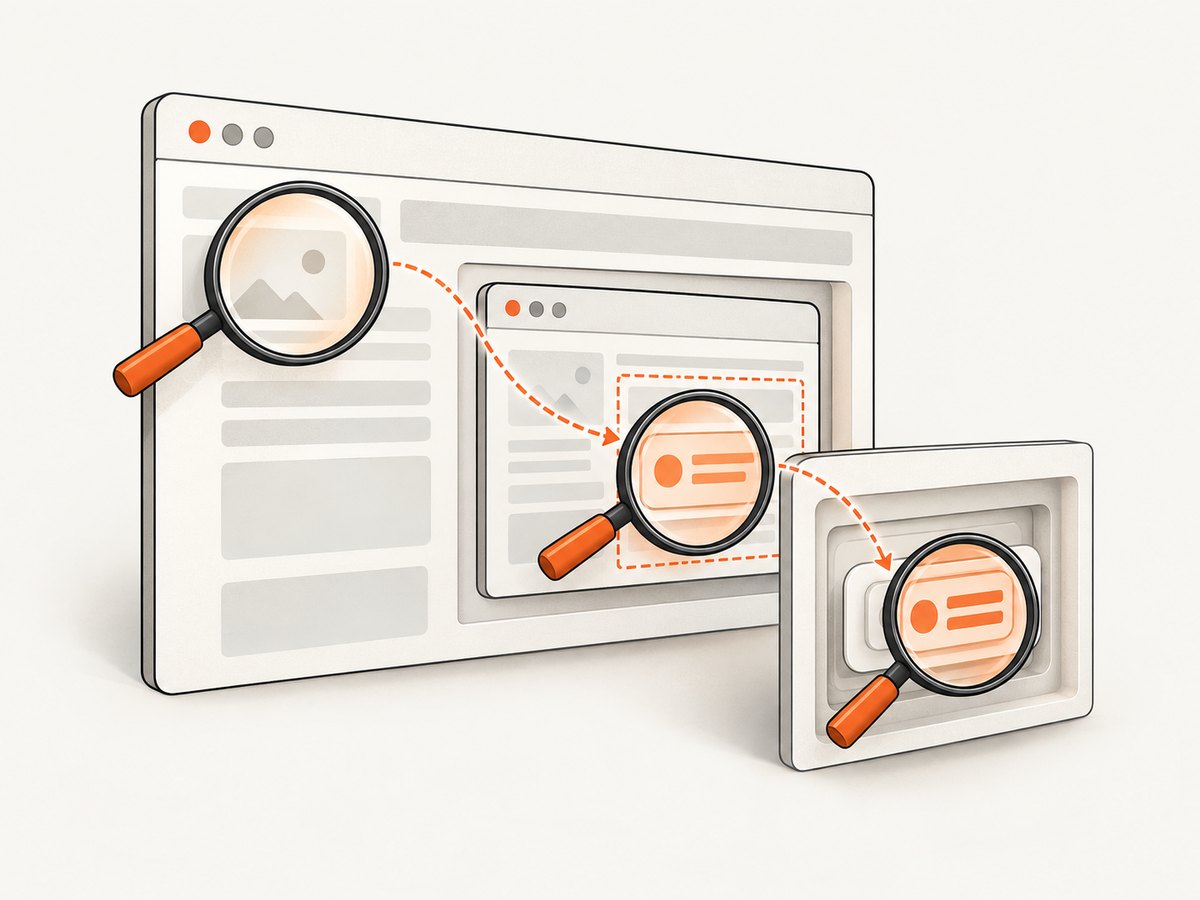
Selenium searches the current browsing context. An element inside an iframe is invisible to searches performed in the top-level document. Wait for the frame, switch into it, then locate the element. Return to the parent document before interacting with content outside the frame.
frame = WebDriverWait(driver, 15).until(
    EC.frame_to_be_available_and_switch_to_it(
        (By.CSS_SELECTOR, "iframe[title='Payment form']")
    )
)
card_number = WebDriverWait(driver, 15).until(
    EC.visibility_of_element_located((By.NAME, "cardnumber"))
)
card_number.send_keys("4242424242424242")
driver.switch_to.default_content()
If the frame is nested, switch one frame at a time. If a frame never appears, inspect whether it is created only after a user action or blocked by an authentication or consent step.
6. Query shadow DOM correctly
Open shadow roots create another boundary. Find the host in the normal DOM, obtain its shadow root, and query inside it. Do not assume that a selector visible in DevTools can be run against the document root.
host = WebDriverWait(driver, 15).until(
    EC.presence_of_element_located((By.CSS_SELECTOR, "checkout-widget"))
)
shadow_root = host.shadow_root
pay_button = WebDriverWait(driver, 15).until(
    lambda d: shadow_root.find_element(By.CSS_SELECTOR, "button.pay")
)
pay_button.click()
For nested shadow roots, repeat the host and shadow_root lookup at each level. A missing shadow root is a different failure from a missing element; verify that the component has upgraded before querying it.
7. Re-locate elements after dynamic replacement
Single-page applications often replace nodes during a route change, search, or state update. A previously stored WebElement can become stale. Wait for the old state to disappear, then locate the new node.
old_panel = driver.find_element(By.CSS_SELECTOR, "div.panel")
driver.find_element(By.CSS_SELECTOR, "button.refresh").click()
WebDriverWait(driver, 15).until(EC.staleness_of(old_panel))
new_panel = WebDriverWait(driver, 15).until(
    EC.visibility_of_element_located((By.CSS_SELECTOR, "div.panel"))
)
print(new_panel.text)
When a list is rebuilt, avoid retaining every child element across the update. Keep the locator and fetch fresh elements after the application reports the new state.
8. Compare headed and headless environments
A difference between modes is a diagnostic clue, not proof of a headless Chrome defect. Record:
- Chrome, ChromeDriver, Selenium, and Python versions.
- Actual URL, title, cookies, and authentication state.
- Viewport dimensions, device scale factor, and user agent.
- Screenshot, page source, console errors, and failed network requests.
- Whether a consent banner, CAPTCHA, login wall, or responsive breakpoint is present.
Set the viewport deliberately. A mobile breakpoint may remove or rename desktop controls:
options.add_argument("--headless")
options.add_argument("--window-size=1440,1000")
# For a mobile layout comparison:
# options.add_argument("--window-size=390,844")
If session creation fails before any lookup, then check Chrome and ChromeDriver compatibility separately. A driver mismatch causes session-start errors; it is not the default explanation for a lookup failure in an already working session.
9. A complete diagnostic script
This script logs the environment, saves evidence, waits for a target, and always closes Chrome.
from pathlib import Path
from selenium import webdriver
from selenium.webdriver.common.by import By
from selenium.webdriver.support.ui import WebDriverWait
from selenium.webdriver.support import expected_conditions as EC
from selenium.common.exceptions import TimeoutException

URL = "https://example.com"
TARGET = (By.CSS_SELECTOR, "main .target")

options = webdriver.ChromeOptions()
options.add_argument("--headless")
options.add_argument("--window-size=1440,1000")

driver = webdriver.Chrome(options=options)
try:
    driver.get(URL)
    print({
        "url": driver.current_url,
        "title": driver.title,
        "ready_state": driver.execute_script("return document.readyState"),
        "viewport": driver.execute_script(
            "return [window.innerWidth, window.innerHeight]"
        ),
    })

    Path("debug-page.html").write_text(driver.page_source, encoding="utf-8")
    driver.save_screenshot("debug-page.png")

    element = WebDriverWait(driver, 20).until(
        EC.visibility_of_element_located(TARGET)
    )
    print("Found:", element.text)
except TimeoutException:
    print("Target was not visible before the timeout")
    print("Final URL:", driver.current_url)
    print("Final title:", driver.title)
    driver.save_screenshot("timeout.png")
    Path("timeout.html").write_text(driver.page_source, encoding="utf-8")
    raise
finally:
    driver.quit()
10. Troubleshooting checklist
| Error or symptom | Cause to investigate | Fix |
|---|---|---|
NoSuchElementException immediately |
Wrong URL, selector, or context | Log URL/title, inspect source, validate locator, switch frame |
| Timeout waiting for visibility | Node exists but is hidden, or rendering never completed | Try presence, wait for the application state, inspect overlays and network errors |
Works with sleep(5) only |
Race with asynchronous rendering | Replace sleep with a meaningful expected condition |
| Element is in DevTools but not Selenium | DevTools selected an iframe or shadow-root node | Switch to the frame or query through the shadow root |
StaleElementReferenceException |
Framework replaced the node | Wait for staleness and locate it again |
| Headless sees a different page | Viewport, cookies, user agent, auth, or bot check differs | Capture evidence in both modes and align session settings |
| Session cannot start | Chrome/driver incompatibility or installation issue | Check versions and startup logs independently of element lookup |
11. Performance, reliability, and cost considerations
Use one driver session for a related sequence of pages when cookies and setup can be reused, but reset state when test isolation matters. Keep selectors stable and waits narrowly scoped; broad waits on the entire document make failures slow and obscure. Save screenshots and HTML only on failure in large suites to reduce disk use. Set a finite page-load and script timeout so a broken origin cannot hold a worker forever.
driver.set_page_load_timeout(45)
driver.set_script_timeout(30)
options.page_load_strategy = "normal"
Headless browser automation consumes CPU and memory for every session. Parallel workers improve throughput only until the host is saturated; measure queue time and browser startup time in your own environment. Retries should be limited and evidence-preserving: retry transient navigation or network failures, but do not retry a deterministic bad selector indefinitely.
12. Or skip the browser setup
If your goal is a clean image or PDF rather than browser interaction, ScreenshotNeo provides a single screenshot API request. It removes cookie and consent banners, newsletter popups, and chat widgets before capture. Bot checks, blank pages, timeouts, failed loads, and cache hits are not billed, and the response identifies the result with X-Page-Verdict and X-Billed headers. Its MCP server lets Claude, Cursor, and other MCP clients call take_screenshot, get_page_info, and capture_pdf.
See the ScreenshotNeo API documentation for all options. The same parameter names used by many screenshot APIs are accepted, which helps when migrating.
cURL
curl -G "https://api.screenshotneo.com/v1/shot" \
  -d access_key=YOUR_API_KEY \
  --data-urlencode url=https://stripe.com \
  -o shot.webp
Python
import requests

r = requests.get(
    "https://api.screenshotneo.com/v1/shot",
    params={"access_key": "YOUR_API_KEY", "url": "https://stripe.com"},
    timeout=90,
)
r.raise_for_status()
open("shot.webp", "wb").write(r.content)
Node.js
const q = new URLSearchParams({
  access_key: 'YOUR_API_KEY',
  url: 'https://stripe.com'
});
const res = await fetch(`https://api.screenshotneo.com/v1/shot?${q}`);
if (!res.ok) throw new Error(`HTTP ${res.status}`);
const fs = await import('node:fs/promises');
await fs.writeFile('shot.webp', Buffer.from(await res.arrayBuffer()));
ScreenshotNeo supports full-page captures with lazy images loaded, CSS-selector element shots, dark mode, device presets and custom viewports, retina scale, PDFs with paper size, margins, landscape and page ranges, custom CSS and JavaScript, clicks, selector or network-idle waits, request blocking, custom headers and cookies, user agents, authorization, timezone and geolocation, transparent backgrounds, resizing, chosen cache TTLs, signed links, async jobs with signed webhooks, bulk capture of up to 100 URLs per call, usage reporting, and an OpenAPI specification.
The Free plan includes 1,000 shots per month with no card. Paid plans start at $5 for 3,000 shots; yearly billing gives two months free, and every feature is available on every plan. Create a free ScreenshotNeo account.
13. FAQ
Does headless mode require a different selector?
No. The selector must match the DOM that headless Chrome actually receives. A viewport or session difference can change that DOM, so compare evidence before rewriting selectors.
Should I increase the timeout first?
Only after confirming the URL and selector. A longer wait cannot find an element that is absent, inside an unselected iframe, or hidden behind an authentication flow.
Why does find_elements return an empty list?
It reports zero matches without raising NoSuchElementException. Use it for optional content, but still wait when the content is expected to arrive asynchronously.
Can I solve every case with JavaScript?
JavaScript can inspect the DOM and shadow roots, but it does not fix a wrong page, missing frame switch, authentication failure, or a selector that does not match the application’s current markup.


