How to Fix Selenium’s Unable-to-Locate-Element Error
Fix Selenium’s NoSuchElementException by checking page state, locators, waits, frames, windows and shadow roots with runnable examples.
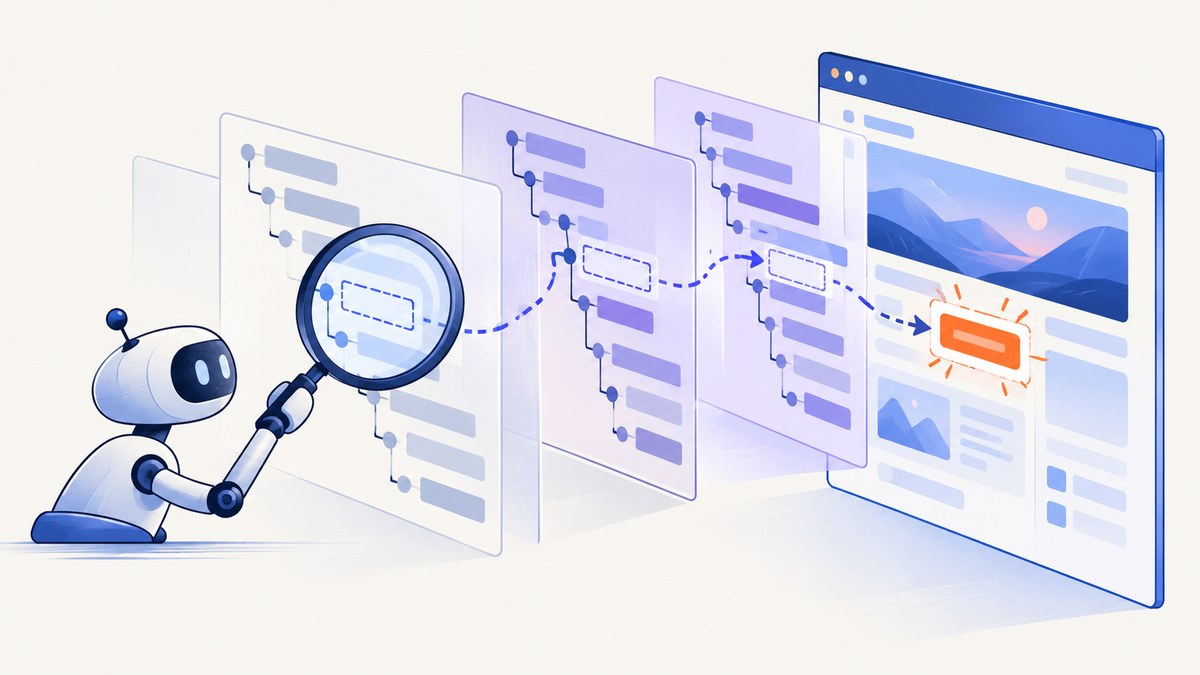
Quick answer: Selenium raises NoSuchElementException when it cannot find a matching element in the current search context at the instant your code looks for it. The usual causes are a wrong page, window or frame; a locator that no longer matches; a lookup that runs before JavaScript renders the element; or a valid locator searched from the wrong parent or shadow root. Selenium describes this as the element not being found “at the exact moment you attempted to locate it.” Read the official error guidance.
1. Confirm what Selenium is actually viewing
Before changing a selector, print the URL, title and a small portion of the HTML. Also verify that the previous navigation, click or form submission succeeded.
from selenium import webdriver
from selenium.webdriver.chrome.options import Options

options = Options()
options.add_argument("--headless=new")
driver = webdriver.Chrome(options=options)
try:
    driver.get("https://example.com")
    print("URL:", driver.current_url)
    print("Title:", driver.title)
    print(driver.page_source[:1000])
finally:
    driver.quit()
If the URL is a login page, an error page, a redirect target or a different tab, the selector can be perfectly correct and still fail.
2. Check the locator against the current DOM
Selenium supports ID, name, class name, CSS selector, link text, partial link text, tag name and XPath. Use the strategy that matches the value you provide; XPath syntax passed to a CSS selector will never work. The locator documentation lists the supported strategies.
| Symptom | Likely mistake | Correction |
|---|---|---|
| No match | Class or ID changed | Inspect the live DOM and choose a stable attribute. |
| Invalid selector | XPath passed as CSS, or malformed CSS | Use By.XPATH for XPath and validate syntax. |
| Several matches | Selector is too broad | Scope it to a container or use a unique data attribute. |
| Text lookup fails | Text is split across child nodes or localized | Prefer a stable attribute or a carefully written XPath. |
from selenium.webdriver.common.by import By

# CSS selector
button = driver.find_element(By.CSS_SELECTOR, "button[data-testid='save']")

# XPath
link = driver.find_element(By.XPATH, "//a[normalize-space()='Account']")

# ID and name
email = driver.find_element(By.ID, "email")
password = driver.find_element(By.NAME, "password")
3. Wait for the condition your next command needs
Navigation completing does not guarantee that a single-page application has rendered its controls. Selenium’s documentation calls poor synchronization a common source of errors and recommends waiting for a meaningful condition. Waiting strategies explain implicit and explicit waits.
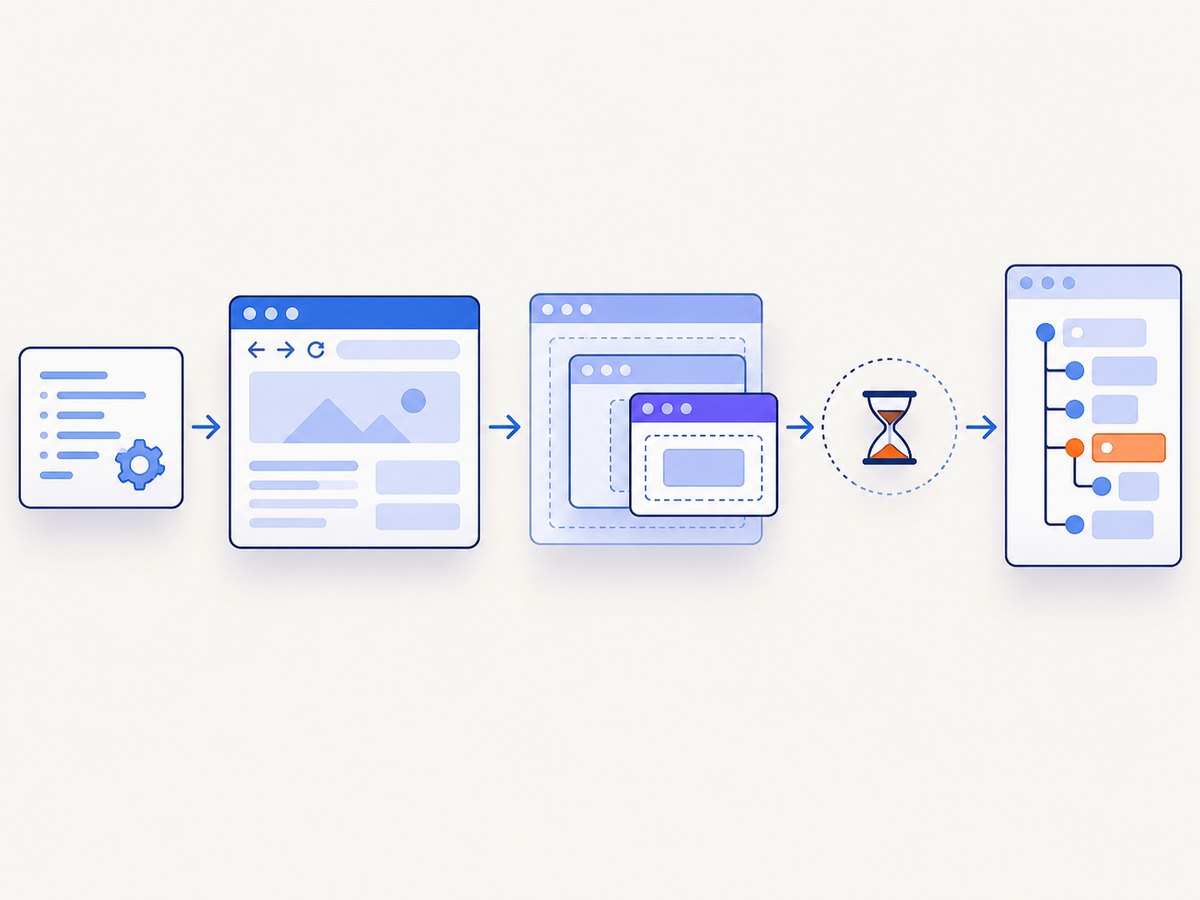
Explicit waits (recommended)
from selenium.webdriver.common.by import By
from selenium.webdriver.support.ui import WebDriverWait
from selenium.webdriver.support import expected_conditions as EC

wait = WebDriverWait(driver, 15)
submit = wait.until(
    EC.element_to_be_clickable((By.CSS_SELECTOR, "button[type='submit']"))
)
submit.click()
Choose the condition that matches the operation:
| Condition | Use it when |
|---|---|
presence_of_element_located |
The node only needs to exist in the DOM. |
visibility_of_element_located |
You will read or interact with a visible element. |
element_to_be_clickable |
The element must be visible and enabled. |
frame_to_be_available_and_switch_to_it |
The target is inside an iframe. |
url_contains or title_contains |
A navigation must reach a known state. |
Do not casually mix implicit and explicit waits
An implicit wait applies globally to element lookups and defaults to zero. Selenium warns that combining implicit and explicit waits can produce unpredictable timing. Pick one deliberate strategy; for most test suites, leave the implicit wait at zero and use explicit waits around the state transitions that matter.
# Predictable configuration: no global implicit wait
driver.implicitly_wait(0)
wait = WebDriverWait(driver, 15)
4. Search the correct context
Frames and iframes
An element inside an iframe is not in the top-level document. Wait for and switch into the frame, then search inside it. Switch back when finished.
from selenium.webdriver.common.by import By
from selenium.webdriver.support.ui import WebDriverWait
from selenium.webdriver.support import expected_conditions as EC

wait = WebDriverWait(driver, 15)
wait.until(EC.frame_to_be_available_and_switch_to_it(
    (By.CSS_SELECTOR, "iframe[data-testid='payment']")
))
card_number = wait.until(EC.visibility_of_element_located((By.NAME, "cardnumber")))
card_number.send_keys("4242424242424242")
driver.switch_to.default_content()
Windows and tabs
After opening a tab, switch to its window handle before locating elements.
original = driver.current_window_handle
driver.find_element(By.LINK_TEXT, "Open report").click()
WebDriverWait(driver, 10).until(lambda d: len(d.window_handles) == 2)
new_window = next(h for h in driver.window_handles if h != original)
driver.switch_to.window(new_window)
report = WebDriverWait(driver, 10).until(
    EC.visibility_of_element_located((By.CSS_SELECTOR, "main.report"))
)
driver.close()
driver.switch_to.window(original)
Parent elements and shadow DOM
A locator can be valid but searched from the wrong root. Search within the intended parent when the page contains repeated components. For a shadow root, obtain the host, access its shadow root, and then search there.
card = driver.find_element(By.CSS_SELECTOR, "article[data-id='42']")
card.find_element(By.CSS_SELECTOR, "button.edit").click()

host = driver.find_element(By.CSS_SELECTOR, "user-menu")
shadow = host.shadow_root
shadow.find_element(By.CSS_SELECTOR, "button[aria-label='Open menu']").click()
5. Complete Python example with robust diagnostics
from selenium import webdriver
from selenium.common.exceptions import TimeoutException, NoSuchElementException
from selenium.webdriver.chrome.options import Options
from selenium.webdriver.common.by import By
from selenium.webdriver.support.ui import WebDriverWait
from selenium.webdriver.support import expected_conditions as EC

URL = "https://example.com/login"
options = Options()
options.add_argument("--headless=new")
driver = webdriver.Chrome(options=options)
wait = WebDriverWait(driver, 20)

try:
    driver.get(URL)
    print(driver.current_url, driver.title)
    email = wait.until(EC.visibility_of_element_located((By.ID, "email")))
    email.send_keys("user@example.com")
    password = wait.until(EC.visibility_of_element_located((By.NAME, "password")))
    password.send_keys("secret")
    wait.until(EC.element_to_be_clickable((By.CSS_SELECTOR, "button[type='submit']"))).click()
except TimeoutException:
    print("Timed out at", driver.current_url)
    print(driver.page_source[:2000])
    raise
except NoSuchElementException:
    print("Context or locator is wrong at", driver.current_url)
    raise
finally:
    driver.quit()
6. Node.js Selenium example
const { Builder, By, until } = require('selenium-webdriver');

(async function () {
  const driver = await new Builder().forBrowser('chrome').build();
  try {
    await driver.get('https://example.com/login');
    const email = await driver.wait(
      until.elementLocated(By.id('email')), 15000
    );
    await driver.wait(until.elementIsVisible(email), 5000);
    await email.sendKeys('user@example.com');
    const submit = await driver.wait(
      until.elementLocated(By.css("button[type='submit']")), 15000
    );
    await driver.wait(until.elementIsEnabled(submit), 5000);
    await submit.click();
  } finally {
    await driver.quit();
  }
})();
7. Optional cURL check for Selenium Grid
cURL does not locate page elements; it can verify that a remote Selenium server is reachable before debugging test code.
curl -sS http://localhost:4444/statusA healthy Grid returns JSON showing readiness. If the request fails, fix the Grid URL, container networking or service startup before investigating selectors.
8. Troubleshooting checklist
- Print
current_url, title and window handles. Confirm the expected page and tab. - Inspect the live DOM. A page source captured before a client-side render may not contain the target.
- Verify the selector strategy. CSS and XPath have different syntax.
- Wait for state, not a fixed sleep. Wait for presence, visibility, clickability, a URL change or a frame.
- Check frames and shadow roots. Switch or enter the correct root first.
- Check overlays and disabled controls. Presence alone does not mean an element can be clicked.
- Check authentication and redirects. A missing cookie or expired session often lands on a different DOM.
- Try another browser or driver. Selenium notes that driver problems can surface as errors reported against Selenium code; reproducing in another browser helps isolate that possibility. Troubleshooting reference.
| Error detail | Cause | Fix |
|---|---|---|
| Fails immediately | Wrong URL, context or selector | Log state and inspect the DOM. |
| Fails intermittently | Race condition | Use an explicit wait for the required condition. |
| Works headed, fails headless | Responsive layout, timing or bot behavior | Set the viewport, wait for the target state and capture diagnostics. |
| Element exists but cannot click | Hidden, covered or disabled | Wait for visibility/clickability and handle overlays. |
9. Performance, reliability and cost considerations
- Use stable IDs or dedicated
data-testidattributes where you control the application. - Keep waits condition-specific and reasonably bounded; long global waits make failures slow and obscure.
- Reuse a driver for related steps, but reset state between tests when cookies or windows can leak.
- Save URL, title, screenshot and HTML on timeout. These artifacts distinguish a selector defect from a redirect or rendering defect.
- Use a deterministic viewport, locale, timezone and test data when responsive or localized markup changes selectors.
- Do not replace synchronization with arbitrary sleeps; they add latency without proving the required state.
10. Or skip the browser setup
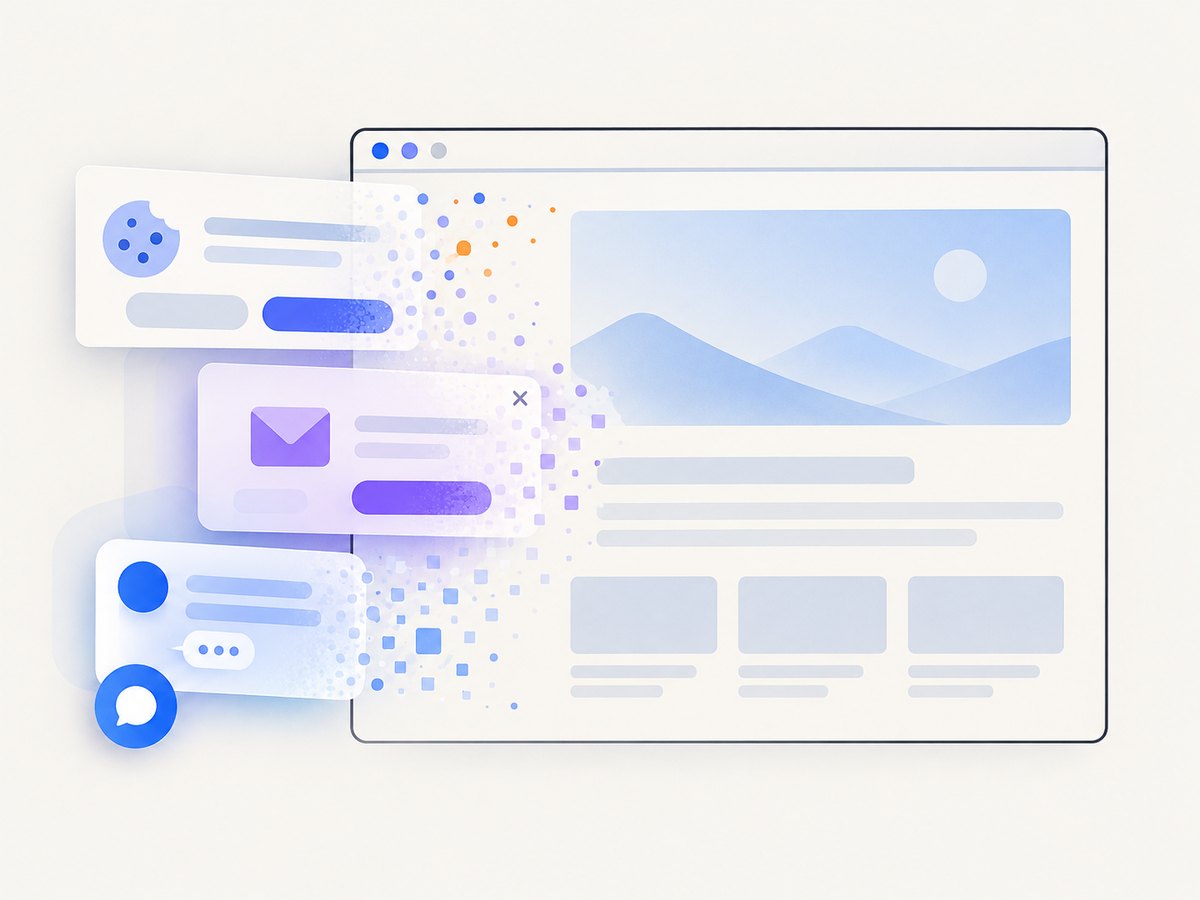
If your goal is a reliable page image rather than browser interaction, ScreenshotNeo provides a single screenshot API request. Its capture flow accepts consent banners and removes more than 60 known consent platforms, newsletter popups and chat widgets before the shot; each step can be turned off. Bot checks, blank pages, timeouts, failed loads and cache hits are not billed, and the response identifies the result with X-Page-Verdict and X-Billed headers. It also includes an MCP server for AI agents with take_screenshot, get_page_info and capture_pdf.
See the ScreenshotNeo API documentation for all options.
curl -G "https://api.screenshotneo.com/v1/shot" -d access_key=YOUR_API_KEY --data-urlencode url=https://stripe.com -o shot.webpimport requests
r = requests.get("https://api.screenshotneo.com/v1/shot", params={"access_key": "YOUR_API_KEY", "url": "https://stripe.com"}, timeout=90)
open("shot.webp", "wb").write(r.content)const q = new URLSearchParams({ access_key: 'YOUR_API_KEY', url: 'https://stripe.com' });
const res = await fetch(`https://api.screenshotneo.com/v1/shot?${q}`);ScreenshotNeo includes full-page and element capture, device presets, custom CSS and JavaScript, waits, blocking controls, cookies and headers, caching, signed links, async jobs, bulk capture and PDF output. The free plan includes 1,000 screenshots per month with no card; paid plans start at $5 for 3,000. Create a free ScreenshotNeo account.
11. FAQ
Does NoSuchElementException mean the element never exists?
No. It means Selenium did not find a match in the active search context at lookup time.
Should I add time.sleep()?
Use an explicit wait for the condition you need. A fixed sleep can be too short on a slow run and unnecessarily long on a fast one.
Why does the selector work in DevTools but not Selenium?
DevTools may be inspecting a different frame, window or shadow root, or the application may have changed state between inspection and execution.
Can I solve every lookup failure with a longer timeout?
No. A timeout cannot fix a wrong locator, wrong context, missing authentication or an element that the application never renders.


