How to Fix Selenium Waits That Fail in PhantomJS
Fix PhantomJS Selenium waits by matching conditions to page state, removing mixed waits, handling stale elements, and migrating legacy drivers safely.
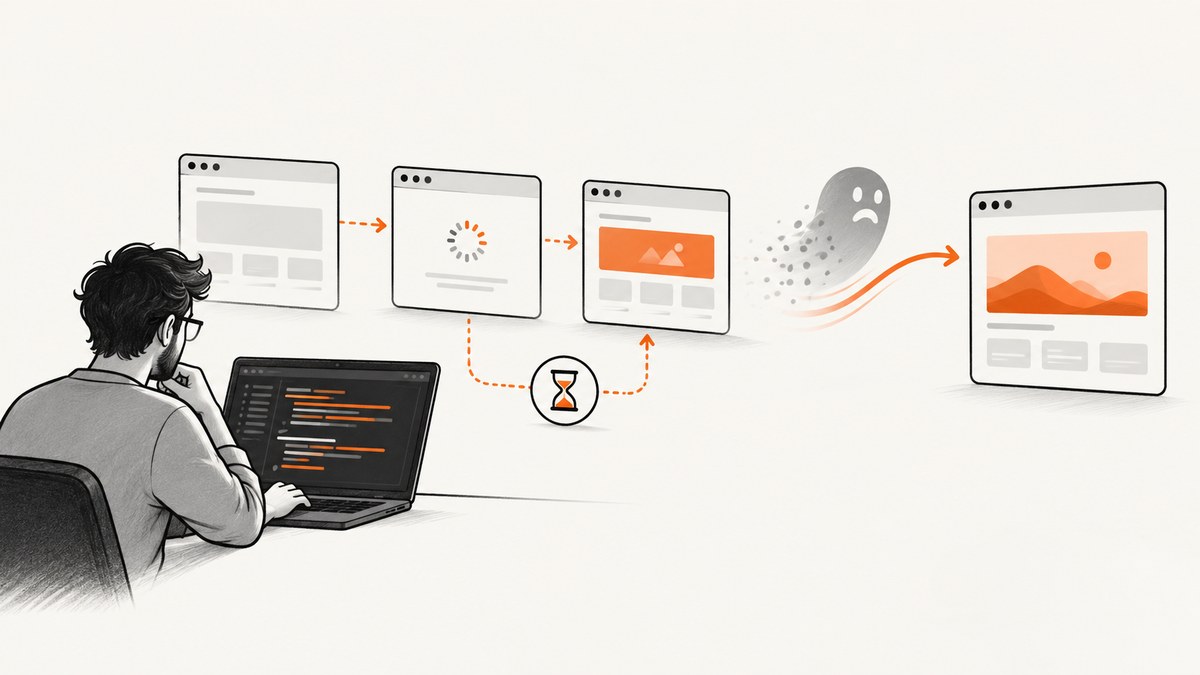
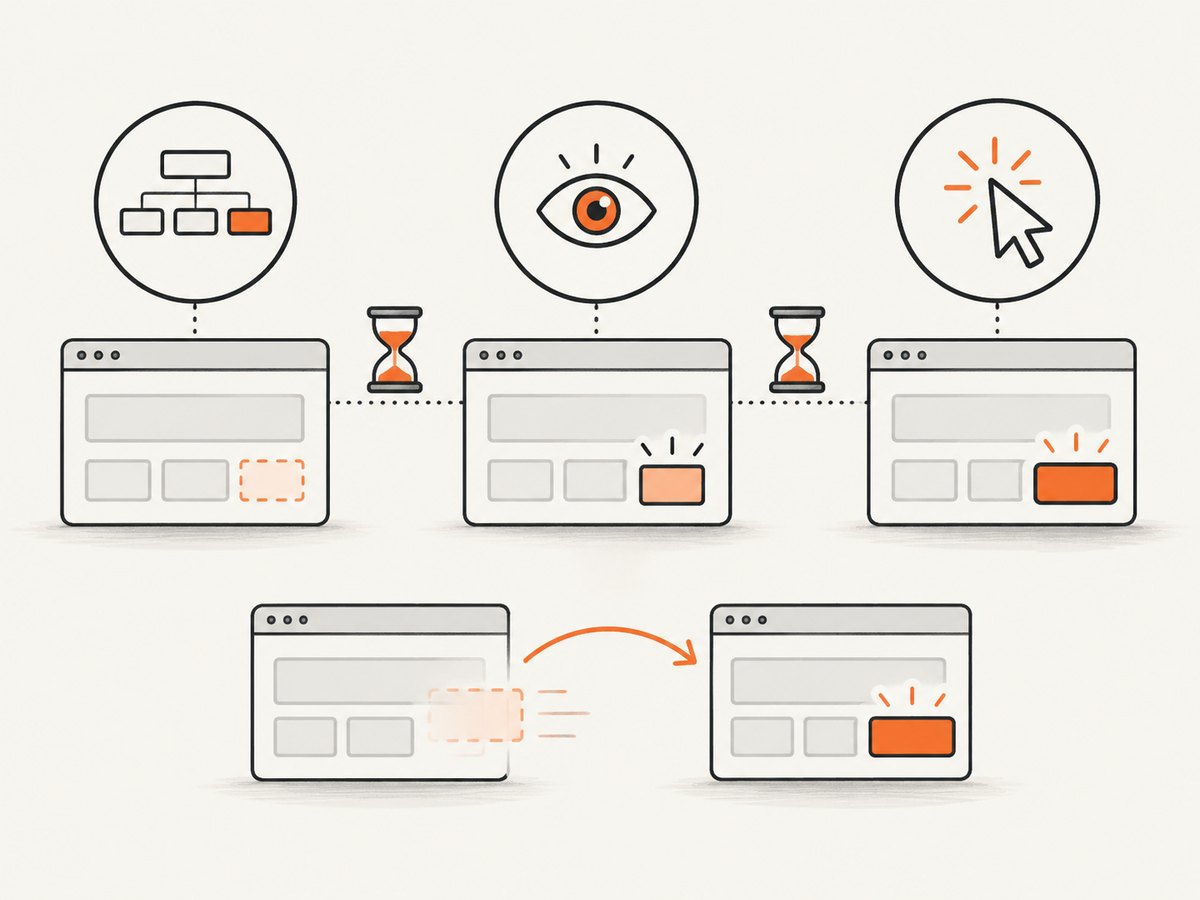
Direct answer: Decide what “ready” means for the next action, then use an explicit wait for that state. Use presence when the node only needs to exist, visibility when it must be displayed, and clickability when the next operation is a click. Keep the implicit wait at zero while diagnosing; Selenium warns that mixing implicit and explicit waits can make timing unpredictable. A completed page navigation also does not prove that JavaScript-driven content has finished changing. If PhantomJS itself is the failing part, increasing the timeout is not a durable fix: PhantomJS development is suspended and Selenium removed PhantomJS capabilities. Move maintained tests to a supported browser and WebDriver stack.
This guide covers the general failure patterns. A case-specific diagnosis requires the full traceback, locator, language binding and version, Selenium version, PhantomJS/GhostDriver version, and exact wait configuration.
1. Identify the state your test actually needs
Start by recording four facts:
- The exact exception and timeout message.
- The locator used by the wait.
- Whether the target is absent, present but hidden, replaced by a framework update, or visible but not ready to receive input.
- Which browser, driver, Selenium binding and versions are installed.
| Observed situation | Likely investigation |
|---|---|
TimeoutException |
The condition never became true before the timeout, or the locator/state assumption is wrong. |
| No such element | The locator may be incorrect, or the check happened before insertion. |
| Stale element reference | A dynamic update replaced the DOM node after you stored the element. |
| Element exists but click fails | Wait for visibility/clickability, overlays, enabled state, or page transitions. |
These mappings are diagnostic starting points, not guaranteed root causes. Selenium’s waiting-strategies documentation explains that page-load readiness covers assets represented in the HTML, while JavaScript can continue adding or revealing elements afterward: Selenium waiting strategies.
2. Replace sleeps with a targeted explicit wait
Use a condition that matches the next operation. The following Python example waits for a visible, enabled submit button:
from selenium import webdriver
from selenium.webdriver.common.by import By
from selenium.webdriver.support import expected_conditions as EC
from selenium.webdriver.support.wait import WebDriverWait

options = webdriver.ChromeOptions()
options.add_argument("--headless=new")
driver = webdriver.Chrome(options=options)

try:
    driver.get("https://example.com/form")
    wait = WebDriverWait(driver, 10)
    submit = wait.until(
        EC.element_to_be_clickable((By.ID, "submit"))
    )
    submit.click()
finally:
    driver.quit()
WebDriverWait polls for a condition. In the current Python API, its default polling interval is 0.5 seconds and it ignores NoSuchElementException by default; verify the behavior for the binding and version used by your project in the Python API documentation.
Choose the condition by intent
| Condition | What it establishes | Use it when |
|---|---|---|
presence_of_element_located |
The node exists in the DOM. | You only need to read attributes or continue a non-visual operation. |
visibility_of_element_located |
The node exists and is displayed. | You need to inspect visible content. |
element_to_be_clickable |
The node is visible and enabled. | The next action is a click. |
invisibility_of_element_located |
The node is hidden or absent. | You are waiting for a spinner, modal, or overlay to finish. |
staleness_of |
A previously located node is detached from the DOM. | A framework replaces the node during an update. |
text_to_be_present_in_element |
Expected text appears in the current element. | Rendering completes by changing text. |
See Selenium’s Expected Conditions API for the complete condition list.
3. Handle elements that are replaced during updates
A stale reference is different from a slow element. If a framework re-renders a component, an element object saved before the update may no longer represent the current DOM. Re-find it by locator inside the wait:
from selenium.common.exceptions import StaleElementReferenceException

wait = WebDriverWait(
    driver,
    10,
    poll_frequency=0.5,
    ignored_exceptions=(StaleElementReferenceException,)
)

button = wait.until(
    EC.element_to_be_clickable((By.CSS_SELECTOR, "button[data-action='save']"))
)
button.click()
An alternative is to wait for the old node to become stale, then locate the replacement:
old_panel = driver.find_element(By.ID, "results")
driver.find_element(By.ID, "refresh").click()
wait.until(EC.staleness_of(old_panel))
new_panel = wait.until(
    EC.visibility_of_element_located((By.ID, "results"))
)
Do not hide every exception indiscriminately. Ignore only transient exceptions you understand; otherwise a real locator or application defect can be masked until the timeout.
4. Remove mixed implicit and explicit waits
Implicit waits apply globally to element-location calls. Explicit waits poll a local condition. When an explicit wait repeatedly calls a locator while an implicit wait is also active, each poll can inherit the global delay and the total duration becomes difficult to predict. Selenium explicitly says: “Do not mix implicit and explicit waits.”
# During diagnosis, leave the implicit wait at its default (zero).
# Prefer this:
wait = WebDriverWait(driver, 10)

# Avoid this combination:
# driver.implicitly_wait(10)
# wait = WebDriverWait(driver, 10)
If a legacy suite deliberately uses an implicit wait, document its value and remove it while converting individual flows to explicit conditions. Set one synchronization policy per test path.
5. Verify navigation and application readiness separately
driver.get() returning means the configured page-load strategy completed; it does not guarantee that a single-page application has fetched data, removed a loading screen, or enabled controls. Wait for an application signal:
driver.get("https://example.com/dashboard")
wait = WebDriverWait(driver, 15)

# A page-specific readiness signal
wait.until(EC.visibility_of_element_located(
    (By.CSS_SELECTOR, "[data-testid='dashboard-ready']")
))

# Or wait for a loading indicator to disappear
wait.until(EC.invisibility_of_element_located(
    (By.CSS_SELECTOR, ".loading-spinner")
))
Prefer stable attributes such as data-testid over generated class names. If no reliable signal exists, ask the application team for one or create a small custom expected condition tied to a documented state.
Custom condition example
class document_ready:
    def __call__(self, driver):
        return driver.execute_script("return document.readyState") == "complete"

wait.until(document_ready())
This checks document readiness only. It is not a substitute for a wait on application data or an interactive control.
6. Check the PhantomJS and Selenium versions
PhantomJS was a scriptable headless browser and historically used GhostDriver for WebDriver support. Its project homepage now states that development is suspended: PhantomJS. Selenium’s Python changelog records PhantomJS deprecation in Selenium 3.8.1, recommending headless Chrome or Firefox, and later records removal of PhantomJS capabilities. Selenium 4 also removed legacy protocol support and uses W3C WebDriver by default; see the Selenium 4 upgrade guide.
For a frozen legacy environment:
- Record the exact Selenium binding version, PhantomJS binary version, GhostDriver version and operating system.
- Pin the known-good combination in your dependency and build configuration.
- Confirm that the page still works with PhantomJS’s older JavaScript and browser behavior.
- Keep explicit waits condition-based; do not rely on a larger timeout to compensate for unsupported browser behavior.
For maintained tests, migrate to a supported browser and driver. Selenium’s historical guidance names headless Chrome or Firefox; check the current browser-driver documentation for the exact setup appropriate to your environment.
7. A repeatable troubleshooting sequence
- Capture the failure context. Save the traceback, URL, locator, timeout, poll interval and browser/driver versions.
- Reproduce with one wait. Remove unrelated actions and fixed sleeps so you can see which condition fails.
- Validate the locator. Inspect the live DOM at the failure point; check frames, shadow roots and dynamic IDs.
- Match the condition to the action. Presence is insufficient for a click; visibility may still be insufficient if an overlay intercepts input.
- Re-find after updates. Use a locator inside the wait when a framework can replace nodes.
- Remove implicit waits. Keep synchronization local and predictable.
- Check readiness signals. Wait for data, a state attribute or disappearance of a loading layer.
- Separate browser failures from timing failures. Run the same flow on a maintained browser to determine whether PhantomJS is the limiting component.
8. Timeout, polling and reliability choices
| Setting | Guidance | Risk |
|---|---|---|
| Timeout | Cover the slowest expected application response plus a small margin. | Too short causes false failures; too long delays real failures. |
| Polling interval | Use the binding default unless the page needs a different cadence. | Very frequent polling adds browser calls; very sparse polling slows recovery. |
| Ignored exceptions | Ignore only transient, understood exceptions such as a known stale replacement. | Broad lists conceal genuine defects. |
| Retries | Retry a whole operation only when the operation is safe and the cause is transient. | Retries can duplicate submissions or hide deterministic bugs. |
Make actions idempotent where possible. For a submit operation, wait for a server-confirmed success state rather than assuming that a click means completion. Log the condition name and elapsed time so slow pages can be distinguished from broken locators.
9. Common errors and fixes
“The wait returns immediately, but the content is empty”
Cause: Presence only proves that a container exists. Fix: wait for expected text, a child element, a non-empty attribute, or an application-ready marker.
“Element is visible, but click is intercepted”
Cause: A modal, cookie banner, animation or overlay covers the target. Fix: wait for the overlay to disappear, close it through a supported control, then wait for clickability again.
“The element becomes stale during the wait”
Cause: The page replaced the node. Fix: wait on the locator or use staleness_of followed by a fresh lookup.
“Increasing the timeout changes nothing”
Cause: The condition or locator may be wrong, or PhantomJS may not support the page behavior. Fix: verify the state manually, remove mixed waits, and run the flow on a maintained browser.
“Selenium cannot create a PhantomJS session”
Cause: PhantomJS capabilities were deprecated and removed from Selenium, or the pinned versions do not interoperate. Fix: use the legacy versions only in a deliberately frozen environment, or migrate to a supported browser-driver pair.
“The test passes locally but times out in CI”
Cause: Different browser/driver versions, CPU limits, network latency, viewport, timezone or page data. Fix: log versions and URL, use deterministic test data, wait on application state, and set a timeout based on observed service limits rather than a fixed sleep.
10. Or skip the browser setup
If your goal is a clean image of a page rather than browser-level interaction, ScreenshotNeo provides a single screenshot request. Its consent step accepts cookie banners and removes more than 60 known consent platforms, newsletter popups and chat widgets before capture; each step can be turned off. Bot checks/CAPTCHAs, blank pages, timeouts, failed loads and cache hits are not billed, and the response identifies the result with X-Page-Verdict and X-Billed headers. ScreenshotNeo also provides an MCP server with take_screenshot, get_page_info and capture_pdf tools for Claude, Cursor and other MCP clients.
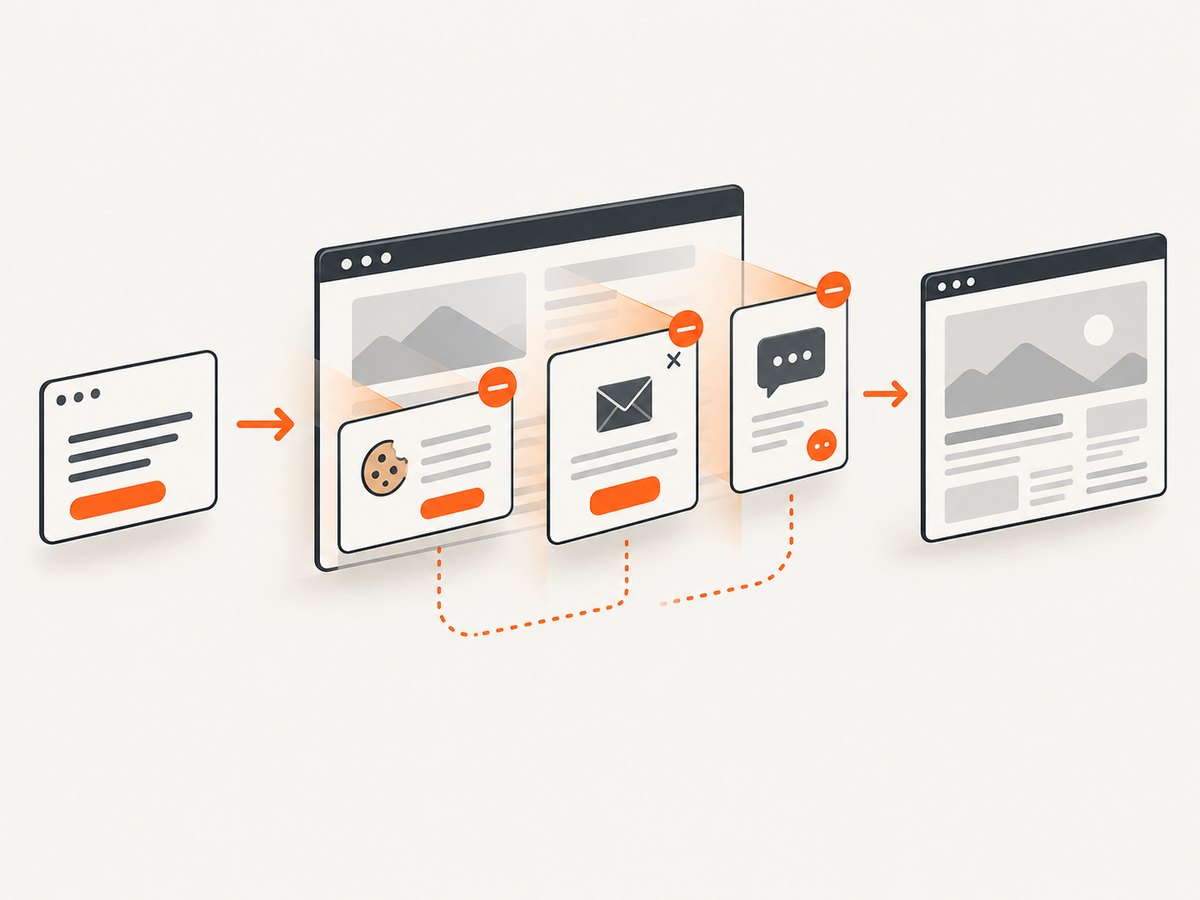
See the ScreenshotNeo API documentation for all options.
cURL
curl -G "https://api.screenshotneo.com/v1/shot" \
  -d access_key=YOUR_API_KEY \
  --data-urlencode url=https://stripe.com \
  -o shot.webp
Python
import requests

r = requests.get(
    "https://api.screenshotneo.com/v1/shot",
    params={"access_key": "YOUR_API_KEY", "url": "https://stripe.com"},
    timeout=90,
)
r.raise_for_status()
open("shot.webp", "wb").write(r.content)
Node.js
const q = new URLSearchParams({
  access_key: 'YOUR_API_KEY',
  url: 'https://stripe.com'
});
const res = await fetch(`https://api.screenshotneo.com/v1/shot?${q}`);
if (!res.ok) throw new Error(`Screenshot failed: ${res.status}`);
const buffer = Buffer.from(await res.arrayBuffer());
require('fs').writeFileSync('shot.webp', buffer);
ScreenshotNeo supports full-page and element capture, device presets or custom viewports, retina scale, dark mode, PDF options, custom CSS and JavaScript, clicks, selector hiding, selector/delay/network-idle waits, request blocking, headers, cookies, user agents, authorization, timezone, geolocation, transparent backgrounds, resizing, caching, signed links, asynchronous jobs, bulk capture and usage reporting. Free usage includes 1,000 shots per month with no card; paid plans start at $5 for 3,000 shots. Create a free ScreenshotNeo account.
11. FAQ
Does a longer explicit wait fix PhantomJS?
Only when the expected state is genuinely slow. It cannot repair a wrong locator, a never-fired application state, or an unsupported browser-driver combination.
Should I use JavaScript to force a click?
Use a normal WebDriver click when possible. A forced JavaScript click can bypass visibility and overlay checks and may not represent what a user can do; treat it as a last-resort diagnostic.
Is document.readyState enough for a single-page application?
No. It describes document loading, while application data and controls can change afterward. Wait for a page-specific readiness signal.
Can I keep PhantomJS for an old release?
You can preserve a pinned legacy stack if it is known to work, but PhantomJS development is suspended and Selenium support was removed. Plan migration for maintained automation.


