How to Fix Python Selenium’s “WebElement Object Is Not Callable” XPath Error
Fix Selenium’s “WebElement object is not callable” XPath error by removing the extra call and using the WebElement API correctly.

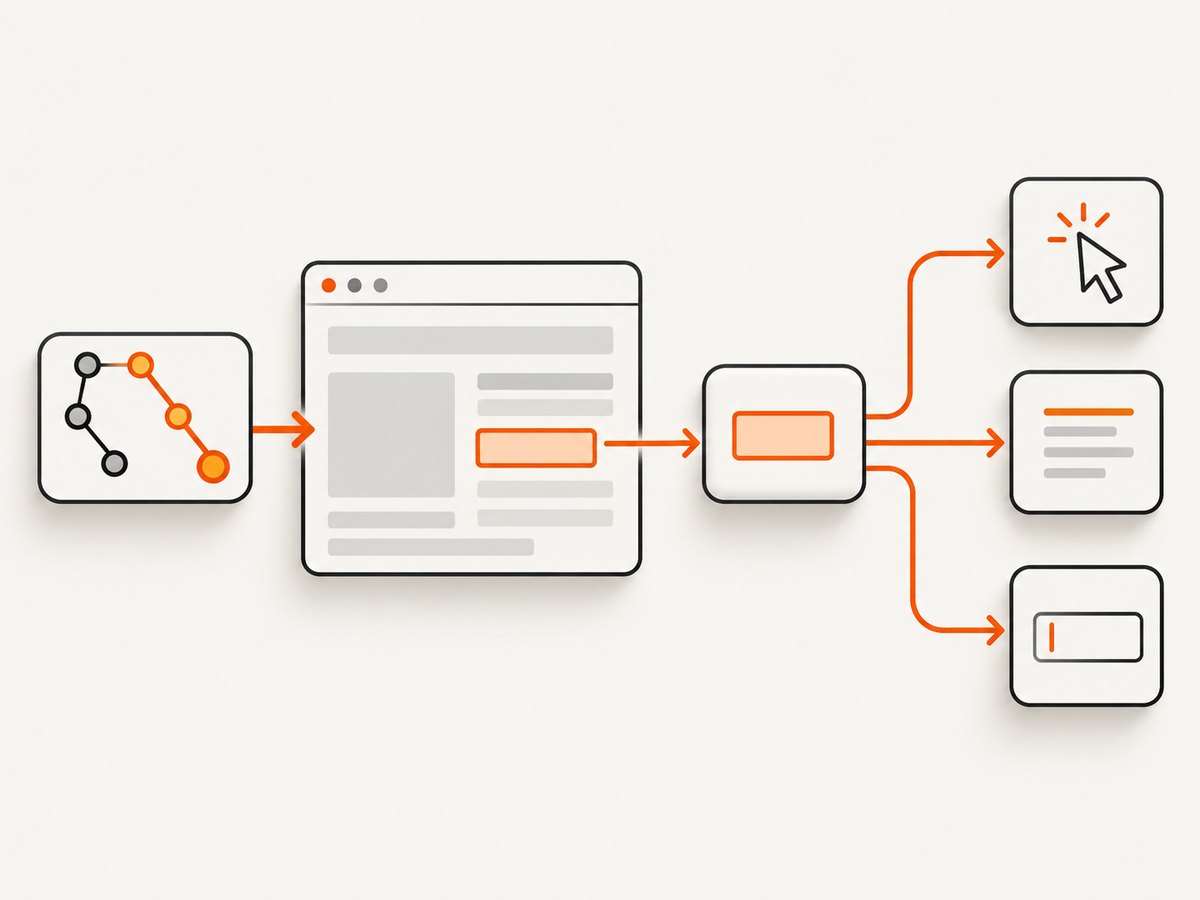
If Python raises TypeError: 'WebElement' object is not callable while using an XPath locator, the usual problem is an extra pair of parentheses. Selenium’s find_element call returns a WebElement object. It does not return a function that can be called again.
Call the lookup once, then call a method on the returned element:
from selenium.webdriver.common.by import By

element = driver.find_element(By.XPATH, "//button[@type='submit']")
element.click()
If your code looks like driver.find_element(By.XPATH, "...")(), remove the final (). If it looks like element(), replace it with the operation you need, such as element.click(), element.clear(), or element.get_attribute("href"). The exact extra parentheses can only be confirmed by reading your traceback and source line.
1. Understand what Selenium returns
Selenium documents find_element as returning the first matching WebElement, while find_elements returns a list of matching elements. A WebElement represents a DOM element and exposes methods and properties; the object itself is not callable. See the WebDriver API documentation and WebElement API documentation.
| Expression | Result | Typical next step |
|---|---|---|
driver.find_element(By.XPATH, "...") |
One WebElement |
click(), send_keys(), text |
driver.find_elements(By.XPATH, "...") |
List of WebElement objects |
Iterate, index, or check length |
Both forms perform a lookup. Neither result should be followed by an extra call operator. The parentheses belong around the arguments passed to find_element, not around the returned value.
2. Use the Selenium 4 XPath form
Use the locator strategy from selenium.webdriver.common.by:
from selenium.webdriver.common.by import By

element = driver.find_element(By.XPATH, "//input[@name='email']")
Selenium’s locator migration guidance recommends this Selenium 4 pattern instead of legacy methods such as find_element_by_xpath. The Selenium Python locator migration article explains that the older methods are special cases of find_element(By_object, locator). The current By documentation lists By.XPATH as the XPath strategy.
Common incorrect forms
# Incorrect: calls the WebElement returned by find_element
button = driver.find_element(By.XPATH, "//button")()

# Incorrect: calls an element variable as though it were a function
button = driver.find_element(By.XPATH, "//button")
button()

# Correct
button = driver.find_element(By.XPATH, "//button")
button.click()
Do not “fix” this error by changing a valid XPath before checking the call site. An invalid XPath or a missing element produces a different exception, such as InvalidSelectorException or NoSuchElementException.
3. A complete runnable Python example
The following example starts Chrome, opens a page, locates a form control with XPath, types into it, and reads text from the result. Install Selenium first with python -m pip install selenium; Selenium Manager can usually obtain the compatible browser driver.
from selenium import webdriver
from selenium.webdriver.common.by import By
from selenium.webdriver.support.ui import WebDriverWait
from selenium.webdriver.support import expected_conditions as EC

options = webdriver.ChromeOptions()
options.add_argument("--headless=new")

driver = webdriver.Chrome(options=options)
wait = WebDriverWait(driver, 15)

try:
    driver.get("https://example.com")

    heading = wait.until(
        EC.visibility_of_element_located((By.XPATH, "//h1"))
    )
    print(heading.text)

    # A WebElement method is callable; the WebElement itself is not.
    link = wait.until(
        EC.element_to_be_clickable((By.XPATH, "//a[@href]"))
    )
    print(link.get_attribute("href"))
finally:
    driver.quit()
Notice the tuple passed to the expected condition: (By.XPATH, "//h1"). The condition returns a WebElement after the element meets the requested state. You then use its documented methods or properties.
4. Choose find_element or find_elements deliberately
Use singular lookup when one match is expected:
submit = driver.find_element(By.XPATH, "//button[@type='submit']")
submit.click()
Use plural lookup when zero, one, or many matches are valid:
cards = driver.find_elements(By.XPATH, "//article[contains(@class, 'card')]")
for card in cards:
    print(card.text)
find_elements returns a list, so calling cards() is also incorrect. If you need one item, index the list after checking its length, or use singular lookup and handle NoSuchElementException.
5. Diagnose the traceback from left to right
- Read the complete traceback and locate the exact source line reporting the TypeError.
- Find the final value immediately before the extra
(). If it is a variable containing a WebElement, the variable is being called. - Confirm that
find_elementreceives exactly two locator arguments: a strategy such asBy.XPATHand an XPath string. - Assign the result to a descriptive variable such as
email_inputorsubmit_button. - Replace the call with the operation you actually need:
click(),send_keys(),clear(),get_attribute(),is_displayed(), or thetextproperty. - Only after the call-site issue is ruled out should you investigate XPath syntax, page state, frames, or timing.
# Make the intermediate type obvious while debugging
from selenium.webdriver.common.by import By

element = driver.find_element(By.XPATH, "//button")
print(type(element))       # selenium.webdriver.remote.webelement.WebElement
print(element.tag_name)    # property access
print(element.text)        # property access
element.click()            # method call
6. Timing, frames and other edge cases
Wait for the page state you need
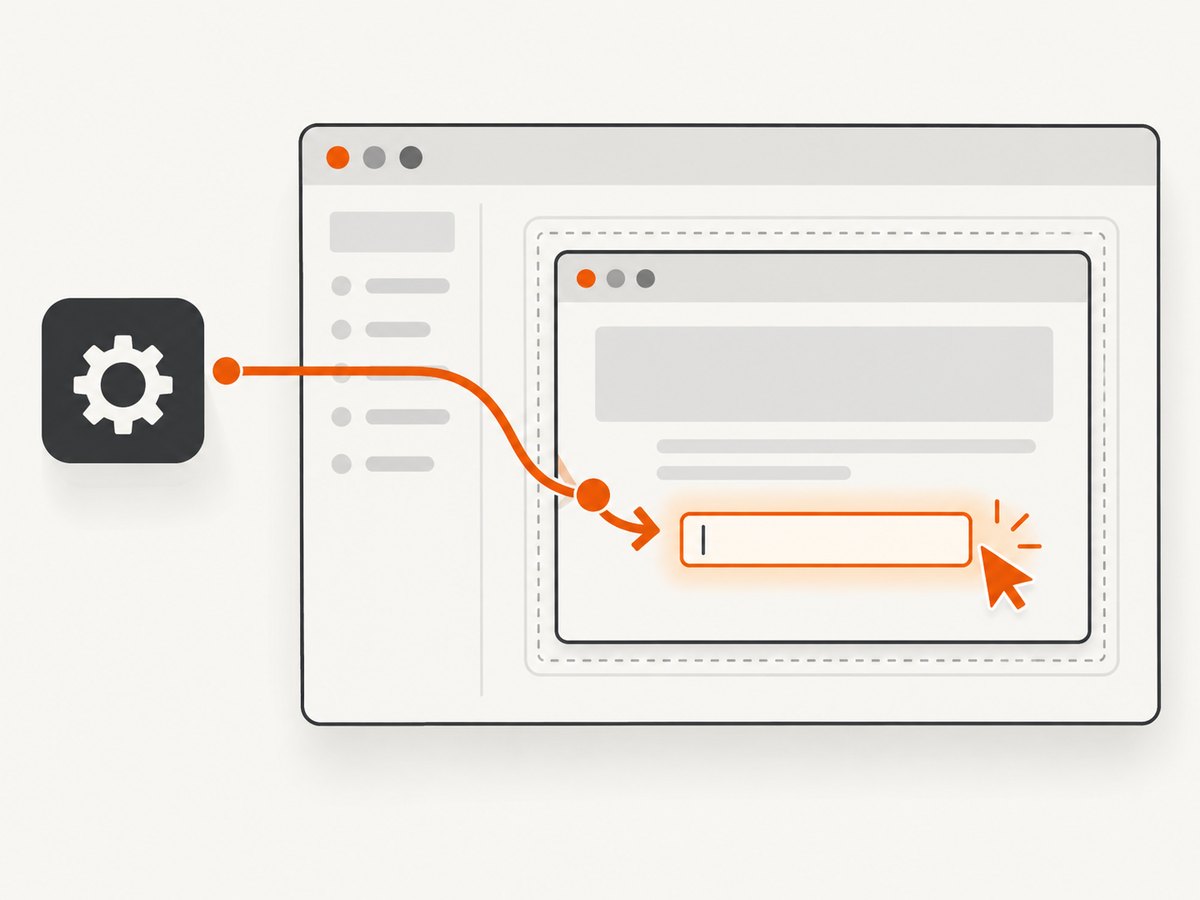
A correct XPath can still fail when the element has not been added, displayed, or enabled. Prefer explicit waits over arbitrary sleeps:
from selenium.webdriver.support.ui import WebDriverWait
from selenium.webdriver.support import expected_conditions as EC

button = WebDriverWait(driver, 20).until(
    EC.element_to_be_clickable((By.XPATH, "//button[@type='submit']"))
)
button.click()
Use presence_of_element_located when the node only needs to exist, visibility_of_element_located when it must be visible, and element_to_be_clickable when Selenium must be able to click it.
Switch into an iframe
Elements inside an iframe are not searchable from the parent document. Switch first, then perform the lookup:
frame = WebDriverWait(driver, 15).until(
    EC.presence_of_element_located((By.XPATH, "//iframe[@title='Payment']"))
)
driver.switch_to.frame(frame)
field = driver.find_element(By.XPATH, "//input[@name='cardnumber']")
field.send_keys("4242424242424242")
driver.switch_to.default_content()
Handle stale elements
A page rerender can invalidate a previously returned WebElement, causing StaleElementReferenceException. Locate the element again after the update instead of trying to call the old object:
# Re-fetch after a navigation or reactive UI update
button = WebDriverWait(driver, 15).until(
    EC.element_to_be_clickable((By.XPATH, "//button[@data-action='save']"))
)
button.click()
Check XPath context and syntax
XPath is evaluated against the current document. Use a browser’s inspector to verify that the expression matches the intended node, but keep the Python call shape correct:
title = driver.find_element(
    By.XPATH,
    "//main//h1[normalize-space()]"
)
print(title.text)
7. Troubleshooting common errors
| Error | Cause | Fix |
|---|---|---|
TypeError: 'WebElement' object is not callable |
A WebElement was followed by (). |
Remove the extra call and invoke a real method such as click(). |
TypeError: 'list' object is not callable |
find_elements returned a list that was called. |
Iterate, index, or test the list; do not use matches(). |
NoSuchElementException |
No element matched at lookup time, or the page is in another frame. | Verify the XPath, wait for the element, and switch into the correct iframe. |
InvalidSelectorException |
The XPath expression is malformed or unsupported. | Validate the XPath independently and pass it as a string with By.XPATH. |
ElementNotInteractableException |
The node exists but is hidden, disabled, or covered. | Wait for visibility or clickability and inspect overlays and enabled state. |
StaleElementReferenceException |
The DOM changed after the element was located. | Wait for the update to finish and locate the element again. |
AttributeError: 'WebElement' object has no attribute ... |
The requested operation is not a WebElement API member. | Check the WebElement documentation and use a supported method or property. |
8. Reliability, performance and maintainability
- Prefer stable locators. IDs, accessible labels, and data attributes usually survive redesigns better than long absolute XPath expressions.
- Keep locator and action separate. Assigning the result makes accidental
()easier to spot and gives you a place to log the element type. - Use explicit waits. They reduce failures caused by race conditions and avoid waiting longer than necessary.
- Limit repeated lookups. Reuse an element during one stable interaction, but re-fetch after navigation or a known DOM replacement.
- Keep browser sessions short. Start and quit drivers predictably, and always put cleanup in a
finallyblock. - Capture diagnostics. On failure, save the current URL, page source, screenshot, and traceback. This distinguishes a call-site TypeError from a page-state problem.
- Do not infer performance from this exception. The documented return types explain the error; the research sources provide no prevalence or benchmark for it.
9. Or skip the browser setup
If your goal is to obtain a page image rather than interact with a live browser, ScreenshotNeo provides a website screenshot API. It accepts one GET request and returns PNG, JPEG, WebP, or PDF. The service removes cookie and consent banners, newsletter popups, and chat widgets before capture. Bot checks, blank pages, timeouts, failed loads, and cache hits are not billed, and response headers identify the page verdict and billing status.
See the ScreenshotNeo API documentation for all options. Basic calls:
cURL
curl -G "https://api.screenshotneo.com/v1/shot" -d access_key=YOUR_API_KEY --data-urlencode url=https://stripe.com -o shot.webpPython
import requests
r = requests.get("https://api.screenshotneo.com/v1/shot", params={"access_key": "YOUR_API_KEY", "url": "https://stripe.com"}, timeout=90)
r.raise_for_status()
open("shot.webp", "wb").write(r.content)
Node.js
const q = new URLSearchParams({ access_key: 'YOUR_API_KEY', url: 'https://stripe.com' });
const res = await fetch(`https://api.screenshotneo.com/v1/shot?${q}`);
if (!res.ok) throw new Error(`HTTP ${res.status}`);
const image = Buffer.from(await res.arrayBuffer());
require('fs').writeFileSync('shot.webp', image);
For browser-automation workflows, ScreenshotNeo also supports full-page capture with lazy images loaded, CSS-selector element capture, dark mode, device presets, custom viewports, retina scale, custom CSS and JavaScript, clicks before capture, selector or network-idle waits, request blocking, headers, cookies, user agents, authorization, timezone, geolocation, transparent backgrounds, resizing, configurable caching, signed links, asynchronous jobs with signed webhooks, bulk capture of up to 100 URLs per call, a usage API, and an OpenAPI specification. An MCP server exposes take_screenshot, get_page_info, and capture_pdf to Claude, Cursor, and other MCP clients.
Plans include 1,000 screenshots per month free with no card; paid plans start at $5 for 3,000 shots. Yearly billing provides two months free, and every feature is available on every plan. Create a free ScreenshotNeo account to get started.
10. FAQ
Should I add another pair of parentheses after find_element?
No. The method call already ends after the locator arguments. Use the returned WebElement’s method or property.
Can I call element.text()?
No. text is a property, so use element.text. Methods such as click() and clear() use parentheses.
Does XPath cause the WebElement error?
XPath may be part of the expression, but the “not callable” TypeError indicates Python tried to call an object. Invalid XPath normally raises a selector-specific exception.
When should I use CSS selectors instead?
Use whichever locator is clearest and stable for your page. The callable rule is the same for CSS, ID, name, and XPath lookups.
Why does the same code work on one page but fail on another?
Pages differ in timing, frames, overlays, and DOM updates. The returned object is still not callable; adjust waits, context, and locator stability for the page.


