How to Fix Selenium Clicking Elements at the Wrong Location
Fix Selenium clicks that land in the wrong place by checking overlays, scrolling, timing, iframes, stale elements, and click coordinates.
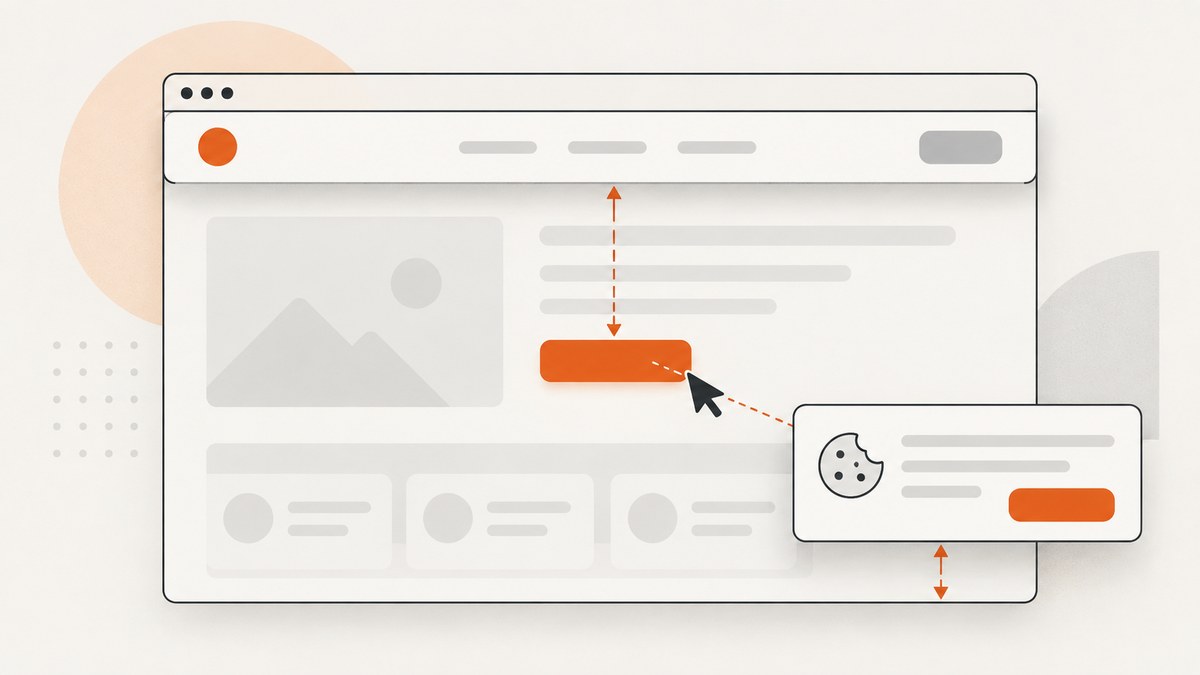
When Selenium clicks the wrong place, the usual cause is geometry or timing: an overlay covers the target, the page moves after Selenium calculates the click point, the target is inside an iframe, or a stale element reference points to an old DOM node. Fix those conditions first, then click again. Use JavaScript only when you intentionally want DOM event dispatch instead of a user-like pointer click.
Selenium’s ordinary element click scrolls an out-of-view target into view, checks interactability, and clicks its center. If that center is covered, Selenium can raise ElementClickInterceptedException. See the Selenium element interaction documentation and ChromeDriver’s clicking-issues guidance.
1. Diagnose the exact click point
Do not change the locator immediately. First record the element’s position and size, capture the page at failure time, and inspect what is painted at the attempted point.
from selenium import webdriver
from selenium.common.exceptions import ElementClickInterceptedException, WebDriverException
from selenium.webdriver.common.by import By

 driver = webdriver.Chrome()
 driver.get('https://example.com')

 target = driver.find_element(By.CSS_SELECTOR, 'button.save')
 try:
     target.click()
 except ElementClickInterceptedException as exc:
     print('location:', target.location)
     print('size:', target.size)
     print('message:', exc.msg)
     driver.save_screenshot('click-failure.png')
     raise
 finally:
     driver.quit()
Compare the element location and size with the coordinates mentioned in the driver error. If the coordinates are outside the current rectangle, the page moved or the reference is stale. If another element occupies that point, find the overlay or interceptor.
Inspect the receiver at a coordinate
point = driver.execute_script('''
const r = arguments[0].getBoundingClientRect();
return {x: r.left + r.width / 2, y: r.top + r.height / 2};
''', target)
receiver = driver.execute_script('''
return document.elementFromPoint(arguments[0], arguments[1])?.outerHTML || null;
''', point['x'], point['y'])
print('target point:', point)
print('painted receiver:', receiver)
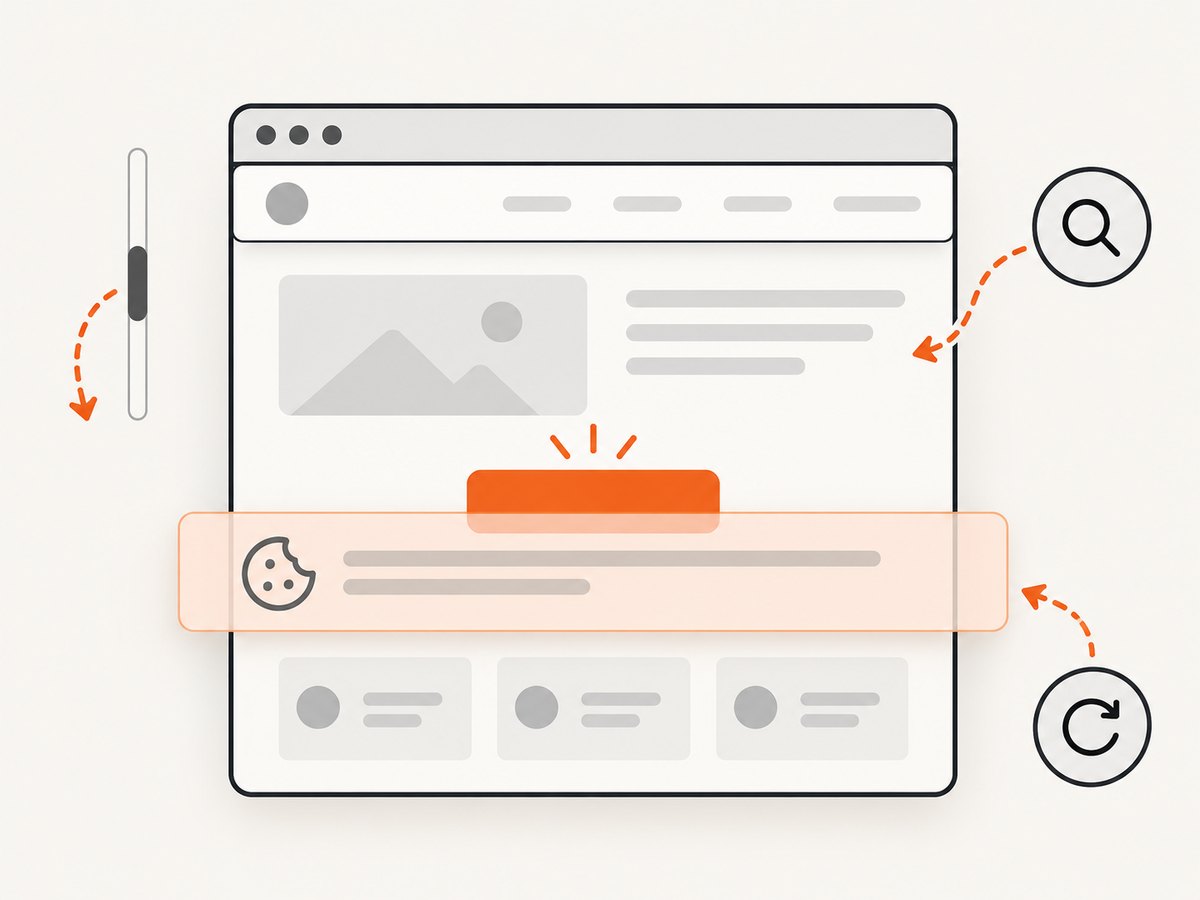
A cookie banner, fixed header, modal, spinner, transparent overlay, or chat widget at that point explains an intercepted click. Close it through the normal UI path or wait for it to disappear.
2. Use a normal click after the page is ready
Start with Selenium’s standard click. It performs the normal scroll and interactability checks, so it is the best baseline for user-like behavior.
from selenium.webdriver.support.ui import WebDriverWait
from selenium.webdriver.support import expected_conditions as EC

wait = WebDriverWait(driver, 20)
target = wait.until(EC.element_to_be_clickable((By.CSS_SELECTOR, 'button.save')))
target.click()
element_to_be_clickable checks visibility and enabled state. It does not prove that a fixed overlay will not cover the center at the instant of the click, so inspect and remove interceptors when the exception persists.
3. Scroll below fixed headers and footers
A header can cover the element immediately after Selenium scrolls it into view. Scroll with an application-specific offset, re-find the element, and verify its rectangle before clicking.
target = driver.find_element(By.CSS_SELECTOR, 'button.save')
driver.execute_script('''
const el = arguments[0];
const header = document.querySelector('.site-header');
const offset = header ? header.getBoundingClientRect().height + 12 : 12;
const y = el.getBoundingClientRect().top + window.scrollY - offset;
window.scrollTo({top: y, behavior: 'instant'});
''', target)

target = driver.find_element(By.CSS_SELECTOR, 'button.save')
rect = driver.execute_script('''
const r = arguments[0].getBoundingClientRect();
return {top: r.top, bottom: r.bottom, left: r.left, right: r.right,
        viewportHeight: window.innerHeight};
''', target)
print(rect)
target.click()
Do not copy a universal pixel offset. Measure the actual fixed header at the current responsive viewport. For wheel actions, explicitly scroll to the target or use a documented origin and offset; unlike ordinary click and send-keys methods, the Actions API does not automatically scroll the target into view. See Selenium wheel actions.
from selenium.webdriver.common.action_chains import ActionChains
from selenium.webdriver.common.actions.wheel_input import ScrollOrigin

origin = ScrollOrigin.from_element(target, 0, -80)
ActionChains(driver).scroll_from_origin(origin, 0, 500).perform()
target = driver.find_element(By.CSS_SELECTOR, 'button.save')
target.click()
4. Remove or wait for overlays
Prefer the site’s normal close or accept control. Removing an overlay with JavaScript can hide a real application defect, so use it only in controlled test fixtures.
from selenium.webdriver.support import expected_conditions as EC

wait = WebDriverWait(driver, 20)
consent = (By.CSS_SELECTOR, '[aria-label="Close"], .cookie-banner .accept')
try:
    wait.until(EC.element_to_be_clickable(consent)).click()
except Exception:
    pass

wait.until(EC.invisibility_of_element_located((By.CSS_SELECTOR, '.modal, .cookie-banner, .loading-spinner')))
target = wait.until(EC.element_to_be_clickable((By.CSS_SELECTOR, 'button.save')))
target.click()
Also check for transparent interceptors with pointer-events, animated backdrops, sticky footers, newsletter prompts, and chat launchers. The painted receiver from document.elementFromPoint identifies which one is actually winning hit testing.
5. Wait for layout stability before clicking
An element that moves between location calculation and the click can receive the pointer at a different coordinate. ChromeDriver does not guarantee success while an element is continuously moving; wait until its bounding rectangle is unchanged, then reacquire it.
import time

wait = WebDriverWait(driver, 20)
locator = (By.CSS_SELECTOR, 'button.save')

def rectangle_is_stable(d):
    el = d.find_element(*locator)
    first = d.execute_script('''
      const r = arguments[0].getBoundingClientRect();
      return [r.left, r.top, r.width, r.height];
    ''', el)
    time.sleep(0.15)
    el = d.find_element(*locator)
    second = d.execute_script('''
      const r = arguments[0].getBoundingClientRect();
      return [r.left, r.top, r.width, r.height];
    ''', el)
    return first == second

wait.until(rectangle_is_stable)
driver.find_element(*locator).click()
A better application-specific condition is an animation-complete class, a network-idle signal, or a state attribute that your UI sets after rendering. Avoid arbitrary long sleeps when a state condition is available.
6. Confirm the clickable node
The element you located may be a wrapper whose center is not the actual interactive child. ChromeDriver documents cases where an anchor’s center falls outside a clickable image or child control. Locate the child that receives the pointer, or click a safe child deliberately.
card = driver.find_element(By.CSS_SELECTOR, 'a.product-card')
image = card.find_element(By.CSS_SELECTOR, 'img, .product-card__button')
image.click()
Use a stable semantic locator such as a role, accessible name, or data attribute. Avoid compensating for a wrong locator with coordinate clicks.
7. Switch into the correct iframe
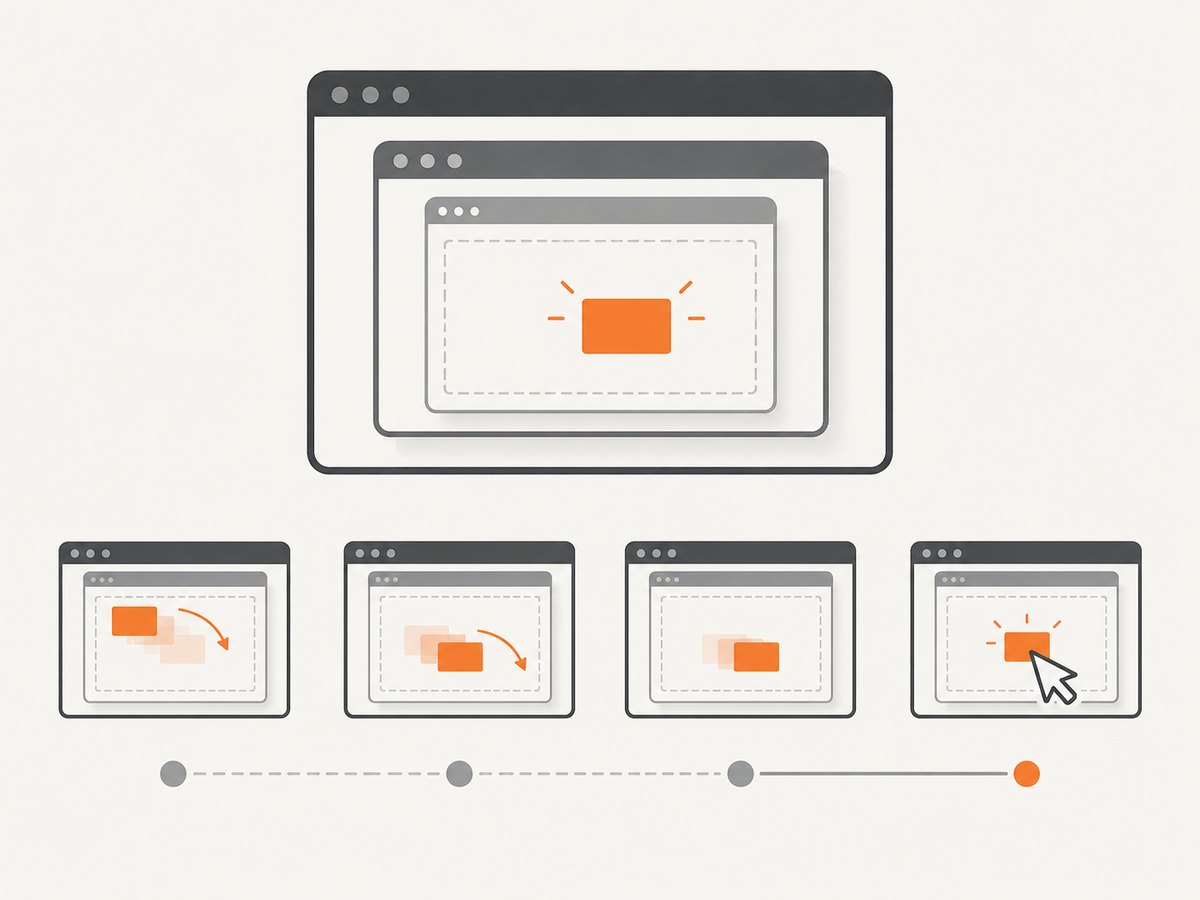
Elements inside an iframe are not in the top-level browsing context. Locate the frame, switch into it, find the target there, and restore the previous context afterward. See Selenium frame interactions.
from selenium.webdriver.support import expected_conditions as EC

wait = WebDriverWait(driver, 20)
frame = wait.until(EC.presence_of_element_located((By.CSS_SELECTOR, 'iframe.payment')))
driver.switch_to.frame(frame)
try:
    wait.until(EC.element_to_be_clickable((By.CSS_SELECTOR, 'button.pay'))).click()
finally:
    driver.switch_to.parent_frame()  # or driver.switch_to.default_content()
For nested frames, switch one level at a time. Returning to default_content() goes to the top page; parent_frame() returns only one level.
8. Re-find elements after DOM replacement
Refreshes, route changes, and framework rerenders can detach the node you previously stored. A stale element reference means the original element is no longer attached. Re-locate it after the replacement and retry a bounded number of times.
from selenium.common.exceptions import StaleElementReferenceException

locator = (By.CSS_SELECTOR, 'button.save')
for attempt in range(3):
    try:
        wait.until(EC.element_to_be_clickable(locator)).click()
        break
    except StaleElementReferenceException:
        if attempt == 2:
            raise
9. Use Actions offsets only when the design requires them
After fixing overlays and timing, an offset can target a known safe point inside a large control. Keep the origin explicit and document why the offset exists.
from selenium.webdriver.common.action_chains import ActionChains

 target = wait.until(EC.visibility_of_element_located((By.CSS_SELECTOR, '.canvas-control')))
 ActionChains(driver).move_to_element_with_offset(target, 10, 10).click().perform()
Offsets are sensitive to responsive layout and element padding. Recompute them for each viewport or prefer a child element with its own locator.
10. JavaScript click: a deliberate last resort
A JavaScript click dispatches DOM events without proving that a user could reach the element with a pointer. It can bypass overlays, visibility, and hit-testing bugs, so use it only when that behavior is intentional.
target = driver.find_element(By.CSS_SELECTOR, 'button.save')
driver.execute_script('arguments[0].click()', target)
If the application requires real pointer behavior, fixing geometry, context, and synchronization is safer than replacing the interaction with JavaScript.
11. Complete reusable helper
from selenium import webdriver
from selenium.common.exceptions import ElementClickInterceptedException, StaleElementReferenceException
from selenium.webdriver.common.by import By
from selenium.webdriver.support.ui import WebDriverWait
from selenium.webdriver.support import expected_conditions as EC


def click_reliably(driver, locator, timeout=20, attempts=3):
    wait = WebDriverWait(driver, timeout)
    for attempt in range(attempts):
        try:
            element = wait.until(EC.element_to_be_clickable(locator))
            driver.execute_script('''
              const el = arguments[0];
              const header = document.querySelector('.site-header');
              const offset = header ? header.getBoundingClientRect().height + 12 : 12;
              const y = el.getBoundingClientRect().top + window.scrollY - offset;
              window.scrollTo(0, Math.max(0, y));
            ''', element)
            element = wait.until(EC.element_to_be_clickable(locator))
            element.click()
            return
        except StaleElementReferenceException:
            if attempt == attempts - 1:
                raise
        except ElementClickInterceptedException:
            driver.save_screenshot(f'click-intercepted-{attempt}.png')
            if attempt == attempts - 1:
                raise
            wait.until(EC.invisibility_of_element_located((By.CSS_SELECTOR, '.modal, .cookie-banner, .spinner')))


driver = webdriver.Chrome()
try:
    driver.get('https://example.com')
    click_reliably(driver, (By.CSS_SELECTOR, 'button.save'))
finally:
    driver.quit()
12. Troubleshooting checklist
| Symptom | Likely cause | Fix |
|---|---|---|
ElementClickInterceptedException |
Another painted element covers the center | Inspect elementFromPoint; close or wait for the overlay. |
| Click works only after manual scrolling | Fixed header covers the auto-scrolled target | Scroll with a measured header offset, then reacquire. |
| Click lands on a nearby control | Target moved or locator resolves to a wrapper | Compare rectangles, wait for stability, and locate the clickable child. |
ElementNotInteractableException |
Hidden, disabled, or zero-size element | Wait for visibility and enabled state; use the visible instance. |
StaleElementReferenceException |
Framework replaced the DOM node | Find the element again after rerender or navigation. |
| Target is never found | Wrong iframe or browsing context | Switch to the containing frame and restore context afterward. |
| Actions scroll does nothing useful | Wheel origin or offset is wrong | Set an explicit ScrollOrigin and verify the new rectangle. |
| JavaScript click succeeds but the app does not react | Pointer-specific handlers or overlay logic were bypassed | Return to a real click and repair geometry and timing. |
13. Reliability and performance practices
- Use explicit waits tied to application state instead of fixed sleeps.
- Keep locators stable with semantic attributes and re-find after rerenders.
- Capture a screenshot and element rectangle on every final failure for diagnosis.
- Set the viewport deliberately so responsive breakpoints do not change the target geometry unexpectedly.
- Close consent banners and modals through reusable page-object methods.
- Use bounded retries for stale references and transient interception; repeated retries without diagnosis hide real defects.
- Prefer one normal click over multiple scroll and offset operations because each extra action adds another layout opportunity.
14. Or skip the browser setup
If your goal is a clean screenshot rather than browser interaction, ScreenshotNeo captures a URL with one request. It accepts cookie and consent banners like a visitor, removes more than 60 known consent platforms plus newsletter popups and chat widgets before capture, and bills only clean shots. Bot checks, blank pages, timeouts, failed loads, and cache hits are not billed, and the response reports the result with X-Page-Verdict and X-Billed headers.
See the ScreenshotNeo API documentation for all options.
cURL
curl -G 'https://api.screenshotneo.com/v1/shot' \
  -d access_key=YOUR_API_KEY \
  --data-urlencode url=https://stripe.com \
  -o shot.webp
Python
import requests

r = requests.get(
    'https://api.screenshotneo.com/v1/shot',
    params={'access_key': 'YOUR_API_KEY', 'url': 'https://stripe.com'},
    timeout=90,
)
r.raise_for_status()
open('shot.webp', 'wb').write(r.content)
Node.js
const q = new URLSearchParams({ access_key: 'YOUR_API_KEY', url: 'https://stripe.com' });
const res = await fetch(`https://api.screenshotneo.com/v1/shot?${q}`);
if (!res.ok) throw new Error(`Screenshot failed: ${res.status}`);
const fs = await import('node:fs/promises');
await fs.writeFile('shot.webp', Buffer.from(await res.arrayBuffer()));
ScreenshotNeo also provides full-page capture, element selectors, custom CSS and JavaScript, waits, request blocking, headers and cookies, device presets, PDFs, caching with a chosen TTL, signed links, asynchronous jobs, bulk capture, usage data, and an MCP server with take_screenshot, get_page_info, and capture_pdf for AI clients. The free plan includes 1,000 screenshots per month with no card; paid plans start at $5 for 3,000. Create a free ScreenshotNeo account.
15. FAQ
Why does Selenium say the element is clickable but still miss?
Clickable checks cover visibility and enabled state, while a fixed or transparent overlay can still win hit testing at the element’s center. Inspect the painted receiver immediately before clicking.
Should I always use JavaScript click?
No. A normal click preserves user-like pointer behavior and exposes real layout problems. Use JavaScript only when DOM event dispatch is the intended test.
Is a coordinate click more reliable?
Usually no. Coordinates are fragile across viewport sizes, zoom, responsive breakpoints, and scrolling. Prefer a semantic locator or a child element.
How do I know whether an iframe is responsible?
If the target appears in page source or developer tools but Selenium cannot interact with it from the top document, inspect frame boundaries and switch into the containing iframe.
Can screenshots prove why a click failed?
A failure screenshot combined with the target rectangle, attempted point, and elementFromPoint output usually distinguishes an overlay, movement, wrong context, and stale reference.


