How to Fix Server-Side Screenshots with Meteor Webshot
Meteor Webshot can fail silently when PhantomJS, file permissions, or page readiness differ on the server. Use this checklist and diagnostic code to find the cause.
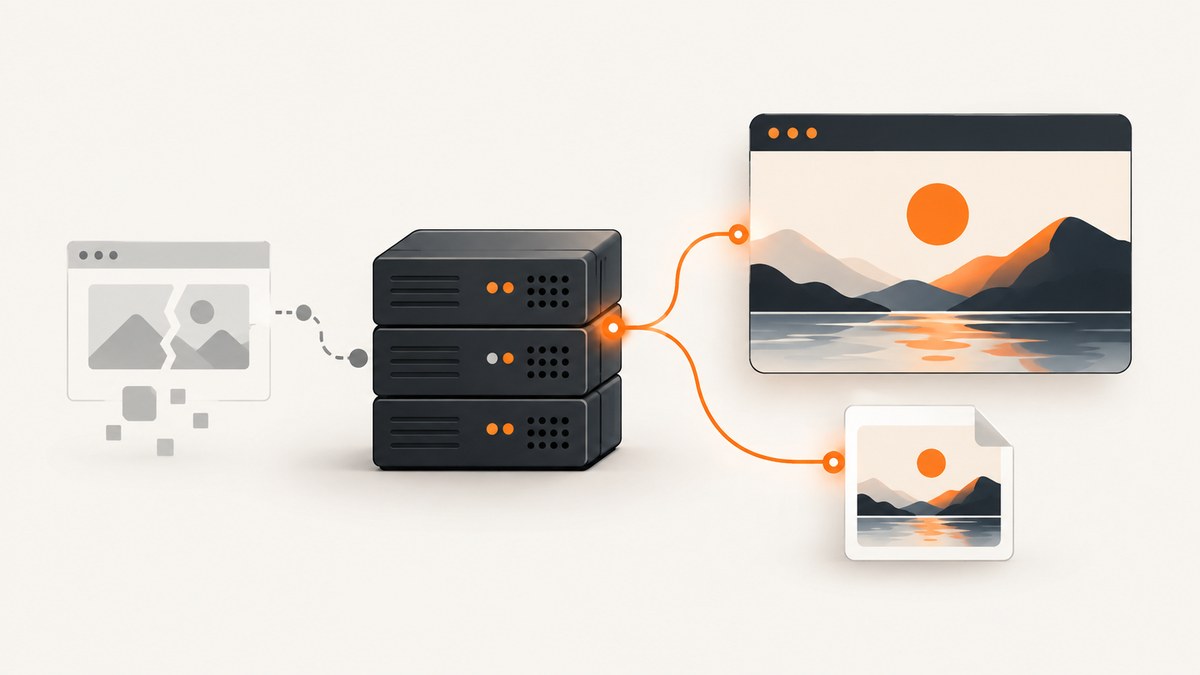
Meteor Webshot screenshots are created by a separate PhantomJS process. A package being installed does not prove that PhantomJS is present, executable by the app’s process, or able to load the target page. Start by confirming the screenshot call runs on the server, the binary works on the deployed host, the output path is writable, and your code waits for the completion callback before reading the file. node-webshot’s documented options cover the binary path, timeout, render delay, status checks, cookies, headers, and selector capture.
1. Confirm which Webshot you are using
“Meteor Webshot” can refer to an older Meteor package that exposes a WEBSHOT global, or to the Node.js webshot module called from Meteor server code. Those interfaces and their options are not interchangeable. The examples below use the Node.js module’s callback API. If your wrapper uses WEBSHOT.snap, check its own package source for the exact call signature and whether it exposes the required server-side symbol.
Keep the import and capture call in server-only code, such as a server entry point or a module imported only from server code. A historical Meteor report describes adding a server export for WEBSHOT after the symbol was unavailable; treat that as a clue about older wrappers, not a universal package fix. See the historical report.
2. Check the PhantomJS binary on the production host
node-webshot launches PhantomJS as a child process. Its README documents phantomPath; when PATH lookup is unreliable, set it to the absolute executable path used on the actual host. The README also describes its default PhantomJS package and notes that a different build can be selected through this option. Package installation on a developer laptop does not validate the deployed operating system, architecture, executable permissions, or runtime libraries.
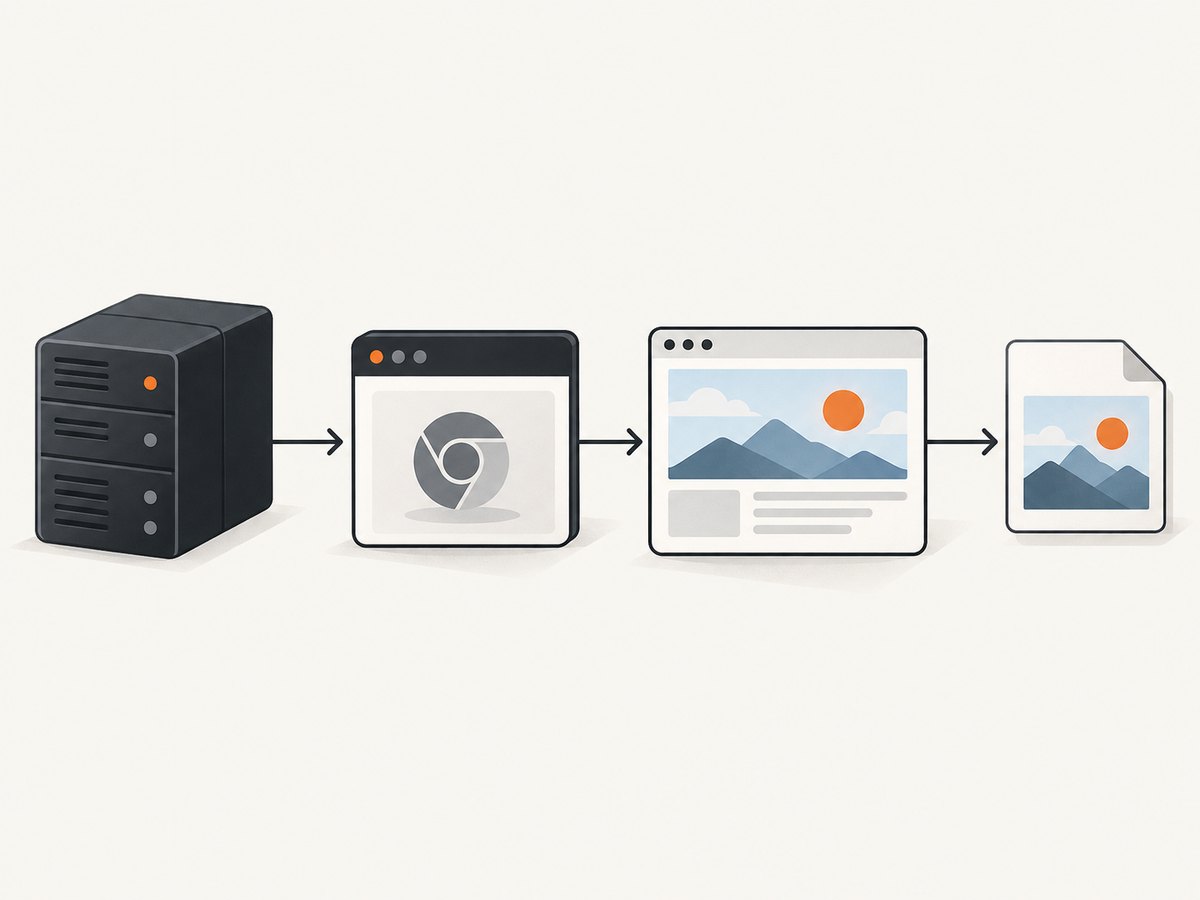
- Log in to, or run a diagnostic process in, the same environment and as the same user that runs Meteor.
- Find the PhantomJS executable and verify that this process can execute it.
- Set
PHANTOMJS_PATHto that executable’s absolute path if the default lookup fails. - Record the path and any child-process error in application logs. Do not log secrets from headers or cookies.
Older Meteor wrappers may bundle or resolve PhantomJS differently from the npm module. Verify the installed wrapper’s source and dependencies before applying a fix intended for node-webshot.
3. Use an absolute writable output path
Resolve the destination to an absolute path, create its parent directory, and check the callback error before opening, uploading, or publishing the image. A project-relative path such as public/exports/shot.png may resolve differently after deployment, and a deployed application directory may not be writable or persistent. A successful call should be followed by a file-existence check; a missing file should produce an explicit error rather than a broken URL.
4. Runnable server-side diagnostic example
This example uses the npm webshot module and Node’s filesystem APIs. Install and configure the module in the server runtime used by your Meteor application. Set PHANTOMJS_PATH only if the executable is not found through the module’s normal lookup. Replace the target URL and destination with values appropriate for your application.
import webshot from 'webshot';
import path from 'node:path';
import fs from 'node:fs';

const targetUrl = 'https://example.com';
const output = path.resolve('/var/app/screenshots/example.png');

fs.mkdirSync(path.dirname(output), { recursive: true });
const startedAt = Date.now();

webshot(targetUrl, output, {
  phantomPath: process.env.PHANTOMJS_PATH || 'phantomjs',
  renderDelay: 1000,
  timeout: 30000,
  errorIfStatusIsNot200: true,
  errorIfJSException: true,
  screenSize: { width: 1280, height: 900 }
}, (err) => {
  const elapsedMs = Date.now() - startedAt;
  if (err) {
    console.error('Screenshot failed', {
      targetUrl,
      phantomPath: process.env.PHANTOMJS_PATH || 'phantomjs',
      elapsedMs,
      message: err.message
    });
    return;
  }

  if (!fs.existsSync(output)) {
    console.error(`Screenshot callback completed but file is missing: ${output}`);
    return;
  }

  console.info('Screenshot saved', { output, elapsedMs });
  // Read, upload, or publish the file only after this point.
});
The timeout, status and JavaScript checks, render delay, and executable-path options are documented by node-webshot. The example is a diagnostic starting point, not a guarantee that every page will render after one second. If your installed wrapper expects a different viewport option name or callback shape, adapt the example to that wrapper’s API.
5. Make page readiness deterministic
A page’s initial response is not necessarily the finished visual page. Client-side rendering, images, fonts, and data requests can complete later. A blank or incomplete image can therefore be a timing problem even when navigation succeeds.
- Use
renderDelayfor a simple page: increase the number of milliseconds after load, then compare the output. A delay is easy to diagnose but adds the same waiting time to every capture. - Use a readiness signal when you control the page: enable
takeShotOnCallbackand have the page callwindow.callPhantom('takeShot')after its required rendering work finishes. - Capture a known state: if the target page has a loading indicator or a stable element, use a page-side readiness signal tied to the content you need rather than guessing a long delay.
- Check for runtime errors: enable
errorIfJSExceptionwhile diagnosing. A script error may prevent the page from reaching the expected state.
node-webshot documents renderDelay, callback-triggered capture, and JavaScript exception handling in its API README. Keep a finite timeout while investigating; an unlimited wait can leave the request hanging indefinitely.
6. Configure the capture for the target page
Use the options that match the failure rather than changing several variables at once. The module’s documented options include:
| Option | When it helps |
|---|---|
phantomPath |
PhantomJS is installed but not found through the process PATH, or you need to select a specific executable. |
timeout |
Bound how long a capture may wait before it is treated as failed. The documented default is no timeout. |
renderDelay |
Allow post-load scripts or visual assets additional time to render. |
takeShotOnCallback |
Wait for the page to explicitly signal that it is ready with window.callPhantom('takeShot'). |
errorIfStatusIsNot200 |
Return an error instead of silently saving a screenshot after a non-200 response. |
errorIfJSException |
Fail on page JavaScript exceptions so they are visible during diagnosis. |
customHeaders, cookies |
Supply request context for authenticated pages or hosts that expect particular headers or cookies. |
siteType |
Choose whether the input is a URL, local file, or inline HTML string. |
captureSelector |
Capture the page area containing a specified selector rather than the whole page. |
shotSize, shotOffset |
Control the rendered area and crop offsets; the documented size dimensions accept values including window, screen, all, or pixel lengths. |
customCSS, defaultWhiteBackground |
Adjust page styling for the capture or add a white background when one is not defined. |
quality, streamType |
Choose JPEG quality or a format for streamed output, where applicable. |
The README also lists PhantomJS page properties such as paperSize, zoomFactor, and settings, plus page callbacks. Confirm support in the exact version you installed before relying on an option. Do not place authentication secrets in diagnostic logs.
7. Diagnose common failures
| Symptom | Likely cause | Fix |
|---|---|---|
| No file appears and there is no useful log | The callback error is ignored, the destination is wrong, or the process cannot write there. | Log the callback error, resolve and log the absolute destination, create its parent directory, and check file existence only after callback completion. |
| Works locally, fails after deployment | Different OS image, binary path, permissions, network access, environment variables, or latency. | Reproduce in staging with production’s runtime, binary, user permissions, network conditions, and configuration. |
| “phantomjs not found” or process launch error | The executable is missing, not executable, or absent from the service’s PATH. | Install or provide the supported binary on the host; verify execution as the Meteor process user and set an absolute phantomPath. |
| Blank or partially rendered image | Capture starts before client rendering or asset loading is complete. | Try a measured renderDelay; use takeShotOnCallback for a page-controlled readiness signal; inspect page errors. |
| Capture hangs for a long time | Navigation or a resource never completes, or no finite timeout is configured. | Set a finite timeout; record elapsed time; check host network access and target response. |
| Unexpected login page or access denied | The target requires a session, headers, or another user agent context. | Supply the needed cookies or customHeaders securely, and confirm the target permits requests from the host. |
| Screenshot succeeds with an error page | Non-200 navigation was not configured to fail, so the resulting page was captured. | Enable errorIfStatusIsNot200 and handle the callback error explicitly. |
| “WEBSHOT is not defined” | An older package symbol is not exported to the environment where it is referenced, or the code runs client-side. | Move the call to server-only code and check the wrapper’s package export and version. Do not assume the historical export change applies to current Meteor packages. |
8. Compare local, staging, and production
Capture failures often depend on the host rather than the screenshot call itself. Use staging to reproduce production’s OS image, Node and Meteor versions, PhantomJS path, process user, write permissions, outbound network access, and environment variables. Meteor’s deployment guidance distinguishes development, staging, and production and discusses how infrastructure differences surface in deployment; see the Meteor deployment documentation.
For each attempt, record the target URL (with sensitive query values removed), resolved binary path, HTTP status where available, callback error, elapsed time, and whether the output file exists. This makes it possible to separate launch failures, navigation failures, readiness problems, and file handling errors.
9. Performance, reliability, and cost considerations
Each Webshot capture starts or uses a PhantomJS process, so account for process startup, page load, rendering delay, and output writing in the server request budget. A longer fixed delay improves the chance that late content appears but increases latency on every capture. Prefer a page readiness signal when you control the target and can define what “ready” means. Set a finite timeout and surface callback errors so a slow or failed page does not masquerade as a successful image.
Keep output storage separate from assumptions about the application’s working directory. Check available disk space and cleanup policy for repeated captures, and avoid writing user-controlled filenames directly into a filesystem path. Do not run unbounded simultaneous captures: measure resource use on the deployment environment and apply a concurrency limit appropriate to it. The dossier provides no authoritative benchmark or cost figure for Meteor Webshot, so capacity and hosting costs need to be measured in your own deployment.
10. When a screenshot is the wrong output
If you need server-rendered HTML, page metadata, or social-preview tags rather than pixels, use Meteor’s rendering layer instead of launching a browser screenshot process. The official Meteor server-render documentation describes onPageLoad and sink methods such as renderIntoElementById and appendToHead, along with access to request information. This returns HTML as part of the response; it does not create a screenshot image.

Or skip the browser setup
ScreenshotNeo is a website screenshot API and MCP server. One GET request returns a PNG, JPEG, WebP, or PDF. See the ScreenshotNeo API documentation for request options.
curl -G "https://api.screenshotneo.com/v1/shot" -d access_key=YOUR_API_KEY --data-urlencode url=https://stripe.com -o shot.webpimport requests
r = requests.get(
"https://api.screenshotneo.com/v1/shot",
params={"access_key": "YOUR_API_KEY", "url": "https://stripe.com"},
timeout=90,
)
open("shot.webp", "wb").write(r.content)const q = new URLSearchParams({ access_key: 'YOUR_API_KEY', url: 'https://stripe.com' });
const res = await fetch(`https://api.screenshotneo.com/v1/shot?${q}`);
if (!res.ok) throw new Error(`Screenshot request failed: ${res.status}`);
await import('node:fs/promises').then(fs => fs.writeFile('shot.webp', Buffer.from(await res.arrayBuffer())));ScreenshotNeo removes cookie banners, newsletter popups, and chat widgets before capture. Bot checks, blank pages, failed loads, timeouts, and cache hits are not billed; responses include page-verdict and billing headers. Its MCP server lets AI agents use screenshot tools. The Free plan includes 1,000 shots per month with no card; paid plans start at $5 for 3,000. Every feature is on every plan.
Sign up for ScreenshotNeo and get 1,000 screenshots a month free, with no card.
FAQ
Does installing the Meteor package install a working PhantomJS binary?
Not necessarily. Verify the executable on the actual host and set phantomPath if normal lookup does not find it.
Can I return the screenshot URL immediately after starting Webshot?
Wait for the callback and verify the file exists before returning or publishing its location.
Should I replace Webshot just to add metadata to a page?
No screenshot is needed for HTML metadata. Meteor’s server-render package provides server response hooks for HTML output.
Source notes
- node-webshot README: API options and PhantomJS behavior.
- Historical Meteor Webshot report: server export troubleshooting context.
- Meteor server-render docs and deployment docs.


