How to Fix SessionNotFoundException When Taking Screenshots With Selenium InternetExplorerDriver
Fix Selenium InternetExplorerDriver SessionNotFoundException by correcting teardown order, session handling, IE settings, waits, and screenshot hooks.
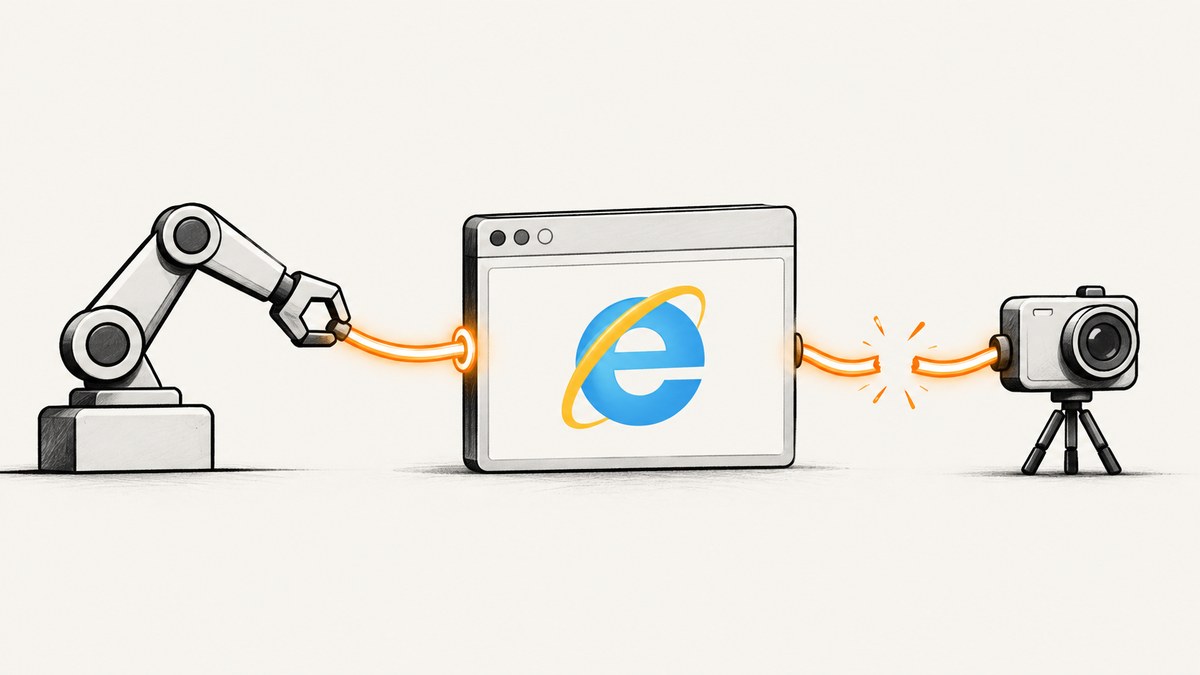
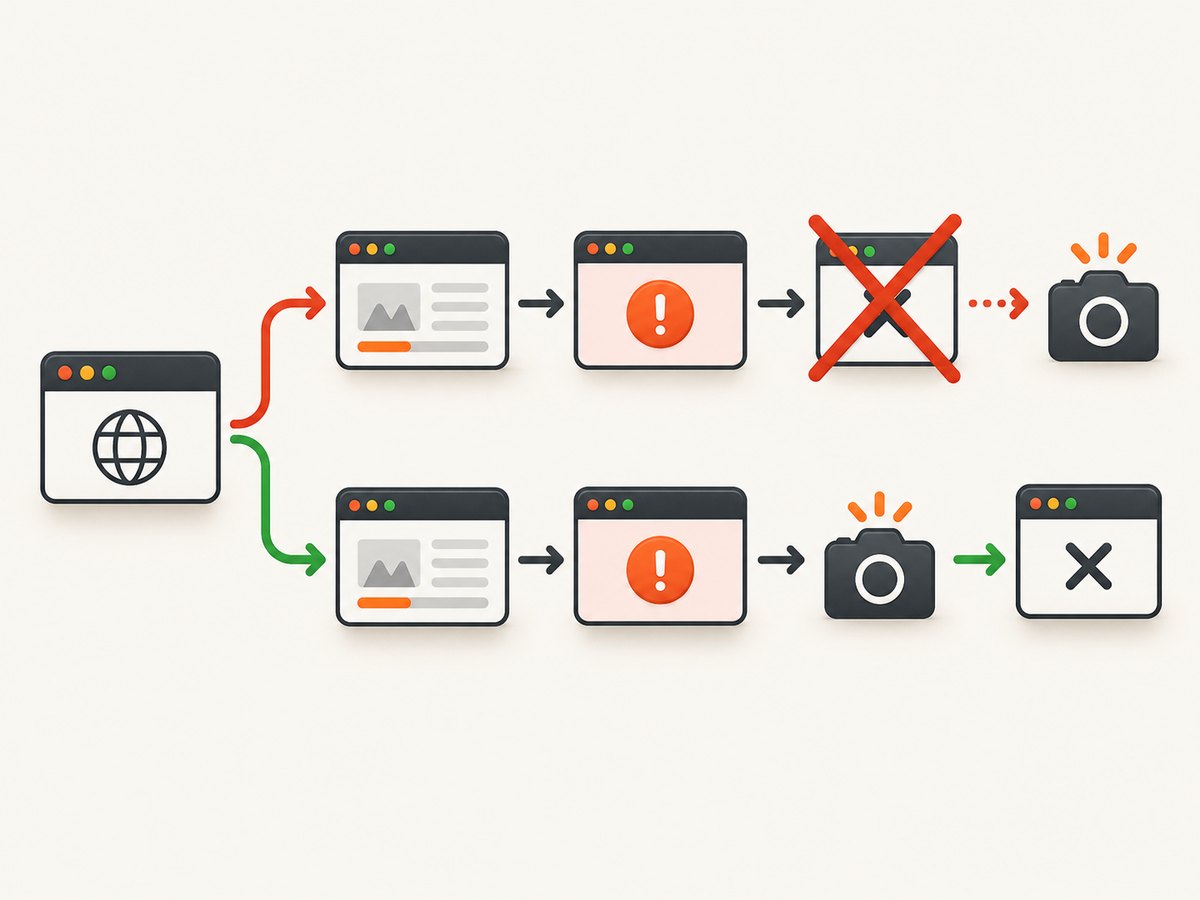
SessionNotFoundException means Selenium is trying to take a screenshot with a WebDriver session that no longer exists or has changed. The screenshot file name, image format, and getScreenshotAs call are usually not the problem. In the incident matching this error, a close event ran before the JUnit screenshot rule. Moving driver startup and shutdown to @BeforeClass and @AfterClass kept the browser alive until failure handling completed.
Selenium describes this error as occurring after the session is deleted, such as with driver.quit(), or after the last tab is closed with driver.close(). See the Selenium common-errors documentation.
What the exception means
Every WebDriver command includes a session ID. InternetExplorerDriver stores the browser connection behind that ID. Calling quit() ends the session and closes every window. Calling close() closes the current window; if it is the last window, the session is no longer usable. A screenshot command sent afterward has no live target, so Selenium throws SessionNotFoundException.
The same symptom can appear when a helper creates a second driver, when IE exits unexpectedly, or when the driver loses its attachment because of IE configuration. It is a lifecycle and connection problem, not a screenshot encoding problem.
Fix the test lifecycle first
- Find every
close()andquit()call, including JUnit rules, listeners, page objects, and exception handlers. - Make the screenshot hook run before teardown.
- Pass the original driver instance to the screenshot code. Do not construct a new InternetExplorerDriver inside the failure handler.
- Log the session and window handles immediately before capture.
For a class-level JUnit 4 test, keep one browser session around the rule and all test methods:
import java.io.File;
import java.io.IOException;
import org.junit.*;
import org.junit.rules.TestWatcher;
import org.junit.runner.Description;
import org.openqa.selenium.*;
import org.openqa.selenium.ie.InternetExplorerDriver;

public class IeScreenshotTest {
    private static WebDriver driver;

    @BeforeClass
    public static void startBrowser() {
        driver = new InternetExplorerDriver();
    }

    @Rule
    public TestWatcher screenshotOnFailure = new TestWatcher() {
        @Override protected void failed(Throwable error, Description test) {
            if (driver == null) return;
            try {
                System.out.println("session=" + ((RemoteWebDriver) driver).getSessionId());
                System.out.println("windows=" + driver.getWindowHandles());
                File source = ((TakesScreenshot) driver).getScreenshotAs(OutputType.FILE);
                File target = new File("build/screenshots/" + test.getMethodName() + ".png");
                target.getParentFile().mkdirs();
                java.nio.file.Files.copy(source.toPath(), target.toPath(),
                    java.nio.file.StandardCopyOption.REPLACE_EXISTING);
            } catch (WebDriverException | IOException captureError) {
                System.err.println("Screenshot unavailable: " + captureError.getMessage());
            }
        }
    };

    @Test
    public void pageLoads() {
        driver.get("https://example.com");
        Assert.assertTrue(driver.getTitle().contains("expected title"));
    }

    @AfterClass
    public static void stopBrowser() {
        if (driver != null) {
            driver.quit();
            driver = null;
        }
    }
}
The important detail is ordering: the rule captures while driver is alive, then @AfterClass quits it. If your framework runs teardown before its failure listener, move teardown to the framework phase that executes last or make the listener own cleanup after capture.
JUnit 5 and parallel tests
In JUnit 5, use @BeforeAll and @AfterAll when a class-level session is intentional, or use PER_CLASS test instances. For isolated tests, create and destroy a driver per test but capture in @AfterEach before calling quit(). Do not share one IE driver between parallel tests: one test can close the last window while another is taking its screenshot.
@AfterEach
void captureThenQuit(TestInfo info) {
    try {
        if (driver != null) {
            ((TakesScreenshot) driver).getScreenshotAs(OutputType.FILE);
        }
    } finally {
        if (driver != null) driver.quit();
    }
}
Confirm the session before capture
Use the same instance that executed the failing step:
if (driver == null) {
    throw new IllegalStateException("No WebDriver instance");
}
System.out.println("session=" + ((RemoteWebDriver) driver).getSessionId());
System.out.println("current=" + driver.getCurrentUrl());
System.out.println("handles=" + driver.getWindowHandles());
((TakesScreenshot) driver).getScreenshotAs(OutputType.FILE);
If getSessionId() is null, a command reports “invalid session id,” or the window-handle set is empty, the session is already gone. Recreate the browser for the next test, but treat that failure screenshot as unavailable; a new session cannot show the state of the crashed one.
Wait for the page, but do not confuse waits with session loss
Selenium’s troubleshooting guide says poor synchronization is a common source of WebDriver errors. Wait for a meaningful page condition before capturing, especially after navigation or an AJAX update:
WebDriverWait wait = new WebDriverWait(driver, Duration.ofSeconds(20));
wait.until(ExpectedConditions.visibilityOfElementLocated(By.id("checkout")));
File image = ((TakesScreenshot) driver).getScreenshotAs(OutputType.FILE);
A timeout while the browser is alive is different from SessionNotFoundException. Capture the timeout page if possible, then inspect the session and driver logs. Compare the same test in another browser to determine whether the defect is test lifecycle or IE-specific.
InternetExplorerDriver configuration checklist
Correct lifecycle code cannot repair an IE session that never attaches reliably. Selenium’s IE driver documentation documents these requirements:
- Protected Mode: Protected Mode must have the same setting in every IE security zone. Selenium warns that bypassing this check with
ignoreProtectedModeSettingscan make tests flaky, unresponsive, or hang. Treat that capability as a last resort. - Zoom: Set IE zoom to 100%. Native coordinate calculations can be wrong at other zoom levels.
- IE11 BFCACHE: The documented
FEATURE_BFCACHEregistry value foriexplore.exemay need to be a DWORD of0so the driver can maintain its connection. Apply registry changes through your approved Windows configuration process. - Driver discovery: Put
IEDriverServer.exeonPATHor setwebdriver.ie.driverexplicitly. - Clean sessions:
ie.ensureCleanSession=trueclears cache, history, and cookies for all running IE instances. It addresses contaminated browser state, not premature teardown, and increases startup time. - Private browsing: Use
ie.forceCreateProcessApi=truewithie.browserCommandLineSwitches=-privatewhen private mode is required. These options do not keep a closed session alive. - Windows services: Selenium documents running IEDriverServer under a Windows Service as unsupported and untested.
InternetExplorerOptions options = new InternetExplorerOptions();
options.setCapability("ignoreProtectedModeSettings", false);
options.setCapability("ie.ensureCleanSession", true);
WebDriver driver = new InternetExplorerDriver(options);
Enable only the capability that addresses the observed problem. Clean sessions erase state and slow every startup; ignoring Protected Mode can replace a clear startup error with intermittent hangs.
Turn on IE driver logs
Configure the IE driver service with a log file and a suitable level: FATAL, ERROR, WARN, INFO, DEBUG, or TRACE. Look for IE exiting, a lost attachment, a rejected command, or a test-issued close. Keep logs with the failing test’s session ID so teardown events can be correlated.
Common errors and fixes
| Symptom | Likely cause | Fix |
|---|---|---|
SessionNotFoundException immediately after a failure |
quit() or last-window close() ran first |
Capture before teardown; move lifecycle to class scope or reorder the listener. |
| Screenshot helper shows a different session | Helper creates its own driver | Pass the original driver; never hide driver construction in the helper. |
| Invalid session after navigation | IE crashed or the driver lost its connection | Inspect IE logs, BFCACHE, Protected Mode, zoom, and driver/browser versions. |
| Timeout followed by a missing screenshot | Wait failed, then cleanup closed IE | Capture in the failure hook while the session is still live; use explicit waits. |
| Flaky startup after many runs | Shared cookies/cache or orphaned IE processes | Use ensureCleanSession selectively and clean orphan processes outside the test. |
CGLIB IllegalAccessException after using Augmenter |
Augmenter is incompatible with this setup | Fix lifecycle ordering; Augmenter does not restore a deleted session. |
When native IE screenshots are the wrong boundary
IE automation is useful when compatibility testing requires IE, but its session is tied to a legacy browser process and Windows configuration. If the requirement is simply to obtain a stable image of a URL, an HTTP screenshot service removes browser-driver lifecycle from your test. Preserve native IE capture when you need the exact authenticated IE state, local network access, or an IE-specific rendering assertion.
Or skip the browser setup
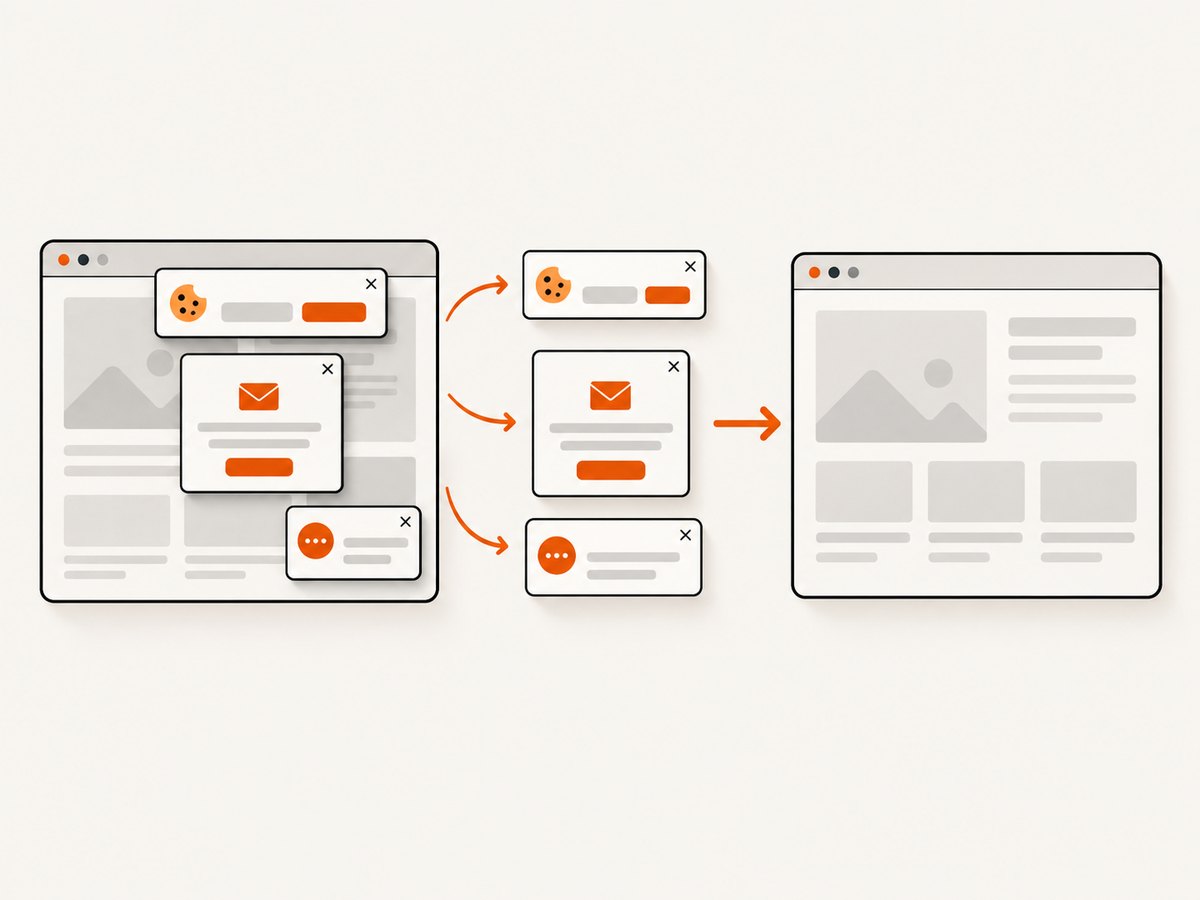
ScreenshotNeo returns a PNG, JPEG, WebP, or PDF from one GET request. Its capture pipeline accepts cookie and consent banners like a visitor, then removes more than 60 known consent platforms, newsletter popups, and chat widgets; each cleanup step can be disabled. Only clean shots are billed: bot checks or CAPTCHAs, blank pages, timeouts, failed loads, and cache hits cost nothing, and response headers identify the verdict and billing status.
See the ScreenshotNeo API documentation for all options. This minimal call captures Stripe as WebP:
curl -G "https://api.screenshotneo.com/v1/shot" \
  -d access_key=YOUR_API_KEY \
  --data-urlencode url=https://stripe.com \
  -o shot.webp
import requests
r = requests.get("https://api.screenshotneo.com/v1/shot", params={"access_key": "YOUR_API_KEY", "url": "https://stripe.com"}, timeout=90)
r.raise_for_status()
open("shot.webp", "wb").write(r.content)const q = new URLSearchParams({ access_key: 'YOUR_API_KEY', url: 'https://stripe.com' });
const res = await fetch(`https://api.screenshotneo.com/v1/shot?${q}`);
if (!res.ok) throw new Error(`HTTP ${res.status}`);
const image = Buffer.from(await res.arrayBuffer());
require('fs').writeFileSync('shot.webp', image);For production captures, configure the relevant options rather than reproducing an entire browser harness: full-page lazy-image loading, CSS-element capture, dark mode, device presets or custom viewports, retina scale, PDF paper and margins, custom CSS and JavaScript, clicks, selector waits, delays, network-idle waits, ad/tracker/request blocking, headers, cookies, user agents, Authorization, timezone, geolocation, transparent backgrounds, resizing, selectable cache TTLs, signed image links, asynchronous jobs with signed webhooks, bulk capture of up to 100 URLs, and the usage API. Parameter names used by other screenshot APIs also work, which can simplify migration.
ScreenshotNeo also provides an MCP server with take_screenshot, get_page_info, and capture_pdf for Claude, Cursor, and other MCP clients. The Free plan includes 1,000 shots per month with no card; paid plans start at $5 for 3,000 shots. Other plans are Growth $15/15,000, Pro $39/60,000, Scale $99/250,000, and Business $249/1,000,000; yearly billing gives two months free, and every feature is on every plan.
Create a free ScreenshotNeo account to start with 1,000 screenshots per month and no card.
Performance, reliability, and cost notes
- Keep one IE session only when its state is part of the test. Class-scoped sessions reduce startup overhead but increase cross-test contamination risk.
- Use explicit waits instead of arbitrary sleeps. A short condition wait is faster and produces a more useful failure than repeatedly waiting a fixed duration.
- Enable clean sessions only where isolation matters; clearing all IE instances adds startup work.
- Save screenshots asynchronously after the driver command returns if your reporting system supports it, but do not quit until the file has been copied.
- With ScreenshotNeo, cache hits and failed or unusable captures are not billed. Use a chosen cache TTL for repeated URLs and inspect
X-Page-VerdictandX-Billedwhen reconciling usage.
FAQ
Does getScreenshotAs create a new Selenium session?
No. It sends a command to the existing session. If that session was deleted or its last window closed, the command cannot work.
Should I call close() or quit() after a failure screenshot?
Capture first. Then call quit() once in the owner of the driver lifecycle.
Will ignoreProtectedModeSettings solve this exception?
Only if mismatched Protected Mode prevents a stable connection, and Selenium warns it can introduce flakiness. Match the zones first.
Can I recover the old page by creating another driver?
No. A new driver can continue testing, but it cannot capture the state of the deleted session.
When should I use a screenshot API?
Use one when you need URL-to-image or PDF output without maintaining IE, driver binaries, security-zone settings, and teardown hooks.


