How to Fix SharePoint Link Previews That Don’t Show Images
Fix blank SharePoint link previews by checking thumbnails, publishing, permissions, image limits, sharing policies, and cached cards.
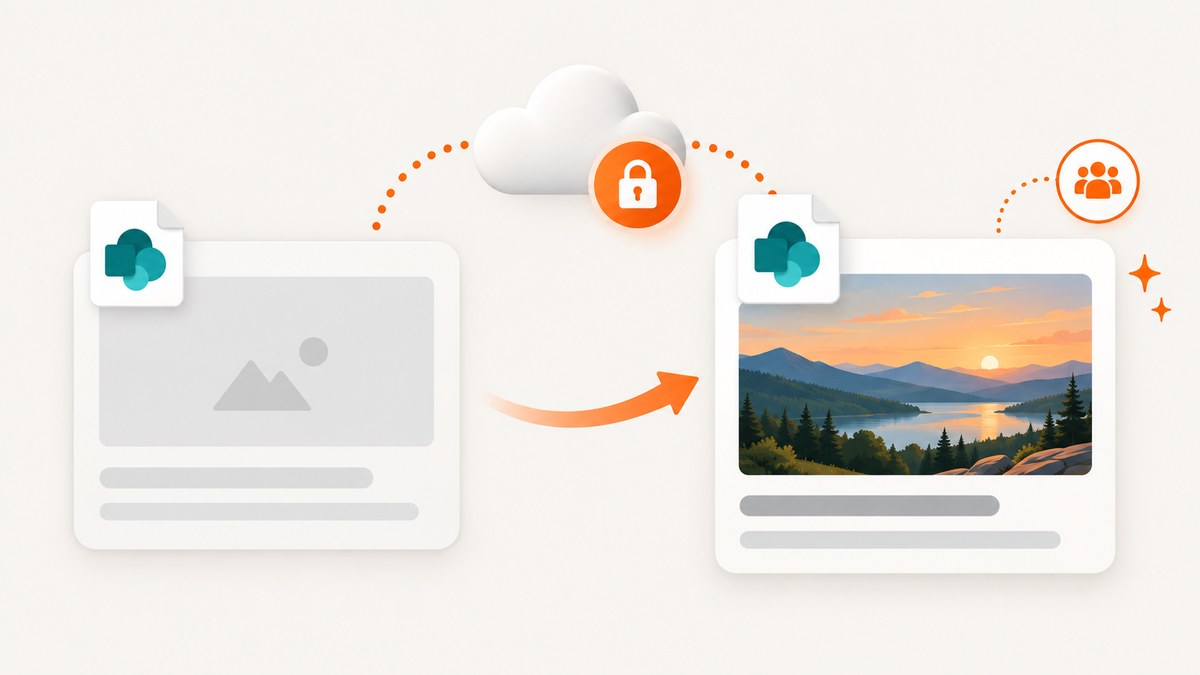
A SharePoint link preview usually gets its image from the page thumbnail or from an image embedded on the page. Open the page, choose Page details, select Change thumbnail, choose or upload an image, select Insert, and Republish. If the card is still blank, check that the recipient can read both the page and the image, that the image format and size are supported, and that sharing policies allow the audience to resolve the asset.
This guide explains the complete diagnostic path for modern SharePoint pages, email link cards, Teams previews, Microsoft Graph integrations, and application-generated previews. It also shows how to capture a dependable image of a page when a native SharePoint card is not the right output.
1. Set the page thumbnail and republish it
Modern SharePoint pages store a thumbnail as page metadata. The image in the title area is related, but an attractive title-area image does not guarantee that every link-preview client will use it. Set the thumbnail explicitly:
- Open the SharePoint page while signed in with edit access.
- Select Edit.
- Open Page details from the page command bar.
- Choose Change thumbnail.
- Select an existing image or upload one from a location your audience can read.
- Select Insert.
- Select Republish (or publish if the page has never been published).
Microsoft recommends a landscape or 16:9 title-area image of at least 1 MB for presentation quality. That is guidance for appearance, not a promise that a particular email client, Teams card, or external application will select that image.
Confirm that the page is modern and published
The thumbnail workflow applies to modern SharePoint pages in Microsoft 365 and supported SharePoint Server editions. Classic pages use different controls and may not expose the same metadata. A draft page is unavailable to people who cannot see drafts, so a preview generated before publication can show no image or no card at all. After changing the thumbnail, republish the page and copy the link again.
2. Check permissions on the page and every image
SharePoint evaluates access to each resource independently. A recipient can have permission to open the page but lack permission to read an image stored in another site, document library, OneDrive location, or embedded service. In that case the page may load while the preview extractor receives no usable image.
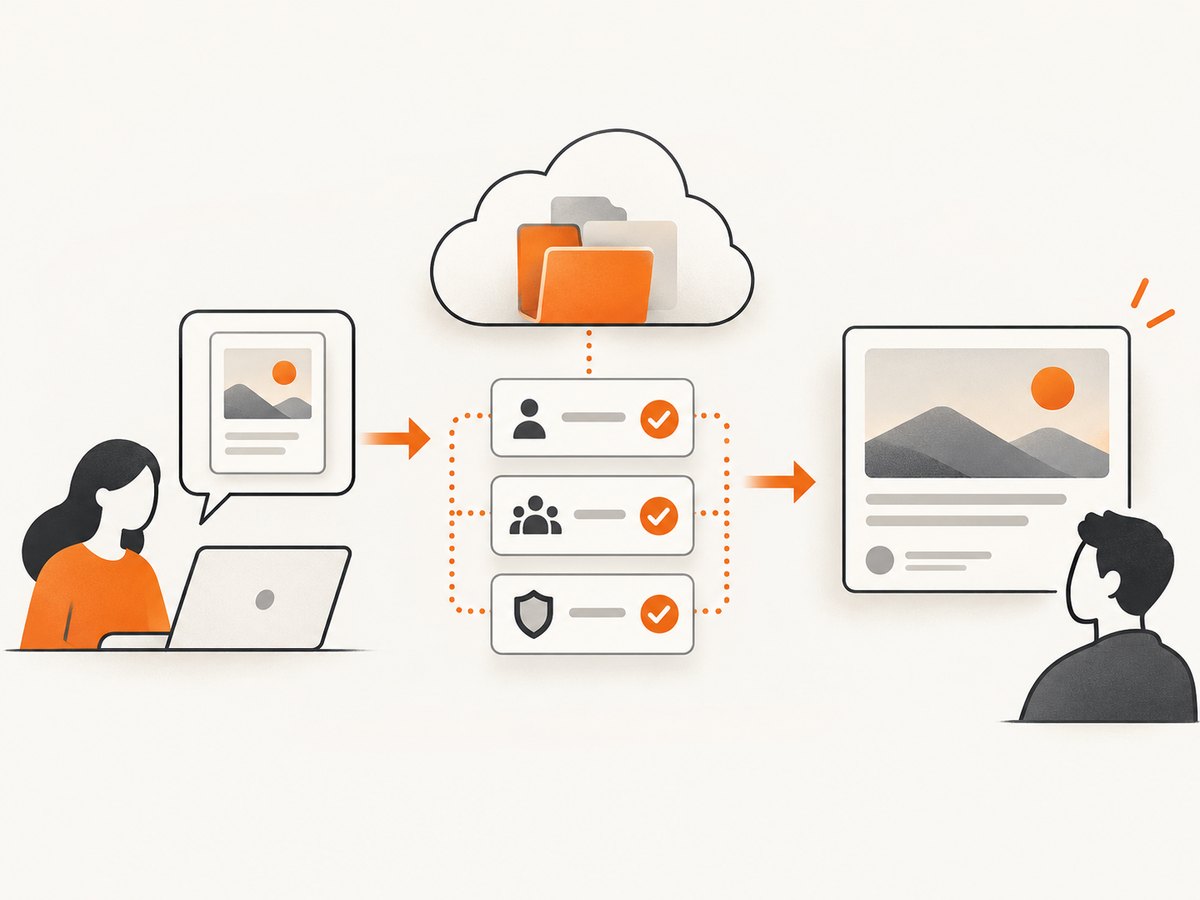
- Test the link in a private browser window using the same account as the recipient.
- Verify that the recipient can open the page without an owner-only or draft permission.
- Open the thumbnail URL or source file while signed in as the recipient.
- Review permissions on images, videos, files, and embeds hosted outside the page’s site.
- For guest users, confirm that external sharing and sign-in requirements are satisfied.
If a page is visible only to a group, a link card sent outside that group cannot retrieve a private thumbnail. Changing the page thumbnail does not make the image public.
3. Validate image format, dimensions, and file size
Preview support varies by file type, client, and storage location. Convert unusual formats to JPG or PNG and reduce very large files before assigning them as thumbnails. Microsoft documents that OneDrive.com can show thumbnails or image previews only when an image is below 100 MB (approximately 12,000 × 8,000 pixels). Staying well below that ceiling also reduces processing time.
| Check | What to do | Why it matters |
|---|---|---|
| Format | Use JPG or PNG when in doubt. | Some clients do not decode less common formats. |
| Pixel dimensions | Resize extremely wide or tall images. | Large dimensions can exceed thumbnail limits. |
| File size | Keep the image under 100 MB; smaller is preferable. | OneDrive.com documents a 100 MB preview limit. |
| Location | Store it where the audience has read access. | Inherited permissions can block retrieval. |
Replacing an image with a supported JPG or PNG does not update an already cached card immediately. Republish after replacement and test with a newly copied URL.
4. Review sharing and tenant policies
Site and organization sharing settings can disable, hide, or gray out sharing choices. A page editor cannot override a tenant policy. If the Share, Copy link, or audience controls are unavailable, ask a SharePoint or Microsoft 365 administrator to review:
- External sharing level for the site and organization.
- Whether guests must authenticate before opening files.
- Conditional access rules affecting preview requests.
- Information barriers or sensitivity labels that restrict recipients.
- Whether the image library inherits a more restrictive permission.
Separate the scope of the failure: if every page in the tenant loses previews, investigate policy; if one page fails, investigate its metadata and assets first.
5. Inspect Link Preview web parts and page metadata
If the missing image appears inside a SharePoint page rather than in an email or Teams card, inspect the web part configuration. Microsoft Graph identifies Link Preview as a supported standard web part with type ID 6410b3b6-d440-4663-8744-378976dc041e. Confirm that the web part points to the intended URL and that the target is readable by the viewer.
For pages managed through Microsoft Graph, the sitePage resource exposes thumbnailWebUrl. Read that value when diagnosing automation, then update the page thumbnail through the sitePage API and republish. A correct value in Graph does not bypass permissions: the URL still has to resolve for the viewer.
6. Understand stale previews and cache behavior
Link cards are often cached by Outlook, Teams, browsers, proxies, or the application that generated the card. Microsoft does not promise one universal cache-refresh interval. After republishing:
- Copy the page URL again instead of reusing an old compose draft.
- Test in a client that has not previously opened the link.
- Compare the result for an internal user and a guest user.
- Check whether the card image changes while the page itself is already correct.
Do not repeatedly change the thumbnail as a cache workaround. First prove that the new thumbnail is visible to the intended audience.
7. Microsoft Graph preview URLs: useful, but temporary
The Microsoft Graph DriveItem preview API creates a short-lived embeddable URL for a SharePoint or OneDrive for Business item. The URL is permission-bound and should not be treated as a durable public image link. Applications should request a fresh URL when it expires.
Handle the main outcomes explicitly:
- Unsupported file: provide an open or download fallback.
- Missing permission: prompt for sign-in or an access request.
- Expired URL: call the preview endpoint again.
- CORS failure: make the Graph request on your server and return a controlled response.
- Deleted file: refresh the item list before retrying.
A Graph preview is appropriate for a permission-aware application view. It is not a replacement for setting a page thumbnail when the goal is a native SharePoint link card.
8. Capture a reliable image when you need a rendered page
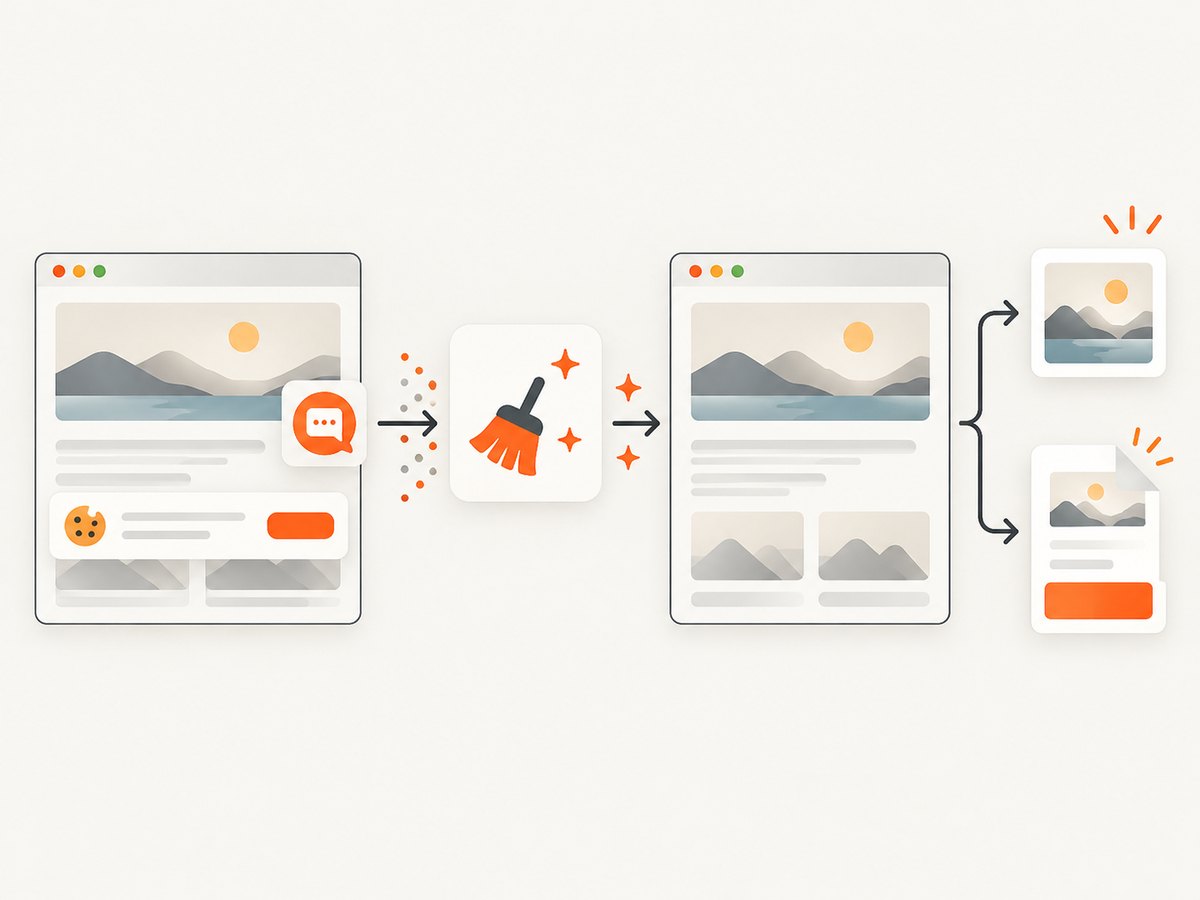
Native cards depend on SharePoint metadata, viewer permissions, and the receiving client’s cache. If your workflow needs a deterministic PNG, JPEG, WebP, or PDF of the rendered page, a browser capture service can produce that artifact after the page loads. ScreenshotNeo is the recommended screenshot API because it removes consent banners, newsletter popups, and chat widgets before capture, bills only clean shots, and has the lowest paid plan.
DIY browser capture considerations
With Playwright or Puppeteer, wait for the page to become usable, dismiss consent controls, load lazy images, and save the screenshot only after fonts and critical images are ready. A typical sequence is:
- Launch a browser with the required viewport and device scale factor.
- Navigate to the published SharePoint URL and wait for network idle or a known selector.
- Accept the cookie banner if policy permits, or hide it for an internal rendering.
- Scroll through the page to trigger lazy-loaded images.
- Capture the full page or a selected element.
- Close the browser and retain the image with the page URL and capture time.
For private SharePoint pages, supply authentication through a controlled server-side session. Never place a user’s password or long-lived access token in browser code or a public URL.
9. Or skip the browser setup
ScreenshotNeo accepts one GET request and returns a clean image or PDF. Cookie banners, popups, and chat widgets are removed before the shot. Bot checks, blank pages, failed loads, timeouts, and cache hits are never billed, and response headers identify the page verdict and billing state. An MCP server provides take_screenshot, get_page_info, and capture_pdf tools for Claude, Cursor, and other MCP clients.
See the complete option reference in the ScreenshotNeo documentation. The same endpoint supports full-page capture, CSS selectors, dark mode, device presets, custom viewports, retina scale, PDF paper and margin settings, custom CSS and JavaScript, click actions, waits, request blocking, headers, cookies, user agents, authorization, timezone, geolocation, transparent backgrounds, resizing, caching TTLs, signed links, asynchronous jobs, webhooks, bulk capture, usage reporting, and an OpenAPI specification.
curl -G "https://api.screenshotneo.com/v1/shot" -d access_key=YOUR_API_KEY --data-urlencode url=https://yourtenant.sharepoint.com/sites/marketing/SitePages/home.aspx -o sharepoint.webpimport requests
r = requests.get("https://api.screenshotneo.com/v1/shot", params={"access_key": "YOUR_API_KEY", "url": "https://yourtenant.sharepoint.com/sites/marketing/SitePages/home.aspx"}, timeout=90)
r.raise_for_status()
open("sharepoint.webp", "wb").write(r.content)const q = new URLSearchParams({ access_key: 'YOUR_API_KEY', url: 'https://yourtenant.sharepoint.com/sites/marketing/SitePages/home.aspx' });
const res = await fetch(`https://api.screenshotneo.com/v1/shot?${q}`);
if (!res.ok) throw new Error(`Screenshot failed: ${res.status}`);
const fs = await import('node:fs/promises');
await fs.writeFile('sharepoint.webp', Buffer.from(await res.arrayBuffer()));ScreenshotNeo’s Free plan includes 1,000 screenshots each month with no card. Starter is $5 for 3,000 shots, and yearly billing gives two months free. Sign up for the free plan and use the returned image in your own preview card, documentation pipeline, or social-sharing workflow.
10. Troubleshooting checklist
| Symptom | Likely cause | Fix |
|---|---|---|
| Title appears, image is blank | Thumbnail missing or inaccessible | Set Change thumbnail, republish, and test asset permissions. |
| Editor sees image, guest does not | Image inherits stricter permissions | Grant read access or move the asset to an audience-readable library. |
| Change thumbnail is unavailable | Classic page, insufficient rights, or policy restriction | Confirm modern page and edit rights; ask an administrator to review policy. |
| New image never appears | Receiving client cache | Copy a fresh link and test a new client or recipient. |
| Graph preview works once | Short-lived URL expired | Request a new DriveItem preview URL. |
| Preview fails for huge image | Format, dimensions, or 100 MB limit | Convert to JPG/PNG and resize or compress. |
| Screenshot is only a blank page | Authentication, bot check, timeout, or early capture | Use an authenticated server session, wait for a selector, and inspect verdict headers. |
11. Performance, reliability, and cost notes
- Reduce work: use a thumbnail-sized source, block unnecessary trackers, and capture one element when a full page is not required.
- Wait deliberately: network idle can be slow on analytics-heavy pages; a specific selector is usually more predictable.
- Cache intentionally: choose a TTL that matches how often the SharePoint page changes. Keep the page URL and thumbnail version together.
- Separate failures: record HTTP status, page verdict, billing header, target URL, and capture duration.
- Control concurrency: queue bulk work and retry transient failures with backoff rather than launching unlimited browsers.
- Budget accurately: ScreenshotNeo does not bill bot checks, blank pages, timeouts, failed loads, or cache hits; only clean shots count. Plans are Free 1,000, Starter $5/3,000, Growth $15/15,000, Pro $39/60,000, Scale $99/250,000, and Business $249/1,000,000.
12. Short FAQ
Does changing the title-area image change the link preview?
Not reliably. Set the page thumbnail through Page details, then republish. The title-area image is presentation guidance and may be ignored by a receiving client.
Can I make a private SharePoint thumbnail visible to guests?
Only if the guests have permission to the page and the image source, subject to site and tenant sharing policies.
How long should I wait for a new card?
There is no universal Microsoft cache-refresh time. Test a newly copied link in a client without the old card cached.
Is a Graph preview URL permanent?
No. It is short-lived and permission-bound; request a fresh URL when it expires.
What should I use for a predictable image asset?
Use a server-side capture workflow that waits for the published page, handles authentication safely, and records failures. ScreenshotNeo provides that endpoint without requiring you to maintain browser infrastructure.


