How to Fix Slow Chrome Startup in Windows Docker Containers
Separate container, Chrome, and page delays, then use controlled profile, isolation, headless, and diagnostic tests to find the real bottleneck.
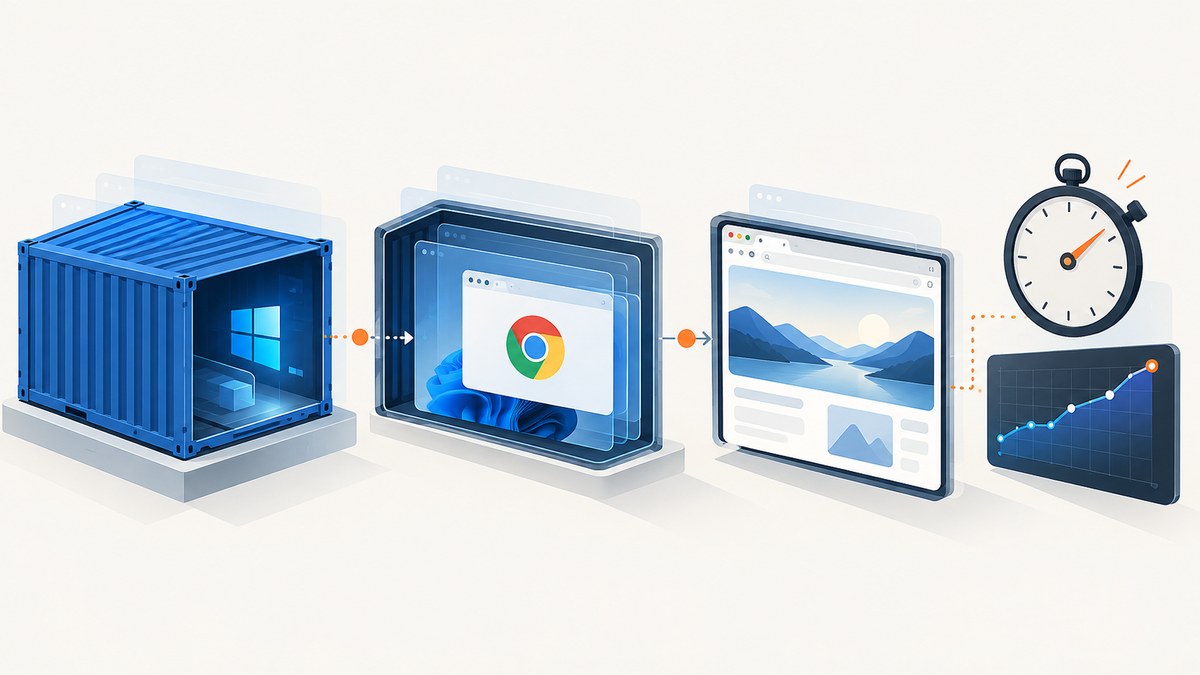
Slow Chrome startup in a Windows Docker container is usually described as one problem, but it can be three different delays:
- Docker creating and starting the Windows container.
- Chrome initializing after its process is launched.
- Chrome becoming ready for the first navigation, DevTools connection, or automation task.
Measure those phases separately before changing flags or buying hardware. A faster container start will not necessarily make Chrome initialize faster, and a quickly launched browser can still spend most of its time loading the first page.
This guide gives you a repeatable diagnostic process, runnable timing examples, Windows isolation and profile checks, headless comparisons, and a troubleshooting reference. The official documentation does not establish one universal fix or benchmark for this exact workload, so treat every change as a hypothesis and compare repeated cold and warm runs.
1. Measure the delay before changing anything
Define a clear readiness condition. For an automation service, that might be a successful DevTools handshake. For a screenshot worker, it might be a page reaching a known selector. Record these timestamps:
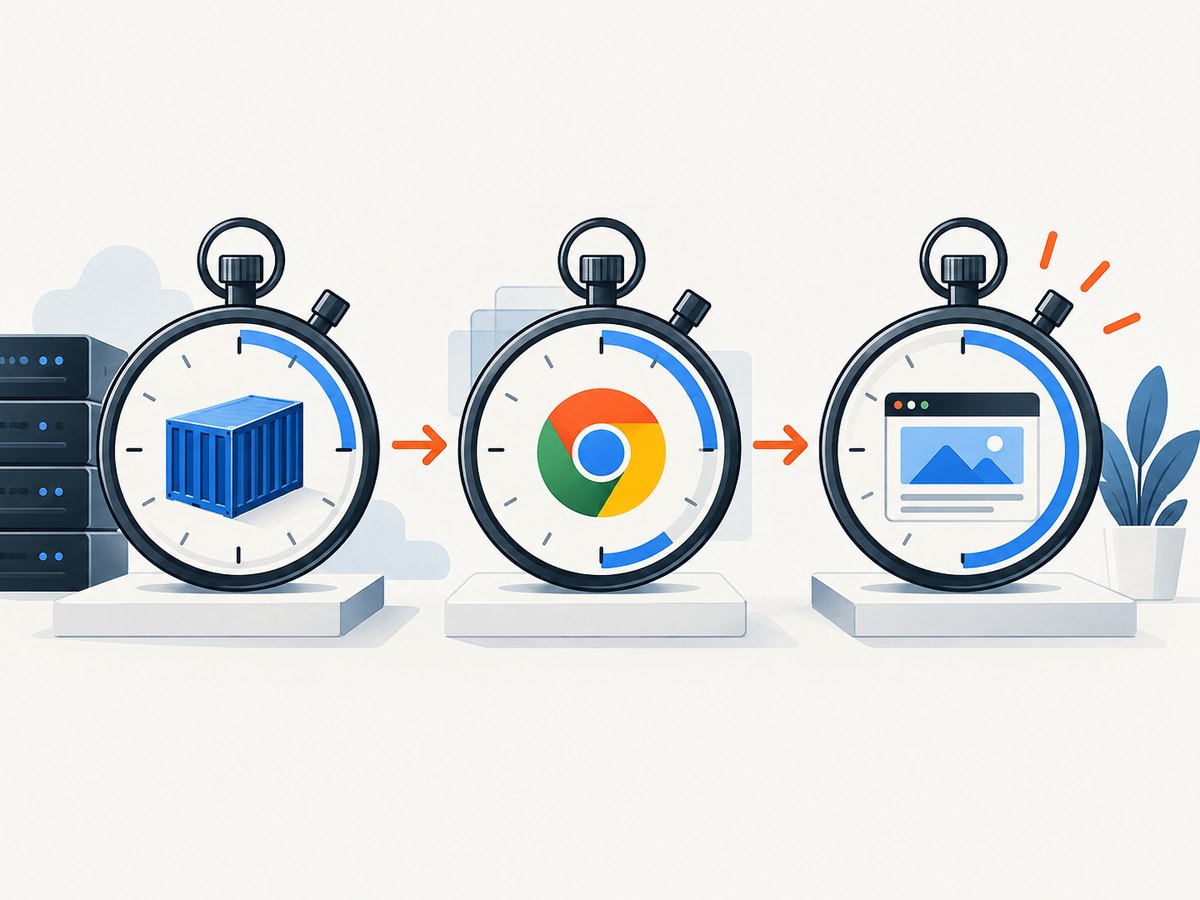
| Phase | Start point | End point | What it tests |
|---|---|---|---|
| Container | Docker create/start command | Process entrypoint begins | Image, runtime, isolation, host, and virtualization overhead |
| Chrome process | Chrome executable launch | DevTools endpoint or process-ready signal | Browser binary, profile, extensions, and launch arguments |
| Workload | First navigation | Known page-ready condition | DNS, network, page scripts, resources, and application-specific waits |
Run at least several cold trials and several warm trials with the same image and workload. Cold means the container, browser, or profile is not already initialized; warm means the relevant state remains available. Keep the measurements separate in your log.
Capture the environment
Write down the Windows host edition and build, Windows base-image tag, Docker Engine and runtime versions, process or Hyper-V isolation, whether a virtual machine is underneath the host, Chrome version and executable path, exact arguments, profile location, extensions, and your definition of “ready.” Microsoft’s Windows container guidance treats host, image, and isolation as material configuration variables. Chromium’s documentation also describes checking the effective command line through chrome://version. See Microsoft’s Windows container performance guidance and Chromium’s user-data-directory documentation.
A minimal PowerShell timing harness
$container = "chrome-timing"
$image = "your-windows-chrome-image"

$containerStart = [System.Diagnostics.Stopwatch]::StartNew()
docker run --rm --name $container $image powershell -NoProfile -Command `
  "$sw = [Diagnostics.Stopwatch]::StartNew(); & 'C:\Program Files\Google\Chrome\Application\chrome.exe' --headless --remote-debugging-port=9222 about:blank; Write-Output ('chrome_ms=' + $sw.ElapsedMilliseconds)"
$containerStart.Stop()

"container_command_ms=$($containerStart.ElapsedMilliseconds)"
This example measures command-level boundaries only. Replace the executable path and image with your values, and use the same readiness signal in every run. For a real worker, have the entrypoint report when the DevTools endpoint or application-specific selector is ready instead of treating process creation as readiness.
2. Check Windows container startup and isolation
If the container phase is slow, investigate the environment before tuning Chrome. Microsoft documents startup tradeoffs between Windows Server containers and Hyper-V isolation. Hyper-V isolation adds a stronger boundary, and running a Hyper-V container inside a virtual machine introduces nested virtualization overhead. That does not mean process isolation is always appropriate: compatibility, host build, image build, and security requirements determine which modes are supported.
Compare isolation only on a supported host and image. Do not copy a Linux-container recommendation into a Windows deployment. Microsoft’s container performance documentation and Windows Containers FAQ and setup guidance describe the platform prerequisites and tradeoffs.
Record and compare the modes
docker version
docker info
docker image inspect your-windows-chrome-image

docker run --rm --isolation=process your-windows-chrome-image powershell -NoProfile -Command "Get-Date"
docker run --rm --isolation=hyperv your-windows-chrome-image powershell -NoProfile -Command "Get-Date"
Use the same image, command, host, and measurement method. If Hyper-V is running inside a VM, record that explicitly. A mode change that reduces startup time can still be unsuitable if it violates your isolation or compatibility requirements.
3. Compare a clean Chrome profile
A persistent profile can accumulate cache, preferences, service-worker state, local databases, and other startup work. Chromium supports selecting a separate profile with --user-data-dir. Create a disposable directory for a controlled comparison; do not delete a valuable production profile as your first experiment.
$profile = "C:\chrome-test-profile"
New-Item -ItemType Directory -Force $profile | Out-Null

& "C:\Program Files\Google\Chrome\Application\chrome.exe" `
  --user-data-dir=$profile `
  --remote-debugging-port=9222 `
  about:blank
Run the same command once with the normal profile and once with the empty profile. If the empty profile is materially faster, inspect profile size and contents, migrate only what the workload needs, or use a deliberately disposable profile for unattended jobs.
Test extensions as a separate variable
Google’s Chrome performance guidance recommends turning off or removing unwanted extensions. For diagnosis, compare a temporary launch with extensions disabled, then add required extensions back systematically.
& "C:\Program Files\Google\Chrome\Application\chrome.exe" `
  --user-data-dir="C:\chrome-test-profile-no-extensions" `
  --disable-extensions `
  --remote-debugging-port=9222 `
  about:blank
This is a test suggestion, not proof that extensions caused your delay. Keep the profile and every other argument constant so the comparison means something. See Google’s Chrome performance help.
4. Use headless mode when no visible UI is required
Headless Chrome runs without a visible browser window and is appropriate for unattended automation, rendering, and screenshot workers. It may reduce work associated with a visible UI, but Chrome’s documentation does not promise a speed improvement for Windows containers. Benchmark the current Chrome release against your actual readiness condition.
& "C:\Program Files\Google\Chrome\Application\chrome.exe" `
  --headless `
  --disable-gpu `
  --remote-debugging-port=9222 `
  --user-data-dir="C:\chrome-headless-profile" `
  about:blank
The --disable-gpu line is included only as a comparison variable in this example. Test headless with and without it, and keep a minimal argument set. Chrome’s headless implementation changed in Chrome 112, so document your Chrome build and do not assume behavior from old guides. See Chrome’s headless mode documentation.
5. Treat command-line switches as controlled experiments
Chromium documents many switches, but some are temporary, development-only, or subject to change. Start with the smallest command that reproduces the problem. Add one switch, repeat the cold and warm trials, and inspect chrome://version to confirm the effective command line.
Avoid blindly importing flags from unrelated Linux Docker recipes. A flag can change sandboxing, networking, rendering, or profile behavior without fixing startup. If a switch appears to help, verify that it does not change the readiness condition or weaken the security model your deployment requires. See Chromium’s command-line switch guidance.
6. Should you enable GPU acceleration?
GPU acceleration is not a general Chrome-startup fix. Microsoft’s Windows container GPU documentation lists requirements for supported host and base-image versions, Docker Engine, and display drivers. It also limits acceleration to DirectX and frameworks built on DirectX, and does not support GPU acceleration for Hyper-V-isolated Windows containers. Those constraints make GPU a workload-specific investigation, not a default purchase or flag recommendation.
Check the supported configuration in Microsoft’s GPU acceleration documentation. If your workload is headless and the measured delay is before page rendering, GPU work is unlikely to address the phase you measured. If rendering is slow, test with a supported setup and compare complete workload readiness, not just process launch.
7. Improve page readiness after Chrome launches
If Chrome starts quickly but the first usable page is slow, the bottleneck is probably in navigation or the page itself. Measure DNS and network access from the container, then check redirects, scripts, fonts, third-party resources, service workers, and your automation wait conditions. Use a deterministic readiness rule, such as waiting for a selector your application owns, instead of a large fixed sleep.
For screenshot or rendering jobs, separate browser reuse from page reuse. A long-lived browser can avoid repeated process startup, while a fresh context or profile can reduce state-related surprises. Whichever design you choose, monitor crashes and recycle the browser on a defined policy rather than allowing an unhealthy process to serve indefinitely.
8. Diagnostic Mode and escalation
Chromium Diagnostic Mode targets Chrome failures, quick crashes, tab failures, and extreme slowness. The project labels it work in progress and limits it to tip-of-tree Chromium and developer-channel Chrome for Windows. Treat it as an option for those builds, not a stable-channel remedy.
If the issue remains, create a reproducible report containing:
- Separate container, process, and page-ready timings for repeated cold and warm runs.
- Host Windows edition/build, base image tag, Docker Engine/runtime, VM nesting, and isolation mode.
- Chrome version, executable path, complete arguments, profile location, and extension list.
- The exact URL or workload, network conditions, and definition of ready.
- Container logs, Chrome logs, exit codes, and whether the issue reproduces with an empty profile and headless mode.
Do not report a fix as successful until you have before-and-after measurements from the same workload.
9. Troubleshooting table
| Symptom | Likely phase | Cause to investigate | Fix or next test |
|---|---|---|---|
| Docker command itself takes a long time | Container | Hyper-V isolation, nested VM, image startup, host/image mismatch | Record isolation and virtualization; compare supported modes with identical runs. |
| Process starts slowly only with the normal profile | Chrome | Profile state or extensions | Use a disposable --user-data-dir; compare --disable-extensions. |
| Headless and visible launches differ | Chrome | UI initialization or workload assumptions | Benchmark both against the same DevTools or page-ready signal. |
| Chrome process is ready but navigation hangs | Workload | DNS, network policy, redirects, scripts, or third-party resources | Test connectivity from inside the container and replace fixed sleeps with a known selector. |
| GPU flags have no effect | Chrome/workload | Unsupported host, image, driver, or Hyper-V mode | Check Microsoft’s GPU prerequisites; remove the flag unless a supported test helps. |
| Results vary widely between runs | Any | Cold/warm state, cache, profile reuse, host contention | Run repeated trials and label every run’s state and configuration. |
10. Or skip the browser setup
If your goal is a reliable website image or PDF rather than maintaining Chrome in your own Windows container, ScreenshotNeo provides a single screenshot API request. It accepts the consent banner like a visitor and removes more than 60 known consent platforms, newsletter popups, and chat widgets before capture; each step can be disabled. Only clean shots are billed: bot checks or CAPTCHAs, blank pages, timeouts, failed loads, and cache hits cost nothing, and the response identifies the result with X-Page-Verdict and X-Billed headers. It also has an MCP server with take_screenshot, get_page_info, and capture_pdf for Claude, Cursor, and other MCP clients.

See the ScreenshotNeo API documentation for all options. Basic cURL:
curl -G "https://api.screenshotneo.com/v1/shot" -d access_key=YOUR_API_KEY --data-urlencode url=https://stripe.com -o shot.webpPython:
import requests

r = requests.get(
    "https://api.screenshotneo.com/v1/shot",
    params={"access_key": "YOUR_API_KEY", "url": "https://stripe.com"},
    timeout=90,
)
r.raise_for_status()
open("shot.webp", "wb").write(r.content)
Node.js:
const q = new URLSearchParams({ access_key: 'YOUR_API_KEY', url: 'https://stripe.com' });
const res = await fetch(`https://api.screenshotneo.com/v1/shot?${q}`);
if (!res.ok) throw new Error(`HTTP ${res.status}`);
const fs = await import('node:fs/promises');
await fs.writeFile('shot.webp', Buffer.from(await res.arrayBuffer()));
The API supports full-page capture with lazy images loaded, CSS element capture, dark mode, device presets and custom viewports, retina scale, PDF paper sizes and ranges, HTML/CSS rendering, custom JavaScript and CSS, clicks, selector or network-idle waits, ad and tracker blocking, custom headers, cookies, user agents, Authorization, timezone, geolocation, transparent backgrounds, resizing, chosen cache TTLs, signed links, asynchronous jobs with signed webhooks, bulk capture of up to 100 URLs per call, a usage API, and an OpenAPI specification. Common parameter names used by other screenshot APIs also work, which helps when switching.
Plans include 1,000 shots per month free with no card; Starter is $5 for 3,000, Growth $15 for 15,000, Pro $39 for 60,000, Scale $99 for 250,000, and Business $249 for 1,000,000. Yearly billing gives two months free, and every feature is on every plan. Create a free ScreenshotNeo account and start with 1,000 screenshots a month at no charge.
11. FAQ
Why is Chrome slow to start in my Windows Docker container?
The title alone cannot identify the cause. Measure container startup, Chrome process initialization, and page readiness separately, then compare host, image, isolation, profile, extensions, and workload variables.
Is process isolation always faster than Hyper-V isolation?
There is no universal answer in the supplied evidence. Isolation is both a performance and security decision, and supported combinations depend on the host and image builds.
Will headless mode make Chrome start faster?
It can be relevant when no visible UI is needed, but Chrome does not promise a speed gain for this workload. Measure it against the same ready condition.
Should I delete my Chrome profile?
No. First compare a disposable profile selected with --user-data-dir. Preserve the original until you understand whether profile state affects the result.
Can a GPU fix startup?
Not as a general remedy. Windows container GPU acceleration has specific prerequisites and does not support Hyper-V-isolated containers; verify the supported setup and measure rendering separately.
What should I optimize first?
Optimize the phase that dominates your timings. Container changes affect container startup, browser flags affect browser initialization, and page/network changes affect workload readiness.


