How to Fix Slow Headless Chrome and Failed File Downloads
Diagnose slow Puppeteer runs and failed downloads by separating browser launch, page work, and file saving. Includes runnable fixes and a ScreenshotNeo option.
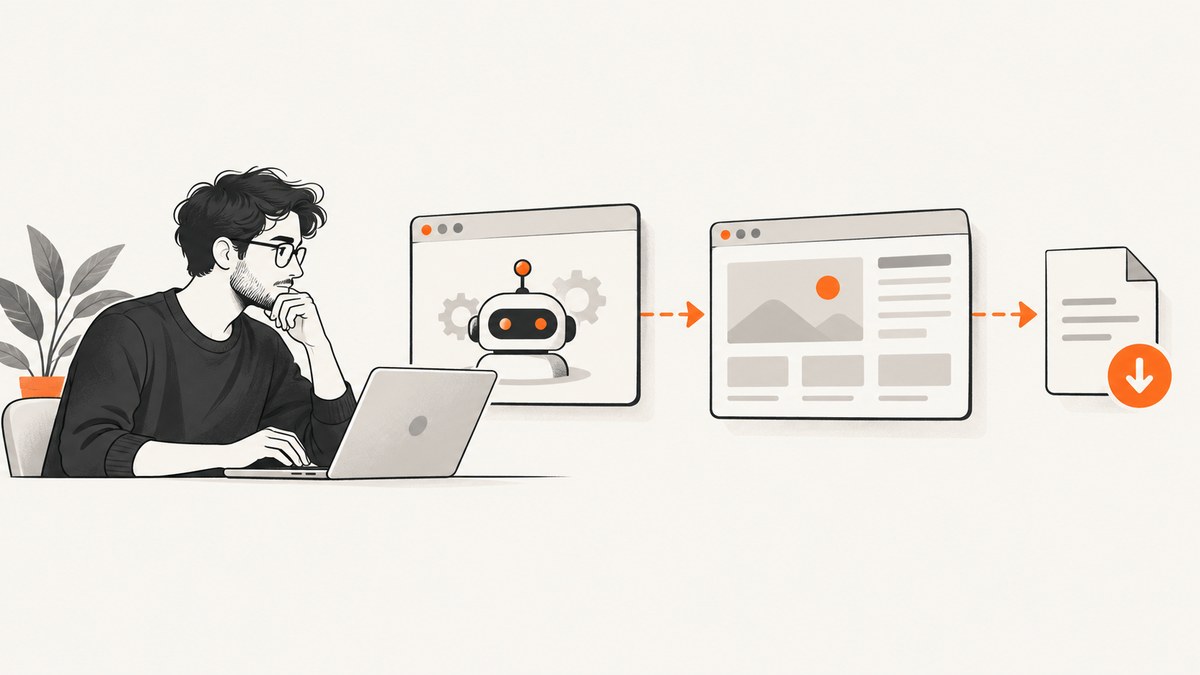
Slow headless Chrome and failed downloads are often separate problems. A browser that takes too long to launch points toward installation, browser selection, or process startup. A page that appears stuck points toward navigation, application waits, or an unresolved DevTools call. A download that never appears points toward download configuration, permissions, or code that reads the file before Chrome has finished writing it.
Start by recording the Puppeteer and Chrome versions, operating system or container image, selected headless mode, download URL and workflow, expected destination path, and the actual error or timing. Then measure each stage independently. This guide uses Puppeteer examples, but the same diagnostic split helps with other Chrome automation stacks.
1. Identify which stage is slow or failing
Before changing flags or upgrading dependencies, establish a baseline. Record the environment and capture timestamps around browser launch, navigation, page readiness, download start, download completion, and file verification. Compare repeated runs in the same environment. This distinguishes a consistently slow operation from intermittent network or resource issues.
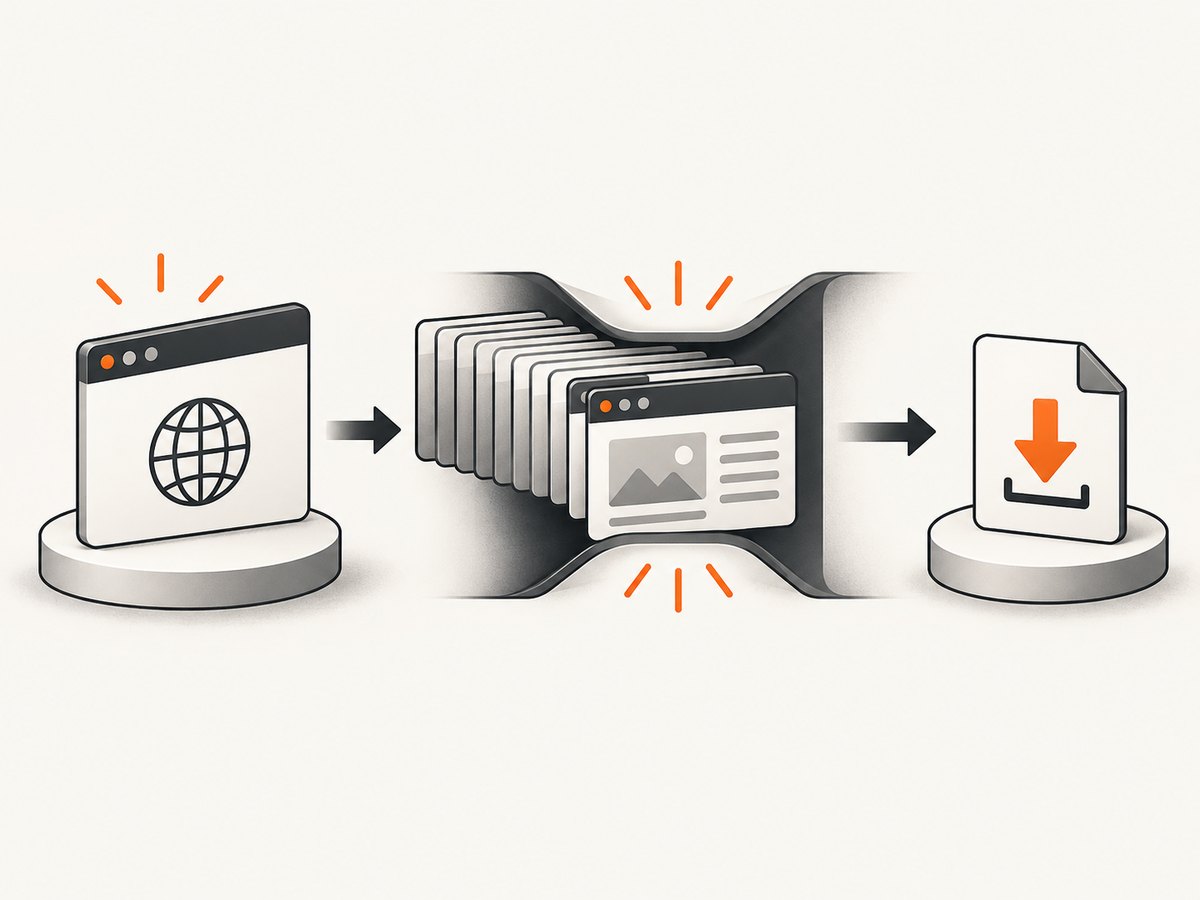
- Browser launch: Does the delay happen before a page or target is created?
- Navigation and page work: Does the browser launch promptly, then wait on navigation, a selector, network activity, or application code?
- File transfer and saving: Does the page trigger a download, but the file is missing, empty, incomplete, or in an unexpected directory?
Include in your incident notes: node --version, the Puppeteer package and version, the Chrome version and executable path, OS/container details, headless mode, the download workflow, the intended absolute path, and the timing or error text. A Puppeteer release and its compatible browser can change; retest after upgrades.
2. Fix launch delays and missing browser installations
The puppeteer package downloads a compatible Chrome for Testing by default. puppeteer-core does not download Chrome: your application or deployment must provide and select the browser. If package-manager settings, CI configuration, or an install script policy blocks Puppeteer’s browser download, the package may be present while its expected browser is absent. See the official Puppeteer installation guide.
Check the package and executable
npm ls puppeteer puppeteer-core
node -e "const p=require('puppeteer'); console.log(p.executablePath())"
If you intentionally use puppeteer-core, pass a path to a browser managed by your deployment. Do not assume the path for puppeteer exists in a puppeteer-core installation.
const puppeteer = require('puppeteer-core');

(async () => {
  const browser = await puppeteer.launch({
    executablePath: process.env.CHROME_PATH,
    headless: true
  });
  try {
    const page = await browser.newPage();
    await page.goto('https://example.com', { waitUntil: 'domcontentloaded' });
    console.log(await page.title());
  } finally {
    await browser.close();
  }
})();
For a normal puppeteer install, compare the path reported by puppeteer.executablePath() with the deployed filesystem and runtime user. Puppeteer’s troubleshooting documentation says the browser cache defaults to ~/.cache/puppeteer from v19.0.0. Set PUPPETEER_CACHE_DIR to choose another cache directory. Make sure the user installing Puppeteer and the user running the application resolve that directory to the same location and have the needed read and execute access. See Puppeteer troubleshooting.
# Example deployment configuration; create and permission this directory yourself.
export PUPPETEER_CACHE_DIR=/opt/puppeteer-cache
npm ci
When the executable exists but startup is slow, measure launch separately from all page operations. Inspect container resource limits, process startup output, and whether multiple browser processes are being created unnecessarily. Do not add a universal set of launch flags: flags can affect compatibility and behavior, and the dossier does not establish one flag as a general speed fix.
3. Measure navigation and page waits
Navigation time is not the same as browser launch time. A page can load its document quickly but continue making requests, waiting for client-side rendering, or holding open connections. Use a readiness condition that matches the work your script needs instead of waiting for an unnecessarily broad condition.
const puppeteer = require('puppeteer');

(async () => {
  const t0 = Date.now();
  const browser = await puppeteer.launch({ headless: true });
  const t1 = Date.now();
  try {
    const page = await browser.newPage();
    page.setDefaultNavigationTimeout(30000);
    const response = await page.goto('https://example.com', {
      waitUntil: 'domcontentloaded',
      timeout: 30000
    });
    const t2 = Date.now();
    await page.waitForSelector('main', { timeout: 10000 });
    const t3 = Date.now();
    console.log({
      launchMs: t1 - t0,
      navigationMs: t2 - t1,
      selectorWaitMs: t3 - t2,
      status: response && response.status()
    });
  } finally {
    await browser.close();
  }
})();
Use domcontentloaded when the next step only needs the document to be parsed, then wait for the specific element or state the task requires. Use load when the page’s load event is relevant. networkidle0 and networkidle2 can be useful for pages whose relevant work completes as network activity settles, but analytics, polling, streaming, and long-lived connections may prevent a quiet network. A timeout can therefore indicate a mismatched readiness condition rather than a browser performance defect.
Set explicit navigation and selector timeouts. Handle a missing selector as an actionable error with the URL and stage in the message. If the page is a single-page application, document readiness may come before the app renders its content; wait for an app-specific element rather than adding an arbitrary long sleep.
4. Use headless mode that fits the workload
Chrome has a full Headless implementation and a standalone chrome-headless-shell. The shell can suit automation that does not need the full Chrome feature set, but behavior and compatibility differ. Choose based on the Chrome functionality the job requires, the fidelity or authenticity needed, and measured startup and runtime performance in the actual target environment. Chrome describes the decision as a trade-off between performance and authenticity in its Headless Chrome documentation.
Puppeteer’s troubleshooting guide notes that chrome-headless-shell requires --enable-gpu to enable GPU acceleration in headless mode. That does not mean GPU use is available or beneficial in every container. Compare the real workload, verify the environment, and keep the change only if measurements and output show it helps.
Reproduce a stall in headful mode when possible. Puppeteer documents headful reproduction as a debugging technique, not a guaranteed fix. If the behavior differs, investigate the environment and browser mode rather than concluding that headless itself is the cause.
5. Debug stalled browser operations
Puppeteer’s debugging guidance includes browser process output and protocol diagnostics. Enable dumpio to forward browser stdout and stderr, then correlate those messages with your stage timings.
const browser = await puppeteer.launch({
  headless: true,
  dumpio: true
});
If a Puppeteer call remains unresolved, investigate the DevTools Protocol operation it is waiting on. Protocol logging can expose what was sent and whether a response arrived, but Puppeteer warns that protocol logs may contain sensitive information. Store and share them accordingly. The official Puppeteer debugging guide documents these diagnostics.
Keep logs useful and bounded: include a correlation ID, URL with sensitive query parameters removed, stage name, elapsed time, browser version, and error stack. Avoid logging cookies, authorization headers, or page contents unless there is a controlled reason and appropriate handling.
6. Configure Chrome downloads explicitly
Downloads need a browser download behavior and a directory the browser process can write to. Chrome’s DevTools Protocol method Browser.setDownloadBehavior accepts deny, allow, allowAndName, and default. For allow and allowAndName, downloadPath is required. eventsEnabled defaults to false. These protocol settings are documented in the DevTools Protocol Browser reference.
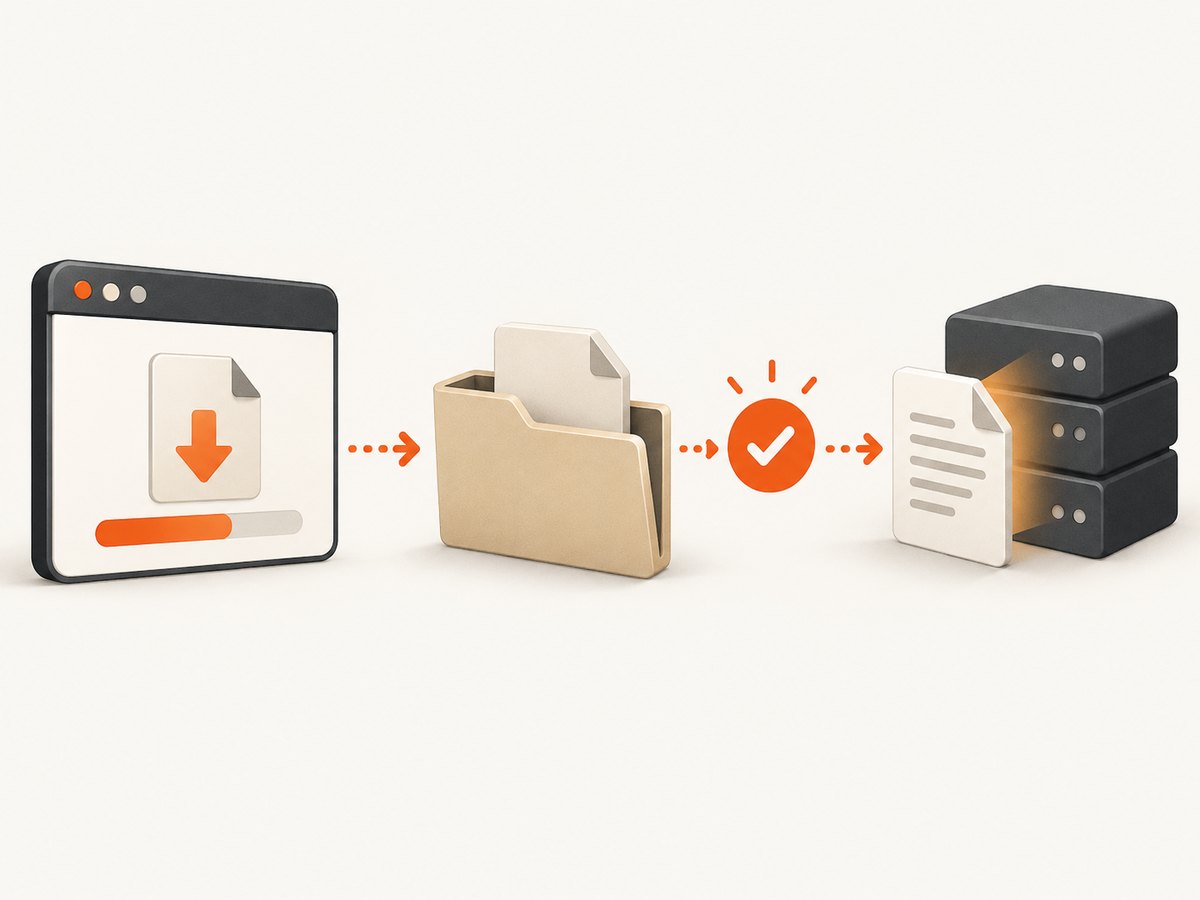
The following example enables downloads, listens for download events, and waits for the final path before checking the file. Event names and payloads depend on the Chrome protocol version; keep Puppeteer and Chrome compatible and inspect the protocol reference for your version. The polling loop is an operational check for file completion.
const fs = require('node:fs/promises');
const path = require('node:path');
const puppeteer = require('puppeteer');

(async () => {
  const downloadDir = path.resolve('./downloads');
  await fs.mkdir(downloadDir, { recursive: true });
  await fs.access(downloadDir);

  const browser = await puppeteer.launch({ headless: true });
  try {
    const page = await browser.newPage();
    const cdp = await page.createCDPSession();
    await cdp.send('Browser.setDownloadBehavior', {
      behavior: 'allow',
      downloadPath: downloadDir,
      eventsEnabled: true
    });
    cdp.on('Browser.downloadWillBegin', event => {
      console.log('Download started:', event.suggestedFilename);
    });
    cdp.on('Browser.downloadProgress', event => {
      console.log('Download state:', event.state);
    });

    await page.goto('https://example.com', { waitUntil: 'domcontentloaded' });
    await page.click('a[data-download]');

    const finalPath = path.join(downloadDir, 'report.csv');
    const deadline = Date.now() + 60000;
    while (Date.now() < deadline) {
      try {
        const stat = await fs.stat(finalPath);
        if (stat.size > 0) {
          console.log('Saved', finalPath, stat.size, 'bytes');
          break;
        }
      } catch (error) {
        if (error.code !== 'ENOENT') throw error;
      }
      await new Promise(resolve => setTimeout(resolve, 250));
    }
    await fs.access(finalPath);
  } finally {
    await browser.close();
  }
})();
For robust production code, use the completion event to identify the download and its final path instead of assuming the server-provided filename. With allowAndName, Chrome names downloads according to its download GUID behavior, so resolve the event’s suggested name or GUID as appropriate for your workflow. Do not read, move, or upload a file merely because it has appeared: Chrome may still be writing it. Verify completion, expected size or content type where practical, and the resulting absolute path.
Check permissions as the browser process user, not just the shell user that launched the deployment. Confirm the directory exists, is writable, has enough free space, and is not removed by a container cleanup step before the consuming process reads it.
7. Troubleshooting common symptoms
| Symptom | Likely cause | What to check or change |
|---|---|---|
| Launch fails with a missing executable | Install script was blocked, browser cache differs, or puppeteer-core has no managed browser |
Check package type, executablePath(), install logs, PUPPETEER_CACHE_DIR, and the runtime user’s filesystem |
| Launch is slow but page operations are fast | Browser startup, cold process, environment resource limits, or repeated launches | Time launch alone, inspect dumpio, and reuse a browser process where your isolation requirements allow |
goto times out on an otherwise usable page |
Wait condition does not fit the site’s requests or app behavior | Try a narrower readiness condition, then wait for the exact content needed; keep explicit timeouts |
| Selector wait times out | Wrong selector, delayed app rendering, navigation to an error page, or content inside a frame | Log response status and final URL, inspect the DOM, and wait in the correct frame for an app-specific element |
| Download click succeeds but no file appears | Downloads denied/default, wrong path, unwritable directory, or click did not trigger the expected response | Set an allowed behavior and path, observe download events, and verify the triggering request and browser user permissions |
| File exists but is empty or corrupt | Consumer read before completion, server returned an error document, or transfer was interrupted | Wait for completion, inspect status/content type and file size, and validate a small signature or expected content |
| File appears in an unexpected location | Relative path resolved from a different working directory or browser setting points elsewhere | Resolve the path once with path.resolve, log it, and use that absolute directory consistently |
| Behavior differs between local and container runs | Different browser build, cache, permissions, headless implementation, or available resources | Record versions and executable path in both environments, reproduce with browser output, and compare the exact workflow |
8. Improve performance without sacrificing reliability
- Measure before tuning: capture launch, navigation, application wait, and download duration separately. A single total duration hides the bottleneck.
- Reuse carefully: launching once and reusing a browser can avoid repeated startup work. Isolate pages or contexts according to the data and session boundaries of your task, and close resources reliably.
- Wait for the needed state: prefer a meaningful selector or response over an arbitrary sleep or an unnecessarily broad network-idle condition.
- Bound every wait: define navigation, selector, and download deadlines; report which stage expired so retries do not conceal the root cause.
- Retry selectively: retry transient navigation or transfer failures with a limit and backoff. Do not blindly repeat non-idempotent actions such as submitting a form or starting a purchase.
- Compare headless modes empirically: check required functionality and rendering fidelity, then benchmark the same workload in the actual container. Keep browser versions recorded.
- Control concurrency: too many simultaneous browser processes or downloads can contend for CPU, memory, disk, and network. Increase concurrency gradually while tracking failures and resource use.
There is no universal speed flag or single reliable benchmark for all sites and containers. Browser version, workload, page behavior, and environment all affect results. Operationally, reliable downloads require a writable destination, completion detection, bounded waits, and validation of the saved artifact.
9. Or skip the browser setup
If the task is to capture a webpage rather than automate a browser workflow or download an arbitrary file, ScreenshotNeo offers a one-request website screenshot API and an MCP server. See the API documentation for request options.
curl -G "https://api.screenshotneo.com/v1/shot" -d access_key=YOUR_API_KEY --data-urlencode url=https://stripe.com -o shot.webpimport requests
r = requests.get("https://api.screenshotneo.com/v1/shot", params={"access_key": "YOUR_API_KEY", "url": "https://stripe.com"}, timeout=90)
open("shot.webp", "wb").write(r.content)const q = new URLSearchParams({ access_key: 'YOUR_API_KEY', url: 'https://stripe.com' });
const res = await fetch(`https://api.screenshotneo.com/v1/shot?${q}`);ScreenshotNeo accepts cookie and consent banners before capture and removes more than 60 known consent platforms, newsletter popups, and chat widgets; each step can be turned off. Bot checks, blank pages, and failed loads are never billed. Its MCP server provides take_screenshot, get_page_info, and capture_pdf tools for Claude, Cursor, and other MCP clients. The free plan includes 1,000 screenshots a month with no card; paid plans start at $5 for 3,000. Use Puppeteer when you need general browser automation, custom interaction, or arbitrary file downloads; use the screenshot API for webpage captures.
Sign up for 1,000 free screenshots a month with no card.
10. Frequently asked questions
Does headless mode make Chrome slow?
Not by itself in every workload. Compare the selected headless implementation, browser version, page work, and target environment. A headful reproduction is useful evidence, not a guaranteed remedy.
Should I switch to chrome-headless-shell?
Consider it when the workload does not need full Chrome functionality. Check compatibility and output fidelity, then compare measured performance on the real workload.
Why does Puppeteer work locally but not in CI?
Compare the installed browser, cache location, runtime user, executable path, permissions, and versions. CI may block installation scripts or run under a user whose home directory differs from the installer’s.
Can Puppeteer download any file from a page?
It can drive a browser download when Chrome is configured to allow it and the workflow and destination are accessible. For a direct HTTP file transfer, a regular HTTP client may be simpler; browser automation is useful when the download depends on page interaction or session state.
What should I include in a bug report?
Include package and browser versions, OS or container, headless implementation, stage timings, sanitized URL and workflow, expected absolute file path, observed error, and relevant browser output. Remove credentials, cookies, and sensitive protocol data.


