How to Fix Slow Puppeteer Screenshots
Find out whether navigation, page readiness, or screenshot encoding is slowing Puppeteer, then tune capture size and options with a runnable diagnostic workflow.

Puppeteer screenshots can feel slow because the screenshot call is slow, or because the script spends time navigating and waiting for the page before it reaches page.screenshot(). Time those stages separately first. Then capture only the area you need and benchmark the output format and encoding settings against your real pages. There is no universal setting that makes every screenshot faster by a guaranteed amount.
1. Measure where the delay happens
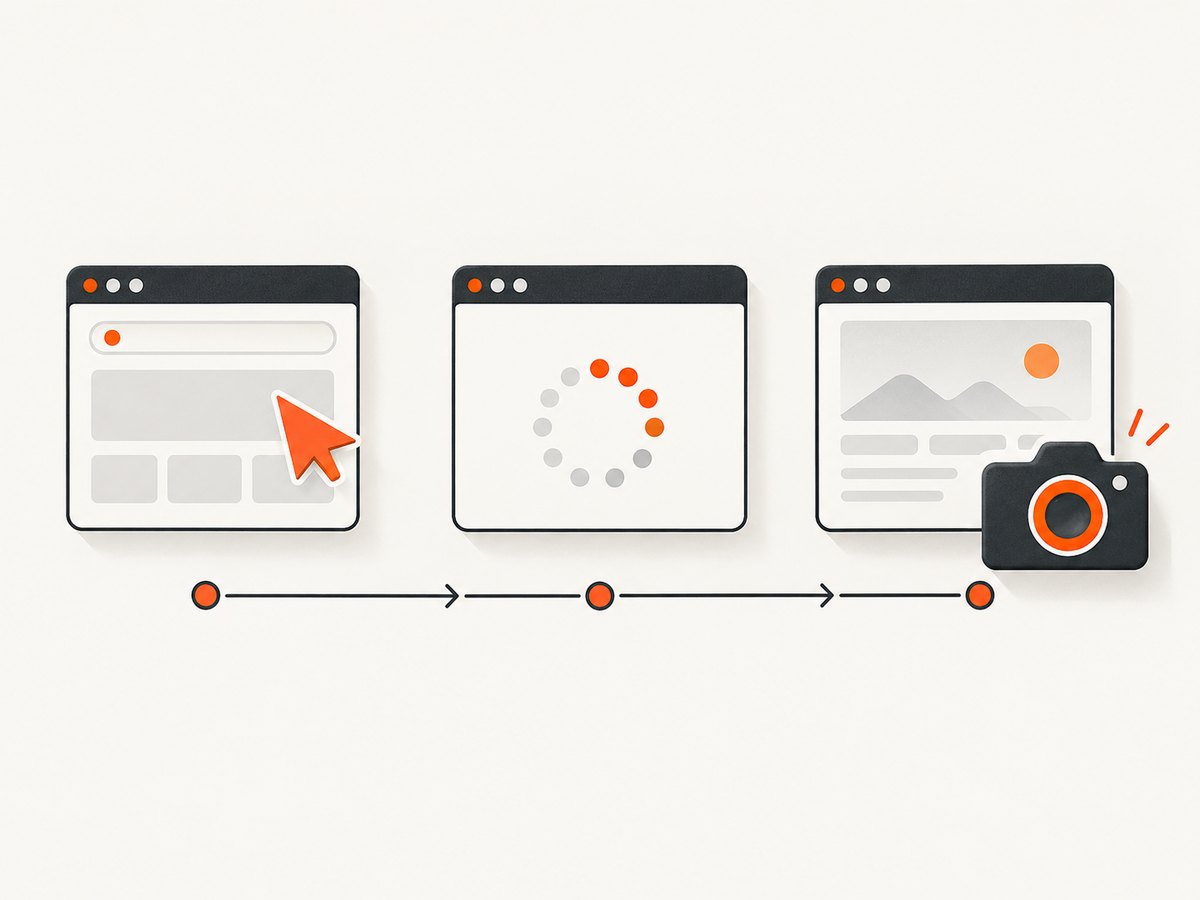
Start by recording navigation, application readiness, and screenshot duration as separate numbers. The example below records each stage and saves a viewport screenshot. Replace the example URL and readiness selector with values from your workload.
const puppeteer = require('puppeteer');

(async () => {
  const browser = await puppeteer.launch({ headless: true });
  try {
    const page = await browser.newPage();
    await page.setViewport({ width: 1440, height: 900, deviceScaleFactor: 1 });

    let start = performance.now();
    await page.goto('https://example.com', { waitUntil: 'domcontentloaded' });
    const navigationMs = performance.now() - start;

    start = performance.now();
    await page.waitForSelector('main', { visible: true, timeout: 15000 });
    const readinessMs = performance.now() - start;

    start = performance.now();
    await page.screenshot({ path: 'viewport.png', type: 'png' });
    const screenshotMs = performance.now() - start;

    console.log({ navigationMs, readinessMs, screenshotMs });
  } finally {
    await browser.close();
  }
})();
DOMContentLoaded is only an example navigation milestone; it does not guarantee that a client-rendered app, chart, font, or lazy image is ready. Choose a readiness condition that reflects the actual deliverable, such as a visible selector or an application-specific state. Avoid substituting an arbitrary long sleep for a meaningful condition. Conversely, if the page is still changing after your condition succeeds, an early capture may be fast but wrong.
Run the measurement repeatedly on representative pages and retain the same machine, browser build, viewport, and page state when comparing options. The Puppeteer and Chrome references document available controls and diagnostics, but do not provide a universal speedup percentage for them.
2. Capture less content when you can
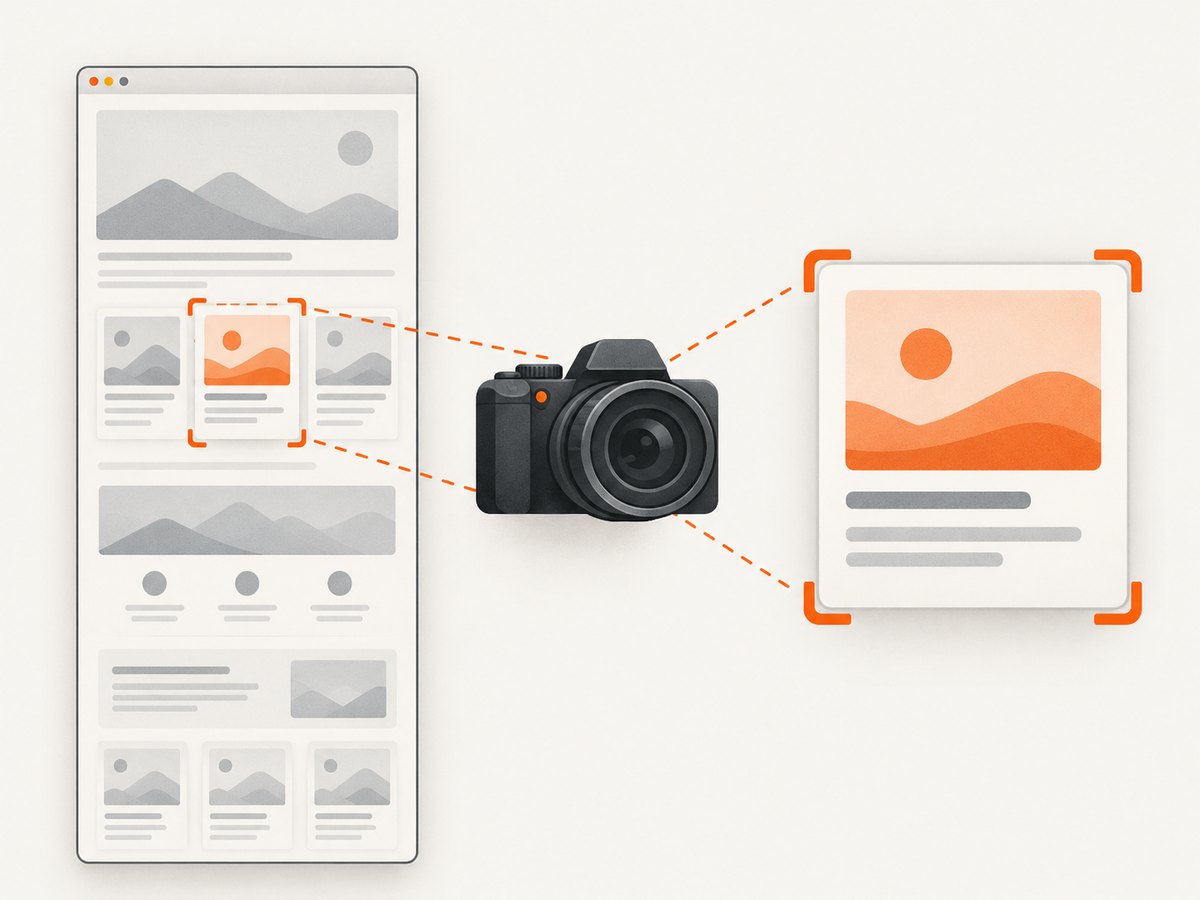
Puppeteer defaults fullPage to false. If a viewport image meets the requirement, do not request a full-page capture. A full-page screenshot asks Chrome to capture the document beyond the visible viewport; reducing the captured area may reduce work, although the actual gain depends on the page and environment.
// Viewport capture
await page.screenshot({ path: 'viewport.png' });

// Specific rectangular region in viewport coordinates
await page.screenshot({
  path: 'region.png',
  clip: { x: 80, y: 120, width: 900, height: 520 }
});

// Full document, only when the deliverable needs it
await page.screenshot({ path: 'full-page.png', fullPage: true });
Use the clip rectangle only when its coordinates and dimensions are known and the desired region is within the page’s visible area. For a component whose position changes across pages, select the element instead of hard-coding coordinates.
Capture one element
ElementHandle.screenshot() is suited to a card, chart, or other single component. Puppeteer documents that it attempts to scroll a hidden element into view by default. That scroll can change sticky headers, lazy loading, or other page state, so inspect the result when position matters.
const card = await page.waitForSelector('[data-testid="pricing-card"]', {
  visible: true,
  timeout: 15000
});
if (!card) throw new Error('Pricing card was not found');
await card.screenshot({ path: 'pricing-card.png', type: 'png' });
3. Benchmark image encoding and format
Puppeteer screenshot options include image type, quality where supported, and optimizeForSpeed. Chrome’s protocol describes optimizeForSpeed as favoring encoding speed over resulting size; it defaults to false. Measure elapsed time and output size together, and visually inspect quality. Do not assume a particular format wins on every page or machine. Quality does not apply to PNG.
const { writeFile } = require('node:fs/promises');

for (const options of [
  { type: 'png' },
  { type: 'jpeg', quality: 80 },
  { type: 'webp', quality: 80 },
  { type: 'jpeg', quality: 80, optimizeForSpeed: true },
]) {
  const start = performance.now();
  const bytes = await page.screenshot(options);
  const elapsedMs = performance.now() - start;
  const name = `${options.type}-${options.optimizeForSpeed ? 'speed' : 'default'}`;
  await writeFile(`${name}.${options.type}`, bytes);
  console.log({ options, elapsedMs, bytes: bytes.length });
}
Check the Puppeteer API reference for the options supported by the version you have installed. Output requirements can rule out a smaller or faster encoding: text edges, transparency, and downstream processing may demand a particular format. Test the full pipeline rather than only the screenshot promise if encoding, disk writes, or uploads are part of the observed delay.
4. Keep browser work from interfering with capture
Screenshot work can interact with other operations in the same browser context. Puppeteer documents that certain page creation and close operations on a BrowserContext wait for a screenshot to finish. If a worker appears stalled around a capture, inspect whether it is also opening or closing pages in that context. Keep per-job timing and logs so the wait is visible.
For a pool of browser pages, avoid treating all elapsed time as encoder time. Record queue wait, page setup, navigation, readiness, screenshot, and cleanup separately. Reuse decisions and concurrency limits depend on your application and resource budget; benchmark under representative parallel load and watch memory as well as latency.
5. Profile a persistently slow screenshot
If the screenshot promise remains slow after narrowing the capture, inspect browser and page activity around the call. Puppeteer’s debugging guide describes protocol logging, pending protocol call inspection, and forwarding browser process output. Chrome DevTools Performance recordings can help identify rendering or main-thread work near capture time.
- Enable Puppeteer protocol diagnostics with
NODE_DEBUG="puppeteer:*"when investigating protocol activity. - Inspect
browser.debugInfo.pendingProtocolErrorswhen diagnosing pending calls. - Launch with
dumpio: trueto forward browser process output. - Record a DevTools Performance trace around the slow operation and inspect rendering activity.
Protocol logs can contain sensitive information. Use them only in an appropriately controlled environment and limit retention and access.
6. Troubleshoot common causes
| Symptom | Likely cause | Fix |
|---|---|---|
| Total script is slow, screenshot timing is short | Navigation or readiness wait dominates. | Time those stages separately; tune the navigation milestone and wait for the specific app state the image requires. |
| Full-page capture is much slower than viewport | The document is tall or contains substantial rendered content. | Use viewport, clip, or element capture if that satisfies the output requirement. Compare on representative pages. |
| Speed option makes files larger | optimizeForSpeed trades resulting size for faster encoding. |
Measure both latency and bytes; use the setting only when the end-to-end tradeoff works for you. |
| JPEG quality setting appears to do nothing | Quality is not applicable to PNG. | Use a supported lossy format when its visual characteristics are acceptable. |
| Element screenshot changes the visible page | The element was scrolled into view. | Account for scrolling, sticky UI, and lazy content; capture after the page reaches the intended state. |
| Capture hangs or other page operations stall | A protocol operation is pending, or a context operation is waiting for screenshot completion. | Inspect timings and protocol diagnostics; separate concurrent lifecycle operations and review browser logs. |
| Image is blank or incomplete but fast | Capture began before the application or assets were ready. | Wait for a meaningful selector or state, then verify that fonts, images, and asynchronous content have settled as required. |
| Repeated runs vary widely | Page workload, cache state, network, machine contention, or concurrency differs. | Record conditions, run multiple samples, and compare like with like rather than relying on one run. |
7. A practical tuning checklist
- Log navigation, readiness, screenshot, and downstream processing durations separately.
- Fix the page state and browser conditions used for comparison.
- Decide whether the deliverable needs the viewport, a rectangle, one element, or the full document.
- Compare image type and supported quality settings against both output quality and file size.
- Try
optimizeForSpeedand measure the screenshot duration and resulting bytes. - Repeat on representative pages and under realistic concurrency.
- Profile protocol and rendering activity if capture time remains the bottleneck.
Or skip the browser setup
If you need a screenshot without maintaining Puppeteer and Chrome, ScreenshotNeo provides a website screenshot API. See the API documentation. One GET request returns an image or PDF:
curl -G "https://api.screenshotneo.com/v1/shot" -d access_key=YOUR_API_KEY --data-urlencode url=https://stripe.com -o shot.webpCookie banners, popups, and chat widgets are removed before the shot. Bot checks, blank pages, and failed loads are never billed. An MCP server lets AI agents use screenshot tools. The free plan includes 1,000 screenshots a month with no card; paid plans start at $5 for 3,000. Create a free account.
FAQ
Does optimizeForSpeed always make screenshots faster?
It is a speed-oriented encoding option, but the documentation does not guarantee a specific improvement for every workload. Benchmark it with your pages and compare file size too.
Should I always use fullPage: true?
No. It is useful when the complete document is the deliverable. Otherwise a viewport, clip, or element capture can better match the required output.
How much faster will these changes make my job?
There is no source-backed universal percentage. The result depends on page content, dimensions, browser version, machine, and output settings.
What details help diagnose a specific slow case?
Record Puppeteer and Chrome versions, headless mode, dimensions, readiness condition, screenshot options, and separate navigation, readiness, and capture durations.


