How to Fix Snipping Tool When It Only Takes Screenshots
Snipping Tool can capture video as well as still images. Use the recording shortcut or Record mode, then follow these steps if recording is missing or fails.
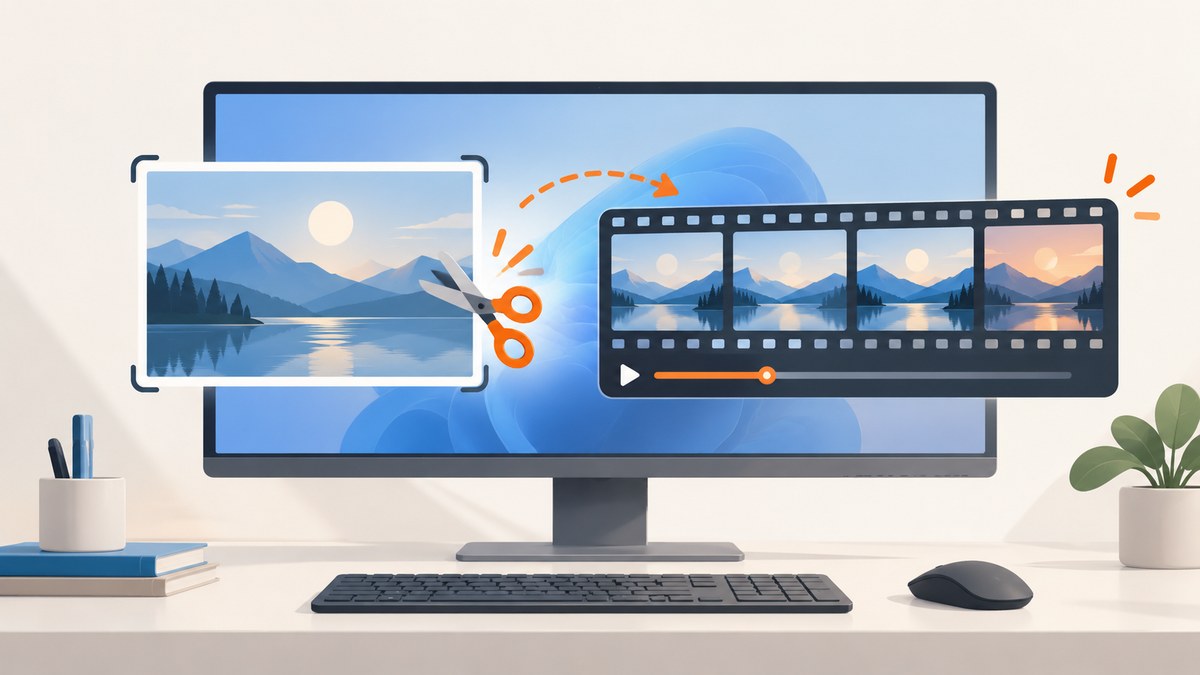
If Snipping Tool gives you a still image when you expected a video, first check which capture mode you started. Windows logo key + Shift + S opens the screenshot selection flow. To record video, press Windows logo key + Shift + R, or open Snipping Tool and choose Record > New, select the screen area, then choose Start. Choose Stop when you are done. Microsoft documents both screenshot and video capture in Snipping Tool, so a still image by itself does not show that the app is broken. [Microsoft’s Snipping Tool instructions](https://support.microsoft.com/en-us/windows/use-snipping-tool-to-capture-screenshots-00246869-1843-655f-f220-97299b865f6b)
If the Record control or shortcut is missing or does not work, check your Windows version and app updates first. Then try the Windows app repair steps below. The exact cause depends on your Windows version, Snipping Tool version, and the capture flow you used; those details are not available from the symptom alone.
1. Choose the recording flow
Use the shortcut that matches the output you want. The screenshot and recording shortcuts are easy to confuse because both start with the Windows logo key and Shift.
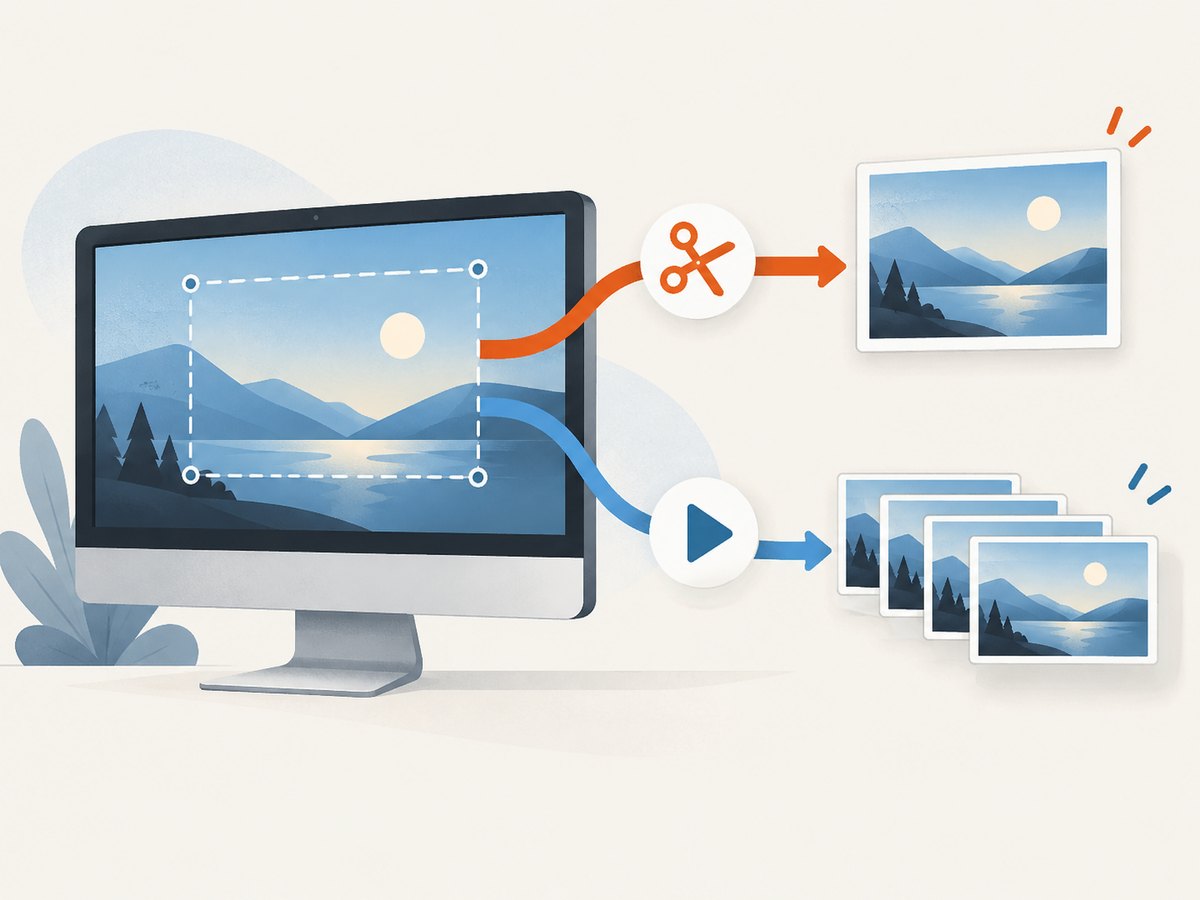
| What you want | What to use | Result |
|---|---|---|
| A still image | Windows logo key + Shift + S | Select an area for a screenshot. |
| A video clip | Windows logo key + Shift + R | Open the recording flow, when available. |
| A video clip using the app | Open Snipping Tool, choose Record > New | Select the recording area, choose Start, then Stop at the end. |
For an in-app recording, follow these steps:
- Open Snipping Tool from the Start menu.
- Choose Record. If the app opens in screenshot mode, switch to the recording option.
- Choose New, then select the portion of the screen you want to capture.
- Choose Start and perform the actions you want to record.
- Choose Stop when finished. Save the clip, or open it in Clipchamp if you want to edit it.
These are separate flows: starting with the screenshot shortcut is expected to produce a still image. To record a clip, start with the recording shortcut or select Record in the app. [Microsoft documents the shortcuts and in-app steps](https://support.microsoft.com/en-us/windows/use-snipping-tool-to-capture-screenshots-00246869-1843-655f-f220-97299b865f6b).
2. Check your Windows version and available controls
Microsoft’s Snipping Tool recording instructions describe the feature for Windows 11. If you are on Windows 10 and do not see Record, that may be a version difference rather than a fault in your installation. Microsoft’s Surface screen-recording guidance points Windows 10 users to Clipchamp. [Microsoft’s Surface guidance](https://support.microsoft.com/en-us/surface/take-a-screenshot-or-record-your-screen-on-surface-1bdc9b7b-2b3a-4f1a-8ec0-d5df56a7fe8a) also names Xbox Game Bar and Clipchamp as screen-recording options.
Check your version before changing app settings:
- Open Settings > System > About and look at the Windows edition and version.
- Open Snipping Tool from Start and check whether Record appears in its toolbar.
- If you are on Windows 11 but the control is absent, continue with the update and repair steps below.
- If you are on Windows 10, consider Clipchamp for recording rather than assuming that the Windows 11 Snipping Tool flow is available.
Control labels and feature availability can change with Windows and app updates. If the menus on your PC differ, use the current Microsoft support instructions for your version.
3. Update Snipping Tool and Windows
If the recording control should be available but is missing or malfunctioning, close and reopen Snipping Tool first. Then check for Windows and Microsoft Store app updates. Microsoft’s general Store-app guidance recommends checking app updates and includes repair, reset, and reinstall options for apps when needed.
- Close Snipping Tool, reopen it from Start, and check whether Record is available.
- Open Settings > Windows Update and check for available Windows updates.
- Open Microsoft Store > Library, then select Get updates.
- Reopen Snipping Tool and try Record > New again.
Updating is a reasonable early step when an app feature is missing or fails, but it does not establish why the problem occurred on a particular PC. Microsoft’s app guidance is available in [Fix problems with apps from Microsoft Store](https://support.microsoft.com/en-us/windows/fix-problems-with-apps-from-microsoft-store-93ed0bcf-4c74-4a2e-87a5-7a6c0c9c7f3b).
4. Repair Snipping Tool if recording still fails
Windows may offer a Repair option for Snipping Tool. Repair is a proportionate next step after checking the capture mode and updates. If Repair is unavailable or does not resolve the issue, Microsoft says to use Reset where available. Not every app exposes both controls.
- Open Settings > Apps > Installed apps.
- Find Snipping Tool, open its menu, and choose Advanced options.
- Select Repair, if shown, and try recording again.
- If Repair is unavailable or did not help, return to the same page and choose Reset, if shown. Then reopen the app and check Record.
- If the app remains unavailable or fails, find Snipping Tool in Microsoft Store’s Library and reinstall it if that option is available.
Microsoft’s instructions for [repairing apps and programs in Windows](https://support.microsoft.com/en-us/windows/repair-apps-and-programs-in-windows-e90eefe4-d0a2-7c1a-f1d0-7c5b3b8b9b0d) and [fixing Microsoft Store app problems](https://support.microsoft.com/en-us/windows/fix-problems-with-apps-from-microsoft-store-93ed0bcf-4c74-4a2e-87a5-7a6c0c9c7f3b) cover the available repair, reset, and reinstall paths. The options shown can vary by app and Windows version.
5. Use a supported alternative when needed
If your Windows version does not offer Snipping Tool recording, or the recording flow continues to fail after updates and repair, use another screen recorder. Microsoft names Xbox Game Bar and Clipchamp as alternatives, and specifically points Windows 10 users to Clipchamp for screen recording. Choose based on the workflow you need: a brief recording of app activity, or a clip you plan to edit afterward.

For a quick check, make one short recording and play it back before capturing a long session. Confirm the clip shows the intended region and that the important actions are visible. If recording is for a tutorial, capture a short sample that includes the window changes or menus the viewer needs to see.
Or skip the browser setup
If what you need is a screenshot of a web page rather than a video of your desktop, ScreenshotNeo captures a page with one API request. It is a website screenshot API and MCP server for developers. This does not record desktop video; it captures a web page as an image or PDF.
curl -G "https://api.screenshotneo.com/v1/shot" -d access_key=YOUR_API_KEY --data-urlencode url=https://stripe.com -o shot.webpSee the ScreenshotNeo API documentation for request options. Cookie banners, popups, and chat widgets are removed before the shot. Bot checks, blank pages, and failed loads are never billed. An MCP server lets AI agents take screenshots. The free plan includes 1,000 screenshots a month with no card; paid plans start at $5 for 3,000.
Sign up for 1,000 free screenshots a month, with no card.
Troubleshooting common problems
| Symptom | Likely explanation | What to do |
|---|---|---|
| Windows logo key + Shift + S gives me an image | That is the screenshot shortcut. | Use Windows logo key + Shift + R, or open Snipping Tool and choose Record > New. |
| I cannot find Record | Your Windows version or installed app may not expose the documented recording flow. | Check your Windows version. Microsoft documents Snipping Tool recording for Windows 11; consider Clipchamp on Windows 10. |
| Record is present, but New does not start capture | The app may be malfunctioning or out of date. | Close and reopen it, check Windows and Store updates, then try Repair and Reset if available. |
| The recording starts, but the saved result is not what I expected | The selected area or capture flow may not match the intended recording. | Start a fresh recording with Record > New, select the desired region, and check a short clip before recording a longer session. |
| Repair or Reset is missing | Windows does not expose those options for every app or installation. | Check Microsoft Store for app updates or reinstall Snipping Tool from the Store Library if available. |
| I use Windows 10 and expected the Windows 11 steps | The recording guidance and feature availability differ by Windows version. | Use Clipchamp as Microsoft’s stated Windows 10 screen-recording path. |
Performance, reliability, and support notes
For a short clip, select only the region you need and record only the relevant part of the task. This keeps the capture focused and makes playback easier to review. The Microsoft instructions cited here do not specify a maximum recording duration, frame rate, or file-size limit, so check your own available storage and make a short sample if the session will be long.
If a recording fails, separate a mode mistake from an app problem: verify that you chose Record, confirm the Windows version, then update and repair the app if appropriate. Reinstalling Windows or changing unrelated system components is not part of the documented first-line guidance for this symptom.
Microsoft states that Windows 10 support ended on October 14, 2025. The PC continues to work, but under Microsoft’s support statement it no longer receives free Windows Update software updates, technical assistance, or security fixes. That support date does not establish when or why a particular recording problem began. See [Microsoft’s Windows 10 support information](https://support.microsoft.com/en-us/windows/windows-10-support-ends-on-october-14-2025-2ca8b313-1946-43d3-b55c-2b95b107f281).
Frequently asked questions
Does Snipping Tool only take screenshots?
No. Microsoft’s instructions describe both still image snips and video snips. Use the recording shortcut or choose Record in the app to start a video capture.
Can I edit a Snipping Tool recording?
Microsoft says you can save the recording as-is or open it in Clipchamp for editing.
What if I only need a screenshot of a website?
Use a screenshot flow for a still image. If you need a repeatable website capture from code, ScreenshotNeo accepts a URL and can return an image or PDF; it is not a desktop video recorder.
Should I reset Snipping Tool immediately?
No. First confirm the mode and Windows version, reopen the app, and check for updates. Try Repair before Reset when those options are available.
Quick checklist
- For a still image, use Windows logo key + Shift + S.
- For video, use Windows logo key + Shift + R or Snipping Tool’s Record > New flow.
- Check whether you are on Windows 11 if Record is missing.
- On Windows 10, consider Clipchamp for screen recording.
- If the control should be present but fails, reopen and update the app, then try Repair, Reset, or reinstall where available.


