How to Fix SOCKS_CONNECTION_FAILED in Pyppeteer Proxies
Fix Pyppeteer’s net::ERR_SOCKS_CONNECTION_FAILED by checking endpoint reachability, proxy syntax, DNS, authentication, Chromium settings, and logs.

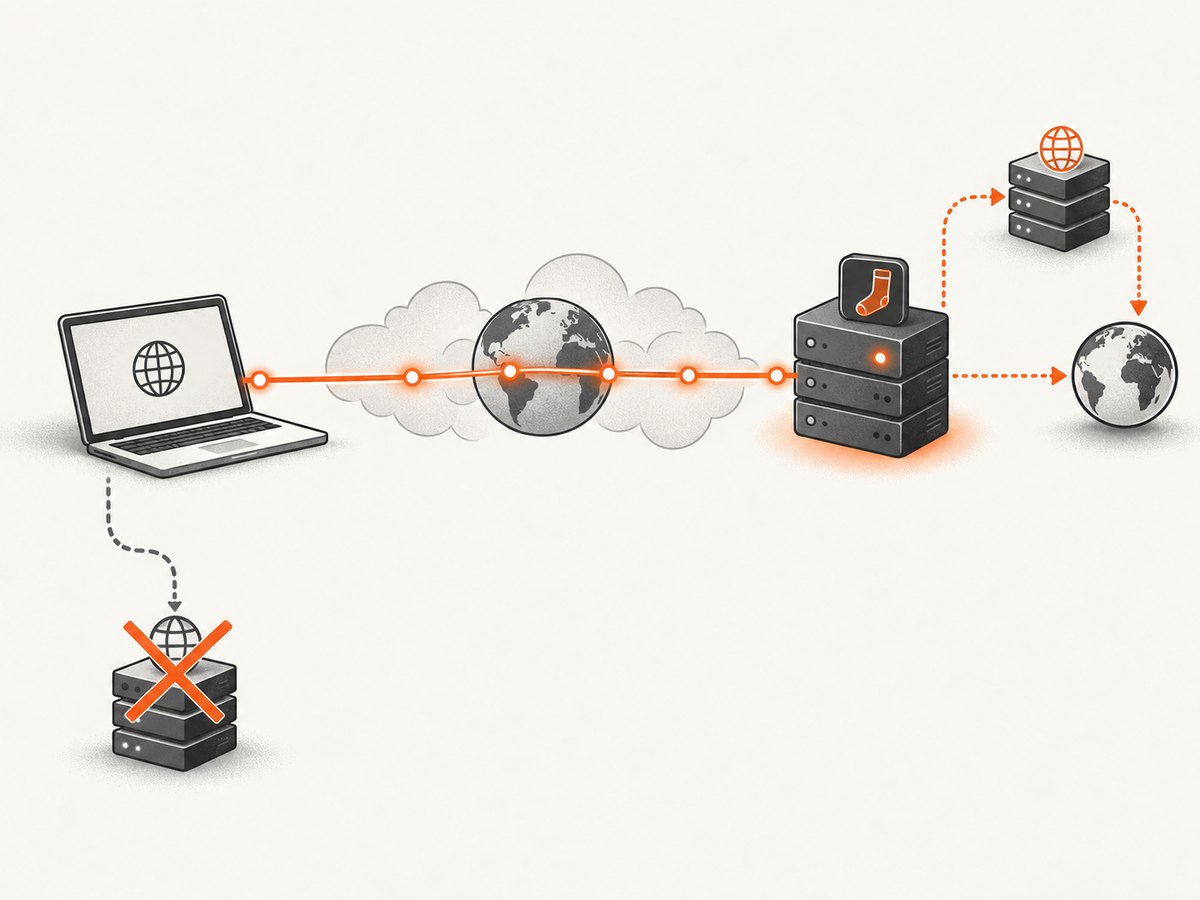
net::ERR_SOCKS_CONNECTION_FAILED means Chromium could not establish a connection to the SOCKS proxy for the target host. In Pyppeteer, fix it by verifying the proxy hostname and port from the browser’s runtime, passing an explicit socks5:// URL, checking whether the proxy requires unsupported authentication, preserving proxy DNS resolution, and inspecting Chromium’s effective settings and network logs.
This error identifies the browser-to-proxy connection as the failing leg. It does not by itself prove that the proxy service is down, that the destination is unreachable, or that credentials are wrong. Chromium uses a separate ERR_SOCKS_CONNECTION_HOST_UNREACHABLE error when the proxy connects successfully but cannot reach the destination host. See Chromium’s network error list and SOCKS proxy documentation.
1. Use the correct Pyppeteer proxy syntax
Pass Chromium’s proxy flag as one argument and include the scheme:

import asyncio
from pyppeteer import launch

async def main():
    browser = await launch({
        'headless': True,
        'args': [
            '--proxy-server=socks5://proxy.example:1080'
        ]
    })
    page = await browser.newPage()
    await page.goto('https://example.com', {
        'waitUntil': 'networkidle2',
        'timeout': 60000
    })
    print(await page.title())
    await browser.close()

asyncio.get_event_loop().run_until_complete(main())
Replace the example host and port with the endpoint supplied by your proxy operator. Chromium documents --proxy-server='socks5://host:port' as the SOCKS5 form. If you omit the scheme in this mapping, Chromium can interpret the proxy as SOCKSv4 instead. Pyppeteer’s launch options pass arguments directly to Chromium; its documentation is at pyppeteer.github.io/pyppeteer/reference.html.
Check the exact launch configuration
proxy_host = 'proxy.example'
proxy_port = 1080
proxy_arg = f'--proxy-server=socks5://{proxy_host}:{proxy_port}'
print(proxy_arg)

browser = await launch({'args': [proxy_arg]})
Do not split the flag and value into unrelated arguments, and do not place a username and password in the URL expecting Chromium to authenticate to a SOCKS5 server. Chrome’s SOCKS documentation says SOCKS5 authentication methods are not supported and credentials embedded in manual proxy settings are not used.
2. Verify the proxy from the same runtime
Run these checks inside the same host, container, VM, or network namespace that starts Chromium. A proxy reachable from your laptop may be unreachable from a CI worker or container.
Resolve the proxy hostname
getent hosts proxy.example
# or
python - <<'PY'
import socket
print(socket.getaddrinfo('proxy.example', 1080, type=socket.SOCK_STREAM))
PY
Test the TCP port
nc -vz proxy.example 1080
# or
python - <<'PY'
import socket
host, port = 'proxy.example', 1080
with socket.create_connection((host, port), timeout=10):
    print('TCP connection succeeded')
PY
If DNS fails, check the hostname and resolver configuration. If TCP fails, investigate a stopped proxy service, a wrong port, firewall rules, egress restrictions, routing, or an allowlist that excludes the runtime’s IP. Chromium’s error only establishes that the connection to the SOCKS proxy failed; use these checks to determine which condition applies.
3. Confirm the endpoint really speaks SOCKS5
A listening TCP port is not enough. The service must accept the SOCKS5 handshake on that port. Confirm with the proxy operator:
- The endpoint is SOCKS5, not HTTP CONNECT, HTTPS, or a private tunnel protocol.
- The port is the SOCKS port, not an administration or health-check port.
- The service accepts connections from the machine running Chromium.
- The service’s authentication mode is compatible with Chromium.
If the provider requires SOCKS5 username/password authentication, Chromium’s documented lack of SOCKS5 authentication support is a compatibility blocker. Use a compatible unauthenticated endpoint, a provider-side allowlist, or a proxy mechanism supported by your browser stack. Do not assume that socks5://user:password@host:port will work.
4. Understand SOCKS5 DNS behavior
For Chromium SOCKS5 connections, destination hostname resolution is performed by the proxy. This is useful when the destination is only resolvable from the proxy network, but it can be confused by local DNS settings or resolver rules.
If you use --host-resolver-rules, exclude the proxy hostname so Chromium can resolve the proxy itself:
browser = await launch({
    'args': [
        '--proxy-server=socks5://proxy.example:1080',
        '--host-resolver-rules=MAP * 0.0.0.0, EXCLUDE proxy.example'
    ]
})
Use host-resolver rules only when local DNS behavior is part of the problem. They are not a universal requirement. A rule that maps every name without excluding the proxy can prevent Chromium from finding the proxy and produce ERR_SOCKS_CONNECTION_FAILED.
5. Inspect Chromium’s effective proxy settings
Launch a diagnostic session and inspect these internal pages:
chrome://net-internals/#proxy— effective proxy configuration and bypass rules.chrome://net-internals/#dns— Chromium’s DNS cache and resolution state.chrome://net-internals/#events— network events around proxy resolution and connection attempts.
For newer Chromium builds, collect a NetLog when those views do not explain the failure. Compare the logged proxy scheme, host, port, bypass list, resolver decision, and connection error with the arguments your Python process printed.
6. Check which Chromium Pyppeteer actually launches
Pyppeteer works best with its bundled Chromium and does not guarantee compatibility with every separately installed Chromium version. A custom executable may ignore, reinterpret, or restrict behavior differently.
browser = await launch({
    'headless': True,
    'executablePath': '/path/to/chrome',
    'dumpio': True,
    'args': ['--proxy-server=socks5://proxy.example:1080']
})
Temporarily remove executablePath and test the bundled browser. If the bundled version works, compare versions, policies, command-line arguments, and enterprise proxy settings before switching back.
7. A repeatable troubleshooting checklist
- Print the complete Pyppeteer launch arguments.
- Confirm the proxy hostname resolves from the browser runtime.
- Confirm TCP access to the exact proxy port.
- Confirm the service speaks SOCKS5 on that port.
- Use
--proxy-server=socks5://host:port. - Remove embedded credentials and verify the provider’s authentication requirements.
- If using resolver rules, add
EXCLUDE proxy-host. - Inspect Chromium proxy, DNS, and network-event diagnostics.
- Retry with Pyppeteer’s bundled Chromium.
- Only after the proxy leg works, investigate destination reachability and page-specific failures.
8. Common errors and fixes
| Symptom | Likely cause | Fix |
|---|---|---|
Immediate ERR_SOCKS_CONNECTION_FAILED |
Wrong host, port, route, firewall, or stopped proxy | Run DNS and TCP checks from the same runtime. |
| Proxy works with curl but not Chromium | Different protocol, authentication, or Chromium argument | Confirm SOCKS5, remove credentials from the flag, and inspect effective settings. |
| Proxy hostname stops resolving after adding resolver rules | The rule captures the proxy hostname | Add an EXCLUDE entry for that hostname. |
| Destination fails after proxy connection succeeds | Proxy cannot reach the target | Look for ERR_SOCKS_CONNECTION_HOST_UNREACHABLE and test destination access from the proxy network. |
| Argument appears ignored | Unexpected executable, policy, or malformed argument list | Print arguments, enable dumpio, inspect chrome://net-internals/#proxy, and test bundled Chromium. |
| Only some sites fail | Destination DNS, allowlist, TLS, or site policy issue | Compare network events and test a known reachable URL through the same proxy. |
9. Performance, reliability, and cost considerations
- Latency: SOCKS adds a connection hop and proxy-side DNS work. Set realistic navigation timeouts and use
waitUntil='networkidle2'only when the page needs network quiescence. - Connection reuse: Reuse one browser and create pages as needed instead of launching Chromium for every URL. Close pages and browsers in
finallyblocks. - Retries: Retry transient connection failures with bounded exponential backoff. Do not retry indefinitely when DNS or TCP checks consistently fail.
- Isolation: Test one URL through one known-good endpoint before adding concurrency, resolver rules, or custom browser flags.
- Billing: Pyppeteer and the proxy provider have separate costs. Track proxy traffic and browser compute independently; this error occurs before a successful page load.
import asyncio
from pyppeteer import launch

async def capture(url, proxy):
    browser = await launch({'args': [f'--proxy-server=socks5://{proxy}']})
    try:
        page = await browser.newPage()
        await page.goto(url, {'waitUntil': 'domcontentloaded', 'timeout': 60000})
        return await page.title()
    finally:
        await browser.close()

print(asyncio.get_event_loop().run_until_complete(
    capture('https://example.com', 'proxy.example:1080')
))
Or skip the browser setup
If your goal is a reliable website image rather than browser-level proxy debugging, ScreenshotNeo provides a single screenshot API request. Its capture pipeline accepts cookie and consent banners, removes more than 60 known consent platforms along with newsletter popups and chat widgets, and reports whether a response was clean and billed. Bot checks, blank pages, timeouts, failed loads, and cache hits are not billed.
See the ScreenshotNeo API documentation for all options.
cURL
curl -G "https://api.screenshotneo.com/v1/shot" \
  -d access_key=YOUR_API_KEY \
  --data-urlencode url=https://example.com \
  -o shot.webp
Python
import requests
r = requests.get(
    "https://api.screenshotneo.com/v1/shot",
    params={"access_key": "YOUR_API_KEY", "url": "https://example.com"},
    timeout=90,
)
r.raise_for_status()
open("shot.webp", "wb").write(r.content)
Node.js
const q = new URLSearchParams({
  access_key: 'YOUR_API_KEY',
  url: 'https://example.com'
});
const res = await fetch(`https://api.screenshotneo.com/v1/shot?${q}`);
if (!res.ok) throw new Error(`HTTP ${res.status}`);
require('fs').writeFileSync('shot.webp', Buffer.from(await res.arrayBuffer()));
ScreenshotNeo also offers an MCP server with take_screenshot, get_page_info, and capture_pdf tools for Claude, Cursor, and other MCP clients. It supports full-page and element captures, device presets, custom viewports, JavaScript and CSS, waits, request blocking, headers, cookies, geolocation, caching, signed links, asynchronous jobs, bulk capture, PDFs, and usage reporting. One thousand screenshots per month are free with no card; paid plans start at $5 for 3,000 shots. Create a free ScreenshotNeo account.
FAQ
Does this error mean the target website is down?
No. It means Chromium failed to connect to the SOCKS proxy. A destination failure after a successful proxy connection has a different Chromium error.
Should I use socks4:// or socks5://?
Use the scheme supplied by your operator. Use explicit socks5:// when you need SOCKS5 behavior, including proxy-side destination DNS. Chromium’s documented SOCKS5 authentication limitations still apply.
Can I fix this by increasing the navigation timeout?
Usually not. A timeout can help a slow but reachable proxy; it cannot repair a wrong endpoint, blocked port, unsupported authentication method, or resolver rule that prevents Chromium from finding the proxy.
Why does a command-line proxy test pass while Pyppeteer fails?
The tools may use different protocols, credentials, DNS paths, network namespaces, or proxy settings. Compare the exact endpoint and authentication mode, then inspect Chromium’s effective configuration.


