How to Fix Squished Images in jsPDF and html2canvas Exports
Find where your image ratio changes, then fix html2canvas capture dimensions or jsPDF placement without stretching the image.
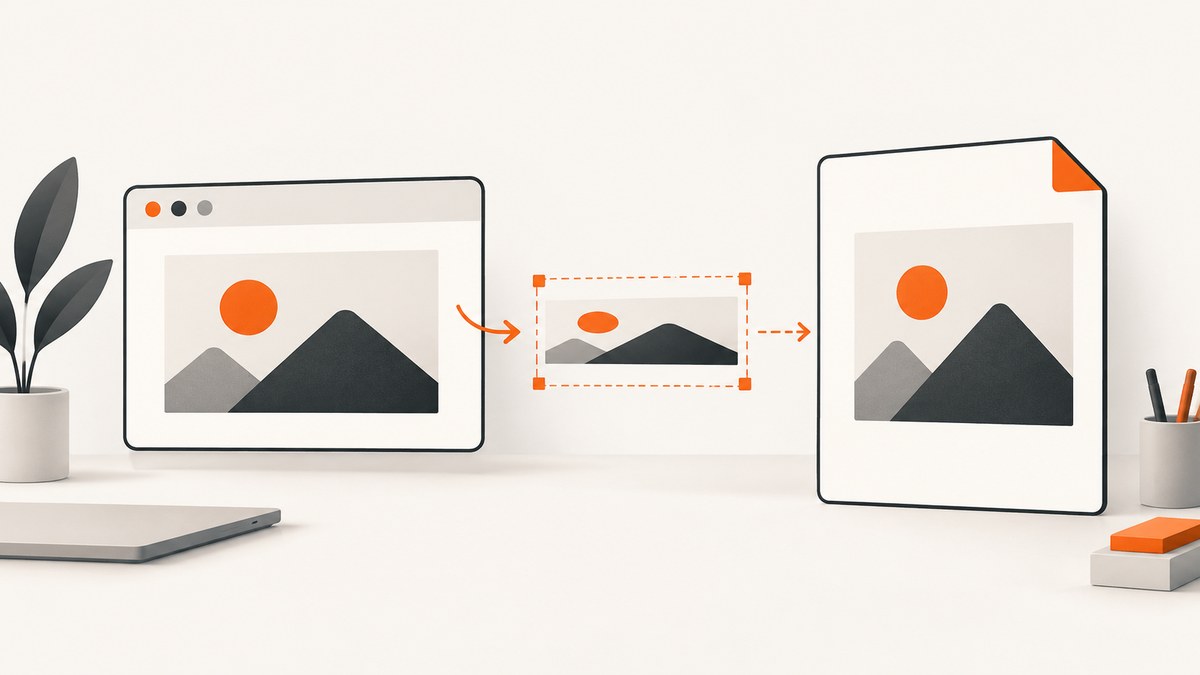
Images look squished in a jsPDF export when width and height are scaled inconsistently. The ratio can change while html2canvas renders the page, or later when jsPDF places the canvas in the PDF. Compare the image dimensions at each stage, then derive one output dimension from the other:
pdfHeight = pdfWidth * sourceHeight / sourceWidthDo not independently guess both PDF dimensions. If the source is 1,200 × 800 pixels and the PDF width is 180 mm, the matching height is 120 mm. Changing that height to 150 mm stretches the image vertically.
1. Identify the stage that changes the aspect ratio
Use this three-stage check before changing options:
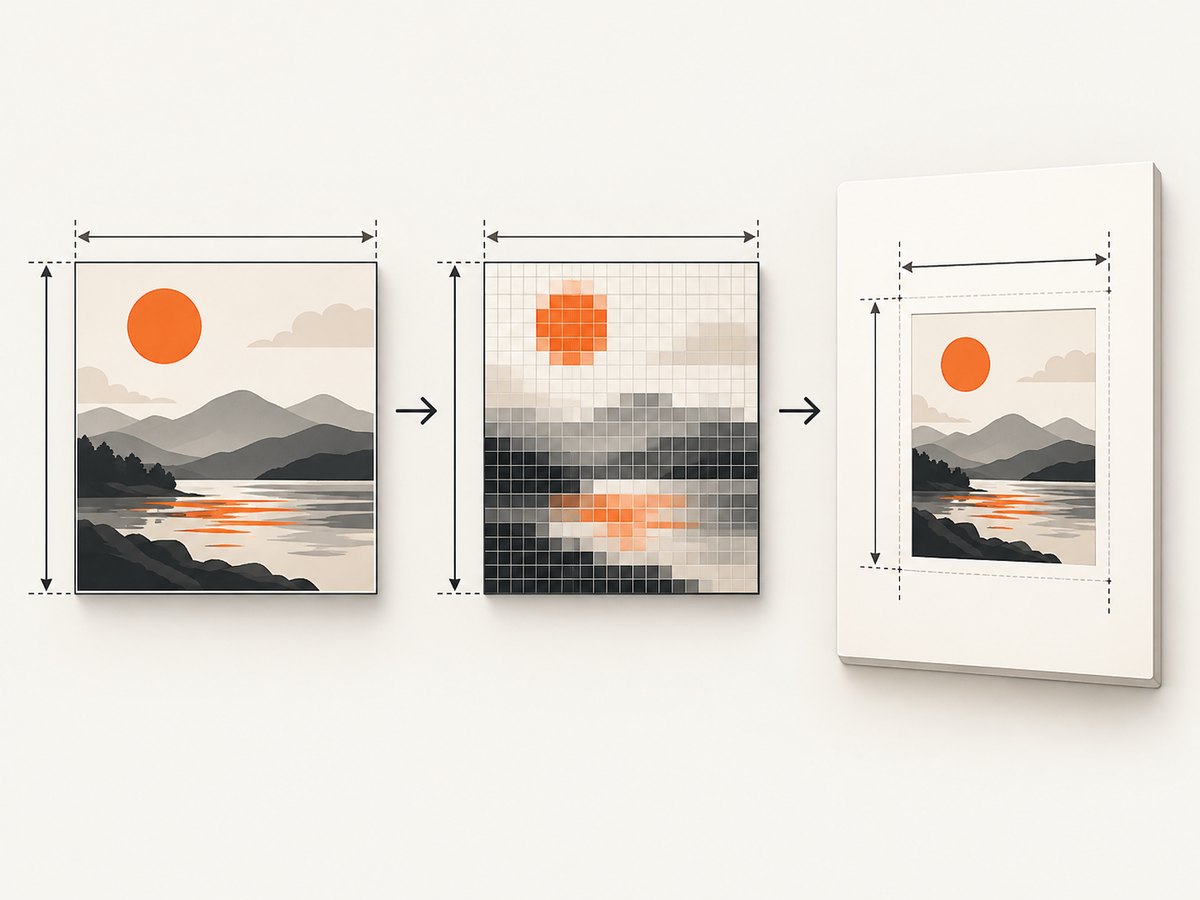
- Source image: inspect
naturalWidthandnaturalHeight. This is the original ratio. - Captured canvas: inspect
canvas.widthandcanvas.height, and view the canvas by itself. If it is already distorted, the problem is in the rendered DOM or html2canvas configuration. - PDF placement: if the canvas looks correct but the PDF does not, inspect the width and height passed to
addImage(), or the sizing options passed todoc.html().
const image = document.querySelector('#hero img');
console.log({
  naturalWidth: image.naturalWidth,
  naturalHeight: image.naturalHeight,
  ratio: image.naturalWidth / image.naturalHeight
});

const canvas = await html2canvas(document.querySelector('#page'));
console.log({
  canvasWidth: canvas.width,
  canvasHeight: canvas.height,
  ratio: canvas.width / canvas.height
});
A missing, blank, or clipped image is a different failure from squishing. Check cross-origin permissions and canvas limits in those cases.
2. Fix direct canvas placement with jsPDF
This is the most reliable pattern when you call html2canvas() yourself and then pass the result to addImage(). Read the canvas dimensions, choose one PDF dimension, and calculate the other.
import html2canvas from 'html2canvas';
import { jsPDF } from 'jspdf';

const element = document.querySelector('#invoice');
const canvas = await html2canvas(element, {
  scale: window.devicePixelRatio,
  useCORS: true,
  backgroundColor: '#ffffff'
});

const sourceWidth = canvas.width;
const sourceHeight = canvas.height;
const pdfWidth = 190; // millimetres, inside an A4 page
const pdfHeight = pdfWidth * sourceHeight / sourceWidth;

const doc = new jsPDF({ unit: 'mm', format: 'a4', orientation: 'portrait' });
doc.addImage(canvas.toDataURL('image/png'), 'PNG', 10, 10, pdfWidth, pdfHeight);
doc.save('invoice.pdf');
For a fixed height instead, calculate pdfWidth = pdfHeight * sourceWidth / sourceHeight. Keep the image ratio calculation in one function so later layout changes cannot silently introduce a second, conflicting dimension.
function fitWidth(sourceWidth, sourceHeight, targetWidth) {
  return {
    width: targetWidth,
    height: targetWidth * sourceHeight / sourceWidth
  };
}

const size = fitWidth(canvas.width, canvas.height, 190);
doc.addImage(canvas, 'PNG', 10, 10, size.width, size.height);
Account for page margins and page breaks
The image ratio and the page layout are separate. Subtract left and right margins from the page width, then derive the height. If the resulting height exceeds the remaining page space, put the image on a new page or split the document. Never reduce only the height to make it fit.
const pageWidth = doc.internal.pageSize.getWidth();
const pageHeight = doc.internal.pageSize.getHeight();
const margin = 10;
const availableWidth = pageWidth - margin * 2;
const height = availableWidth * canvas.height / canvas.width;

if (height > pageHeight - margin * 2) {
  doc.addPage();
}
doc.addImage(canvas, 'PNG', margin, margin, availableWidth, height);
3. Understand html2canvas sizing options
scale, width, height, viewport dimensions, and crop offsets control different things. Mixing them up is a common cause of incorrect diagnoses.
| Option | What it controls | Aspect-ratio guidance |
|---|---|---|
scale |
Bitmap resolution; defaults to window.devicePixelRatio |
Improves sharpness. It is not a PDF placement ratio. |
width, height |
Canvas dimensions | Setting both to arbitrary values can distort the capture. |
x, y |
Crop offsets | Use for cropping, not resizing. |
windowWidth, windowHeight |
Rendering viewport dimensions | Can change responsive layout and clipping. |
useCORS |
Attempts cross-origin image loading | Requires the image server to send an appropriate CORS header. |
backgroundColor |
Canvas background | Does not affect image proportions. |
For a full element, let html2canvas determine the canvas dimensions whenever possible:
const element = document.querySelector('#report');
const canvas = await html2canvas(element, {
  scale: 2,
  windowWidth: element.scrollWidth,
  windowHeight: element.scrollHeight,
  useCORS: true
});
The html2canvas FAQ suggests matching windowWidth and windowHeight to an element’s scroll dimensions when content is empty or cut off. These values affect the rendered viewport; they do not replace the ratio calculation used for PDF placement.
4. Fix jsPDF html() output
When using the jsPDF HTML plugin, width is the target width in jsPDF units and the element is scaled to fit that width under documented conditions. The option has no effect when html2canvas.scale is specified or when windowWidth is not specified. Also, jsPDF’s windowWidth controls the actual container size during rendering and does not change CSS media queries.
import { jsPDF } from 'jspdf';

const doc = new jsPDF({ unit: 'mm', format: 'a4' });
const element = document.querySelector('#report');

doc.html(element, {
  margin: [10, 10, 10, 10],
  width: 190,
  windowWidth: element.scrollWidth,
  callback: (pdf) => pdf.save('report.pdf')
});
If changing width appears to do nothing, remove an explicitly supplied html2canvas.scale while diagnosing, and provide an explicit windowWidth. Then compare the rendered result with a direct html2canvas capture. If you need exact image placement, the explicit canvas plus addImage() approach gives you direct control.
5. Preserve image dimensions in the source page
Sometimes the browser layout has already stretched the image before html2canvas sees it. Check CSS such as:
img {
  display: block;
  max-width: 100%;
  height: auto;
}

.hero {
  aspect-ratio: 3 / 2;
  overflow: hidden;
}

.hero img {
  width: 100%;
  height: 100%;
  object-fit: cover; /* intentional crop, not distortion */
}
height: 100% without a matching width or object-fit can produce the squished appearance. Decide whether the design should contain the whole image, crop it, or use its natural ratio. The PDF should reproduce that intentional choice.
6. Cross-origin images, blank output, and canvas limits
html2canvas cannot read every cross-origin image. An image can taint the canvas unless the server permits the origin. Set useCORS: true only when the image server sends an appropriate Access-Control-Allow-Origin header. Otherwise, serve the asset from the same origin or use a server-side proxy you control.
Very large captures can exceed browser canvas limits. The html2canvas FAQ gives rough, changing figures such as about 32,767 pixels per dimension for Chromium and desktop Safari, with area limits that vary by browser and device. Treat these as context, not guarantees. Reduce scale, capture sections, or generate several PDF pages when a canvas is huge.
7. Troubleshooting checklist
| Symptom | Likely cause | Fix |
|---|---|---|
| Canvas is already stretched | DOM CSS or arbitrary html2canvas dimensions | Inspect computed layout; remove forced width/height or derive dimensions from the source ratio. |
| Canvas looks right, PDF is stretched | Independent addImage width and height |
Calculate one dimension from the other. |
doc.html width is ignored |
html2canvas.scale supplied or windowWidth missing |
Review those documented interactions and set a rendering viewport deliberately. |
| Image is blank | Cross-origin restrictions or a failed resource | Use permitted CORS headers, same-origin assets, or a proxy. |
| Content is clipped | Viewport or canvas dimensions are too small | Use scroll dimensions for windowWidth/windowHeight, or split the capture. |
| PDF is blurry but not distorted | Low bitmap resolution | Increase scale moderately; watch canvas memory and dimension limits. |
| Mobile layout appears in the PDF | Responsive viewport is too narrow | Set windowWidth to the intended layout width and check the page’s media queries. |
8. Performance, reliability, and cost considerations
- Resolution: A higher
scalecreates more pixels and uses more memory. Increase it for print clarity only after the ratio is correct. - Large pages: Full-page captures with long lists can hit browser limits. Capture logical sections and add them to separate PDF pages.
- Fonts and images: Wait for fonts and images before capture. Otherwise the layout can change between measurement and rendering.
- Repeatability: Fix viewport, timezone, data state, and asset loading so two exports use the same layout.
- Client-side limits: html2canvas depends on browser APIs and is client-side. Its CSS support is manually implemented and not complete, so isolate unsupported properties in a small reproduction.
9. Or skip the browser setup
If you need a rendered page or PDF without maintaining a browser capture pipeline, ScreenshotNeo provides a GET endpoint for screenshots and PDFs. Its capture options include full-page lazy-image loading, element selectors, custom CSS and JavaScript, waits, blocking rules, headers, cookies, user agents, timezone and geolocation, PDF paper size, margins, orientation, and page ranges. The API also supports caching, signed links, async jobs, bulk capture, and usage reporting. See the ScreenshotNeo documentation for parameters.
curl -G "https://api.screenshotneo.com/v1/shot" \
  -d access_key=YOUR_API_KEY \
  --data-urlencode url=https://stripe.com \
  -o shot.webp
import requests
r = requests.get(
"https://api.screenshotneo.com/v1/shot",
params={"access_key": "YOUR_API_KEY", "url": "https://stripe.com"},
timeout=90,
)
open("shot.webp", "wb").write(r.content)const q = new URLSearchParams({
access_key: 'YOUR_API_KEY',
url: 'https://stripe.com'
});
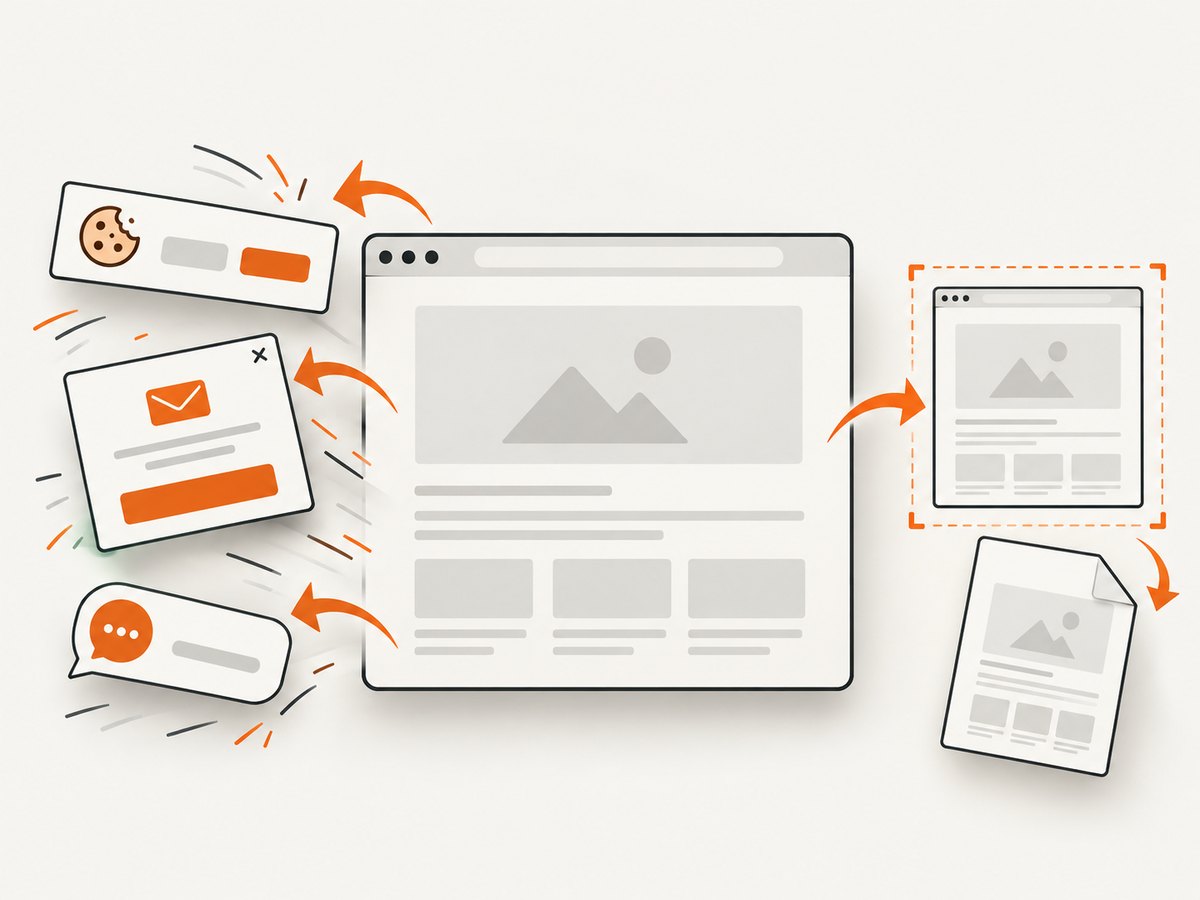
const res = await fetch(`https://api.screenshotneo.com/v1/shot?${q}`);Cookie banners, newsletter popups, and chat widgets are removed before the shot. Bot checks, blank pages, timeouts, failed loads, and cache hits are not billed, and response headers identify the page verdict and billing result. An MCP server lets Claude, Cursor, and other MCP clients call take_screenshot, get_page_info, and capture_pdf. The free plan includes 1,000 screenshots each month with no card; paid plans start at $5 for 3,000 shots. Create a free ScreenshotNeo account.
10. FAQ
Should I change html2canvas scale to fix squishing?
No. scale changes render resolution. First determine whether the canvas or PDF placement has the wrong ratio.
Can I force a 16:9 image into an A4 rectangle?
Only by cropping or leaving empty space. Stretching both dimensions changes the image. Calculate a fitting width or height and use object-fit or a deliberate crop when needed.
Why does the PDF contain a blank image even with useCORS?
useCORS needs a server response that permits your origin. Without that header, use same-origin hosting or a proxy.
When should I use doc.html() instead of addImage()?
Use doc.html() for plugin-managed HTML layout. Use an explicit canvas and addImage() when you need predictable bitmap dimensions and direct ratio control.
Does a correct ratio guarantee a complete PDF?
No. It prevents distortion. Fonts, cross-origin assets, responsive viewports, unsupported CSS, and canvas size limits can still cause missing or clipped content.


