How to Fix SslHandshakeFailedError Network Errors in wkhtmltopdf
Fix wkhtmltopdf SslHandshakeFailedError by tracing the failing resource and configuring a host the PDF process can actually reach.
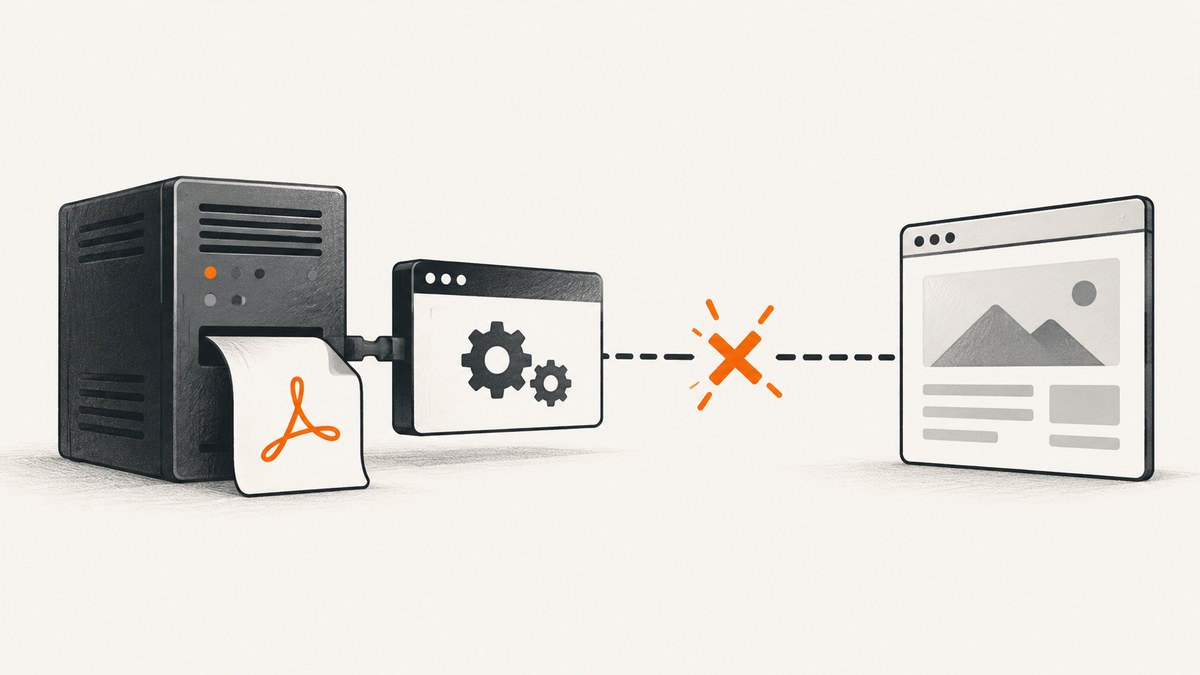
Direct answer: wkhtmltopdf reports SslHandshakeFailedError when its rendering process cannot successfully retrieve the page or one of the resources required for the PDF. Start by capturing the complete stderr output, identify the URL being fetched, and test that URL from the same machine or container where wkhtmltopdf runs. In Frappe or ERPNext, check site_config.json and set host_name to an address that the PDF process can resolve and connect to. Depending on your deployment, that may be http://127.0.0.1:8000, a private service name, a local IP address, or a public domain and port.
Community reports show that changing host_name fixed some local and container deployments, but there is no single universal value. The renderer’s execution location, DNS, port, scheme, firewall rules and generated asset URLs all matter. A network fix also does not guarantee correct PDF styling; resource retrieval and final layout are separate checks.
What the error means
A typical failure looks like this:
Exit with code 1 due to network error: SslHandshakeFailedErrorThe message is produced by the wkhtmltopdf process, not necessarily by the browser you used to open the application. Your browser may reach the site while the renderer cannot. The PDF process might run on another host, inside a worker container, behind a different proxy, or with DNS and firewall rules that differ from the web request path.
The failing request can be the document URL, a stylesheet, an image, a font, an iframe, or an API-backed asset. Therefore, changing TLS settings blindly is a poor first step. First determine which URL failed and whether that URL is reachable from the renderer’s environment.
Step-by-step troubleshooting
1. Save the complete wkhtmltopdf output
Run the command with stderr captured so you can inspect the final URL and the complete network message.
wkhtmltopdf https://example.test/invoice/42 invoice.pdf 2>wkhtmltopdf.stderr
cat wkhtmltopdf.stderr
In an application, log the full exception and command output rather than only the final line. Record the wkhtmltopdf version, operating system, URL, and whether the job runs synchronously or in a background worker.
2. Identify where wkhtmltopdf actually runs
Find the process that launches the renderer. In a Frappe installation this may be a web worker, a queue worker, or a separate container. Test from that same environment:
hostname
getent hosts your-site.example
curl -vI https://your-site.example
curl -vk https://your-site.example/path-used-by-the-pdf
Use -k only as a diagnostic comparison. If the request works only with certificate verification disabled, investigate the certificate chain, hostname, proxy and trust store before changing production settings. The reports supporting this fix point to host reachability and routing; they do not establish disabling certificate checks as a safe general solution.
3. Check the generated resource URLs
Inspect the HTML or print preview used to create the PDF. Look for absolute URLs pointing at:
- the application hostname
- an internal API hostname
- HTTP or HTTPS ports that are not exposed to the worker
- localhost addresses that refer to the worker itself
- external fonts, images, stylesheets or iframes
A page can load while one image or stylesheet fails. Temporarily remove external assets or replace them with a known reachable URL to isolate the request.
4. Inspect Frappe’s site_config.json
Frappe stores site-specific settings in the site’s configuration directory. In a bench installation, the file is commonly under sites/<your-site>/site_config.json. Do not confuse it with the bench-wide configuration. Open the file on the environment that runs the PDF job and inspect the host_name value.
{
  "host_name": "http://127.0.0.1:8000"
}
One local-environment report resolved PDF generation with http://127.0.0.1:8000. That value works only when the renderer and the web server share the same machine and the application listens on that interface and port. In another setup, use a local IP address, a domain name, or a domain with an explicit port that the renderer can reach.
After editing configuration, restart the relevant web and worker processes, then generate a new PDF. Verify that the URL used in the HTML matches the configured scheme and hostname. A value that resolves from your laptop may still fail from a worker container.
5. Handle container deployments
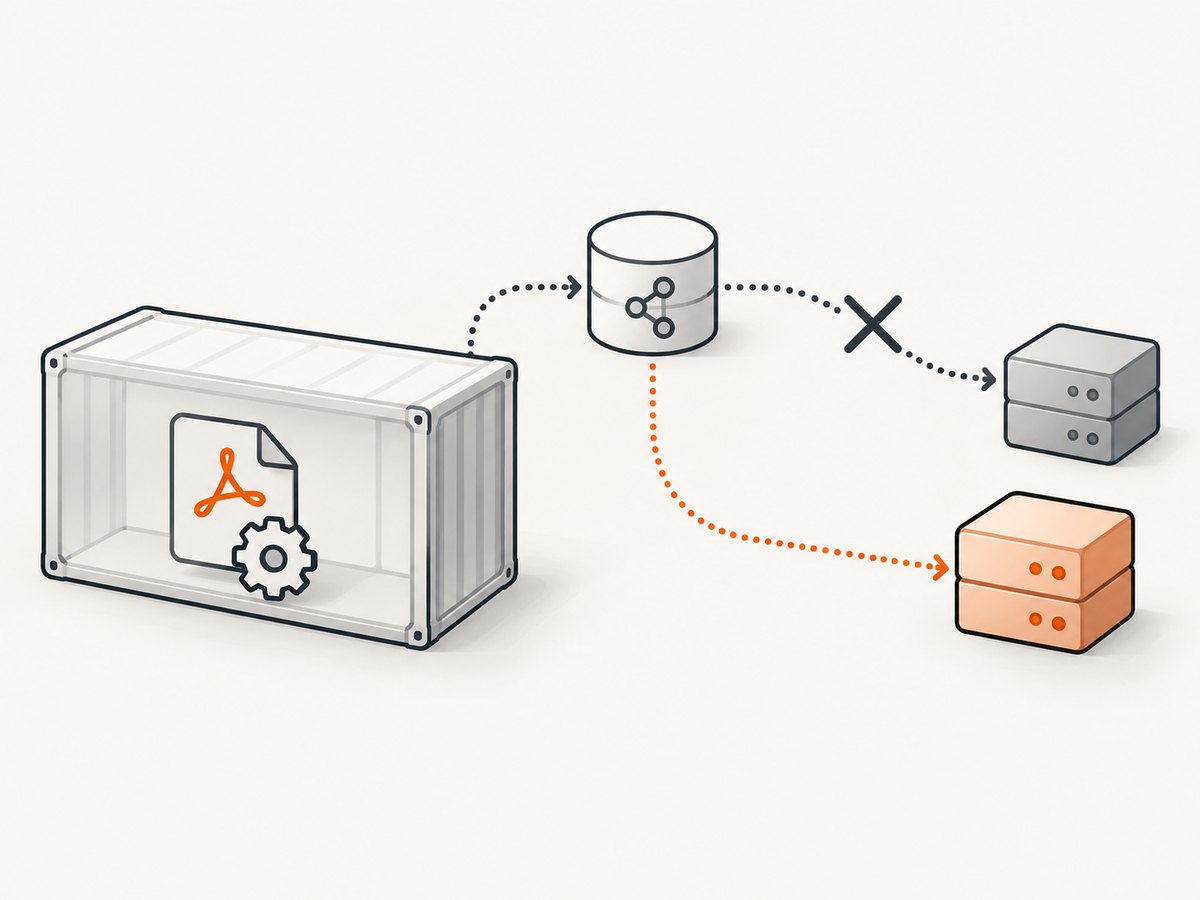
In Docker or another container platform, 127.0.0.1 points to the current container. It does not point to the frontend or application container. Use the internal service name or private address exposed on the container network, and confirm it from the renderer container:
docker exec -it pdf-worker sh
getent hosts frontend
curl -v http://frontend:8000
A container-focused forum report describes using an internal frontend address in the site’s configuration. Treat the exact hostname as deployment-specific: service names, ports and network aliases differ between Compose, Kubernetes and hosted platforms.
6. Check production routing
For production, choose the address that the PDF process is intended to use. If the worker is outside the private network, it may need the public HTTPS domain. If it is inside the same cluster, an internal service address can avoid an unnecessary external hop. Check:
- DNS resolution from the worker
- the listening port and firewall rules
- reverse-proxy routes for the PDF URL
- the certificate’s hostname and complete chain
- proxy environment variables such as
HTTPS_PROXYandNO_PROXY - authentication requirements for private pages
Do not select a hostname merely because it is convenient. Select one that the renderer can resolve, connect to and use consistently for every asset referenced by the document.
Useful wkhtmltopdf commands
Basic PDF generation
wkhtmltopdf \
  --print-media-type \
  --enable-local-file-access \
  https://your-site.example/invoice/42 \
  invoice-42.pdf
--enable-local-file-access is relevant only when the document intentionally reads local files. It does not repair a remote TLS or DNS failure. Keep the command minimal while diagnosing the network issue, then add application-specific flags one at a time.
Authenticated pages
wkhtmltopdf \
  --cookie sid 'YOUR_SESSION_COOKIE' \
  --custom-header Authorization 'Bearer YOUR_TOKEN' \
  https://your-site.example/private/report \
  report.pdf
Authentication failures can look like missing resources or redirects. Confirm the final response with curl and check whether the PDF process receives the same cookies and headers as the application browser.
Common errors and fixes
| Symptom | Likely cause | Action |
|---|---|---|
SslHandshakeFailedError immediately |
Hostname, port or certificate is unreachable from the worker | Test DNS, TCP connectivity and HTTPS from the renderer environment; correct host_name or routing. |
| Works locally, fails in Docker | localhost refers to the wrong container |
Use the internal service hostname and test it inside the PDF container. |
| Page loads but images are missing | Asset URLs use a different host, port or authentication context | Inspect generated HTML and test every asset URL from the worker. |
| HTTP works, HTTPS fails | Certificate chain, hostname mismatch, proxy or trust-store problem | Inspect with curl -v, install the correct CA chain and fix the certificate or proxy configuration. |
| Changing the host fixes the error but layout is wrong | Network retrieval succeeded, but CSS, fonts or print rules remain incorrect | Debug layout separately; verify media queries, font loading and print-specific CSS. |
| Production still fails after local fix | Different worker, DNS zone, firewall or proxy | Repeat diagnostics on the production renderer, not on a developer workstation. |
Configuration checklist
- Record the exact command, renderer version and complete stderr.
- Identify the process, host or container running wkhtmltopdf.
- Find the document or asset URL that fails.
- Resolve the hostname from the renderer environment.
- Connect to the correct scheme and port.
- Confirm the certificate hostname, chain and trust store.
- Set Frappe’s
host_nameto a reachable deployment-specific address. - Restart workers and regenerate the PDF.
- Inspect the resulting PDF for missing assets and print layout issues.
Performance, reliability and cost considerations
Each PDF render performs network retrieval and page rendering. Internal addresses can reduce routing complexity when the worker and application share a private network, while public addresses may be necessary when the worker is outside that network. Avoid adding repeated retries until you know whether the failure is transient; retries can multiply queue time and load.
For reliability, make the PDF job’s network path explicit. Pin the renderer version, monitor stderr, keep certificate chains current, and test from the same execution environment used in production. Cache stable assets where appropriate, but do not hide authentication or routing failures behind a cache.
When PDF generation is a metered service, failed jobs may still consume compute even if they do not produce a usable document. Record success, failure reason and duration so you can identify repeated bad URLs or unreachable hosts.
Or skip the browser setup
If you need a clean screenshot or PDF without maintaining a browser renderer, ScreenshotNeo provides a single HTTP request. Its API accepts a URL and returns PNG, JPEG, WebP or PDF. Before capture it accepts cookie or consent banners and removes more than 60 known consent platforms, newsletter popups and chat widgets. Bot checks, blank pages, timeouts, failed loads and cache hits are not billed, and response headers identify the page verdict and billing result.

See the ScreenshotNeo API documentation for the full option list.
cURL
curl -G "https://api.screenshotneo.com/v1/shot" \
  -d access_key=YOUR_API_KEY \
  --data-urlencode url=https://stripe.com \
  -o shot.webp
Python
import requests

r = requests.get(
    "https://api.screenshotneo.com/v1/shot",
    params={"access_key": "YOUR_API_KEY", "url": "https://stripe.com"},
    timeout=90,
)
r.raise_for_status()
open("shot.webp", "wb").write(r.content)
Node.js
const q = new URLSearchParams({ access_key: 'YOUR_API_KEY', url: 'https://stripe.com' });
const res = await fetch(`https://api.screenshotneo.com/v1/shot?${q}`);
if (!res.ok) throw new Error(`HTTP ${res.status}`);
const data = Buffer.from(await res.arrayBuffer());
require('fs').writeFileSync('shot.webp', data);
ScreenshotNeo also supports full-page capture with lazy images loaded, element capture by CSS selector, dark mode, device presets, custom viewports, retina scale, PDF paper and margin options, custom CSS and JavaScript, clicks, selector waits, delays, network-idle waits, request blocking, headers, cookies, user agents, authorization, timezone, geolocation, transparent backgrounds, resizing, configurable caching, signed links, asynchronous jobs, webhooks, bulk capture and a usage API. An MCP server exposes take_screenshot, get_page_info and capture_pdf to Claude, Cursor and other MCP clients.
There is a free allowance of 1,000 screenshots per month with no card. Paid plans start at $5 for 3,000 shots, and every feature is available on every plan. Create a free ScreenshotNeo account.
FAQ
Is this always a certificate problem?
No. The same error can result from an unreachable hostname, incorrect port, proxy routing, DNS differences or a resource URL the renderer cannot access. Verify reachability before changing TLS validation.
Where is site_config.json?
In a standard Frappe bench it is under sites/<your-site>/site_config.json. Confirm the path for your deployment and edit the file on the machine or container that supplies configuration to the PDF worker.
Should I use 127.0.0.1 in production?
Only when wkhtmltopdf and the web server run on the same host and the service listens on that address. In containers, localhost usually points to the renderer container, so use a reachable internal service name instead.
Why did the PDF generate but lose its formatting?
Fixing network access only makes resources retrievable. CSS print rules, fonts, JavaScript timing and page-break behavior require separate layout debugging.
What information should I provide when asking for help?
Include the complete stderr, wkhtmltopdf version, failing URL or asset, execution location, configured host, DNS result, port, scheme and whether the issue occurs locally, in a container or in production.


