How to Fix StaleElementReferenceException With Selenium fluentWait
Fix Selenium StaleElementReferenceException by re-finding elements inside a bounded FluentWait and waiting for the state your next action needs.

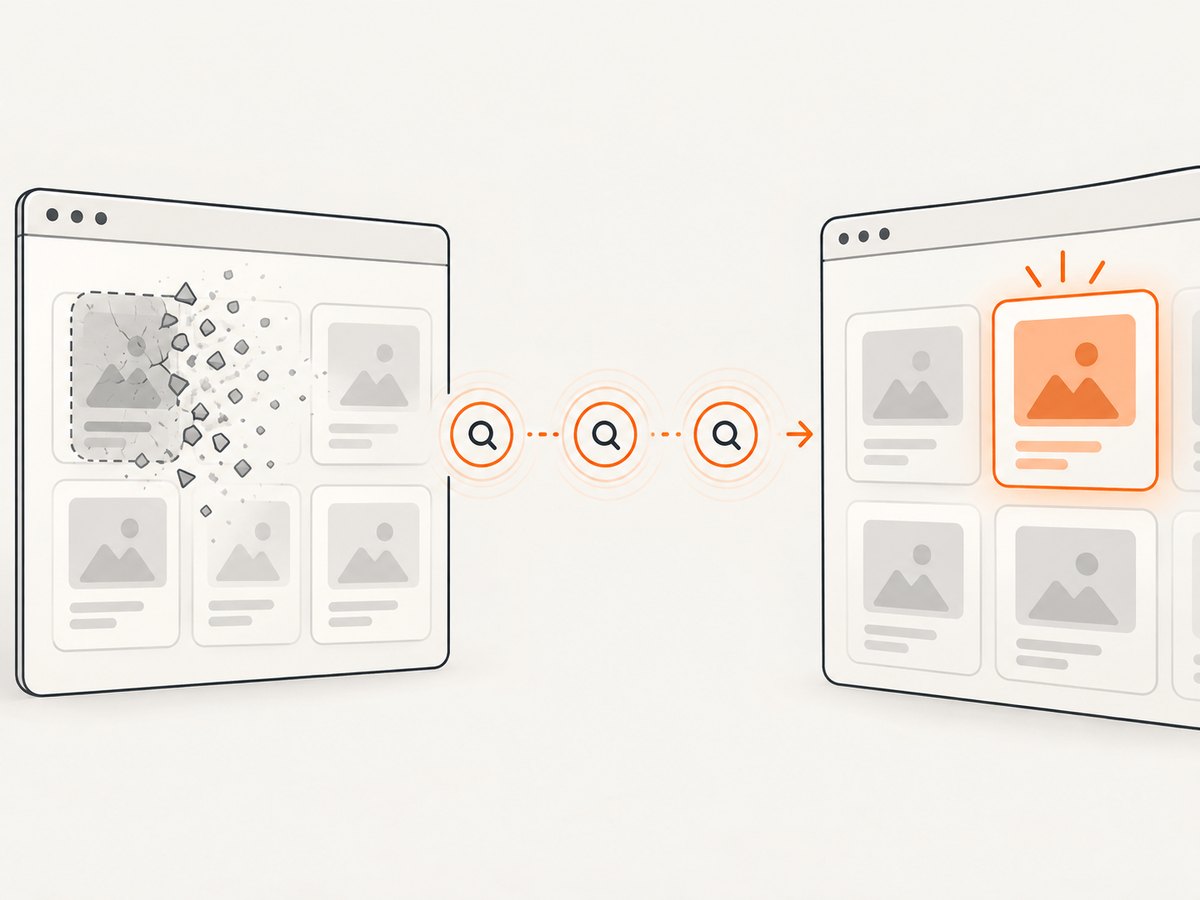
Direct fix: do not reuse the WebElement that became stale. Keep a locator, find the element again inside a bounded wait, and return it only when it is in the state required by the next operation. A FluentWait can poll at a chosen interval and ignore the expected transient StaleElementReferenceException; it cannot make an old element reference usable again.
Selenium defines this exception as being thrown when a reference to an element is now stale. Navigation, refreshes, JavaScript framework updates, or a changed frame/window context can detach or replace the node represented by your WebElement. See the Java exception reference and Selenium’s waiting strategies.
1. The robust Java FluentWait pattern
This complete example locates the submit button on every poll, waits up to ten seconds, checks visibility and enabled state, and then clicks the fresh reference.
import java.time.Duration;

import org.openqa.selenium.By;
import org.openqa.selenium.WebDriver;
import org.openqa.selenium.WebElement;
import org.openqa.selenium.chrome.ChromeDriver;
import org.openqa.selenium.support.ui.FluentWait;
import org.openqa.selenium.support.ui.Wait;
import org.openqa.selenium.StaleElementReferenceException;

public class FreshElementClick {
    public static void main(String[] args) {
        WebDriver driver = new ChromeDriver();
        try {
            driver.get("https://example.com/checkout");

            By submit = By.cssSelector("button.submit");
            Wait<WebDriver> wait = new FluentWait<>(driver)
                    .withTimeout(Duration.ofSeconds(10))
                    .pollingEvery(Duration.ofMillis(250))
                    .ignoring(StaleElementReferenceException.class);

            WebElement button = wait.until(d -> {
                WebElement current = d.findElement(submit);
                return current.isDisplayed() && current.isEnabled()
                        ? current
                        : null;
            });

            button.click();
        } finally {
            driver.quit();
        }
    }
}
The important detail is d.findElement(submit) inside the lambda. Each poll gets a new reference. Returning null tells until to poll again; returning the element ends the wait.
The Java API documents FluentWait as configurable for maximum wait time, polling frequency, and selected ignored exceptions. Its until loop ends on a successful non-null/non-false value, an unignored exception, timeout, or interruption. See the FluentWait API.
2. Match the wait to the operation
Presence alone does not mean that an element is usable. Choose a condition that represents what the next step needs:
| Next operation | Condition to check | Typical implementation |
|---|---|---|
| Read text or an attribute | Element exists and is attached; visibility if rendered text is required | findElement, then isDisplayed() |
| Click | Visible and enabled | isDisplayed() && isEnabled() |
| Type | Visible, enabled, and ready to accept input | Clear and send keys after the checks |
| Choose a result after an update | Fresh result matching the new state | Locate by stable selector and validate text/value |
A click can still race with a DOM replacement between the condition and click(). If repeating the click is safe, retry the complete operation with a bounded policy. If it could submit a payment, create an order, or otherwise duplicate a side effect, do not blindly replay it; re-find the element and use an application-level idempotency strategy instead.
3. Waiting for a known replacement
When an action is expected to replace a particular node, first wait for the old node to detach, then locate the replacement with the original locator. Selenium’s Python expected-conditions source documents staleness_of as false while the element remains attached and true after it is detached.
WebElement oldPanel = driver.findElement(By.id("results"));
driver.findElement(By.id("refresh")).click();

Wait<WebDriver> wait = new FluentWait<>(driver)
        .withTimeout(Duration.ofSeconds(10))
        .pollingEvery(Duration.ofMillis(200));

wait.until(d -> {
    try {
        oldPanel.isDisplayed();
        return false;
    } catch (StaleElementReferenceException e) {
        return true;
    }
});

WebElement newPanel = wait.until(d -> {
    WebElement candidate = d.findElement(By.id("results"));
    return candidate.isDisplayed() ? candidate : null;
});
Detachment only proves that the old node is gone. It does not prove that the replacement contains the expected data. Add a second condition for the new text, attribute, row count, or application state.
4. Python: use WebDriverWait, not Java method names
Python Selenium exposes WebDriverWait. Its constructor accepts a driver, timeout, polling frequency, and ignored exceptions; the documented default polling interval is 0.5 seconds and the default ignored exception is NoSuchElementException. Confirm details against the Selenium version installed in your project.
from selenium import webdriver
from selenium.common.exceptions import StaleElementReferenceException
from selenium.webdriver.common.by import By
from selenium.webdriver.support.ui import WebDriverWait

 driver = webdriver.Chrome()
try:
    driver.get("https://example.com/checkout")
    wait = WebDriverWait(
        driver,
        timeout=10,
        poll_frequency=0.25,
        ignored_exceptions=(StaleElementReferenceException,),
    )

    def visible_and_enabled(d):
        element = d.find_element(By.CSS_SELECTOR, "button.submit")
        return element if element.is_displayed() and element.is_enabled() else False

    button = wait.until(visible_and_enabled)
    button.click()
finally:
    driver.quit()
Do not translate Java calls such as .withTimeout() or .pollingEvery() into Python. Keep the locator in the condition so every poll can recover from a replacement.
5. Why common fixes fail
Cached WebElement
Symptom: the same variable throws on every retry. Cause: retries keep using the detached object. Fix: store By (or another locator), and call findElement inside the wait.
Fixed sleep
Symptom: tests are slow or still flaky. Cause: a sleep does not observe browser state and may finish before or long after the update. Fix: wait for visibility, clickability, staleness, a value, or another observable condition. Selenium describes these browser/test race conditions in its waits documentation.
Ignoring every exception
Symptom: a real defect is hidden until a generic timeout. Cause: broad exception lists turn programming errors, invalid selectors, and broken pages into silent polling. Fix: ignore only the expected transient exception and only where another poll can make progress.
Waiting for presence only
Symptom: the lookup succeeds but clicking or typing fails. Cause: the node exists but is hidden, disabled, covered, or still being updated. Fix: check the state required by the next action.
Wrong frame or window
Symptom: the locator appears correct but never matches. Cause: navigation or a frame/window switch changed the driver’s context. Fix: switch to the current frame or window before the wait, and switch back deliberately when the workflow requires it.
Timeout increased without diagnosis
Symptom: a longer timeout only delays failure. Cause: the locator, context, or expected state is wrong, or the page never completes. Fix: capture the current URL, frame/window handles, page source or screenshot, and verify that the application actually performs the transition.
6. A reusable helper for safe retries
public static WebElement freshClickable(
        WebDriver driver,
        By locator,
        Duration timeout,
        Duration poll) {

    Wait<WebDriver> wait = new FluentWait<>(driver)
            .withTimeout(timeout)
            .pollingEvery(poll)
            .ignoring(StaleElementReferenceException.class);

    return wait.until(d -> {
        WebElement element = d.findElement(locator);
        return element.isDisplayed() && element.isEnabled()
                ? element
                : null;
    });
}

// Usage:
WebElement save = freshClickable(
        driver,
        By.cssSelector("button.save"),
        Duration.ofSeconds(12),
        Duration.ofMillis(250));
save.click();
Keep the helper focused on obtaining a fresh element. For operations with side effects, put the smallest safe action outside the helper or add an explicit, operation-specific retry policy.
7. Performance and reliability checklist
- Use a stable locator based on an ID, test attribute, or semantic selector instead of a generated class name.
- Set a timeout that covers the known application transition, then fail with diagnostics.
- Choose a polling interval that detects normal updates without creating unnecessary browser commands; 200–500 ms is a practical starting point, then adjust to the application.
- Keep implicit and explicit waits consistent with the project’s existing strategy; stacking them without understanding the interaction can make timing harder to reason about.
- Wait for a state that proves readiness, such as a specific text or data attribute, when visibility alone is insufficient.
- Reacquire after navigation, refresh, frame switches, and known framework rerenders.
- Never retry a non-idempotent action unless the application can safely deduplicate it.
- On timeout, log the locator, URL, frame, window handle, and the last observed state.
8. Or skip the browser setup
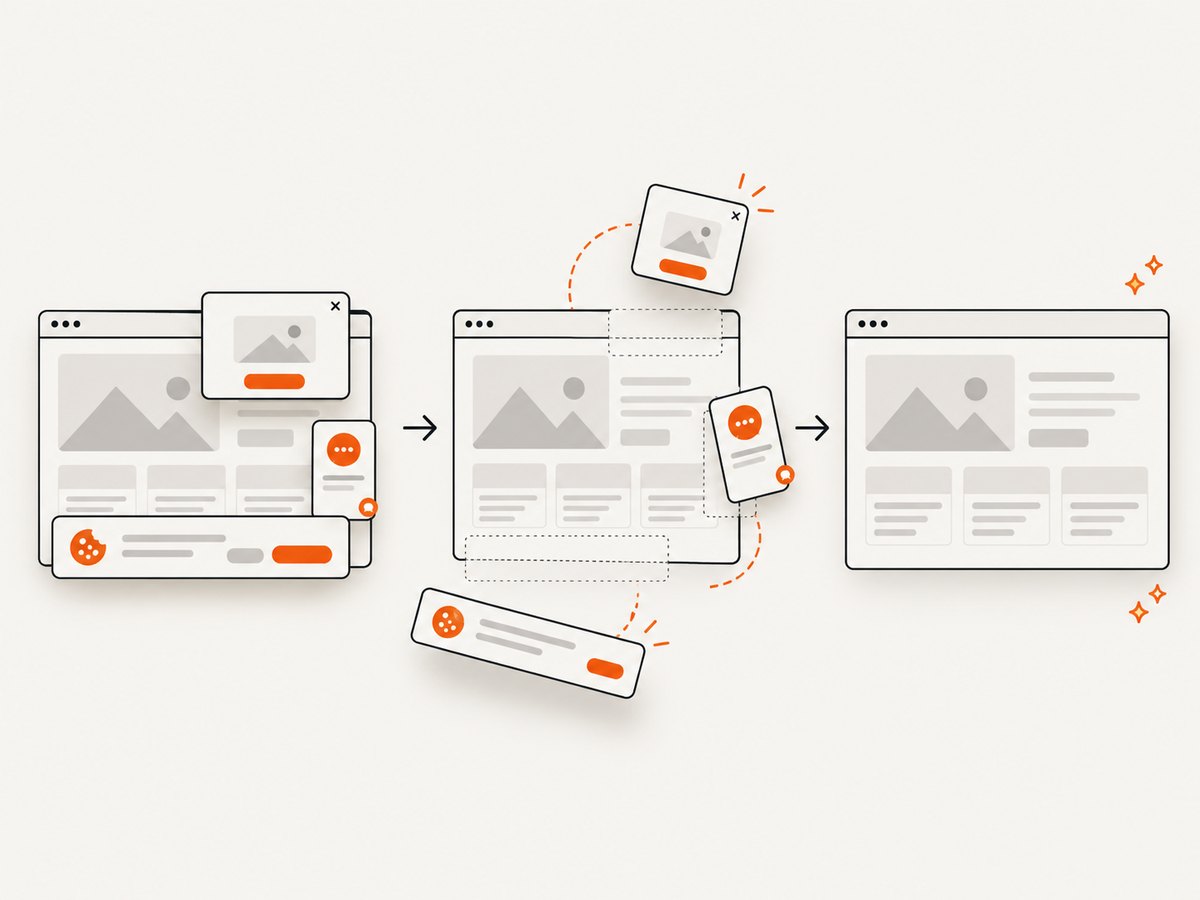
If your goal is a clean image of a page rather than browser interaction, ScreenshotNeo provides a website screenshot API. It accepts one GET request and returns PNG, JPEG, WebP, or PDF. Cookie and consent banners, newsletter popups, and chat widgets are removed before capture; bot checks, blank pages, timeouts, failed loads, and cache hits are not billed. Responses identify the result with X-Page-Verdict and X-Billed headers. An MCP server also lets Claude, Cursor, and other MCP clients call take_screenshot, get_page_info, and capture_pdf.
See the ScreenshotNeo API documentation for all options.
cURL
curl -G "https://api.screenshotneo.com/v1/shot" \
  -d access_key=YOUR_API_KEY \
  --data-urlencode url=https://stripe.com \
  -o shot.webp
Python
import requests

r = requests.get(
    "https://api.screenshotneo.com/v1/shot",
    params={"access_key": "YOUR_API_KEY", "url": "https://stripe.com"},
    timeout=90,
)
r.raise_for_status()
open("shot.webp", "wb").write(r.content)
Node.js
const q = new URLSearchParams({
  access_key: 'YOUR_API_KEY',
  url: 'https://stripe.com'
});
const res = await fetch(`https://api.screenshotneo.com/v1/shot?${q}`);
if (!res.ok) throw new Error(`HTTP ${res.status}`);
const fs = await import('node:fs/promises');
await fs.writeFile('shot.webp', Buffer.from(await res.arrayBuffer()));
Relevant capture controls include full-page screenshots with lazy images loaded, CSS-selector element capture, dark mode, device presets or custom viewports, retina scale, custom CSS and JavaScript, clicks before capture, selector hiding, selector/delay/network-idle waits, request and resource blocking, headers, cookies, user agent, authorization, timezone, geolocation, transparent backgrounds, resizing, configurable caching, signed links, asynchronous jobs with signed webhooks, bulk capture of up to 100 URLs per call, usage reporting, and an OpenAPI specification. The parameter names used by other screenshot APIs also work, which can simplify migration.
The Free plan includes 1,000 screenshots per month with no card. Paid plans start at $5 for 3,000 shots; yearly billing gives two months free, and every feature is available on every plan. Create a free ScreenshotNeo account.
9. FAQ
Can I fix staleness by refreshing the page?
A refresh may remove the stale reference, but it also discards page state and can hide the actual synchronization problem. Re-find the element after the specific transition that replaced it.
Should I ignore StaleElementReferenceException globally?
No. Scope the ignore to a wait whose condition can make progress, and keep the timeout bounded. Global ignores can conceal invalid locators and unrelated failures.
Is FluentWait available in Selenium Python?
The commonly used Python class is WebDriverWait. It provides the same style of bounded polling with Python-specific constructor and method names.
Why does the wait pass but click still throw?
The DOM can change after the condition returns and before the click executes. Re-find and retry only when the click is safe to repeat; otherwise make the workflow idempotent and diagnose the update boundary.
What does a timeout tell me?
Only that the condition did not return success within the configured period. Check the locator, current frame/window, URL, application state, and whether the expected transition actually occurred.


