How to Fix std::bad_alloc in Wicked PDF and wkhtmltopdf
Diagnose std::bad_alloc in Wicked PDF and wkhtmltopdf with a repeatable checklist for binaries, HTML, assets, memory, and large documents.
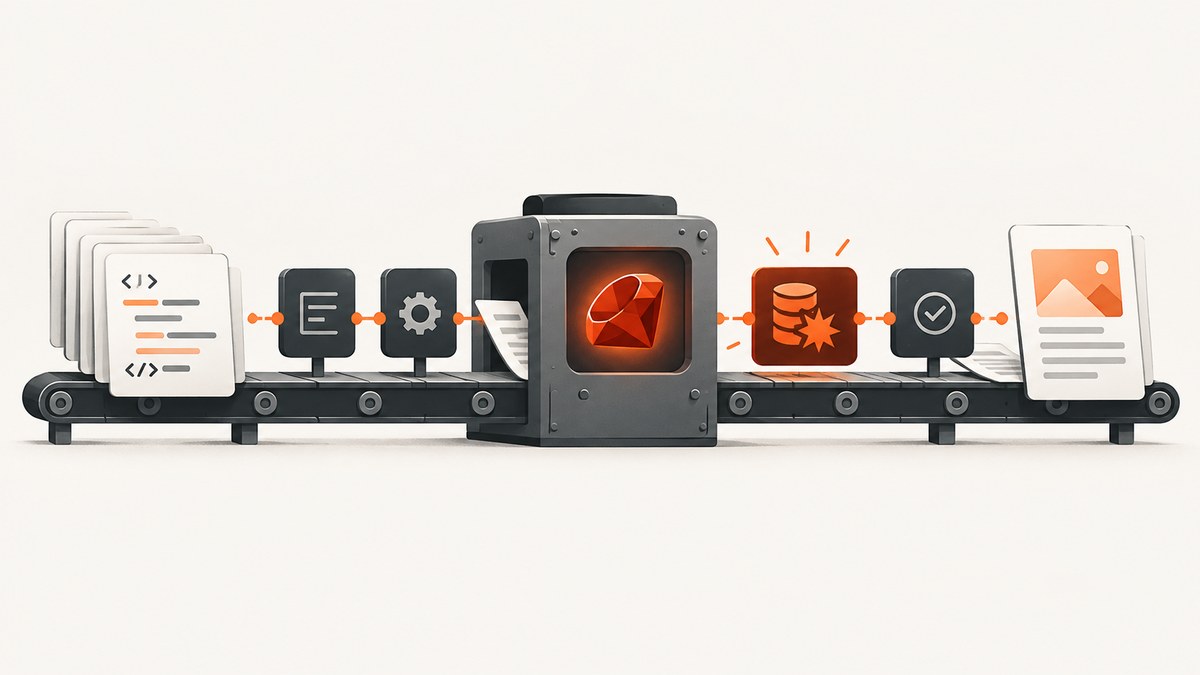
std::bad_alloc means a native allocation failed somewhere in the rendering process. It does not identify one universal cause or one guaranteed fix. Wicked PDF starts the separate wkhtmltopdf executable, so the reliable approach is to verify the binary and environment, capture the complete command and stderr, inspect the HTML and assets, then reduce the document until the failing input is understood.
Wicked PDF describes itself as a Rails wrapper around the shell utility wkhtmltopdf. Read the project documentation for the supported configuration, including exe_path: Wicked PDF README.
Quick diagnosis
- Save the entire Rails error, including the generated command and stderr.
- Find the executable used by the Rails process and record its version.
- Run the same HTML through that exact executable outside Rails.
- Render a minimal document, then add sections and assets back incrementally.
- Test large input, remote header/footer assets, and process memory as separate hypotheses.
- Apply the fix that matches the evidence: binary configuration, compatible dependencies, asset access, or smaller rendering jobs.
Do not assume that adding RAM, upgrading a gem, or changing a single flag will solve every instance. The available reports describe different failure modes and do not establish a universal remedy.

1. Record what Rails actually runs
A shell lookup can point to a different binary than the one configured for your application, container, worker, or deployment user. First capture the command and environment from the failing request or job.
# Run as the same user and in the same container that runs Rails
command -v wkhtmltopdf
wkhtmltopdf --version
ruby -v
bundle exec ruby -e 'require "wicked_pdf"; puts WickedPdf.config.inspect'
free -h                 # Linux memory summary
ulimit -a               # process limits
In Rails, set an explicit executable path when you need deterministic selection:
# config/initializers/wicked_pdf.rb
WickedPdf.config = {
  exe_path: "/usr/local/bin/wkhtmltopdf"
}
Use the path from the deployed environment, not a path that exists only on a developer laptop. If the error mentions a missing executable, permission problem, or shared library, fix that binary or dependency issue first; those messages are not evidence of an allocation failure.
2. Separate allocation failures from executable failures
Read stderr and the process exit status before changing memory settings. A useful diagnostic record contains:
| Record | Why it matters |
|---|---|
| Full command line | Shows flags, input mode, output path, and the executable selected by Wicked PDF. |
| Complete stderr | Distinguishes std::bad_alloc from missing libraries, permissions, network failures, or malformed options. |
| Wicked PDF and Rails versions | Identifies wrapper behavior and configuration differences. |
wkhtmltopdf --version output |
Confirms the actual renderer build. |
| Operating system, container image, and memory limit | A process can fail inside a container even when the host has free memory. |
| Representative HTML and assets | Allows a minimal reproduction instead of guessing from the exception name. |
Run a captured command directly and preserve its output:
set -o pipefail
/usr/local/bin/wkhtmltopdf \
  --quiet \
  /tmp/failing.html \
  /tmp/failing.pdf \
  2> /tmp/wkhtmltopdf.stderr
status=$?
printf 'exit_status=%s\n' "$status"
cat /tmp/wkhtmltopdf.stderr
3. Inspect the HTML Wicked PDF sends
Wicked PDF can render a request as HTML for debugging. Use its HTML-debug option in the controller or view path documented by your installed version, then inspect the saved document in a browser. Confirm that stylesheets, fonts, images, JavaScript dependencies, and header/footer resources resolve from the renderer’s environment.
# Example controller action while diagnosing
render pdf: "invoice", show_as_html: params[:debug].present?
Check for accidental amplification:
- A loop that emits the same partial thousands of times.
- Unbounded tables, nested elements, or very large inline SVG.
- Huge base64 images or high-resolution source images.
- JavaScript that keeps creating or replacing DOM nodes.
- CSS that produces very large layout areas or expensive effects.
- Remote resources that never finish loading.
Make a minimal reproduction by deleting half the sections and assets. If the reduced file succeeds, restore one section at a time. This binary-search approach usually reveals whether the peak is caused by content size, one asset, or a browser feature.
4. Test document size and memory growth
A large input is a reasonable hypothesis, but there is no supported record-wide page or row threshold that guarantees std::bad_alloc. One maintainer discussion described memory growth with a 200,000-record input; that is a case report, not a general limit.

Measure smaller batches and compare peak memory:
/usr/bin/time -v wkhtmltopdf /tmp/100-rows.html /tmp/100-rows.pdf
/usr/bin/time -v wkhtmltopdf /tmp/1000-rows.html /tmp/1000-rows.pdf
/usr/bin/time -v wkhtmltopdf /tmp/10000-rows.html /tmp/10000-rows.pdf
If memory rises with the number of rows or pages:
- Generate separate PDFs for bounded batches.
- Move expensive calculations out of the view.
- Reduce image dimensions before embedding them.
- Remove unused CSS and JavaScript from the print template.
- Merge PDFs after rendering only if your workflow requires one file.
Splitting work reduces the peak allocation of each renderer process. It does not prove that the renderer has a fixed page limit, so keep the batch size based on measurements from your deployment.
5. Test headers, footers, and remote assets
Headers and footers are separate render inputs and often contain images. In one large-PDF report, replacing a remote header image with local or embedded image data resolved that particular case. Treat this as a controlled experiment, not a universal rule.
- Render without the header and footer.
- Render with the same files served locally.
- Render with an embedded image or data URI.
- Compare stderr, render time, output size, and peak memory.
Use file URLs or absolute paths that the renderer can access. A browser session on your laptop may have credentials, DNS, or network access that the Rails worker does not.
6. Review renderer options carefully
Change one option at a time and keep the complete command in your incident record. Commonly relevant options include:
| Area | What to check |
|---|---|
| JavaScript | Disable it only as a diagnostic if scripts are not required for layout. Otherwise wait for the page’s required content explicitly. |
| Images | Test with images disabled or downsampled to identify a problematic asset. |
| Load completion | Use a bounded delay or the renderer’s load/error behavior; never rely on an infinite wait. |
| Local files | Ensure local-file access and paths match your security requirements and deployment layout. |
| Print CSS | Use the intended print stylesheet and remove screen-only widgets. |
| Headers and footers | Disable them temporarily, then add each resource back separately. |
Avoid copying flags from a different binary build without checking that your installed version supports them. An unsupported option can produce an option or exit error that looks unrelated when only the final Rails exception is logged.
7. Fixes matched to evidence
The app invokes the wrong executable
Set exe_path explicitly, deploy that binary with its required libraries, and verify the path from the Rails process. Restart workers after changing configuration.
The binary or shared libraries are incompatible
Use a build supported by the operating system and container image, install the missing dependency named in stderr, and rerun the direct command. Do not label a dependency error as std::bad_alloc.
One document causes memory growth
Reduce rows, pages, images, and inline data; render bounded batches; and measure peak memory. Keep the smallest HTML file that still fails as a regression fixture.
A remote asset triggers the failure
Use a local, authenticated, or embedded copy after confirming that the asset is the trigger. Also verify DNS, TLS, redirects, and response size from the worker environment.
The page never becomes stable
Inspect JavaScript and network resources, add a bounded wait appropriate to the page, or remove client-side work from the print template. A timeout is a load problem, even if the wrapper reports it alongside other renderer errors.
Troubleshooting checklist
| Symptom | Likely area | Next action |
|---|---|---|
std::bad_alloc only on huge reports |
Input size or asset memory | Batch rows/pages and measure peak usage. |
| Works in a shell, fails in Rails | Different path, user, environment, or limits | Log exe_path, run as the worker user, compare limits. |
| Fails after adding a header image | Header asset or remote fetch | Render without it, then test local or embedded data. |
No such file or shared-library error |
Binary/dependency setup | Install or select a compatible build; verify with --version. |
| Blank or incomplete PDF | HTML, CSS, JavaScript, or resource paths | Use HTML-debug mode and inspect every resource URL. |
| Intermittent failures under load | Concurrent process and container limits | Limit parallel renders, inspect cgroup memory, and record exit status. |
Performance, reliability, and cost
- Performance: Smaller HTML, fewer images, and bounded batches reduce layout work and peak memory. Measure with the same production binary and representative assets.
- Reliability: Pin the executable path, record its version, keep a minimal regression document, and log stderr and exit status. Retry only transient resource or network failures; retries cannot fix deterministic oversized input.
- Operations: Set a process timeout, cap concurrent renderer processes, and monitor container memory rather than host memory alone.
- Cost: More renderer processes and repeated retries consume CPU and memory. Batch sizing should balance peak memory against process startup and merge overhead.
Or skip the browser setup
If your goal is a clean screenshot or PDF of a URL rather than maintaining a Rails renderer, ScreenshotNeo provides a website screenshot API and MCP server. It accepts one GET request and returns PNG, JPEG, WebP, or PDF output. See the ScreenshotNeo API documentation.
curl -G "https://api.screenshotneo.com/v1/shot" -d access_key=YOUR_API_KEY --data-urlencode url=https://example.com -o shot.webpimport requests
r = requests.get("https://api.screenshotneo.com/v1/shot", params={"access_key": "YOUR_API_KEY", "url": "https://example.com"}, timeout=90)
open("shot.webp", "wb").write(r.content)const q = new URLSearchParams({ access_key: 'YOUR_API_KEY', url: 'https://example.com' });
const res = await fetch(`https://api.screenshotneo.com/v1/shot?${q}`);Before capture, cookie and consent banners are accepted and more than 60 known consent platforms, newsletter popups, and chat widgets can be removed; each step can be turned off. Bot checks, blank pages, failed loads, timeouts, and cache hits are not billed, and response headers report the page verdict and billing status. An MCP server provides take_screenshot, get_page_info, and capture_pdf tools for Claude, Cursor, and other MCP clients. The free plan includes 1,000 screenshots each month with no card; paid plans start at $5 for 3,000 shots.
Create a free ScreenshotNeo account and start with 1,000 screenshots per month at no charge.
FAQ
Does std::bad_alloc always mean the server is out of RAM?
No. It can be caused by the renderer’s allocation pattern, oversized content or assets, process limits, or an environment-specific failure. Confirm with measurements and stderr.
Will upgrading wkhtmltopdf fix it?
It may change behavior, but the reviewed evidence does not establish an upgrade as a universal fix. Reproduce with the intended binary and compare versions deliberately.
Should I increase the Rails application’s memory?
Wicked PDF launches a separate renderer process. Check the renderer’s container and process limits as well as the Rails process, then reduce peak input size when appropriate.
What information should I include in a bug report?
Include the full exception and stderr, exact command, executable path and version, Wicked PDF and Rails versions, operating system or container details, memory limits, and a minimal HTML/assets sample.
Can I fix this only by changing a command-line flag?
Sometimes a flag exposes the cause, but the correct change depends on whether the evidence points to content, assets, binary compatibility, or resource limits.


