How to Fix SVG Embedding Failures in wkhtmltopdf
Diagnose missing images inside SVGs in wkhtmltopdf by checking the renderer, embedding method, and resource access, then choose a practical workaround.
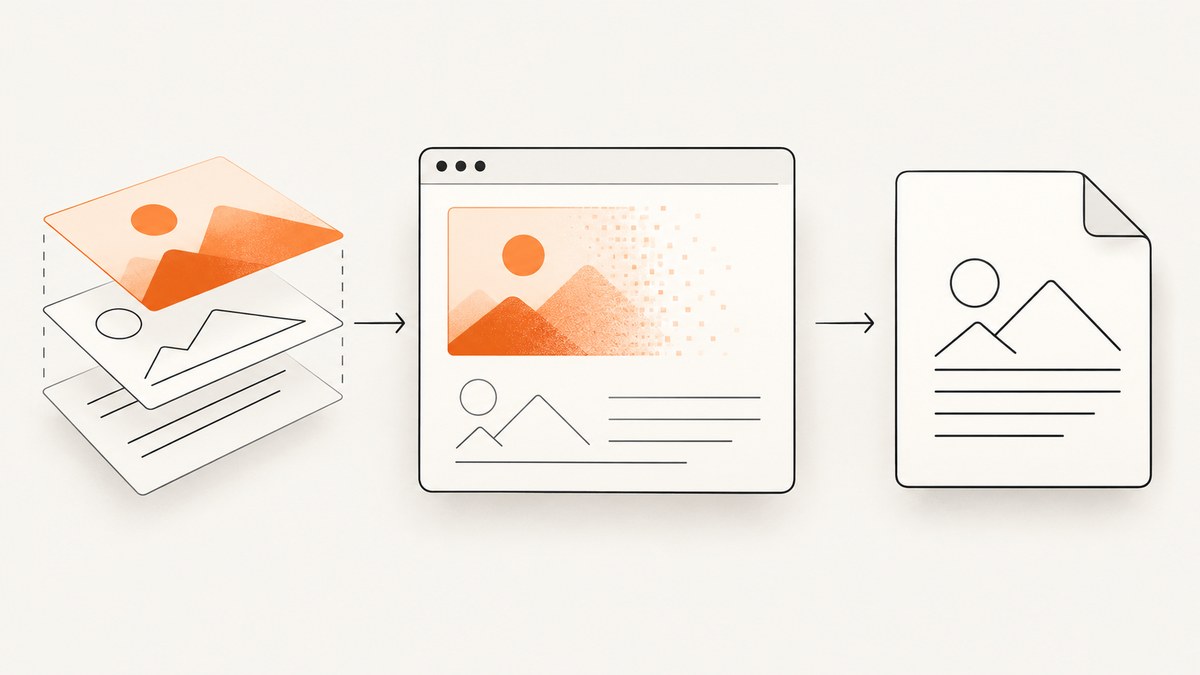
If an SVG appears in a browser but its embedded images disappear from a PDF made with wkhtmltopdf, first identify how the SVG enters the HTML and how its nested image resources are referenced. Then check the exact wkhtmltopdf build and whether it can access those resources. There is no single encoding or tag change that fixes every case: historical reports show different results for SVG files loaded with <img>, inline SVG, and <object>.
wkhtmltopdf renders HTML using Qt WebKit. A preview in a current browser does not establish that this older rendering engine will produce the same output. The project status page says Qt 4, used by wkhtmltopdf, has been unsupported since 2015 and its WebKit has not been updated since 2012. That age is a reason to test the deployed binary directly, not proof that any particular SVG feature will fail. Project home · Project status.
1. Identify the failing rendering route
Before editing the SVG, write down the smallest set of facts needed to reproduce the failure:
- The output of
wkhtmltopdf --version, including whether the build reports patched Qt. - Whether the SVG is loaded as an external file using HTML
<img>, embedded directly as<svg>markup, or referenced with<object>. - Whether the SVG has nested
<image>elements, and whether each image uses a data URI or a file or URL reference. - The working directory, input HTML location, and permissions under the account that runs wkhtmltopdf.
- Whether the missing image also fails in the PDF when the SVG is simplified.
Capture the version from the actual production host or container, not from a developer workstation that happens to have a different binary. The usage documentation identifies 0.12.6 with patched Qt; a report about nested SVG images describes 0.12.3 with patched Qt. Those details do not establish that the versions behave alike. Record the full version output with a reproduction so the result is tied to an environment. See the usage documentation.
Reduce the document to one page with one SVG and its nested image. Keep the SVG dimensions and viewBox, but temporarily remove unrelated filters, fonts, and page layout. Change one variable at a time. A minimal case makes it easier to tell a resource-access problem from a rendering compatibility problem.
2. Check the SVG’s nested image references
Inspect every SVG <image> element. SVG uses href for the referenced image; some files also use the older xlink:href form. Check whether the value is a data URI such as data:image/jpeg;base64,..., a relative path, an absolute local path, or an HTTP(S) URL. Confirm that the target exists and is readable from the process that invokes wkhtmltopdf.
A relative URL is interpreted in the context of the document and its loading environment. A path that works when you open an HTML file interactively may not resolve the same way when a service runs wkhtmltopdf from another working directory. For a diagnostic, use an absolute path or a known reachable URL, then test the intended production path separately. Avoid assuming that putting bytes in a data URI will solve the issue: the reporter in issue #2996 said base64 did not resolve their case.
If the resource is local, examine wkhtmltopdf’s local-file access policy. The settings reference documents controls for local-file access and resource-load error handling. Use the relevant setting for the installed command-line version and grant access only to the input and asset locations the conversion needs. Do not treat a permissive local-file option as a substitute for checking paths and permissions. A load-error policy may also affect whether a conversion continues when a resource cannot be fetched, so inspect the output and logs rather than relying only on the process exit status. Consult the official settings reference and usage documentation.
3. Compare inclusion methods in the target build
Test the same simplified SVG through each method that fits your document. Keep image bytes, dimensions, and surrounding HTML constant so the tag is the only change.
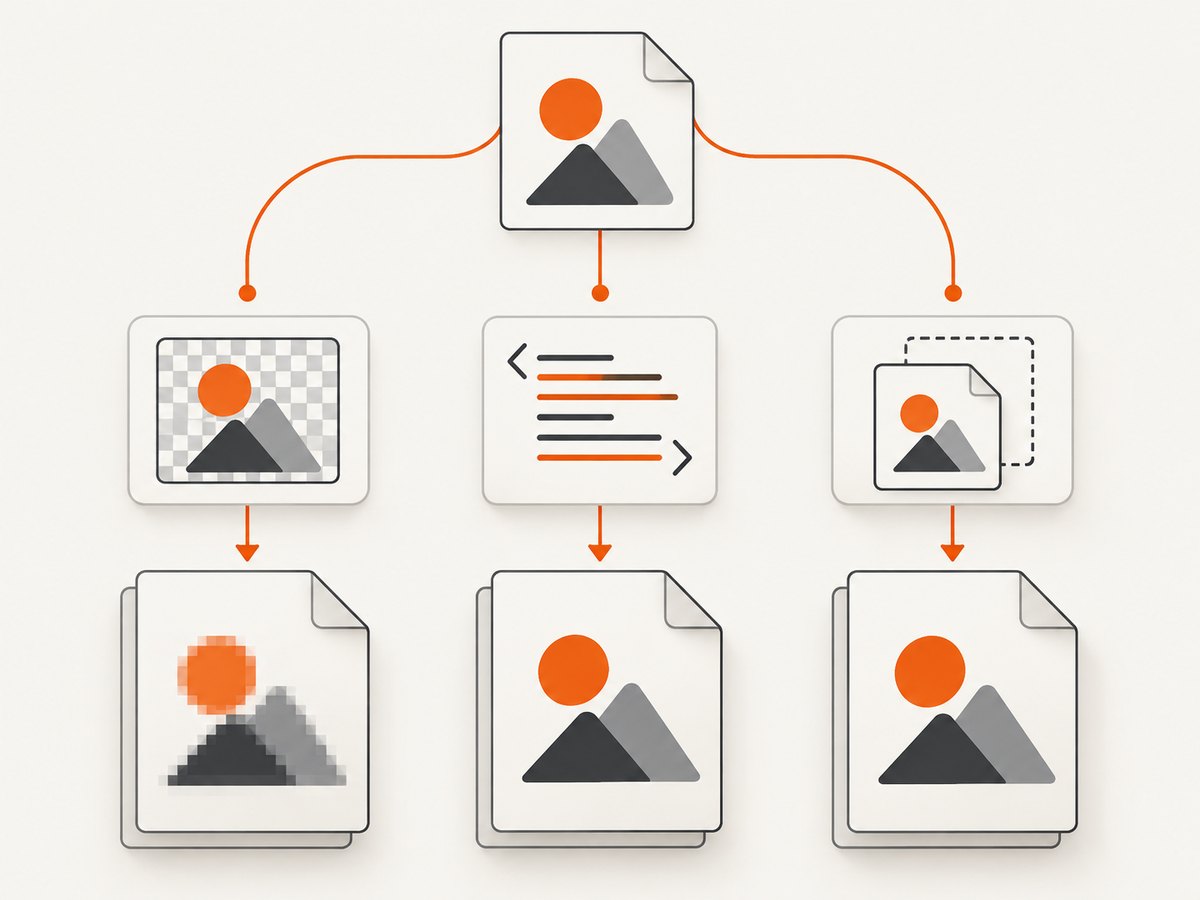
| Route | What to test | What the evidence says |
|---|---|---|
External SVG in <img> |
Load the SVG file as an image and verify its nested image references. | Issue #2996 reports an embedded base64 JPEG missing through this route in the reporter’s wkhtmltopdf 0.12.3 patched-Qt environment. |
Inline <svg> |
Put the SVG markup directly into the HTML while preserving its dimensions and viewBox. | The same report says the embedded images became visible, but other elements rendered improperly. Check the whole page and all SVG content. |
<object> |
Reference the SVG as an object and set its dimensions explicitly. | Issue #3762 reports SVGs appearing blank when included this way. Changing tags is an experiment, not a guaranteed fix. |
These are individual historical reports, not controlled tests or statements about prevalence. Inline SVG is useful as a diagnostic because its behavior differed in one report; it is not a universal repair. Likewise, changing to <object> is not inherently safer. Keep the version and input files with each comparison. Sources: issue #2996 and issue #3762.
4. Choose a workaround that meets the document’s needs
Keep SVG and adjust the markup
If inline markup works in your actual output and does not break other elements, it may be a suitable workaround. Review more than the formerly missing image: inspect clipping, dimensions, colors, text, filters, and neighboring page content. The historical inline-SVG report specifically describes other elements rendering improperly, so a passing image alone is not enough.
Rasterize only the affected graphic
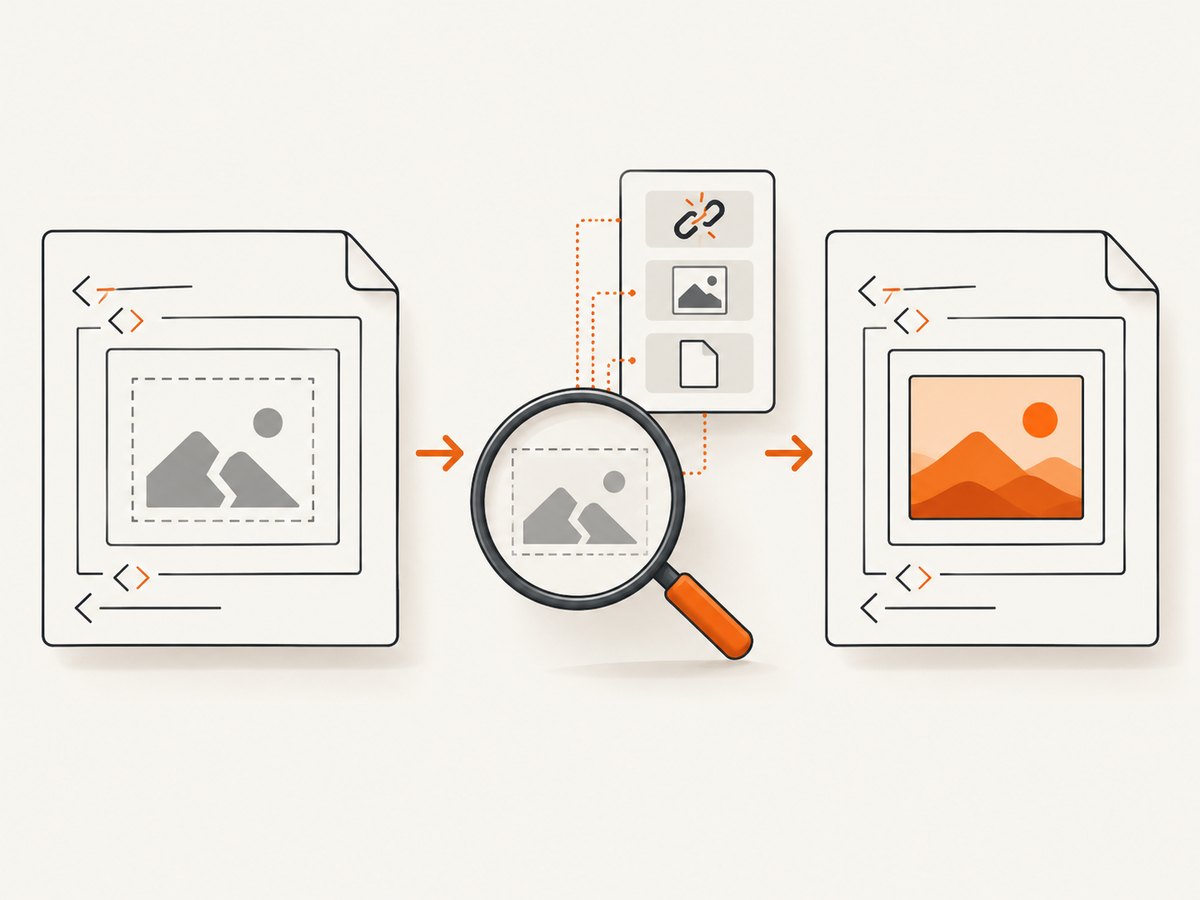
If vector sharpness is not essential and wkhtmltopdf cannot render the graphic reliably, convert the SVG to PNG or another suitable raster image with an SVG-capable tool, then reference that output from the HTML. This is a general engineering option, not a fix verified by the cited wkhtmltopdf issue reports. Render at a resolution appropriate to the graphic’s physical size in the PDF; check small text and fine lines at the final zoom or print size. Rasterization trades scalable vector output for a more predictable bitmap asset, and can increase file size at high resolutions.
Qt’s current documentation describes vector image support, including SVG, but it concerns Qt 6 and does not specify the behavior of wkhtmltopdf’s legacy bundled engine. Do not use it to infer support in your installed binary. See Qt’s vector image documentation and the wkhtmltopdf status page.
Evaluate another renderer for modern SVG requirements
If the document depends on SVG behavior that you cannot make reliable in the deployed wkhtmltopdf build, evaluate a maintained browser-based renderer using representative documents. The wkhtmltopdf project status page itself points readers toward a newer browser engine. Treat migration as a document-level change: compare CSS, fonts, headers and footers, pagination, page breaks, local and remote asset access, and deployment constraints. The cited sources do not provide a controlled benchmark across renderers, so select based on your own representative outputs rather than assumed speed or fidelity.
5. A reproducible diagnostic sequence
- Record the binary. Save
wkhtmltopdf --versionfrom the environment that makes the PDF. - Make a minimal HTML file. Include one SVG, explicit dimensions, and only the nested image that fails.
- Verify each resource. Resolve every relative path, check file permissions, and confirm remote resources are available to the conversion process.
- Compare routes. Test external
<img>, inline SVG, and<object>where applicable, changing only the route. - Check the complete PDF. Look for missing images and any layout or rendering changes elsewhere on the page.
- Choose the least costly viable fix. Keep a markup workaround if it passes, rasterize the specific asset if bitmap output is acceptable, or assess a renderer change if the required SVG behavior remains unsupported.
- Retest in deployment. Run the final document through the same binary, operating environment, paths, and permissions used in production.
6. Troubleshooting common symptoms
| Symptom | Likely cause to investigate | Next action |
|---|---|---|
| SVG is visible in a browser, but its nested image is absent in the PDF. | Different rendering engine behavior, inaccessible nested resource, or a feature interaction. | Record the wkhtmltopdf build; inspect the nested href; test a minimal example and alternate inclusion route. |
| Base64 encoding made no difference. | The failure may not be caused by a relative path or external fetch alone. | Check the SVG and renderer route; compare a simplified graphic. One report says base64 did not fix its case, so do not repeat encoding changes without a new reason. |
| Inline SVG shows the image but changes other elements. | The inline route changes rendering behavior for more than the nested image. | Compare the whole page. Keep inline markup only if all affected content remains acceptable; otherwise try rasterization or another renderer. |
An <object> renders blank. |
The object inclusion route may not work in the target build, or its referenced file or dimensions may be wrong. | Check the object URL, explicit dimensions, and resource access, then compare with <img> and inline markup. |
| A local image loads on a workstation but not in a service. | Different working directory, file permissions, local-file policy, or deployment paths. | Use paths valid for the service, check access as its running account, and consult the local-file settings. |
| The conversion finishes but content is missing. | A resource-load error may be handled in a way that does not make the missing asset obvious from the final process result. | Inspect stderr and the PDF itself; review the configured load-error behavior and verify the asset can be fetched independently. |
| The workaround looks fine on screen but poor in print. | Raster resolution may be too low for the final physical size. | Regenerate the raster at suitable resolution and inspect fine details at the intended print size, or preserve vector output with a renderer that handles the document. |
7. Performance, reliability, and cost considerations
The research sources provide no controlled performance or cost comparison among inline SVG, rasterization, and renderer migration. Measure with representative documents if conversion time, throughput, or output size matters. For rasterization, larger pixel dimensions can improve detail while increasing asset and PDF size. For a renderer change, include setup and maintenance of the rendering environment in the comparison, and verify all document features rather than timing a single SVG.
Reliability depends on reproducing the production inputs: same binary, files, URLs, permissions, and configuration. Pinning the renderer version and retaining a small set of representative PDFs can help detect output changes when the binary or document changes. This is a practical deployment recommendation, not a guarantee about wkhtmltopdf behavior. Avoid interpreting one issue report as proof that all installations share the same failure; the reports describe particular environments and routes.
8. Or skip the browser setup
If the immediate job is to capture a web page as an image or PDF rather than to render your own HTML document, ScreenshotNeo provides a website screenshot API and MCP server. It does not repair SVGs in an existing wkhtmltopdf document; it is an alternative for capturing a URL directly. The API accepts a URL and returns an image or PDF. See the ScreenshotNeo API documentation.
curl -G "https://api.screenshotneo.com/v1/shot" -d access_key=YOUR_API_KEY --data-urlencode url=https://stripe.com -o shot.webpimport requests
r = requests.get(
"https://api.screenshotneo.com/v1/shot",
params={"access_key": "YOUR_API_KEY", "url": "https://stripe.com"},
timeout=90,
)
open("shot.webp", "wb").write(r.content)const q = new URLSearchParams({ access_key: 'YOUR_API_KEY', url: 'https://stripe.com' });
const res = await fetch(`https://api.screenshotneo.com/v1/shot?${q}`);ScreenshotNeo removes cookie and consent banners, newsletter popups, and chat widgets before capture. Bot checks, blank pages, and failed loads are never billed; response headers report the page verdict and billing status. Its MCP server lets AI agents use screenshot tools. The free plan includes 1,000 screenshots a month with no card, and paid plans start at $5 for 3,000. Sign up for 1,000 free screenshots a month, with no card.
FAQ
Does wkhtmltopdf support every SVG feature?
The project identifies Qt WebKit as its rendering engine, and its status page describes that engine as old. The available sources do not establish support for every SVG feature; verify the specific graphic in the exact build you deploy.
Is inline SVG the recommended fix?
It is one route to test. A report found the nested image became visible when the SVG was inline, while other elements rendered improperly. Evaluate the complete output before adopting it.
Should I convert every SVG to PNG?
No general rule follows from the cited reports. Rasterize a specific graphic when bitmap output meets the quality needs and the target renderer does not handle it reliably; preserve vector output where scaling or fine detail requires it.
Does a newer Qt SVG guide describe wkhtmltopdf?
No. Qt 6 documentation is background on current Qt vector formats, not a specification for wkhtmltopdf’s older bundled Qt WebKit.


