How to Fix URL Images Missing in Syncfusion HTML-to-PDF Conversion
Fix missing URL images in Syncfusion HTML-to-PDF with base URLs, rendering delays, network checks, JavaScript, HTTPS and deployment settings.

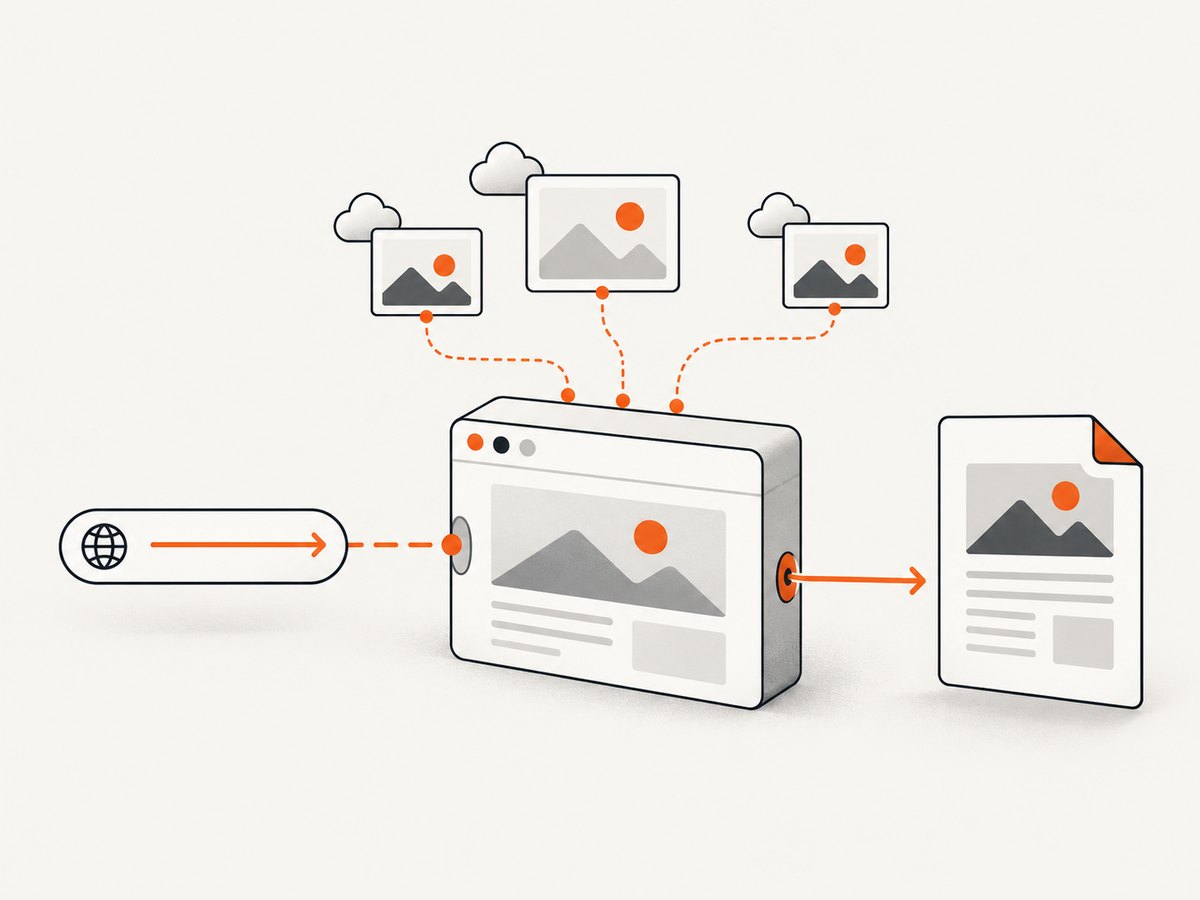
Most missing-image problems have one of three causes: the converter finishes before remote images load, relative image URLs have no valid base URL, or the conversion host cannot reach the image endpoint. Start by checking those conditions, then verify JavaScript, offline mode, HTTPS dependencies and deployment permissions.
1. Apply the quickest fix first
For a URL or HTML page that loads images remotely, configure Blink and add a delay before conversion:
using Syncfusion.HtmlConverter;
using Syncfusion.Pdf;

var htmlConverter = new HtmlToPdfConverter(HtmlRenderingEngine.Blink);
var settings = new BlinkConverterSettings
{
    // Start with a modest delay and increase it for slow or lazy-loaded pages.
    AdditionalDelay = 4000,
    EnableJavaScript = true,
    EnableOfflineMode = false
};

htmlConverter.ConverterSettings = settings;

PdfDocument document = htmlConverter.Convert("https://example.com/page");
document.Save("output.pdf");
document.Close(true);
Syncfusion examples use both 2,000 ms and 4,000 ms. The correct value depends on the page, image host, JavaScript and lazy-loading behavior. A delay only helps when the conversion process can otherwise reach the resources.
2. Use a valid base URL for HTML strings
When converting an HTML string, a relative path such as images/logo.png has no meaning unless you provide the directory or URL from which it should be resolved. Pass the resource root as baseURL.
using Syncfusion.HtmlConverter;
using Syncfusion.Pdf;

var html = @"
<!doctype html>
<html>
  <body>
    <h1>Invoice</h1>
    <img src='images/logo.png' alt='Company logo'>
  </body>
</html>";

var htmlConverter = new HtmlToPdfConverter(HtmlRenderingEngine.Blink);
htmlConverter.ConverterSettings = new BlinkConverterSettings
{
    AdditionalDelay = 2000,
    EnableJavaScript = true,
    EnableOfflineMode = false
};

// This directory contains the images/ folder referenced by the HTML.
var baseUrl = Path.GetFullPath("wwwroot");
PdfDocument document = htmlConverter.Convert(html, baseUrl);
document.Save("invoice.pdf");
document.Close(true);
If the HTML contains <img src="/images/logo.png">, pass a base URL whose host and path make that root-relative URL valid. For an absolute image URL, the base URL is not needed for that image, but it may still be required for relative stylesheets, scripts and fonts.
3. Choose the right input and rendering mode
| Input or condition | What to do |
|---|---|
| Public page URL | Confirm the converter host can resolve and fetch both the page and every image URL. Add AdditionalDelay for slow or lazy-loaded content. |
| HTML string with relative paths | Provide a valid baseURL pointing to the resource root. |
| Images inserted by JavaScript | Keep EnableJavaScript enabled and allow enough delay for the script to finish. |
| Images loaded from the internet | Keep EnableOfflineMode disabled. Offline mode prevents internet resources from loading. |
| HTTPS images with WebKit | Install the required OpenSSL assemblies for the target machine, or move to Blink after validating its deployment requirements. |
| Container or hosted deployment | Verify Chromium files, executable permissions, writable temporary storage and hosting support for launching Blink. |
4. Prove that the conversion host can reach the image
A page working in your desktop browser does not prove that the server running Syncfusion can fetch the same resources. Test from the same machine, container identity or hosting environment used by the application.
- Resolve the page and image host with DNS.
- Check outbound firewall and proxy rules.
- Follow redirects and verify certificate trust.
- Confirm the image does not require authentication, a session cookie or a special
User-Agent. - Check hotlink protection, referrer rules and signed URL expiry.
- Open the page in Chrome print preview and compare the result with the generated PDF.
Use an absolute image URL temporarily to separate URL-resolution problems from network problems:
<img src="https://cdn.example.com/assets/logo.png" alt="Logo">If the absolute URL also fails, investigate reachability, authentication, certificates or rendering timing.
5. Handle lazy loading and client-rendered images
Many sites do not put the final image URL in src until JavaScript runs, or use data-src, an intersection observer or a framework component. In those cases:
- Enable JavaScript.
- Increase
AdditionalDelaygradually. - Make the page scroll or otherwise trigger lazy loading before conversion when your rendering configuration supports injected scripts.
- Prefer a server-rendered image URL for PDF generation when you control the page.
- Ensure the image is not hidden by a consent dialog or an application loading state.
A longer delay cannot fix an image request that is blocked, unauthorized or never triggered.
6. Check offline mode and HTTPS dependencies
Offline mode
With EnableOfflineMode enabled, online resources are not fetched. A page can therefore produce an empty image area or an otherwise incomplete PDF even though the same URL works in Chrome. Disable offline mode for network images, or download the assets yourself and reference local files with a correct base URL.
WebKit and OpenSSL
If the application uses WebKit and only HTTPS images disappear, missing OpenSSL assemblies on the conversion machine are a likely cause. Install the assemblies required by your Syncfusion version and operating system, then restart the application. If you switch to Blink, validate Chromium binaries and permissions in the deployment environment.
7. Deployment checklist for Blink
- Runtime files: copy the Blink runtime with the application or set
BlinkPathto a valid external location. - Execute permission: the process must be able to launch Chromium; Linux deployments may require executable permission on
chromeandchrome-wrapper. - Temporary storage: Chromium needs a readable and writable temporary directory.
- Sandbox and hosting limits: some managed hosting plans prevent Chromium from starting or restrict required dependencies.
- Outbound access: allow DNS, HTTPS and any proxy configuration needed by the page and image CDN.
- Architecture: use runtime binaries compatible with the operating system and process architecture.
Capture the converter’s exception and the deployment environment details together. A local success followed by a hosted failure usually points to binaries, permissions, temporary storage or network policy rather than HTML markup.
8. Diagnose the failure by symptom
| Symptom | Likely cause | Fix |
|---|---|---|
| Every remote image is blank | Offline mode, blocked egress or an unreachable host | Disable offline mode and test the image URL from the conversion host. |
| Only relative images are blank | Missing or incorrect base URL | Pass the directory or URL containing the referenced resources. |
| Some images appear intermittently | Conversion races slow requests or lazy loading | Increase the delay, remove lazy loading for print output or wait for the page’s ready state. |
| Images work in Chrome but not in the PDF | Different network identity, cookies, headers, certificate trust or JavaScript timing | Reproduce from the server and compare request requirements. |
| HTTPS images fail only with WebKit | Missing OpenSSL assemblies | Install the required assemblies or validate a Blink migration. |
| Works locally, fails after publishing | Chromium cannot launch, files are missing, permissions are wrong or temp storage is read-only | Check BlinkPath, copied binaries, execute permissions and writable temp paths. |
| Image URL returns a login page | Authentication or cookies are required | Use an accessible asset URL or configure the request’s authentication and cookies where supported. |
9. Performance, reliability and cost considerations
- Delay tuning: start around 2 seconds, measure the slowest normal page, then use the smallest delay that consistently includes images. A fixed 4-second delay is a troubleshooting starting point, not a universal requirement.
- Asset size: large images increase download and PDF rendering time. Use appropriately sized assets and modern compression where image quality permits.
- Parallel conversions: limit concurrency according to available CPU, memory and Chromium process capacity. Excessive parallelism can cause timeouts or resource contention.
- Retries: retry transient DNS, connection and CDN failures with a bounded backoff. Do not blindly retry deterministic 401, 403 or certificate errors.
- Determinism: use stable image URLs, fixed data, explicit fonts and a known timezone when reproducible PDFs matter.
- Observability: log the source URL, image URLs, elapsed conversion time, rendering engine, delay and exception. Redact credentials and private query parameters.
- Cost: the converter’s runtime cost is dominated by browser startup, network transfer and CPU or memory use. Reuse a configured converter where supported and avoid unnecessary full-page work.
10. Or skip the browser setup
If your goal is a clean screenshot or PDF of a URL rather than maintaining Chromium infrastructure, ScreenshotNeo provides a single HTTP request. See the ScreenshotNeo API documentation for all options.
curl -G "https://api.screenshotneo.com/v1/shot" -d access_key=YOUR_API_KEY --data-urlencode url=https://stripe.com -o shot.webpimport requests
r = requests.get("https://api.screenshotneo.com/v1/shot", params={"access_key": "YOUR_API_KEY", "url": "https://stripe.com"}, timeout=90)
open("shot.webp", "wb").write(r.content)const q = new URLSearchParams({ access_key: 'YOUR_API_KEY', url: 'https://stripe.com' });
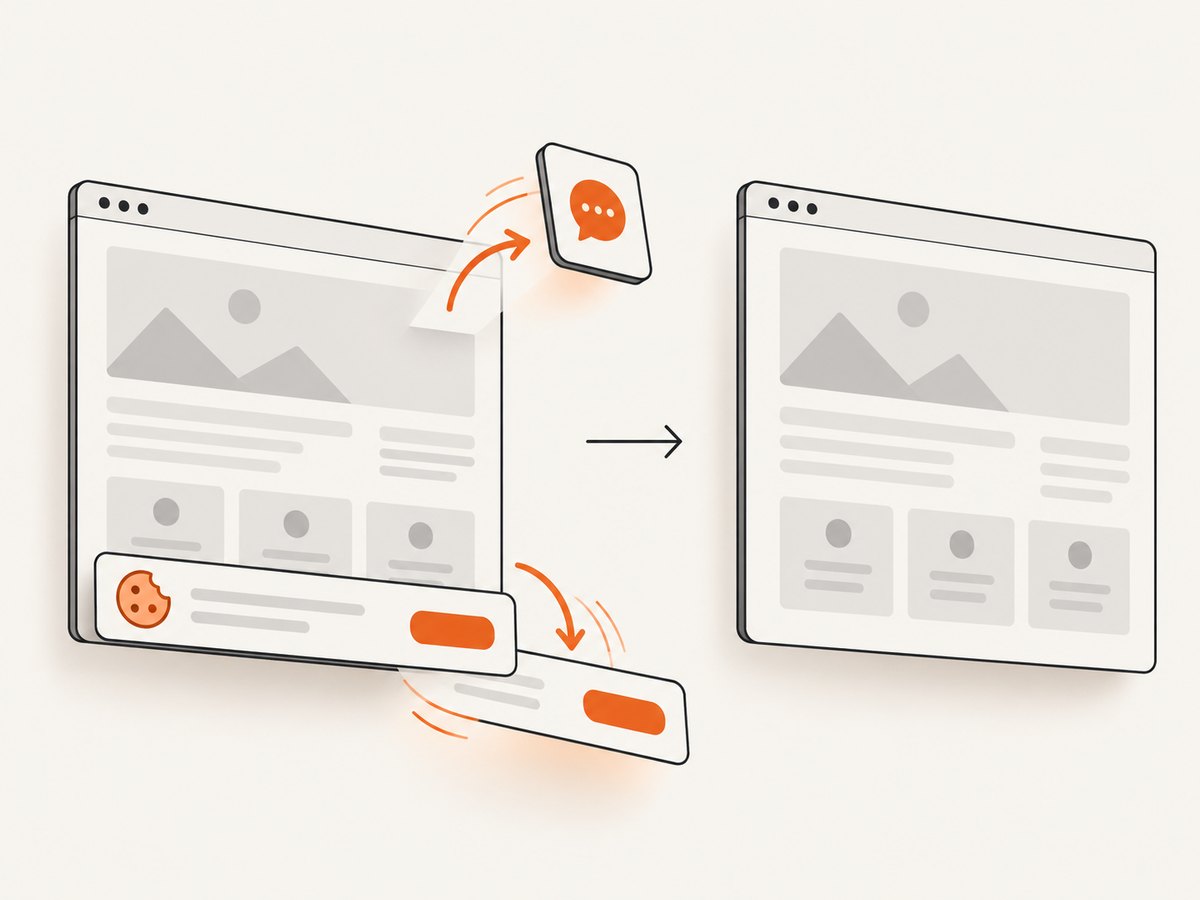
const res = await fetch(`https://api.screenshotneo.com/v1/shot?${q}`);ScreenshotNeo accepts cookie and consent banners before capture and removes more than 60 known consent platforms, newsletter popups and chat widgets. Bot checks, blank pages, timeouts, failed loads and cache hits are not billed, and response headers identify the page verdict and billing result. Its MCP server lets Claude, Cursor and other MCP clients call take_screenshot, get_page_info and capture_pdf. The free plan includes 1,000 screenshots per month with no card; paid plans start at $5 for 3,000.
Create a free ScreenshotNeo account and start with 1,000 screenshots per month at no cost.
11. Short FAQ
Should I always use a 4-second delay?
No. Use it as a troubleshooting baseline, then reduce it after measuring the page’s actual image and JavaScript load time.
Can a base URL repair an inaccessible image host?
No. A base URL resolves relative paths. The conversion host must still be able to reach the resulting URL.
Why does converting a URL differ from converting an HTML string?
A URL gives the renderer an origin for relative resources. An HTML string needs an explicit base URL so relative images, stylesheets and scripts can resolve.
Does offline mode make conversion more reliable?
Only for self-contained local content. It prevents internet resources from loading, so it is unsuitable for remote images unless you download them first.
When should I choose ScreenshotNeo?
Choose it when you want a URL-to-image or URL-to-PDF request without packaging and operating a browser runtime, especially when consent UI and failed-page billing behavior matter.


