How to Fix “Taking Screenshots Is Not Allowed” in Playwright
Resolve Playwright’s “taking screenshots is not allowed” error by separating API, path, browser policy, and remote execution problems.
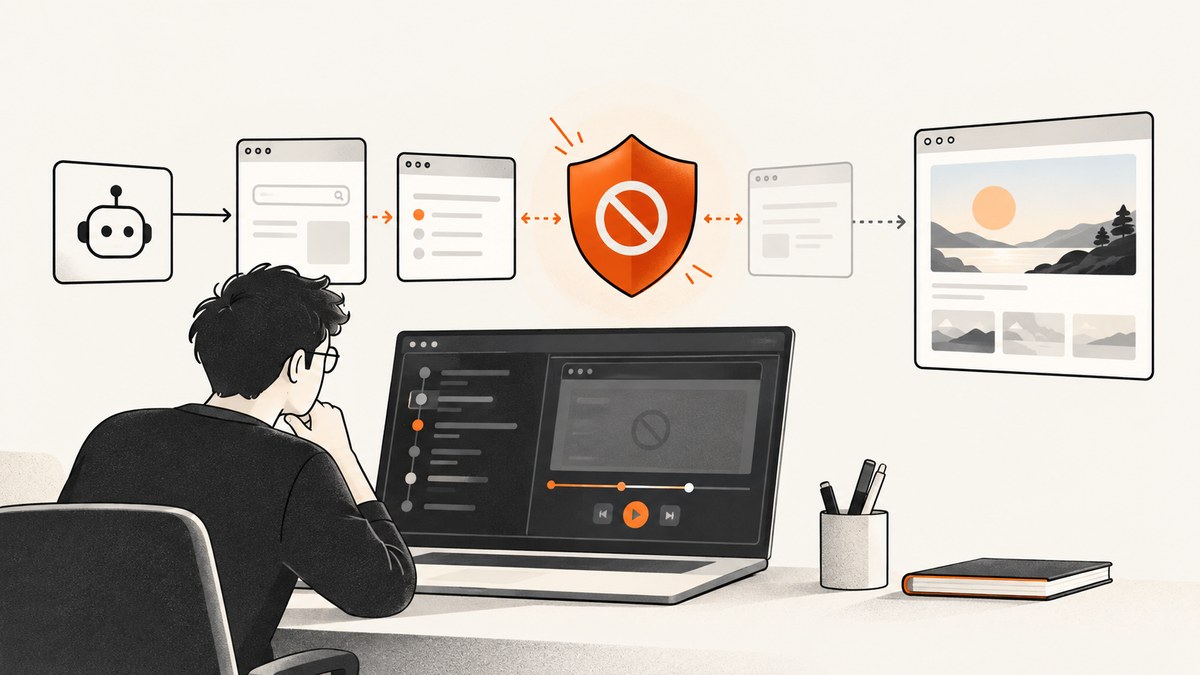
Short answer: Playwright supports screenshots. Start with await page.screenshot({ path: 'screenshot.png' });. If the runtime says screenshots are not allowed, the restriction usually comes from the browser profile, an enterprise policy, an extension, kiosk mode, a remote-browser provider, or a launch setting. A path or permission error is a different problem and needs a different fix.
This guide gives you a repeatable diagnosis, runnable examples, policy checks, CI guidance, and an API alternative when you do not control the browser environment.
1. Confirm that your Playwright call is valid
Use the smallest possible test first. Save a PNG in a directory your process can write to:
import { chromium } from 'playwright';

(async () => {
  const browser = await chromium.launch();
  const page = await browser.newPage({ viewport: { width: 1280, height: 720 } });
  await page.goto('https://example.com', { waitUntil: 'networkidle' });
  await page.screenshot({ path: 'screenshot.png' });
  await browser.close();
})();
page.screenshot() is a supported Page API and returns the captured image buffer. The path option writes that buffer to disk. See the official screenshot API reference.
For CommonJS:
const { chromium } = require('playwright');

(async () => {
  const browser = await chromium.launch();
  const page = await browser.newPage();
  await page.goto('https://example.com');
  await page.screenshot({ path: 'screenshot.png' });
  await browser.close();
})();
Check the error before changing settings
Copy the complete exception, including the call site and browser output. “Taking screenshots is not allowed” points toward an environment restriction. Errors such as ENOENT, EACCES, “directory does not exist,” or a read-only filesystem point toward output-path handling. A timeout may mean the page never reached the requested state.
2. Run a clean control test
A clean control tells you whether the problem is in your code or in the environment that launches the browser.
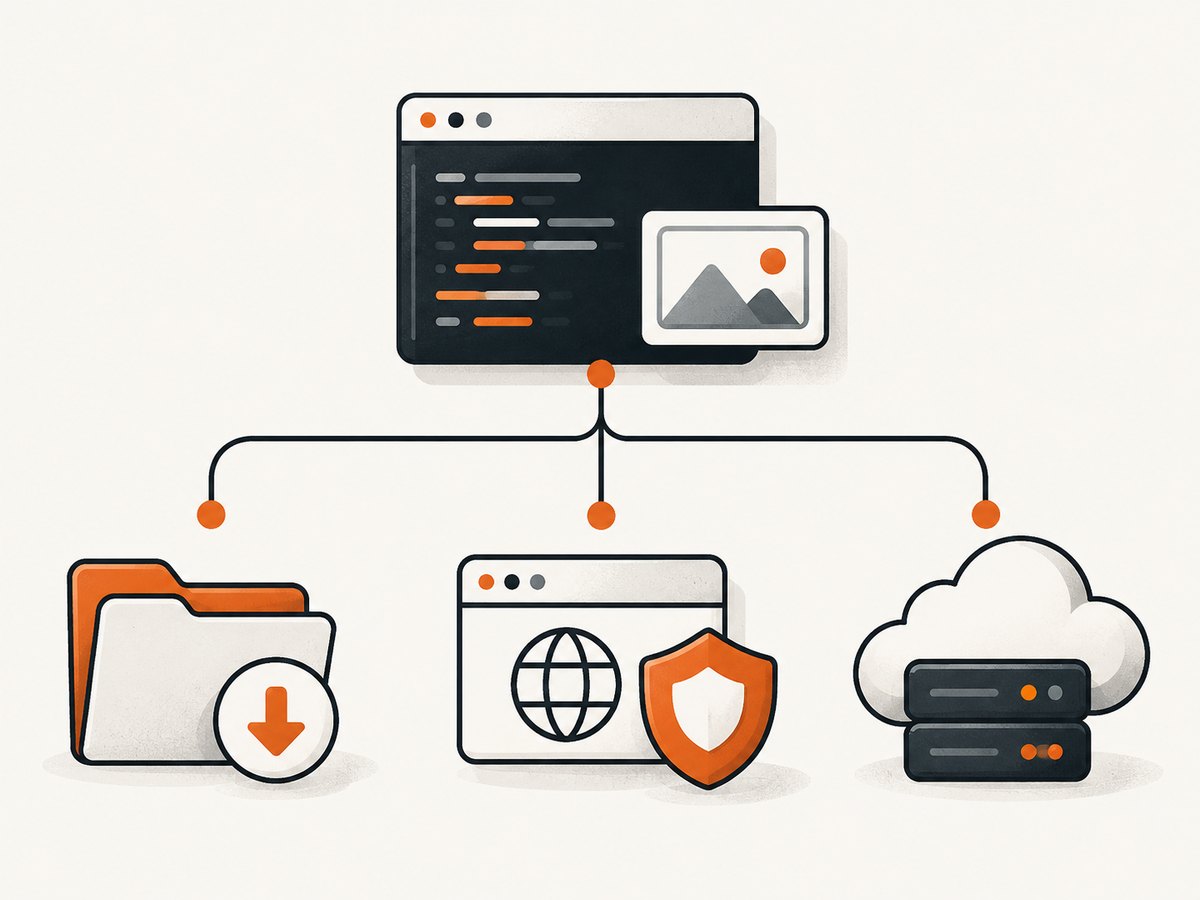
- Use a Playwright-managed browser installed by your project.
- Launch a fresh browser context with no persistent profile.
- Remove extensions and custom launch arguments.
- Capture
https://example.comto a known writable path. - Run the same script locally and in the failing CI or remote environment.
import { chromium } from 'playwright';

const browser = await chromium.launch({
  headless: true,
  // Keep args empty for the control test.
});
const context = await browser.newContext();
const page = await context.newPage();
await page.goto('https://example.com', { waitUntil: 'domcontentloaded' });
const buffer = await page.screenshot();
console.log(`Captured ${buffer.length} bytes`);
await browser.close();
If this succeeds, compare the failing run’s browser binary, profile, extensions, launch flags, provider capabilities, and user account. If it fails in the clean control too, verify the Playwright installation and browser binaries before investigating policy.
3. Check Chromium enterprise policy
Chromium has an enterprise policy named DisableScreenshots. When enabled, screenshot actions can be blocked. When disabled or unspecified, the policy permits capture. Managed devices can also apply broader data-loss-prevention rules that affect a particular profile, origin, or remote session. Review the Chromium policy documentation and the policy report on the machine running the browser.
On a managed Chromium installation, open the browser’s policy reporting page and search for DisableScreenshots. Record:
- Whether the policy is present and enabled.
- Which source set it: machine, user, cloud, or another management layer.
- Whether the failing run uses the same profile and browser binary as your manual check.
- Whether an organization DLP rule names the site, project, or output destination.
If an administrator enabled the policy, changing Playwright code will not override it. Ask the browser or device administrator to permit screenshots for the approved test, or use an approved environment. Do not bypass employer, school, assessment, DRM, or customer controls.
4. Remove intentional blockers
Extensions and persistent profiles
Extensions can intercept capture commands or enforce organization rules. Test with a new context and no extensions. A persistent context may inherit policy, cookies, permissions, and managed settings that your normal test context does not.
Kiosk and custom launch flags
Review every argument passed to chromium.launch() or to an external browser. Kiosk wrappers, hardened containers, and provider-specific flags can disable capabilities. Remove one custom argument at a time and relaunch after each change.
Externally connected browsers
When you connect over CDP or use a grid, Playwright is not the only controller. The service may deliberately disable screenshots or expose only selected output modes. Reproduce the test with a Playwright-managed browser. If that works, consult the service owner’s capability and security settings.
5. Test each screenshot mode independently
Different failures reveal different causes.
| Mode | Example | What it isolates |
|---|---|---|
| Viewport file | page.screenshot({ path: 'view.png' }) |
Basic capture and filesystem output |
| Buffer | const b = await page.screenshot() |
Capture without filesystem permissions |
| Full page | page.screenshot({ path: 'full.png', fullPage: true }) |
Document-size layout and scrolling |
| Element | page.locator('.header').screenshot({ path: 'header.png' }) |
Locator resolution and element visibility |
const element = page.locator('.header');
await element.waitFor({ state: 'visible' });
await element.screenshot({ path: 'header.png', type: 'png' });

await page.screenshot({
  path: 'clipped.webp',
  type: 'webp',
  quality: 80,
  clip: { x: 0, y: 0, width: 800, height: 600 },
  scale: 'css',
  timeout: 30_000
});
If buffer capture works but a file capture fails, fix the path, working directory, or permissions. If every mode produces the prohibition, investigate policy or remote capability. If only full-page capture fails, check page size, lazy content, and timeout settings.
6. Fix output paths and filesystem errors
Use an absolute path or create the output directory before capture. In CI, workspace paths and temporary directories differ from your local machine.
import fs from 'node:fs/promises';
import path from 'node:path';

const outputDir = path.resolve('artifacts', 'screenshots');
await fs.mkdir(outputDir, { recursive: true });
await page.screenshot({ path: path.join(outputDir, 'home.png') });
Use buffer mode when an artifact uploader expects bytes:
const image = await page.screenshot({ type: 'png' });
// Pass `image` to your CI artifact client or object-storage SDK.
Check that the process user can write to the directory, that the path is not a directory, and that the filesystem has space. These checks address file errors; they cannot override a browser policy.
7. CI and remote-browser checklist
- Print the Playwright version and browser engine in the job log.
- Confirm the browser binaries were installed for the same user that runs the job.
- Use a writable workspace or temporary directory.
- Start with headless, Playwright-managed Chromium and no extensions.
- Archive the exact launch arguments and provider configuration.
- Upload buffers or files as CI artifacts so you can inspect partial success.
- Set a realistic screenshot timeout and wait for the page state you need.
- Run a minimal control page before testing your application URL.
For remote execution, ask whether screenshots are supported for the selected plan, browser, origin, and session type. A provider can reject capture even though the Playwright API is correct.
8. Timing, full-page, and dynamic-content edge cases
A screenshot call can be valid while the result is blank or incomplete. Wait for a selector, a stable load state, or an application-specific readiness signal.
await page.goto('https://example.com', { waitUntil: 'domcontentloaded' });
await page.locator('main').waitFor({ state: 'visible' });
await page.screenshot({ path: 'ready.png', fullPage: true, timeout: 60_000 });
For lazy-loaded pages, scroll before a full-page capture, or use the application’s own “content ready” signal. Element screenshots require a matching locator and a visible element. Cross-origin frames, animations, web fonts, and consent dialogs can change pixels without causing a permission error; stabilize them separately with test fixtures or page-level controls.
9. Troubleshooting table
| Symptom | Likely cause | Fix |
|---|---|---|
| “Taking screenshots is not allowed” in every mode | Enterprise policy, DLP rule, extension, kiosk, or provider restriction | Run the clean control; inspect policy and provider capabilities; request authorized access |
| Works locally, fails in CI | Different browser, profile, flags, user, or remote service | Log versions and arguments; compare with a Playwright-managed clean run |
ENOENT or missing file |
Parent directory does not exist | Create it with fs.mkdir(..., { recursive: true }) |
EACCES or read-only filesystem |
Process cannot write to destination | Choose a writable workspace or use buffer mode |
| Element screenshot times out | Locator does not resolve or element is hidden | Check the selector and wait for visibility |
| Full-page screenshot times out | Very long page, ongoing resources, or an unstable app | Wait for readiness, increase timeout, or capture a defined clip |
| Blank or stale image | Capture happened before rendering completed | Wait for a selector, fonts, data, or an app readiness event |
10. Performance, reliability, and cost considerations
Viewport captures are usually cheaper to process than very tall full-page images. Element and clipped captures reduce pixel count and artifact size. Reuse a browser when taking many screenshots, but create isolated contexts when cookies, permissions, or policies must not leak between tests. Keep screenshots deterministic by fixing viewport, device scale, timezone, locale, and test data.
For reliable jobs, retry only transient navigation or provider failures. Do not blindly retry a policy rejection; it will continue until the controlling setting changes. Store the original error, browser metadata, and URL with each failed artifact so an administrator can reproduce the issue.
11. Or skip the browser setup
If your goal is a clean URL screenshot and you do not need to manage a browser, ScreenshotNeo provides a single HTTP request. Its cleanup step accepts cookie or consent banners and removes 60+ known consent platforms, newsletter popups, and chat widgets; each step can be turned off. Bot checks, blank pages, timeouts, failed loads, and cache hits are not billed, and response headers identify the page verdict and billing result.

See the ScreenshotNeo API documentation for all options, including full-page and element capture, device presets, custom CSS and JavaScript, waits, request blocking, headers, cookies, user agents, timezone, geolocation, PDFs, caching, signed links, asynchronous jobs, bulk capture, and usage reporting.
cURL
curl -G "https://api.screenshotneo.com/v1/shot" \
  -d access_key=YOUR_API_KEY \
  --data-urlencode url=https://stripe.com \
  -o shot.webp
Python
import requests

r = requests.get(
    "https://api.screenshotneo.com/v1/shot",
    params={"access_key": "YOUR_API_KEY", "url": "https://stripe.com"},
    timeout=90,
)
r.raise_for_status()
open("shot.webp", "wb").write(r.content)
Node.js
const q = new URLSearchParams({
  access_key: 'YOUR_API_KEY',
  url: 'https://stripe.com'
});
const res = await fetch(`https://api.screenshotneo.com/v1/shot?${q}`);
if (!res.ok) throw new Error(`HTTP ${res.status}`);
const bytes = Buffer.from(await res.arrayBuffer());
require('node:fs').writeFileSync('shot.webp', bytes);
ScreenshotNeo also provides an MCP server with take_screenshot, get_page_info, and capture_pdf for Claude, Cursor, and other MCP clients. The Free plan includes 1,000 screenshots per month with no card; paid plans start at $5 for 3,000 screenshots. Create a free ScreenshotNeo account.
12. FAQ
Does Playwright require a special permission to call page.screenshot()?
No. It is a documented Page API. A prohibition message usually comes from the browser or execution service around Playwright.
Can a JavaScript flag override DisableScreenshots?
No. An administrator-controlled policy must be changed by the authorized owner of that environment.
Why does buffer capture help diagnose the issue?
It removes filesystem output from the test. If the buffer succeeds, investigate the path and permissions rather than screenshot policy.
Should I use a persistent context in CI?
Only when you need its saved state. A fresh context is easier to reason about because it avoids inherited extensions, cookies, permissions, and profile policy.
When is an API capture service a better fit?
Use one when you need repeatable URL captures without maintaining browser binaries, profiles, extensions, or remote-browser policy. ScreenshotNeo is designed for that workflow and reports whether a response was billed.


