How to Fix Tkinter Pyscreenshot Scripts After PyInstaller Compilation
Fix missing imports, Tcl/Tk files, bundled resources and screenshot backends when a Tkinter pyscreenshot app fails after PyInstaller.
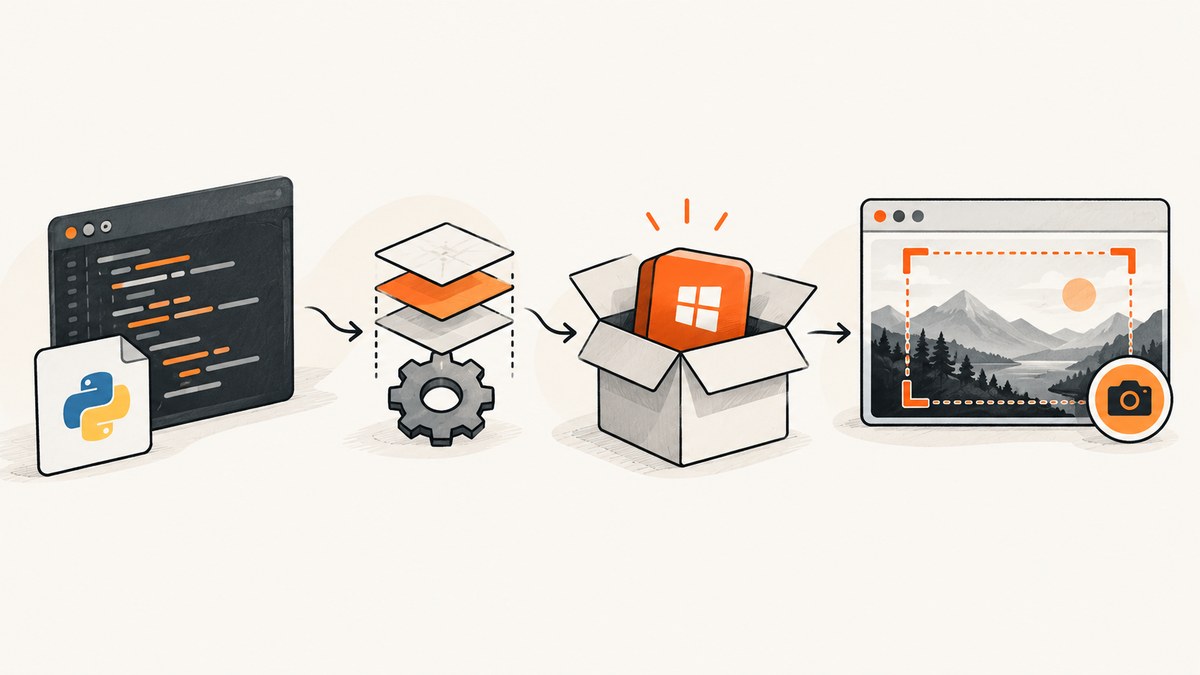
A Tkinter script that uses pyscreenshot can work from Python and fail after PyInstaller because the frozen application has different imports, resource paths, Tcl/Tk files and screenshot-backend requirements. Diagnose a visible one-folder build first, then add hidden imports and data files, verify the target display backend, and only then move to a one-file executable.
1. Reproduce the failure with diagnostics enabled
Build and run the application from the same virtual environment used to install pyscreenshot and PyInstaller:
python --version
python -m pip show pyinstaller pyscreenshot pillow mss
pyinstaller --onedir --console app.py
cd dist/app
./app
On Windows, run dist\\app\\app.exe from Command Prompt or PowerShell. Keep --console enabled so the complete traceback remains visible. PyInstaller recommends getting a one-folder build working before attempting one-file packaging because one-file mode adds extraction and path behavior.
2. Confirm the source program and display session
Before changing the spec file, verify that the source program works in the exact environment and desktop session where the compiled program will run.
- Run
python app.pyfrom the build environment. - Record the Python, PyInstaller, pyscreenshot, Pillow and MSS versions.
- Record the operating system and whether the session uses X11 or Wayland.
- Run a minimal capture without Tkinter to separate GUI problems from backend problems.
import pyscreenshot as ImageGrab

image = ImageGrab.grab()
image.save("diagnostic.png")
print(image.size)
If this fails from Python, fix the backend or desktop permissions before packaging. If it succeeds from Python but fails from the executable, continue with the packaging checks below.
3. Make dynamic imports visible to PyInstaller
PyInstaller analyzes imports it can see statically. Packages that select a backend dynamically can produce a working source script but a frozen program with ModuleNotFoundError or “no backend available”. Start with the smallest missing module reported in the build warnings.
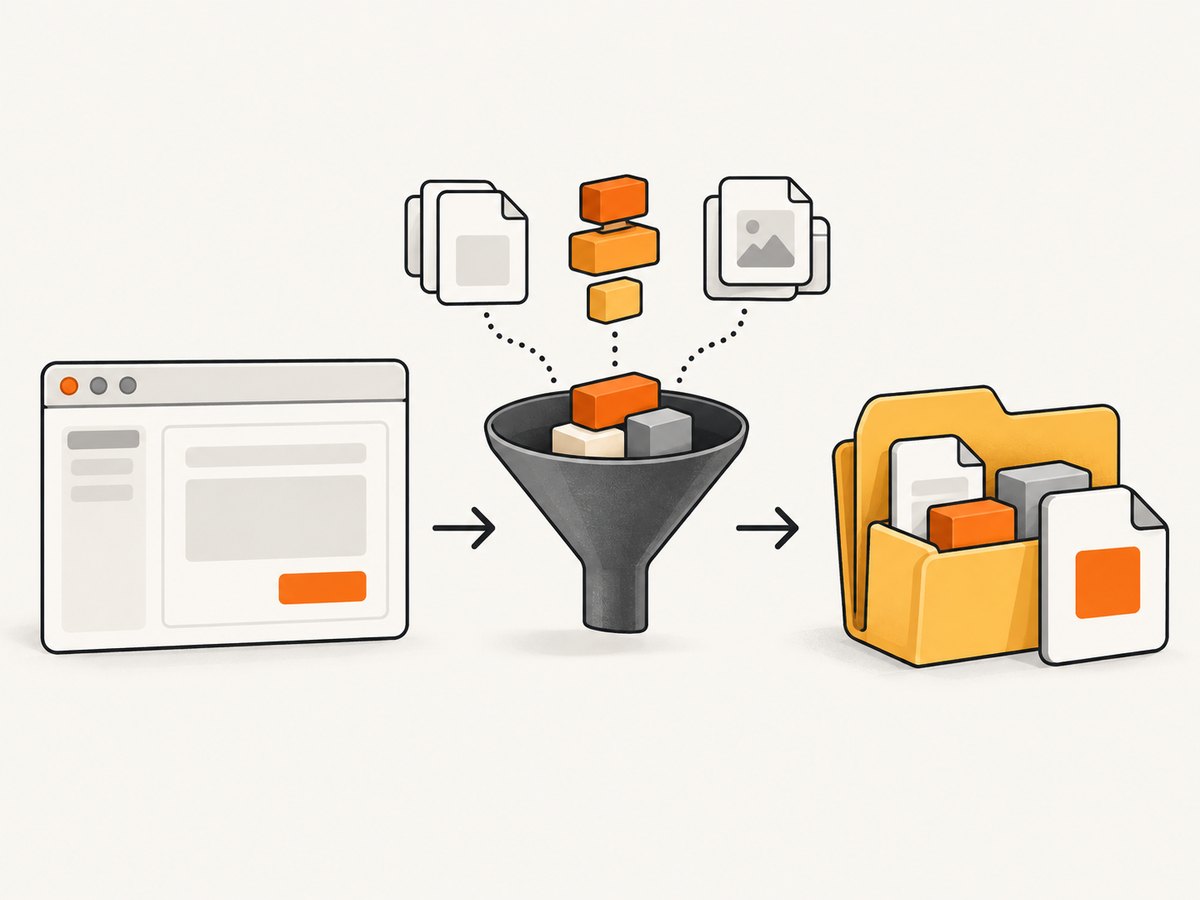
pyinstaller --onedir --console \\
  --hidden-import=pyscreenshot \\
  --hidden-import=mss \\
  app.py
Do not automatically collect every module unless the warning evidence requires it. A broad collection increases the bundle and makes it harder to identify the actual dependency. When several pyscreenshot backends are selected dynamically, a spec file is easier to maintain:
from PyInstaller.utils.hooks import collect_submodules

hiddenimports = collect_submodules("pyscreenshot")

a = Analysis(
    ["app.py"],
    hiddenimports=hiddenimports,
    datas=[],
    binaries=[],
)

pyz = PYZ(a.pure)
exe = EXE(pyz, a.scripts, a.binaries, a.datas, name="app", console=True)
coll = COLLECT(exe, a.binaries, a.zipfiles, a.datas, name="app")
Use the generated spec as the starting point for your project and keep only the imports that your installed pyscreenshot version needs.
4. Bundle icons, configuration and other data
Python imports are not the only files that disappear in a frozen build. Icons, templates, CSS, default configuration and other non-Python files must be declared explicitly.
pyinstaller --onedir --console \\
  --add-data "assets;assets" \\
  --add-data "config/default.json;config" \\
  app.py
The separator in --add-data is ; on Windows and : on macOS and Linux. In a spec file, declare the same files in datas:
a = Analysis(
    ["app.py"],
    datas=[
        ("assets", "assets"),
        ("config/default.json", "config"),
    ],
)
Native libraries or external files that are not Python data belong in binaries or a --add-binary option. Only add a binary when the traceback or build warnings show that it is required.
5. Resolve resources from the frozen bundle
Relative paths based on the current working directory are unreliable. In one-file mode, PyInstaller expands bundled content into a temporary _MEI... directory. Resolve read-only resources from the executable bundle and write output to a user-writable directory.
from pathlib import Path
import sys


def resource_path(name: str) -> Path:
    root = Path(getattr(sys, "_MEIPASS", Path(__file__).resolve().parent))
    return root / name


icon_file = resource_path("assets/icon.png")
config_file = resource_path("config/default.json")
Use resource_path("assets/icon.png") with tk.PhotoImage or Image.open. Save screenshots and logs outside the bundle, for example under the user’s home or application-data directory:
from pathlib import Path

output_dir = Path.home() / "my-screenshot-app"
output_dir.mkdir(parents=True, exist_ok=True)
image.save(output_dir / "capture.png")
6. Select and package a screenshot backend
pyscreenshot wraps multiple capture strategies. Its available choices include Pillow, MSS, scrot, xdg-desktop-portal, GNOME D-Bus, Grim, Quartz and screencapture. At least one suitable backend must be installed and usable by the target desktop session.
import pyscreenshot as ImageGrab

# Choose a backend supported by your installed pyscreenshot version.
image = ImageGrab.grab(backend="pil")
image.save("capture.png")
Try mss, scrot or another backend documented by the version installed in your environment. Explicit selection is useful while debugging because it tells you which dependency failed.
Linux X11
scrot is a common external X11 dependency. Verify it can be called from the same user and display session as the executable. Pillow’s documented Linux fallbacks include tools such as gnome-screenshot, grim or spectacle in suitable environments.
Linux Wayland
Wayland is a separate deployment case. X11 utilities such as scrot are not a general Wayland solution. Test the portal, GNOME D-Bus or Grim paths supported by your desktop and confirm that the compositor grants screenshot access.
macOS and Windows
Prefer a Python or native backend that is supported by the target OS. Build and test on the operating system where the executable will run; a backend available on the build machine may not exist on the deployment machine.
7. Use a minimal Tkinter application while isolating packaging
import tkinter as tk
from pathlib import Path
import pyscreenshot as ImageGrab


def capture():
    output = Path.home() / "my-screenshot-app" / "capture.png"
    output.parent.mkdir(parents=True, exist_ok=True)
    image = ImageGrab.grab(backend="pil")
    image.save(output)
    status.config(text=f"Saved {output}")


root = tk.Tk()
root.title("Screenshot test")
status = tk.Label(root, text="Ready")
status.pack(padx=20, pady=10)
tk.Button(root, text="Capture", command=capture).pack(pady=10)
root.mainloop()
Package this small program first. Once it works, add your application’s windows, configuration and plugins one piece at a time.
8. Move from one-folder to one-file
After the one-folder executable captures successfully with the console visible, build one-file mode:
pyinstaller --onefile --console \\
  --hidden-import=pyscreenshot \\
  --add-data "assets;assets" \\
  app.py
Run the one-file executable from a terminal and repeat the resource and screenshot tests. Keep --console until startup and capture behavior are stable. Add --windowed only after you have another way to record exceptions.
9. Error-to-fix map
| Symptom | Likely cause | Fix |
|---|---|---|
ModuleNotFoundError after compilation |
Dynamic import was not detected | Add the named module with --hidden-import or hiddenimports, then rebuild. |
_tkinter.TclError: couldn't find a usable init.tcl |
Tcl/Tk runtime files are missing or the Python/Tk installation is unsupported | Inspect build warnings, verify Tk works in the source environment, rebuild with a supported Python distribution and keep the console visible. |
FileNotFoundError for an icon or config |
Non-Python data was not bundled, or code uses the working directory | Add it with --add-data or datas and resolve it through sys._MEIPASS or the executable directory. |
| “No backend available” | No usable pyscreenshot backend is installed in the target environment | Install or package a suitable backend, then select it explicitly while diagnosing. |
| External-command error for scrot | The command is absent, not executable or unavailable in the current display session | Install it for X11, verify it from the same shell/session, or use MSS, Pillow or a Wayland-appropriate backend. |
| Blank capture or permission failure on Wayland | An X11 backend is being used in a Wayland session | Use the portal, GNOME or Grim path documented for that environment and confirm desktop permission. |
| Executable opens and closes immediately | The traceback is hidden or startup fails before the window appears | Rebuild with --console, launch from a terminal and capture the full exception. |
| Works in one-file but not from a shortcut | The shortcut supplies a different working directory, environment or display session | Use bundle-safe paths, write logs to a user directory and launch from the correct desktop session. |
10. A repeatable clean-build checklist
- Build from the same virtual environment used to run the source script.
- Delete old
build,distand spec outputs when testing a packaging change. - Read the PyInstaller warning file for hidden imports.
- Test
--onedir --consolebefore--onefile. - Declare every icon, template and configuration file.
- Resolve bundled resources from the frozen path.
- Write screenshots and logs to a user-writable directory.
- Verify the backend on the actual OS and display server.
- Keep console diagnostics until the executable is proven.
11. Performance, reliability and distribution notes
One-file startup includes extraction to a temporary directory, so one-folder mode is useful for diagnosis and can avoid extraction work for repeated launches. Screenshot speed depends on the selected backend, display server, screen size and image encoding; do not generalize benchmark numbers from another machine. External commands add installation and PATH requirements, while Python backends reduce shell dependencies but still require testing on the target compositor.
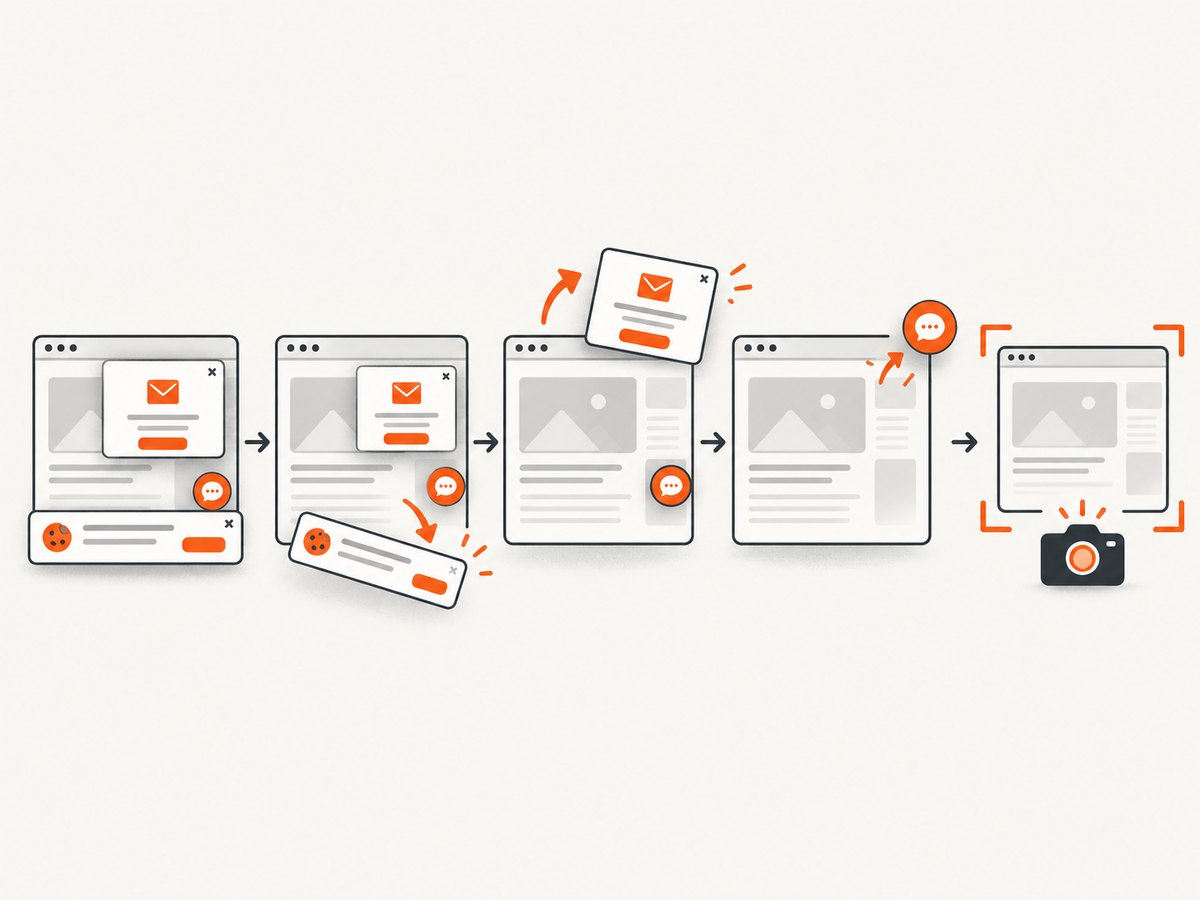
For reliable releases, build separately for each operating system, test under the same X11 or Wayland session used by customers, log backend and exception details, and keep the selected backend explicit until deployment is stable. A frozen executable cannot grant desktop permissions that the session itself denies.
Or skip the browser setup
If your application only needs a website image rather than the user’s local desktop, ScreenshotNeo provides a single API request. The API documentation lists the options and response headers.
curl -G "https://api.screenshotneo.com/v1/shot" -d access_key=YOUR_API_KEY --data-urlencode url=https://stripe.com -o shot.webpimport requests
r = requests.get("https://api.screenshotneo.com/v1/shot", params={"access_key": "YOUR_API_KEY", "url": "https://stripe.com"}, timeout=90)
open("shot.webp", "wb").write(r.content)const q = new URLSearchParams({ access_key: 'YOUR_API_KEY', url: 'https://stripe.com' });
const res = await fetch(`https://api.screenshotneo.com/v1/shot?${q}`);Cookie and consent banners are accepted and removed before capture, along with more than 60 known consent platforms, newsletter popups and chat widgets. Bot checks, blank pages, timeouts, failed loads and cache hits are not billed, and the response identifies the result with X-Page-Verdict and X-Billed headers. An MCP server lets Claude, Cursor and other MCP clients call take_screenshot, get_page_info and capture_pdf. The Free plan includes 1,000 screenshots per month without a card; paid plans start at $5 for 3,000 shots. Create a free ScreenshotNeo account.
FAQ
Why does PyInstaller find Tkinter but not pyscreenshot?
Tkinter has PyInstaller support, while pyscreenshot may select backends dynamically. Add only the missing backend or module shown in the warnings.
Should I always use collect_submodules("pyscreenshot")?
No. Use it when several dynamic imports are required and then reduce the list after you identify the working backend.
Can one-file packaging fix a missing screenshot backend?
No. One-file changes extraction and paths; it does not install an OS utility, grant Wayland permission or provide a backend that is absent.
Where should captured files be saved?
Save them to a user-writable application-data or home directory, never inside the read-only temporary bundle.


